If you spend serious time in Canva building presentations, catalogs, or brochures, you've probably hit the same wall: the final output is a flat, static PDF. It doesn't animate, it doesn't flip, and sharing it feels like handing someone a file folder. For Canva users who want their designs to actually move, paginate, and impress, the missing piece is a dedicated flipbook maker.
Best Flipbook Maker for Canva Users in 2026
Canva is exceptional at what it does. The drag-and-drop interface, the library of templates, the seamless collaboration tools, all of it makes producing polished layouts fast and approachable for designers at every level. But the moment you export that PDF, you're back to a static document that could just as easily have been printed in 1995.
The best flipbook makers in 2026 take exactly what Canva outputs and turn it into something interactive: realistic page-flip animations, embeddable viewers, mobile-responsive layouts, and sharing options that work for professional publishing. Below, we break down what separates the best tools, how to use them with your Canva workflow, and which one earns the top spot.
The PDF Export Gap
Canva's export options are solid for print and basic digital use. You can download to PDF, PNG, MP4, or a simple presentation link. But none of those outputs give you the interactive, page-turning experience that digital publications now demand from professional creators.
When you're sharing a catalog with a client, presenting a lookbook to buyers, or distributing a report to stakeholders, a PDF feels passive. Recipients scroll linearly, lose their place, and have no visual sense of the document's structure. A flipbook changes all of that with a format that feels more like a magazine than a file attachment.
What a Flipbook Adds to Your Design
The value isn't purely aesthetic. Interactive flipbooks offer tangible publishing advantages:
- Page-flip animation that signals structure and pacing to readers
- Embedding into websites without requiring a file download
- Mobile responsiveness so your designs look sharp on every screen size
- Analytics to see which pages receive the most attention
- Lead capture to collect viewer contact details directly from the publication
- Password protection for private or client-only content
Canva gets you to the edge of great design. A flipbook tool takes you the rest of the way to the audience.
What to Look for in a Flipbook Maker
Native PDF Import
The single most important feature for any Canva user is clean PDF import. Your Canva design, exported as a PDF, should upload without formatting degradation, font substitution, or image compression artifacts. Look for tools that preserve vector sharpness and full color accuracy through the conversion process.
Branding and Customization
The best flipbook tools don't slap their own logo on your work. No-watermark publishing, custom domain sharing, and brand color controls should all be standard. If a tool forces its branding onto your client deliverables, it isn't a professional option.
Sharing and Embedding Options
A flipbook that you can only view on one platform is limited. Professional use requires:
- Direct shareable links that work without an account
- Embed codes for websites and email campaigns
- Password-protected access for confidential materials
- Offline download capability for presentations without reliable internet
💡 Pro tip: Test the mobile viewer before committing to any tool. Many flipbook platforms look polished on desktop but break down on phones. Mobile-first viewing is the standard expectation in 2026.

Top Flipbook Makers for Canva Users
Here's a direct comparison of the tools Canva users reach for most in 2026:
| Tool | Clean PDF Import | No Watermark | Custom Branding | Analytics | Offline Download | Entry Price |
|---|
| Flipbooks AI | ✅ Yes | ✅ Always | ✅ Full control | ✅ Pro plan | ✅ Yes | Free tier |
| FlipHTML5 | ✅ Yes | ❌ Paid only | ✅ Paid | ✅ Paid | ✅ Paid | $14/mo |
| Issuu | ✅ Yes | ❌ Paid only | ✅ Paid | ✅ Paid | ❌ No | $19/mo |
| Yumpu | ✅ Yes | ❌ Paid only | ✅ Paid | ✅ Paid | ❌ Limited | $16/mo |
| Heyzine | ✅ Yes | ✅ Paid | ✅ Paid | ❌ No | ❌ No | $9/mo |
⚠️ Watch out: Several platforms advertise "free" plans but attach visible watermarks to every published flipbook. For any professional or client-facing work, this is a dealbreaker that reflects poorly on your brand.
Why Flipbooks AI Leads for Canva Workflows
Flipbooks AI consistently comes out on top for Canva users because the workflow is direct and the output is clean. Export your Canva design as a PDF, upload it to Flipbooks AI, and within seconds you have a fully animated, shareable flipbook. No technical setup. No design rework. No forced branding on your output, ever.
The platform covers virtually every publishing scenario with dedicated tools: from Product Catalog and Fashion Catalog creators to Real Estate Brochure and Digital Portfolio builders. Whatever category your Canva design fits, there's a purpose-built tool waiting for it.
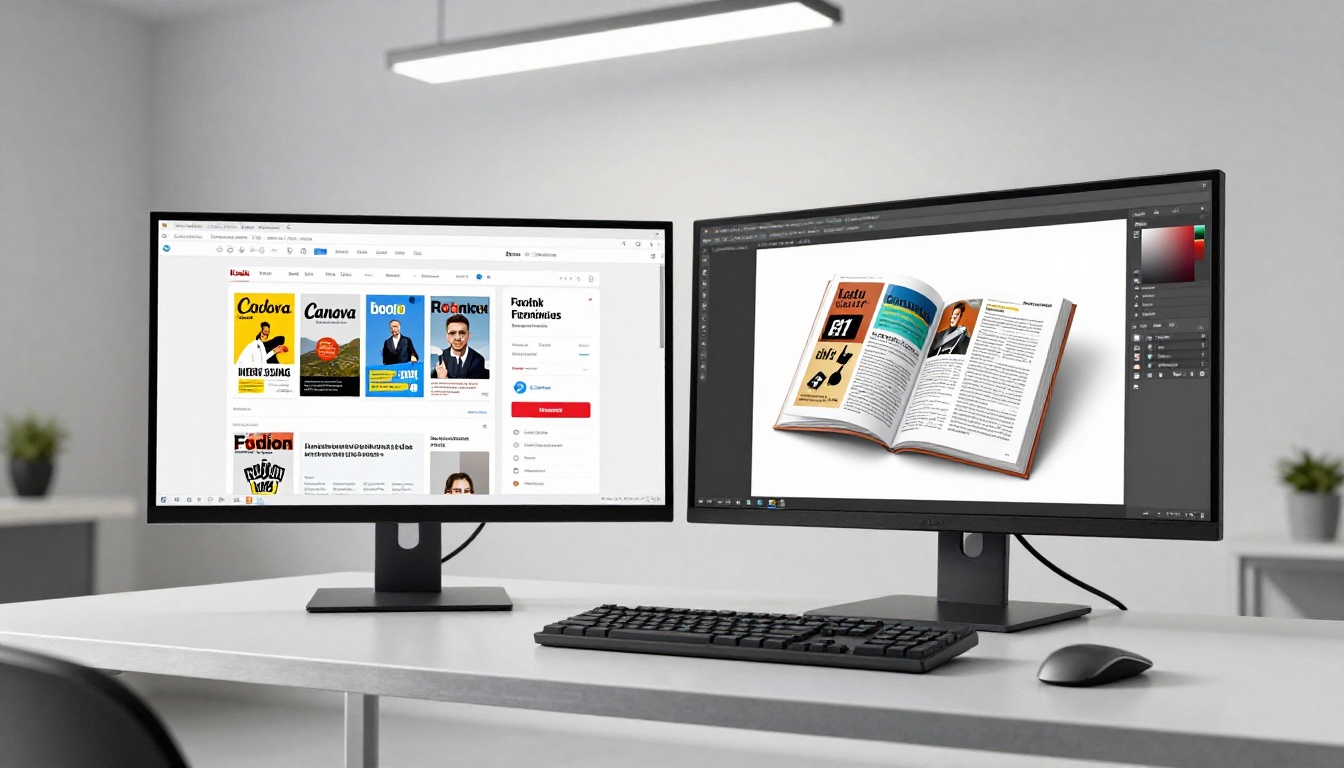
How to Create a Flipbook from Your Canva Design
This is the workflow thousands of Canva users follow every week. It takes under five minutes from export to a live published link.
Step 1: Export Your Canva Design as PDF
In Canva, go to Share in the top right. Select Download, then choose PDF Print for the highest quality output. This preserves vector graphics, sharp text rendering, and accurate color values. For image-heavy designs like lookbooks or catalogs, PDF Print is always the right choice over PDF Standard.
Step 2: Upload to Flipbooks AI
Head to Flipbooks AI and sign in or create a free account. Click New Flipbook, then drag and drop your PDF into the upload zone. The platform processes your file and generates a live preview of the page-flip viewer in seconds. No waiting, no queue.
Step 3: Customize Your Flipbook
This is where your Canva design gets its interactive publishing layer. Inside the Flipbooks AI editor you can:
- Set your brand colors for the viewer interface chrome
- Choose your page-flip animation style (soft paper curl, hard book flip, or digital slide)
- Add a custom cover thumbnail for the share preview
- Embed videos or audio directly into specific pages
- Set a password for private or client-only distribution
- Configure lead generation forms to capture viewer contact details (Professional plan)
✅ Best practice: Always preview your flipbook on a mobile device before sharing. Flipbooks AI renders mobile-responsively by default, but it's worth confirming that your fonts and layouts hold up on a smaller screen.
Step 4: Share, Embed, or Download
When your flipbook is ready, Flipbooks AI gives you every output option you need:
- Shareable link: A direct URL for email, social media, or messaging
- Embed code: An iframe snippet for any website or landing page
- QR code: Auto-generated for print materials and physical displays
- Offline download: A standalone HTML file for presentations without internet
For publications that need seamless website integration, the Embed Flipbook on Website tool works cleanly on every platform from WordPress to Webflow.
Real-World Use Cases That Work Beautifully
Fashion and Retail Lookbooks
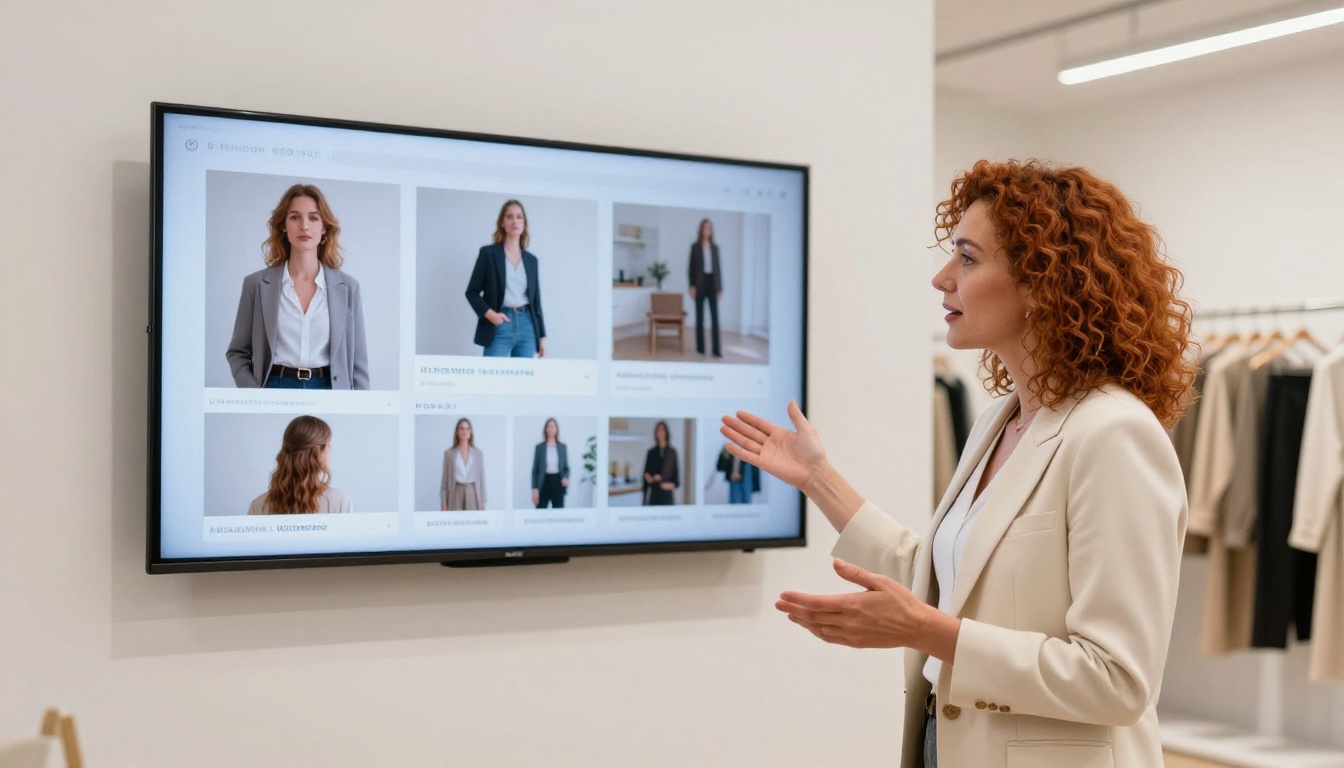
Fashion brands and independent boutiques use Canva to build season lookbooks with editorial photo spreads and clean typography. Converting those designs with the Interactive Lookbook Designer turns a PDF into a browseable collection experience. Buyers flip through pages the way they would page through a printed catalog, but the whole experience is shareable via a single link.
A boutique owner publishing their first season can send the same lookbook link to 500 wholesale buyers in a single email, track which pages held attention the longest, and follow up with precision based on real engagement data.
Restaurant Menus
A restaurant that refreshes its menu seasonally doesn't need to reprint anything. A Canva-designed menu, converted using the Restaurant Menu Creator, becomes a live digital menu that updates whenever you republish and embeds directly on the restaurant's website or loads from a QR code at the table.
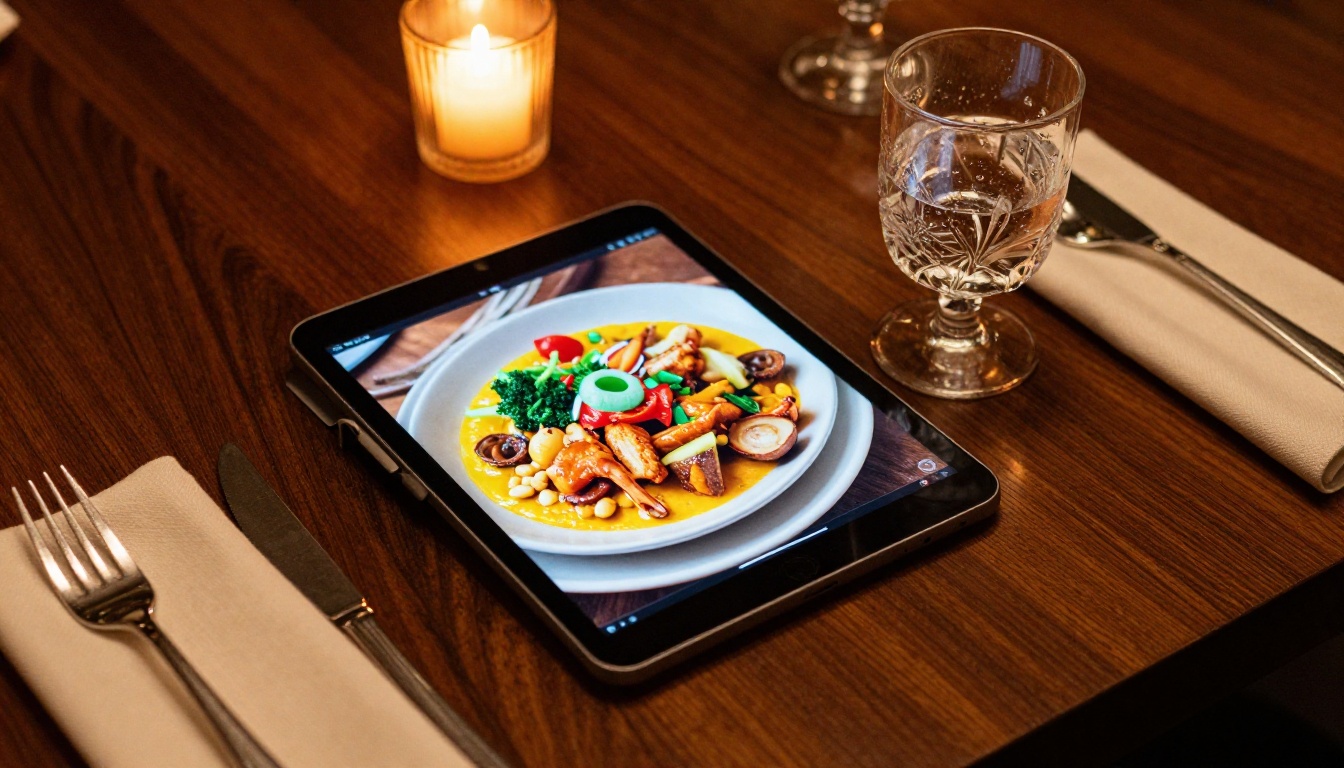
💡 Pro tip: Generate a QR code through Flipbooks AI and print it on your table cards. When you update your menu PDF and republish, the QR code link stays the same. Guests always see the current version.
Real Estate Brochures
Property listings designed in Canva translate directly into polished property presentations when processed through the Real Estate Brochure tool. Agents send a single link to qualified buyers that presents the property with the same visual authority as a printed brochure, but with page-flip animation that makes browsing feel natural on any device.

Digital Portfolios and Press Kits
Creatives who build portfolios in Canva often struggle with how to share them in a way that feels premium. A static PDF doesn't do justice to carefully composed layouts and typography. Using the Digital Portfolio Creator or the Photography Portfolio tool, a designer converts their Canva portfolio into an interactive presentation that reads like a magazine profile.
The same logic applies to press kits. The Press Kit Designer is built specifically for brands and public figures who need media materials that look and feel authoritative from the first page.
Pricing Breakdown
Flipbooks AI offers tiered plans that scale cleanly with your publishing volume and feature requirements:
| Plan | Flipbooks | Watermark | Custom Branding | Analytics | Lead Capture | Offline Download |
|---|
| Free | Limited | None | Basic | No | No | No |
| Standard | Unlimited | None | Full | No | No | Yes |
| Professional | Unlimited | None | Full | ✅ Yes | ✅ Yes | Yes |
✅ No watermarks on any plan. This is a foundational commitment at Flipbooks AI and directly sets it apart from most competitors where watermark-free publishing is a paid-only feature.
Which Plan Fits You?
For individual creators and freelancers delivering client work, the Standard plan covers everything needed: unlimited flipbooks, full custom branding, and offline downloads. No client will ever see a "Powered by" badge on your published work.
For marketing teams, agencies, and businesses that need performance data from their publications, the Professional plan adds viewer analytics and lead generation forms. These features turn a flipbook from a passive document into an active content asset that generates measurable results.
3 Common Mistakes Canva Users Make
1. Exporting as PNG instead of PDF
PNG exports from Canva create rasterized images per page rather than a structured multi-page document. PDF import in flipbook tools is optimized for multi-page documents with selectable text and vector elements. Always use PDF Print for the cleanest flipbook output.
2. Skipping mobile preview before sharing
Designing for desktop in Canva and never checking how the layout looks inside a mobile flipbook viewer is a reliable way to send clients a broken experience. Before any share or send, open the link on your phone.
3. Using a watermarked free tool for client work
A watermarked flipbook sent to a client immediately signals "free tool." For professional-grade output, use a platform that never adds its branding to published work. Flipbooks AI keeps every publication clean at every plan level.
Canva users in 2026 are building more ambitious digital publications than ever, from multi-page product catalogs and seasonal lookbooks to annual reports and interactive portfolios. The designs are polished. What they need is a publishing layer that matches that level of polish.
Flipbooks AI fits that role cleanly. The PDF-to-flipbook workflow is fast, the output is professional, the customization runs deep, and the sharing options cover every scenario from embedded website viewers to password-protected client presentations.
Whether you're a solo freelancer publishing your first digital catalog or a marketing team pushing out monthly branded reports, the workflow is the same: design in Canva, export as PDF, publish as a flipbook in minutes.
Ready to turn your next Canva design into something that actually moves? Create your account on Flipbooks AI and have your first flipbook live in minutes. Compare pricing plans to find the right fit for your output volume, or browse all flipbook tools to find the one that matches your specific use case.



