Publishing a flipbook and then spotting a typo on page three is one of those quietly stressful moments that every digital publisher knows. The good news: you almost certainly do not have to start over. Most modern flipbook platforms, including Flipbooks AI, are built for exactly this situation, letting you make changes to published content without disrupting the links you have already shared. Whether you need to swap an outdated price, update your contact details, or completely replace the source PDF, editing after publishing is not only possible but straightforward when you know how the system works.
What Happens When You Publish a Flipbook
The Live URL and What It Means
When you hit publish on a flipbook, the platform assigns it a permanent URL. That link is what you share with customers, embed on your website, or send in emails. The critical thing to understand is that this URL points to your flipbook by identity, not by content snapshot. In plain terms: the link is attached to the flipbook object, not to a frozen version of the pages inside it.
This distinction matters enormously. It means that when you update the content, anyone visiting the existing link will automatically see the updated version. You do not need to send a new link to everyone who already has the old one.
Does Publishing Lock Your Content?
No. Publishing makes your flipbook accessible to viewers, but it does not freeze it. Think of it more like publishing a webpage rather than printing a physical book. A printed book cannot change after the ink dries, but a web page can be updated at any moment. Flipbooks work exactly this way.

There is, however, an important nuance: what you can change without re-uploading versus what requires you to replace the source PDF. Both are possible. The process is just slightly different for each.
Types of Edits You Can Make After Publishing
Branding and Visual Changes
These are the fastest edits to make and typically take effect almost instantly. You can update:
- Logo and brand colors on the flipbook player
- Background color or texture behind the page spread
- Custom domain or sharing settings (password protection, privacy mode)
- Lead capture forms and call-to-action buttons
- Background music or ambient audio attached to the flipbook
- Social sharing metadata (thumbnail, title, description that appear in link previews)
None of these require touching the original PDF or re-converting anything. They sit in the flipbook's settings layer and update live.
Page Content and PDF Replacement
When the actual text or images on the pages need to change, you are looking at a PDF replacement. This means uploading a new version of your source document. The platform re-converts it into the flipbook format, replaces the pages, and the live link immediately reflects the new content.
⚠️ One thing to watch: if your new PDF has a different number of pages than the original, any page-specific links or annotations you manually added may need to be reviewed. Page-level links are pinned to page numbers, so a structural change to the document can shift them.
Settings, Privacy, and Access Controls
These are always editable post-publish:
| Setting | Editable After Publishing |
|---|
| Password protection | Yes, instantly |
| Public vs. private visibility | Yes, instantly |
| Expiration date (link disables) | Yes, instantly |
| Download permission (allow or block) | Yes, instantly |
| Lead capture form on or off | Yes, instantly |
| Analytics tracking | Yes, instantly |
| Custom domain | Yes, instantly |
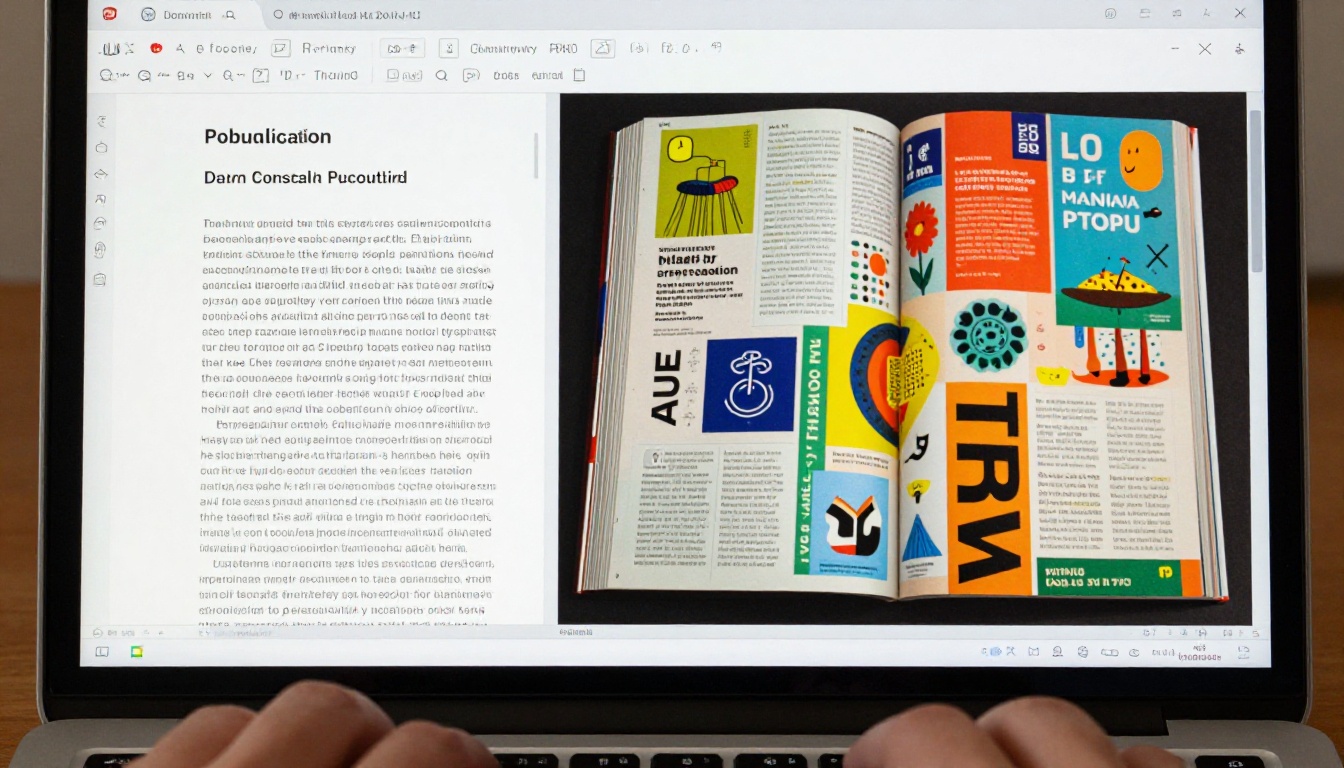
How to Edit Your Flipbook on Flipbooks AI
Flipbooks AI makes post-publish editing a first-class workflow. Here is how to do it step by step.
Step 1: Access Your Published Flipbook
- Go to flipbooksai.com and sign in to your account.
- From your dashboard, locate the flipbook you want to edit. Published flipbooks show a green "Live" status indicator.
- Click the three-dot menu on the flipbook card, then select Edit.
Step 2: Update Branding Without Replacing the PDF
If you only need to change visual settings, branding, or sharing options:
- Inside the editor, navigate to the Customize tab.
- Update your logo, colors, or player settings as needed.
- Click Save. Changes are live immediately, no republish required.
Step 3: Replace the PDF Source
When the page content itself needs to change:
- Inside the editor, look for the Replace PDF or Upload New Version option.
- Upload your revised PDF file.
- The platform converts the new file and swaps the pages. Your flipbook URL stays exactly the same.
- Review the updated preview to confirm everything looks correct.
- Click Save and Publish.
💡 Pro tip: Before replacing your PDF, do a final check on the new file. Open it in a PDF reader, verify every page, confirm all links inside the PDF are correct, then upload. It is much faster than doing two rounds of replacements.
Step 4: Check Your Embed Codes
If you have the flipbook embedded on a website via iframe, you do not need to do anything after editing. The embed code points to the same flipbook object, so it automatically reflects the updated content. This is one of the most underappreciated advantages of cloud-based flipbooks over static file embeds.

What Stays the Same After Editing
Your Share Link Stays Intact
This is the most important thing to understand. Every link you have shared, whether in an email, a social post, a QR code, or printed on a physical card, continues to work and will show the updated flipbook. You are not creating a new flipbook. You are updating an existing one.
This is a fundamental advantage over sending PDFs as attachments. When you email a PDF, that attachment is a static snapshot. If you later find an error, the recipient has the old file forever unless you send a new one and hope they open the right version. With a published flipbook, everyone automatically gets the current version every time they visit the link.
Embed Codes Don't Break
The iframe or embed snippet you copied when you first published remains valid indefinitely. Your embedded flipbook on landing pages, product pages, or portfolios will update silently without any action on your part. This is especially valuable for:
- Restaurant menus embedded on a restaurant's website (seasonal updates require no technical changes to the site)
- Real estate brochures embedded in property listings (price changes or photo updates are instant)
- Corporate catalogs on e-commerce product pages (inventory and pricing refresh without a developer)
Analytics History Is Preserved
Your view counts, click data, and lead captures stay intact. Replacing the PDF or updating settings does not wipe the analytics history for that flipbook. You maintain a continuous record of performance across all versions of the content, which is useful for comparing how interest changes after an update.
When You Need to Create a New Flipbook
Major Structural Overhauls
Sometimes the right call is a fresh flipbook rather than an edit. This makes sense when:
- The new content is so different that it is effectively a different product (a new edition of a magazine, a completely redesigned catalog)
- You want to preserve the original as an archive and run both versions simultaneously
- You are testing two versions of content for A/B performance comparison
Switching Document Types
If you started with a brochure and now want to make it a menu, the content type change alone does not require a new flipbook, but the tools directory on Flipbooks AI offers specialized builders worth considering for each use case. A Restaurant Menu Creator built specifically for menus gives you layout templates and features that a general flipbook editor might not surface as prominently.
Editing Across Different Plan Tiers
Not every editing feature is available on every plan. Here is how the main tiers compare on post-publish editing capabilities:
| Feature | Free Plan | Standard Plan | Professional Plan |
|---|
| Edit branding settings | Yes | Yes | Yes |
| Replace source PDF | Yes, with limits | Yes, unlimited | Yes, unlimited |
| Update privacy settings | Yes | Yes | Yes |
| Remove watermark | No | Yes | Yes |
| Analytics after edit | Basic | Full | Full |
| Lead capture forms | No | No | Yes |
| Custom domain | No | Yes | Yes |
| Offline downloads | No | No | Yes |
| Embed on website | Yes | Yes | Yes |
| Password protection | No | Yes | Yes |
✅ Best practice: If you are managing content that requires frequent updates, like a product catalog, pricing sheet, or restaurant menu, the Standard plan is the minimum to consider. It removes the watermark and gives you unlimited PDF replacements, which matters when updates happen weekly or monthly.
Check the full feature breakdown on the pricing page to find what fits your workflow.
Real-World Editing Scenarios
The Restaurant That Updated Its Menu Mid-Season
A tapas bar used a Menu Flipbook Designer to create their summer menu. Three weeks into the season, the kitchen ran out of a featured dish and added two new specials. The owner uploaded a revised PDF, the flipbook updated in under two minutes, and every table's QR code automatically showed the correct menu that night. No reprint, no new QR code, no call to the web developer.
The Real Estate Agent Who Fixed a Price Overnight
A real estate agency published a Real Estate Brochure for a new property listing. The next morning, the seller adjusted the asking price. The agent exported a corrected PDF from their design software, uploaded it to the published flipbook, and by 9 AM every prospect who had bookmarked the link was looking at the right number. The email they had sent the day before still worked perfectly.
The Marketing Team That Refreshed a Catalog Quarterly
A consumer goods company uses their published Product Catalog as the single source of truth for their sales team. Every quarter, the design team updates the catalog in their layout software, exports a new PDF, and uploads it to the same flipbook. The sales team has a permanent bookmark. The link never changes. There is no "which version is current" confusion because there is only ever one version: the live one.

Common Post-Publish Editing Questions
Does editing a flipbook notify viewers?
No. There is no automatic notification to people who have the link. Updates happen silently. If you want viewers to know about a significant change, you need to communicate it separately.
Can I roll back to a previous version?
This depends on the platform. Some platforms store version history and let you restore a prior PDF. Others only keep the current version. Check the platform's documentation or test before you overwrite something important.
What happens to password-protected flipbooks after a PDF update?
The password stays in place. Replacing the PDF does not change access controls. The protection settings are independent of the content.
Can I change the flipbook's URL slug after publishing?
Some platforms allow this, but it is worth being careful. Changing the slug breaks all existing links that use the old URL. Only do this if you are confident no one has the old link bookmarked or shared.
Does mobile viewing update automatically too?
Yes. Whether someone opens your flipbook on a desktop, tablet, or phone, they always get the current version. The flipbook renders fresh from the server on each visit.

It helps to see how flipbook post-publish editing stacks up against other common distribution methods:
| Format | Editable After Sharing | Links Update Automatically | Requires Resending |
|---|
| PDF attachment via email | No | No | Yes |
| Shared Google Doc | Yes | Yes, same link | No |
| Published flipbook | Yes | Yes, same link | No |
| Printed brochure | No | No | Yes, reprint needed |
| Static website page | Yes | Yes, same URL | No |
| PowerPoint file attachment | Only locally | No | Yes |
A published flipbook behaves like a live webpage but with the visual richness and page-flip experience of a printed document. That combination of editability and presentation quality is what makes it the right format for anything that needs to look polished but also stay current.
Setting Up for Easy Updates From Day One
The best way to handle post-publish editing is to set it up right from the beginning. A few habits that save time later:
- Keep your source files organized. Store the editable design file alongside the exported PDF so you can always go back and make changes cleanly.
- Use a consistent naming system for your PDF versions so you can tell which is the latest.
- Upload once, share the link. Resist the habit of attaching the PDF directly to emails. Always share the flipbook link instead, because that gives you the ability to update what recipients see.
- Add password protection on internal documents. You can update the password at any time without changing the link.
- Set up analytics from day one through Flipbooks AI's Professional plan so you have baseline data to compare against after any major content update.
Time to Make Your Updates
If you have a published flipbook that needs updating, sign in to your Flipbooks AI account and make the change now. The process takes minutes, the live link stays the same, and every person who has ever opened that flipbook will automatically see your revised content the next time they visit.
If you are creating a new flipbook and want to build it on a platform that makes future editing simple, get started for free on Flipbooks AI. Browse the full range of flipbook tools including specialized builders for menus, catalogs, brochures, portfolios, reports, and more.
For teams managing multiple documents with frequent update cycles, compare the pricing plans to find the tier that matches your volume. The ability to update published content without breaking links is not a premium feature: it is how digital publishing should work.



