The short answer is yes, and it takes about two minutes to set up. Whether you're sending a confidential proposal, a private lookbook, or a restricted-access annual report, Flipbooks AI lets you lock any flipbook behind a password so that only the people you authorize can open it. No complicated software, no IT team required.
Privacy-first document sharing has become a baseline expectation for professional services. When a client trusts you with a sensitive deliverable, handing them an open public link anyone could stumble across is a real liability. The tools to fix this are already built into Flipbooks AI, and this article walks through every option available.
Yes, You Can Restrict Who Opens Your Flipbook
Access control in digital documents used to mean emailing a PDF with a weak password or setting up a shared drive folder and hoping nobody forwarded the link. Flipbooks changed that.

A locked flipbook on Flipbooks AI works by applying a password gate directly to the published URL. Anyone who clicks your link sees a clean prompt asking for the password. Without it, they see nothing. The underlying document content, images, embedded video, and all the rest stay completely hidden until the correct credentials are entered.
Password Protection Explained
Password protection in Flipbooks AI works at the publication level. You set one password per flipbook, and that password travels with every share link you generate for that document. This means you can safely send the same link to five different clients, knowing each one has to enter the password you gave them before they can view a single page.
💡 Use a unique password per client project so you can revoke access for one without affecting others. Simply update the password in your flipbook settings, and the old password stops working immediately.
The password is stored encrypted, not in plain text, and the viewing session is managed server-side. Clients do not need to create an account or download anything. They click your link, type the password, and the flipbook opens directly in their browser.
Private Link Sharing
Beyond password protection, you also control who gets the link in the first place. A flipbook URL is not indexed by search engines unless you explicitly publish it publicly. So even before passwords enter the picture, an unpublished flipbook with a private share link is visible only to people who received that link directly from you.
Combining a private link with password protection creates two layers of access control:
- Layer one: The link is not public or searchable
- Layer two: Even with the link, a password is required
Most freelancers and agencies find the double-layer approach gives clients the confidence that their project previews are genuinely private, not just obscure.
Why Controlling Flipbook Access Matters
Sending clients documents is a constant part of professional life. Proposals, rate cards, creative briefs, product catalogs, private lookbooks, legal agreements, and financial reports all carry some level of sensitivity. The stakes for a data leak vary, but the reputational damage of an accidental exposure is nearly always worse than the effort of setting up proper access control.

Client Confidentiality Is Non-Negotiable
Certain industries treat document confidentiality as a legal requirement, not just a courtesy. Law firms, financial advisors, medical consultancies, and real estate professionals all operate under obligations that extend to how client-facing documents are shared. A password-protected flipbook with an audit trail satisfies most reasonable requirements for controlled access.
Even outside regulated industries, clients simply feel better when they see that you have taken deliberate steps to protect the materials you have sent them. It signals professionalism and builds trust from the first interaction.
The Problem With Open Links
The default behavior of most document-sharing tools is to generate a public URL. That URL can be:
- Forwarded by your client to third parties without your knowledge
- Indexed by search engines if the platform allows crawling
- Shared in group chats, Slack channels, or email threads
- Accessed by anyone who gets hold of the URL, intentionally or not
None of these scenarios require malicious intent. A client CCing a colleague on a reply-all email that contains your proposal link is a completely accidental leak. Password protection prevents the content from being accessible even when the link escapes.
Three Ways to Lock Down a Flipbook
There are three distinct access control methods you can use on Flipbooks AI, and they can be layered in combination.
| Method | How It Works | Best For |
|---|
| Password Protection | A password gate on the share URL | Client deliverables, proposals, reports |
| Private Link (Unlisted) | URL is not public or indexed | Internal team documents, pre-launch materials |
| Combined (Both) | Unlisted URL plus password gate | High-sensitivity client work, legal and financial docs |
⚠️ Password protection applies to the published flipbook, not the source PDF. Anyone who has the original PDF file is not restricted. Protect the source file separately.
Each method is available directly from your flipbook settings panel, with no third-party tools or plugins required.
How to Set Up Password Protection on Flipbooks AI
Setting up password-protected access for a client flipbook is a straightforward process. Here is how it works from start to finish.

Step 1: Create your account and upload your document
Go to Flipbooks AI and create your account if you have not already. From your dashboard, click New Flipbook and upload the PDF you want to protect. The platform converts it to an interactive flipbook with page-turn animations, zoom, and multimedia support automatically.
Step 2: Customize your flipbook
Before locking it down, take a few minutes to apply your branding. Add your logo, set your brand colors, choose your page effect, and decide whether to embed any video or audio. For client-facing work, consistent branding signals that this is an official deliverable, not a draft.
Step 3: Enable password protection
In your flipbook settings, find the Privacy or Access Control section. Toggle on Password Protection and enter the password you want to use. Choose something specific enough to communicate to your client securely (via phone, encrypted message, or in person) without being guessable.
Step 4: Publish and get your share link
Set the publication status to Unlisted (not Public) so the flipbook does not appear in search results or on any public index. Copy the share link generated by the platform.
Step 5: Send link and password to your client separately
Send the flipbook link via email. Send the password via a different channel: a text message, WhatsApp, a phone call, or a secure messaging app. Separating the credentials from the link is a simple but effective security practice.
✅ Include a brief note in your email explaining that the document is password-protected and that the password will arrive separately. Clients appreciate the heads-up and it reduces support requests.
Step 6: Verify client access
Ask your client to confirm they can open the flipbook before closing out the project handover. Check your analytics dashboard (available on the Professional plan) to see when and how often the document was opened.
Sharing a Locked Flipbook With Clients
Once your flipbook is protected, the mechanics of sharing it are simple, but a few details make the difference between a smooth client experience and a confused support call.

Sending the Private Link
The share link generated by Flipbooks AI is a clean, professional URL that you can paste into any email or messaging app. There is no need to compress files, manage attachments, or worry about file size limits. The entire document lives in the cloud and streams instantly to the client's browser.
For repeat clients or ongoing projects, many professionals keep a simple template email that they customize per project. It includes:
- A short paragraph describing what the document contains
- The share link as a clickable button or hyperlink
- An instruction to expect the password via a separate message
What Clients See When They Open It
When a client clicks the link to a password-protected flipbook, they land on a minimal, professional-looking password prompt. There is no advertising, no watermark cluttering the experience (on Standard plan and above), and no requirement to create an account.
After entering the correct password, the flipbook opens immediately in their browser: full-screen, mobile-responsive, with interactive page turns, zoom, and any embedded media. It works on any device without plugins.
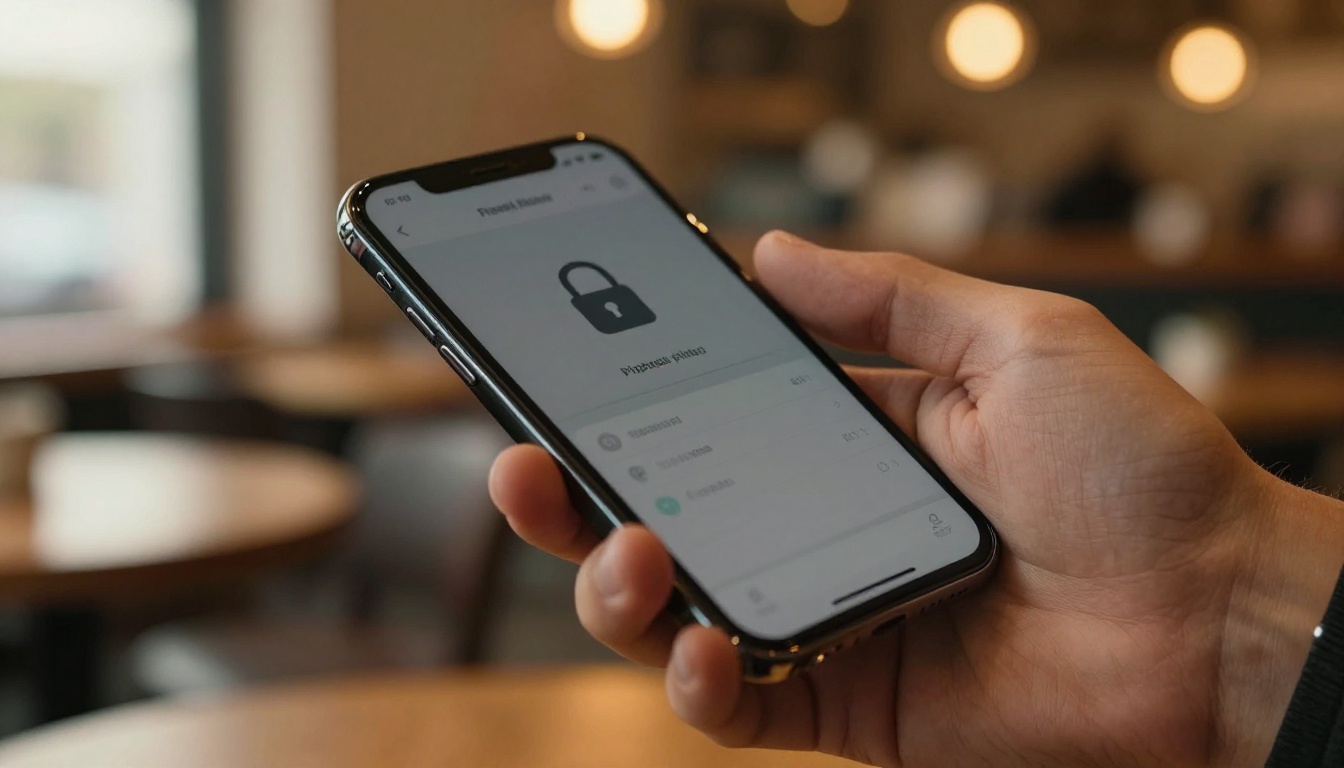
💡 Test the client experience yourself before sending. Open your share link in an incognito browser window and enter the password as if you were a client. This catches formatting issues and confirms the lock is working exactly as expected.
Which Plans Include Privacy Features
Password protection is available on paid plans. Here is a breakdown of what each tier includes for access control and privacy.
| Feature | Free | Standard | Professional |
|---|
| Password Protection | No | Yes | Yes |
| Unlisted (Private Link) | No | Yes | Yes |
| No Watermarks | No | Yes | Yes |
| Unlimited Flipbooks | No | Yes | Yes |
| Analytics and View Tracking | No | No | Yes |
| Lead Generation Forms | No | No | Yes |
| Offline Downloads | No | No | Yes |
| Custom Domain | No | No | Yes |
For most freelancers and small studios, the Standard plan covers everything needed for client-only flipbook access. If you need to track who viewed a document and when, or gate content behind a lead form, the Professional plan is the right step up.
Explore pricing plans to see which tier fits your workflow.
Real-World Use Cases for Private Flipbooks
The range of professionals who use password-protected flipbooks for client work is broad. Here are the most common scenarios, each with a distinct approach to access control.

| Industry | Use Case | Privacy Method |
|---|
| Photography | Private client proofing gallery | Password + Unlisted |
| Real Estate | Property presentation before listing | Password + Unlisted |
| Fashion and Retail | Exclusive pre-season lookbook | Password |
| Corporate | Board-level quarterly report | Password + Unlisted |
| Legal | Contract summary for client review | Password + Unlisted |
| Education | Student assessment report | Password |
| Event Planning | Proposal deck for prospective client | Password |
| Architecture | Concept designs for client approval | Password + Unlisted |
Photographers and Creative Portfolios
For photographers, delivering proofs to clients through a shared drive folder has always felt like an incomplete solution. A password-protected flipbook built with the Digital Portfolio Creator or Photography Portfolio tool presents images in a professional, page-by-page format that clients can browse on any device. The lock keeps competitors and the general public from accessing the work before the client has had a chance to review and approve it.
Real Estate and Property Presentations
Real estate agents face a constant tension between making properties easy to preview and keeping sensitive pricing details private. A password-protected Real Estate Brochure lets agents send full property presentations, with floor plans, photos, pricing breakdowns, and neighborhood data, to qualified buyers only. Unqualified leads do not get access to the full package.
Corporate Reports and Proposals
Nothing signals poor security hygiene faster than a publicly accessible board report or investor proposal. For corporate work, combining a private link with password protection ensures that financial data, strategic initiatives, and personnel information stay within the intended audience. Use the Annual Report Creator or Corporate Report Maker to build the document, then apply full access control before distributing.
Fashion and Retail Lookbooks
Fashion brands routinely share seasonal lookbooks, wholesale catalogs, and buying guides with retail partners before public launch. These materials contain pricing, margin information, and unreleased designs that competitors would find valuable. A password-protected Interactive Lookbook Designer built on Flipbooks AI keeps those materials in the right hands without requiring buyers to navigate a clunky file-sharing portal.
Common Questions About Flipbook Privacy
Can I Change the Password After Sending?
Yes. You can update the password on any published flipbook at any time from your dashboard. The new password takes effect immediately. Anyone who had the old password can no longer open the document, which is useful if a client relationship changes or a project wraps up and you want to close off access.
Does Password Protection Work on Mobile?
Fully. The password prompt and the flipbook viewer are both mobile-responsive. Clients can open a protected flipbook on a smartphone or tablet with no loss of functionality. The page-turn experience, zoom, and embedded media all work exactly as they do on desktop.
Can I Remove Access After a Client Views It?
You can remove access at any time by either changing the password (which invalidates the existing one) or by unpublishing the flipbook entirely. Unpublishing immediately deactivates the share link, so anyone who clicks it after that point sees a not-found page rather than a password prompt.
Is the Password Stored Securely?
Yes. Passwords are encrypted server-side. Flipbooks AI does not store passwords in plain text, and the password is not visible in the URL or page source of the protected flipbook.
Can I Require Clients to Log In Instead of Using a Password?
The current access model uses a shared password rather than individual user accounts. For most client-facing document sharing, a unique password per project covers the need. If you need granular per-user access logging, the Professional plan's analytics features give you view data including timestamps and device types.

When to Use Each Sharing Method
The right access control setup depends on the sensitivity of the content and the relationship with the recipient. This quick-reference table maps common scenarios to the right approach.
| Scenario | Recommended Setup |
|---|
| Internal team draft review | Unlisted link only |
| Client proposal (pre-signature) | Password + Unlisted |
| Signed client deliverable | Password |
| Public-facing marketing flipbook | Public link |
| Board or investor report | Password + Unlisted + Professional analytics |
| Pre-season wholesale lookbook | Password |
| Personal portfolio for job applications | Public or Unlisted |
Get Your First Client-Only Flipbook Live Today

The whole process from PDF upload to a password-protected, mobile-ready flipbook takes less than five minutes on Flipbooks AI. There are no watermarks on paid plans, no file size headaches, and no client software to install. The document lives online, loads instantly, and stays locked until you decide otherwise.
If you work with clients who expect professionalism at every touchpoint, secure document delivery through a beautifully designed, restricted flipbook is one of the simplest ways to deliver it. Whether you need a private lookbook for a retail buyer, a confidential report for your board, or a proofing gallery for a photography client, the access controls are already there waiting.
Create your first protected flipbook and see how the access control works firsthand. Compare the pricing plans to find the tier that matches your workflow, or browse the full library of tools and templates to find the right format for your next client deliverable.



