You spent hours in Canva getting the colors just right, choosing fonts that reflect your brand identity, laying out pages that guide the reader's eye exactly where you want it to go. The final result looks polished, professional, and ready to represent your business. Then you hit export, choose PDF, and send it off into the world. And just like that, all that careful work gets flattened into a static file that sits in a downloads folder until it is forgotten. Flipbooks AI exists precisely because your designs deserve a better fate than that.
What Happens When You Hit "Export as PDF"
The PDF format was invented in the early 1990s for printing. It was engineered to preserve layout across different printers, not to create engaging digital experiences. Using it as your primary distribution format in 2025 is like shipping your brand in a format built for a world that no longer exists.
The Flat File Problem
When you export your Canva design as a PDF, every interactive element disappears instantly. Hyperlinks sometimes survive in their raw form, but they rarely behave reliably across different PDF viewers. Animations are stripped out entirely. The beautifully layered design that felt alive inside Canva becomes a grid of static pages with no depth, no motion, and no sense of engagement.
PDF files also create friction at every point in the reader's journey. Your audience needs to download the file, open it in a separate application, and navigate it with scroll behavior that was never built for natural reading. On mobile devices, PDFs are particularly unforgiving. Pages are sized for print, which means constant pinching and zooming, horizontal scrolling, and a reading experience that feels like fighting the format rather than enjoying the content.

Color and Quality Compromises
Canva exports PDFs with varying levels of compression depending on which option you select. What was a crisp, vibrant coral on your Canva canvas can become a slightly duller tone by the time it passes through email compression, messaging apps, or a browser PDF viewer. For brands where color accuracy is part of the identity, this actively undermines the credibility of the work.
Print-quality PDFs avoid some of this, but they come with their own problem: file sizes that balloon to 50MB or more, making them impractical to share digitally. You end up caught between a file that is too large to share and one that does not look the way it should.
What Readers Actually Do With PDFs
The honest truth is that most PDFs sent via email or messaging apps are never fully read. Recipients download them, open the first page, and close the tab. There is no data on how far they got. No way to know if they reached the pricing section, the portfolio piece that took four hours to perfect, or the contact page where you wanted them to take action.
⚠️ The hard reality: A PDF that gets downloaded once and never opened again shows you nothing. It generates no data, no engagement signals, and no way to follow up meaningfully.
What Your Canva Design Actually Deserves
Your designs were built with intention. Every color choice, every font pairing, every whitespace decision communicates something about your brand. That message deserves a delivery format that matches its quality, not one that strips away everything that makes it memorable.
Page-Flip Animation That Sets the Tone Immediately
A flipbook gives your design a physical, tactile quality that PDFs simply cannot replicate. Pages turn with a realistic page-curl animation that triggers something deeply familiar in readers, the physical memory of flipping through a magazine or catalog that actually matters. That first click on a turning page reframes how the reader perceives the entire document. It is not an attachment. It is a publication.

Clickable Links That Function Like They Should
In a flipbook, hyperlinks behave exactly the way your design intended. A reader clicks a product image and lands on the product page. A "Book a call" button opens your scheduling link. An email address opens a compose window. Your Canva design stops being a passive document and starts functioning as an actual, working marketing asset.
You can also embed videos and audio directly into the flipbook, something PDFs categorically cannot do. A product demo video sitting inside your catalog, an audio introduction to a training manual, a background track for a mood-setting lookbook: all of it is possible with a flipbook that was never possible with a PDF.
💡 Pro tip: Before exporting your Canva design, add all your hyperlinks directly inside Canva. They carry over into the PDF and then transfer automatically into your flipbook during the conversion process.
PDF vs. Flipbook: Side by Side
The differences compound quickly when you look at them together.
| Feature | PDF Export | Flipbook |
|---|
| Page-flip animation | No | Yes |
| Clickable hyperlinks | Unreliable | Fully functional |
| Mobile experience | Awkward, zoom-heavy | Responsive and smooth |
| Embeddable on websites | No | Yes |
| Video and audio support | No | Yes |
| Analytics and tracking | No | Yes (Professional plan) |
| Password protection | No | Yes |
| Offline download | Always | Optional |
| Shareable link | Download link only | Direct URL or embed |
| Brand customization | Fixed | Custom colors, logo |
| Reader engagement data | None | Page-level metrics |
That table makes the case on its own. A PDF covers one use case: printable reference material. A flipbook covers every use case that matters for digital distribution.
How to Turn Your Canva Design Into a Flipbook
The process is genuinely straightforward. You do not need to redesign anything, install software, or learn a new design tool from scratch.
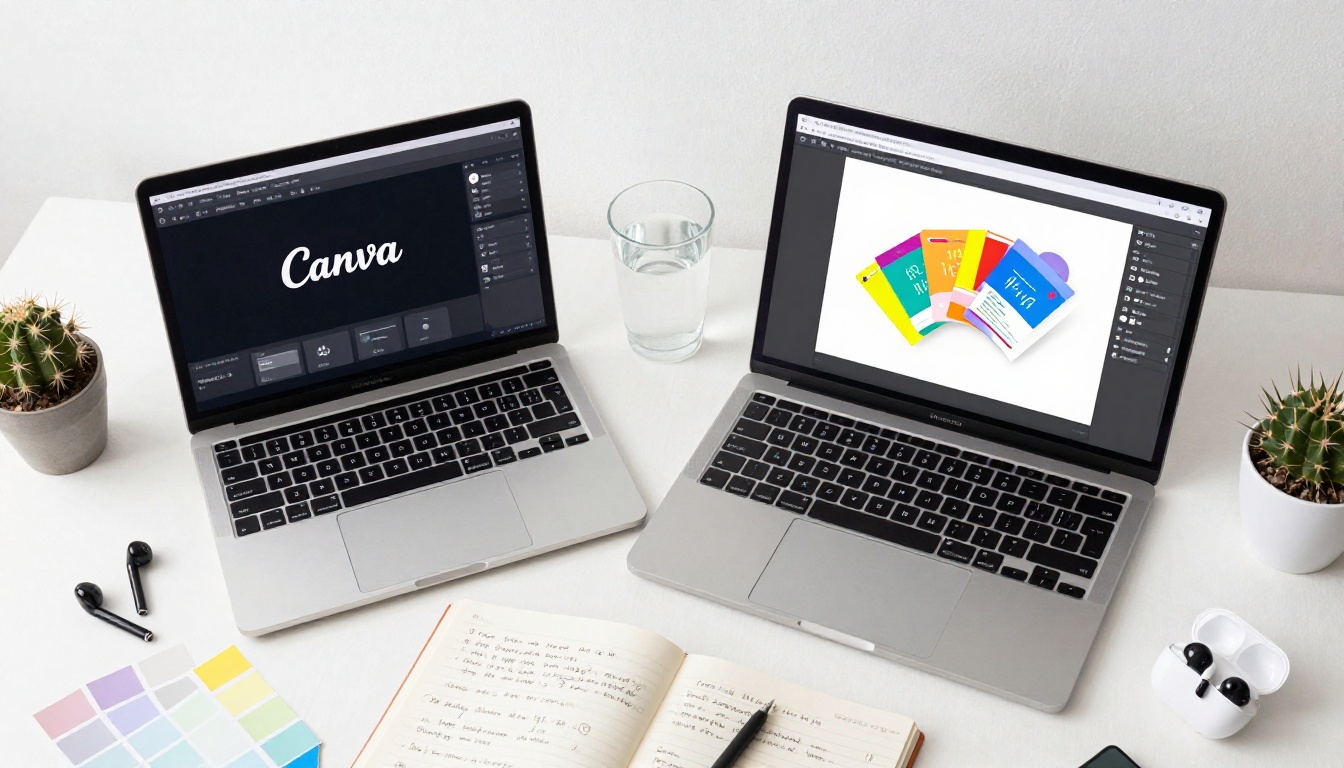
Step 1: Export from Canva as PDF
In Canva, go to Share > Download > PDF Print for the highest quality output. Avoid "PDF Standard" if color accuracy matters to you. Make sure your document is set to the dimensions you want. Standard A4 or letter size both work perfectly for flipbook conversion.
✅ Best practice: Always choose "PDF Print" quality in Canva for the sharpest colors and highest resolution during the conversion process.
Step 2: Upload to Flipbooks AI
Go to Flipbooks AI and create your account. Once logged in, click New Flipbook and upload your exported PDF. The platform processes your file and converts each page into a high-resolution digital page, typically within seconds for standard-length documents.
The PDF to Flipbook Converter handles multi-page documents cleanly, preserving your layout, typography, and image quality exactly as Canva exported them.
Step 3: Customize the Flipbook Experience
Once your pages load, customization options open up considerably:
- Brand colors: Set the viewer background and control colors to match your identity
- Logo placement: Add your logo directly to the flipbook interface
- Page transition style: Hard cover, soft page curl, or slide transitions
- Table of contents: Automatically generated for longer documents
- Background music: Optional ambient audio for immersive catalogs or editorial lookbooks
💡 Pro tip: Matching the viewer controls to your brand palette makes the flipbook feel like a native part of your website, not a third-party tool you bolted on.
Step 4: Share, Embed, and Distribute
Your finished flipbook comes with multiple distribution options:
- Direct link: A clean URL ready for email campaigns, social media bios, or direct messages
- Embed code: A single iframe snippet for your website or landing page via the Embed Flipbook on Website tool
- Password protection: Private access for specific clients or internal audiences only
- QR code: Auto-generated for linking print materials to the digital version
Real-World Use Cases That Shine
The combination of Canva's design flexibility and flipbook interactivity works across nearly every industry that produces regular publications.
Restaurant Menus
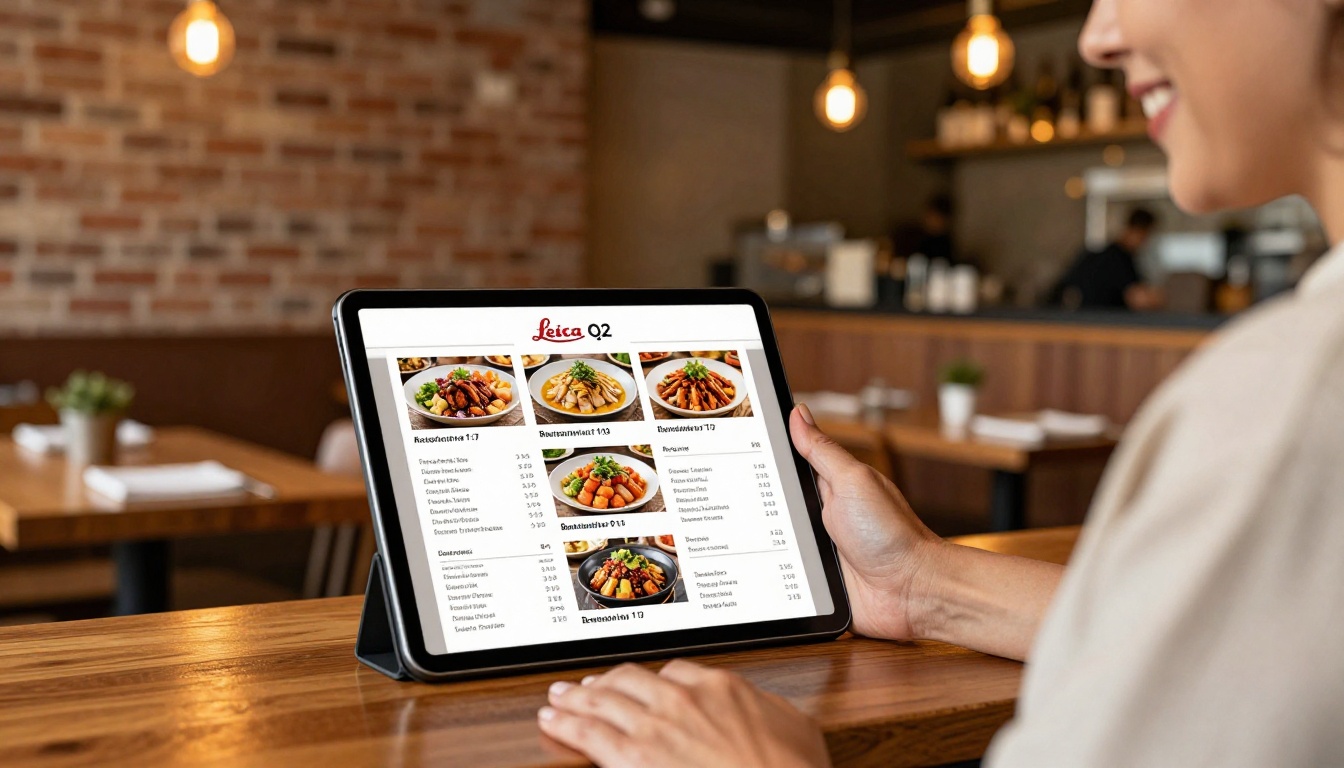
A restaurant owner spends an afternoon building a gorgeous seasonal menu in Canva: food photography, specialty cocktail list, chef's notes, and wine pairings. As a PDF, it gets downloaded by a handful of people and occasionally printed. As a flipbook using the Restaurant Menu Creator, it gets embedded directly on the restaurant website, shared via Instagram link in bio, and updated each season without reprinting a single page.
Real Estate Brochures
Real estate agents design property brochures in Canva that genuinely impress, then undo that impression by sending them as bulky email attachments. A flipbook built with the Real Estate Brochure Creator turns each listing into a shareable, embeddable, trackable experience. The Professional plan analytics even show which pages prospective buyers spent the most time on, giving agents a real edge in their follow-up conversations.

Fashion Lookbooks
A fashion brand's seasonal lookbook designed in Canva is one of its most valuable marketing assets, and it deserves to be treated that way. The Interactive Lookbook Designer turns it into a premium digital publication where every page click becomes a potential shop visit when product links are embedded directly into the pages.

Creative Portfolios
Creatives and agencies building portfolio presentations in Canva face a consistent problem: PDF portfolios require downloading a large file before the viewer sees a single page. A flipbook built with the Digital Portfolio Creator loads instantly in any browser, works on every device, and leaves a first impression that a static PDF cannot match.
Training Materials and Course Content
HR teams and educators regularly build training documents in Canva because the design tools make the material more visually engaging. Converting them to flipbooks using the Training Manual Flipbook or Course Material Publisher tools adds a layer of professionalism and makes distribution significantly easier, especially for remote teams.
Understanding all your Canva export options clarifies exactly where the flipbook format fits.
| Export Format | Best For | Not Good For |
|---|
| PDF Print | Physical printing | Digital sharing, mobile reading |
| PDF Standard | Email attachments | Interactivity, embedding |
| PNG / JPG | Single-page social posts | Multi-page documents |
| MP4 (video) | Animated social content | Catalogs, brochures, reports |
| PowerPoint | Live presentations | Async sharing, self-service reading |
| Flipbook via PDF | All digital distribution | Physical printing |
The flipbook format fills the specific gap that every other Canva export option leaves open. It is the only format built for the way content is actually read and shared online today.
Flipbooks AI Plans: Choosing What Fits
Different publishing needs call for different feature sets.
| Feature | Free | Standard | Professional |
|---|
| Flipbooks created | 3 | Unlimited | Unlimited |
| Watermark | Yes | No | No |
| Custom branding | No | Yes | Yes |
| Password protection | No | Yes | Yes |
| Offline downloads | No | Yes | Yes |
| Analytics | No | No | Yes |
| Lead generation forms | No | No | Yes |
| Video and audio embed | No | Yes | Yes |
| Custom domain | No | No | Yes |
⚠️ Note: The free plan includes a watermark on every flipbook. For any client-facing or professional use, the Standard plan removes it entirely and allows unlimited flipbooks. See the full breakdown on the pricing page.
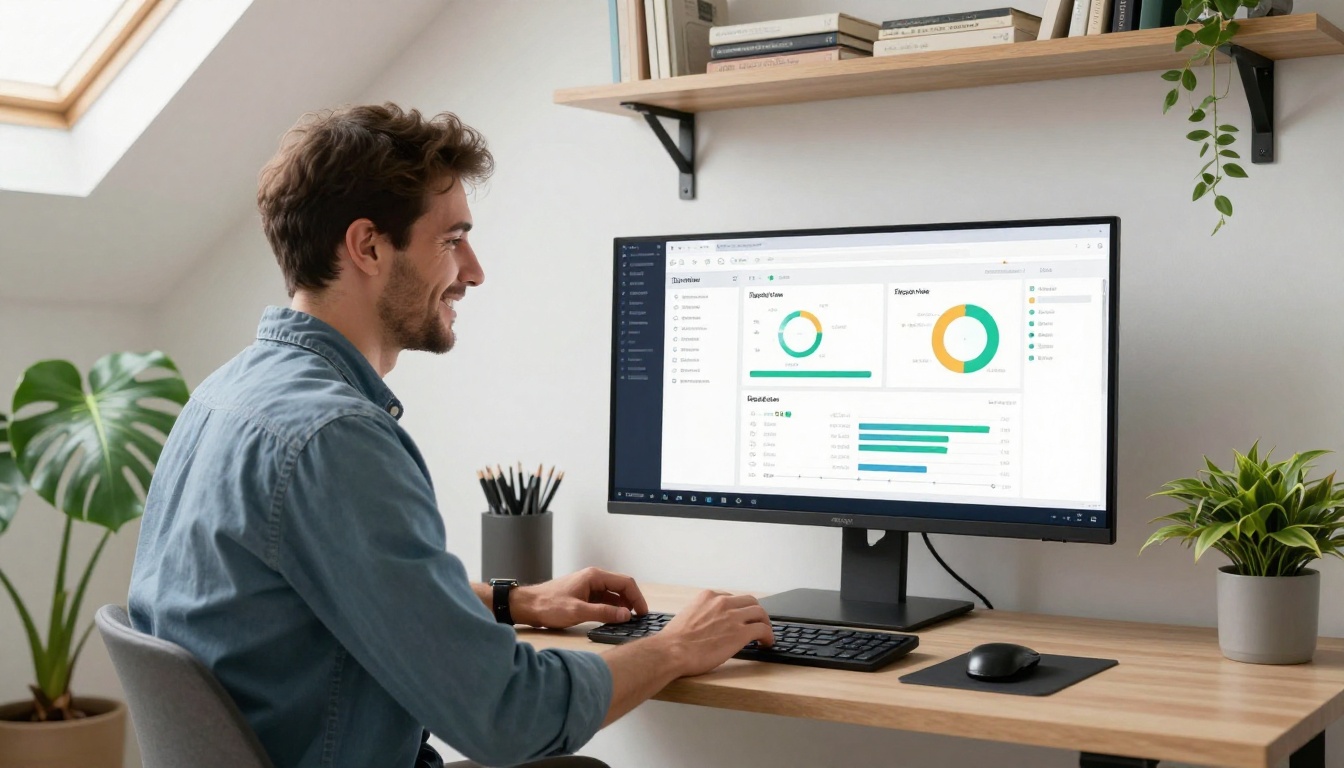
One of the most underrated reasons to move from PDF to flipbook is the data. The Flipbooks AI Professional plan provides page-level analytics showing exactly where readers spend their time and where they drop off.
This kind of data changes how you use your content:
- Sales teams can see which pages of a proposal a prospect read before they responded
- Marketing teams can identify which product pages in a catalog attract the most attention
- Publishers can spot reading patterns across different audience segments
- Educators can identify which training pages consistently lose student focus
💡 Pro tip: Use analytics data to improve your next Canva design. If readers consistently drop off at a specific page, that is direct feedback that the content or layout on that page needs attention.
Password Protection for Private Content
Not every design is meant for public eyes. Internal company reports, confidential client proposals, and members-only content all benefit from password protection. You share a link, set a password, and only people with both can access the content. No accounts required on the reader's end.
This works particularly well for:
- Internal annual reports built with the Annual Report Creator
- Client-specific proposals and sales presentations
- Exclusive content for newsletter subscribers
- Confidential training materials via the Training Manual Flipbook tool
Embed Anywhere Without Hassle
The embed code from Flipbooks AI is a single iframe snippet. Paste it into any website builder, WordPress page, Notion workspace, or email marketing platform. The flipbook loads responsively, adjusts to any screen size, and never feels out of place.
✅ Best practice: Embed flipbooks directly on high-traffic landing pages to keep visitors on your site longer. Readers browsing a flipbook send strong engagement signals that benefit your SEO.
Your Designs Are Ready. Now Let Them Work.
Every Canva design you have exported as a PDF was capable of doing more. It was capable of flipping pages, loading cleanly on mobile, embedding on a website, tracking reader engagement, accepting clickable links, and leaving the kind of impression that a static file simply cannot.
The format was holding it back. The work was never the problem.
Get started for free on Flipbooks AI and convert your next Canva export in under two minutes. No redesign required, no learning curve, no compromise on how your work looks.
Browse all the available tools to find the right fit for your specific use case, whether you are publishing menus, catalogs, portfolios, reports, or lookbooks. When you are ready to scale, the pricing plans make it straightforward to choose the right tier for your publishing volume.
Your designs already look great. Give them a format that lets the work speak for itself.



