You already did the hard part in Canva. The layout is tight, the colors are on brand, the fonts are exactly right. But when you export that PDF and send it out, something is lost. Recipients get a flat file that scrolls, zooms, and pinches. There is no life to it. No page-turn. No feel.
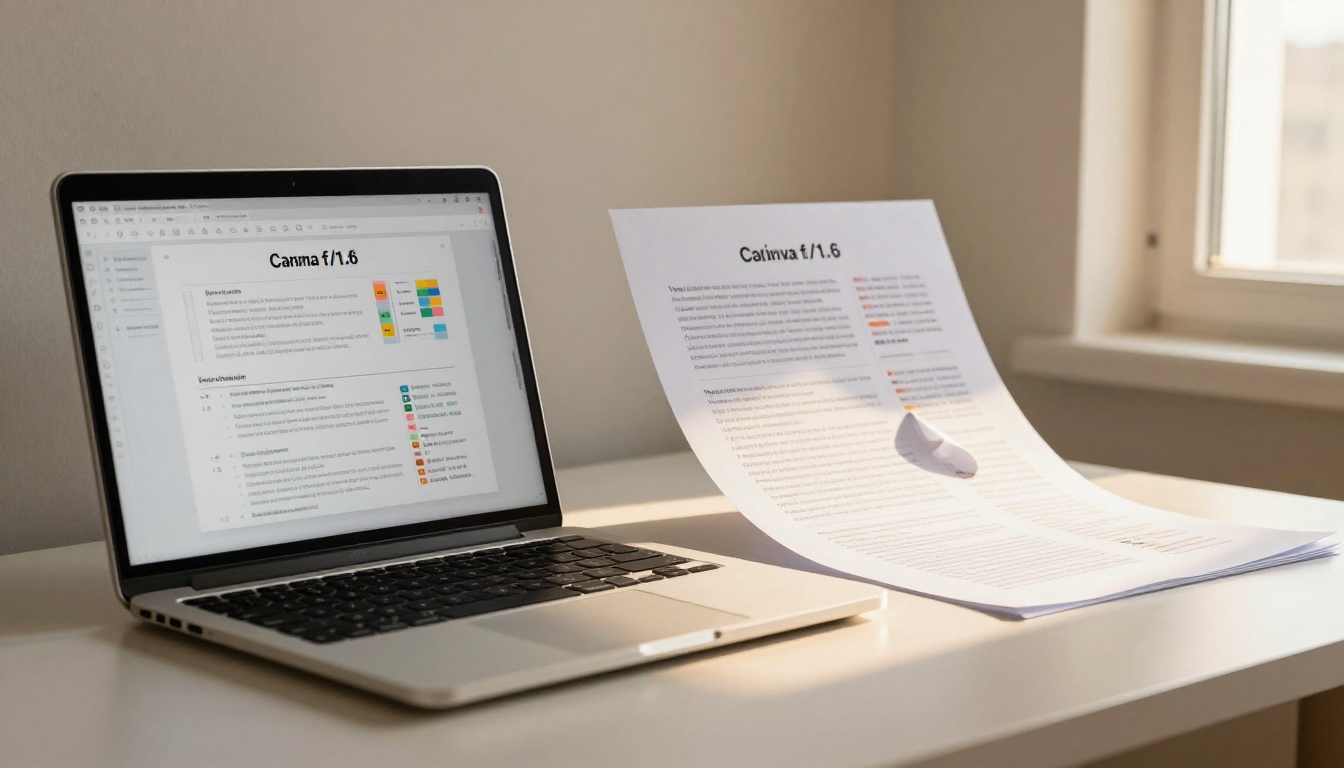
Converting your Canva PDF to an interactive flipbook in one click changes that entirely. The same design, the same pages, but now they flip. Viewers click through like a real magazine, a real catalog, a real brochure. And with Flipbooks AI, the whole process takes under a minute.
Why Static PDFs Fall Short
A PDF is a delivery format, not a reading experience. It was built for print and archiving, not for the web. When you share a PDF from Canva, the viewer has to download it, open it in a reader, and scroll through it like a document. There is no page animation, no interactive navigation, and no embed capability that works natively in a browser.
For brands, businesses, and creators, this creates a real gap. You spent hours designing something visually compelling, and the final delivery strips that experience away.
Here is what static PDFs cannot do:
- Page-turn animations with realistic curl physics
- Embedded links that open natively inside the viewer
- Mobile-responsive layouts that adapt to screen size without pinch-zoom
- Analytics tracking to see who viewed what page
- Embed codes for placing the document directly on a website
- Password protection for private or client-specific content
- Lead capture forms integrated into the reading experience
An interactive flipbook solves all of this. The PDF becomes the source. The flipbook becomes the experience.
What Canva Gives You (and What It Doesn't)
Canva is exceptional at design. The drag-and-drop interface, the template library, the brand kit system, the font pairing tools. For creating visually polished PDFs quickly, nothing comes close.
But Canva is not a distribution platform. When your PDF is done, you get:
- A downloadable
.pdf file
- A shareable Canva link (requires recipients to have Canva access or view in browser with limited formatting)
- No flipbook format
- No page-turn viewer
- No embed for external sites
This is where the workflow breaks down for most users. The design is done. The sharing experience is not.
💡 You do not need to redesign anything. Your existing Canva PDF becomes the source file. The flipbook is generated automatically from it.
PDF vs. Interactive Flipbook: Direct Comparison
| Feature | Static PDF | Interactive Flipbook |
|---|
| Page-turn animation | No | Yes |
| Mobile-responsive | Limited | Yes |
| Browser embed | No | Yes |
| Clickable links | Basic | Full support |
| Password protection | No | Yes (Standard+) |
| Analytics | No | Yes (Professional) |
| Lead generation | No | Yes (Professional) |
| Offline download | Yes | Yes |
| Sharing via link | Basic | Branded URL |
| File size for sharing | Large | Optimized |
The difference is not cosmetic. It is functional. An interactive flipbook makes your Canva design actually usable on the web.
Who Actually Uses This
The Canva-to-flipbook workflow is not just for designers. It shows up across industries wherever people produce polished PDFs and share them digitally.
Businesses and agencies use it for proposals, pitch decks, and company presentations. A sales deck that flips like a brochure lands differently than a PDF attachment.
Retailers and e-commerce brands convert product catalogs made in Canva into shareable digital catalogs. The Digital Catalog Maker handles this directly.
Restaurants turn their Canva menu designs into interactive digital menus. The Restaurant Menu Creator is built for exactly this.
Real estate professionals convert property brochures and listing packages into shareable flipbooks. The Real Estate Brochure tool fits this use case.
Educators and trainers share course materials, syllabi, and handbooks through the Course Material Publisher.
Photographers and creatives turn their Canva portfolio PDFs into portfolio flipbooks using the Photography Portfolio tool.

How to Do It: Canva PDF to Flipbook in One Click
This is the actual process. It is genuinely fast.
Step 1: Export Your Canva Design as PDF
In Canva, open your design. Click Share in the top right, then Download. Choose PDF Standard for web sharing or PDF Print for higher resolution. Click Download.
You now have a .pdf file on your device. That is the only file you need.
⚠️ Use PDF Print if your design has rich colors or photography. It preserves quality better during conversion.
Step 2: Upload to Flipbooks AI
Go to Flipbooks AI and create an account if you have not already. The free plan lets you start immediately.
From your dashboard, click Create New Flipbook and drag your PDF into the upload zone, or click to browse and select your file.

The platform reads your PDF and automatically converts every page into a navigable flipbook. All your Canva typography, images, and layout are preserved exactly as designed.
Step 3: Customize Your Flipbook
Once converted, you can personalize the flipbook before publishing:
- Branding: Add your logo and brand colors to the flipbook viewer
- Background: Choose a solid color, gradient, or custom background texture
- Page effects: Enable realistic page-curl shadows for a print-like feel
- Thumbnails: Customize the page thumbnail bar at the bottom
- Table of contents: Auto-generated from your Canva heading structure
- Multimedia: Embed video or audio directly into pages
✅ Upload your logo and set brand colors before sharing. It takes 30 seconds and makes the flipbook feel fully professional.
Step 4: Set Privacy and Sharing Options
Before publishing, decide who can see it:
- Public: Anyone with the link can view it
- Password-protected: Viewers must enter a password to access
- Unlisted: Accessible via direct link but not publicly indexed
Then copy your shareable link, or grab the embed code to place the flipbook directly on your website or blog.

Step 5: Share Anywhere
Your flipbook is now live. Share it via:
- Direct link in email, messages, or social media
- Embed code on your website, Notion, or blog
- QR code generated directly from the platform
- Offline download for events or offline presentations
Flipbooks AI Plans: What You Get
Different needs call for different plans. Here is a breakdown:
| Feature | Free | Standard | Professional |
|---|
| Flipbooks | 3 | Unlimited | Unlimited |
| Watermarks | Yes | No | No |
| Custom branding | No | Yes | Yes |
| Password protection | No | Yes | Yes |
| Embed on website | Limited | Yes | Yes |
| Analytics | No | No | Yes |
| Lead generation | No | No | Yes |
| Offline downloads | No | Yes | Yes |
| Custom domain | No | No | Yes |
The Standard plan removes watermarks and gives you unlimited flipbooks. That is the sweet spot for most regular Canva users. The Professional plan adds analytics so you can track page-by-page views, and lead generation forms that collect contact information directly inside the flipbook.
See the full breakdown on the pricing page.
Real-World Use Cases
Product Catalogs That Actually Convert
A Canva product catalog PDF is a beautiful thing to make. But sending it as a PDF attachment means recipients have to download it, open it, and scroll through it. As a flipbook, they click a link, the catalog opens in their browser, pages flip naturally, and every product image can link directly to a purchase page.
The Product Catalog tool is built for this exact workflow.
Client Proposals That Close Faster
Agencies and freelancers who send proposals as Canva PDFs lose momentum the moment a client opens a flat document. A flipbook proposal feels like a deliverable, not a draft. It positions the work at a higher perceived value before the client has read a single line.
Event Programs and Menus
Events and restaurants design in Canva constantly: programs, menus, drink lists, event schedules. These are perfect candidates for flipbook conversion. The Event Program Maker and Menu Flipbook Designer give you purpose-built tools for exactly these documents.
Annual Reports and Corporate Documents
Finance teams and communications teams produce annual reports, investor decks, and sustainability reports in Canva all the time. These are long, multi-page documents that suffer the most from PDF delivery. A 60-page annual report as a flipbook is navigable, shareable, and professionally presented. The Annual Report Creator handles these at scale.
Canva PDF Quality Tips Before Converting
The quality of your flipbook starts with the quality of your exported PDF. A few things to check before you upload:
- Resolution: Export at 300 DPI if your design uses photography or fine typography
- Bleed: Remove bleed marks from your export settings. These appear in the flipbook if left on
- Fonts: Embed fonts during export (Canva does this automatically for PDF Print)
- Page size: Consistent page dimensions across the document produce cleaner flipbooks
- File size: Very large PDFs (200MB+) may take longer to process. Compress images in Canva before exporting if needed
💡 Use Canva's PDF Print option rather than PDF Standard for documents with photography. The difference in final flipbook quality is noticeable.
Sharing Your Flipbook: Options Side by Side
| Method | Best For | Trackable |
|---|
| Direct link | Email, social, messages | Yes (Professional) |
| Embed code | Websites, blogs, Notion | Yes (Professional) |
| QR code | Print, events, packaging | Yes (Professional) |
| Offline download | Offline presentations | No |
| Password link | Client-only documents | Yes |
The embed option is especially powerful. Paste the embed code into any website and the flipbook appears natively, no download required. Visitors flip through pages without leaving your site. The Embed Flipbook on Website tool makes this straightforward.
What Makes This Different from Other PDF Viewers
Most online PDF viewers are exactly that: PDF viewers. They display your document in a browser without adding any interactivity. What you get with a true flipbook conversion is different:
- Page physics: Realistic curl and shadow animations that make pages feel physical
- Responsive viewer: Adapts automatically to desktop, tablet, and mobile screens
- No plugins required: Runs entirely in browser with no Flash, Java, or PDF reader needed
- SEO-readable content: Published flipbooks can be indexed by search engines, unlike downloaded PDFs
- Persistent link: Your flipbook URL does not change. Share it once, update the content later
That last point matters more than it sounds. If you share a Canva PDF download link and later update the design, the old link breaks. A flipbook on Flipbooks AI keeps the same URL. You update the source file, and all existing links immediately show the new version.
Getting the Most Out of Your Flipbook
Once your Canva PDF is converted, a few small additions dramatically improve the experience:
Add a clickable table of contents: Long documents benefit enormously from a clickable TOC. Flipbooks AI generates this automatically from your heading structure.
Activate lead generation: On Professional plans, you can add a lead capture gate at the start or end of the flipbook. Readers enter their email to access or download the PDF version. For catalogs and reports, this is a direct list-building tool built into the reading experience. Check pricing plans to see which tier includes this.
Track page performance: The analytics dashboard shows you exactly which pages readers spend time on and where they drop off. For sales proposals, this tells you which sections are landing and which are losing attention.
Embed video content: If your Canva design references video, you can embed it directly into a flipbook page. The video plays in place without the reader leaving the flipbook.

Start Converting Today
You have everything you need. Your Canva design is done. The PDF is ready. The conversion takes one click and under a minute to process.
Create your free account on Flipbooks AI and upload your first Canva PDF today. No credit card required to start.
If you are ready to remove watermarks and publish unlimited flipbooks, check the pricing plans and pick the one that fits your volume.
Browse the full tools directory to find purpose-built converters for catalogs, menus, portfolios, brochures, annual reports, and more.
Your Canva designs deserve a reading experience that matches the effort you put into them. A flipbook gives them exactly that.



