Most people who use Canva have no idea they're leaving half the value on the table. You spend real time designing something that looks polished and professional, then export it as a PDF, send it off, and watch it disappear into someone's Downloads folder, unopened after the first glance. The design was good. The delivery was the problem.
This is where Flipbooks AI fills a gap that most designers don't realize exists. When your Canva PDF becomes an interactive, page-turning flipbook, it stops being a file and starts being a destination. People read it on any device, share a clean URL, or encounter it embedded right on your website. No downloads, no attachments, no friction.

Canva is the world's most-used design platform for a reason. It's fast, visual, and produces publication-ready layouts without a design degree. But Canva is a creation tool, not a distribution tool. The gap between "I made this" and "people actually read and remember this" is where most content quietly fails.
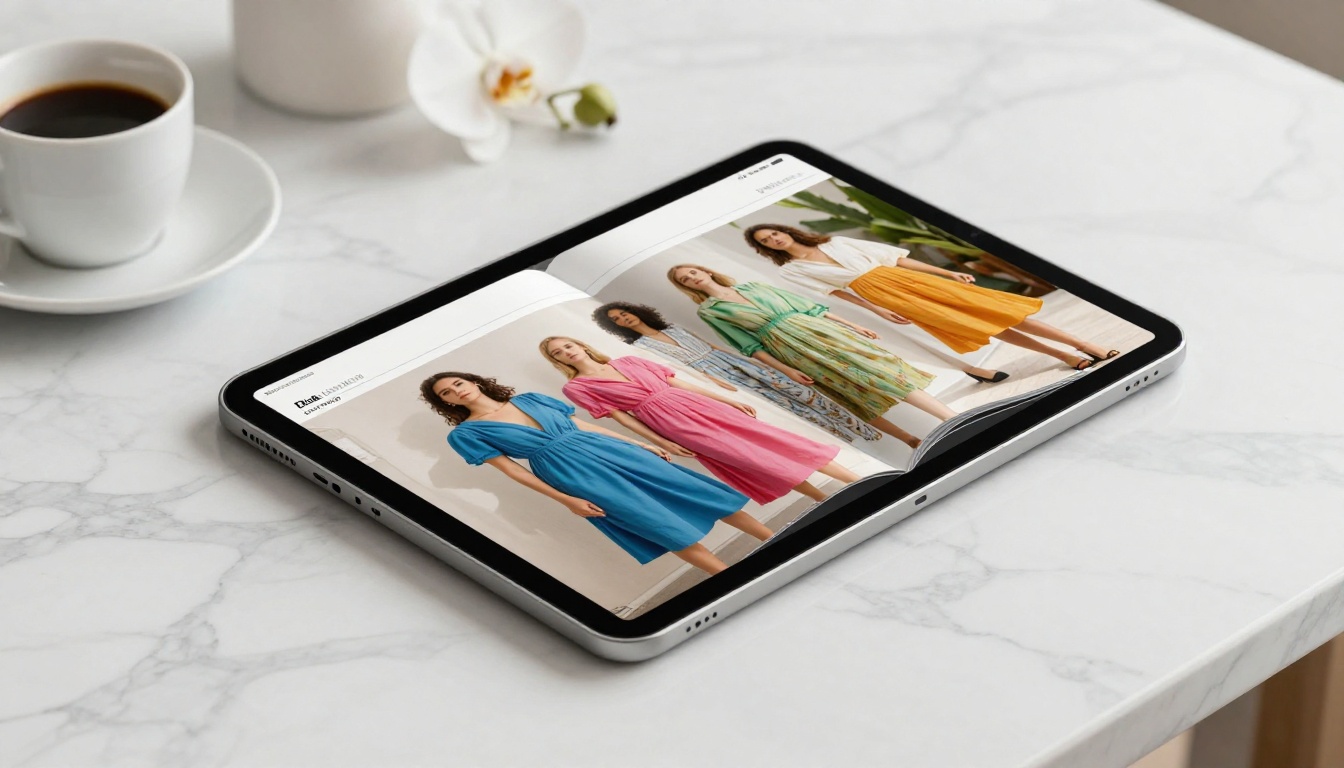
A flipbook converts your static PDF into an interactive, page-turning digital publication. Pages curl and flip. Readers zoom into details. Every hyperlink inside your Canva design stays clickable. Videos can play inline. The whole thing embeds directly onto your website with a single code snippet, or gets shared via a direct URL that opens on any browser and any device.
The workflow requires zero changes to how you design. You work in Canva exactly as you always have, export as PDF, upload to Flipbooks AI, and the conversion is automatic, typically under a minute for a standard 20-page document.
Why Most Designers Stop at the PDF
There's a reason this pipeline isn't talked about more: it's not Canva's problem to solve. Canva ends at the export. Everything after that, hosting, presenting, embedding, tracking, sharing on mobile without friction, falls outside its scope entirely.
So designers export to PDF and consider the job done. That PDF gets attached to an email that nobody opens twice, or shared on social media as a static image dump with no real interactivity. The design work deserved better distribution.
Here's what a flat PDF cannot do that a properly published flipbook can:
- Stay embedded on your website without third-party plugins
- Track reader behavior: which pages they read, how long they stayed, where they dropped off
- Include clickable links that remain fully functional on mobile and tablet
- Load instantly on any device without forcing a download
- Be password protected for private, client-only, or member-exclusive content
- Collect leads from readers who want to request more information
- Embed video and audio directly within the pages
- Deliver offline downloads to readers who need access without internet
💡 Canva's PDF Print quality is excellent. The design transfer to flipbook format is pixel-perfect. You don't need to adjust your Canva workflow at all. You just add one step at the end.

The Canva-to-Flipbook Workflow That Actually Works
The practical process is simpler than most people expect. Here is the complete sequence from Canva design to published interactive flipbook.
Step 1: Finish your Canva design normally.
Design for standard print dimensions (A4, US Letter, or custom) using Canva's templates, grids, and image tools. Nothing changes here. Multi-page documents with 4 or more pages make the most of the page-flip reading experience.
Step 2: Export as PDF Print.
In Canva, go to Share, then Download, and select PDF Print. This gives you the highest resolution output, important when readers zoom into product details or fine typography. Avoid "PDF Standard" unless file size is a hard constraint.
Step 3: Upload to Flipbooks AI.
Go to Flipbooks AI, create your account, and upload your PDF using the PDF to Flipbook Converter. The conversion processes each page automatically.
Step 4: Customize your branding.
Add your brand colors to the flipbook player, upload your logo, and set a custom cover thumbnail. Pull your Canva cover page as a PNG export for a perfect thumbnail match.
Step 5: Add interactivity (Professional plan).
Embed video links, insert audio tracks on specific pages, add lead capture forms at strategic points in the publication, or set up password protection for private access.
Step 6: Share or embed.
Copy the embed code and paste into your website HTML, or share the direct URL in email campaigns, social posts, or via QR codes printed on physical materials.
✅ The embed code works natively on WordPress, Webflow, Squarespace, Shopify, and any platform accepting raw HTML. No iframe restrictions, no special permissions required.

Feature Comparison: Static PDF vs. Flipbook
Here is an honest side-by-side view of what stays the same versus what opens up when you add the flipbook layer to your Canva output.
| Feature | Static PDF | Flipbook |
|---|
| Page-flip animation | No | Yes |
| Clickable hyperlinks | Partial (desktop only) | Yes, all devices |
| Embeds on website | No (download only) | Yes, native embed |
| Mobile-responsive reading | Poor | Fully optimized |
| Analytics and page tracking | No | Yes (Professional) |
| Password protection | No | Yes |
| Lead capture forms | No | Yes (Professional) |
| Offline downloads | No | Yes |
| Video embedding | No | Yes |
| Custom branding | No | Yes |
| No watermark | No | Yes (Standard plan+) |
| Unlimited publications | No | Yes (Standard plan+) |
Every row in that table represents a real capability your Canva design is already ready for. The design supports all of it. The PDF format simply does not.
Real Uses Nobody Thinks to Try
Most people assume flipbooks are for editorial magazines. That's a fraction of what the Canva-to-flipbook combo handles well across industries.
Product Catalogs
E-commerce brands design product catalogs in Canva monthly. Most email a PDF link that gets ignored. Converting that same Canva file into a flipbook via the Product Catalog Generator means the catalog lives permanently on a product page, loads instantly on mobile, and links directly to buy buttons.
Restaurant Menus
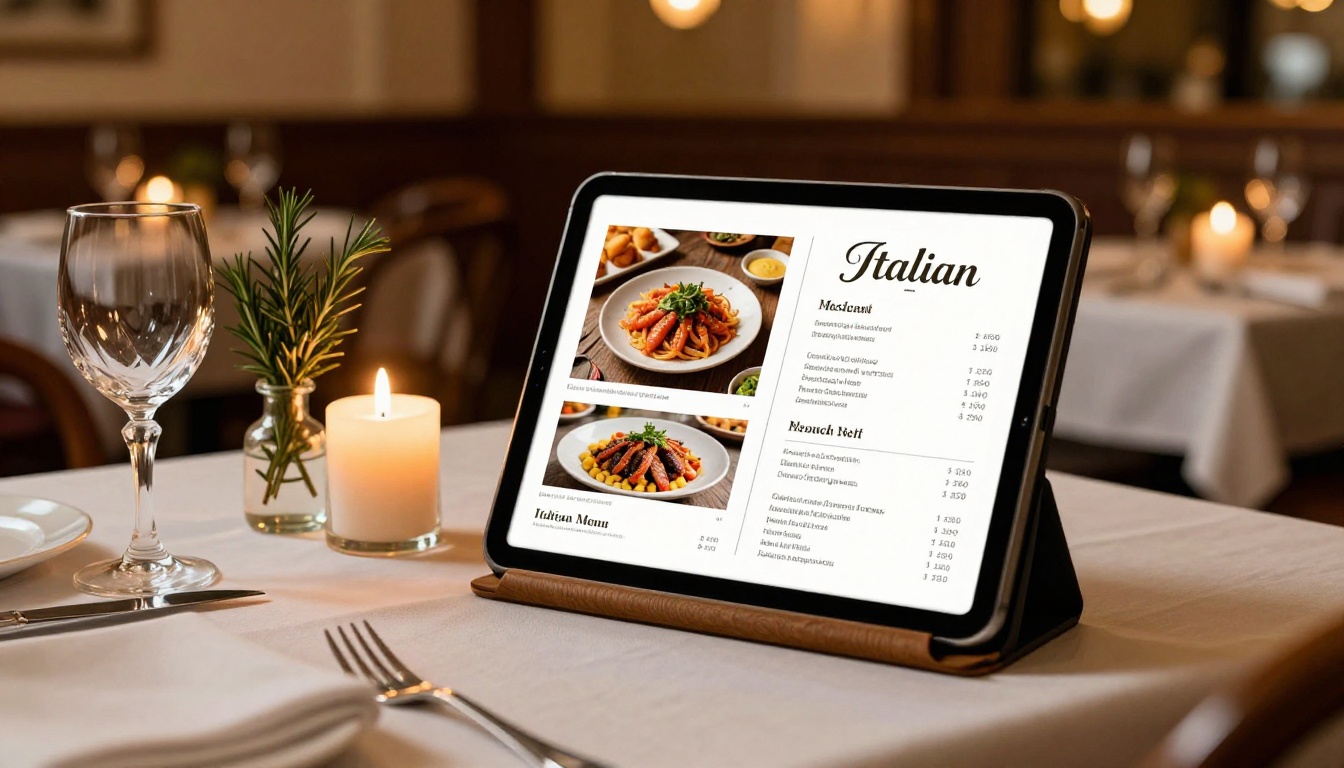
A seasonal menu designed in Canva in two hours can live on the restaurant's website as a scrollable, page-turning experience using the Restaurant Menu Creator, updated each season by simply uploading a new PDF to the same URL.
Real Estate Listings
Property brochures are among the most over-designed and under-distributed assets in real estate. A Canva brochure converted with the Real Estate Brochure Creator can be texted to buyers, embedded on listing pages, and tracked to reveal which floor plan spreads received the most attention.
Fashion Lookbooks
Brands spend real budget on Canva lookbooks that eventually get compressed into flat Instagram carousels. The Interactive Lookbook Designer gives those designs a proper home with clickable products and a shareable link that functions on every device.
Corporate and Annual Reports
Reports designed in Canva look polished as PDFs but feel static as deliverables. As flipbooks built with the Annual Report Creator, they become proper digital publications with per-page analytics on which sections stakeholders actually read and how long they spent there.
Hotel Brochures and Travel Guides
Hospitality brands that design in Canva can convert their property brochures into interactive publications using the Hotel Brochure Designer, complete with embedded video tours and direct booking links on each page.
💡 Use Canva's presentation preview mode to check your layout at full screen before exporting. Alignment issues that are invisible at thumbnail size become obvious when pages are displayed in a full-width flipbook reader.
Which Canva Design Types Work Best as Flipbooks
Not every Canva output benefits equally from a flipbook format. Here is a practical reference for when the conversion adds the most value.
Multi-page, content-rich designs benefit the most. Single-page graphics and very short slide decks are better served by Canva's native sharing tools.

Pricing Comparison: Which Plan Fits Your Workflow
Flipbooks AI offers tiered plans based on publishing volume and which features you actually need.
| Plan | Flipbooks | Watermark | Analytics | Lead Gen | Offline Download |
|---|
| Free | Limited | Yes | No | No | No |
| Standard | Unlimited | No | No | No | No |
| Professional | Unlimited | No | Yes | Yes | Yes |
For individuals and small teams who want to stop sending PDFs, the Standard plan removes watermarks and gives unlimited publications with no cap. For marketing teams tracking engagement and capturing leads from inside publications, Professional delivers the analytics and lead generation tools that make that investment worth it.
💡 If you produce Canva designs for clients, a Professional plan lets you present real engagement data from their publications. Which sections their audiences read, and for how long, becomes a concrete, billable reporting deliverable.
Why This Combo Gets Overlooked
Both tools are marketed entirely independently of each other. Canva is a design product. Flipbooks AI is a publishing platform. The connection between them, that the output of one is the perfect input for the other, is something neither company has a reason to promote to the other's audience.
The teams quietly getting the most out of Canva are the ones treating it as the first half of a two-step process. Canva handles creation at speed and scale. Flipbooks AI handles presentation, distribution, and performance tracking. Neither tool tries to do the other's job. Together they cover the complete lifecycle of a designed piece of content, from first draft to measured readership.
The PDF export that most designers treat as the final step is actually the handoff point between tools. Everything that happens after that export, until a reader finishes a publication and a marketer reads the analytics, that's the second half of the workflow most people are currently skipping entirely.

Flipbooks and SEO: The Visibility Bonus
There's a secondary benefit to the flipbook format that most content teams overlook entirely: search visibility.
An embedded flipbook on your website creates a real page with readable, indexable content. The landing page for each flipbook is a proper URL with a title, meta description, and structured metadata that search engines can crawl and index. A PDF file sitting in cloud storage has none of those properties.
When a real estate agent embeds a neighborhood guide flipbook on their website, that page becomes a potential search result for neighborhood-related queries. When a restaurant embeds their seasonal menu as a flipbook, that page can appear in "[restaurant name] menu" searches. The design you already made in Canva becomes a discoverable content asset with real search potential.
⚠️ A PDF sitting in Dropbox or Google Drive is invisible to search engines. A flipbook embedded on your own domain is indexed, linkable, and shareable as a real web page.
Stop Leaving Your Canva Work on the Table
You already have the design side of this workflow covered. Canva handles that part well and you probably know it better than most. The missing piece is what happens after the export.
Add a flipbook layer and your Canva work stops dying in Downloads folders. It gets embedded on websites, shared on mobile without friction, tracked for real performance data, and protected when the content is meant for specific audiences only.
Create your first flipbook on Flipbooks AI and run through the full workflow with a Canva file you've already made. The whole process takes about 10 minutes the first time. After that, it becomes faster than the PDF export itself.
Browse all flipbook tools and templates to find the format that fits your content type, or check the pricing plans to choose what fits your publishing volume. Your Canva designs are already good enough. Now give them a home they deserve.



