Most Canva users export a PDF, upload it somewhere, and wonder why it looks flat. The page-turning effect never quite lands. The images come out blurry. The colors shift. And after all that work building something polished inside Canva, it ends up looking like a scanned document from 2009.
There is one setting, buried in Canva's export menu, that changes everything. Combined with the right flipbook platform, it takes your Canva design from static to stunning in under five minutes. This is the trick nobody talks about, and by the end of this article, you will know exactly how to use it.
Flipbooks AI is the platform that makes this process seamless, from upload to publish to share. But first, the trick.
The Export Setting Most Canva Users Skip
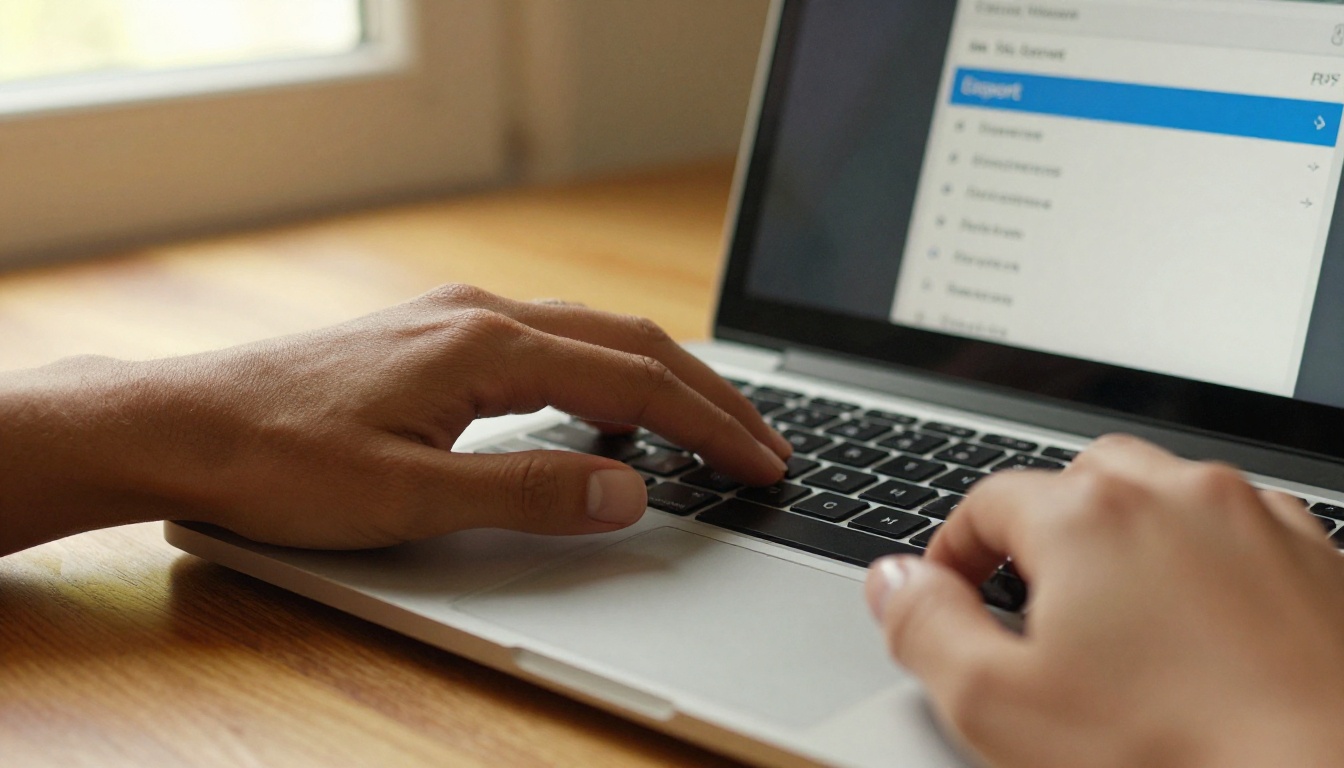
When you finish a design in Canva and click "Share," then "Download," you get a format selection menu. Most people click PDF Standard and move on. That is the mistake.
Standard PDF vs. Print PDF
Canva gives you two PDF export options, and the difference between them is significant when you are building a flipbook.
| Setting | Resolution | File Size | Best For |
|---|
| PDF Standard | 96 DPI | Small | Web viewing, email |
| PDF Print | 300 DPI | Larger | Flipbooks, print, archiving |
PDF Print exports at 300 DPI, which means every image, every font, every fine line in your design comes out razor-sharp. When a flipbook converter processes that file, it has significantly more pixel data to work with. The result is a flipbook that looks as good on a 4K monitor as it does on a phone screen.
PDF Standard, at 96 DPI, was never meant to hold up at full-page display sizes. It looks fine in a browser tab. The moment it gets rendered as a full-page flipbook, pixelation and color compression become obvious.
💡 Pro tip: If your design uses a lot of photography or detailed illustrations, always choose PDF Print. The file size increase is worth it every time.
Why Resolution Matters More Than You Think
Flipbook converters do not just display your PDF pages. They render each page as a high-resolution image, then apply the page-turning animation on top of that rendered layer. If the source PDF is low-resolution, the rendered page layer will be blurry regardless of how good the flipbook platform is.
The chain works like this: high-resolution source PDF → high-quality page render → sharp, professional flipbook. Break the chain at the source and everything downstream suffers.
This is why "PDF Print" is the trick. It is not about printing anything. It is about exporting at a resolution that holds up under the full-page treatment a flipbook gives it.
From Canva Slides to a Page-Turning Flipbook

Once you have the right PDF in hand, the conversion process is straightforward. Here is the exact sequence.
Step 1: Set Up Your Canva Design for Flipbook Output
Before you export, two things in your Canva design determine how well it translates to a flipbook format.
Page size: Canva defaults to a standard presentation size (1920x1080px for presentations, A4 for documents). Both work well. If you are building something purpose-built for a flipbook, a landscape A4 or custom 1920x1080 format gives you clean, consistent pages that fill a flipbook viewer without awkward white margins.
Bleed and margins: Keep critical content (text, logos, calls-to-action) at least 5mm from any edge. Flipbook viewers sometimes add a slight shadow or trim effect along page edges, and content sitting right at the border can get clipped visually.
Step 2: Export as PDF Print
- Open your finished Canva design
- Click Share in the top right corner
- Select Download
- Choose PDF as the format
- Select PDF Print from the quality dropdown
- Toggle off "Crop marks and bleed" unless you specifically need them
- Click Download
That is it. Your high-resolution PDF is ready.
Step 3: Upload to a Flipbook Converter
This is where Flipbooks AI comes in. The platform accepts your PDF and converts it into a fully interactive, page-turning flipbook with no technical setup required.
✅ Best practice: Always preview your PDF in a standard PDF reader before uploading. Make sure all pages are in the correct order, no pages are blank by accident, and all fonts are embedded (Canva handles this automatically with PDF Print).
What Canva Designs Work Best as Flipbooks
Not every Canva design converts equally well. Some types are purpose-built for the flipbook format, while others need minor adjustments before they shine.
Dimensions That Convert Well
The flipbook format is horizontal by nature. Viewers expect to flip through landscape-oriented pages, the same way they would turn pages in a magazine or catalog. Canva designs that already use a landscape orientation translate directly without any letterboxing or awkward spacing.
| Canva Format | Orientation | Flipbook Result |
|---|
| Presentation (16:9) | Landscape | Excellent |
| A4 Document | Portrait | Good (slight padding) |
| Social Media Post (1:1) | Square | Works, not ideal |
| Instagram Story (9:16) | Portrait | Not recommended |
| Custom Landscape | Landscape | Excellent |
Portrait-oriented designs (like A4 documents) still work. Most flipbook platforms display them centered with a page-shadow effect that actually looks quite elegant. But if you are building a product catalog, lookbook, or magazine, start with a landscape format inside Canva from the beginning.
Fonts, Colors, and Visual Weight
Canva's font library is extensive, but not every font reads well at flipbook scale. A few rules that save headaches later:
- Minimum font size: 10pt for body text. Anything smaller becomes illegible when pages are displayed at reduced zoom on mobile devices.
- High contrast: Light text on light backgrounds, which is easy to overlook in Canva's colorful template environment, becomes a real readability problem on screen. Aim for at least a 4.5:1 contrast ratio.
- Color consistency: Canva's color picker uses hex values. When you export as PDF Print and upload to a flipbook platform, those hex values remain accurate. There is no color shift the way there sometimes is with image exports.
⚠️ Warning: Canva's "Animate" feature (which adds motion to elements within Canva) does NOT carry over into a PDF export. If you want animated or interactive elements in your flipbook, the animation happens at the flipbook platform level, not from Canva's internal animation tools.
How to Publish Your Flipbook With Flipbooks AI
This is where the workflow comes together. Flipbooks AI converts your Canva PDF into a professional flipbook, applies your branding, and gives you multiple ways to share or embed it.
Upload Your PDF
- Go to Flipbooks AI and create your account (or log in)
- Click New Flipbook and select Upload PDF
- Drag and drop your Canva-exported PDF or browse to select it
- The platform processes your pages and generates a preview automatically
- Review the page order and quality in the preview panel
Processing typically takes between 30 seconds and two minutes depending on your PDF size and page count. High-resolution PDFs (PDF Print exports) process very cleanly because the source material is consistent and well-formed.
Branding and Customization
Once your pages are imported, Flipbooks AI gives you a full customization suite. This is where you go well beyond what the PDF alone can offer.
What you can customize:
- Thumbnail image and flipbook title
- Background color or custom background image behind the pages
- Page-turning animation speed and style
- Table of contents (auto-generated from PDF bookmarks, or manually set)
- Logo placement for your brand
- Custom domain or subdomain for the published flipbook link
- Password protection for private or client-facing content
💡 Pro tip: If you are sending this flipbook to a client, use the password protection feature. It makes the delivery feel professional and keeps the content controlled before the client approves it.
Sharing, Embedding, and Privacy
Publishing your flipbook on Flipbooks AI gives you three distinct distribution options, each useful in different contexts.
Direct link: A clean, shareable URL that opens the flipbook in a dedicated viewer. Works anywhere you can paste a link: email, Slack, social media, proposals.
Embed code: A snippet of HTML that drops the flipbook directly into any website or landing page. The flipbook displays inline, fully interactive, without redirecting visitors away from your page. Use the Embed Flipbook on Website tool for a smooth setup.
PDF download: You can allow viewers to download the original PDF from within the flipbook viewer, or disable this option for content you want to keep digital-only.
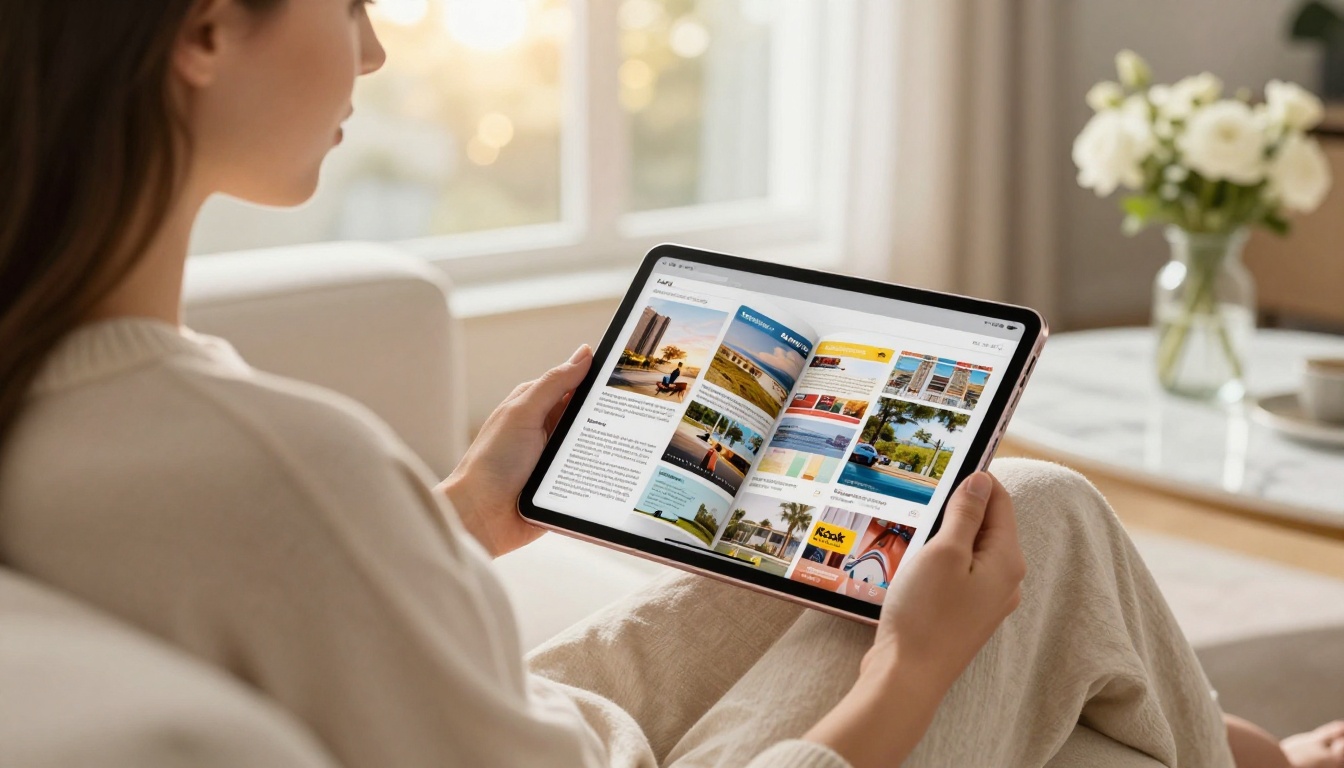
The Canva-to-flipbook pipeline is not a novelty. Businesses and creators across industries use it weekly because it solves a specific problem: Canva is great for design, but a static PDF is a dead-end for sharing. A flipbook is the living version of that design.
Product Catalogs
A retail brand designs their seasonal product catalog in Canva, exports as PDF Print, and uploads it to Flipbooks AI. The result is a page-turning digital catalog that can be embedded on their product page, sent to wholesale buyers via direct link, and updated each season by simply uploading a new PDF.
The Product Catalog and Digital Catalog Maker tools make this even faster with pre-built templates and optimized settings for catalog formats.
Digital Brochures
A real estate agent builds a property brochure in Canva and needs to send it to prospective buyers. Instead of attaching a 15MB PDF to an email (which often bounces spam filters), they upload it to Flipbooks AI, get a direct link, and send a single URL that opens a beautiful, page-turning brochure in any browser.
The Real Estate Brochure tool extends this with industry-specific templates built for property showcases.
Portfolios and Lookbooks
A fashion photographer compiles their portfolio in Canva: full-bleed images, minimal text, clean grid layouts. Exported as PDF Print, uploaded to a flipbook, the result is an interactive portfolio that behaves like a magazine. Clients flip through pages instead of scrolling a static PDF. The Photography Portfolio and Interactive Lookbook Designer are built for exactly this use case.
💡 Pro tip: For portfolio flipbooks, use Canva's "Presentation" format (16:9) rather than A4. Full-bleed landscape images fill the flipbook viewer completely, creating a far more immersive experience.
Canva Flipbooks vs. Other Methods
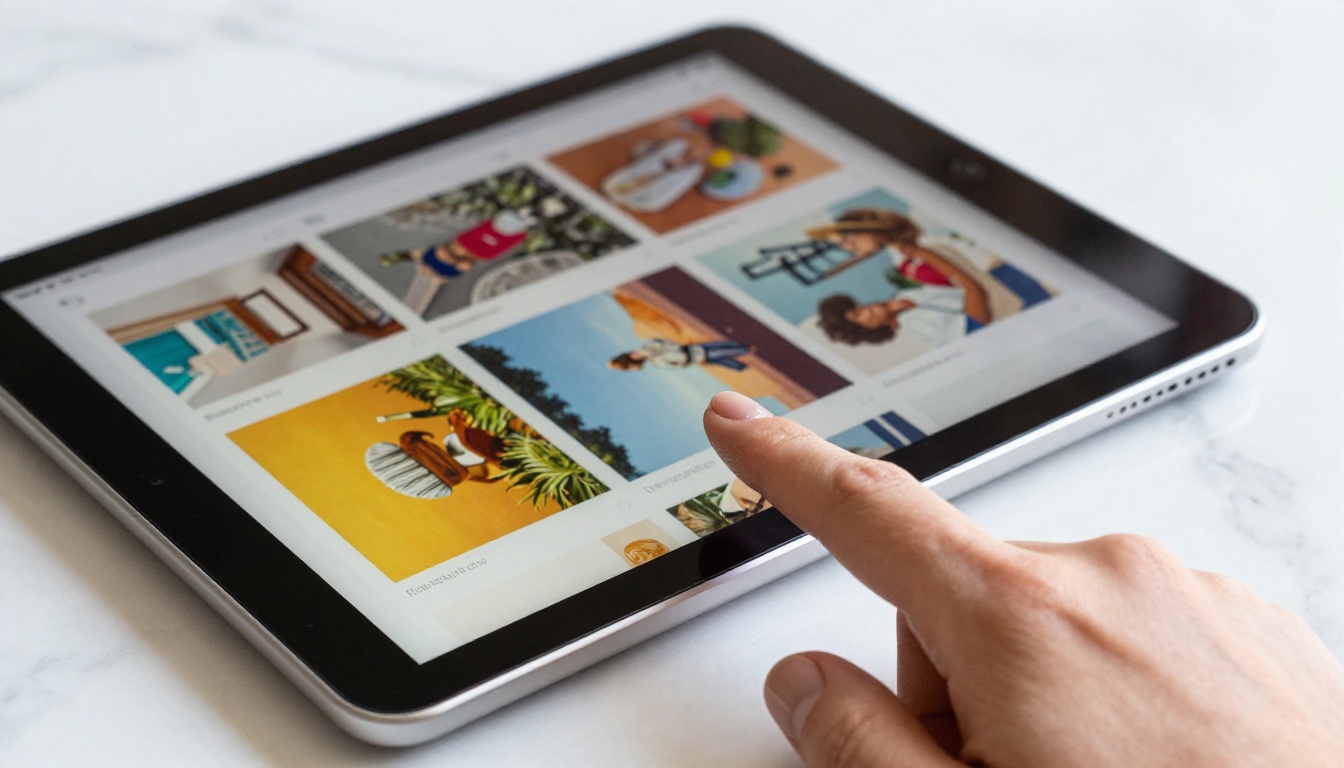
There are several ways to share Canva designs online. Here is how the flipbook approach stacks up against the alternatives.
| Method | Interactive | Mobile-Friendly | Embeddable | Branded | Page-Turning |
|---|
| PDF attachment | No | Partial | No | No | No |
| Canva public link | Partial | Yes | Limited | Yes | No |
| Exported images (ZIP) | No | No | No | No | No |
| Flipbook (PDF Print + Flipbooks AI) | Yes | Yes | Yes | Yes | Yes |
| Google Slides publish | Partial | Yes | Yes | Limited | No |
The flipbook format wins on every axis that matters for professional sharing. It is the only method that combines true page-turning interaction, full mobile responsiveness, embeddability, and custom branding in a single workflow.
What the Professional Plan Opens Up

The Flipbooks AI pricing plans are structured around how seriously you take your digital publishing. The Standard plan removes watermarks and gives you unlimited flipbooks. The Professional plan goes further with features that change how you use flipbooks in a business context.
Professional plan features:
- Analytics: See exactly how many people opened your flipbook, how far they read, and which pages got the most attention. For sales teams, this is invaluable.
- Lead generation: Capture email addresses directly within the flipbook viewer before readers access full content.
- Offline downloads: Allow viewers to save the flipbook for offline access while maintaining your branding.
- Custom domain: Publish your flipbook at your own domain rather than a generic platform URL.
| Plan | Watermarks | Flipbook Limit | Analytics | Lead Gen | Offline |
|---|
| Free | Yes | Limited | No | No | No |
| Standard | No | Unlimited | No | No | No |
| Professional | No | Unlimited | Yes | Yes | Yes |
For anyone using flipbooks as a sales or marketing asset, the Professional plan pays for itself quickly. Knowing which prospects actually read your proposal, and which pages they spent the most time on, is information you cannot get from a PDF attachment.
Embed It Anywhere, Share It Everywhere
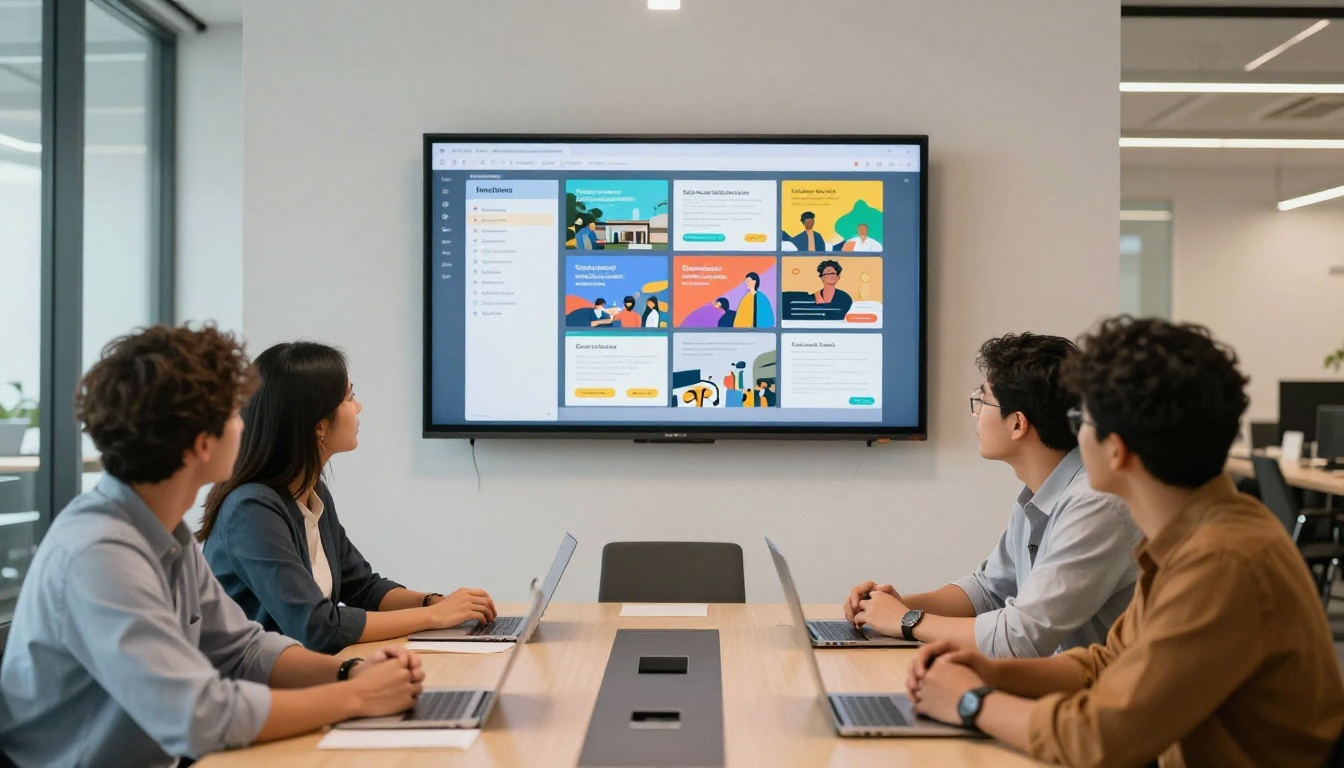
One of the most practical advantages of the Canva-to-flipbook workflow is how many places you can deploy the final result.
Where flipbooks from Flipbooks AI can live:
- Embedded on a website homepage or product page
- Linked from a social media bio
- Sent as a direct link in email campaigns
- Displayed in a digital kiosk or trade show screen
- Shared in a client portal or proposal document
- Embedded in a blog post as interactive content
The Embed Flipbook on Website tool makes the technical side of website embedding require no coding knowledge. You copy a snippet, paste it into your website builder, and the flipbook appears.
This is where the trick compounds. A single Canva design, exported correctly, uploaded once, becomes a versatile asset that can live in five different places at the same time. Update the source flipbook and all instances update automatically. No re-exporting, no re-uploading, no chasing down old links.
Stop Sending PDFs

The people receiving your carefully crafted Canva designs deserve better than a static PDF that gets buried in a Downloads folder. A flipbook is how those designs were always meant to be experienced: page by page, with texture, with motion, on any device.
The trick is simple: export as PDF Print, not PDF Standard. That single setting change, combined with Flipbooks AI, is the difference between a forgettable PDF and an interactive publication people actually read.
Everything else follows from there. The upload takes a minute. The customization is intuitive. The sharing options are flexible. And the results speak for themselves every time someone opens your link and watches your Canva design flip to life.
Ready to try it? Create your account on Flipbooks AI and upload your first Canva PDF today. No watermarks, no limits, no complicated setup.
Browse all flipbook tools to find the right format for your use case, or compare pricing plans to see which tier fits your workflow.



