Spending four hours in Photoshop to build a brochure that ends up as a flat, unshareable PDF is a workflow that thousands of marketing teams are quietly abandoning. If you have ever stared at a 47-layer PSD file just trying to adjust one headline, you already know Photoshop was never really built for brochure production at scale. There is a faster path to professional results, and Flipbooks AI is built specifically for it.
Why Photoshop Makes Brochures Harder Than They Need to Be
Photoshop is a pixel editor. It was built for retouching photos, not laying out multi-page documents with consistent typography, bleed settings, and interactive links. When marketers force it into a layout role, the friction shows up fast.
The Layer Problem Nobody Talks About
A typical three-panel brochure in Photoshop balloons into 60 or 80 layers within an hour. Rename one group, and your smart object references break. Move a text block, and alignment guides no longer match. For solo designers who live in Photoshop daily, this is manageable. For the rest of the world, it is a time sink with no clear floor.
Export Headaches and File Size Nightmares
Photoshop exports flat. You get a JPG, a PNG, or a PDF that looks right on screen but loses sharpness when someone opens it on a retina display at the wrong resolution. Digital brochures need responsive layouts, embedded links, and files that load fast on mobile. Photoshop does not natively solve any of these problems.
⚠️ A Photoshop-exported PDF brochure has no interactive features. Links do not work, page transitions do not exist, and analytics tracking is impossible.
What You Actually Need vs. What Photoshop Gives You
Here is a direct breakdown of what most brochure projects actually require versus what Photoshop delivers:
| Requirement | Photoshop | Dedicated Brochure Tool |
|---|
| Multi-page layouts | Limited (one canvas) | Built-in |
| Clickable links | No | Yes |
| Mobile-responsive output | No | Yes |
| Page flip animation | No | Yes |
| Templates to start fast | No native library | Hundreds |
| Embed video or audio | No | Yes |
| Share via URL instantly | No | Yes |
| Analytics on reader behavior | No | Yes (Pro plans) |
The gap is significant. Photoshop forces you to build every element by hand, while purpose-built tools give you a head start with structure already in place.
What Makes a Digital Brochure Different From a Print One
Printing a brochure and publishing a digital one are not the same job. The output format changes what is possible, and what readers actually expect.
Interactive Elements That Print Can't Do
A digital brochure can embed a video tour of a hotel room, link directly to a product purchase page, or play ambient audio when a reader opens to a specific section. These are not novelties. They are features that directly influence how long someone spends reading and whether they take action.
💡 Interactive content consistently generates 2x more reader interaction than static documents. Every link, video, or animated page turn adds a reason for readers to stay.
Sharing and Accessibility
A printed brochure requires postage or in-person delivery. A digital one shares via a link in an email, an embed on your website, or a QR code on a printed piece. That flexibility changes the economics entirely. You spend less per impression and reach people in more contexts.
Formats Your Audience Actually Uses
- Mobile-first readers need responsive layouts that reflow on small screens
- Email recipients benefit from click-to-view links rather than heavy attachments
- Website visitors spend more time with embedded flipbooks than with static PDFs
- Social media audiences share visual, animated content over flat files
The biggest practical difference between Photoshop and a dedicated brochure platform is where you start. In Photoshop, you start at zero: blank canvas, no grid, no typography presets, no color palette. In a modern tool, you start from a template that already handles spacing, hierarchy, and bleed.

Templates vs. Starting From Scratch
A well-designed template does three things immediately:
- Sets consistent margins so your content does not crowd the edges
- Establishes type hierarchy so headlines, subheads, and body text already work together
- Provides a color system that you can swap out to match your brand in seconds
The time difference between a template start and a blank canvas start on a three-panel brochure is typically 45 to 90 minutes. On a six-page brochure, that gap widens to several hours.
How Speed Translates to Output Volume
For marketing teams and agencies, speed is not just about one project. It is about how many projects you can ship per week. A team that produces three brochures per week instead of one is three times as responsive to campaign needs. That is a structural production advantage that compounds over time.
| Workflow | Time to First Draft | Time to Final Output | Shareable Immediately? |
|---|
| Photoshop from scratch | 3-5 hours | 6-8 hours | No (export needed) |
| Photoshop from template | 2-3 hours | 4-5 hours | No (export needed) |
| Dedicated tool from template | 30-45 minutes | 1-2 hours | Yes |
| Dedicated tool with PDF upload | 5-10 minutes | 20-30 minutes | Yes |
✅ If you already have a PDF brochure, uploading it to a flipbook converter gets you a shareable, interactive digital version in under 10 minutes.
How to Create a Digital Brochure with Flipbooks AI
Flipbooks AI is built specifically for interactive digital publications. The Online Brochure Designer and Brochure Flipbook Maker handle the heavy lifting so you focus on content, not construction.
Step 1: Create your account
Go to flipbooksai.com/account and sign up. The free plan lets you start immediately with no credit card required.
Step 2: Choose your starting point
You have two options:
- Upload a PDF: If you already have a brochure designed anywhere, export it as a PDF and upload it directly. The platform converts it into a full interactive flipbook automatically.
- Start from a template: Browse the brochure-specific templates. Each one is structured with professional proportions and typography already in place.
Step 3: Customize your branding
Replace placeholder content with your own:
- Swap in your logo in the header area
- Update color accents to match your brand palette
- Change typography to fit your brand voice (multiple font families available)
- Add your contact information, social handles, and website links
Step 4: Add interactive elements
This is where digital brochures pull ahead of anything Photoshop produces:
- Embed video: Drop in a product video or testimonial clip directly on any page
- Add clickable links: Every button and image can link to an external URL
- Include audio: Background music or narration for immersive brand experiences
- Page effects: Choose from page flip, slide, or fade transitions throughout
Step 5: Set sharing options
- Public link: A direct URL you can share anywhere, from email to social media
- Embed code: Drop your flipbook onto any webpage with a single copy-paste
- Password protection: Restrict access to specific audiences like sales prospects or press contacts
- QR code: Generate a scannable code for print pieces that links to the digital version
Step 6: Publish and track
On the Professional plan, you get full analytics. See who opened your brochure, which pages they spent the most time on, and where readers stopped. That data shapes every future version you publish.
💡 Use the analytics to identify which sections of your brochure get the most attention. If readers consistently stop at your pricing page, that is a signal to add more detail or a direct call to action there.
Not all brochures serve the same purpose. Flipbooks AI has purpose-built tools for specific industries and use cases, each starting from a template designed for that exact context.
Using a purpose-built tool means your starting template already reflects industry conventions. A real estate brochure template already has a property stats block. A hotel template already has a room feature breakdown. These are hours of structural work you skip entirely, before you type a single word.
Real-World Use Cases That Work
Real Estate: From Listing to Brochure in 20 Minutes
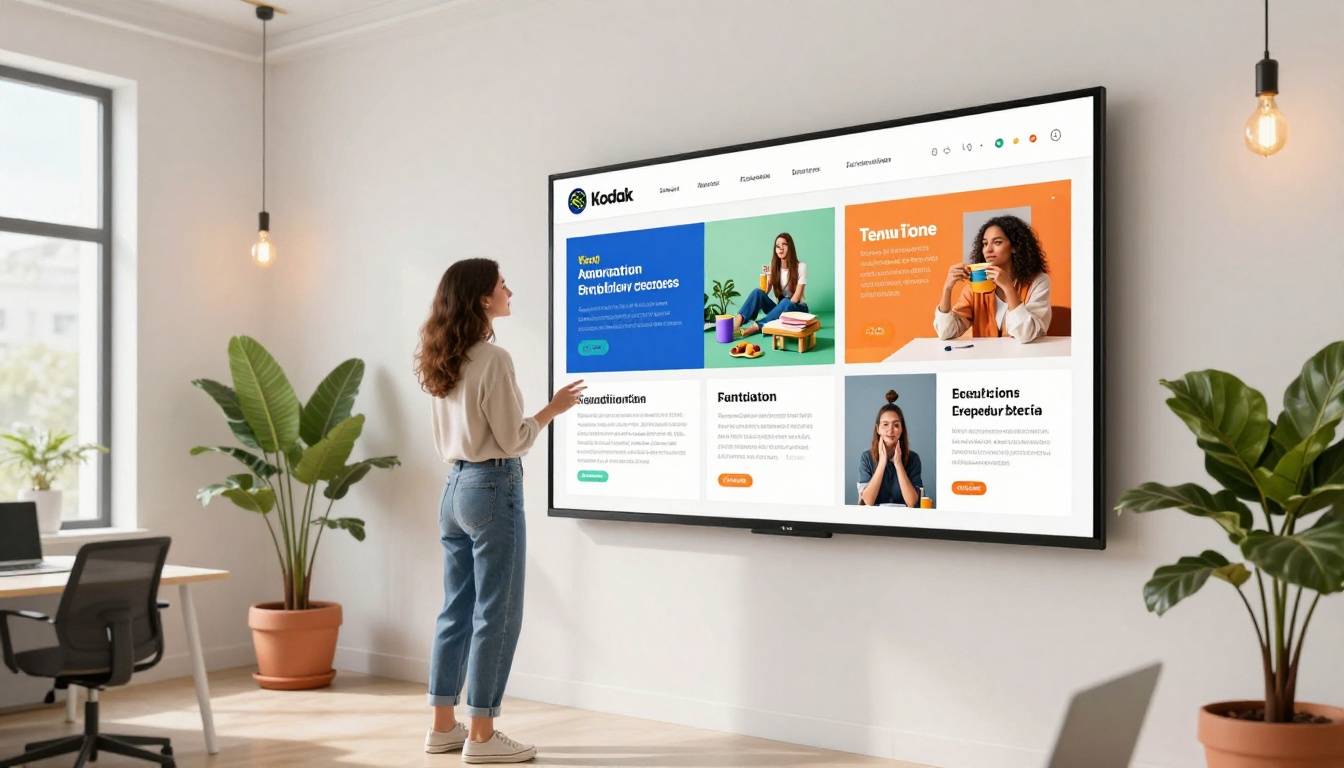
A real estate agent gets a new listing on a Tuesday morning. By Tuesday afternoon, they need a shareable brochure for an open house promotion. In Photoshop, that means sourcing photos, building a layout, sizing everything for print or web, and then exporting. With a dedicated tool, it means uploading photos, filling in the property details, and hitting publish. The link goes into an email blast, gets pinned to social media, and shows up on the listing page as an embed. No printing, no courier, no wasted copies sitting in a box.
Hotels: The Digital Brochure That Sells Experiences
Hospitality marketing depends on atmosphere. A static PDF of a hotel cannot show a fireplace crackling or waves breaking outside a suite window. An interactive brochure built with the Hotel Brochure Designer can embed video directly on the spa page or the restaurant feature section. That changes the reading experience from passive to immersive, and immersive experiences convert.
Fashion and Retail: Seasonal Lookbooks at Speed
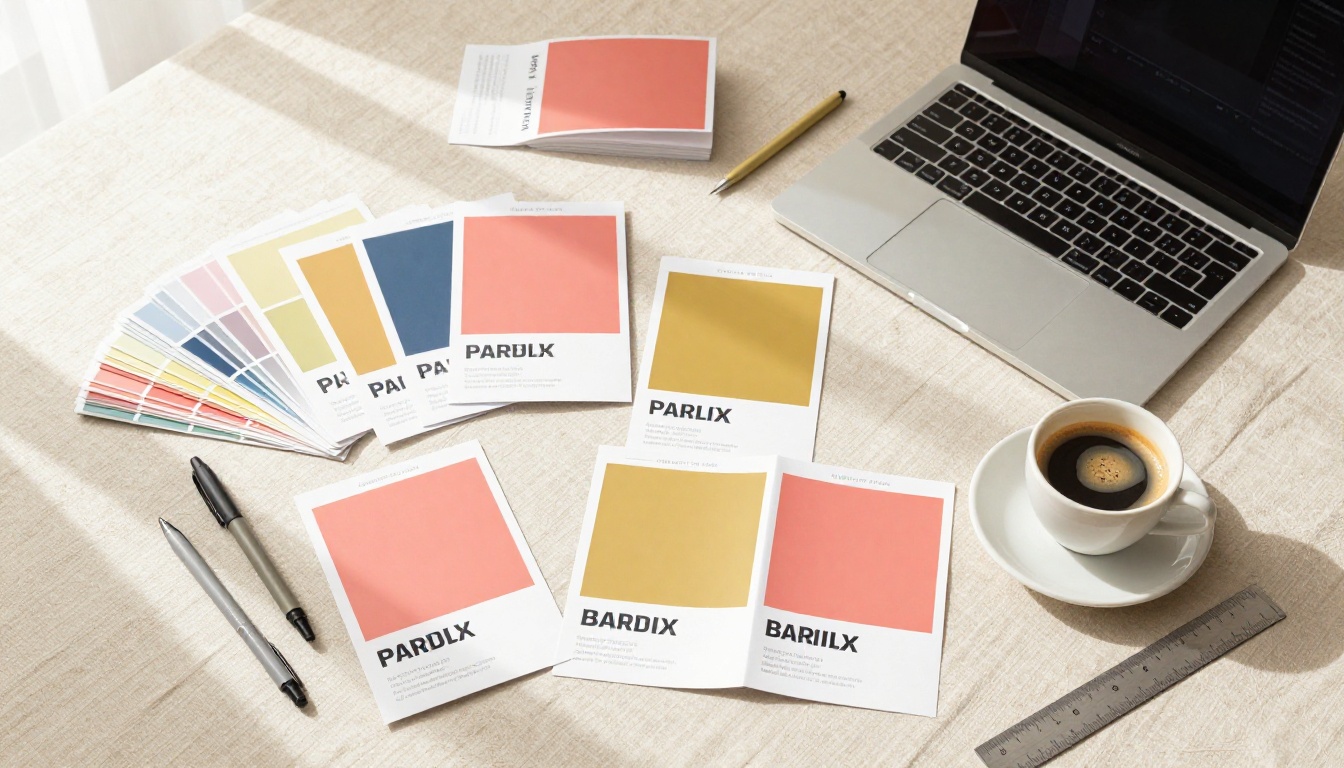
A fashion brand dropping a seasonal collection needs lookbooks fast. Photoshop produces beautiful lookbook pages, but it is slow and inflexible when a stylist changes three looks the night before launch. A digital tool lets you swap images, update product names, and republish the same URL without resending anything. Clients and press get the updated version automatically because the link never changes.
What Each Plan Actually Gives You
A breakdown of what you get at each level on Flipbooks AI:
| Feature | Free | Standard | Professional |
|---|
| Flipbooks per month | Limited | Unlimited | Unlimited |
| Watermarks | Yes | No | No |
| Custom branding | No | Yes | Yes |
| Password protection | No | Yes | Yes |
| Analytics | No | No | Yes |
| Lead generation forms | No | No | Yes |
| Offline downloads | No | No | Yes |
| Embedded video and audio | No | Yes | Yes |
| Mobile-responsive | Yes | Yes | Yes |
✅ The Standard plan removes watermarks and enables unlimited flipbooks. For most small businesses and marketing teams, that is the practical starting point.
For teams that need lead generation, reader analytics, and the ability to let clients download flipbooks offline, the Professional plan adds all of those capabilities in one tier. No watermarks, no limits, and a full picture of how your brochures perform in the field.
Who Should Stop Using Photoshop for Brochures
Photoshop still belongs in specific parts of the design workflow: retouching a hero product photo, compositing a lifestyle scene, applying precise color grading to campaign imagery. These are legitimate use cases.
Building brochure layouts is not. If any of these apply to you, it is time to switch tools:
- You spend more than two hours per brochure on layout work alone
- Your team regularly misses brochure deadlines because production takes too long
- You publish brochures as flat PDFs that nobody can share easily
- You have no idea whether anyone actually reads past the first page
- You cannot update a published brochure without re-exporting and resending it
The right tool for creating a digital brochure is one built for digital output: interactive, fast to produce, easy to update, and immediately shareable. Flipbooks AI covers all of that, with specific tools for every industry from real estate to hospitality to automotive.
If you are ready to stop fighting a tool that was not built for this job, create your first brochure for free and see how fast professional results actually arrive when you use the right tool. Browse all brochure and publishing tools to find the one that fits your exact use case, or compare pricing plans to choose the right tier for your team.



