Flyers used to be stapled to telephone poles. Now they compete with thousands of pieces of content in a single scroll. A static JPEG gets a half-second glance before someone moves on. A flyer that opens like a real document, with pages that physically curl and turn as you swipe through it, makes people stop and actually interact. That difference in behavior is measurable, and it is why marketers who create a digital flyer with page-flip effect consistently outperform those who settle for flat images.
Why Static Flyers Fail Online
Most digital flyers are just images with text. They communicate, but they do not invite interaction. When something sits flat on a screen with no animation or depth, it signals to the viewer that no effort was required, and so no effort is needed to look at it. It gets scrolled past.
The page-flip effect changes that equation. It introduces a physical metaphor into a digital space. A page that curls at the corner when you hover over it triggers the same instinct that makes people pick up a magazine. The brain recognizes the motion as "there is more inside." That recognition drives clicks.
Why Flippable Beats Flat
People spend significantly more time with flippable documents than static ones. The reasons are straightforward:
- Physical familiarity: Page-turn mimics books and magazines, formats humans have interacted with for centuries
- Implied depth: A flippable flyer suggests multiple pages, more content, more value
- Interactivity bias: Anything that responds to touch or cursor creates a feedback loop that holds attention
- Perceived production value: An interactive format signals effort and credibility
When a Page-Flip Flyer Is the Right Call
Not every piece of content needs a flip effect. A quick social post does not. But certain formats benefit enormously:
- Event promotions with multi-day schedules
- Seasonal sales with multiple product categories
- Restaurant specials that change week to week
- Real estate listings with room-by-room details
- Portfolio showcases for creatives and agencies
- Educational program overviews and course brochures
What the Page-Flip Effect Actually Is
Before creating one, it helps to know what is happening under the hood.
The page-flip effect is an HTML5 animation that simulates the physical motion of turning a page. When you load a flyer in a browser, the viewer sees what looks like a real document. As they click or swipe, the page peels back with realistic shadow and curl, revealing the next page beneath it.
The Technical Side (Simplified)
Older implementations used Flash, which is now defunct. Modern page-flip is built on:
- HTML5 Canvas: Renders the page curl animation in real time
- WebGL: Adds realistic lighting and shadow to the curl motion
- JavaScript: Handles the interaction logic and touch events
- Responsive CSS: Makes the whole experience work on mobile screens
This means your page-flip flyer works in any browser without plugins. On mobile, it responds to swipe gestures. On desktop, it responds to clicks and mouse movement. No app required, no download needed by the viewer.
Supported Source Formats
Most page-flip tools convert from PDF. Here is how common source formats compare:
| Source Format | Compatibility | Best For |
|---|
| PDF (vector) | Excellent | Sharp text, scalable graphics |
| PDF (image-based) | Good | Photo-heavy designs |
| PowerPoint / PPTX | Moderate | Presentations adapted to flyer format |
| Images (JPG/PNG) | Limited | Single-page flyers only |
| InDesign export | Excellent | Professional print-quality designs |
💡 Always export your design as a PDF with embedded fonts and high resolution (300 DPI minimum) before converting. This preserves text sharpness on all screen sizes and prevents font substitution errors.

Designing Your Flyer Before You Convert
The quality of your page-flip flyer depends almost entirely on the quality of the source file. Rushing the design phase produces a flyer that flips beautifully but communicates nothing.
Dimensions and Resolution
For digital flyers intended to be viewed on screens, use these specifications:
- Width: 1920px or 210mm (A4 landscape equivalent)
- Height: 1080px or 297mm
- Resolution: 150-300 DPI (150 is sufficient for screen-only distribution)
- Color mode: RGB, not CMYK
- File format: PDF with vector graphics where possible
For portrait-style flyers that perform better on mobile-first audiences:
- Width: 1080px
- Height: 1920px
- This 9:16 ratio is optimal for Instagram Stories and mobile viewing
Typography That Reads on Any Screen
Text that looks perfect in print often falls apart on screens. Follow these rules:
- Minimum body text: 11pt (14pt preferred for mobile)
- Headings: 24-48pt depending on hierarchy level
- Line spacing: 1.4-1.6x for comfortable readability
- Font pairing: One display font for headlines, one clean sans-serif for body copy
- Contrast ratio: At least 4.5:1 between text and background
⚠️ Avoid light gray text on white backgrounds, or yellow text on light colors. These combinations are nearly unreadable on mobile screens, especially in bright outdoor light.
What to Put on Each Page
A multi-page page-flip flyer works best with a clear narrative structure:
- Page 1: Hook. Brand identity. One powerful headline.
- Page 2: The offer or event detail. Price, date, location.
- Page 3: Social proof, testimonials, or feature highlights.
- Page 4: Call to action. Contact details. QR code or clickable link.
Even a two-page flyer benefits from this front-to-back thinking. Give each page one job.
How to Create a Digital Flyer with Page-Flip Effect
This is where theory becomes practice. Flipbooks AI handles the entire conversion and hosting pipeline, so you do not need to write a single line of code.
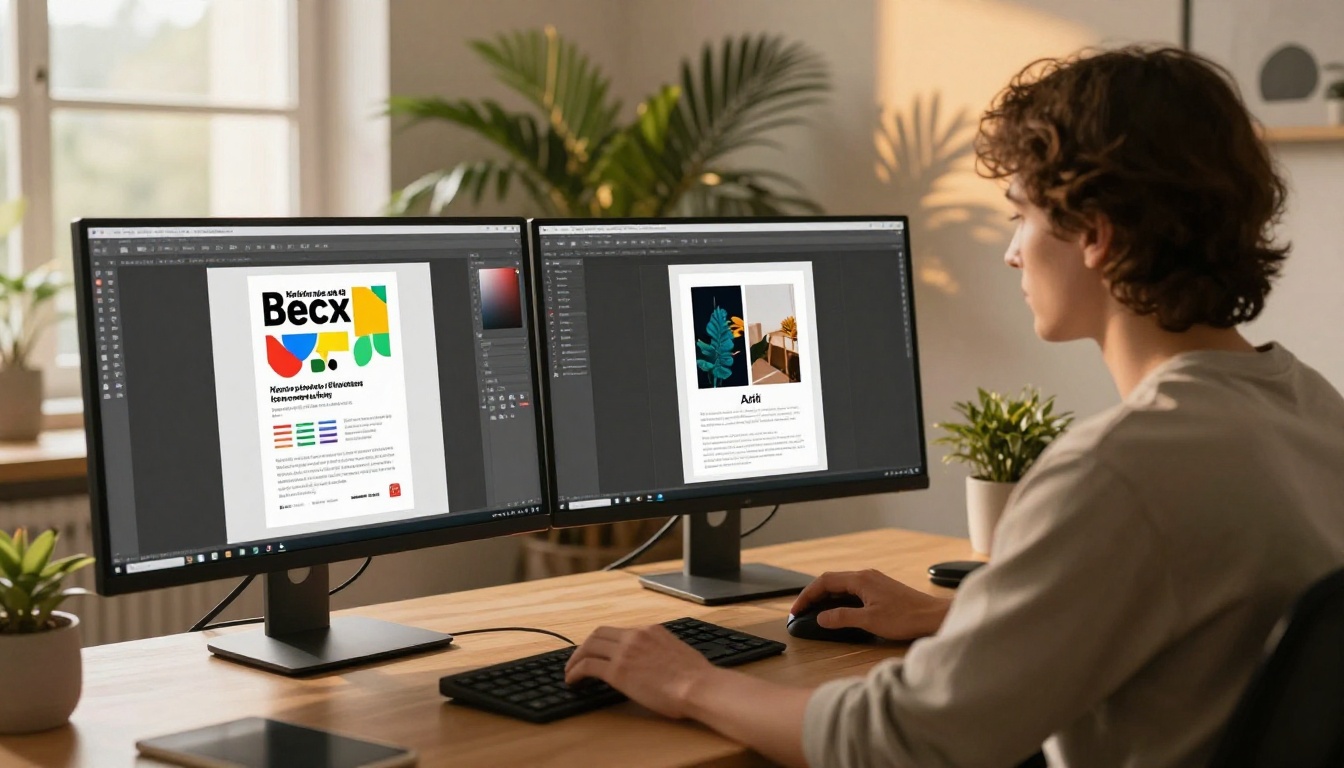
Step 1: Build Your PDF in Any Design Tool
You can use Canva, Adobe InDesign, Illustrator, Figma, or even PowerPoint. The important thing is to export a clean PDF. When your tool offers export options, choose:
- PDF format (not PNG or JPG)
- Highest quality setting
- Include bleed if your design extends to the edges
- Embed all fonts in the file
Step 2: Upload and Convert
Go to Flipbooks AI and create a free account. Once inside:
- Click Create New Flipbook
- Select your PDF file and upload it
- The platform converts it automatically into a page-flip format
- A preview appears within seconds for small files, up to a minute for larger ones
The PDF to Flipbook Converter handles files of all sizes and preserves vector graphics, embedded fonts, and hyperlinks from the original PDF.
Step 3: Customize the Flip Animation
Once converted, you have control over the visual behavior of the flip:
- Flip speed: Adjust how quickly pages turn (slower feels more premium)
- Page shadow depth: Control the intensity of the curl shadow
- Background color: Match your brand palette or use a dark reading mode
- Single page vs. spread view: For landscape formats, spreads look more natural
- Hard-bound effect: Adds a rigid first page for a book-like opening feel
💡 For event flyers, use the single-page view with a fast flip speed. For product presentations or multi-section brochures, the spread view with a slower flip creates a more premium browsing feel.
Step 4: Add Branding and Multimedia
This is where your flyer goes from a converted PDF to a real interactive experience:
- Custom domain: Serve the flyer from your own domain instead of a shared platform URL
- Logo placement: Add your logo to the viewer toolbar
- Background image or color: Frame the flipbook with your brand palette
- Embedded video: Add a product demo or event teaser that plays within the flyer
- Clickable links: Every hyperlink from your original PDF remains active in the flipbook
✅ Adding an embedded video to page 2 of your flyer typically doubles the average time spent on that page. Use a short 30-60 second clip with captions for silent autoplay environments.
Step 5: Share, Embed, or Download
Once your flyer is ready, several distribution paths are available:
Direct link sharing: Copy the unique URL and share it anywhere. Works in email, WhatsApp, SMS, and social media bios.
Embed on your website: Use the Embed Flipbook on Website tool to generate an iframe embed code. Paste it into any page or blog post. The flipbook adapts to the container size automatically.
Password protection: For private flyers (internal events, VIP offers, pre-launch announcements) add a password. Only people with the correct password can view the content.
Offline downloads: Professional plan users can offer a downloadable version of the flyer for viewing without an internet connection.
Where to Share Your Page-Flip Flyer
Having a great flyer is half the job. Getting it in front of people is the other half.
Email Campaigns
Embed a flyer preview image in your email and link it to the full flipbook. Subject lines that mention "interactive" or "flip through" consistently outperform static alternatives. The workflow is straightforward:
- Take a screenshot of your flyer's first page
- Add a play button icon or "Click to view" overlay in your image editor
- Link the image to your flipbook URL
- Include a plain text link as a fallback for clients that block images
Social Media
Each platform calls for a slightly different approach:
| Platform | Best Format | Recommended Action |
|---|
| Instagram | Portrait-size first page screenshot | Share link in bio, use screenshot in Story with sticker |
| LinkedIn | Landscape screenshot | Link post pointing to full flipbook URL |
| Facebook | First page image with link | Direct link generates an auto-preview card |
| Twitter/X | First page screenshot | Link in tweet, descriptive alt text |
| WhatsApp | Direct URL | Paste URL, preview generates automatically |
Website Embedding
Embedding your flyer directly on a landing page is one of the highest-converting placements available. Visitors who interact with an embedded flyer are already on your site, already interested, and more likely to take action. Place it above the fold when possible and pair it with a strong headline that sets the context.
Flipbooks AI Plan Comparison
Different needs require different features. Here is what each plan offers for flyer creation and distribution:
| Feature | Free | Standard | Professional |
|---|
| PDF to Flipbook conversion | Yes | Yes | Yes |
| Number of flipbooks | 3 | Unlimited | Unlimited |
| Custom branding | No | Yes | Yes |
| Password protection | No | Yes | Yes |
| Embed on website | Yes | Yes | Yes |
| Analytics dashboard | No | No | Yes |
| Lead generation forms | No | No | Yes |
| Offline downloads | No | No | Yes |
| Custom domain | No | Optional | Yes |
| Watermark-free | No | Yes | Yes |
For occasional flyers, the Standard plan at Flipbooks AI covers everything most marketers need. For agencies or teams running ongoing campaigns, Professional adds analytics and lead capture that turn the flyer into a measurable sales asset, not just a distribution piece.
Real-World Use Cases
Page-flip flyers are not just for events. Here is how different industries put them to work:
| Industry | Use Case | Primary Channel |
|---|
| Restaurants | Weekly specials and seasonal menu | Instagram bio link |
| Real Estate | Property listing with room details | Embedded on listing page |
| Retail | Seasonal sale with multiple categories | Email campaign |
| Event Planners | Conference program with schedule | QR code on physical materials |
| Fitness Studios | Class schedule flyer | Password-protected member link |
| Schools | Parent newsletter and event info | Embedded on school website |
| Travel Agencies | Destination brochure with itinerary | Social sharing with preview |
The Sales Presentation tool works particularly well for B2B situations where the flyer doubles as a leave-behind document after a pitch. The Event Program Maker handles conference and festival programs that function as multi-page flyers with full schedules and speaker bios. For retail teams, the Digital Price List Generator turns a standard price sheet into a browsable flyer format that feels far more polished.

Even well-designed flyers fall flat when these errors appear:
1. Too much text per page
A flyer is not a brochure. Each page should carry one idea, one visual, and one action. If you need more than three sentences on a page, split the content across two pages instead.
2. Low-resolution source images
Images that look fine on a standard laptop become pixelated on a 4K display or a retina screen. Always use images at 300 DPI or higher in your source PDF before conversion.
3. No clear call to action
Every page-flip flyer needs a destination. A QR code, a URL, a phone number, or an email address. Viewers who reach the last page with no obvious next step will simply close it.
4. Sharing a screenshot instead of the live link
A screenshot of your flyer is just another flat image. It loses all the interactivity that makes the flip effect valuable. Always share the direct URL or embed the live flipbook.
⚠️ Test your flyer on mobile before publishing. More than 60% of links shared via social and email are opened on mobile devices. If the flip animation stutters or the text is too small on a phone screen, your audience will not stick around.
Build Your First Page-Flip Flyer Now
The page-flip effect is no longer a novelty reserved for enterprise publishing teams. With Flipbooks AI, any designer, marketer, or small business owner can convert a standard PDF flyer into a fully interactive experience in under five minutes.
Ready to try it? Create a free account and upload your first flyer today. No watermarks on paid plans, no coding required, and no limit on how many people can view your published flyer.
If you want to see what is possible before uploading your own file, browse the full tools directory to find tools built for specific industries and formats, from fashion and retail to education and hospitality.
When you are ready to access analytics, lead generation, and offline downloads, check the pricing plans to find the option that fits your output volume and budget.
Static flyers had their moment. This is something that actually gets results.



