If you've spent hours crafting a stunning presentation, catalog, or brochure in Canva, you already have everything you need to publish a professional interactive flipbook. The process takes less than 5 minutes, and the result is a polished, page-flipping digital publication you can embed anywhere or share with a single link. Flipbooks AI makes this conversion seamless, no additional design skills required beyond what you've already done in Canva.
The best part? Your Canva design stays exactly as you built it. Colors, fonts, layouts, and images transfer perfectly into an interactive format that works on every device, loads instantly in any browser, and delivers a reading experience that a flat PDF attachment simply cannot match.
Why Canva Designs Convert So Well
Canva has become the default design tool for millions of marketers, educators, small business owners, and creatives worldwide. Its grid-based layout system, pre-built templates, and flexible export options make it an ideal starting point for any publication meant to be browsed, shared, or presented.
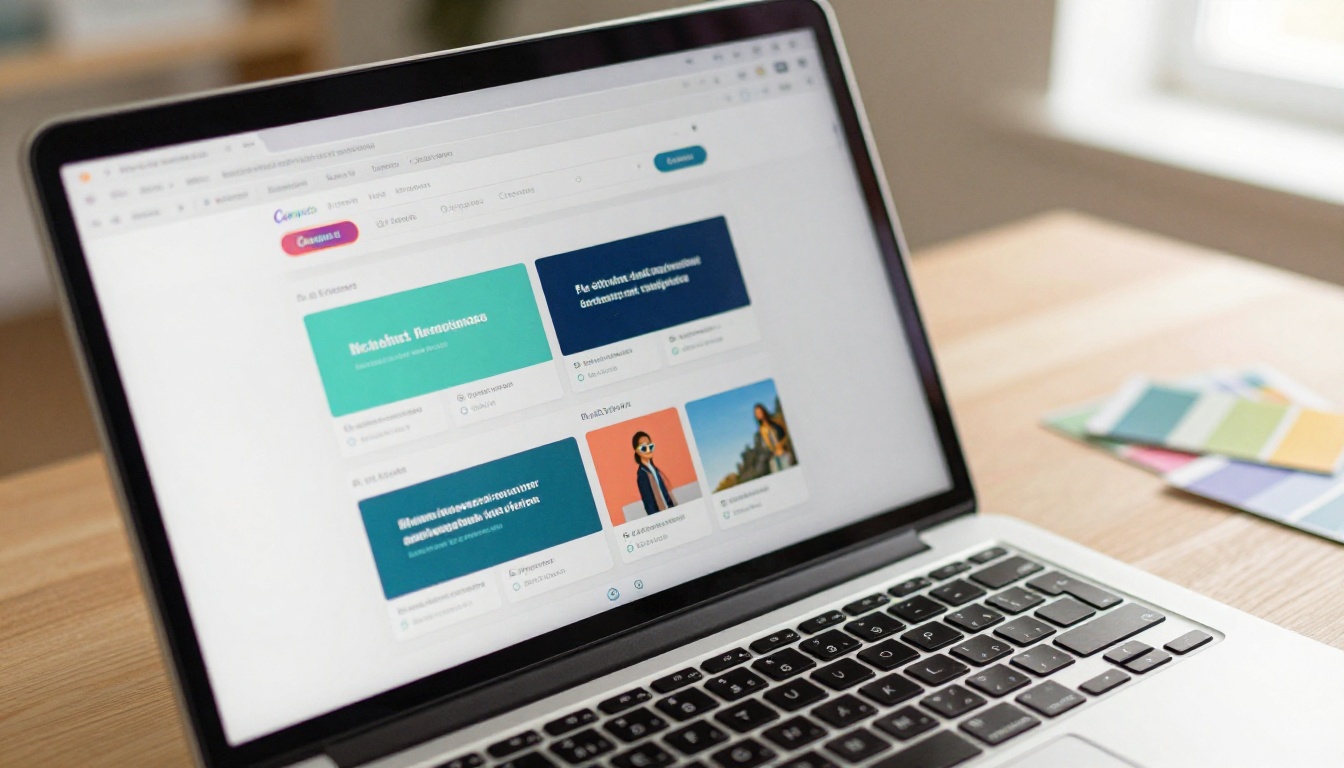
What makes Canva specifically powerful for flipbook conversion:
- Multi-page support: Canva presentations, documents, and books all export as multi-page PDFs, which is exactly what flipbook tools need to create the page-turn effect.
- Print-ready resolution: Canva exports at high resolution when needed, meaning your flipbook pages look sharp on any screen size from smartphone to widescreen monitor.
- Layout consistency: Canva's alignment and spacing tools produce clean, professional layouts that translate directly into crisp, well-structured flipbook pages.
- Rich media assets: Canva's built-in image library, icons, and illustration elements give designs visual richness that looks impressive inside an interactive flipbook viewer.
- Template variety: With thousands of templates covering every industry and content type, you can go from blank canvas to fully designed publication in under an hour.
Whether you designed a product catalog, a company brochure, a school newsletter, or a real estate property presentation, the conversion path to flipbook is identical for all of them.
The 3 Steps: What You're Actually Doing
Before going into detail on each step, here's the complete picture so you know exactly what to expect:
- Design in Canva - build your multi-page document using any Canva template or custom layout
- Export your design as a PDF - using Canva's built-in download options
- Upload the PDF and publish your flipbook - the page-flip effect is applied automatically
That's the entire workflow. Each step has a few details worth knowing, but none of them require technical skills or design experience beyond what Canva already demands.
Step 1: Set Up Your Canva Design Right
If you're starting a new design specifically intended to become a flipbook, choose your canvas dimensions thoughtfully. If you already have a finished design, verify it meets a few basic criteria before exporting.
Recommended page sizes for flipbooks:
| Canva Format | Dimensions | Best For |
|---|
| Presentation (16:9) | 1920 x 1080 px | Pitch decks, slideshows, course content |
| A4 Document | 794 x 1123 px | Brochures, reports, newsletters |
| US Letter | 816 x 1056 px | Business documents, catalogs |
| Custom (square) | 1080 x 1080 px | Lookbooks, portfolios, social content |
| Poster | 794 x 1123 px | Event programs, menus |
💡 For traditional book-style flipbooks, use portrait orientation (A4 or US Letter). For presentation-style flipbooks, landscape (16:9) creates a modern, widescreen feel that works particularly well for product catalogs and pitch decks.
What to check before exporting:
- All body text is at least 10pt for readability on small screens
- Images are high resolution and not visibly stretched or pixelated
- Consistent margins on all pages (at least 10mm from edges)
- Fonts have sufficient weight, very thin or light-weight fonts can blur at smaller viewer sizes
- Background colors extend fully to the page edges if you want a clean, borderless look
⚠️ Avoid placing critical information in the very corners of pages. Some flipbook viewers apply a subtle curved shadow effect near the spine area, which can partially obscure corner elements on wide-angle monitors.
Page count considerations: Flipbooks work best with a minimum of 4 pages and a practical maximum of around 200 pages for web delivery. For longer publications like training manuals or annual reports, consider splitting into volumes for faster load times.
Step 2: Export as PDF from Canva
This is the step most people overthink. Canva's PDF export is straightforward, but picking the right settings makes a real difference in the final flipbook quality.
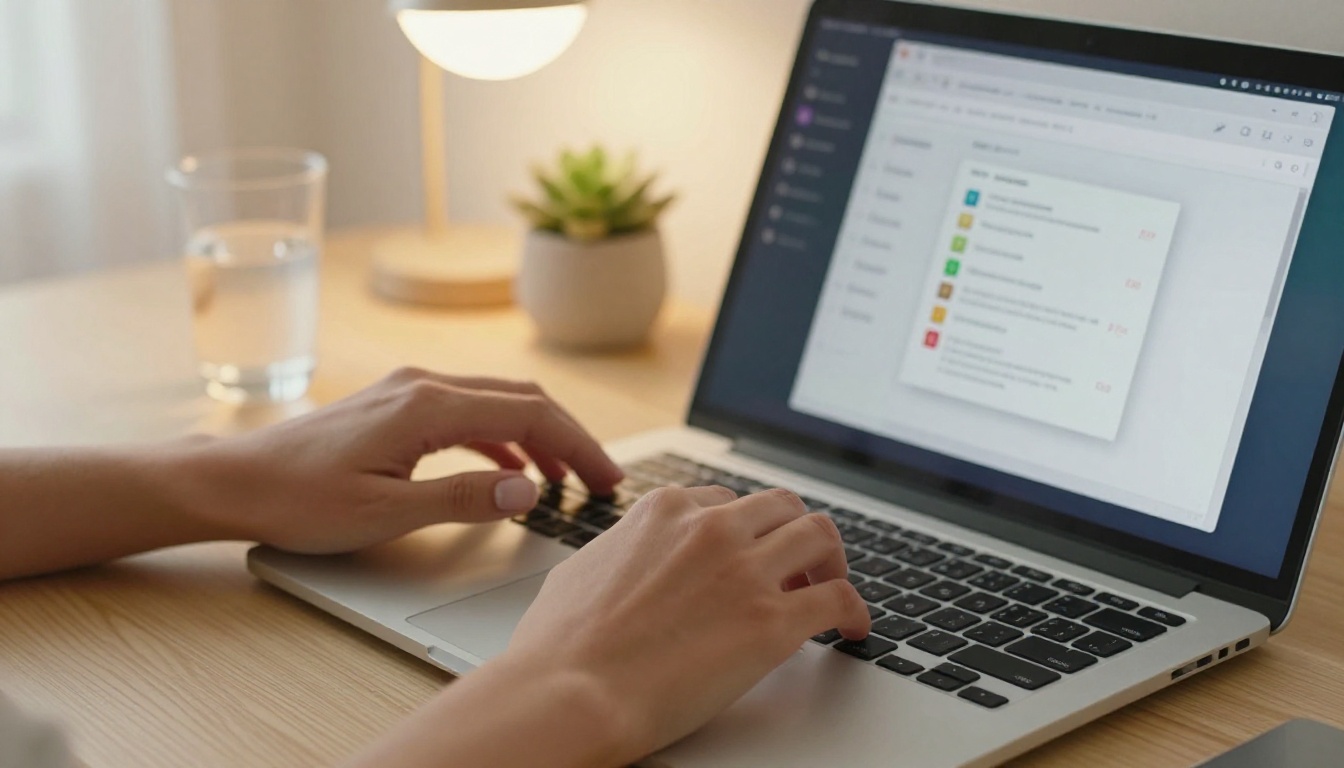
How to export from Canva:
- Open your design in Canva
- Click Share in the top-right corner
- Select Download
- Under "File type," choose PDF Print (highest quality) or PDF Standard (smaller file size)
- Check Crop marks and bleed if your design uses full-bleed backgrounds that extend to the page edges
- Click Download and save to a location you can find easily
PDF Print vs. PDF Standard:
| Option | File Size | Image Quality | Best For |
|---|
| PDF Standard | Small (1-5 MB) | Excellent for screens | Most flipbooks, web sharing, general use |
| PDF Print | Large (10-50 MB+) | High resolution, print-accurate | Premium catalogs, publications with fine detail |
| PDF with Bleed | Medium-Large | Full-bleed accurate colors | Designs with edge-to-edge backgrounds |
💡 For most flipbooks shared online, PDF Standard is the right choice. It loads faster for readers and looks identical to PDF Print on most screens. Reserve PDF Print for publications with fine photography or typography that genuinely demands maximum sharpness.
File naming tip: Name your PDF clearly before exporting, for example spring-catalog-2026.pdf. This filename becomes your default flipbook title in the upload interface, saving you an editing step later.
Step 3: Upload and Publish with Flipbooks AI
This is where your Canva PDF becomes an interactive, page-flipping digital publication. Flipbooks AI handles the entire conversion automatically.

How to publish your flipbook:
- Go to Flipbooks AI and sign in or create a free account
- Click New Flipbook from your dashboard
- Drag and drop your exported Canva PDF, or click to browse and select the file
- Wait for the conversion (typically 10 to 30 seconds depending on page count)
- Your flipbook is live with the page-flip effect applied automatically
Once the conversion completes, you receive a shareable link immediately. The flipbook is hosted, mobile-responsive, and ready to send. No additional configuration is required, though the customization options available are worth exploring.
Customizing Your Flipbook After Upload
The three-step process gets your flipbook live. What you do after is where Flipbooks AI adds significant value on top of a raw PDF conversion.
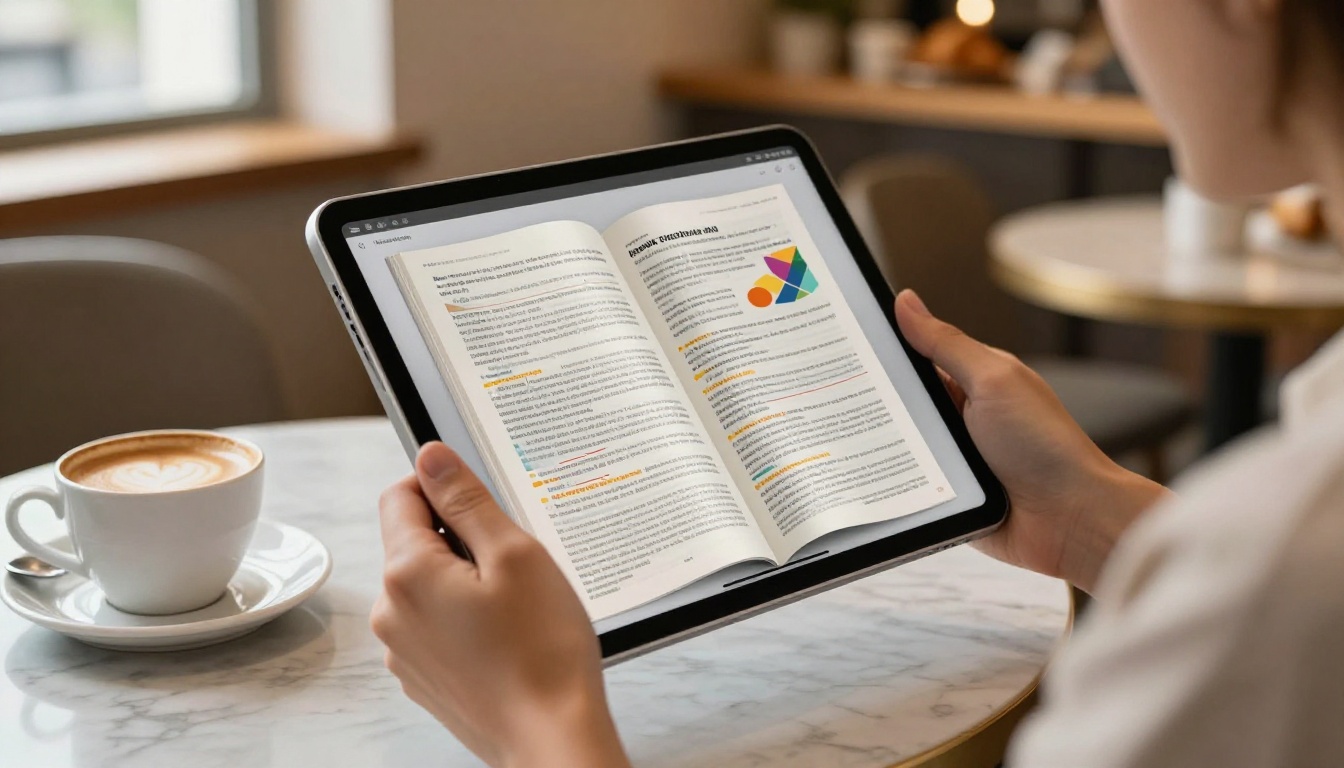
Branding and appearance options:
- Add your logo to the flipbook viewer interface
- Set a custom background color or texture behind the flipbook pages
- Choose between soft realistic page shadows or flat minimal transitions
- Set a custom thumbnail image for link previews and social sharing
Interactive and multimedia features:
- Clickable hyperlinks embedded in your Canva PDF carry over automatically
- Add embedded video and audio to specific pages after upload
- Enable a table of contents for longer publications with many sections
- Turn on a zoom function so readers can inspect fine details in photography or data tables
Access and privacy controls:
| Setting | Description | Use Case |
|---|
| Public link | Anyone with the URL can view | Marketing materials, public catalogs |
| Password protected | Requires a password to view | Internal docs, client deliverables |
| Unlisted | Accessible via link but not indexed | Draft reviews, limited distribution |
| Embed only | Embeddable but direct link restricted | Website-exclusive content |
✅ For client proposals, pricing documents, or confidential reports, always use password protection. It takes 10 seconds to configure and prevents unauthorized access if the link is forwarded.
Flipbooks AI Plans Compared
Flipbooks AI offers plans that scale from individual creators to large organizations, all without watermarks on any paid tier.
| Feature | Free | Standard | Professional |
|---|
| Number of flipbooks | 3 | Unlimited | Unlimited |
| Watermarks | No watermarks | No watermarks | No watermarks |
| Password protection | No | Yes | Yes |
| Custom branding | Limited | Yes | Yes |
| Analytics | No | Basic | Advanced |
| Lead generation forms | No | No | Yes |
| Offline downloads | No | Yes | Yes |
| Embed on website | Yes | Yes | Yes |
| Video and audio embed | No | Yes | Yes |
| Custom domain | No | No | Yes |
💡 The Standard plan works well for most small businesses and freelancers. Unlimited flipbooks, no watermarks, full branding control, and password protection cover the needs of most publishing workflows at a fraction of what custom web development would cost.
Sharing and Embedding Your Flipbook
Once published, your Canva-designed flipbook has multiple distribution channels available.
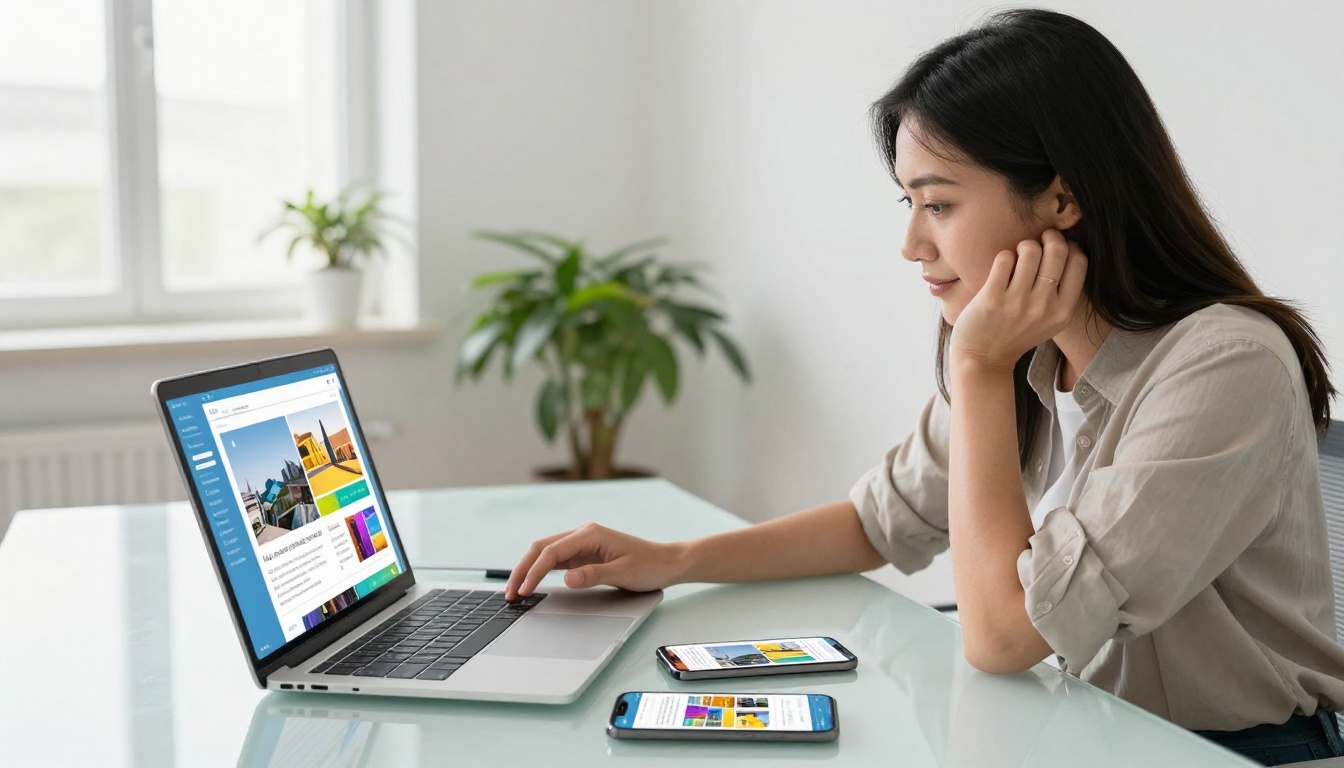
Distribution options:
- Direct link: Copy the flipbook URL from your dashboard and share it anywhere, in emails, on social media, or via messaging apps
- Embed code: Paste the provided iframe snippet into any website, landing page, or CMS to display the flipbook directly on your site. The Embed Flipbook on Website tool simplifies this for non-developers
- QR code: Generate a QR code pointing to your flipbook for print materials, business cards, trade show displays, or physical menus
- Social sharing: One-click sharing to LinkedIn, Twitter/X, or Facebook from the dashboard with auto-generated preview thumbnails
High-impact use cases for sharing:
- Replace flat PDF email attachments with live flipbook links for dramatically higher engagement
- Embed your product catalog on a website landing page instead of linking to a downloadable file
- Send password-protected flipbook links for client proposals instead of uploading to file-sharing services
- Print a QR code on physical menus, event signage, or packaging that links to the digital flipbook version
Real-World Use Cases: Canva Designs That Work as Flipbooks

Retail and e-commerce: A boutique owner designs a seasonal lookbook in Canva using product photography. After the 3-step conversion, it's embedded on their website using the Interactive Lookbook Designer. Customers browse products as if flipping through a physical catalog, with clickable links going directly to product pages.
Real estate: An agent designs a property brochure in Canva for a new listing. The flipbook version goes into emails to prospective buyers, replacing a static PDF that would require downloading. The Real Estate Brochure format delivers professional polish that keeps readers engaged longer.
Restaurants and hospitality: Canva's menu templates convert directly into sleek digital menus, linkable from QR codes placed on tables. The Restaurant Menu Creator gives operators a branded viewer that matches their interior aesthetic.
Education: A teacher designs a course workbook in Canva. Students access the interactive version through the Course Material Publisher on phones or tablets without downloading anything.
Creative professionals: A photography portfolio designed in Canva becomes a stunning interactive showcase via the Photography Portfolio format. One link sent to a prospective client delivers a far more impressive first impression than attaching a PDF.
5 Common Mistakes to Avoid
Even a simple 3-step process has pitfalls that slow people down or produce subpar results.
1. Using oversized PDF files: A 100MB PDF creates slow loading times. For most publications, PDF Standard from Canva (typically 2 to 10 MB) is ideal. Use PDF Print only when the content genuinely requires it.
2. Ignoring font rendering on small screens: Very decorative or ultra-thin fonts lose clarity at small sizes. Test your published flipbook on a phone before sharing widely.
3. Skipping the thumbnail: The default thumbnail is your first page. If your first page is a plain title slide, replace it with a more visually compelling page from your design inside the Flipbooks AI dashboard.
4. Not testing embedded links: If your Canva design includes hyperlinks, verify each one works in the published flipbook. PDF-embedded links from Canva carry over, but a 60-second check prevents embarrassing broken links in client-facing materials.
5. Skipping password protection for sensitive documents: Any document containing pricing, internal projections, or client-specific information should be password-protected before sharing. It takes under 10 seconds to set up.
✅ Always preview your flipbook on both desktop and mobile before sending. What looks perfect on a 27-inch monitor sometimes needs a small adjustment when viewed on a 5-inch phone screen.
Your Canva Designs Deserve Better Than a PDF Attachment
Static PDF files were never designed for digital reading. They don't load in browsers cleanly, they require downloads on mobile, they lose formatting on older devices, and they offer no analytics on reader behavior. Converting your Canva designs to interactive flipbooks solves all of these problems at once, with virtually no additional effort.
The 3-step process (design in Canva, export as PDF, upload to publish) produces a professional result that would have required custom web development just a few years ago. Now it takes under 5 minutes.
Get started for free on Flipbooks AI and publish your first Canva-designed flipbook today. When you need advanced features like analytics, lead generation, offline downloads, or a custom domain, explore the pricing plans to find the right tier for your workflow.
Browse all flipbook tools and templates to find the format perfectly matched to your specific content type, whether that's a product catalog, digital magazine, annual report, client proposal, or personal portfolio.



