Page-flip eBooks hit different. There is something viscerally satisfying about watching a digital page curl and turn, that soft animated motion that makes readers slow down and actually stay. If you have been sharing flat PDFs and watching your audience drop off after the first scroll, the problem is not your content. It is the format. Flipbooks AI exists exactly for this: turning ordinary PDFs into stunning interactive eBooks with real page-flip animations, custom branding, and sharing tools built for modern audiences.
This article walks you through everything you need to know, from why page-flip eBooks outperform static files to how to publish yours in under ten minutes.

Why Page-Flip eBooks Beat Static PDFs
A static PDF is a document. A flipbook is an experience. That distinction matters more than most creators realize.
When someone opens a PDF, they are in scroll mode. They skim. The format signals "work," not "reading." A page-flip eBook changes that psychology entirely. The page-turn animation triggers a familiar tactile memory: the feeling of holding a real book. Readers spend more time on each spread, click more, and share more often.
The Reading Experience, Reimagined
Page-flip eBooks offer several concrete advantages over traditional PDFs:
- Animated page turns create a physical reading sensation on any screen
- Responsive layout adapts automatically to phones, tablets, and desktops
- Embedded media support lets you add videos, audio, and clickable links directly into pages
- Instant browser loading means no download or app required
- Shareable links work on any device without requiring special plugins
What Static PDFs Cannot Do
| Feature | Static PDF | Page-Flip eBook |
|---|
| Animated page turns | No | Yes |
| Mobile-responsive layout | Limited | Yes |
| Embed videos and audio | No | Yes |
| Analytics and reader tracking | No | Yes (Professional plan) |
| Password protection | No | Yes |
| Lead generation forms | No | Yes (Professional plan) |
| Embed on any website | No | Yes |
| Offline download for readers | File download only | Yes, viewer-integrated |
| Custom branding | No | Yes |
| Direct shareable link | No | Yes |
The gap is real. A flipbook is not just prettier; it is functionally superior in almost every dimension that matters for digital publishing.
💡 Pro Tip: If your eBook contains product photos, course modules, or portfolio pages, a page-flip format increases perceived value immediately. Clients and readers associate the format with professionalism.
Before You Build: What to Prepare
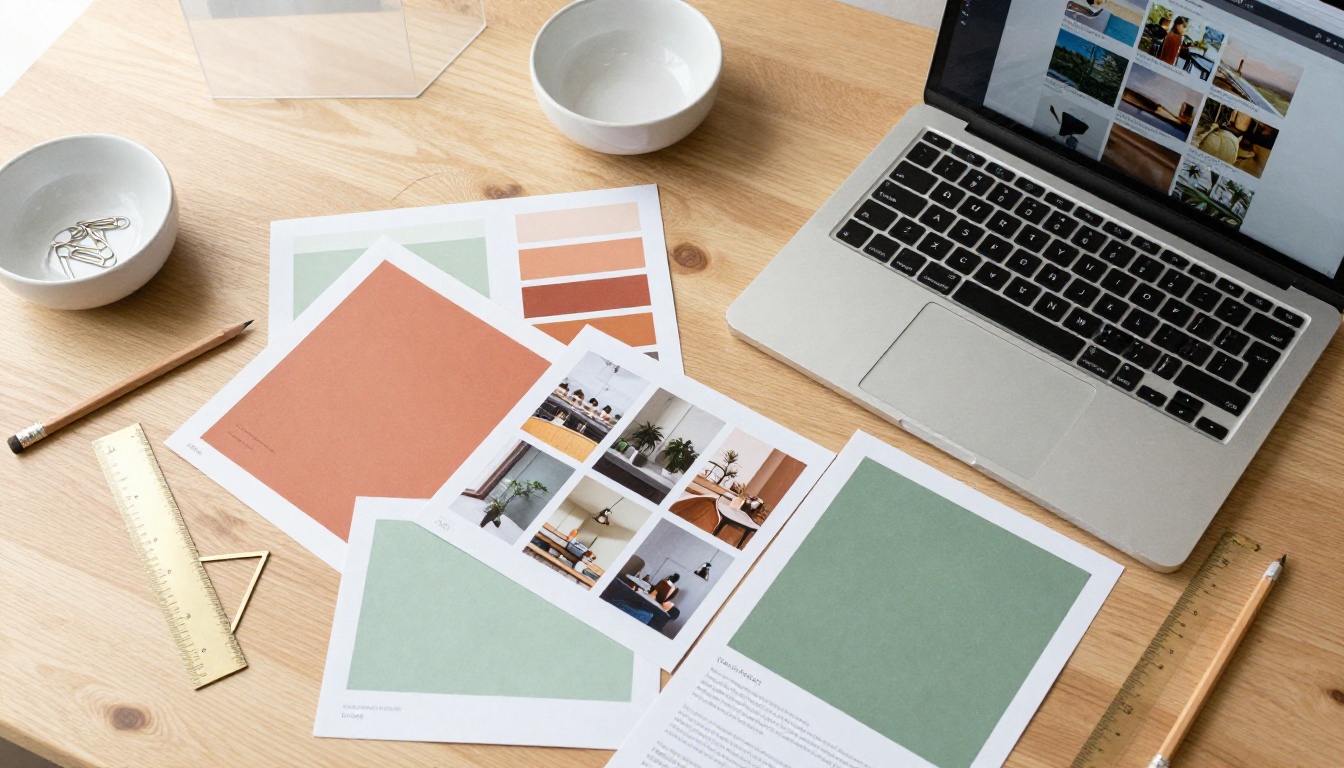
You do not need design skills, coding knowledge, or special software to create a stunning page-flip eBook. You need one thing: a PDF.
Choosing the Right Content
Not all content works equally well in flipbook format. These types perform best:
- eBooks and long-form writing with chapters and visual breaks
- Digital catalogs with product images and pricing grids
- Course materials and training manuals
- Portfolios in photography, design, or architecture
- Magazines and newsletters with editorial-style layouts
- Brochures for hotels, real estate, restaurants, or events
If your content fits any of those categories, you are already set.
Preparing Your PDF for Conversion
Before uploading, run through this checklist:
- Resolution: Images should be at least 150dpi for crisp display at full screen
- Page size: Standard A4 or Letter formats work perfectly; custom sizes are also supported
- Fonts: Embed all fonts in the PDF to prevent character rendering issues on other devices
- File size: Aim to stay under 200MB for fast processing
- Page count: There is no strict limit, but 5 to 150 pages is the sweet spot for reader attention
⚠️ Warning: Using very low-resolution images in your source PDF will result in blurry flipbook pages. Always export from InDesign, Canva, or Figma at high quality settings before uploading.
How to Create a Stunning eBook That Flips Page by Page
Flipbooks AI makes this process straightforward. Here is how to go from PDF to polished flipbook in four steps.

Step 1: Upload Your PDF
- Go to Flipbooks AI and sign in or create a free account
- Click "New Flipbook" from your dashboard
- Drag your PDF directly into the upload area, or click to browse your files
- Wait for the conversion to process, typically under 60 seconds for standard documents
The platform uses the PDF to Flipbook Converter to automatically render every page of your PDF as a high-quality flipbook spread with the page-turn animation pre-applied.
✅ Best Practice: Name your PDF file with your intended publication title before uploading. It becomes the default flipbook title and saves editing time later.
Step 2: Customize Your Flipbook
Once your pages load in the editor, this is where your eBook goes from functional to stunning.
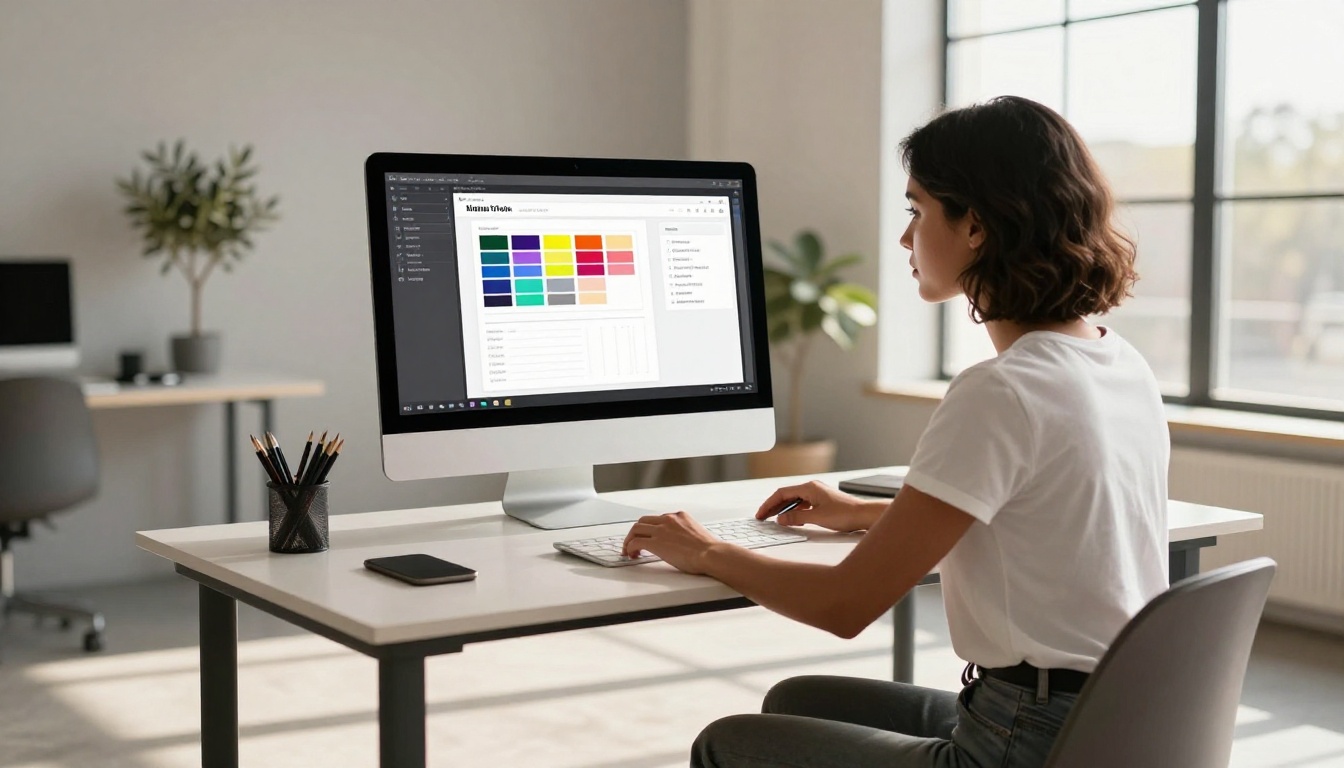
Customization options available in the editor:
- Page flip speed: Choose between slow, medium, and fast animation
- Background color or texture: Match your brand palette or apply neutral white and dark modes
- Table of contents: Auto-generated from your PDF headings or manually added
- Thumbnail navigation: Adds a page strip at the bottom for quick jumping between sections
- Zoom controls: Let readers zoom in on detail pages like maps or infographics
- First page layout: Choose single opening page or two-page spread from the start
Step 3: Add Branding and Colors
This step separates generic flipbooks from branded publications.
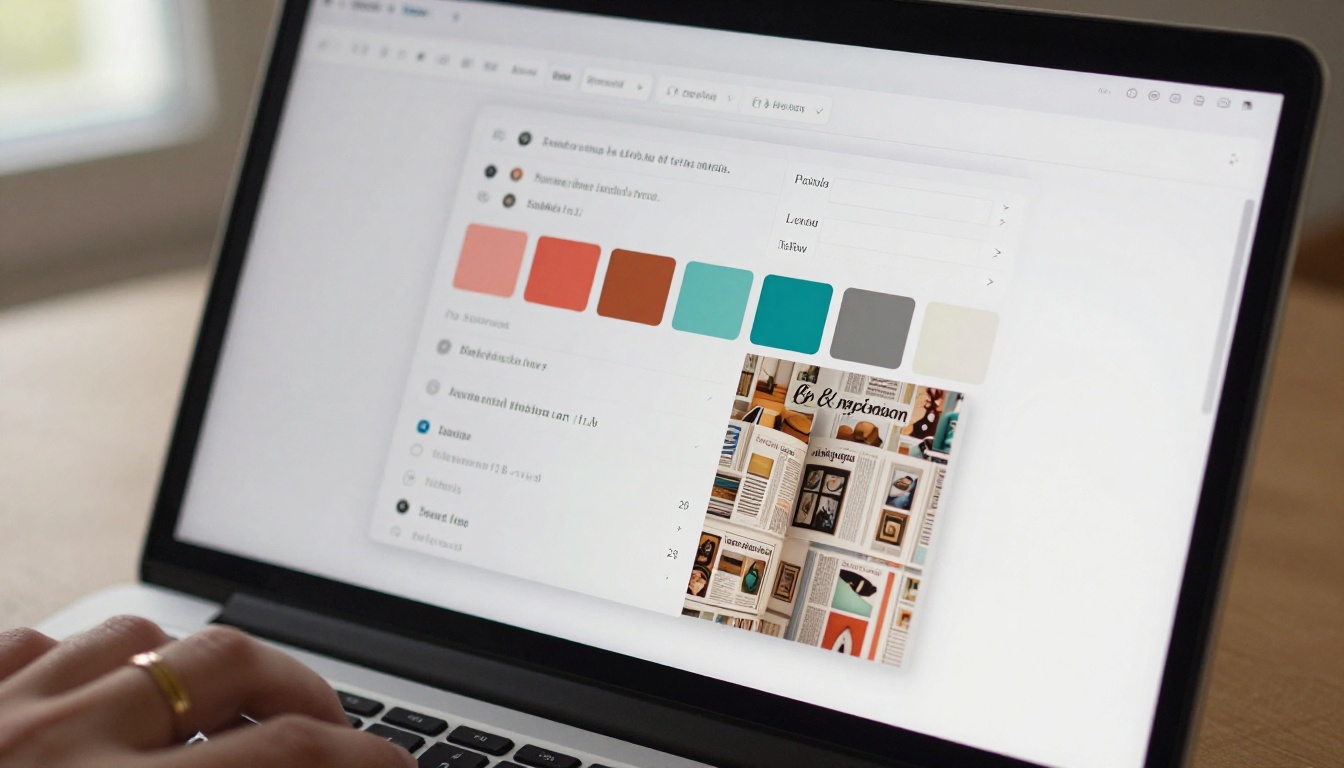
Branding options you can apply:
- Brand colors: Apply your primary and secondary colors to the toolbar and viewer UI
- Logo placement: Upload your logo to appear in the viewer header or footer
- Custom domain: Point your flipbook to your own domain (Standard plan and above)
- Favicon: Match the browser tab icon to your brand identity
- Social sharing buttons: Enable or disable sharing via specific platforms
💡 Pro Tip: Use the same color as your website hero section for the flipbook toolbar background. It creates a seamless, on-brand experience for visitors clicking through from your site.
Step 4: Publish and Share
Once you are happy with the setup, click Publish. Your flipbook receives a permanent, shareable URL instantly.
From the sharing panel you can:
- Copy the direct link to paste anywhere you share content
- Grab the embed code to drop the flipbook directly into your website
- Set a password for private publications, ideal for paying members, clients, or internal documents
- Enable lead generation to collect email addresses before readers access content (Professional plan)
- Download an offline version so readers can access it without an internet connection (Professional plan)
The Embed Flipbook on Website tool makes the embed process copy-paste simple. No developer needed.
What Makes a Great Page-Flip eBook
Not all flipbooks are created equal. The best ones share design principles that go beyond converting a PDF and calling it done.
Visual Hierarchy Matters More in Flipbooks
In a scrollable PDF, readers can skim passively. In a page-flip eBook, each spread is a standalone visual moment. This changes how you should design your pages.
- One dominant visual per page: Do not crowd every page with text and images. Let one element own the space.
- Contrast drives attention: Use size contrast (large headline vs. small body text), color contrast (accent on white background), and whitespace to direct the eye.
- Consistent type system: Stick to two typefaces maximum. Consistent typography signals professionalism.
- Full-bleed photos: Images that extend to the edge of the page feel immersive. Use full-bleed photography on chapter openers for maximum impact.
Page Pacing and Rhythm
Think of your flipbook like a film. Readers should feel a rhythm as they turn pages.
- Alternate dense text pages with visual pages: After a text-heavy spread, follow with an image-dominant page to let the reader breathe.
- Right-hand pages carry more weight: In two-page spread view, the right page is what readers see first when a page turns. Place your most important visuals there.
- Chapter openers deserve their own spread: Give each chapter a dedicated opening with a title, visual, and brief intro paragraph.
Consistent Color and Branding
A flipbook that drifts in color palette or font choice from page to page feels amateurish. Before you finalize your PDF for upload:
- Lock down two or three brand colors and use them throughout
- Choose one accent color for pull quotes, callouts, and highlights
- Apply the same header and body font combination on every page
💡 Pro Tip: Create a one-page brand style sheet before designing your eBook. Paste your hex color codes, font names, and spacing rules into it. Refer to it on every spread you build.
Best Use Cases for Page-Flip eBooks
The format works across almost every industry. Here are the most effective real-world applications.

Authors and Self-Publishers
Independent authors use page-flip eBooks to offer preview chapters on their website, sell direct without platform fees, and build email lists by gating content behind lead forms. Unlike standard ebook formats, a flipbook preserves your exact design and typography down to the last detail. The E-Book Flipbook Generator is built specifically for this workflow.
Educators and Course Creators
Course materials in flipbook format feel premium. Students spend more time with paginated content than with scrollable PDFs. You can embed tutorial videos directly into pages, add chapter navigation, and password-protect paid modules. The Course Material Publisher handles this from upload to share.
Businesses and Marketers
Sales decks, product catalogs, annual reports, and company brochures all benefit from the format. Prospects spend more time with interactive catalogs than static ones. With analytics on the Professional plan, you can see exactly which pages they read and where attention drops.
Flipbooks AI Plans at a Glance
Choosing the right plan depends on how many flipbooks you need and whether professional features like analytics or lead generation matter to your workflow.
| Feature | Free | Standard | Professional |
|---|
| Flipbooks | 1 | Unlimited | Unlimited |
| Watermark | Yes | No | No |
| Custom branding | No | Yes | Yes |
| Password protection | No | Yes | Yes |
| Embed on website | Yes | Yes | Yes |
| Analytics | No | No | Yes |
| Lead generation | No | No | Yes |
| Offline downloads | No | No | Yes |
| Custom domain | No | Yes | Yes |
For most authors, educators, and small businesses, the Standard plan provides everything needed to publish professional flipbooks without restrictions. For sales teams and marketers who need to track reader behavior, the Professional plan is worth the upgrade.
💡 Pro Tip: Start with the free plan to test your first publication. If readers respond well, upgrade to Standard or Professional before your next major release.
Pro Tips for a More Polished Flipbook
You have built the basics. These details separate good flipbooks from exceptional ones.

Design your PDF for two-page spreads. When readers view your flipbook in desktop mode, they see two pages side by side. Design visuals like hero images and chapter openers to span both pages for maximum impact.
Use a strong opening page. Your first page is the thumbnail that appears in previews, social shares, and link cards. A striking opening page increases click-through rates significantly when the link is shared online.
Place chapter intros on right-hand pages. In a two-page spread, the right page is always the dominant visual anchor. Place chapter titles, bold headers, and important images on right-hand pages wherever possible.
Add a clickable table of contents. Long eBooks with multiple chapters benefit from a linked TOC. Readers can jump to exactly the section they want, which increases completion rates.
Optimize your flipbook title and description. When you publish, the platform stores your flipbook title and description as metadata. Write these carefully: they appear in social link previews and browser tabs, and they directly affect whether people decide to open your link.
Use analytics to improve future editions. With the Professional plan, you can see exactly where readers stop turning pages. If a particular section has high drop-off, that is a signal to revise, shorten, or reorder that content in your next version.
⚠️ Warning: Avoid placing critical text very close to the inner page margin. In two-page spread view, the spine area between pages can visually cut off content that sits too close to the center fold.
Sharing Your Flipbook with the World
Once published, distribution is where most creators underinvest. A beautiful flipbook at an obscure URL gets zero readers.
Embed on Your Website
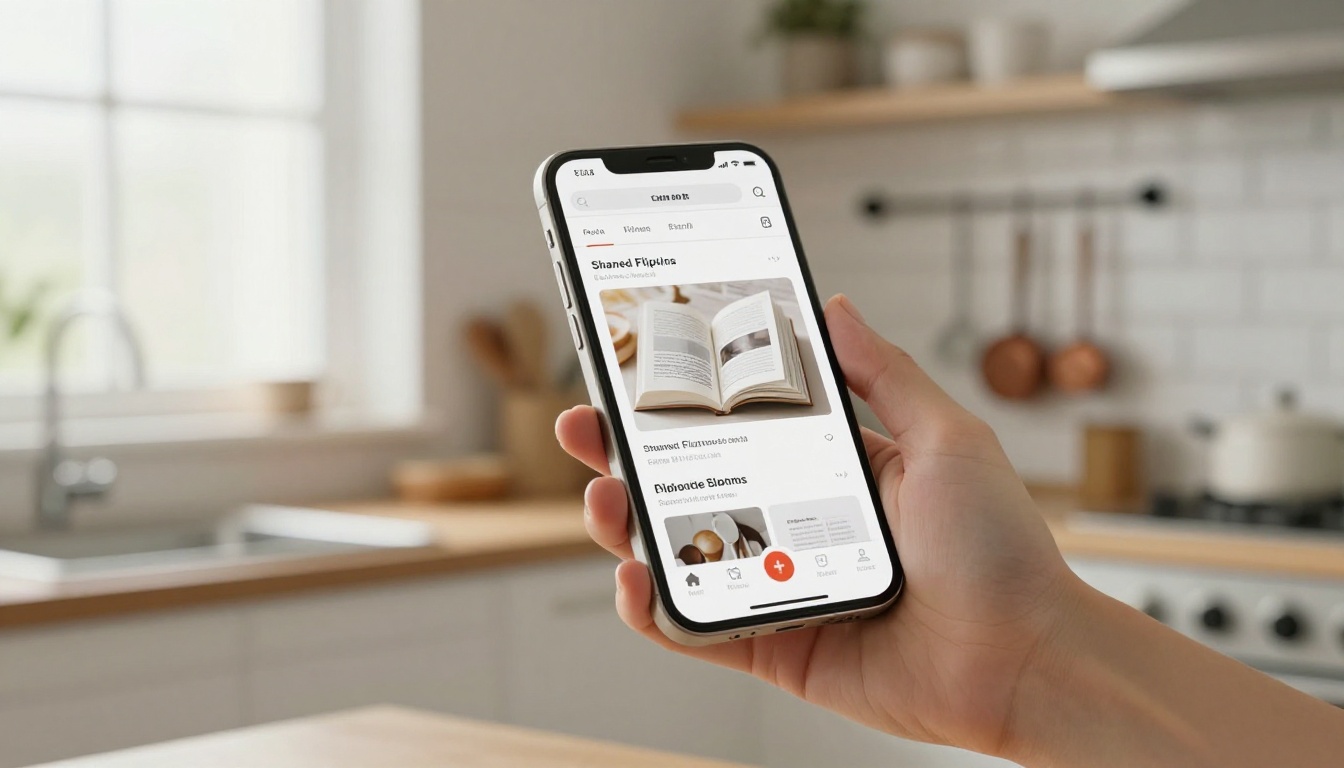
Embedding puts your flipbook front and center on your site. Use the embed code from the sharing panel and paste it into any page builder, WordPress site, or custom HTML section. The flipbook loads inline, no redirect required. Visitors can read it without ever leaving your page.
Share via Direct Link
The direct link is your most versatile asset. Use it in:
- Email newsletters: "Read this month's issue here"
- Social media bios: Instagram, LinkedIn, and X profile links
- QR codes: On printed materials that point to the digital version
- Client proposals: Paste directly into email or proposal documents
- Podcast show notes: As episode resource links for listeners
The link opens a clean, full-screen reading experience in any browser, on any device.
Password Protect Private Content
Not everything is meant for everyone. Use password protection for:
- Paid content: Members-only eBooks or premium course materials
- Client deliverables: Proposals and reports only the client should see
- Internal documents: Team training manuals and company handbooks
- Pre-launch previews: Beta readers and advance copies before public release
✅ Best Practice: Set a simple, memorable password for client deliverables, like their company name combined with the year. It feels personalized and makes sharing credentials easy over email or chat.

The eBook Worth Sharing
A PDF gets sent. A flipbook gets shared. That is the real difference. When your eBook has the satisfying motion of turning pages, when your brand colors frame every spread, and when readers can flip through it on their phone without downloading anything, you have created something worth passing along.
Flipbooks AI gives you all of that without requiring design expertise or a development team. Upload your PDF, set your branding, hit publish.
Ready to create yours? Get started for free on Flipbooks AI and have your first page-flip eBook live today. If you need more features for professional publishing, compare the pricing plans to find the right fit. Browse the full flipbook tools directory to find a starting point built for your exact industry.



