If you've spent hours perfecting a multi-page layout in Adobe Photoshop, the last thing you want is for it to live as a static PDF no one opens. The better move is to design in Photoshop and publish as a flipbook instantly, turning your flat file into an interactive, page-flipping experience that feels alive online. Flipbooks AI makes that transition happen in minutes, and the results look nothing like a generic PDF viewer.
This article covers everything from Photoshop document setup to PDF export settings and the exact steps to get your design live as a shareable, embeddable flipbook. Whether you're producing a fashion lookbook, product catalog, digital portfolio, or brand brochure, the workflow is the same and it is simpler than most designers expect.
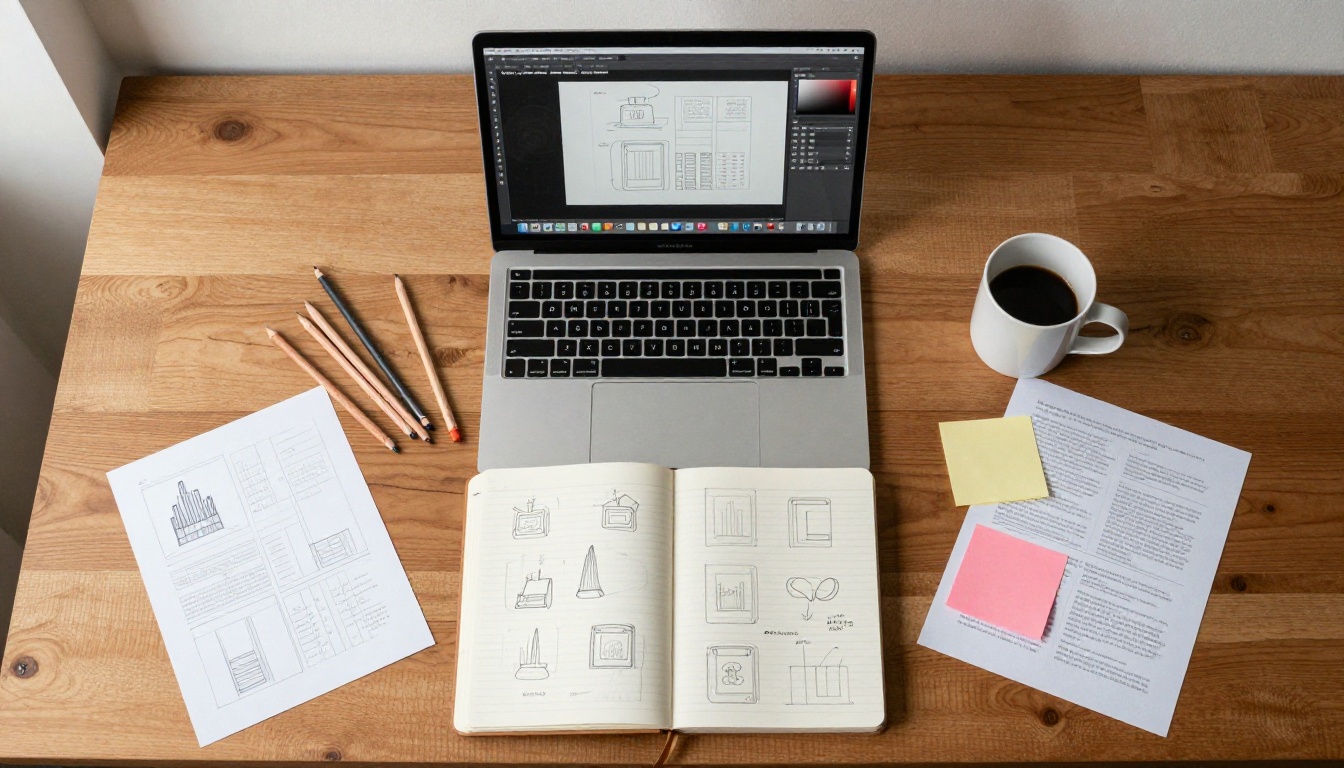
Why Photoshop Designers Choose Flipbooks
Static PDFs are a dead end for sharing creative work. They require a download, offer no interactivity, and disappear into inboxes unnoticed. A flipbook changes the experience entirely: readers click a link, the publication opens in their browser, and they flip through pages with natural, book-like animations. No plugins, no downloads, no friction.
For designers who already work in Photoshop, the jump to flipbook publishing is minimal. Your existing Photoshop workflow produces exactly what a flipbook platform needs: a well-structured PDF. The design stays 100% yours. The platform just adds the interactive layer on top.
More Than a Page Viewer
The difference between a flipbook and a PDF viewer is not just cosmetic. A flipbook created on Flipbooks AI gives you:
- Realistic page-curl animations that respond to mouse movement
- Embedded video and audio within pages
- Mobile-responsive layout that works on phones, tablets, and desktops
- Custom branding including colors, logo, and domain
- Password protection for private or client-only content
- Analytics to see exactly who is reading and for how long (Professional plan)
Built for Multi-Page Layouts
Photoshop's Artboards feature is purpose-built for multi-page documents. Each artboard becomes one page in your PDF, which becomes one page in your flipbook. That 1:1 relationship makes Photoshop one of the cleanest tools for flipbook source files, especially when layouts involve heavy image editing, retouching, or composite work that other software handles less efficiently.
Designers who work in fashion, real estate, retail, and hospitality already use Photoshop daily. Adding a flipbook publishing step at the end of their existing workflow costs almost nothing in time and pays off immediately in how clients and audiences receive the work.
Setting Up Your Photoshop File Right
Getting the document settings right before you start designing saves significant headaches at export time. Flipbook platforms render your PDF at screen resolution, so the document needs to be set up with both screen and print quality in mind.
Artboard Size and Document Settings
For flipbooks, the most common artboard dimensions are:
| Format | Width | Height | Use Case |
|---|
| Standard Magazine | 2480 px | 3508 px | Editorial, lookbooks, magazines |
| Landscape Presentation | 3508 px | 2480 px | Corporate reports, sales decks |
| Square | 2480 px | 2480 px | Portfolios, social-first catalogs |
| Custom Widescreen | 3840 px | 2160 px | Digital-first publications |
Set your resolution to 300 PPI even for screen-only publications. Flipbook platforms compress images intelligently, and starting with higher resolution means crisper text and sharper photos in the final output.
Color Mode, Bleed, and File Organization
Always design in RGB color mode, not CMYK. Flipbooks display on screens, and CMYK-converted colors look dull and desaturated in browsers. If you are also producing a print version, keep a separate CMYK document for that purpose.
💡 Pro Tip: Name your Artboards sequentially (Page 1, Page 2, and so on) before exporting. Photoshop exports artboards in the order they appear in the Layers panel, and unnamed artboards export in unpredictable order.
Organize your Layers panel with clearly labeled groups per artboard. If you ever need to revise a single page and re-export, clean layer organization makes that fast and painless. Use smart objects for any images that repeat across pages, such as logos or recurring background elements.
Exporting a Flipbook-Ready PDF from Photoshop
The export step is where most designers make mistakes that affect flipbook quality. Photoshop offers several PDF presets, and not all of them produce a file that renders well in a flipbook platform.
The Export Settings That Matter
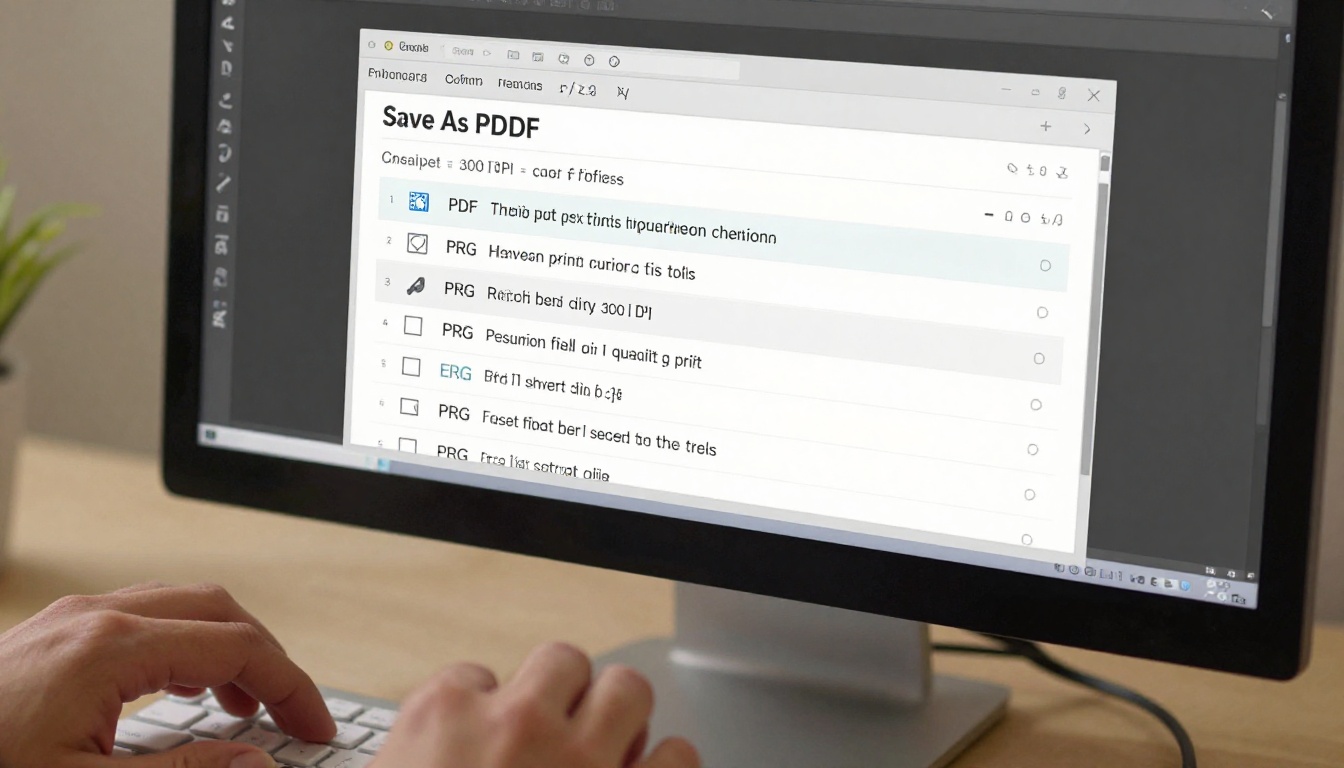
Go to File > Export > Export As and select PDF, or use File > Save As and choose Photoshop PDF. Use the following settings:
| Setting | Recommended Value | Why It Matters |
|---|
| PDF Preset | High Quality Print | Balances file size and image quality |
| Color Profile | sRGB IEC61966-2.1 | Correct screen color rendering |
| Compression | JPEG Maximum | Smaller file, still sharp on screen |
| Resolution | 150-300 PPI | High enough for crisp flipbook pages |
| Preserve Photoshop Editing | OFF | Reduces file size significantly |
| Include Layers | OFF | Not needed for flipbook output |
| Embed All Fonts | ON | Prevents text rendering issues |
⚠️ Warning: Do not export with "Preserve Photoshop Editing Capabilities" enabled. This bloats your file size by 300-500% and adds nothing useful to a flipbook.
3 Mistakes That Ruin Your PDF Export
- Using CMYK color mode: Colors appear washed out on screen. Always convert to RGB before exporting for any digital-first publication.
- Skipping font embedding: Text may not render correctly across different systems. Always check "Embed All Fonts" in the PDF export dialog.
- Exporting with excessive bleed marks: Flipbooks display at screen dimensions with no crop marks. Large bleed areas create unwanted borders around your pages in the final flipbook.

Publishing Your Flipbook Instantly
Once your PDF is exported, the publishing step takes under three minutes. You do not need any technical knowledge, coding skills, or special software.
From PDF to Live Flipbook in 3 Steps
- Go to Flipbooks AI and create your account or log in.
- Click "New Flipbook," drag and drop your PDF, and let the platform process it.
- Customize your flipbook settings and hit Publish. You receive a shareable link immediately.
The processing speed depends on the number of pages and file size, but a 20-page PDF typically converts in under 60 seconds. The resulting flipbook keeps your fonts, images, and layout exactly as designed in Photoshop, with a smooth, realistic page-flip effect added on top.
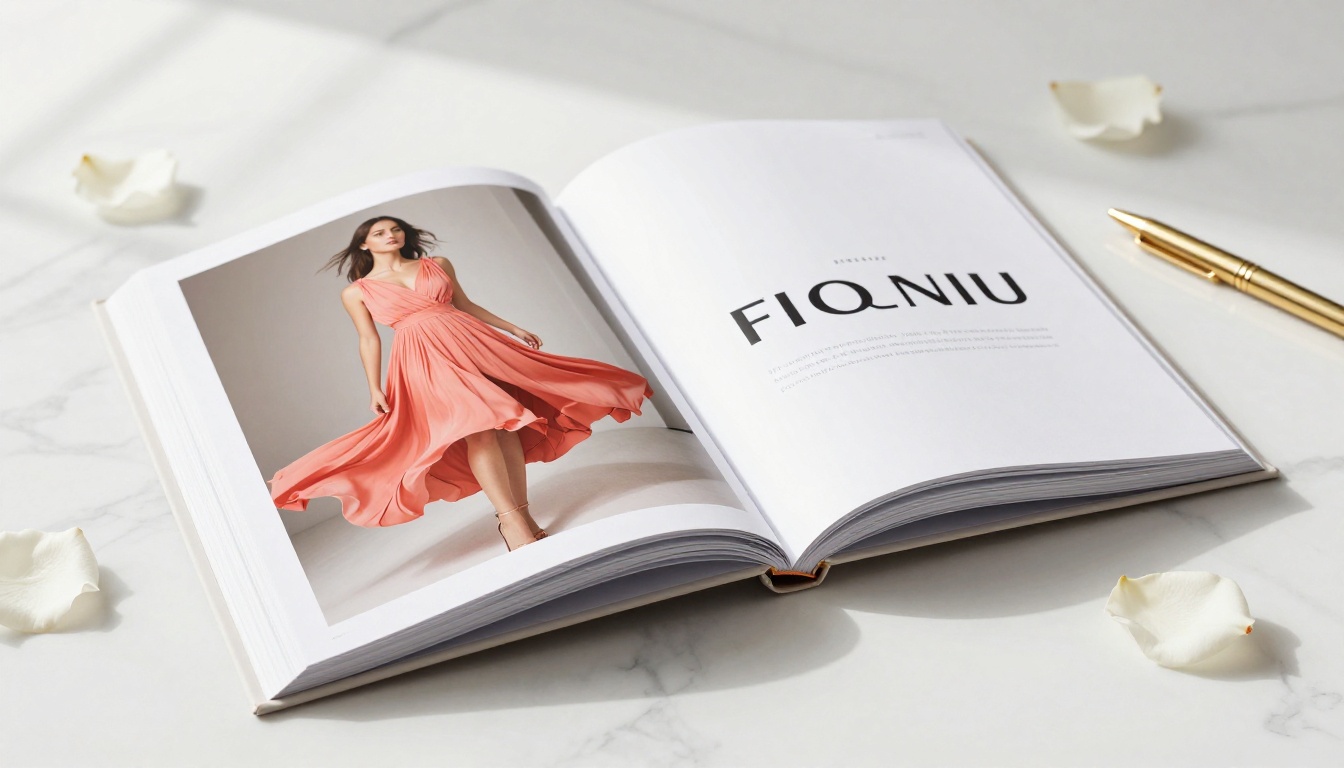
How to Create Your Flipbook with Flipbooks AI
This section walks through the full process from uploading your Photoshop-exported PDF to sharing a live, branded flipbook with your audience or clients.
Step 1: Create Your Account
Go to Flipbooks AI and sign up. The free plan lets you test the platform immediately with no credit card required. If you plan to publish regularly without watermarks, check the pricing page to pick the right plan before you start producing client work.
Step 2: Upload Your PDF
From your dashboard, click "New Flipbook" and drag your Photoshop-exported PDF into the upload zone. Flipbooks AI accepts files up to several hundred megabytes. Multi-page PDFs with full-bleed photography and rich typography convert cleanly without any compression artifacts.
Step 3: Wait for Conversion
The platform automatically converts each PDF page into a flipbook page with a realistic page-curl effect. You will see a progress bar during conversion. For a typical 12-24 page publication, this takes 30-90 seconds.
Step 4: Customize Branding
Once conversion completes, open the flipbook editor. Here you can:
- Set a custom background color or texture image
- Upload your logo to appear in the viewer toolbar
- Choose a page-flip sound effect or disable it entirely
- Set the default zoom level for first-time viewers
- Add a custom title and description for sharing previews
Step 5: Add Interactive Elements
Within each page, you can add clickable links, embedded videos, or audio clips. If your Photoshop design includes a product URL or call-to-action area, adding a hyperlink over that zone in the flipbook editor makes your design genuinely interactive rather than just visual.
Step 6: Set Sharing and Privacy Options
- Public: Anyone with the link can view your flipbook instantly
- Password Protected: Viewers must enter a password before accessing (ideal for client proofs or confidential reports)
- Embed Code: Copy the HTML snippet and place your flipbook on any website using the Embed Flipbook on Website tool
✅ Best Practice: Use the embed feature to place your flipbook directly on landing pages, portfolios, or product pages. Embedded flipbooks increase time-on-page and reduce bounce rates compared to PDF download links.
Step 7: Publish and Share
Click Publish. Your flipbook is live instantly with a permanent shareable URL. Copy the link and share via email, social media, or embed on your site. Every plan includes unlimited storage for published flipbooks on Standard and above.
What You Can Build: Real-World Use Cases
The Photoshop-to-flipbook workflow is not limited to one type of publication. Here are the most common use cases designers take from Photoshop straight to a live, interactive flipbook.
Fashion and Lifestyle Lookbooks
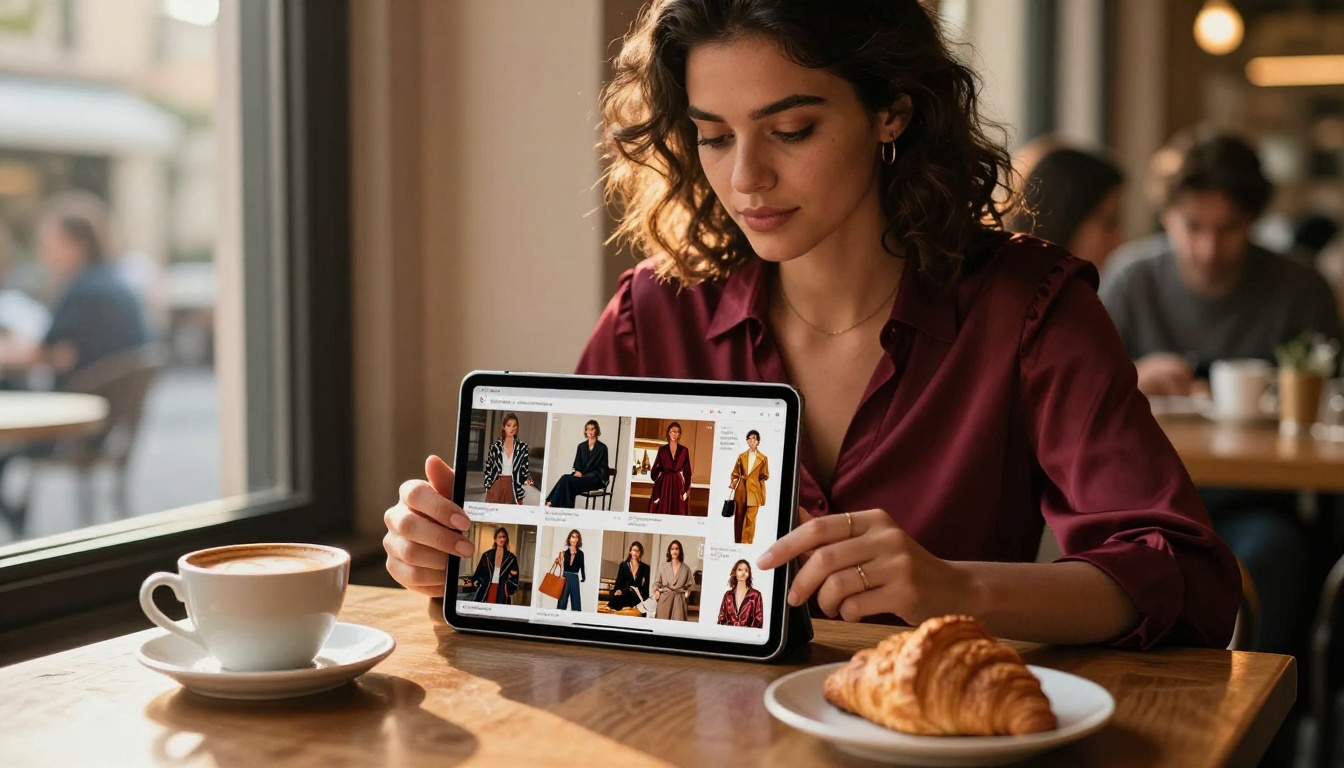
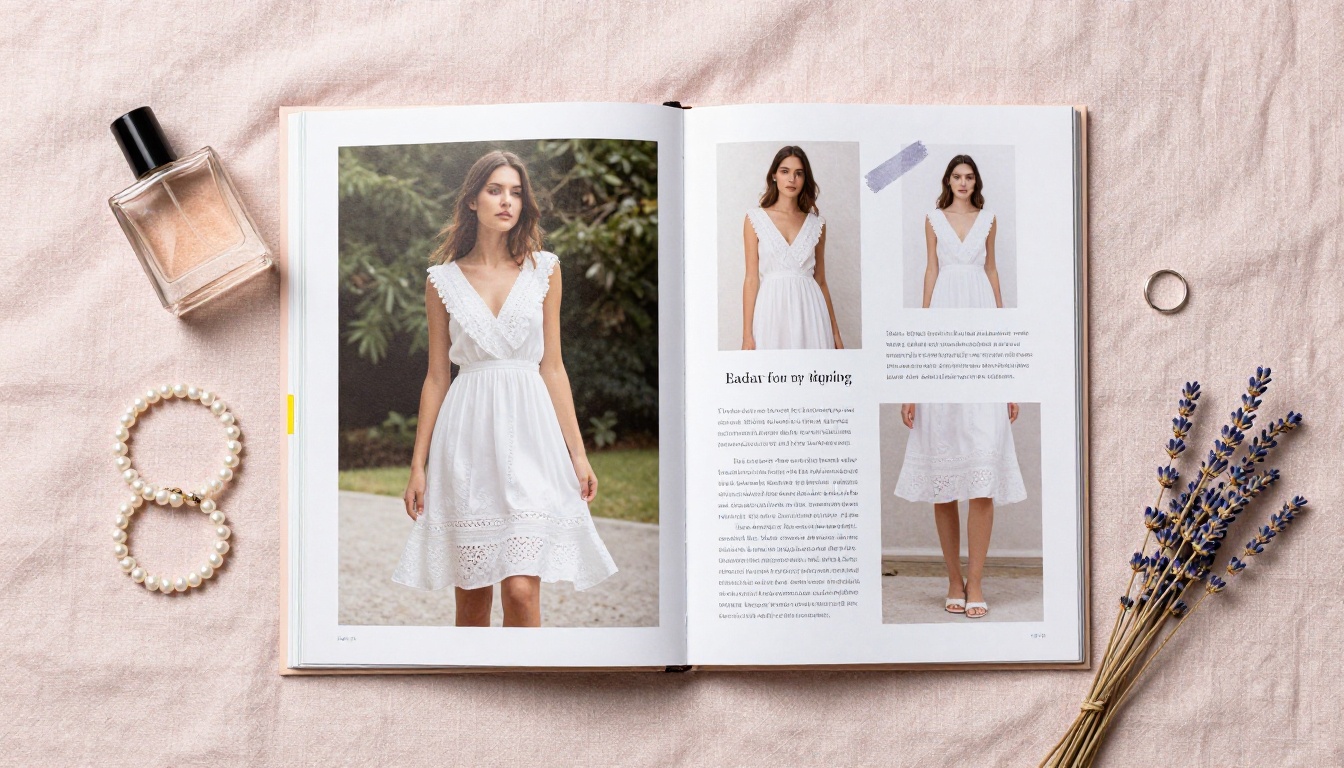
Fashion designers and stylists use Photoshop for retouching and compositing editorial shots, then publish as interactive lookbooks. The page-flip animation adds a premium, editorial magazine feel that a static PDF cannot deliver. Clients flip through looks as if browsing a physical fashion book.
Product Catalogs
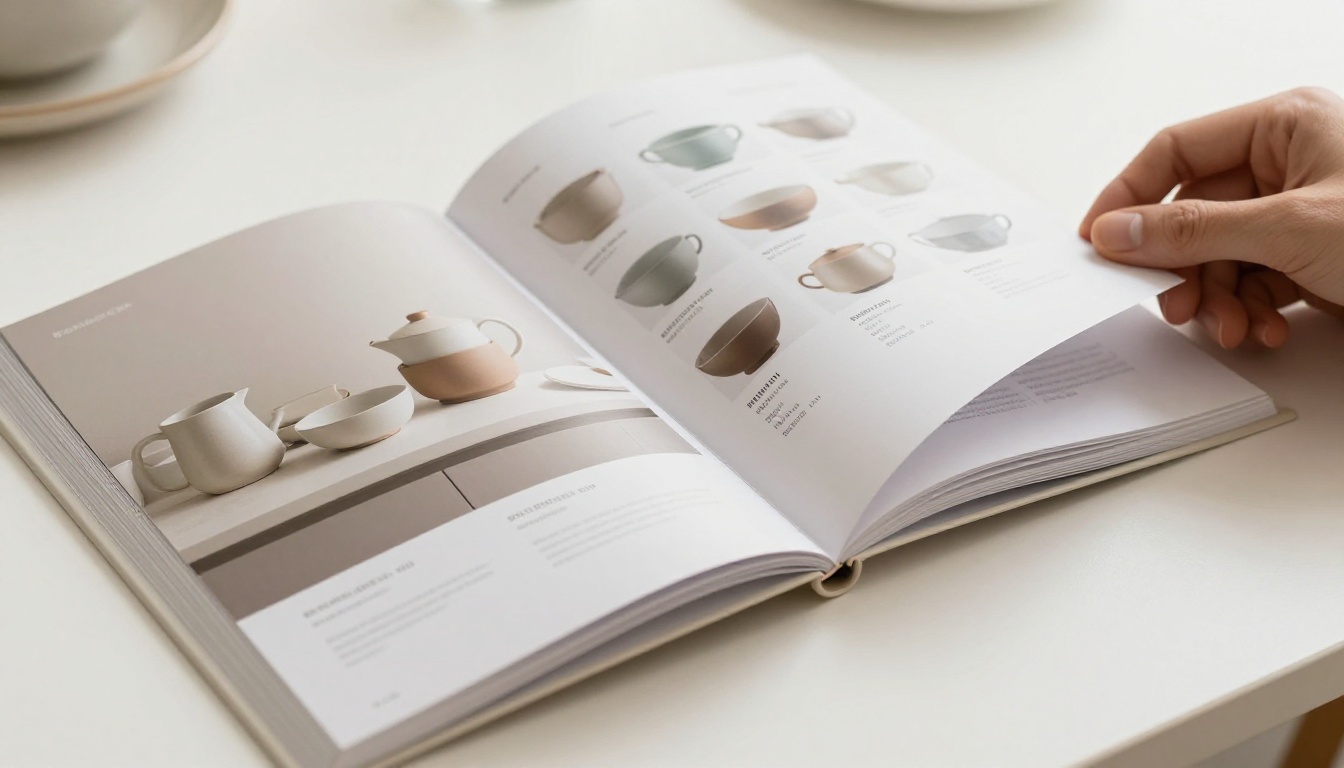
Retailers and brands design their product spreads in Photoshop because of its superior image editing capabilities. Publishing as an interactive product catalog lets customers browse items as if flipping through a physical book, with clickable links going directly to product pages or checkout flows.
Digital Portfolios
Photographers, illustrators, and designers use Photoshop to composite their portfolio spreads, then publish as an interactive digital portfolio. A flipbook portfolio is far more impressive in a client presentation than a folder of image files or a static PDF attachment.
Brand Brochures and Annual Reports
Marketing teams design brochures and reports in Photoshop and publish them as interactive documents using the Brochure Flipbook Maker or Annual Report Creator. Adding video embeds and analytics tracking gives leadership teams real data on which pages stakeholders actually read rather than skipping.
Flipbooks AI Plans at a Glance
Choosing the right plan depends on how many flipbooks you publish and which features matter most for your workflow.

| Feature | Free | Standard | Professional |
|---|
| Number of Flipbooks | Limited | Unlimited | Unlimited |
| Watermark | Yes | No | No |
| Custom Branding | No | Yes | Yes |
| Password Protection | No | Yes | Yes |
| Embed on Website | Yes | Yes | Yes |
| Video and Audio | No | Yes | Yes |
| Analytics and Tracking | No | No | Yes |
| Lead Generation Forms | No | No | Yes |
| Offline Downloads | No | No | Yes |
| Priority Support | No | No | Yes |
💡 Pro Tip: If you are producing client work and need to remove watermarks and add custom branding, the Standard plan is the minimum you need. For agencies that need to track which clients actually opened and read their proposals, the Professional plan's analytics are worth every cent. Check current pricing for the latest rates and any active promotions.
Responsive on Every Device
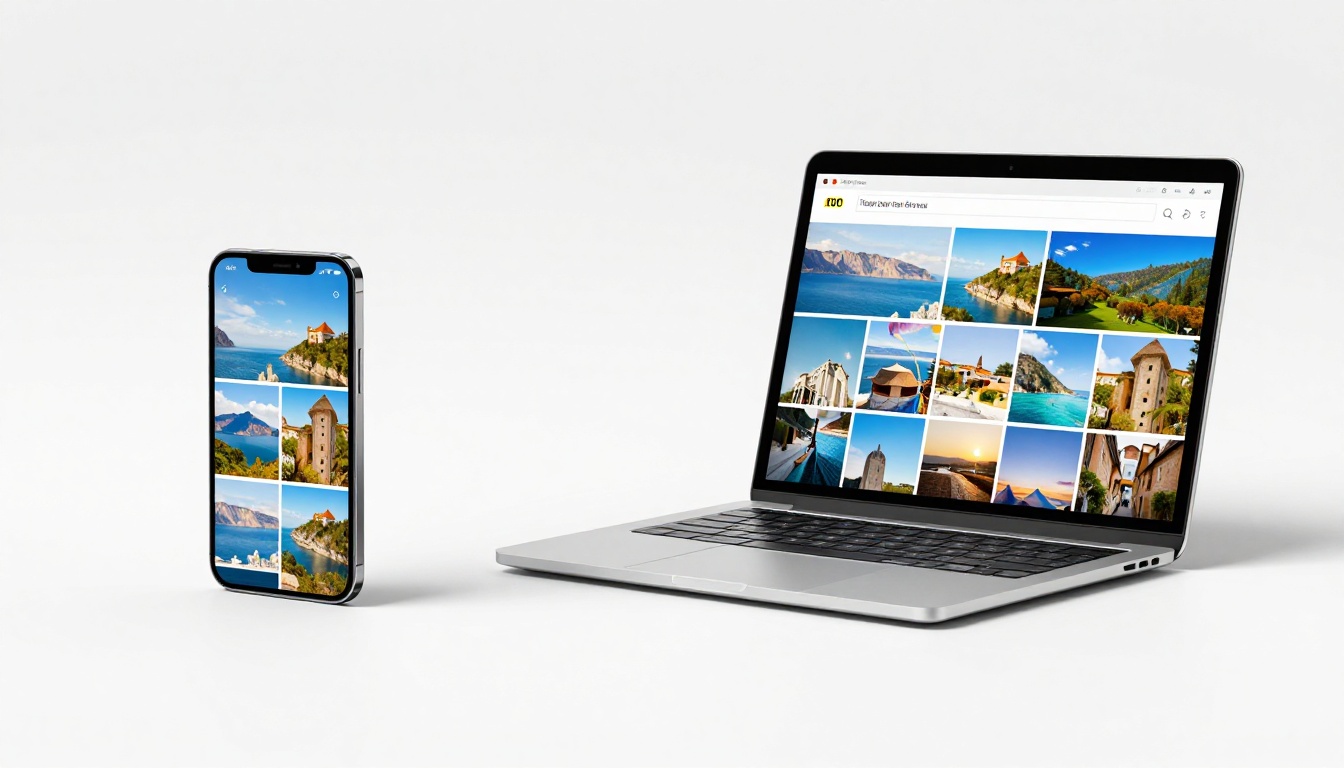
One of the strongest reasons to publish your Photoshop designs as flipbooks rather than PDFs is the mobile reading experience. A PDF on a smartphone requires constant pinching, zooming, and scrolling. A flipbook from Flipbooks AI adapts automatically to any screen size, giving mobile readers a clean, native-feeling browsing experience.
Your Photoshop layout does not need to change for mobile. The flipbook platform handles all the responsive scaling automatically. Readers can swipe through pages on touch screens as naturally as they would with a physical publication.
✅ Best Practice: Test your published flipbook on a mobile phone before sharing it with clients. The platform scales layouts automatically, but checking text legibility on small screens can reveal if font sizes need adjusting in your Photoshop source file before the final version goes out.
Your Designs, Live in Minutes
The workflow is direct: design your multi-page layout in Photoshop using artboards, export as a high-quality RGB PDF with embedded fonts, upload to Flipbooks AI, customize your branding, and publish. From export to live flipbook in under five minutes.
There is no reason for your best design work to sit in an inbox as an unopened PDF attachment. Flipbooks make your work accessible, impressive, and shareable on any device, with the kind of interactive experience that turns passive viewers into engaged readers.
Ready to publish your first flipbook? Create your free account and upload your Photoshop PDF today.
Browse all flipbook tools to find the right format for your next project, or compare plans to choose the features that fit your workflow.



