There is nothing more frustrating than sharing your flipbook with a client or colleague, only to have it open on page 14 instead of the front page. The whole first impression falls apart in an instant. If your digital flipbook is opening on the wrong page, you are not alone, and the fix is usually simpler than it looks.
This happens across all major flipbook platforms and almost always traces back to one of three places: the source PDF itself, the flipbook platform's page settings, or a URL parameter that was passed along with the share link. Once you know where to look, correcting it takes minutes.
Flipbooks AI makes this process significantly easier because it gives you direct control over page settings during and after the conversion process, without requiring you to dig through obscure menus.
Why Your Flipbook Opens on the Wrong Page
Most flipbook platforms convert PDFs page by page. They trust the PDF's internal structure to define what "page 1" is. The problem is that PDFs do not always start counting from what you would consider the beginning.
The PDF Has an Internal Page Offset
PDF documents can have a "page offset" embedded in their metadata. This is common when designers build documents that include placeholder pages, blank pages, or front matter with roman numerals (i, ii, iii) before the main content begins. The PDF viewer recognizes a logical "page 1" that is not the physical first page in the file.
When a flipbook converter reads that file, it can interpret the PDF's declared starting page, skipping past what you intended to be the opening page.
A Bookmark or Named Destination Was Set
PDFs support bookmarks and named destinations. These internal anchors tell viewers to jump to a specific location when the file opens. Some design applications, particularly Adobe InDesign and Acrobat, set a default opening view or destination that persists when the file is converted. A flipbook platform that respects these settings will honor them, landing the reader on the bookmarked page instead of the first.

The Share Link Contains a Page Parameter
Many flipbook platforms support URL parameters for direct page linking, something like ?page=7 or #page=7 appended to the share URL. If someone set up a link with that parameter already baked in, every person who clicks it will land on that specific page, regardless of what the default is configured to be.
The Platform's Default Start Page Was Changed
Flipbook platforms often let you configure which page the reader opens to. If you or a collaborator accidentally changed this setting during editing, the viewer will consistently open on the configured page rather than page 1.
The Most Common Causes at a Glance
Knowing the root cause saves time. Here is a breakdown of what triggers this problem and how frequently each one appears in practice:
| Cause | How Common | Where to Fix It |
|---|
| PDF internal page offset | Very common | PDF editor before re-upload |
| Bookmark or named destination in PDF | Common | Acrobat or InDesign settings |
| URL parameter (?page=X) in share link | Common | Edit the shared URL |
| Platform start page setting changed | Moderate | Flipbook platform settings panel |
| Blank pages included at PDF start | Common | Remove in PDF editor, re-upload |
| Incorrect page range during upload | Less common | Re-upload with correct range |
Fixing the PDF Before You Upload
If the problem lives in the source file, the fastest long-term fix is to correct the PDF and re-upload it. A patched PDF means the issue will not return if you ever republish the flipbook.
Remove the Page Offset in Adobe Acrobat
- Open your PDF in Adobe Acrobat Pro.
- Go to File > Properties and click the Initial View tab.
- Under "Page layout and magnification," set Open to page to 1.
- Save the file.
This strips the internal offset so the flipbook converter treats the physical first page as page 1.
Clear Bookmarks and Named Destinations
- In Acrobat, open the Bookmarks panel (View > Show/Hide > Navigation Panes > Bookmarks).
- If there is a bookmark labeled "Start" or "Title" that points to a later page, right-click it and select Delete.
- For named destinations: locate any destination set as the document-level opening action and remove it from the Destinations panel.
- Save and re-upload.
Delete Blank or Placeholder Pages at the Front
If your PDF starts with a blank page, common when exporting two-sided documents, remove it before uploading.
- In Acrobat: Tools > Organize Pages, then click the trash icon on page 1.
- In free alternatives like PDF24 or Smallpdf: use the "Delete Page" or "Organize Pages" tool to remove the unwanted first page.
- Re-export and re-upload to your flipbook platform.
⚠️ Warning: Always keep a copy of the original PDF before editing. Page deletion is irreversible in most PDF editors unless you use "Save As" rather than overwriting the original file.
Fixing the Starting Page Inside Your Flipbook Platform
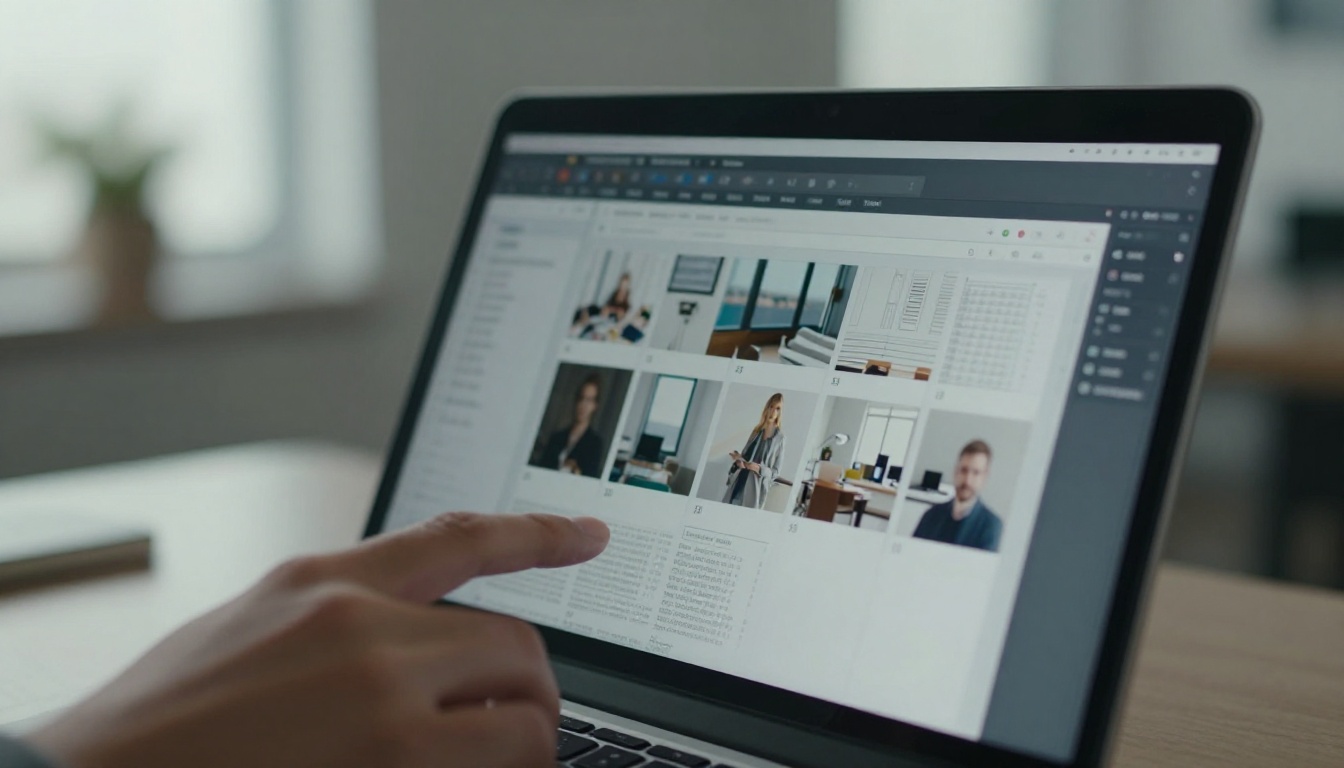
If the PDF is clean but the flipbook still misbehaves, the setting lives in the platform. Most professional flipbook tools expose this in the editor or publishing settings panel.
Check the Initial Page or Start Page Setting
Look for a setting labeled "Start page", "Opening page", "Initial view", or "Default page" in your flipbook editor. This is almost always in the Settings or Publish panel.
Set it to 1 and save. Republish or refresh the viewer link to verify the change took effect.
Check the Embed Code
If you embedded the flipbook on a website using an <iframe> or JavaScript snippet, the embed code itself may contain a page parameter. Look for anything like:
startPage=5page=7initialPage=3#page=10
Remove or change that parameter to 1 or 0 (platforms vary), then update the embed on your website.
💡 Pro tip: Test your flipbook by opening the share link in an incognito window. This removes any cached state or previously visited page memory that your regular browser might be restoring automatically.

Fixing a URL Parameter in Your Share Link
This is the quickest fix when it applies. Check the share link you are using. If it looks like this:
https://yourplatform.com/flipbook/my-catalog?page=12
Simply remove the ?page=12 part:
https://yourplatform.com/flipbook/my-catalog
Share the clean URL and the flipbook will open at whatever the default page is configured to be in the platform settings.
✅ Best practice: Always copy the base share URL without page parameters when distributing your flipbook. Only use page parameters when you intentionally want to deep-link to a specific section for a reader.
How to Set Your Starting Page in Flipbooks AI
Flipbooks AI gives you a clean, intuitive interface for configuring how your flipbook opens. Here is the exact process for setting or resetting the starting page after upload.
Step 1: Create Your Account and Upload
Go to Flipbooks AI and sign in or create a free account. Click New Flipbook and upload your PDF. The platform converts it automatically, reading each page in sequence from the physical first page of the file.
Step 2: Open the Flipbook Editor
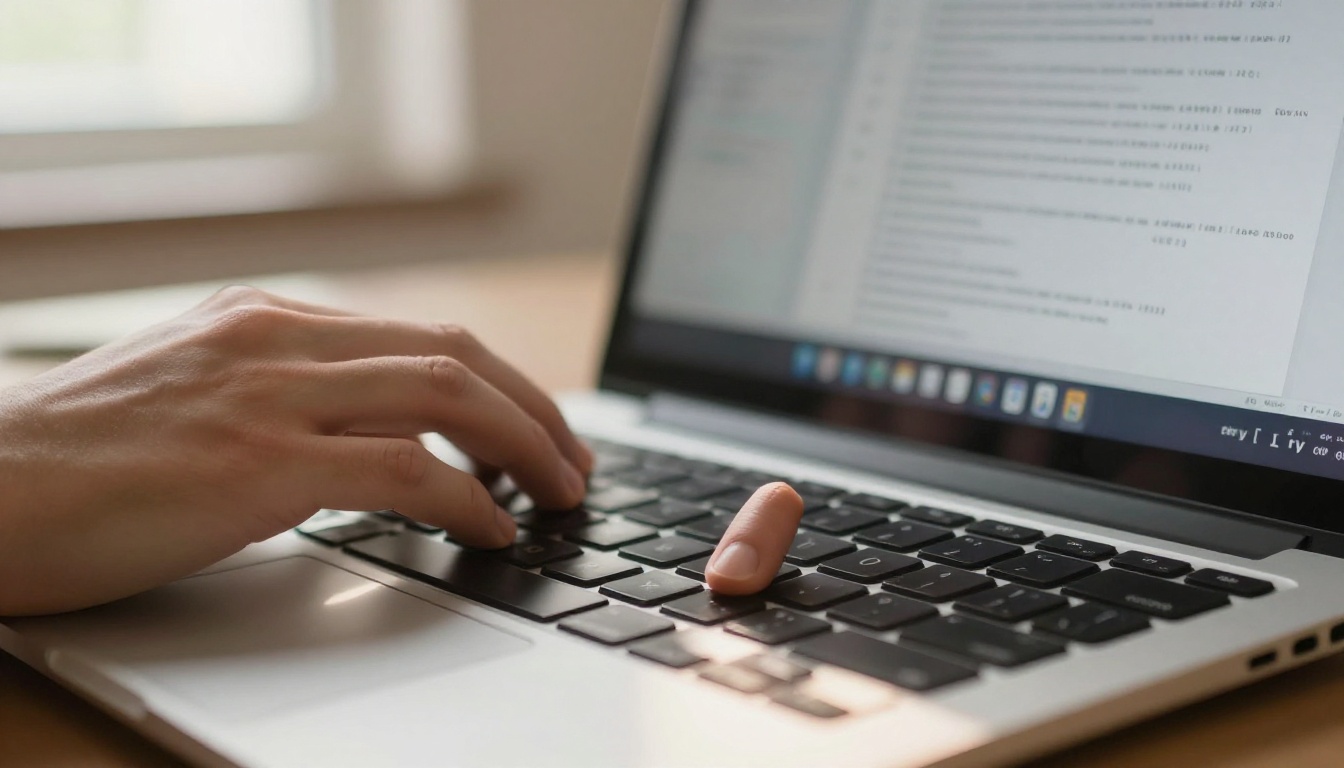
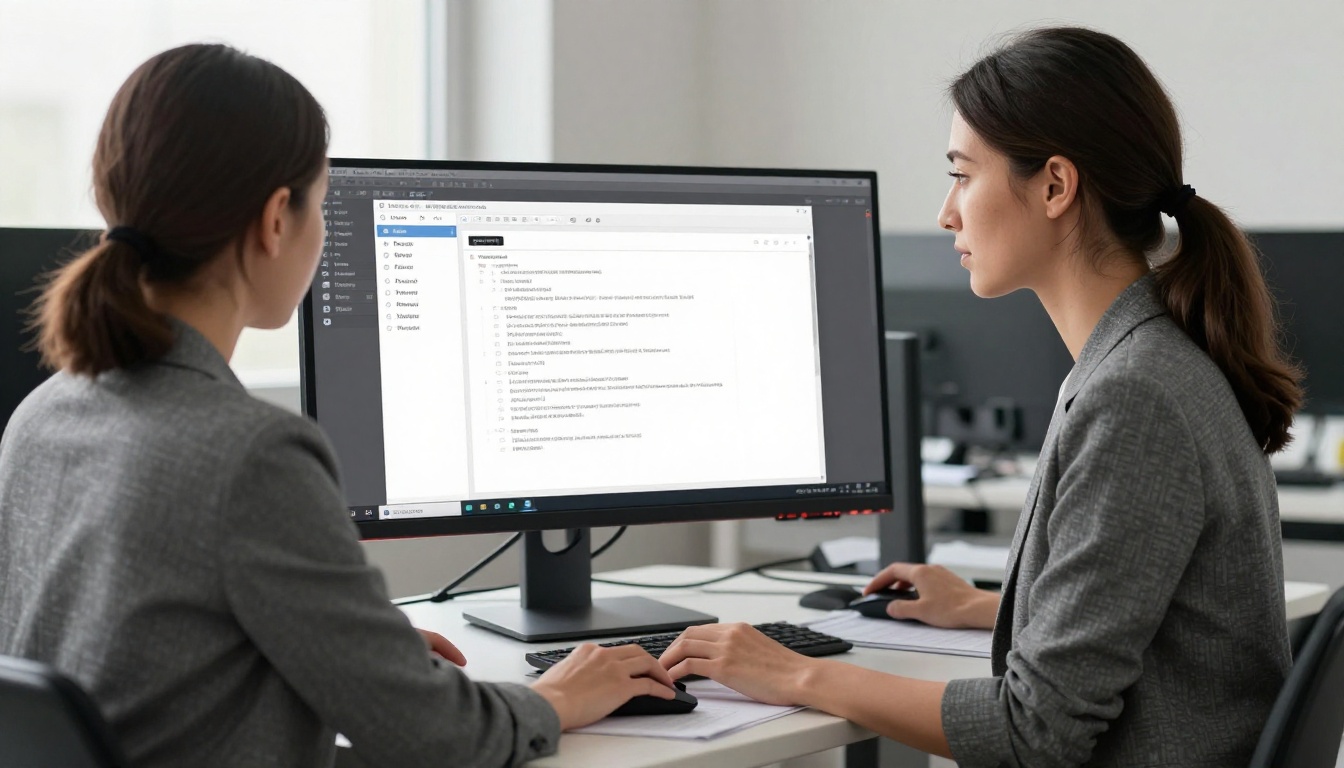
Once converted, click on your flipbook to open the editor dashboard. Here you will see all pages in order as thumbnails. Confirm that your intended opening page appears as Page 1 in the thumbnail strip. If a blank page or wrong page appears first, use the page organizer to delete it or drag your intended first page to position 1.
Step 3: Configure the Initial Page Setting
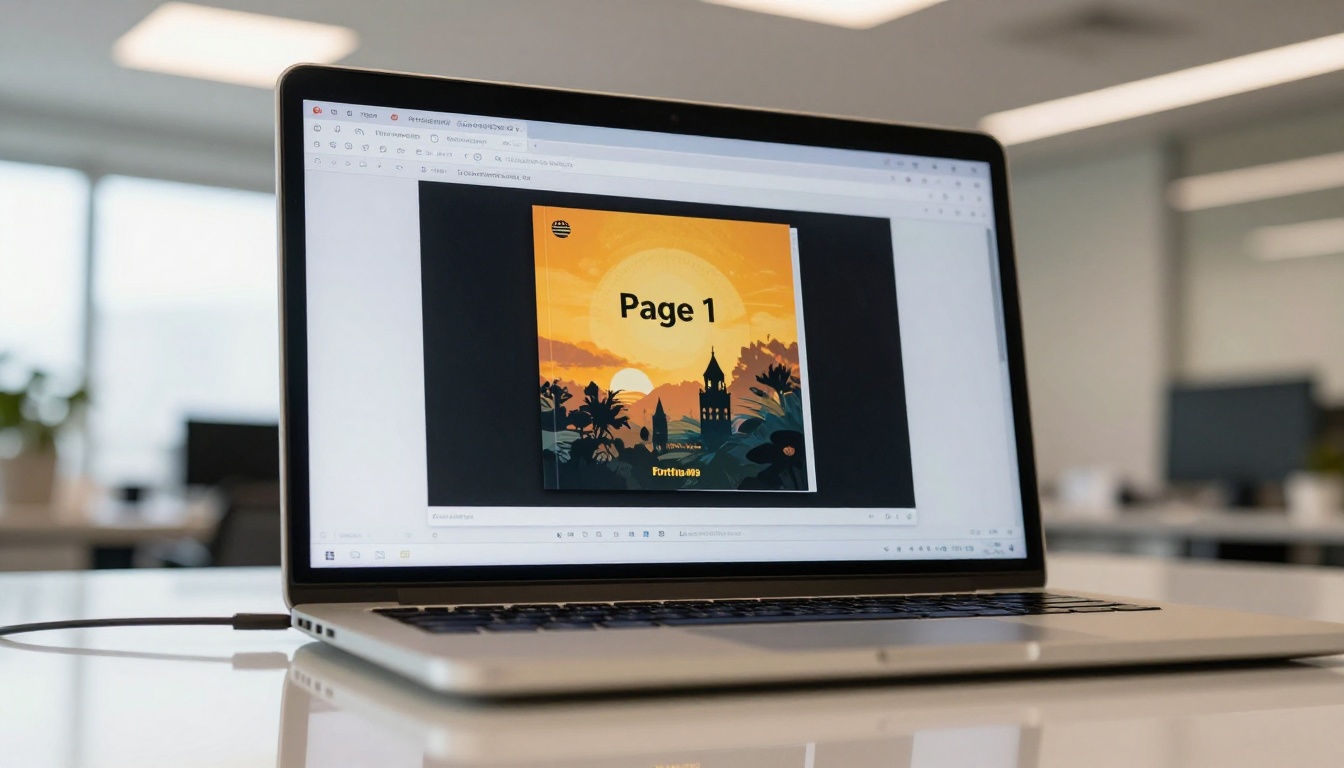
Navigate to Settings > Viewer Settings (or the equivalent section in the panel). Look for the "Open on page" or "Start page" field. Type 1 to ensure every new visitor lands on the first page of your publication.
Step 4: Adjust Display Options
While in the settings panel, configure other display options that affect the first impression:
- Double-page spread: Choose whether the opening page shows as a single page (recommended for title pages) or part of a two-page spread.
- Auto-flip: If enabled, disable it on the first page so it stays visible long enough for the reader to register the content.
- Background color: Set the viewer background to match your brand palette.
- Custom branding: Add your logo and colors, available on Standard plan and above.
💡 Pro tip: On the Professional plan, you can add analytics tracking to see exactly where readers spend time, which helps you catch navigation issues before they reach your wider audience.
Step 5: Save and Verify
Hit Save and then open your share link in a new incognito window. Confirm the flipbook opens on your intended first page. Share it with a colleague and ask them to confirm from a fresh browser session as well.
Step 6: Publish and Distribute
Once verified, copy your share link from the Share panel. Distribution options include:
- Direct link: Paste into emails, social posts, or documents.
- Embed code: Use the Embed Flipbook on Website tool for website integration.
- Password-protected link: For private or internal content, available on the Standard plan.
Flipbooks AI offers no watermarks on any paid plan, mobile-responsive viewing out of the box, and offline download options on the Professional plan, making it one of the most capable platforms for professional digital publishing.
Comparing Flipbook Platforms: Page Control Features
If you are evaluating which platform gives you the most control over opening page behavior, here is how major options compare across the features that matter most for this specific issue:
| Feature | Flipbooks AI | Generic Platform A | Basic Platform B |
|---|
| Set start page in editor | Yes | Limited (URL param only) | No |
| Page reorder after upload | Yes | No | No |
| Delete pages post-upload | Yes | Re-upload required | No |
| Embed with page control | Yes | Yes | No |
| No watermarks | Yes (paid plans) | No (all plans) | Paid only |
| Mobile-responsive viewer | Yes | Partial | Yes |
| Password protection | Yes (Standard+) | No | Paid only |
| Reader analytics | Yes (Professional) | No | No |
✅ Best practice: Pick a platform that lets you configure the start page directly in the editor rather than relying solely on URL parameters. URL parameters get stripped or lost too easily when links are shared across platforms and messaging apps.
When the Fix Does Not Work: Edge Cases
Sometimes you apply all of the above and the flipbook still opens incorrectly for some users. Here are the less obvious scenarios worth checking.
Browser Cache Restoring the Last Visited Page
Some flipbook viewers save the last-read page in the browser's local storage. A returning visitor will land on where they left off, not the opening page. This is intentional UX in some platforms, designed to help readers pick up where they stopped.
Fix: In your platform settings, look for a "Remember last page" or "Resume reading" toggle. Disable it if you want every visitor to always start at the beginning.
Two-Page Spread Rendering Issue
When a flipbook is set to show two pages side by side, like a physical book, page 1 sometimes appears paired with a blank page on the right. This can look like the viewer skipped the title page when in fact it is showing page 1 in the left-hand position with an empty facing page.
Fix: In the viewer settings, switch the first page to single-page mode so the title page fills the entire screen on its own. Subsequent pages can continue in spread mode without issue.
The Embedded iFrame Has a Cached Version
If you updated the start page setting but embedded the flipbook weeks ago via iFrame, the old embed code may still carry the old parameter.
Fix: Regenerate the embed code from the platform and replace the iFrame snippet on your website with the fresh version.

Quick Diagnostic Checklist
Before contacting support or re-uploading anything, run through this checklist in order:
| Step | What to Check | Expected Result |
|---|
| 1 | Open the share link in incognito mode | Flipbook opens on page 1 |
| 2 | Check the URL for page parameters | URL has no page parameter appended |
| 3 | Check platform settings for start page | Start page is set to 1 |
| 4 | Check the embed code for page parameters | No page parameter in iFrame source |
| 5 | Open PDF in Acrobat, check Initial View | "Open to page" is set to 1 |
| 6 | Check PDF for blank page at position 1 | First physical page is your intended title page |
| 7 | Check "Remember last page" setting | Disabled if fresh-start viewing is required |
If steps 1 through 4 all look correct but step 5 or 6 reveals the issue, re-export the PDF with the corrected first page and re-upload. Most platforms retain your other settings across re-uploads.
Your Flipbook, Fixed and Ready to Share
A flipbook that opens on the wrong page signals to readers that something is off before they even read a word. Getting this detail right matters for catalogs, presentations, e-magazines, and any publication where the opening page sets the entire tone.
The fix almost always falls into one of these areas: a PDF-level offset to clean up in Acrobat, a platform setting to reset to page 1, a URL parameter in your share link to remove, or a browser cache issue that disappears in incognito mode. Work through them in order and the problem resolves quickly.
Ready to build a flipbook that works exactly the way you want it to from the very first page? Get started for free on Flipbooks AI and take full control of how your publication looks and behaves for every reader.
Whether you need a polished product catalog, an elegant digital portfolio, or a professional annual report, the right tools are ready for you. Browse all flipbook tools or check the pricing plans to find what fits your workflow best.



