You searched. You typed every word you could remember. And still, your flipbook's search bar returned nothing. This is one of the most common frustrations among people who publish digital documents, and the fix is almost always found inside the PDF itself, not in the platform. Flipbooks AI handles text indexing automatically once your document is uploaded, but the content has to be genuinely text-based to begin with. This article covers every reason flipbook search is not finding your text, and exactly what you can do to make your publication fully searchable from top to bottom.

Why Search Fails in the First Place
Most people assume that because they can see text on a page, a search function can find it. That assumption breaks down completely with digital publications. There is a fundamental difference between text that looks like text and text that actually is text from a machine's perspective.
Image PDFs vs Text PDFs
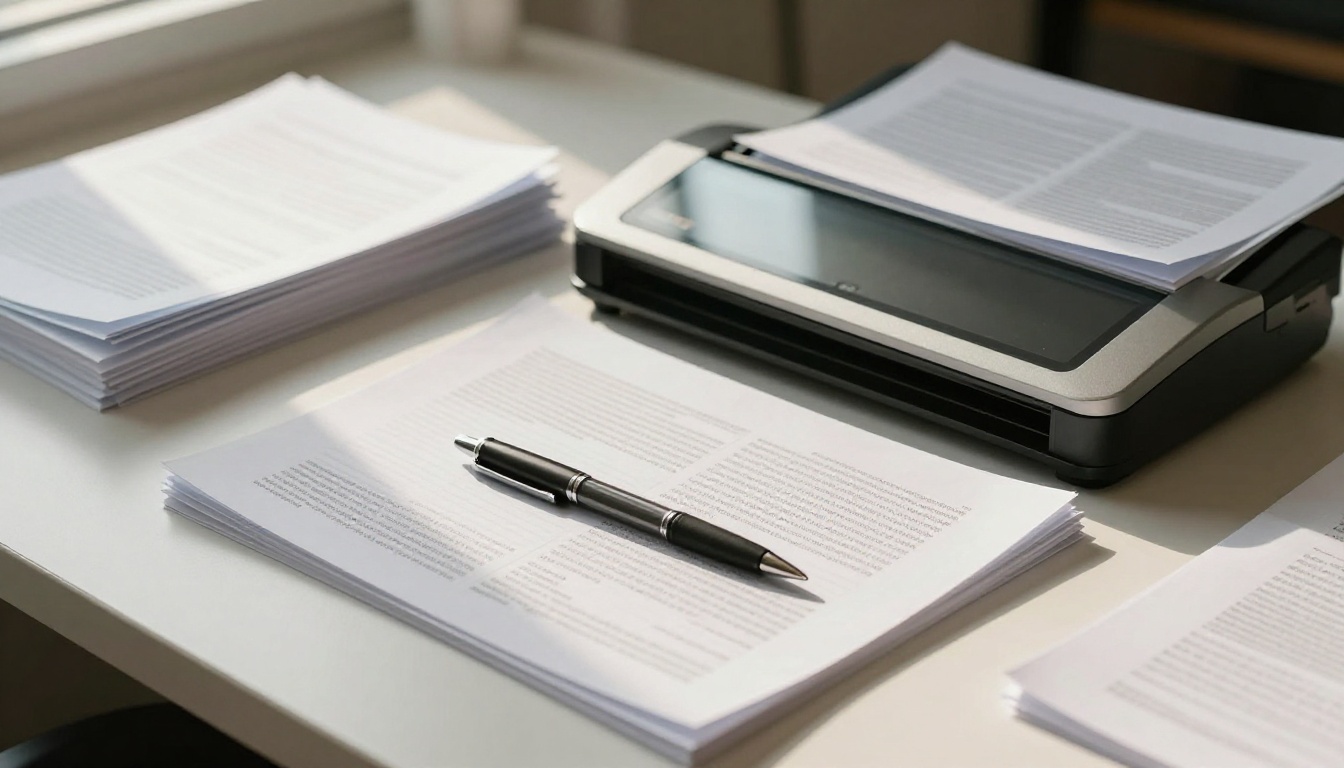
When you scan a physical document and save it as a PDF without applying OCR (Optical Character Recognition), every page becomes an image. It looks identical to a text document in every visual way, but there is no actual character data in the file. The PDF is just a series of pictures of words, and no search engine in the world can read a picture.
The same problem occurs when someone exports a design file incorrectly, or when a PDF is created from a tool that converts text to outlines or paths. The word "annual report" might appear perfectly legible on screen but exist as nothing more than vector shapes with zero textual data attached.
⚠️ If you try to click and drag over text in your PDF and nothing gets highlighted, your document is image-based. Search will never work until this is fixed.
Font Embedding Issues
Even in proper text-based PDFs, fonts that are not correctly embedded can cause partial or complete search failures. When a PDF viewer or indexer encounters a font it cannot decode, it may skip those characters entirely. This is common in older PDFs generated by legacy publishing software or in documents that used proprietary typefaces without proper licensing or embedding.
Text Rendered as Paths or Outlines
Design software like Adobe Illustrator or Affinity Publisher allows you to "outline" or "expand" text, converting each letter into a vector shape. This is commonly done to avoid font dependency issues when sharing files. The result: visually perfect text that is completely invisible to any search algorithm.

7 Reasons Your Flipbook Search Is Not Finding Your Text
Here is a direct breakdown of every common cause, ranked from most to least frequent:
| # | Cause | How Common | Fix Difficulty |
|---|
| 1 | Scanned PDF with no OCR applied | Very common | Medium |
| 2 | Text converted to outlines or paths | Common | Medium |
| 3 | Incorrect PDF export settings | Common | Easy |
| 4 | Embedded or non-standard fonts | Moderate | Easy |
| 5 | Password-protected PDF with extraction restrictions | Moderate | Easy |
| 6 | Corrupt text layer from repeated conversions | Less common | Hard |
| 7 | Wrong character encoding or legacy glyph mapping | Rare | Hard |
Scanned Documents Without OCR
Physical documents that were photographed or scanned and saved directly to PDF fall into this category. This is the single most common reason flipbook search is not finding your text. Every page is stored as a raster image. Fix: apply OCR before uploading.
Text That Was Drawn, Not Typed
If your PDF was designed in Photoshop, Canva, or Illustrator and the text layers were rasterized or outlined during export, search will not work. Fix: re-export with live text layers preserved.
Bad Export Settings from Word or InDesign
Microsoft Word and Adobe InDesign both offer multiple PDF export profiles. Choosing "Print" profiles over "Interactive" or "Accessible" profiles can strip out text accessibility metadata in some configurations. Fix: use the correct export profile for digital distribution.
Restricted Permissions in the PDF
Some PDFs are created with copy-protection settings that prevent text extraction. Even though you can read the content visually, the search indexer may be blocked from accessing the character data. Fix: remove restrictions before uploading.
💡 Open your PDF in any PDF viewer and press Ctrl+A to select all. If no text gets selected, your document is image-based and needs OCR before it can be searched.
Font Encoding Problems
If the text in your PDF uses unusual encoding or glyph-mapping tables, the indexer may extract garbled characters instead of actual words. This makes search technically possible but practically useless since the indexed content bears no resemblance to what is on the page.
Corrupt Text Layer
Sometimes a conversion tool partially corrupts the text layer, leaving some pages searchable and others not. This is more common when converting between formats multiple times, such as DOCX to PPT to PDF.
Wrong Character Set or Language Encoding
Documents in non-Latin scripts (Arabic, Chinese, Thai) need proper Unicode encoding. If the PDF was created with legacy encoding standards, the character data may be present but unreadable to the indexer.
How to Fix a Flipbook That Cannot Be Searched
The solution almost always lives in your source document. Here is what to do based on your situation:
Fix 1: Run OCR on Your PDF Before Uploading
If your document is scanned or image-based, you need to apply OCR before uploading it anywhere. OCR analyzes each image and generates a text layer underneath it, making every word searchable without changing the visual appearance of the document.
Free OCR options:
- Adobe Acrobat Reader (free tier includes basic OCR on limited pages)
- Smallpdf OCR tool (online, no software install required)
- ILovePDF OCR feature (strong for quick batch jobs)
- Google Drive (upload a PDF, right-click, open with Google Docs to extract text)
Professional options:
- Adobe Acrobat Pro (most accurate, multi-language, batch processing)
- ABBYY FineReader (industry standard for complex and multi-column documents)
- Readiris (strong option for business volume processing)
✅ Always apply OCR on the original scanned file before any other editing. Applying OCR to a compressed or re-saved PDF reduces recognition accuracy significantly.
Fix 2: Re-Export Your Design with Live Text
If your document came from a design tool, open the original source file and re-export to PDF with these settings:
- Adobe InDesign: File > Export > Adobe PDF (Interactive) and check "Create Tagged PDF"
- Microsoft Word: File > Save As > PDF and check "Document structure tags for accessibility"
- Canva: Use the "PDF Print" option and avoid flattening layers before export
- Affinity Publisher: Export as PDF with "Text as Text" enabled, not "Text as Curves"
Fix 3: Remove PDF Restrictions
If your PDF has copy-protection enabled, remove those restrictions using Acrobat Pro (File > Properties > Security) or a tool like PDF24 before uploading to any flipbook platform.
Creating a Searchable Flipbook on Flipbooks AI
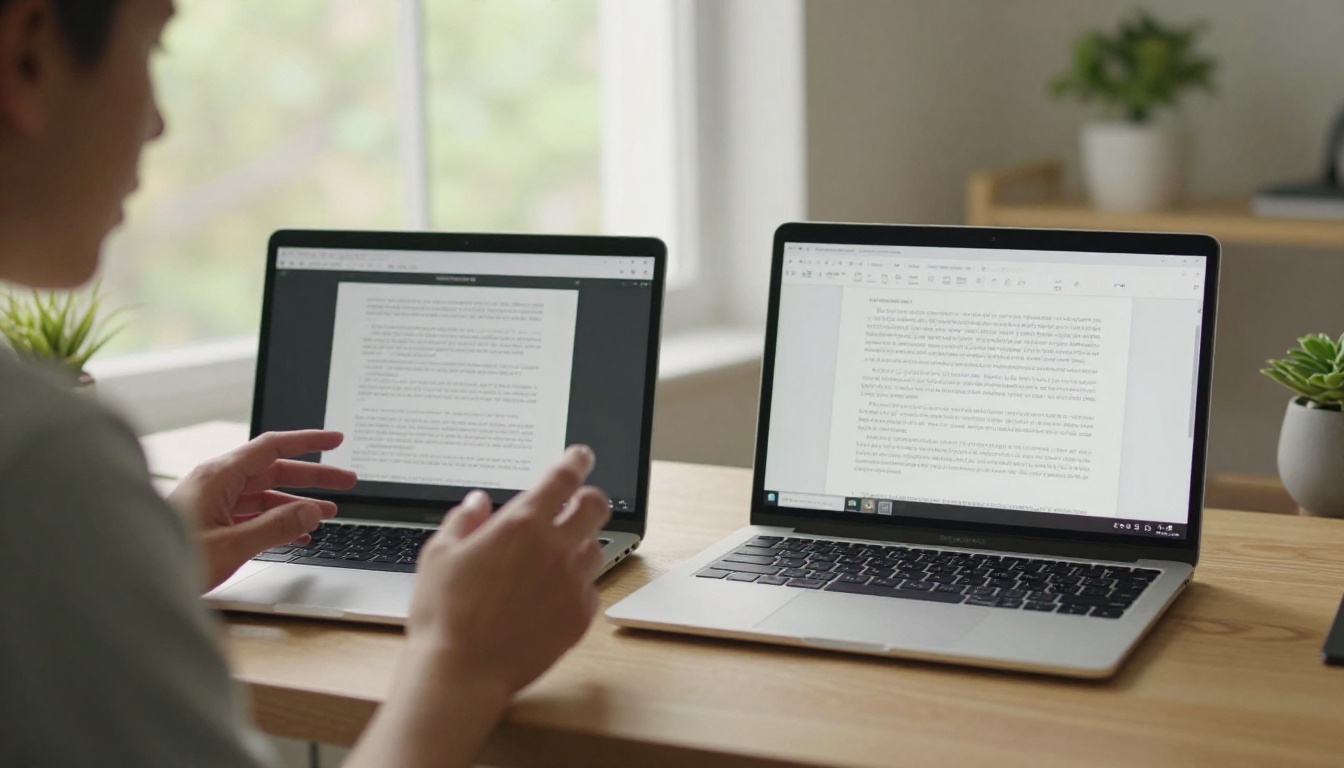
Once your PDF is text-based and properly exported, the rest is handled automatically. Flipbooks AI indexes your text content during the conversion process, making your flipbook fully searchable the moment it goes live. Here is how the process works:
Step 1: Verify Your PDF Is Searchable
Before anything else, confirm your PDF is searchable. Open it locally, press Ctrl+F, and type any word from the document. If it highlights correctly, you are ready to upload. If not, apply the fixes above first.
Step 2: Upload and Convert
- Go to Flipbooks AI and log in or create your free account
- Click "Create New Flipbook" and upload your prepared PDF
- The platform converts each page while preserving the underlying text layer
- Conversion typically takes 30 to 90 seconds depending on document length
Step 3: Use the Built-In Search Feature
After conversion, the search function is enabled by default. Readers accessing your flipbook can press Ctrl+F or tap the built-in search icon to find any word instantly. Results highlight matching text on each page and allow direct navigation between every match.
Step 4: Customize, Brand, and Share
Once searchable, use Flipbooks AI's customization tools to configure branding, colors, page turn effects, and distribution settings. Options include:
- Password protection for private or gated publications
- Direct embed code for your website or blog
- Shareable public link with optional expiry
- Viewer analytics and lead generation forms (available on the Professional plan)
- Offline download for readers without consistent internet access
💡 The search feature works across all document types on Flipbooks AI. Whether you are creating a product catalog, a training manual, or an interactive e-book, text is instantly searchable as long as your source PDF contains real text layers.

Searchable vs Non-Searchable: What Is Actually at Stake
This is not just a convenience issue. Searchability directly affects how useful your digital publication is, how long readers stay engaged, and whether your content gets found by external search engines at all.
| Feature | Searchable Flipbook | Non-Searchable Flipbook |
|---|
| In-document text search | Works instantly | Returns nothing |
| Google indexing of content | Possible (embedded content) | Not possible |
| Reader time-to-find information | Seconds | Minutes or abandoned |
| Accessibility compliance | Supported | Fails basic standards |
| Copy-paste functionality | Works | Broken |
| Screen reader support | Works | Broken |
| Mobile search experience | Fully functional | Search returns zero results |
| Lead generation in context | Works alongside text | Isolated, no context |
The difference is stark. A non-searchable flipbook forces every reader to manually page through your entire document to find what they need. For a 50-page catalog or a 30-page report, that friction alone drives most readers away before they find what they came for.
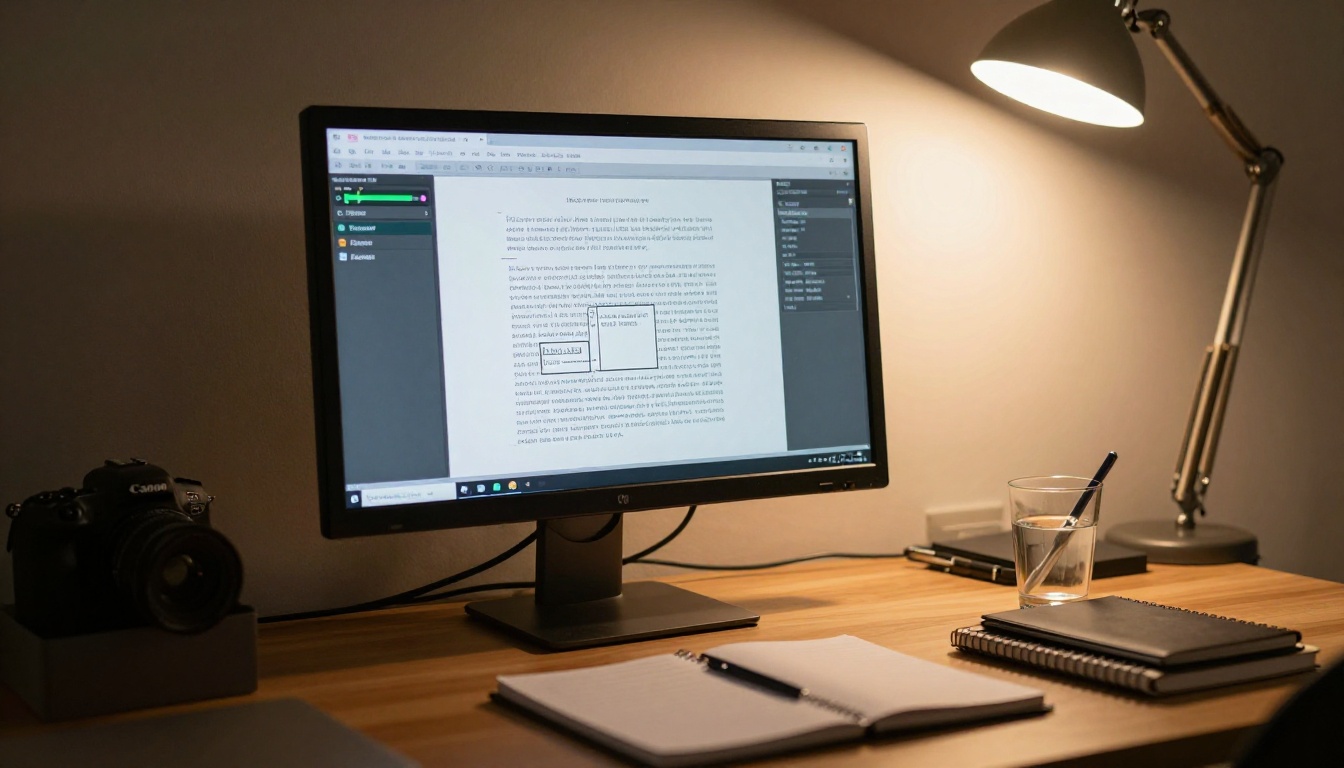
Choosing the right OCR tool depends on your volume, language requirements, and budget:
| Tool | Cost | Best For | Accuracy |
|---|
| Adobe Acrobat Pro | ~$20/month | Single documents, mixed content | Excellent |
| ABBYY FineReader | ~$200 one-time | Batch processing, multi-language | Best-in-class |
| Google Drive OCR | Free | Occasional documents, English | Good |
| Smallpdf OCR | Free / paid tiers | Quick online conversion | Good |
| ILovePDF OCR | Free / paid tiers | Simple batch jobs | Moderate |
| Readiris | ~$100 one-time | Business volume processing | Very good |
For most people publishing to Flipbooks AI, the free options are more than adequate. Google Drive's built-in OCR works well for clean scans in English. If you are processing hundreds of documents in multiple languages, ABBYY FineReader is worth the investment.
When OCR Is Not Enough
If your original document was designed in a way where all text was flattened into the background image (common in marketing flyers and poster-style PDFs), OCR will still work but accuracy may drop due to text overlaying complex backgrounds. In these cases, the best solution is returning to the original design file and re-exporting with proper text layers intact.
⚠️ Never apply OCR to a PDF that already has a text layer. Running OCR on an existing text-based PDF can corrupt the character data and make things worse than before.
Optimizing Your Flipbook Content for Search
Even with a perfectly searchable PDF, certain practices make your flipbook content more discoverable both internally and in external search engines.
Use Descriptive, Specific Headings
Search algorithms, both in-document and external, weight headings heavily. A heading like "Product Specifications for Model X300" will surface much more reliably than a vague one like "Details" or "More Info."
Avoid Abbreviations Without Context
If your document uses abbreviations (SKU codes, part numbers, internal identifiers), add a brief plain-text definition on first use. Readers searching for the full term will not find an abbreviation-only document.
Structured Documents Perform Better
A properly structured document with a logical table of contents, clear section breaks, and consistent heading hierarchy allows flipbook platforms to build better navigation alongside search. Use Flipbooks AI's PDF to Flipbook Converter to preserve bookmark navigation automatically during conversion.
Test Search After Publishing
After publishing your flipbook, open it in a private or incognito window and use the search function yourself. Test for specific terms readers are likely to search for. If any return empty results, check those pages specifically in your source PDF.
Real-World Scenarios Where This Breaks
Marketing teams publishing sales materials frequently run into this issue because their design agencies export PDFs with outlined text for print. A quick re-export from the source InDesign file with "Interactive PDF" settings fixes it entirely.
HR departments uploading scanned employee handbooks from older physical archives need OCR. Using Google Drive or Acrobat, they can process each document before uploading, and the resulting flipbook becomes instantly navigable for staff.
Publishers creating e-books or e-magazines from InDesign have the most control since they work with live text from the beginning. Correct export settings make search a non-issue entirely.
Restaurant owners uploading physical menu scans for a digital menu flipbook need OCR applied before upload, especially for older menus originally typeset in legacy software with no editable source files remaining.
How to Test Searchability Before You Upload
You do not need to wait until after publishing to know if your flipbook will be searchable. Test right now in three steps:
- Open your PDF in any PDF viewer (Adobe Reader, Chrome, Preview on Mac)
- Press Ctrl+F (or Cmd+F on Mac) and type any word from the document
- If the word highlights in the document body, your text is searchable. If nothing happens, it is not.
This 10-second test will save you from publishing a flipbook with broken search and frustrated readers.

What Changes After You Fix It
The difference between a non-searchable flipbook and a properly searchable one is significant in practice. Readers spend less time hunting and more time reading. Return visits increase because people know they can find what they need quickly. If your flipbook is publicly embedded on a website, search engines can also crawl the indexed text content, adding real SEO value to every page of your publication.
Browse the full tools directory at Flipbooks AI to see what kinds of publications benefit most from proper text search: from annual reports and digital portfolios to event programs and product catalogs. Every one of them works measurably better when readers can instantly find what they came for.
Ready to publish a flipbook that actually works? Create your account on Flipbooks AI and start with a properly prepared PDF. To see which plan fits your publication volume and feature needs, compare all pricing options here.



