You spent hours putting together a document, only to open the PDF and cringe at the wall of text, misaligned images, and fonts that scream "template from 2008." Whether it's a business proposal, a product catalog, or a personal portfolio, how your PDF looks shapes how seriously people take what's inside it. The good news: you don't need expensive software or a design degree to fix it. There are genuinely powerful free tools to make your PDF look professional online, and this article breaks down exactly which ones work, what each does best, and how to take your documents well beyond "acceptable."
If you want to skip straight to the most impressive upgrade available, Flipbooks AI lets you convert any PDF into a stunning interactive flipbook with page-turn animations, embedded media, and custom branding. But let's start from the beginning.

Why Your PDF Design Actually Matters
First impressions are everything
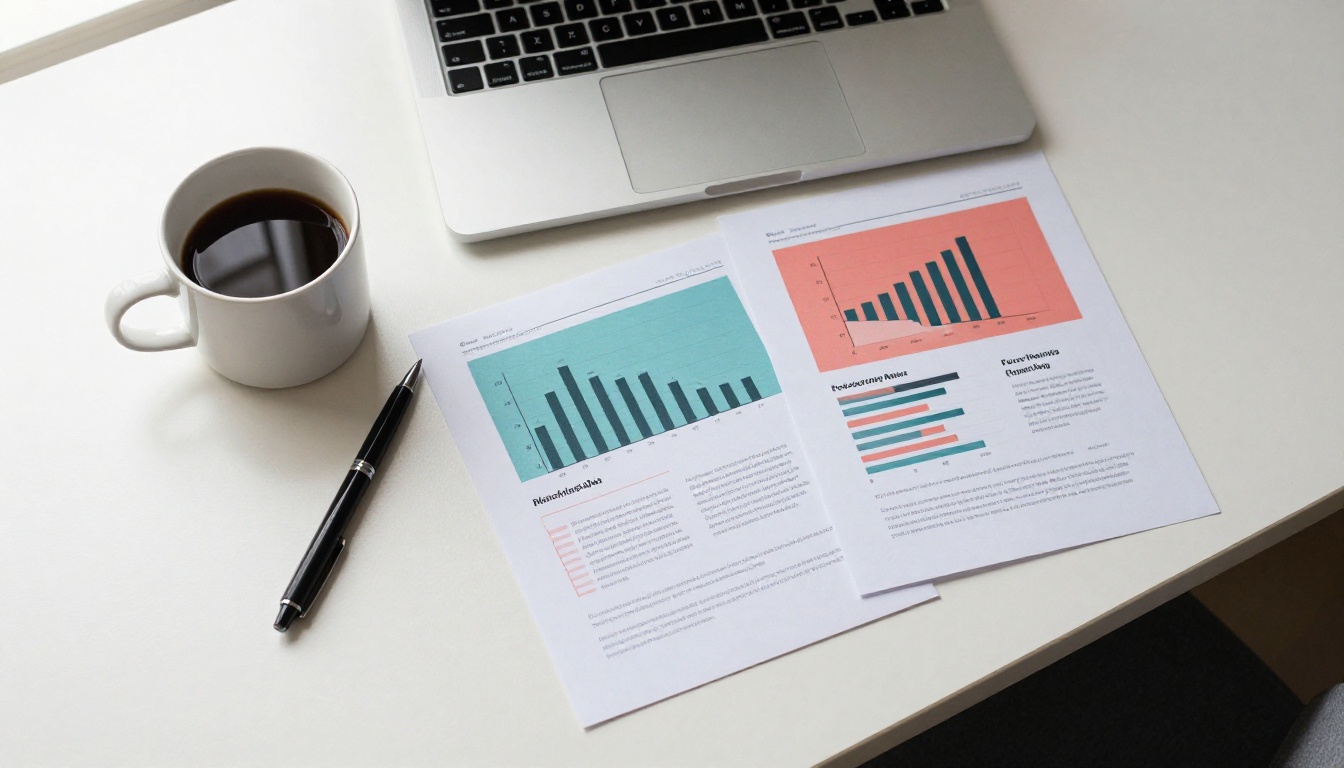
A PDF is rarely just a file. It's a pitch deck, a client-facing proposal, a brand catalog, or a resume. When someone opens it, they form an opinion within seconds. A poorly designed PDF with dense paragraphs, clashing colors, and no visual hierarchy signals carelessness, regardless of how strong the content is.
Research in document readability consistently shows that structured layouts with clear headings, ample white space, and visual cues improve comprehension by up to 40%. That's not just aesthetics. That's communication effectiveness in measurable terms.
The real cost of a bad PDF
It's not only about looks. A poorly formatted PDF can:
- Reduce email open and click-through rates when used as marketing collateral
- Hurt conversion rates for proposals and sales decks
- Make printed materials look amateurish at events and in client meetings
- Damage brand perception when documents are shared publicly or on social media
⚠️ Sending a client a PDF with inconsistent fonts, pixelated images, or broken layout on mobile is often unrecoverable. First impressions in business are difficult to undo.
The fix is simpler than you think, and it starts with knowing which free tools to reach for.
Adobe Acrobat Online
Adobe's online suite offers a surprisingly capable free tier. You can edit text directly in a PDF, add images, rearrange pages, and export in multiple formats. The interface is clean and familiar if you've used any Adobe product before.
What's free: Edit text and images, add comments, compress files, merge PDFs (with limits), and convert to Word or Excel.
Limitations: Most advanced features like OCR, redaction, and fillable forms require a paid subscription.
💡 Adobe Acrobat online works well for quick text corrections and minor layout adjustments. For anything more visual, pair it with Canva.
Canva PDF Editor
Canva is one of the strongest free tools for visual document design. Its PDF editor lets you import an existing PDF, redesign it on a drag-and-drop canvas, and export back as a polished PDF. The free plan includes thousands of templates for proposals, reports, brochures, and more.
What makes Canva stand out:
- Extensive free font library with hundreds of pairing options
- Professional color palettes aligned to brand guidelines
- Pre-built layout grids and content frames
- Direct PDF export with bleed and print-ready settings
Best for: Redesigning the visual look of a document from scratch without touching code or complex software.
Smallpdf
Smallpdf is built around simplicity. It handles compression, merging, splitting, rotating, and watermarking PDFs. The free tier allows two tasks per day, which is enough for occasional clean-up work.
Standout features:
- Drag-and-drop interface that works on any browser
- No software installation required
- E-sign functionality included on the free plan
ILovePDF
ILovePDF covers a wide range of operations: merge, split, compress, convert (to and from Word, Excel, PowerPoint, JPG), add page numbers, add watermarks, and password-protect files. The free tier is generous for non-commercial use.
Best for: Bulk operations like merging multiple PDFs into one polished document, or compressing a large portfolio before sending it to a client.

Here's a clear breakdown of what each free tool covers so you can pick the right one for your situation:
| Tool | Edit Text | Visual Design | Merge / Split | Compress | Convert | Free Limit |
|---|
| Adobe Acrobat Online | ✅ Yes | Limited | ✅ Yes | ✅ Yes | ✅ Yes | Limited features |
| Canva | Via redesign | ✅ Excellent | ❌ No | ❌ No | ✅ PDF export | Free plan available |
| Smallpdf | Limited | ❌ No | ✅ Yes | ✅ Yes | ✅ Yes | 2 tasks/day |
| ILovePDF | ❌ No | ❌ No | ✅ Yes | ✅ Yes | ✅ Yes | Ads, file size limit |
| Flipbooks AI | Via PDF upload | ✅ Excellent | ❌ No | ❌ No | ✅ Flipbook | Free plan available |
💡 Use Canva for the visual design phase, then convert to a flipbook with Flipbooks AI for sharing. You get polished design and interactive publishing in one workflow.
Free PDF Visual Polish Tips
Formatting and layout that actually works
Typography and spacing are responsible for most of the "professional vs. amateur" gap in documents. Here's what matters most:
- Font pairing: Use one serif for body text (Georgia, Merriweather) and one sans-serif for headings (Inter, Lato, Montserrat)
- Line height: Set at 1.5x to 1.8x your font size for comfortable reading
- White space: Margins of at least 1 inch on all sides prevent the cramped look
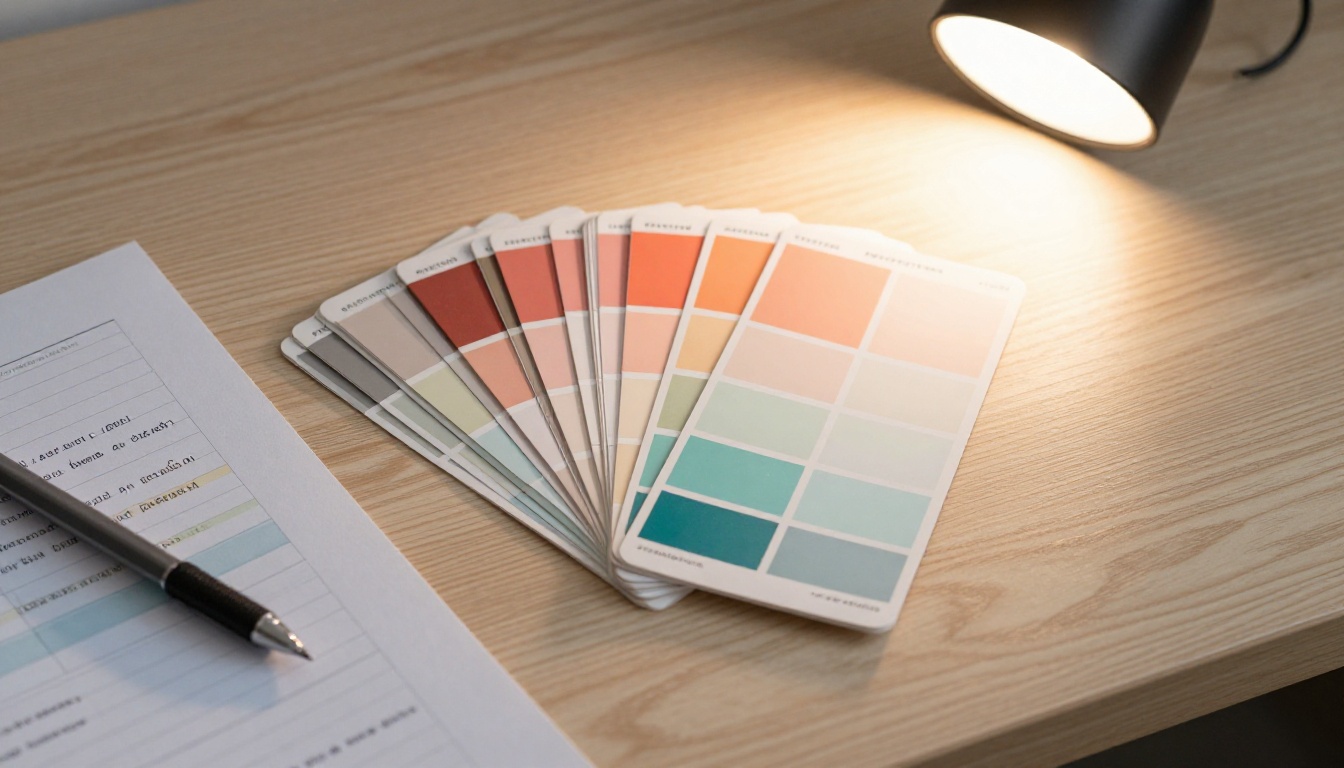
- Color discipline: Limit your palette to two or three colors maximum per document
Tools like Canva enforce good design defaults automatically through their templates, which is why they're so effective even for non-designers working on tight deadlines.
Adding images and graphics for free
Static text-only PDFs are harder to read and less persuasive. Adding charts, photos, and icons makes information more accessible and more memorable. Free resources that help:
- Unsplash: Free high-resolution photos with commercial licenses
- Flaticon: Free icon library (with attribution on the free plan)
- Pexels: Strong free photo resource with diverse categories
- Canva's built-in library: Millions of stock photos, illustrations, and icons included
✅ Use high-resolution images at a minimum of 150 DPI for screen viewing, and 300 DPI for print. Low-resolution images that look fine on screen will appear blurry when printed or zoomed in.
Convert Your PDF into an Interactive Flipbook
Why flipbooks beat static PDFs
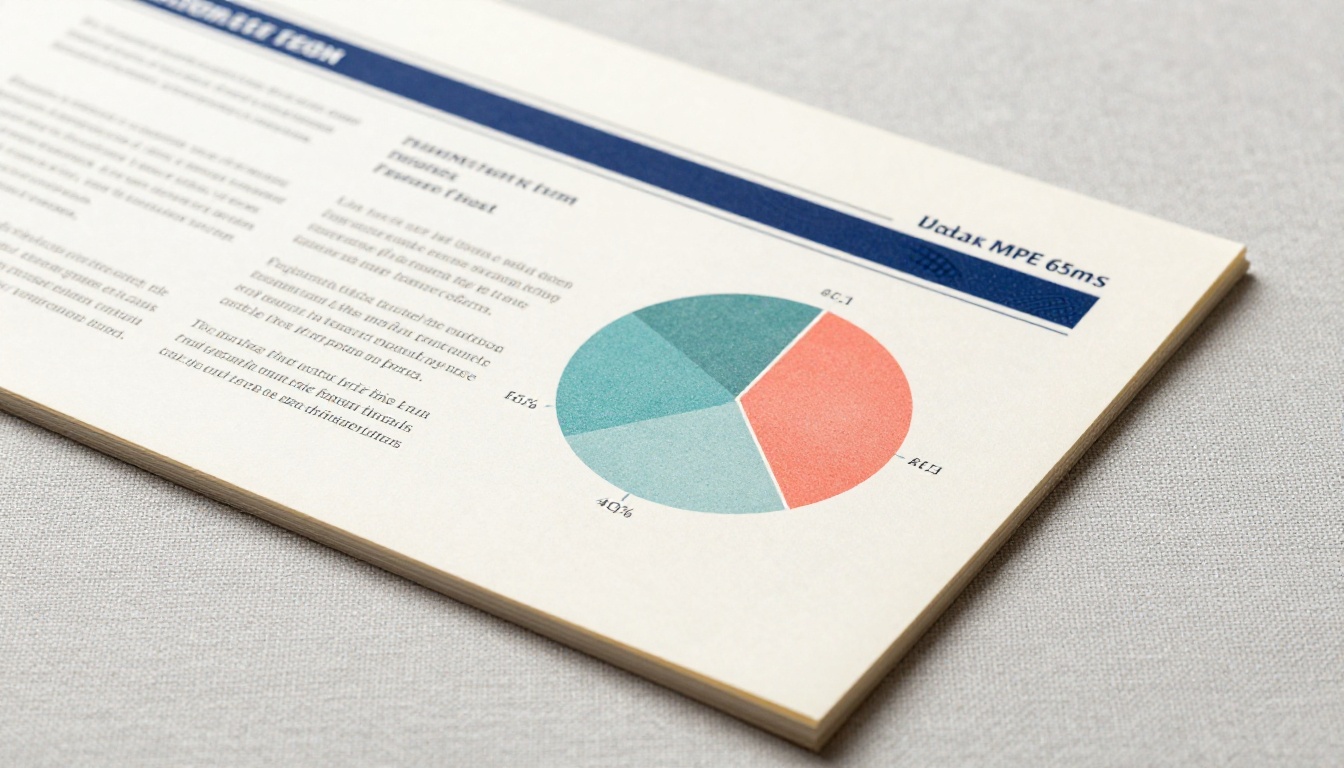
A static PDF is a passive experience. The reader scrolls through flat pages with no visual engagement and no feedback on whether anyone actually read it. An interactive flipbook, by contrast, delivers:
- Realistic page-turn animations that simulate reading a physical publication
- Mobile-responsive design that adapts automatically to any screen size
- Embedded video and audio for richer storytelling and product demonstrations
- Shareable links and embed codes for websites, email campaigns, and social media
- Password protection for private documents and internal reports
- Analytics on who reads what, and for how long (available on the Professional plan)
For businesses sharing catalogs, brochures, menus, or annual reports, the difference in perceived quality is dramatic. A flipbook looks polished, intentional, and current.

How to Create a Flipbook
Flipbooks AI makes the PDF-to-flipbook conversion process straightforward. Here's exactly how to do it:
Step 1: Create your account
Go to flipbooksai.com/account and sign up for free. No credit card is required for the free plan. Setup takes under two minutes.
Step 2: Upload your PDF
From your dashboard, click "New Flipbook" and upload your PDF. The conversion happens automatically, turning each page into a flipbook page while preserving your original layout, fonts, and images.
Step 3: Customize your flipbook
Once converted, you can:
- Add your brand colors and logo for a fully branded experience
- Choose from different page-turn animation styles
- Set a custom background color or texture
- Add a custom thumbnail for the cover
- Enable or disable the page-flip sound effect
Step 4: Add multimedia
On paid plans, you can embed videos directly into pages, add audio narration, and include clickable hyperlinks throughout the document. This is particularly powerful for product catalogs and training manuals.
Step 5: Share or embed
When you're satisfied with the result, click "Publish." You'll receive:
- A direct shareable link to send via email or social media
- An embed code to display the flipbook on your website or landing page
- Optional password protection for private or internal sharing
Step 6: Track performance
On the Professional plan, you get analytics showing page views, time spent on each page, and lead capture data captured directly from the flipbook. This is invaluable for sales teams monitoring proposal engagement.
Best Use Cases by Document Type
Business reports and proposals
A corporate annual report or a client proposal gains enormous credibility when presented as a flipbook rather than a raw PDF attachment. The format signals professionalism and care.
Relevant tools from Flipbooks AI:
A real estate agency can use a polished PDF brochure converted to a flipbook to showcase property listings to remote clients. A nonprofit can present their annual impact report as an interactive publication that donors actually enjoy reading from start to finish.
Portfolios and creative work
Creative professionals need their work to do the talking. A photography portfolio or design lookbook as a static PDF attachment is a missed opportunity. With Flipbooks AI, you can use:
✅ For creative portfolios, use full-bleed images in your PDF before converting. The flipbook format displays them beautifully with no cropping or compression artifacts.
Menus, catalogs, and lookbooks
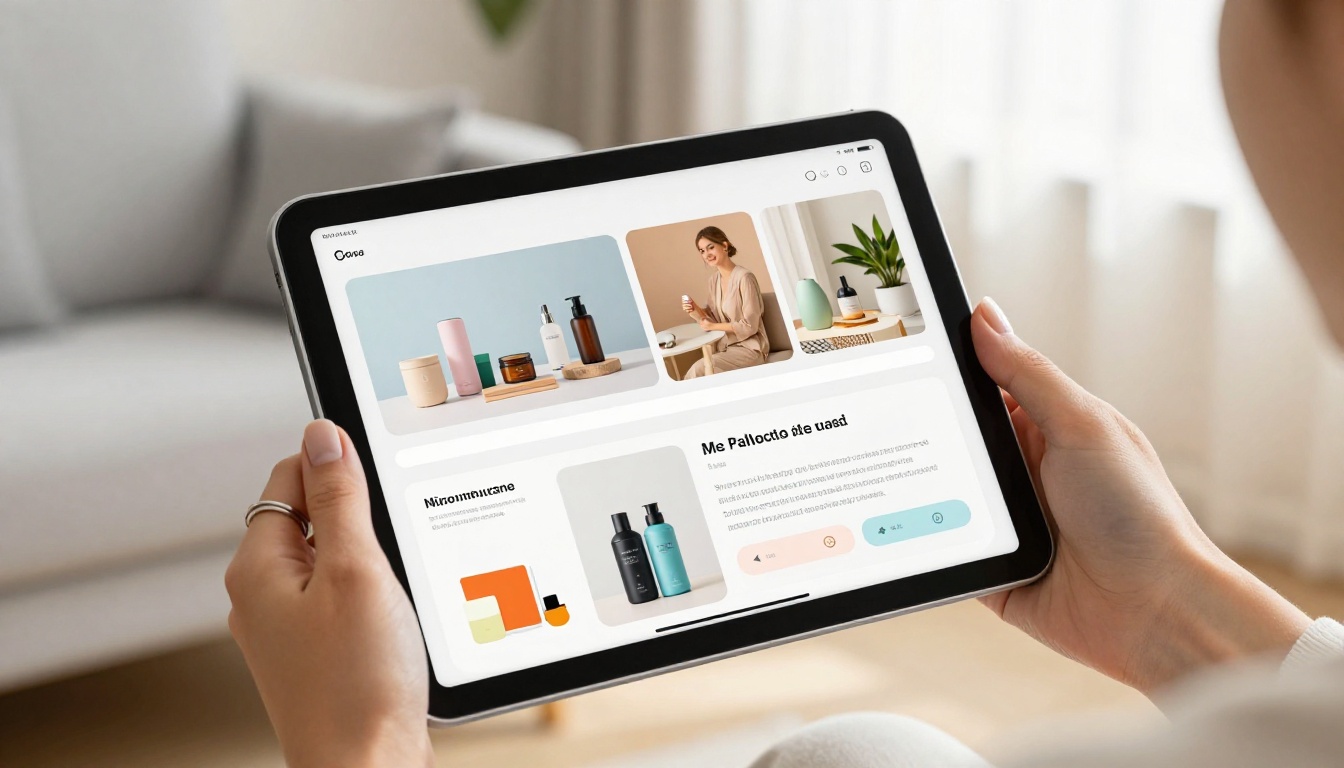
Product-based businesses benefit enormously from interactive publications. A restaurant menu, a fashion catalog, or a furniture catalog in flipbook format can be embedded on a website, shared via social media, or sent in email campaigns with tracking enabled.
Available tools:
Flipbooks AI Plan Comparison
Before choosing a plan, here's what each tier includes:
| Feature | Free | Standard | Professional |
|---|
| Flipbooks | Limited | Unlimited | Unlimited |
| Watermarks | None | None | None |
| Custom branding | ❌ | ✅ | ✅ |
| Password protection | ❌ | ✅ | ✅ |
| Embed on website | ✅ | ✅ | ✅ |
| Video and audio embed | ❌ | ✅ | ✅ |
| Analytics | ❌ | ❌ | ✅ |
| Lead generation | ❌ | ❌ | ✅ |
| Offline downloads | ❌ | ✅ | ✅ |
| Mobile responsive | ✅ | ✅ | ✅ |
See the full breakdown on the pricing page to choose what fits your workflow.
3 Mistakes That Make PDFs Look Cheap
Using too many fonts
Mixing more than two typefaces in a single document creates visual noise. Stick to a heading font and a body font. If you need emphasis, use bold or italics within the same font family rather than switching to an entirely different typeface.
Ignoring mobile viewing
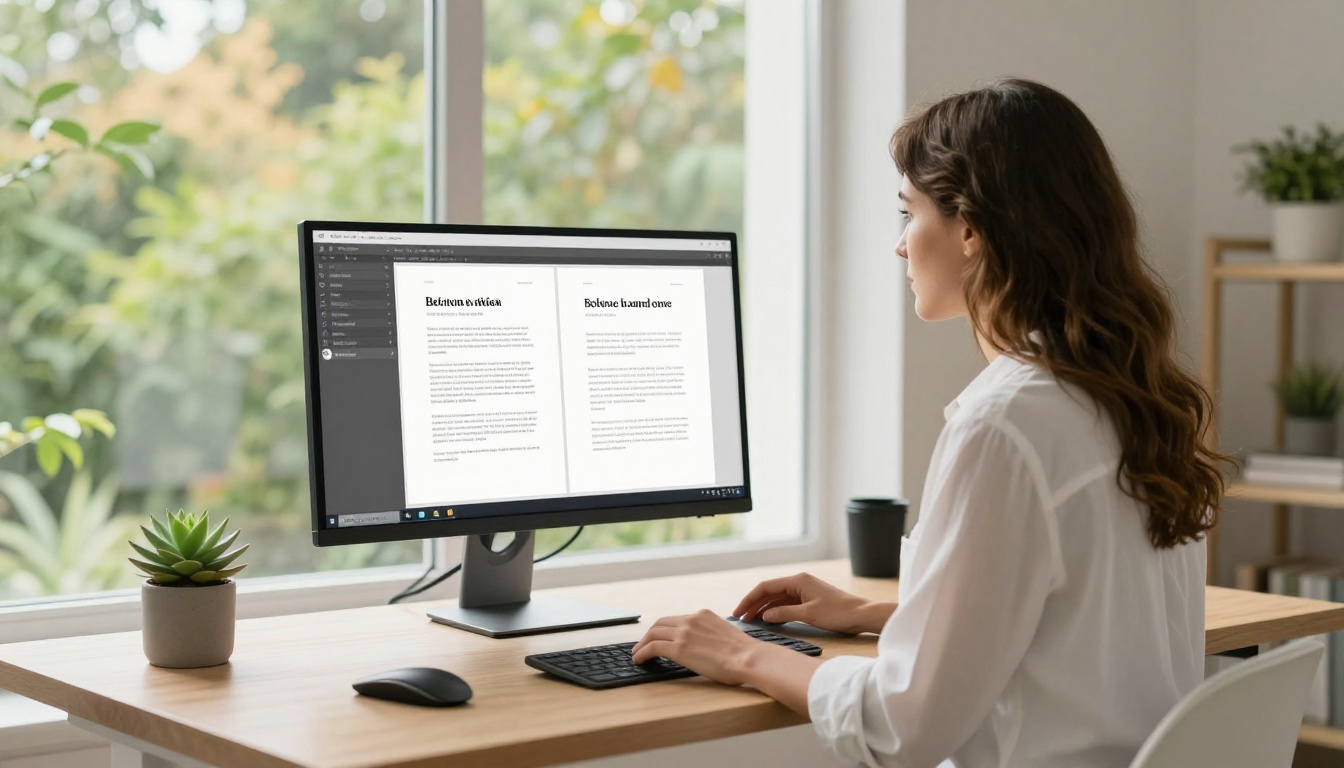
Most PDFs today are opened on phones. If your layout only looks good at A4 size on a desktop, you're losing a significant portion of your audience before they've read a single paragraph. Tools like Flipbooks AI solve this automatically with mobile-responsive rendering that adapts to any screen without any extra work on your part.
Low contrast text
Light grey text on a white background might look elegant in a design program at full zoom, but it's genuinely difficult to read, especially on small screens or in bright environments. Follow WCAG guidelines with a minimum 4.5:1 contrast ratio for body text.
⚠️ Avoid placing text directly over busy background images without a semi-transparent overlay or a contrasting text box. This is the single most common readability mistake in designed PDFs, and it's completely avoidable.
Your Document Deserves Better
Polishing a PDF doesn't require a budget or a designer on speed dial. The free tools available today, from Canva's visual templates to Adobe's online editor to ILovePDF's batch utilities, cover almost every scenario. And when you want to take the final step from "looks good" to "looks exceptional," converting your PDF into an interactive flipbook is the move that consistently gets noticed.
Whether you're a freelancer sending proposals, a brand sharing catalogs, or an educator publishing course materials, the format you deliver your content in sends a signal about the quality of the content itself. Make sure those signals align.
Ready to see what your document looks like as a flipbook? Get started for free on Flipbooks AI and upload your first PDF in minutes.
Browse all flipbook tools and templates to find the right format for your use case, or compare pricing plans to choose the features that fit your workflow best.



