If you've spent hours perfecting a design in Canva, the last thing you want is for it to land in someone's inbox as a flat, unresponsive PDF. Flipbooks AI gives those designs a second life: realistic page-turning animations, mobile-optimized layouts, embeddable viewers, and sharing links that actually get clicked. The workflow from Canva to flipbook takes minutes once you know how it works.
This article walks through every part of that process, from the right Canva export settings to customization inside Flipbooks AI, with real examples and comparison tables to help you get the most out of every design you create.

Why Your Canva Designs Deserve Better Than a PDF
The Problem with Flat Files
PDFs work fine for printing. For sharing digitally? They fall short in almost every way that matters. Readers have to download them, pinch-zoom on mobile, scroll awkwardly through pages, and there is no sense of progression through the content. Open rates on PDF links in email campaigns hover well below what brands expect, and there is no way to know which pages viewers actually read.
Interactive flipbooks solve these problems with a reading experience that mirrors physical print: pages turn with natural curl animations, readers can swipe on mobile, and the whole thing lives in a browser with no download required. That shift from "file" to "experience" is what drives real engagement.
What Page-Turn Interactivity Actually Does
When people say "interactive" in the context of flipbooks, they mean several specific things working together:
- Page-turn animations that mimic real paper, complete with shadow and curl
- Clickable table of contents that jumps readers to sections instantly
- Embedded video and audio within pages themselves
- Hyperlinks that open product pages, booking forms, or external sites
- Lead capture forms for collecting viewer information (available on the Professional plan)
- Analytics showing which pages get viewed, and for how long
A static PDF offers none of that. Once you see the difference in how audiences respond, going back to plain PDF sharing feels like a step backward.

Canva PDF Export: What to Get Right
Before uploading to a flipbook platform, the quality of your export determines the quality of the final result. Canva gives you several options, and picking the wrong one creates problems downstream.
The Right Export Settings
In Canva, go to Share > Download and select PDF Print as the file type. This matters for the following reasons:
- PDF Print preserves full resolution, embedded fonts, and vector elements intact
- PDF Standard compresses more aggressively and may lose fine typography details on small text
- PNG or JPG flattens all layers and loses scalability for zooming
Check the Crop marks and bleed box only if your design was set up with bleed from the start. For most flipbook uses, leave it unchecked. Use the Flatten PDF option if your design includes transparency-heavy elements that might render oddly in some viewers.
💡 If your Canva design uses a custom font, PDF Print mode automatically embeds fonts on export, which prevents text from rendering incorrectly in the flipbook viewer.
File Size and Quality Trade-offs
Canva's PDF Print exports can be large, especially with high-resolution photos on every page. A 20-page catalog with full-bleed photography could run 40-80MB. That is fine for uploading, but worth knowing before you start.
| Export Type | Typical File Size | Best For |
|---|
| PDF Print | Large (high quality) | Catalogs, lookbooks, magazines |
| PDF Standard | Medium | Simple presentations, text reports |
| PNG per page | Variable | Single-page hero images only |
For flipbook conversion, always use PDF Print. The platform handles optimization on its end during the conversion process.
How to Turn a Canva Design Into a Flipbook
Step 1: Export Your Design as PDF Print
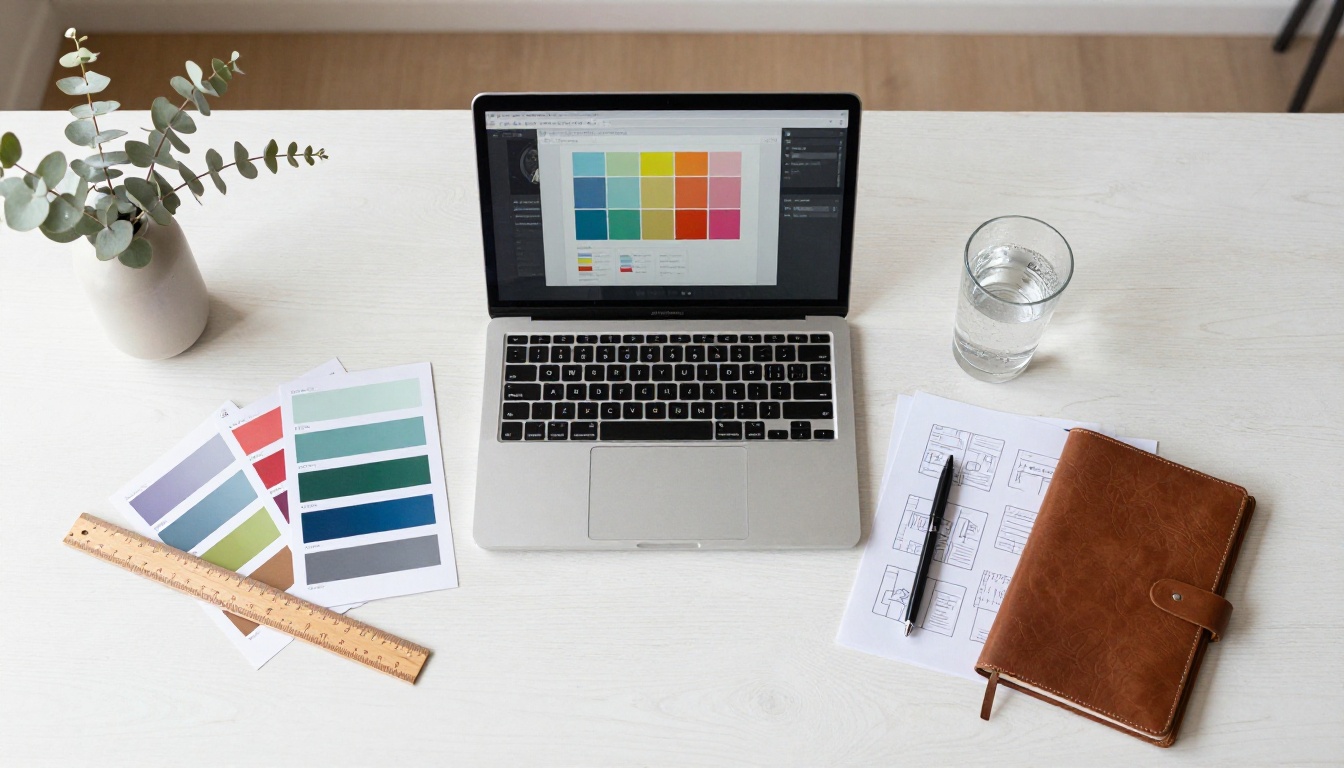
Open your Canva design and click Share in the top-right corner. Choose Download, then select PDF Print from the file type dropdown. If your design spans multiple pages, confirm that "All pages" is selected rather than a specific page range. Click Download and save the file to your device.
Your result is a single multi-page PDF with full-resolution artwork ready for upload.
Step 2: Upload to Flipbooks AI
Go to Flipbooks AI and sign in or create a free account. From your dashboard, click Create New Flipbook and drag your PDF onto the upload area, or click to browse your files. The platform processes each page individually, generating the page-turn viewer automatically.
For a 20-page PDF, processing typically completes in 30 to 60 seconds. Once done, you see a live preview with the page-turn animation already working in real time.
✅ Flipbooks AI supports PDFs up to hundreds of pages. There are no watermarks on any paid plan, and the Standard plan and above allows unlimited flipbooks with no publishing caps.
Step 3: Customize Branding and Style
This is where the real differentiation happens. Once your flipbook is generated, you can:
- Add a custom logo positioned in the viewer frame
- Set brand colors for the viewer background and navigation controls
- Choose a page effect style: classic curl, flat modern turn, or none for a clean digital feel
- Enable a table of contents auto-generated from your PDF headings
- Add background music or ambient audio to set atmosphere
- Embed videos directly on specific pages of the publication
For businesses creating product catalogs, these branding controls make a significant difference. The viewer becomes part of the brand experience rather than just a generic document container.

Step 4: Share, Embed, or Download
Flipbooks AI gives you multiple ways to get your flipbook in front of the right audience:
Direct link: A clean, shareable URL for email campaigns, social posts, or SMS. No download required for viewers.
Embed code: Drop an iframe snippet into any website or landing page. The Embed Flipbook on Website tool makes this straightforward even without web development experience.
Password protection: Lock private content such as internal reports, pricing guides, or exclusive catalogs behind a password for vetted audiences only.
Offline download: Viewers on Professional plans can offer offline PDF downloads directly from within the flipbook viewer.
⚠️ If you update your Canva design later and need to re-upload, Flipbooks AI lets you replace the source PDF while keeping the same shareable URL. Existing links stay intact and readers always see the latest version.
Best Canva Use Cases for Flipbooks
Canva's template library covers dozens of content types that translate directly to flipbook formats. Here is where the combination produces the strongest results.
Catalogs and Lookbooks
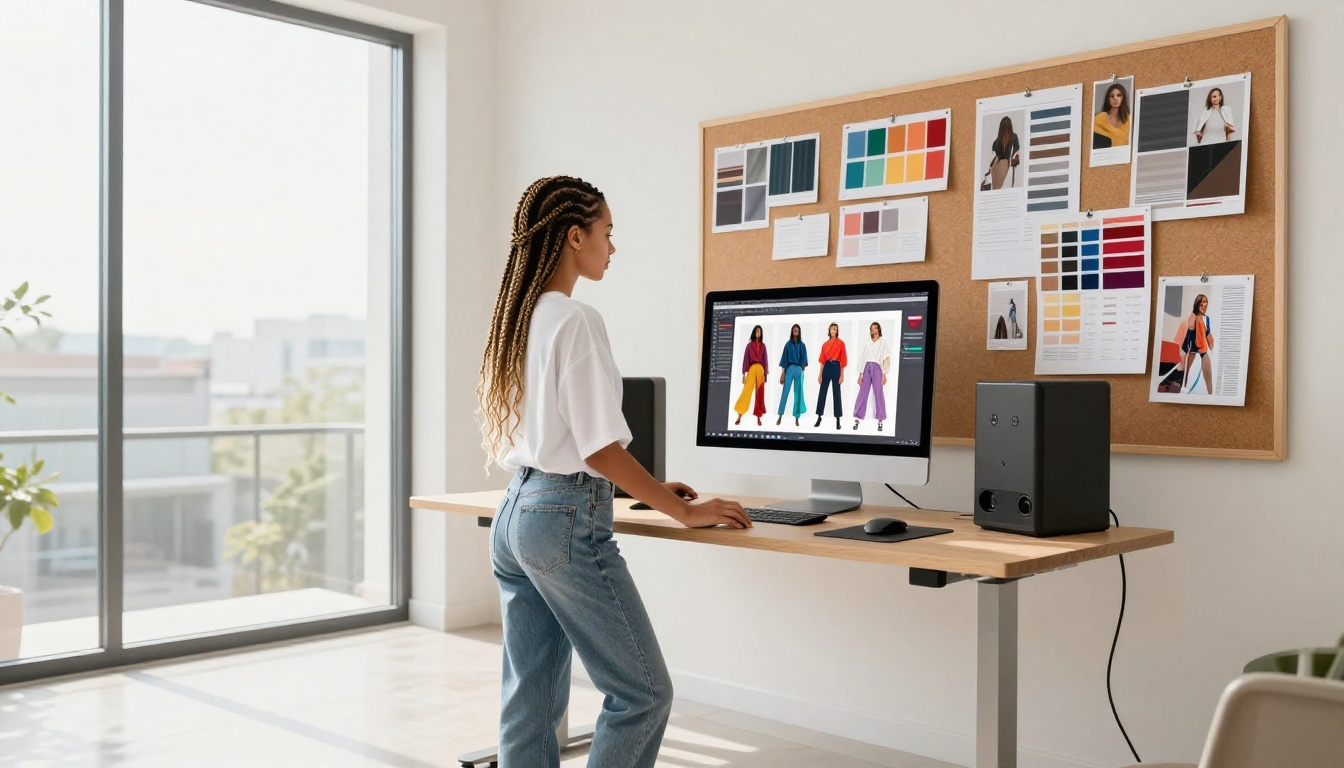
Fashion brands, furniture companies, and retailers use Canva to design product catalogs with rich photography and typography. Converting them to flipbooks turns static product pages into an immersive browsing session. Readers flip through pages the way they would a physical catalog, with the added benefit of embedded links to product pages.
The Fashion Catalog Creator and Product Catalog Generator are purpose-built for this workflow. Similarly, the Interactive Lookbook Designer handles seasonal collections and editorial-style spreads designed in Canva.
Menus and Brochures
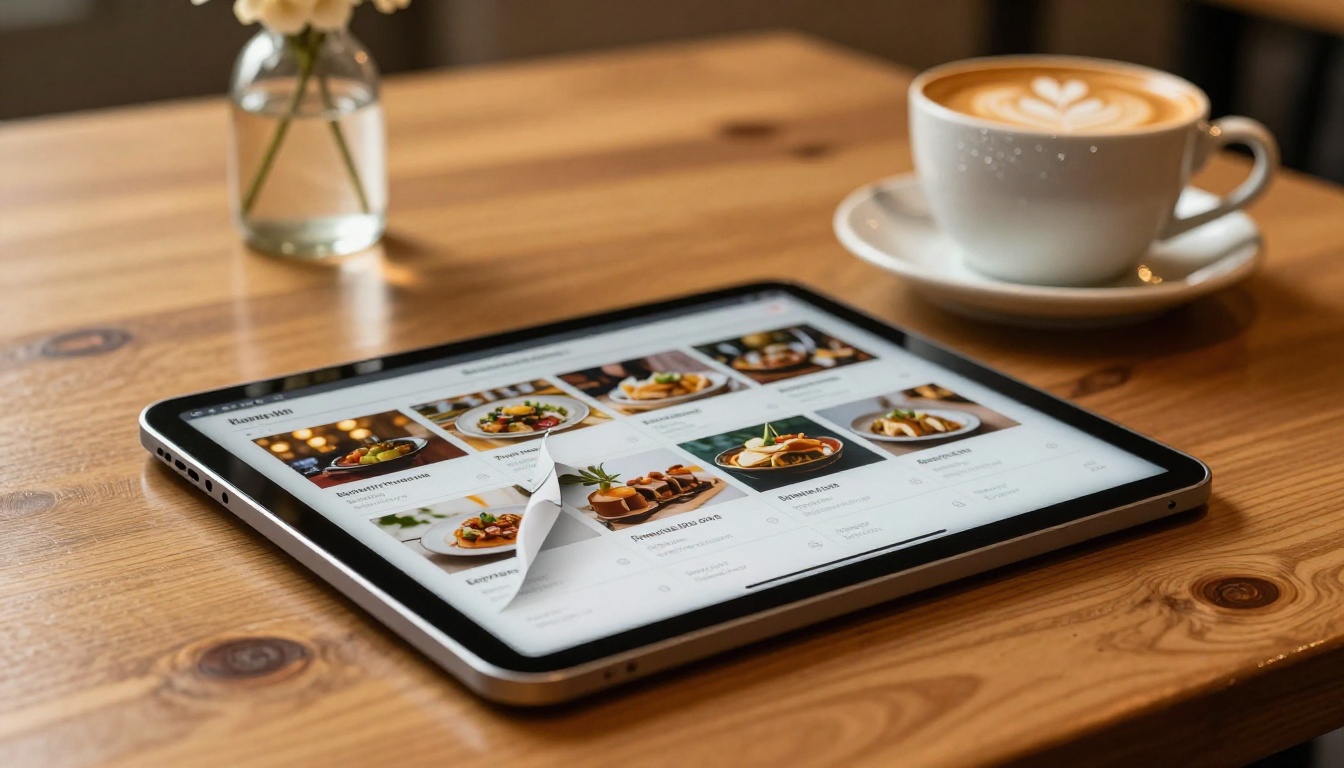
Restaurants using Canva to design their menus have a straightforward upgrade path: export the PDF and run it through the Restaurant Menu Creator to get an interactive digital menu embeddable on the website or shareable via QR code. The same logic applies to spa treatment menus, wellness guides, and hotel brochures.
For service businesses, Canva-designed brochures become polished digital assets with the Online Brochure Designer or Real Estate Brochure Creator, letting agents share property brochures that feel premium without printing costs.
Presentations and Reports
Annual reports, corporate decks, and investor presentations designed in Canva gain credibility when published as flipbooks. The Annual Report Creator handles multi-section documents with clean page transitions, while the Sales Presentation Flipbook turns pitch decks into shareable interactive documents that prospects can browse on their own time.
Static PDF vs. Interactive Flipbook
The case for flipbooks is not just aesthetic. There are functional and measurable differences that affect how content performs with real audiences.
| Feature | Static PDF | Interactive Flipbook |
|---|
| Download required | Yes | No |
| Mobile experience | Poor (pinch-zoom) | Optimized swipe navigation |
| Page-turn animation | None | Realistic curl or flat flip |
| Embedded video | No | Yes |
| Clickable hyperlinks | Limited | Full support |
| Page-level analytics | No | Yes (Professional plan) |
| Lead capture forms | No | Yes (Professional plan) |
| Password protection | No | Yes |
| Embeddable on website | No | Yes (iframe) |
| Custom branding | No | Yes |
| Offline access option | Yes | Optional viewer download |
For content that needs to be shared broadly, tracked for performance, and experienced on mobile, the flipbook format wins on nearly every dimension.

Flipbooks AI Plans at a Glance
Understanding which features are available at each tier helps you plan how far to take your Canva-to-flipbook workflow from the start.
| Plan | Flipbooks | Watermark | Password | Analytics | Lead Gen | Offline Download |
|---|
| Free | Limited | Yes | No | No | No | No |
| Standard | Unlimited | No | No | No | No | No |
| Professional | Unlimited | No | Yes | Yes | Yes | Yes |
For teams and agencies producing multiple flipbooks on a regular schedule, the Professional plan unlocks the features that move the needle: analytics showing which pages hold attention, lead generation forms capturing viewer contact information, and password protection for gated content that should only reach specific audiences. View current pricing details for the latest plan information.

Tips for Better Flipbook Results from Canva
Design for Page Pairs
Physical magazines and catalogs always present pages in pairs: a left page and a right page that together form a visual spread. When designing in Canva for a flipbook, think in spreads. Elements that bleed across two pages should account for the center gutter, and bold hero visuals placed on right-hand pages draw the eye on the first visible flip.
If your Canva design is single-page-oriented (like a social media template repurposed as a document), consider redesigning with two-page spreads before converting. Most flipbook viewers display two pages side by side on desktop screens, so single-page layouts can look isolated.
Keep File Sizes Lean
Large PDFs slow both upload time and the loading speed your audience experiences. A few habits keep file size manageable without sacrificing visual quality:
- Compress background images before placing them in Canva rather than relying on export compression
- Avoid placing the same large image on multiple pages; duplicated assets multiply file size
- Use the Flatten PDF option for pages with many stacked transparent layers
💡 Flipbooks AI optimizes images automatically during the conversion process, so even sizeable PDFs render smoothly in the viewer. Smaller source files simply process faster and feel snappier on slower mobile connections.
Use High-Contrast Design Elements
The flipbook viewer adds a framing background around your pages. Designs with pure white or pure black backgrounds can look disconnected or washed out depending on the viewer theme selected. Designs with slight warmth in the page background, or with strong typographic contrast ratios, tend to read better in the flipping experience.
For text-heavy pages in reports and presentations, aim for at least a 4.5:1 contrast ratio between text and background. This is good accessibility practice in any context, and it ensures readability across both desktop and mobile screens of varying brightness levels.
Who Gets the Most from This Workflow
The Canva-to-flipbook pipeline fits naturally across a wide range of professional contexts. Here is how different users put it to practical use:
Small businesses and freelancers use Canva for everything from proposals to product sheets. Converting those assets to flipbooks elevates perceived professionalism and simplifies sharing: one clean link replaces an email attachment.
Marketing teams at mid-size companies design campaign materials in Canva and publish them as trackable flipbooks. Audience analytics on the Professional plan tell them which pages drive clicks and where readers drop off.
Educators and trainers publish course materials, training manuals, and program guides through the Training Manual Flipbook and Course Material Publisher tools. Mobile-responsive layouts mean learners can access content from any device without downloading anything.
Real estate agents design property brochures in Canva, then convert them for QR code distribution at open houses. Buyers scan the code, and the flipbook opens instantly in their browser with no app or account needed.
Event organizers use Canva to design programs and attendee guides. A flipbook version sent via email the week before the event reduces printing costs while increasing accessibility for guests on mobile.
Make Every Canva Design Work Harder
Canva is where most brands build their visual identity. The platform makes design accessible, and the output is consistently polished. But design's job does not end at the export screen. Getting that content in front of an audience in a format they will actually engage with is the other half of the work.
Converting a Canva PDF to an interactive flipbook with Flipbooks AI takes under five minutes and immediately upgrades the experience for every reader. Whether it is a restaurant menu, a seasonal catalog, a pitch deck, or a photography portfolio, the flipbook format adds the tactile, page-turning quality that flat files cannot replicate.
Ready to see how your Canva designs look with real interactivity? Create your first flipbook for free and run any PDF through the converter today. When you are ready to scale with analytics, lead capture, and unlimited publishing, compare pricing plans to find the right fit for your volume. Browse all available tools to match every type of content you create to a purpose-built format.



