If you spend serious time in Photoshop building layouts, catalogs, lookbooks, or presentations, you already have everything you need to publish a professional interactive flipbook. No InDesign. No Acrobat Pro subscription. No desktop conversion software to install. The whole workflow runs in a browser, and it takes about ten minutes from PSD file to shareable, page-turning publication. This article breaks down the exact steps, what to watch out for in Photoshop's export settings, and how to get a polished result using Flipbooks AI without touching a single extra application.
Why Photoshop Designers Need Flipbooks
Most designers default to sending a PDF when a client asks for a digital version of their work. A PDF works, but it also flattens the experience. There is no page-turn animation, no embedded video support, no analytics to tell you whether anyone actually opened page 12. For anything client-facing, whether that is a product catalog, a brand lookbook, a real estate brochure, or a company report, a flat PDF undersells the work.
Interactive flipbooks solve that gap without requiring you to rebuild anything. Your Photoshop layout is already the design asset. The only missing step is conversion, and with the right browser-based tool, that step is fast and painless.
💡 Pro tip: Even if your client asks for a PDF, publishing the same content as a flipbook gives you a shareable URL you can track, password-protect, and embed anywhere. Send both.
What "Interactive" Actually Means
When people say interactive flipbook, they mean a publication that:
- Has a realistic page-turn animation when you click or drag the edge
- Is viewable in any browser without downloads or plugins
- Can be embedded on a website or shared via direct URL
- Supports mobile and tablet with responsive scaling
- Optionally includes embedded video, audio, and hyperlinks
Static PDFs do none of that natively. An interactive flipbook does all of it, using only your existing design work as the source.
Static PDF vs. Interactive Flipbook at a Glance
| Feature | Static PDF | Interactive Flipbook |
|---|
| Page-turn animation | No | Yes |
| Native browser viewing | Requires plugin | No plugin needed |
| Mobile-responsive | Inconsistent | Always responsive |
| Embed on website | Not practical | One-line embed code |
| Password protection | Needs Acrobat Pro | Built-in, free |
| Viewer analytics | None | Full stats (Professional) |
| Share as URL | File attachment only | Direct URL |
| Video and audio | No | Yes |
| Lead capture | No | Yes (Professional) |
What Happens When You Export From Photoshop
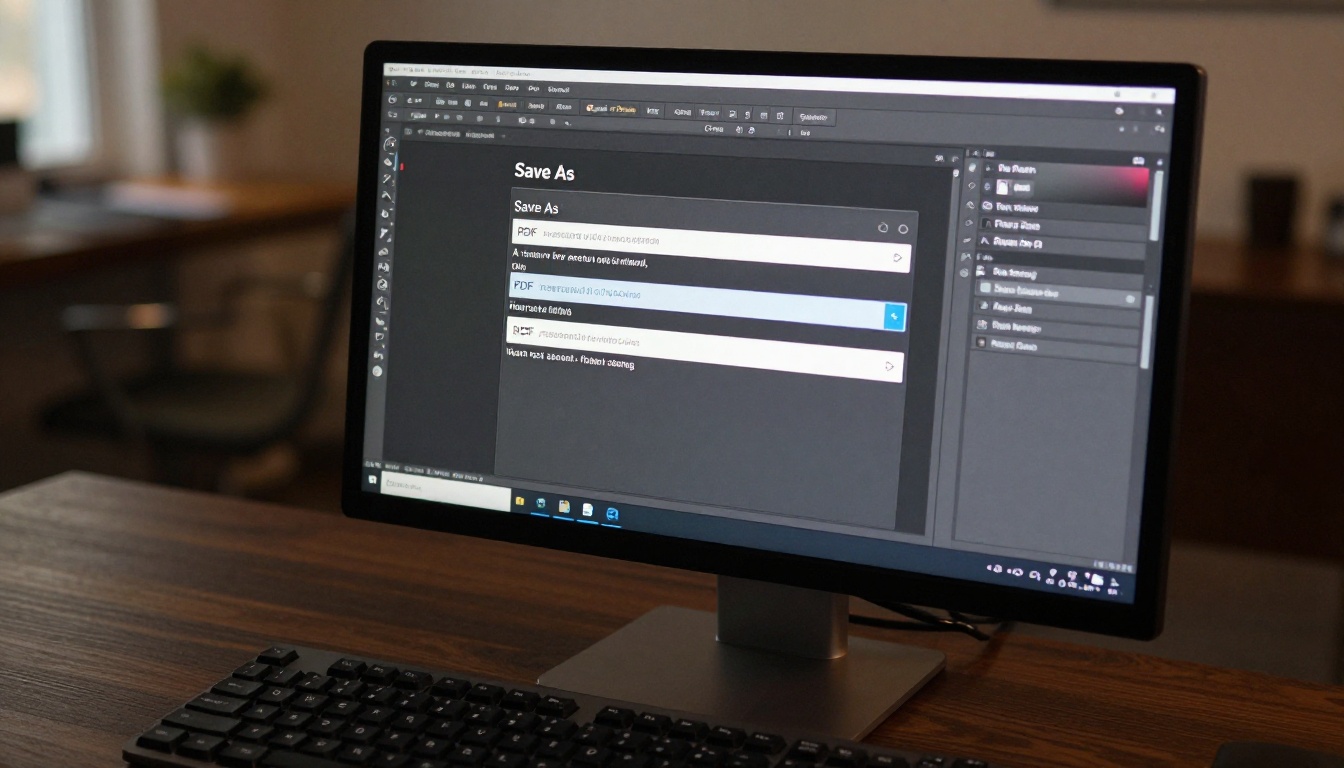
The bridge between Photoshop and a flipbook is a PDF file. Photoshop exports multi-page PDFs using either File > Save a Copy for basic output, or File > Automate > PDF Presentation, which lets you stack multiple files or artboards into one document in the correct order.
Export Settings That Actually Matter
When you reach the PDF export dialog, a few settings directly affect how your flipbook looks after conversion:
| Setting | Recommended Value | Why It Matters |
|---|
| PDF Preset | High Quality Print or PDF/X-1a | Preserves color accuracy and resolution |
| Compression | ZIP or JPEG Maximum | Controls file size vs. image sharpness |
| Color Profile | sRGB IEC61966-2.1 | Screen-safe colors for web display |
| Resolution | 150 to 300 PPI | Balances file size with visual clarity |
| Flatten Layers | Yes (for final output) | Reduces file size and prevents font issues |
⚠️ Warning: Exporting in CMYK color mode produces washed-out colors when displayed on screen. Always convert to sRGB before exporting for digital-only flipbooks.
Flattening vs. Preserving Layers
For flipbook output, always flatten your document before export. Preserved layers can cause unexpected rendering issues on some converters and inflate file size without adding any visual benefit in the final publication. Flatten once you are satisfied with the design.
If you want to keep an editable backup, duplicate the PSD file first, then flatten and export the copy.
Multi-Page Layouts in Photoshop
Photoshop is not InDesign, so multi-page handling requires some workflow discipline. The two practical options are:
- Artboards: Set up individual artboards for each page, then use File > Export > Artboards to PDF to produce a single, properly ordered document.
- PDF Presentation: Open each page as a separate PSD, then combine them via File > Automate > PDF Presentation into one PDF.
Either approach produces a valid multi-page PDF that a flipbook converter can read page by page.
The PDF to Flipbook Pipeline
Once you have a clean PDF, the conversion process is entirely browser-based. You upload the file, the platform converts it, and you get an interactive flipbook URL within minutes.
Why Online Tools Are the Better Option
Desktop conversion software used to be the only route. Those tools cost hundreds of dollars, require installation and licensing, and still need separate hosting for the final file. Browser-based platforms handle the conversion and hosting in a single step.
The practical advantages:
- No installation: Works on any computer with a browser
- Built-in hosting: Your flipbook is live immediately after conversion
- Automatic updates: The platform improves without any action on your end
- Shareable URLs: Direct links, embed codes, and QR codes included
- Analytics: See who viewed your flipbook and for how long
What Separates Good Converters From Poor Ones
Not every PDF-to-flipbook tool preserves Photoshop work accurately. Issues to check for:
- Font rendering: Flatten all text in Photoshop before export to avoid substitution issues entirely
- Image sharpness: Some tools compress images aggressively on conversion; look for platforms that preserve original resolution
- Page alignment: Bleeds and margins should stay consistent across all pages
- Mobile responsiveness: The flipbook must scale properly on phones without horizontal scrolling
Flipbooks AI handles all of these without any configuration on your end, and the conversion typically finishes in under two minutes for a standard catalog or brochure.
How to Do It With Flipbooks AI
Flipbooks AI is a browser-based platform that converts PDFs into interactive, page-turning publications. There is no software to install, no plugin to add to Photoshop, and no separate hosting service required.
Step 1: Export Your PSD as PDF
In Photoshop, go to File > Save a Copy (or File > Export > Artboards to PDF for artboard layouts). Select PDF as the format, apply the settings from the table above, and save the file.
If your document uses multiple PSD files for each page, use File > Automate > PDF Presentation to combine them in the correct order first.
Step 2: Create Your Account
Go to flipbooksai.com/account and sign up for free. No credit card is required for the basic plan.
Step 3: Upload Your PDF
From the dashboard, click Create New Flipbook and drag your PDF into the upload area. The platform processes the document page by page. For a 20-page catalog, this typically takes under 60 seconds.
Step 4: Customize Branding and Appearance
Once the flipbook renders, you have access to a full set of customization options:
- Brand colors: Match the flipbook interface to your brand palette
- Logo upload: Add your logo to the viewer header
- Background: Choose white, dark, or a custom color behind the pages
- Page effects: Adjust the page-turn style and speed
- Font settings: Select fonts for any viewer shell text elements
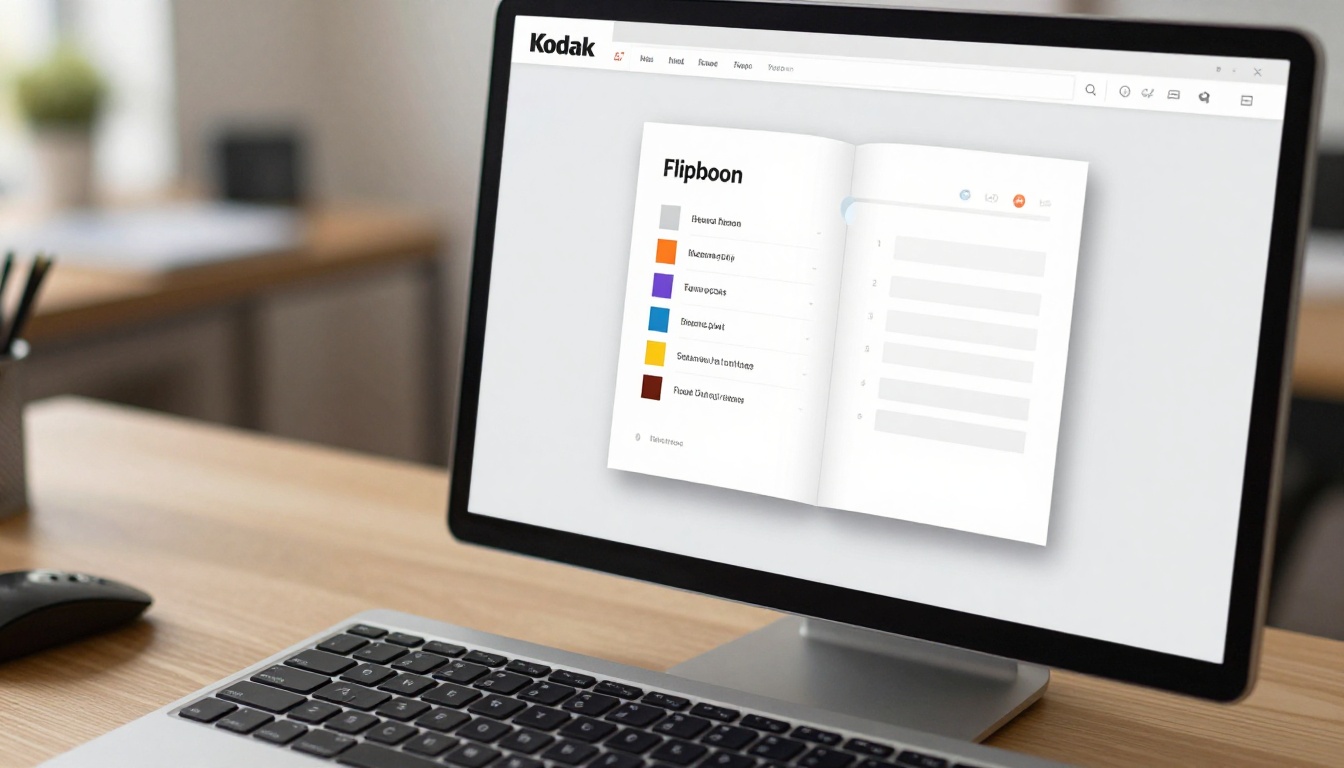
💡 Pro tip: Since your Photoshop design already carries all the visual branding, focus the customization step on the viewer interface elements (background color, logo placement) rather than the page content itself.
Step 5: Publish and Share
Click Publish to make the flipbook live. You immediately get:
- Direct URL: A shareable link anyone can open in a browser
- Embed code: HTML snippet to place the flipbook on any website
- QR code: For print materials that link to the digital version
- Password protection: Restrict access to specific recipients
For Professional plan features including viewer analytics, lead capture forms, and offline download options, see the pricing plans.
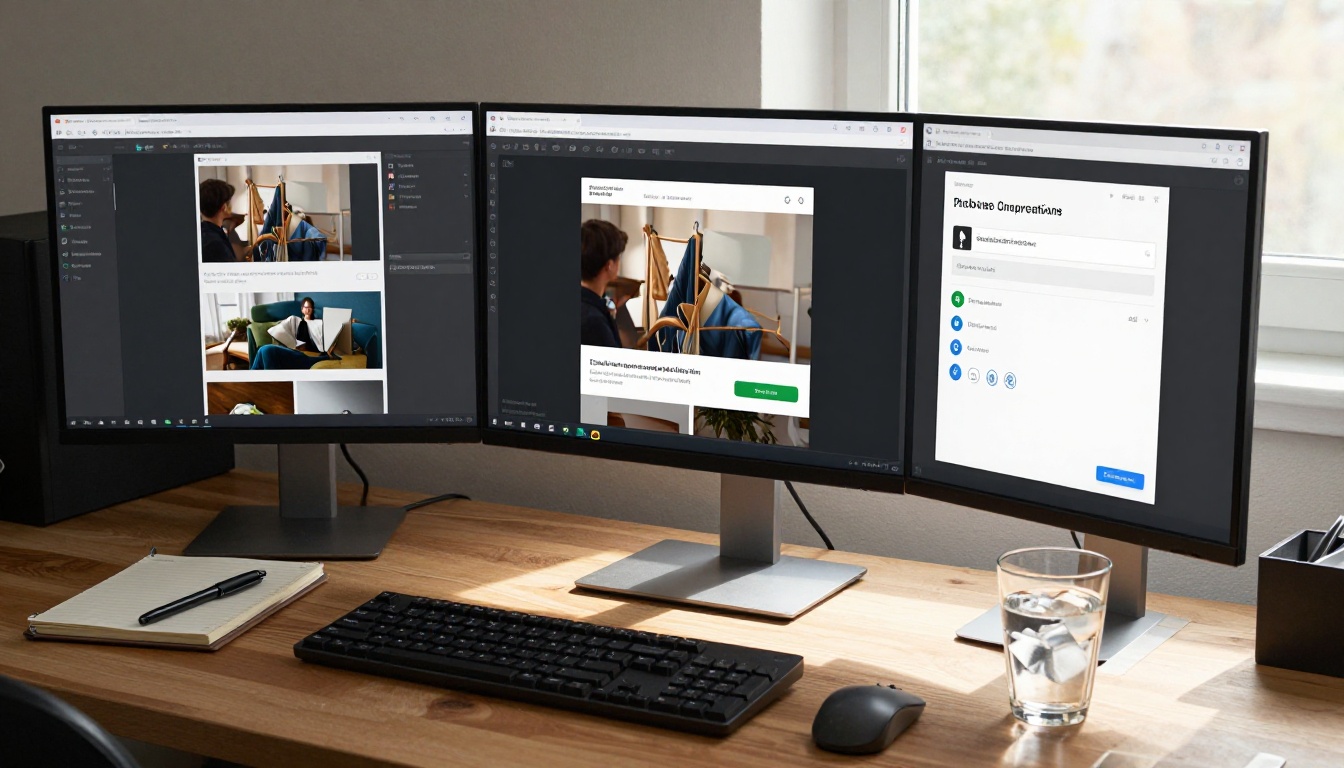
Real-World Uses That Come Straight From Photoshop
Photoshop is the tool of choice for a wide range of design professionals, and most of those workflows produce assets that translate directly into flipbooks.
Product Catalogs
Retail brands and e-commerce businesses build product catalogs in Photoshop for print. Those same files become an interactive online catalog in minutes. Flipbooks AI has a dedicated Product Catalog tool that adds category browsing features on top of the base PDF conversion.
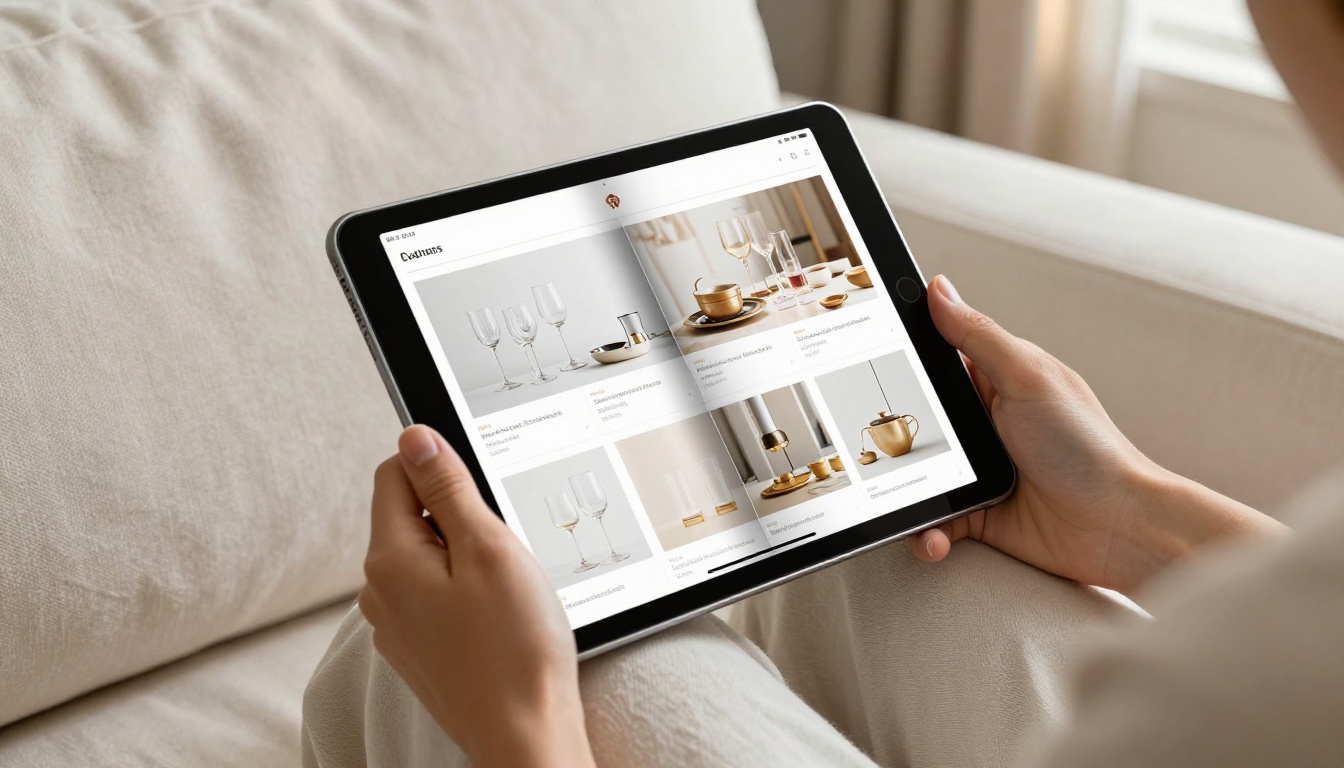
Fashion Lookbooks
Fashion designers and stylists build lookbooks in Photoshop with full-bleed editorial photography. The page-turn format is a natural fit for this content type. The Interactive Lookbook Designer adds fluid transitions that match the pacing of fashion editorial work.

Real Estate Brochures
Real estate agents commission Photoshop-designed property brochures for each listing. Publishing those as flipbooks creates a shareable, trackable digital asset instead of a static PDF attachment. The Real Estate Brochure Creator works with uploaded PDFs and applies listing-specific viewer features.
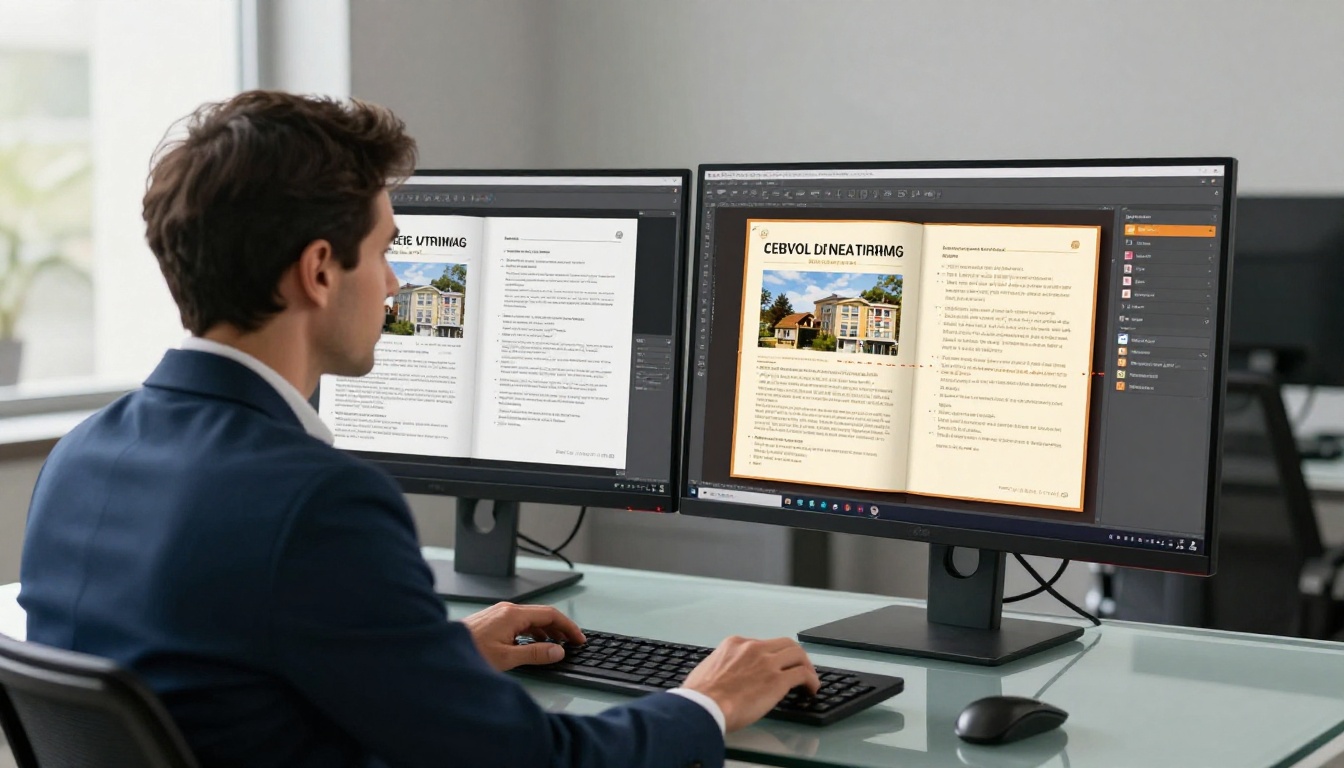
Business Presentations and Annual Reports
Marketing teams and agencies build presentation decks and annual reports in Photoshop. As a flipbook, those documents embed directly on a company website or send as a URL rather than a file attachment. The Annual Report Creator supports branded viewer shells that match corporate identity standards.

Photoshop Export Tips for Better Output Quality
A few technical choices in Photoshop directly affect the quality of your final flipbook.
Resolution and File Size
Export at 150 PPI for a fast-loading flipbook with good screen quality, or 300 PPI for maximum sharpness when your design includes fine typography or detailed product photography. Files above 100MB may take longer to upload and process. In those cases, use JPEG Maximum compression in the PDF export settings to reduce size without visible quality loss.
Font Safety
Unless you have confirmed that your fonts are embedded correctly in the PDF, flatten all text layers before exporting. Right-click the text layer and select Convert to Shape, or simply rasterize the type layer. This eliminates any risk of font substitution during conversion.
Color Mode Matters
Work in RGB color mode throughout your Photoshop project if the final destination is digital. If you are repurposing a print-ready CMYK file, go to Image > Mode > RGB Color before exporting the PDF. CMYK values render incorrectly in browser environments.
Consistent Page Dimensions
Flipbook converters work best with uniform page sizes. If your Photoshop artboards have mixed dimensions (some landscape, some portrait), normalize them to the same canvas size before combining into a PDF. This prevents layout inconsistencies in the final flipbook viewer.
Comparing Flipbooks AI Plans
Flipbooks AI offers tiered plans suited for different publishing volumes and feature needs:
| Feature | Free | Standard | Professional |
|---|
| Flipbooks | Limited | Unlimited | Unlimited |
| Watermark | None | None | None |
| Custom branding | Basic | Full | Full |
| Password protection | No | Yes | Yes |
| Viewer analytics | No | No | Yes |
| Lead generation | No | No | Yes |
| Offline downloads | No | Yes | Yes |
| Embed on website | Yes | Yes | Yes |
| Video and audio embed | No | Yes | Yes |
✅ Best practice: Start with the Free plan to test conversion quality with your specific Photoshop exports. Upgrade once you confirm the output meets your visual standards.
Analytics After Publishing
One of the biggest advantages of an interactive flipbook over a static PDF is visibility into how people actually use it. With the Professional plan on Flipbooks AI, you get:
- Total views and unique visitor counts
- Average time spent per session
- Page-level data showing which pages attract the most attention
- Completion rates showing how far most readers go into the document
- Lead capture data when you enable the form integration

This data is something a PDF can never provide. For sales teams, marketing professionals, and agencies presenting work to clients, knowing which pages hold attention and which pages get skipped is genuinely actionable information.
💡 Pro tip: Use page-level analytics to spot underperforming sections in a catalog or report. If readers consistently drop off on page 8, that page either has a layout problem or the content is not earning its position in the document.
More Flipbook Tools by Content Type
The core PDF-to-flipbook conversion is the foundation, but Flipbooks AI has purpose-built tools for specific industries and content types. If you work across multiple project types in Photoshop, these are worth bookmarking:
Each tool builds on the base conversion with industry-specific templates and publishing options.
Your Photoshop Files Are Already Ready
Your PSD files are closer to being a live interactive publication than you probably think. The workflow is this: export to PDF using the right settings, upload to Flipbooks AI, customize the viewer shell, and publish. That is the full process, and it requires nothing beyond a browser and your existing design files.
Create your first flipbook for free and see how your Photoshop layouts look in a page-turning format. If you want to see what each plan offers before committing, the pricing page breaks down every feature clearly. Browse all available tools to find the one that fits your most common project type.



