Protecting what you publish online is no longer optional. Whether you're distributing a private price list, an internal training manual, or a members-only magazine, leaving your flipbook publicly accessible is a risk you shouldn't take. Flipbooks AI makes it straightforward to lock your content behind a password, giving you full control over who can view it and when.
This isn't just a nice-to-have setting. For anyone handling sensitive business data, educational materials, or exclusive content, password protection is the difference between a secure distribution strategy and a liability.
Why Flipbook Security Actually Matters
Most people create a flipbook, hit "publish," and send the link without thinking twice. That works fine for public-facing content. But the moment your flipbook contains anything you wouldn't want anyone in the world to see, that open link becomes a problem.
Who's at Risk Without It
Anyone who receives your link can forward it. Search engines can index it. Competitors can stumble across it. These aren't edge cases, they're everyday realities:
- Sales teams sharing pricing documents with prospects risk those prices reaching rivals
- HR departments distributing onboarding handbooks may expose confidential company policies
- Educators offering premium course materials lose revenue when those materials spread freely
- Agencies sharing client proposals may leak strategy to competing agencies
The fix is simple: add a password before you share.

What Password Protection Actually Does
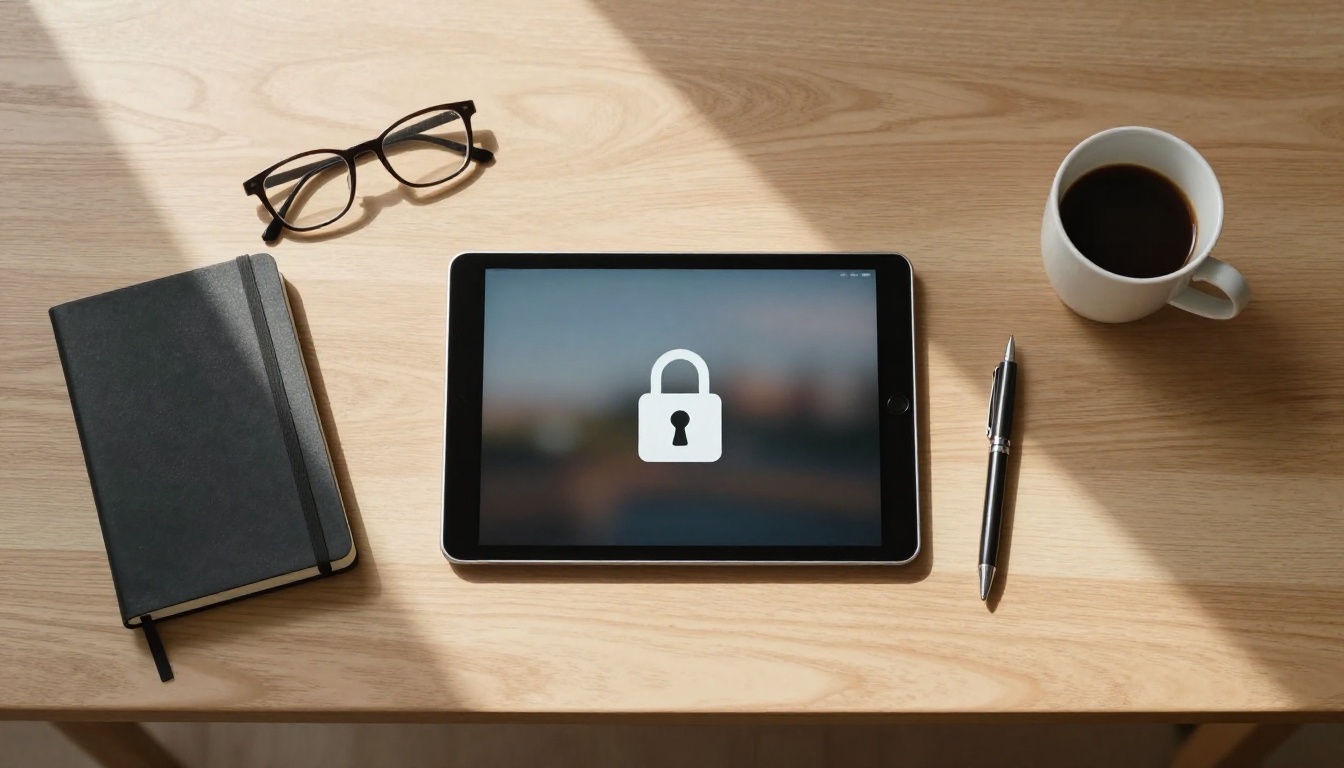
When you enable password protection on a flipbook, anyone who opens your link will see a prompt asking for the password before they can view any content. The flipbook itself is not hidden from the internet in the same way a private Google Doc is, but its contents remain completely inaccessible without the correct credential.
This means:
- The link can be safely shared via email, Slack, or SMS
- Only recipients who have the password can view the flipbook
- If the password changes, old access is revoked automatically
- You retain full control over re-sharing and access expiry
How Password Protection Works in Digital Flipbooks
Before walking through the steps, it helps to understand what's actually happening when you protect a flipbook.
The Basics of Access Control
Password protection in a digital flipbook platform works at the viewer level, not the storage level. The flipbook file is hosted on a server, but the viewer renders a lock screen before displaying any content. Until the visitor submits the correct password, the pages, images, and embedded media remain completely hidden.
💡 This is different from PDF password protection, which encrypts the file itself. Flipbook password protection is designed for online viewing control, not file-level encryption.
Single Password vs. Multi-Level Access
Most platforms, including Flipbooks AI, use a single shared password model. One password is set by the publisher and shared with all intended viewers. This keeps things simple for most use cases.
| Access Type | How It Works | Best For |
|---|
| Single Password | One password for all viewers | Teams, clients, small groups |
| Link-Only | No password, but link not indexed | Semi-private, internal use |
| Public | No restrictions | Marketing, public content |
| Password + Analytics | Track who accesses via lead gen | Professional plan users |
For organizations that need individual access tracking, the Professional plan adds lead generation features that capture viewer data before they enter the flipbook.
How to Add a Password to Your Flipbook
Here's exactly how to protect your flipbook on Flipbooks AI. The process takes under two minutes.
Step 1: Log In to Your Account
Go to flipbooksai.com and sign in. If you don't have an account yet, creating one is free and takes under a minute.
Step 2: Open Your Flipbook Dashboard
Once logged in, you'll see all your created flipbooks listed in your dashboard. Click on the flipbook you want to protect, or upload a new PDF using the PDF to Flipbook Converter if you're starting fresh.
Step 3: Go to Privacy or Sharing Settings
Inside the flipbook editor or management panel, locate the Privacy or Sharing section. This is typically found in the sidebar or in a dedicated settings tab. Look for an option labeled "Password Protection" or "Access Control."
⚠️ If you don't see a password option, check your current plan. Password protection is available on Standard plans and above. Compare pricing plans to find the right tier.
Step 4: Enable Password Protection
Toggle the password protection switch to on. A field will appear asking you to enter your chosen password. Type it in, then confirm it if prompted.
Tips for choosing a strong flipbook password:
- Use at least 10 characters
- Mix uppercase, lowercase, numbers, and symbols
- Avoid obvious words like "password123" or your company name
- Consider using a passphrase (e.g., "BlueSky!Report2025")
Step 5: Save and Share
Click Save to apply your settings. Your flipbook is now protected. When you copy and share the link, recipients will be greeted by a password prompt before seeing any content.
Send the password separately from the link, ideally through a different channel (e.g., link via email, password via text) for added security.

Plan Comparison: Where Password Protection Fits
Not every plan includes every privacy feature. Here's how the main tiers compare on security and access control:
| Feature | Free | Standard | Professional |
|---|
| Password Protection | No | Yes | Yes |
| Unlimited Flipbooks | No | Yes | Yes |
| Custom Branding | Limited | Yes | Yes |
| Analytics | No | Basic | Advanced |
| Lead Generation | No | No | Yes |
| Offline Downloads | No | No | Yes |
| No Watermarks | No | Yes | Yes |
✅ For most teams and creators, the Standard plan is the sweet spot. Password protection plus unlimited flipbooks, no watermarks, and custom branding covers most private content needs.
Check current pricing options to see what's included in each tier.
Real-World Use Cases
Password protection isn't just a feature for enterprise teams. Here's how different types of users put it to work:

Internal Company Reports
Finance teams and executives use password-protected flipbooks to distribute quarterly reports, board presentations, and strategic plans. Instead of emailing large PDF attachments, they share a single secure link. The Corporate Report Maker makes it easy to produce polished reports that look professional and remain locked behind a credential.
Premium Educational Content
Online educators selling courses or premium study packs can publish their materials as flipbooks and restrict access with a password. Students who purchase access receive the password; those who don't are locked out. It's a lightweight but effective access control layer. Tools like the Course Material Publisher are purpose-built for this workflow.
Confidential Price Lists
Wholesale suppliers, agencies, and service businesses often have tiered pricing they don't want publicly visible. A password-protected Digital Price List lets them share accurate, formatted pricing only with authorized buyers.
Private Event Programs and Wedding Albums
Wedding photographers and event planners use flipbooks to share private photo albums or event programs with selected guests. A password ensures the content stays within the intended circle. The Wedding Album Flipbook tool is designed specifically for this.
Exclusive Lookbooks and Catalogs
Fashion brands and retailers can distribute season lookbooks or trade-only catalogs exclusively to retail partners. Without a password, the catalog is just another public page. With one, it becomes a professional, controlled distribution tool. See the Interactive Lookbook Designer for how this works in practice.
Best Practices for Flipbook Passwords
Adding a password is step one. Using it well is step two.
Keep the Password Separate from the Link
Never send the password and the flipbook link in the same message. If someone intercepts or accidentally forwards that message, they have everything they need. Send the link in one message, the password in another, preferably through different channels.
Rotate Passwords When Access Should End
If you share a confidential document with a client whose contract ends, update the password immediately. This doesn't require changing the link, only the password in your dashboard settings. The old password becomes invalid instantly.
Use Unique Passwords Per Flipbook
Reusing the same password across multiple flipbooks defeats the purpose of protection. If one password leaks, all your documents become accessible. Unique passwords per document limit your exposure.
💡 Keep a simple password log in a secure password manager. Don't rely on memory for flipbook credentials, especially when you're managing multiple documents across different clients.
Tell Recipients Exactly What to Expect
A simple note like "you'll be prompted to enter a password when you click the link" prevents confusion. Nobody should be surprised by a password prompt. Clear communication reduces friction for your audience.

Common Mistakes People Make
Even with the feature enabled, these mistakes can undermine your security:
| Mistake | Why It's a Problem | Fix |
|---|
| Sending password with the link | Single message is a single point of failure | Use two separate channels |
| Using simple passwords | Easy to guess or brute-force | Use 10+ characters with symbols |
| Never changing the password | Stale access persists indefinitely | Rotate after each distribution cycle |
| Sharing on public channels | Anyone who sees the channel sees the link | Use direct messages only |
| Same password for all flipbooks | One breach exposes everything | Unique password per document |
Beyond Passwords: Other Privacy Features
Password protection is the most direct privacy tool, but it works best as part of a broader strategy.

Analytics to Monitor Access
With the Professional plan, you can see who opened your flipbook and when. This is useful for tracking whether a client actually reviewed a proposal, or whether a report was accessed by everyone on the distribution list. Analytics don't replace passwords, but they add visibility that passwords alone can't provide.
Lead Generation Gates
Instead of, or in addition to, a password, Professional plan users can require visitors to submit their name and email before viewing the flipbook. This is particularly valuable for marketing materials where you want to capture leads while still controlling access. It turns your flipbook into a self-serve content gate.
Embed Restrictions
When you embed a flipbook on a website, you can control where it's embedded. Restricting embeds to your own domain prevents others from copying your embed code and hosting your content on their sites, even with a password in place.
Custom Branding on the Lock Screen
On protected flipbooks, the password prompt screen can include your logo and brand colors. This makes the access experience feel intentional and professional rather than generic, which matters when distributing to clients or business partners.

Privacy Features Compared Across Use Cases
Different situations call for different tools. Here's a practical breakdown:
| Use Case | Password | Analytics | Lead Gen | Embed Restrictions |
|---|
| Internal team report | Yes | Yes | No | Optional |
| Client proposal | Yes | Yes | No | No |
| Premium course content | Yes | Optional | Optional | Optional |
| Trade catalog | Yes | Optional | Yes | Yes |
| Public marketing brochure | No | Yes | Yes | Optional |
| Private event album | Yes | No | No | No |
This table makes clear that password protection isn't always used alone. For trade catalogs and gated marketing content, layering lead generation on top of password protection creates a more powerful access and data-capture strategy.
Taking the Next Step
Password protection on your flipbooks is one of the simplest, highest-impact security decisions you can make for your digital content. It takes two minutes to set up and gives you meaningful control over who sees your work.
If you're not yet on Flipbooks AI, create your account and start building and protecting your first flipbook today. If you're already a user, check your current plan to make sure password protection is included, and consider whether upgrading your plan adds the analytics or lead generation features your workflow needs.
Browse all available flipbook tools to find the right format for your content, from catalogs and brochures to training manuals and price lists. Every tool supports password protection on eligible plans.
Your content took time and effort to create. Protecting it should be just as deliberate.