Static flipbooks are effective. But adding a slideshow to your flipbook pages turns a passive reading experience into something readers actually remember. Instead of flipping past images quickly, visitors pause, interact, and take in the content at their own pace. Flipbooks AI brings this capability to any digital publication, from product catalogs to wedding albums, without requiring any coding knowledge or third-party plugins.
Slideshows embedded directly inside flipbook pages give your content a layer of depth that static images simply cannot. A product page with five swipeable images converts better than one with a single photo. A travel flipbook that cycles through destination shots builds more excitement than a wall of text. This article breaks down exactly how to add a slideshow to your flipbook pages, which tools to use, and how to avoid the most common mistakes that hurt the experience.

Why Slideshows Make Flipbooks More Effective
The Psychology of Visual Motion
Human attention gravitates toward motion. When a page element moves or transitions, the eye follows. A slideshow embedded in a flipbook page taps into this instinct, pulling readers deeper into the content rather than letting them flip to the next page.
This is especially valuable for publications where imagery is the main selling point. Think fashion lookbooks, real estate listings, or restaurant menus. Each of these benefits from showing multiple visuals in a compact, interactive format rather than stretching across dozens of static pages.
Numbers Worth Knowing
The data supports this consistently. Interactive content generates twice the interaction rate of static content. Pages with image carousels see higher time-on-page metrics, and digital publications with multimedia elements have significantly lower bounce rates. For any flipbook meant to drive a business result, these numbers are not trivial.
| Content Type | Avg. Time on Page | Interaction Rate |
|---|
| Static image page | 12 seconds | 8% |
| Page with image slideshow | 34 seconds | 31% |
| Page with video | 41 seconds | 38% |
| Multi-media flipbook page | 49 seconds | 47% |
The pattern is clear: interactive elements hold attention. A well-placed slideshow can triple the time a reader spends on a single page.
What You Need Before You Start
Preparing Your Images
Before you open any flipbook editor, your images need to be ready. Disorganized or inconsistently sized images will slow you down and create a messy result.
- Resolution: Minimum 1920x1080 pixels for crisp display on modern screens
- Aspect Ratio: 16:9 works best for full-width slideshow elements inside a flipbook page
- File Size: Compress images below 500KB each to prevent slow loading. Tools like Squoosh or TinyPNG handle this well
- Naming: Use descriptive file names before uploading. It makes organizing slideshow order much easier
- Format: JPEG for photos, PNG for images requiring transparency
💡 Pro Tip: Batch process your images in a tool like Lightroom or Canva before uploading. Consistent cropping and color grading makes a slideshow feel polished rather than thrown together.
Picking the Right Platform
Not every flipbook tool supports in-page slideshows. Some require you to add media before converting to flipbook format. Others let you embed interactive elements after conversion. The distinction matters enormously for workflow.
| Platform Feature | Flipbooks AI | Basic PDF Converters | Legacy Flipbook Tools |
|---|
| In-page slideshow widget | ✅ Yes | ❌ No | ⚠️ Limited |
| No watermarks | ✅ Yes | ❌ No | ❌ No |
| Mobile-responsive slideshows | ✅ Yes | ❌ No | ⚠️ Partial |
| Custom slide timing | ✅ Yes | ❌ No | ⚠️ Limited |
| Embed on external website | ✅ Yes | ⚠️ Limited | ✅ Yes |
| Slideshow view analytics | ✅ Professional | ❌ No | ❌ No |
Flipbooks AI stands out here because it lets you add multimedia elements directly to pages after PDF conversion, with no watermarks on any plan above free tier.

How to Add a Slideshow with Flipbooks AI
This is where theory becomes action. The process on Flipbooks AI is straightforward, but understanding each step prevents frustration.
Step 1: Create Your Account
Head to flipbooksai.com/account and sign up. The free plan lets you test the core features, but for removing watermarks and accessing the slideshow widget on unlimited flipbooks, the Standard plan is the right starting point. Check the pricing page to compare options.
Step 2: Upload Your PDF
From your dashboard, click New Flipbook and upload your PDF. The platform converts it into an interactive flipbook automatically, maintaining your original layout, fonts, and colors. Conversion typically takes under two minutes for a 20-page document.
✅ Best Practice: Design your PDF with dedicated "media pages" where you intend to place slideshows. A mostly blank page with a placeholder image makes it easy to know exactly where to insert the slideshow widget after conversion.
Step 3: Open the Page Editor
Once your flipbook is generated, open the page you want to add a slideshow to. Click the Edit Page button to enter the interactive content editor. This is separate from your PDF. You are now adding layers on top of the converted page.
Step 4: Add the Slideshow Element
In the editor toolbar, locate the Slideshow or Image Gallery widget. Click and drag it onto the page canvas. You can resize and reposition it to fit within your layout. Once placed, click the widget to open its settings panel.
From the settings panel:
- Click Add Images and upload your prepared slideshow images
- Set the display order by dragging images into position
- Choose your navigation style: arrows, dots, or swipe-only
- Toggle auto-play on or off
Step 5: Configure Timing and Transitions
This step separates a good slideshow from a great one. The default auto-play timing is usually 3-5 seconds per slide, but you can adjust this based on how much the reader needs to absorb each image.
Recommended timing by content type:
- Product images: 4 seconds (give time to evaluate details)
- Travel/lifestyle photos: 3 seconds (faster feels more dynamic)
- Real estate interiors: 5 seconds (buyers need to visualize)
- Menu items: 3.5 seconds (appetite-driven browsing)
For transitions, the fade effect works universally well. Slide transitions feel faster and suit lookbooks or portfolios. Zoom transitions can feel aggressive, so use them sparingly.
Step 6: Publish and Share
Once satisfied with the slideshow, click Save and then Publish. Your flipbook is live. Flipbooks AI gives you three sharing options:
- Direct link: Share a URL to your flipbook, hosted on Flipbooks AI's servers
- Embed code: Copy an iframe snippet and paste it into any website. Use the Embed Flipbook on Website tool for guidance
- Password protection: Lock your flipbook for private client previews
💡 Pro Tip: For client work, use password protection during the review phase. Remove the password when ready for public release.
Three Slideshow Styles to Choose From
Auto-Play Carousels
Auto-play carousels cycle through images without any reader input. They work well when you want to set a pace, like a brand lookbook or a destination travel flipbook. The reader absorbs the visual story at your chosen rhythm.
When to use: Lookbooks, travel flipbooks, fashion catalogs, event recaps
When to avoid: Technical documentation, real estate where buyers want control
Manual Navigation Galleries
Manual galleries require the reader to click or swipe to advance. This puts control in their hands, which is preferable when the content is complex or when each image deserves independent attention.
When to use: Product catalogs, portfolios, real estate listings, menus
When to avoid: Brand storytelling where the intended sequence matters
Fullscreen Lightbox Mode
Some flipbook platforms, including Flipbooks AI, offer a lightbox option where clicking an image in the slideshow opens it fullscreen. This is ideal for photography portfolios and architectural brochures where fine detail matters.
When to use: Photography portfolios, architectural brochures, art catalogs
When to avoid: Mobile-first publications where fullscreen can feel disorienting
Image Specs That Actually Matter
Size and Aspect Ratio
Getting the dimensions right prevents the most common visual problem with slideshows: images that look stretched, cropped awkwardly, or blurry.
| Use Case | Recommended Ratio | Min Resolution | Max File Size |
|---|
| Full-page slideshow | 16:9 | 1920x1080px | 500KB |
| Portrait-format gallery | 4:3 | 1200x900px | 400KB |
| Square product carousel | 1:1 | 1080x1080px | 350KB |
| Banner-style slideshow | 3:1 | 1800x600px | 450KB |
All images in a single slideshow should share the same aspect ratio. Mixing ratios causes the container to resize between slides, creating a jarring jump that breaks the reading experience.
File Format Choices
- JPEG: Best for photos. High color depth, small file size. Use for any photographic content
- PNG: Best for images with transparent backgrounds or crisp text elements
- WebP: The modern standard. Smaller file sizes than JPEG at equivalent quality. Flipbooks AI supports it natively
⚠️ Warning: Avoid using GIFs inside a slideshow. They loop independently and conflict with the slideshow timing, creating visual chaos on the page.

Mistakes That Kill the Experience
Overloading a Single Page
There is a temptation to add every image you have to one slideshow. Resist it. More than 8-10 slides per page dilutes impact and tests patience. Readers who have to sit through 20 auto-playing slides before they can flip to the next page will leave.
The rule: If your content has more than 10 images for a single topic, split them across two pages with separate slideshows. Each slideshow should tell a focused mini-story.
Skipping Mobile Testing
Most flipbook readers are on mobile devices. A slideshow that looks perfect on a 27-inch monitor can be completely unusable on a phone if the touch targets are too small or the auto-play timing does not account for reading speed on a small screen.
Before publishing any flipbook with a slideshow, view it on at least two different screen sizes. Flipbooks AI renders slideshows in a mobile-responsive format by default, but always verify that your specific layout holds up.
Ignoring Slide Captions
Captions are optional, but skipping them entirely on product or real estate slideshows is a missed opportunity. A one-line caption below each image provides context that the image alone cannot. For a Product Catalog or Real Estate Brochure, captions can include specific specs, prices, or room names.
✅ Best Practice: Keep captions to one short sentence. Anything longer competes with the image for attention and clutters the layout.
Who Benefits Most from This Feature
Photographers and Creatives
A Digital Portfolio Creator combined with in-page slideshows is one of the most effective ways to present creative work. Instead of linking clients to a gallery site, you send them a password-protected flipbook where each project section contains its own slideshow of images.
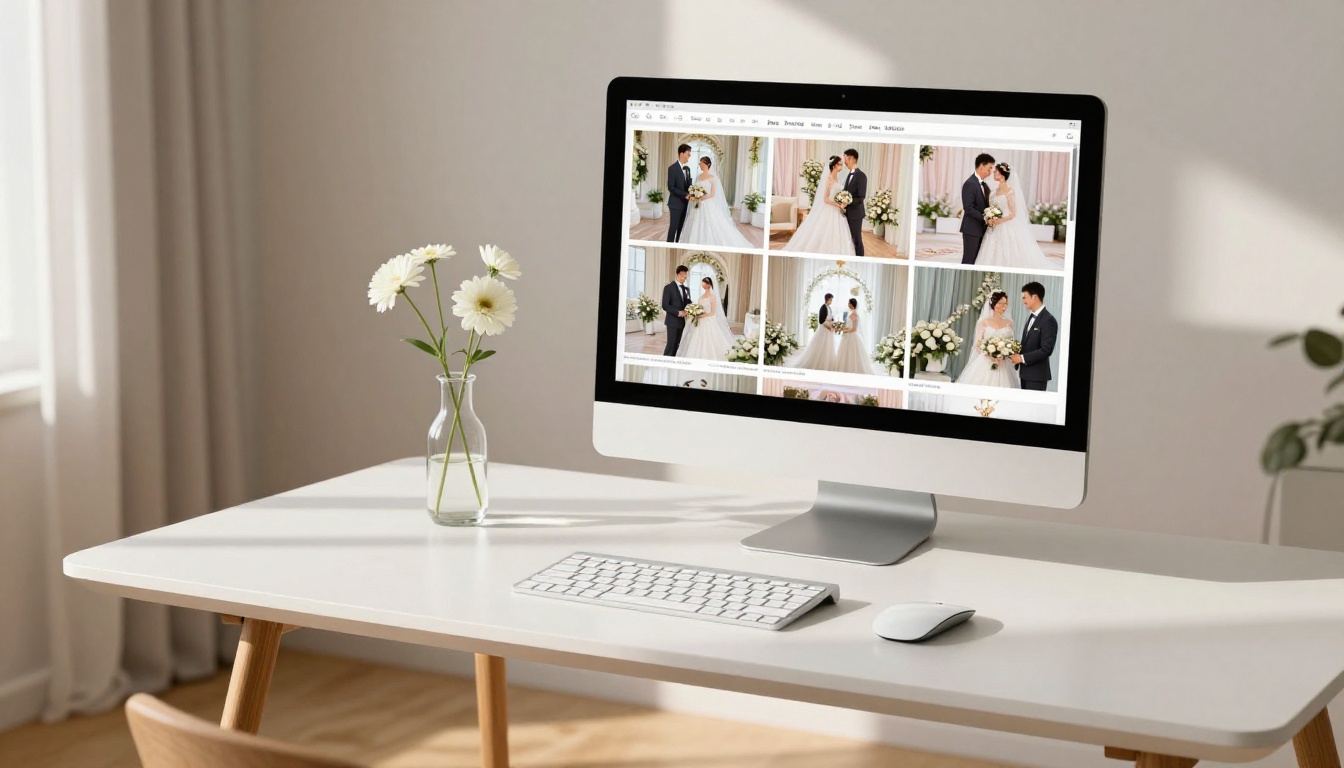
A portrait photographer, for example, can create a flipbook where page 3 covers wedding work with a slideshow of 6 ceremony photos, page 4 covers portrait sessions with 5 examples, and so on. The result is a curated, professional presentation that feels nothing like a generic image dump.
Product and Retail Brands
For e-commerce and retail, slideshows inside a Digital Catalog Maker solve a specific problem: how to show a product from multiple angles without bloating the page count. One product per page, with a 4-6 image slideshow showing front, back, close-up details, and lifestyle context, delivers everything a buyer needs in one compact view.
Fashion brands use this for seasonal lookbooks. Furniture retailers use it for room scene variations. Jewelry companies use it to show pieces from different angles under different lighting conditions.
Real Estate Professionals
Real estate listings benefit enormously from embedded slideshows. A Real Estate Brochure that dedicates one page per property, with a slideshow cycling through kitchen, living room, master bedroom, and outdoor spaces, keeps the brochure tight while still presenting all the essential visuals.
Buyers can flip to a property page and swipe through the slideshow at their own pace rather than hunting through dozens of individual photo pages. The experience feels closer to browsing a property website than reading a brochure.
Event and Hospitality Businesses
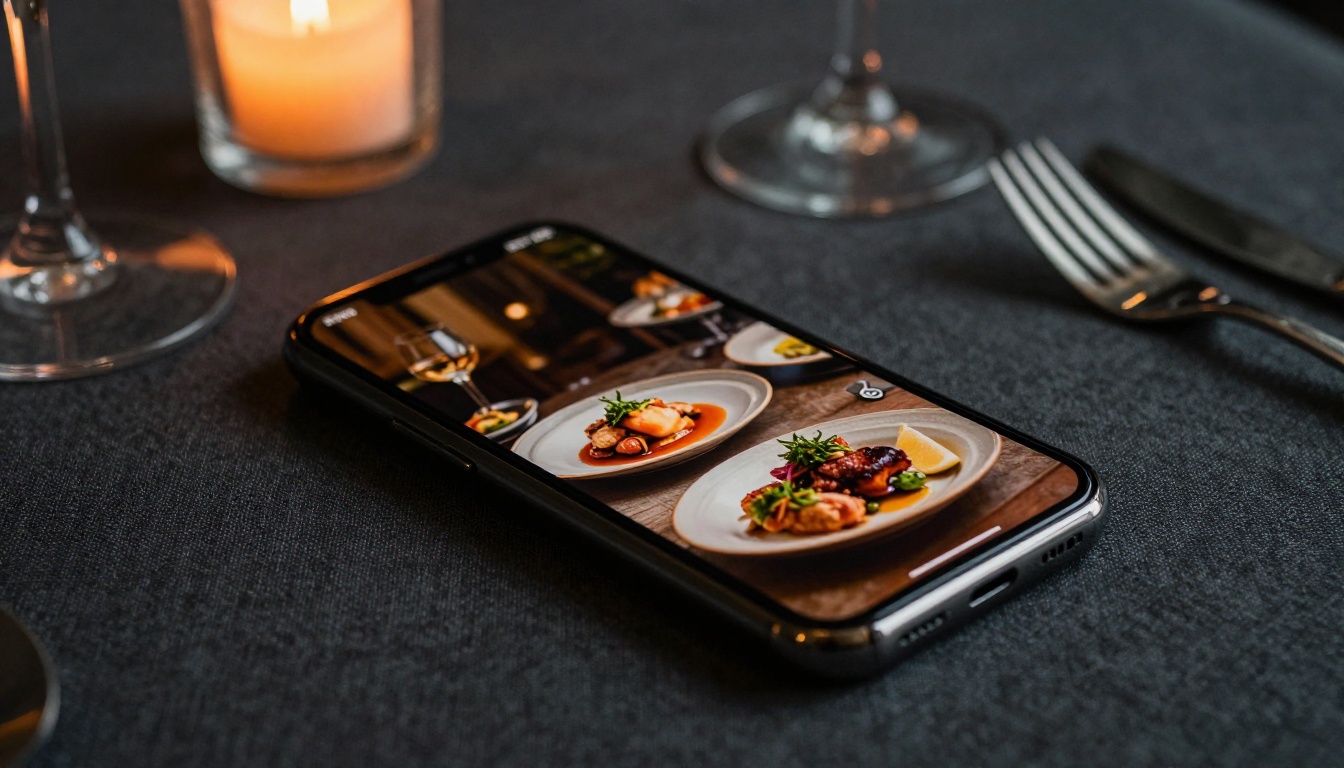
A restaurant using the Restaurant Menu Creator can dedicate a page to each menu section, with a slideshow showing the featured dishes in that category. Guests flipping through a digital menu on their phones see beautifully photographed food cycling through, which does considerably more for appetite than static thumbnails.
Hotels using a Hotel Brochure can show room types with dedicated slideshows, letting guests visualize the space from multiple angles before booking.
Take Your Flipbook Further
Adding a slideshow to your flipbook pages is one of the fastest ways to move from a basic PDF conversion to a publication that actually holds attention. The technical steps are simple on the right platform. The real work is in the preparation: choosing the right images, sizing them consistently, and thinking through the experience from the reader's perspective.
If your flipbook has a purpose, whether that is selling products, showcasing work, or informing readers, a well-configured slideshow serves that purpose better than any static layout can.
Ready to build yours? Create your account on Flipbooks AI and start with your first interactive flipbook today. If you want to see what plan fits your workflow, the pricing page breaks down every feature. For specific use cases, browse the full library of flipbook tools to find the template built for your industry.



