Picking the right background track for a digital flipbook takes about ten minutes. The payoff, though, is significant: readers who encounter a flipbook with well-matched audio spend measurably longer on each page, scroll less impulsively, and return to it more often. Sound does something visuals alone cannot. It sets a tempo, signals mood before the first word is read, and keeps peripheral attention anchored while eyes move across the page. If you've ever wondered how to add a soundtrack to your flipbook in a way that actually improves the reading experience rather than annoying visitors, this article covers everything from audio file selection to the exact steps inside Flipbooks AI.
The Science Behind Sound and Attention
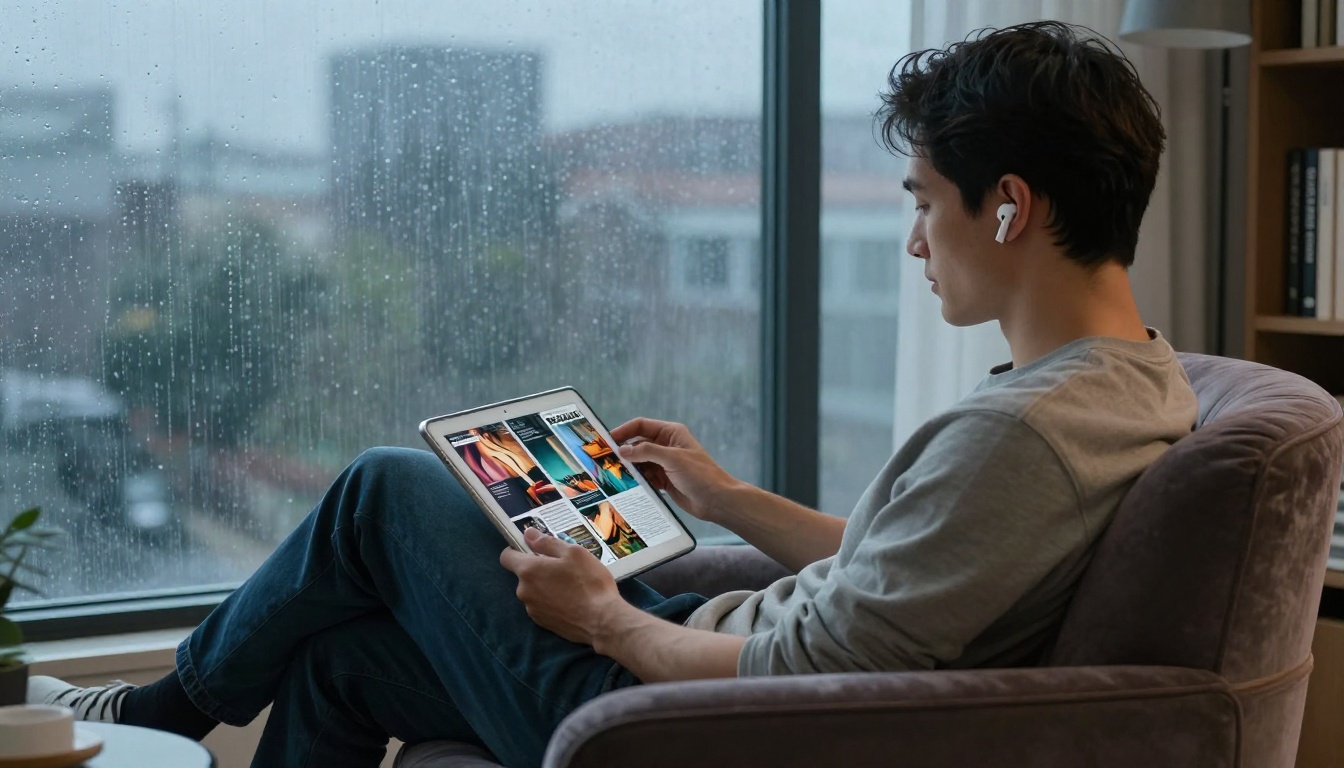
Human attention is not purely visual. Auditory cues trigger the limbic system, the brain region tied to emotion and memory, faster than images do. When a reader opens a flipbook and a calm, low-tempo acoustic track begins playing softly, two things happen almost simultaneously: their breathing slows slightly, and their scanning behavior shifts from rapid skim to slower, more deliberate reading.
This is not incidental. Retail stores have used curated soundscapes to increase average purchase value for decades. The same principle applies to digital content. A restaurant using a Menu Flipbook Designer with a subtle ambient soundtrack sees higher engagement on seasonal specials than a silent version of the same menu. A fashion brand using the Interactive Lookbook Designer with a fitting background track sees readers spend more time on editorial spreads.
What Readers Actually Do When Music Plays
The effect is not universal. Poorly chosen audio, loud autoplay with no mute option, or a jarring mismatch between music tone and content type will do the opposite: immediate close, negative brand impression, zero return visits.
⚠️ Warning: Autoplay audio without a visible, easy-to-find mute button is one of the fastest ways to lose a reader. Always give users control over playback.
The sweet spot is audio that readers do not consciously notice for the first thirty seconds. It works in the background, supporting attention rather than demanding it.
Choosing the Right Soundtrack
Music Types That Work (and Ones That Don't)
Not all music serves a flipbook well. The wrong genre can undermine an otherwise polished publication in seconds. Here is a practical breakdown:
| Music Type | Best For | Avoid When |
|---|
| Lo-fi / ambient instrumental | Catalogs, lookbooks, portfolios | High-energy product launches |
| Acoustic guitar / café jazz | Restaurant menus, travel guides | Technical reports, legal documents |
| Cinematic orchestral | Annual reports, brand presentations | Casual recipe books, newsletters |
| Upbeat pop instrumental | Event programs, wedding albums | Professional / B2B publications |
| Nature sounds / white noise | Educational materials, course content | Fashion and lifestyle content |
💡 Pro tip: Test your soundtrack with the volume at 20% of maximum. If it still fits the mood at that level, it is the right track. If it feels too quiet or wrong, it will feel even more wrong at higher volumes.
Licensing: Where to Get Legal Audio
Using a copyrighted song without a license is a fast path to takedown requests and legal trouble. Fortunately, several reliable sources offer royalty-free audio that works well in flipbooks:
- Pixabay Music (pixabay.com/music) — free, no attribution required
- Free Music Archive (freemusicarchive.org) — curated library with clear licensing
- Mixkit (mixkit.co) — free tracks for commercial use
- Artlist.io — subscription-based, broadcast-quality audio
- Epidemic Sound — subscription model, widely used by brands
Always verify the license explicitly covers "web publication" or "digital distribution." When in doubt, choose tracks labeled Creative Commons Zero (CC0).
File Formats and Size Considerations
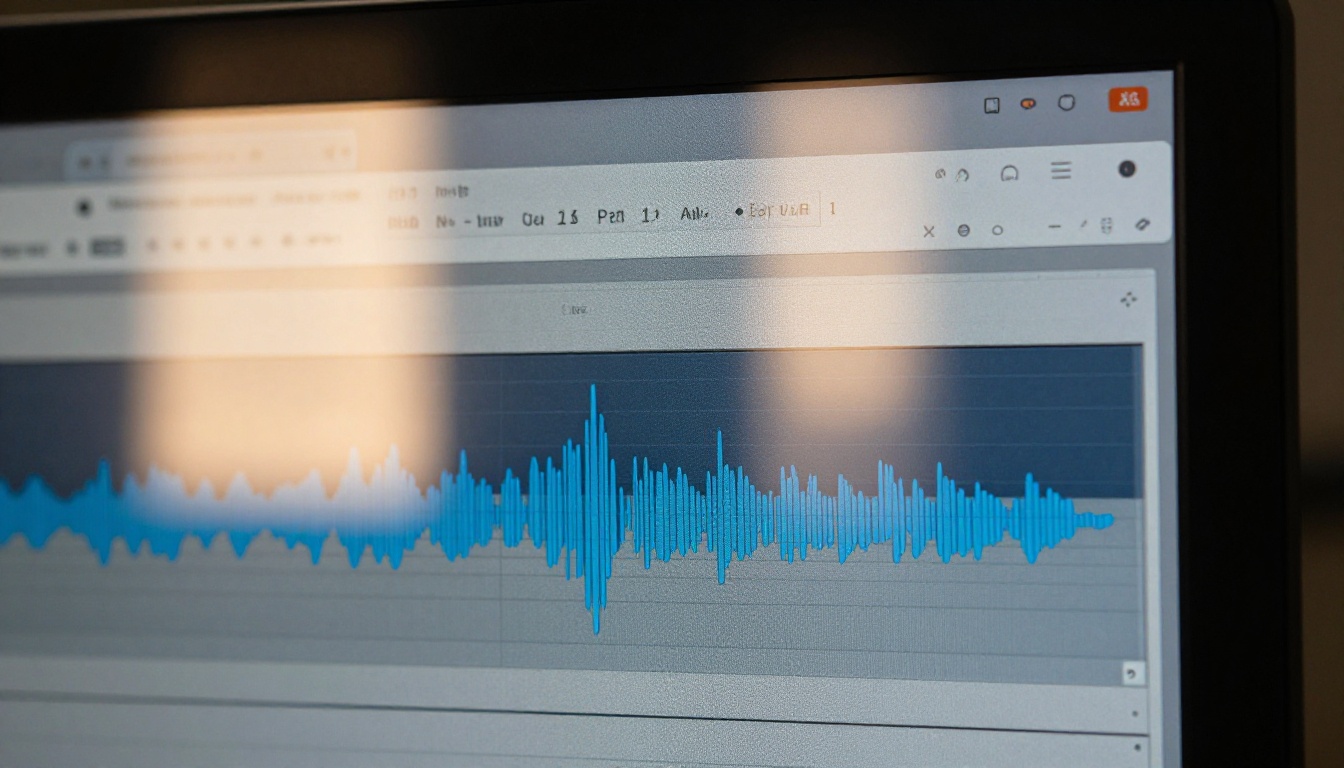
Audio file format matters more than most people realize. Using an uncompressed WAV file in a web-based flipbook adds unnecessary load time and can break playback on slower connections.
| Format | File Size | Browser Support | Recommended For |
|---|
| MP3 (128kbps) | Small | Universal | Most flipbook background tracks |
| MP3 (320kbps) | Medium | Universal | High-fidelity presentations |
| OGG | Small | Most modern browsers | Alternative to MP3 |
| WAV | Very Large | Universal | Not recommended for web |
| AAC | Small-Medium | Universal | iOS-heavy audiences |
Recommended: MP3 at 128kbps for ambient tracks, 192kbps if audio quality is a differentiator for your brand. Keep file size under 5MB for background music to ensure fast load times globally.
How to Add a Soundtrack to Your Flipbook with Flipbooks AI
Flipbooks AI makes it straightforward to embed background audio directly into any flipbook. The platform supports MP3 and AAC formats, with controls for autoplay, loop, and volume defaults. Here is the exact process:
Step 1: Create Your Account and Upload Your PDF
If you don't have an account yet, sign up at Flipbooks AI. The free tier lets you create flipbooks immediately, though audio embedding is available on Standard plans and above.
Once logged in:
- Click New Flipbook from your dashboard
- Select Upload PDF and choose your file
- Wait for the conversion to complete (typically under 60 seconds for documents up to 50 pages)
- Your flipbook is now ready for customization
Step 2: Open the Editor and Go to Audio Settings
- Click Edit on your newly converted flipbook
- In the left sidebar, locate the Multimedia or Audio tab
- Click Add Background Music
- Upload your MP3 file using the file picker, or paste a hosted audio URL
💡 Pro tip: If you host the audio file on your own CDN or server, using a URL instead of uploading directly keeps your flipbook load time lower and file storage usage minimal.
Step 3: Configure Playback Behavior
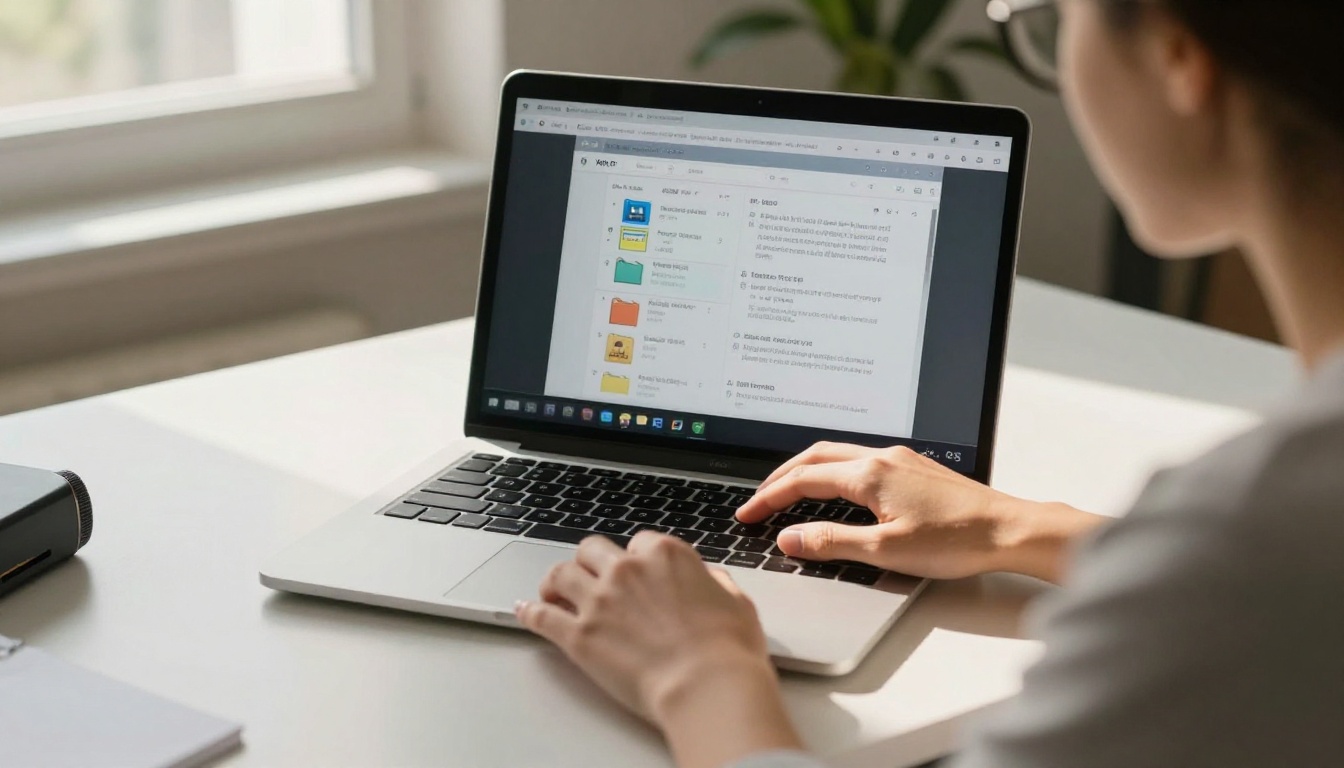
This step is where most creators make mistakes. Flipbooks AI gives you precise control over how audio behaves:
- Autoplay On/Off: Autoplay starts music the moment the flipbook opens. Use this for curated brand experiences where audio is intentional. Turn it off for business reports and professional documents.
- Loop: Enables the track to restart when it ends. Recommended for all background ambient tracks.
- Default Volume: Set between 30% and 50% for background music. Readers can adjust, but your default sets the first impression.
- Show Player: Toggles a visible audio player bar. Always enable this so readers can pause or mute with a single click.
Step 4: Add Page-Specific Audio (Optional)
Flipbooks AI also supports audio triggers on individual pages. This means you can have silence on most pages and a sound effect or narration clip on a key product page or chapter opener. To configure this:
- Navigate to the specific page in the editor
- Open the Page Settings panel
- Select Page Audio and upload your clip
- Set the trigger as On Enter or On Click
Step 5: Preview, Test, and Publish
- Click Preview to hear the audio exactly as a visitor will experience it
- Test on mobile by scanning the QR code in the preview screen
- Confirm the mute button is visible and functional
- Click Publish to make your flipbook live
Once published, your flipbook can be embedded on any website using the auto-generated embed code. Audio plays within the embed, so your readers get the full experience without leaving your site.
Audio Settings That Actually Matter
Autoplay vs. Click-to-Play
The debate is real. Autoplay creates an immediate immersive effect but risks frustrating readers who open flipbooks in a quiet or shared environment. Click-to-play is safer but relies on readers actively opting in, which most won't.
The best approach: Autoplay at a low default volume (30 to 40%) with a clearly visible pause button in the first fold of the viewer. Readers who mind can stop it in one click, but those who don't will absorb the audio experience naturally.
Loop Settings and Fade Effects
Background ambient tracks should almost always loop. A track that cuts off abruptly and restarts with a hard jump is more distracting than silence. Most quality ambient tracks are designed with clean loop points, but always listen to the loop transition before publishing.
Fade-in effects, where audio gradually rises over two to three seconds, are far more pleasant than an immediate full-volume start. If your Flipbooks AI plan supports a fade-in setting, use it without hesitation.
Volume Defaults by Content Type
| Content Type | Recommended Default Volume | Loop | Autoplay |
|---|
| Fashion lookbook | 40% | Yes | Yes |
| Restaurant menu | 35% | Yes | Yes |
| Corporate report | 0% (optional player) | No | No |
| Wedding album | 45% | Yes | Yes |
| Product catalog | 30% | Yes | Optional |
| Educational flipbook | 25% (narration only) | No | No |
| Event program | 40% | Yes | Yes |
Real-World Use Cases for Flipbook Audio
Product Catalogs with Brand Soundscapes
A furniture retailer using the Furniture Catalog Maker can embed a soft Nordic acoustic track that matches their Scandinavian brand positioning. The audio does not say "Scandinavian design" explicitly; it just feels that way. Readers browsing product pages spend longer per item and are more likely to click through to product listings.
A fashion brand using the Fashion Catalog Creator can go bolder: a curated electronic or R&B instrumental that feels on-brand for the collection. The flipbook stops being a document and starts being an experience.
Event Programs with Ambient Music
Event organizers using the Event Program Maker can set a pre-event anticipation track, something cinematic and warm, so attendees reading the program before the show feel the mood shift before they have even arrived at the venue.
Educational Materials with Narration Clips
Teachers and course creators using the Course Material Publisher can add narration clips to key pages: a recorded explanation of a complex diagram, a pronunciation guide on a language learning page, or a welcome message on the course intro page. Page-specific audio turns static educational PDFs into interactive micro-lessons that hold student attention.

Common Mistakes When Adding Audio
Choosing the Wrong Mood
The most common mistake is picking a track based on personal preference rather than the reader's emotional journey. A high-energy track on a spa brochure creates cognitive dissonance. A somber classical piece on a children's activity flipbook feels wrong immediately. Always ask: what emotional state do I want my reader to be in while they browse this content?
File Size Bloat
Uploading a 40MB WAV file as background music will cause the flipbook to load slowly, particularly on mobile connections. Compress your audio before uploading. Free tools like Audacity or online converters can reduce a large WAV to a properly optimized MP3 in under a minute.
Forgetting Mobile Users
Over 60% of digital content is consumed on mobile devices. Audio that plays perfectly on a desktop browser can behave differently on iOS Safari, which has strict autoplay restrictions for audio without prior user interaction. Always test your flipbook on a real mobile device before publishing.
✅ Best practice: Use the Flipbooks AI mobile preview tool to verify audio behavior on both iOS and Android before going live. The platform's HTML5 flipbook engine is optimized for cross-device audio compatibility, but real-device testing catches edge cases that emulators miss.
Flipbooks AI Plans and Audio Features
Audio embedding is available starting from the Standard plan. Here is how audio features break down across Flipbooks AI pricing tiers:
| Feature | Free | Standard | Professional |
|---|
| Background audio | No | Yes | Yes |
| Page-specific audio | No | Yes | Yes |
| Audio autoplay controls | No | Yes | Yes |
| Custom audio player styling | No | No | Yes |
| Analytics (audio engagement tracking) | No | No | Yes |
| No watermarks | No | Yes | Yes |
| Unlimited flipbooks | No | Yes | Yes |
| Lead generation forms | No | No | Yes |
| Offline downloads | No | No | Yes |
💡 Pro tip: The Professional plan includes analytics that track whether readers are playing or muting your audio, and at which pages they do it. This data is genuinely useful for optimizing your soundtrack choices over time based on real reader behavior.
Why Flipbooks Beat Static PDFs for Audio
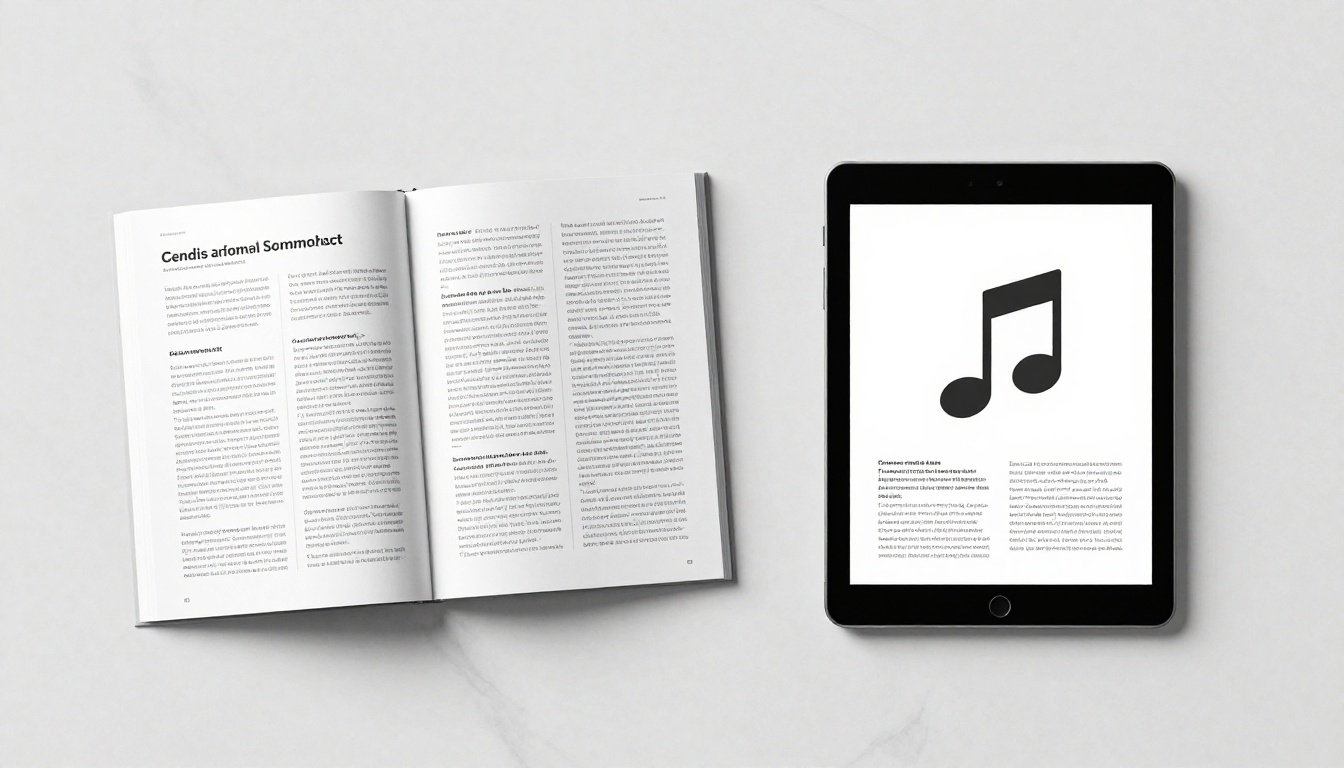
A standard PDF cannot carry background audio. When a reader opens a PDF, the experience is completely silent, regardless of how much effort went into the design. Flipbooks built on HTML5 technology can carry audio, embedded video, animated page turns, and interactive elements that a PDF simply cannot support natively.
The gap between a PDF and an audio-enabled flipbook is not just technical. It is experiential. A silent PDF of a restaurant menu is a list. The same content as a flipbook with a soft jazz track is a dining atmosphere delivered to someone's phone before they have even arrived at the restaurant.
This distinction matters increasingly in markets where content saturation is high. When everyone has a digital catalog, the ones that sound as good as they look get read. The PDF to Flipbook Converter is the fastest way to start bridging that gap without rebuilding any existing content from scratch.

Start Building Yours Today
Adding a soundtrack to your flipbook is one of the highest-leverage customizations available in digital publishing. It costs nothing extra if you already have a Standard plan, takes under ten minutes to configure, and produces a measurable improvement in reading time and brand recall.
Whether you are building a product catalog, a digital portfolio, a hotel brochure, or a travel guide flipbook, audio is the detail that separates a document from an experience people want to return to.
Ready to try it? Create your account on Flipbooks AI and start building audio-enabled flipbooks today. Compare pricing plans to find the tier that fits your needs, and browse the full library of flipbook tools to find templates built for your specific use case.



