Adding a video to your flipbook's front page is one of the fastest ways to stop someone from scrolling past your content. While most digital publications open on a static image, a looping video signals motion, life, and intent before a single word is read. Flipbooks AI makes this possible directly inside its editor, with no third-party tools or code required. You upload your PDF, open the cover settings, paste a video link, and you are done in under ten minutes.
Why Video Openings Change the First Impression
The first three seconds of any digital publication determine whether the reader goes deeper or bounces. A static image, no matter how well designed, is competing with every other image on screen. A looping video is not.
The Attention Gap Between Static and Motion
Eye-tracking research consistently shows that motion captures attention before color or typography. When a video loops silently in the background of your flipbook's opening page, it creates a sense of depth and professionalism that a JPG simply cannot replicate. Readers instinctively pause.
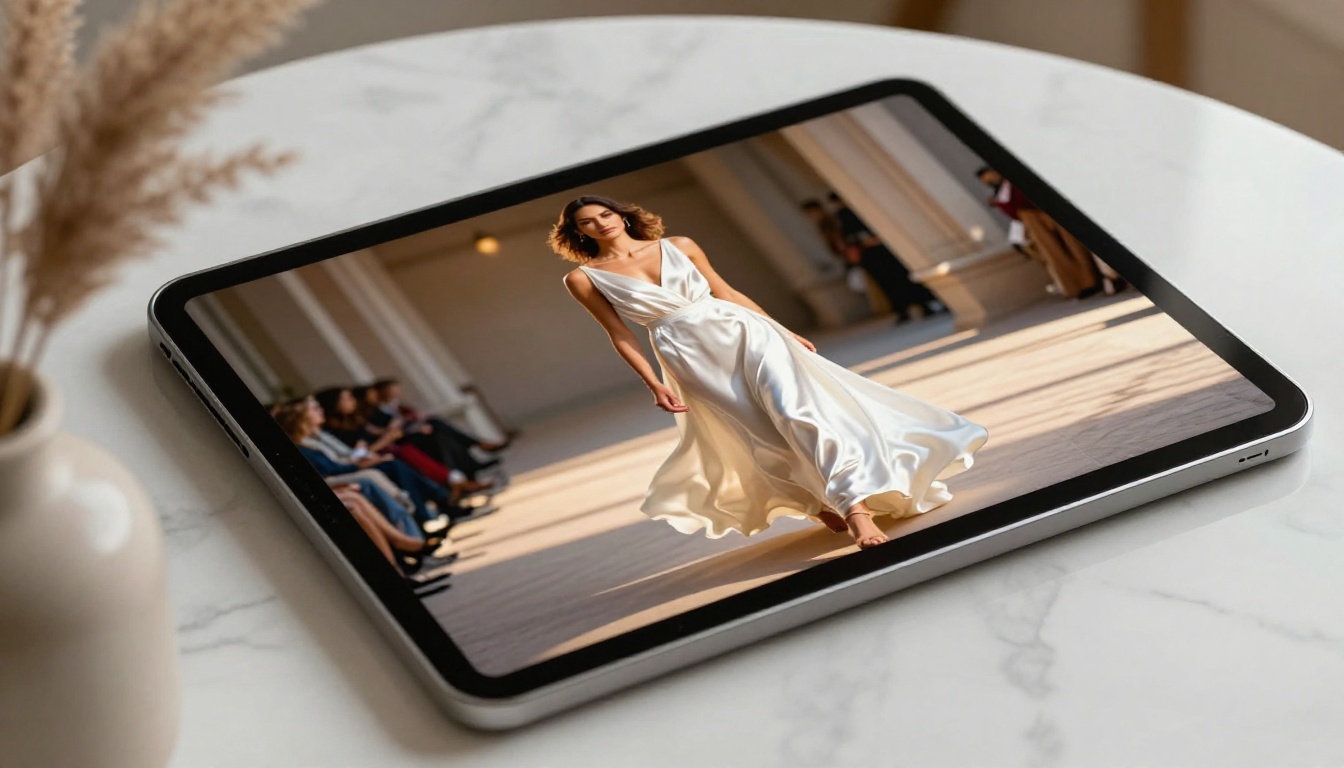
This is not about novelty. It is about context-setting. A real estate brochure with a slow aerial video of the property tells a story before the reader reaches page two. A fashion catalog with a video of a model in motion communicates texture, movement, and mood in a way that even the best product photography cannot match.
Video vs. Static: What Actually Matters
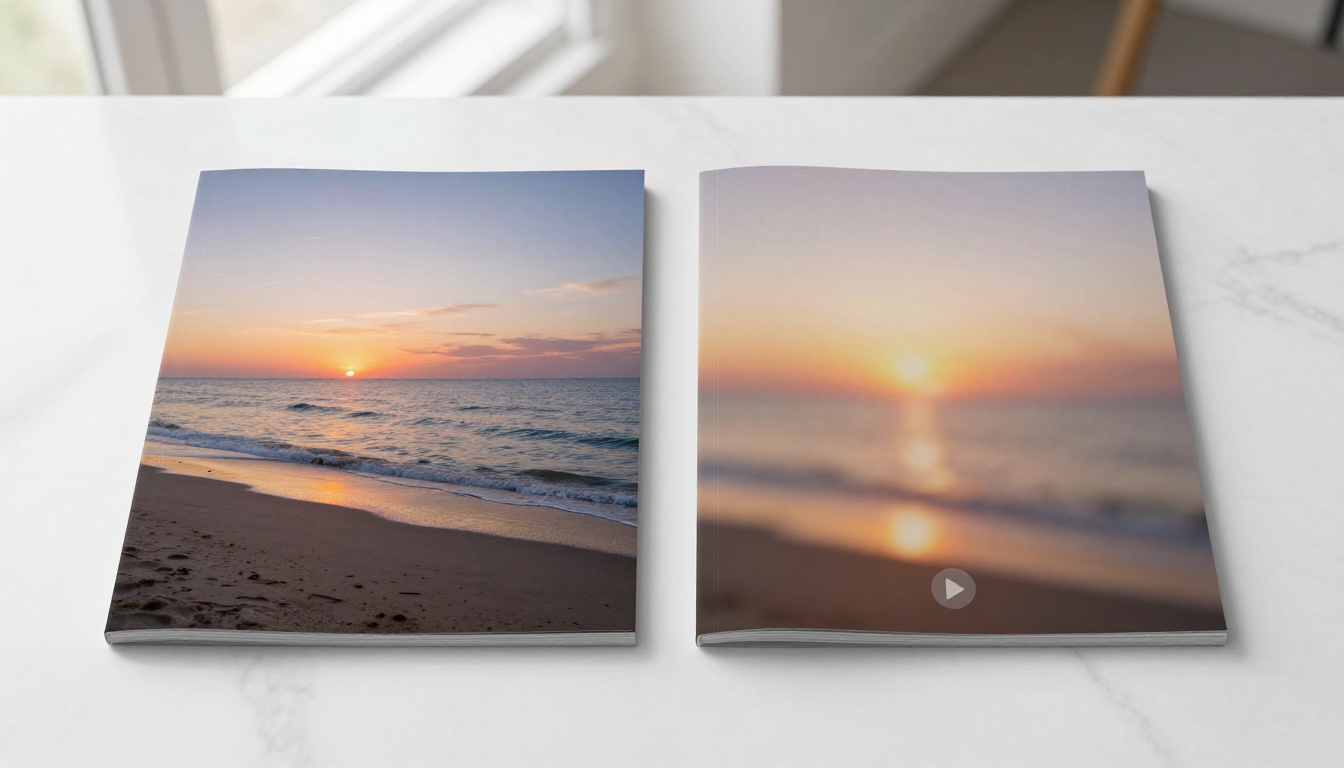
Before switching to a video opening, it helps to understand what you are trading off. The table below breaks it down clearly.
| Factor | Static Image | Video Opening |
|---|
| First impression | Moderate | High |
| Load time | Fast | Slightly slower |
| Mobile compatibility | Universal | Requires optimization |
| Emotional impact | Depends on image quality | Consistently higher |
| Setup complexity | None | 5 to 10 minutes |
| Brand storytelling | Limited | Strong |
The takeaway: if your audience is on desktop or modern mobile browsers, a video opening is almost always the better choice for engagement and brand perception.
What You Need Before You Start
Getting a video into your flipbook opening requires a few things in place before you open the editor.
Video Format Requirements
Not all video formats behave consistently across browsers and devices. For the best results, use these specifications:
- Format: MP4 (H.264 codec preferred)
- Resolution: 1920x1080 minimum at 1080p
- Duration: 10 to 30 seconds recommended for looping
- File size: Under 20MB for optimal load performance
- Frame rate: 24fps or 30fps
⚠️ Avoid using MOV or AVI files directly. While some players support them, MP4 ensures universal compatibility across Chrome, Safari, Firefox, and mobile browsers.
Ideal Video Length and Content
A 10 to 20 second loop is the sweet spot. Long enough to tell a micro-story, short enough to loop without feeling repetitive. The video should:
- Open strong: The first frame is what readers see before playback begins
- Work without sound: Most autoplay settings mute by default, so the video must communicate visually
- Loop seamlessly: Edit the video so the last frame transitions cleanly back to the first
💡 If you do not have a custom video ready, stock footage platforms like Pexels and Unsplash offer free HD loops that work perfectly as flipbook openings.
How to Add a Video Cover to Your Flipbook Step by Step
Flipbooks AI includes a native video feature that you can access directly from the flipbook editor. Here is the full process from upload to publish.
Step 1: Upload Your PDF
Start by logging into your Flipbooks AI account. From your dashboard, click New Flipbook and upload your PDF file. The platform converts it into an interactive flipbook automatically, preserving your original layout, fonts, and imagery.
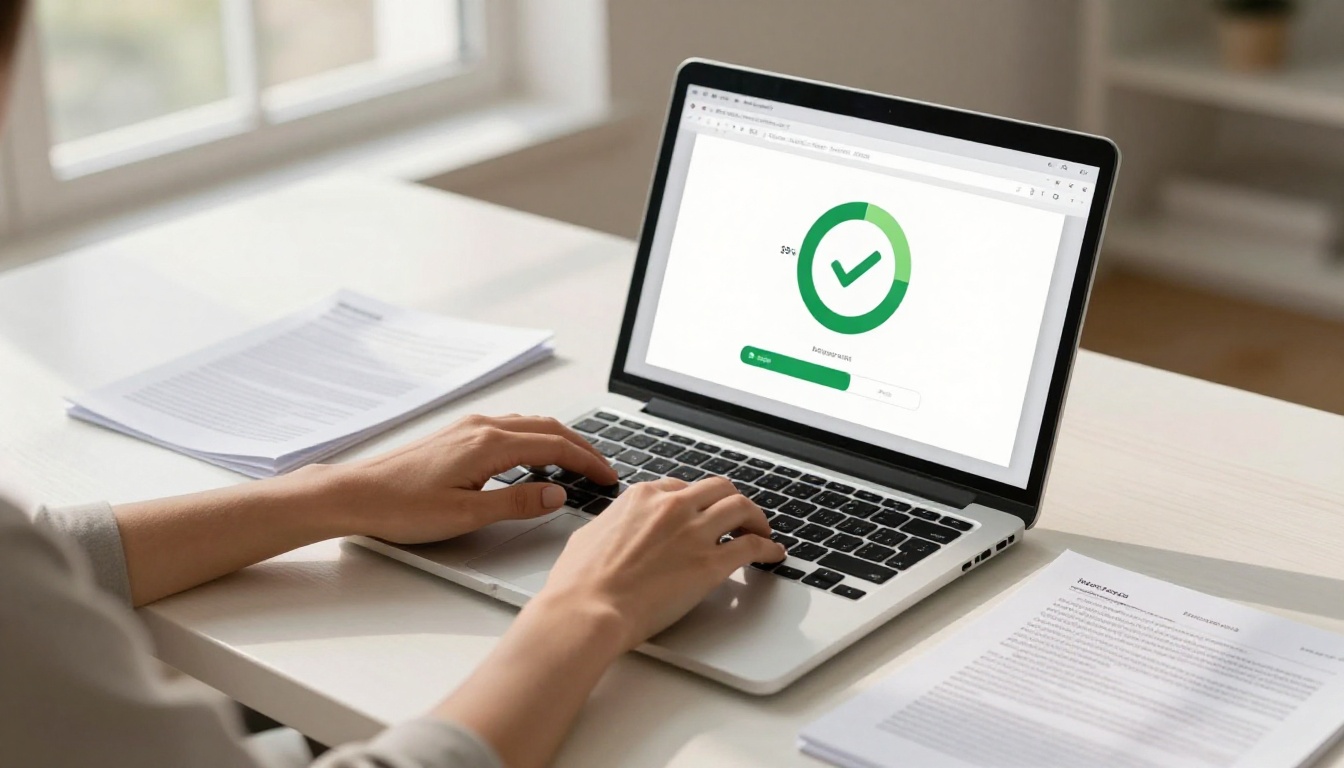
✅ Supported file types: PDF, PPT, and PPTX. For best quality, export your design from Adobe InDesign, Canva, or PowerPoint as a high-resolution PDF at 150dpi or higher.
Step 2: Open the Cover Settings Panel
Once your flipbook is created, click Edit to enter the flipbook editor. In the left-hand sidebar, locate the Cover section. This is where all front-page customization happens, including background color, static image upload, and the video option.
Step 3: Upload or Link Your Video
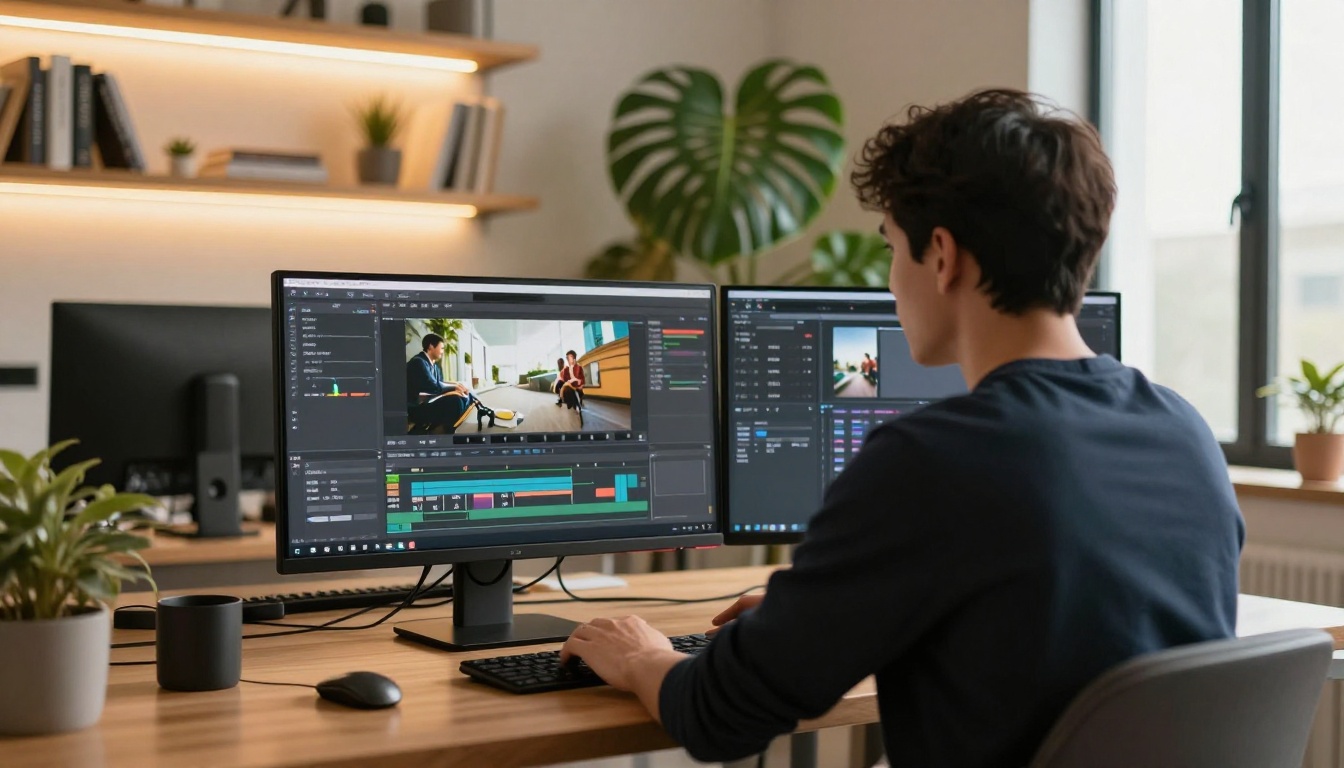
Inside the settings panel, select Video as your front-page type. You will see two options:
- Upload a file: Drag and drop or browse for your MP4 file
- Paste a URL: Link directly to a hosted video on YouTube, Vimeo, or a direct MP4 link
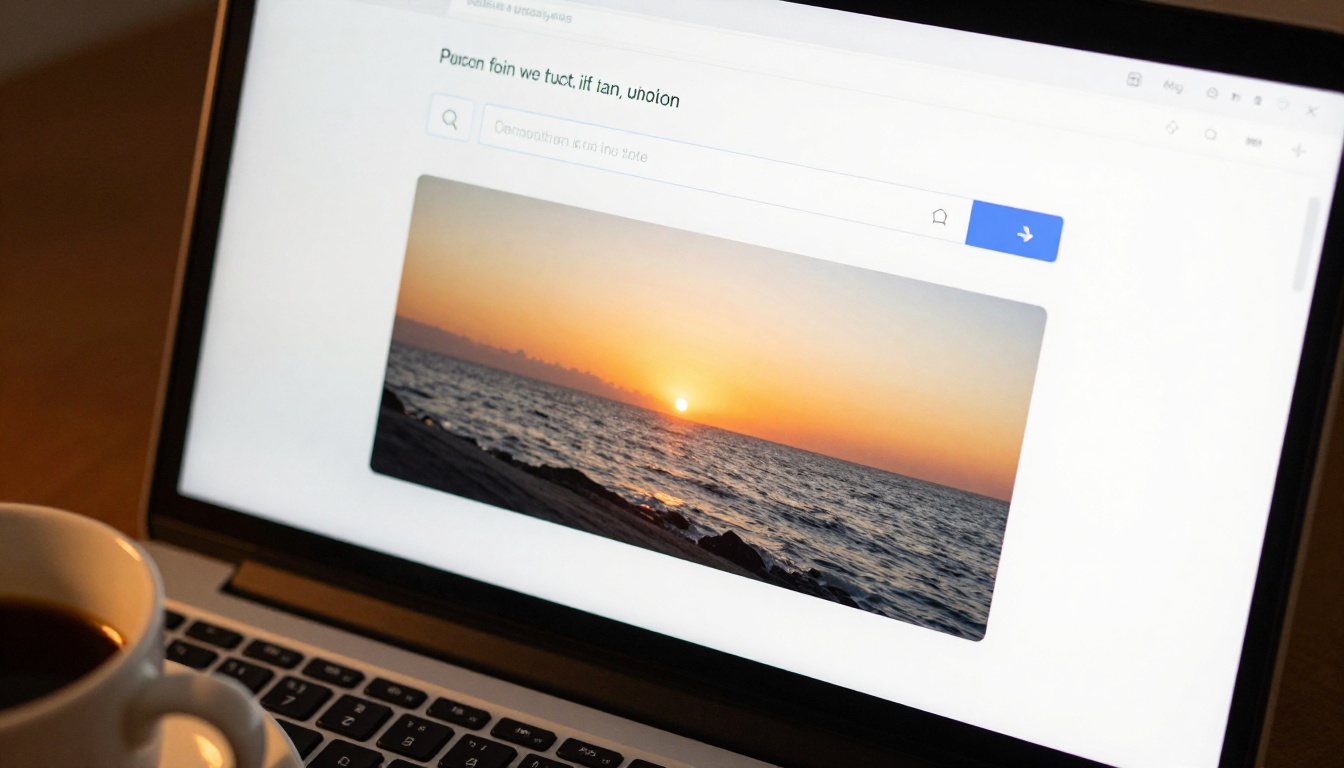
For most users, the URL method is faster and reduces your flipbook's load weight. If you host your own videos on Vimeo or a CDN, paste the direct link and the platform handles the rest.
Step 4: Configure Autoplay and Loop Settings
After uploading or linking your video, you will see a settings row with the following toggles:
| Setting | Recommended | Why |
|---|
| Autoplay | On | Video starts immediately when the flipbook opens |
| Loop | On | Video repeats for a continuous motion effect |
| Muted | On | Required for autoplay in most modern browsers |
| Show controls | Off | Keeps the opening clean without visible player UI |
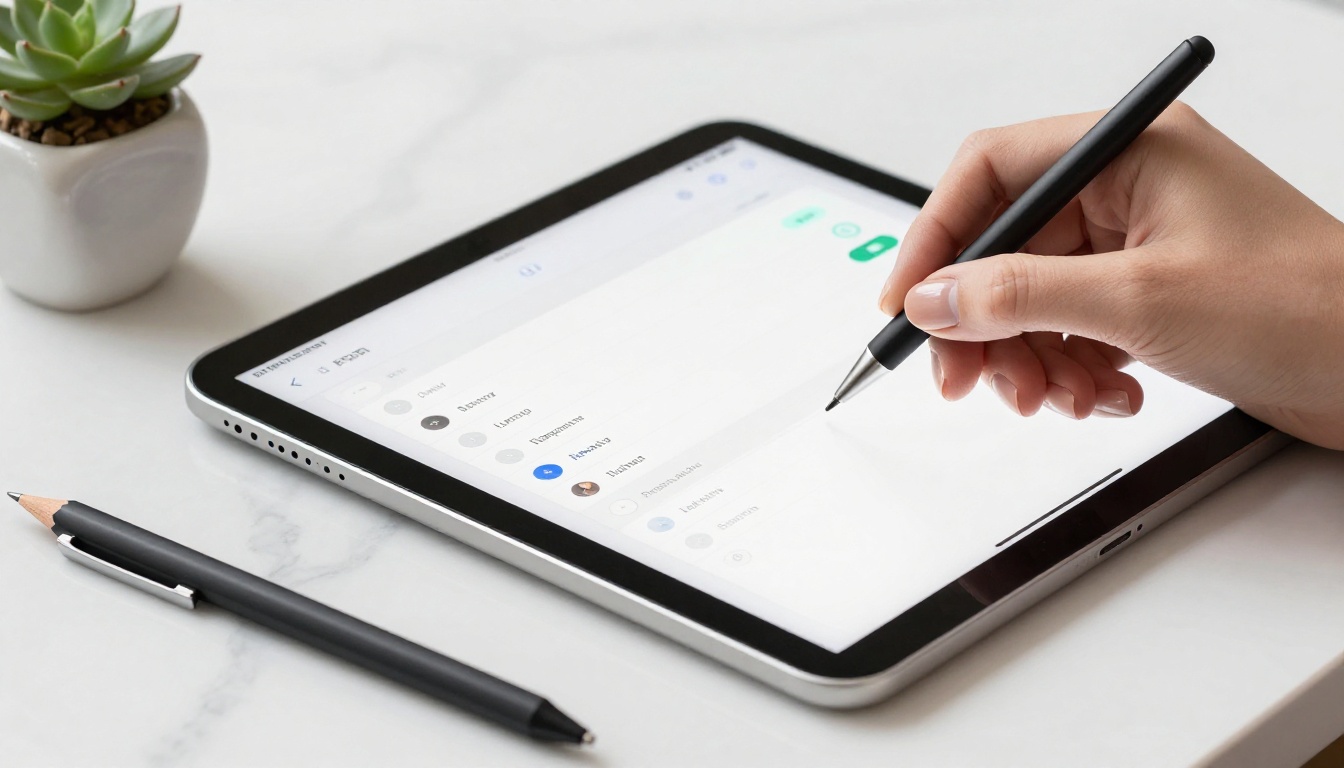
⚠️ Browsers like Chrome and Safari block autoplay with audio by default. Always enable the Muted toggle if you want autoplay to work reliably across all devices.
Step 5: Preview and Publish
Click Preview to see exactly how your video opening behaves before going live. Test it on mobile and desktop views. When you are satisfied, click Publish to generate your shareable link and embed code.
Your flipbook is now live with a dynamic video opening. Share the link directly, embed it on your website, or distribute it through your newsletter. The entire process takes under ten minutes.
Video Settings Breakdown
Understanding each setting helps you make smart decisions based on your specific audience and distribution channel.
Autoplay vs. Click-to-Play
Autoplay creates an instant, immersive experience. When someone opens your flipbook link, the video begins without any interaction. This works best for brand presentations, fashion catalogs, and event programs where the emotional hook is the whole point.
Click-to-Play puts the reader in control. This is better for educational content like training manuals or course material publishers where readers may be in a quiet environment or prefer to pace themselves.
Muted vs. Sound-On
Autoplay with audio is blocked by default in Chrome, Firefox, and Safari. This is a browser-level restriction designed to protect users from unexpected noise. The practical solution: always design your video opening to work without sound. Add captions, motion graphics, or simply let the visual story speak on its own.
💡 If sound is essential (for example, a product launch with a punchy audio brand), use Click-to-Play mode so readers consciously choose to unmute before hearing it.
Mobile Behavior
On mobile browsers, video autoplay behavior varies more than on desktop. Most modern iOS and Android devices support muted autoplay in MP4 format, but you should always test your specific video. Flipbooks AI flipbooks are mobile-responsive by design, meaning the video opening scales correctly across screen sizes without manual adjustment.
Best Practices for Video Openings
Choosing the Right Video Content
Not every video works as a flipbook opening. The most effective ones share a few traits:
- Slow motion or gentle camera movement: Fast cuts confuse rather than captivate
- High ambient light: Dark or underexposed footage appears flat on screens
- Clear subject: Visually cluttered scenes are hard to read at a glance
- Brand-consistent color grading: The video's tone should match your publication's palette
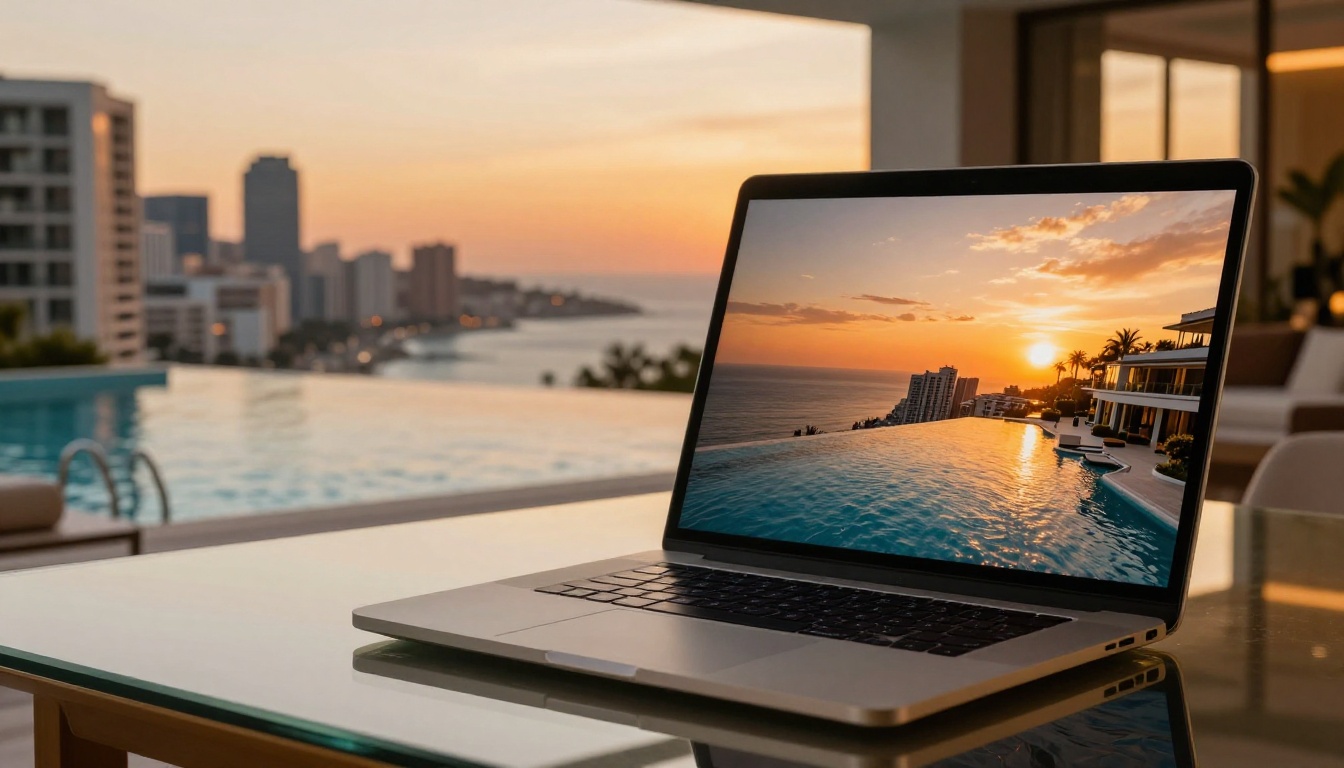
For a real estate brochure, an aerial slow pull-over-the-property shot works beautifully. Pair it with the Real Estate Brochure Creator to create a publication that sells the lifestyle before a single floor plan is visible.
Optimizing for Load Speed
A video that takes five seconds to buffer kills the impression you spent hours building. Here is how to keep load time fast:
- Compress your MP4 to under 10MB using HandBrake or a similar tool
- Use a CDN-hosted URL rather than a local upload when possible
- Set a poster image (a static fallback frame) so the opening is never blank during loading
- Keep video resolution at 1080p rather than 4K for web distribution
✅ Flipbooks AI automatically applies a poster frame from the first video frame if no custom thumbnail is set. This means readers always see a clean, sharp image even if the video is still buffering.
Use Cases Across Industries
Video openings are not a single-industry feature. Here is how different sectors are putting them to work.
Fashion and Retail Lookbooks
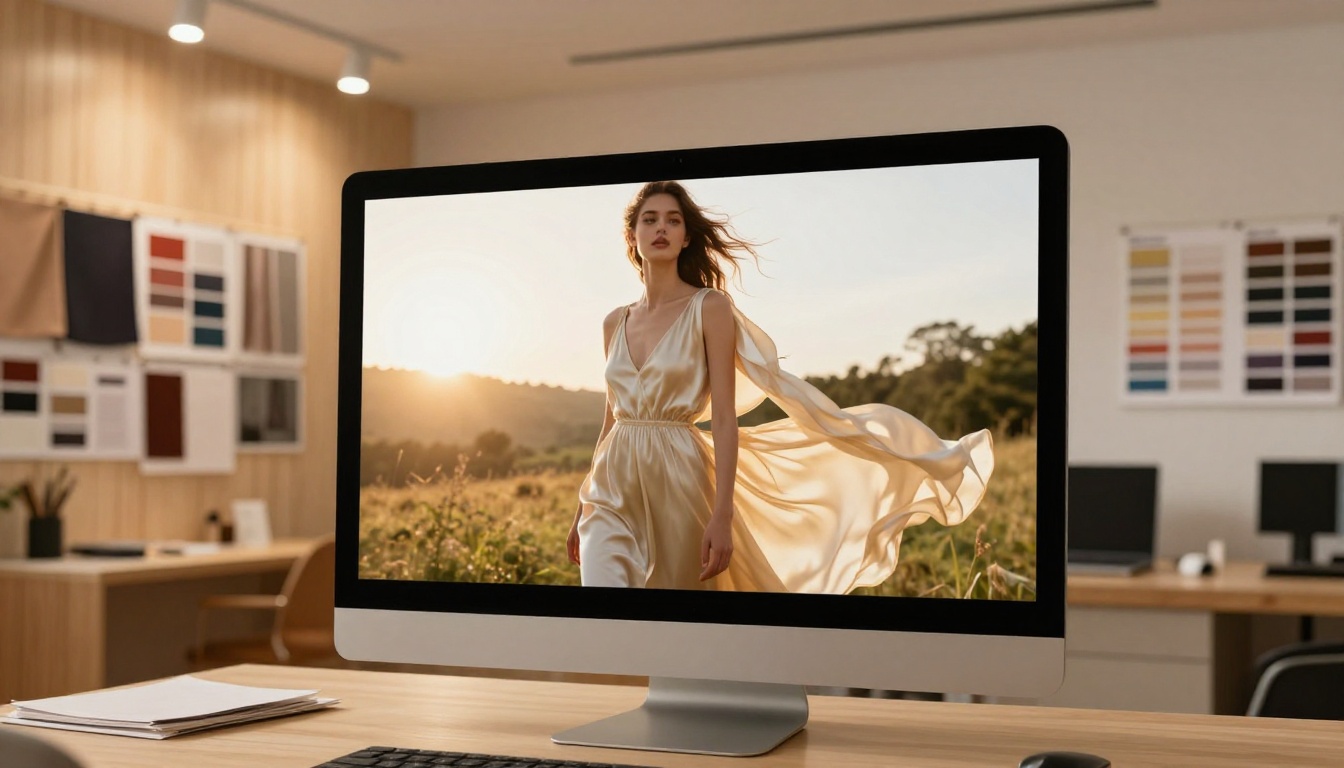
Fashion brands use video openings to show garments in motion: the drape of fabric, the movement of a dress, the texture of leather. An Interactive Lookbook Designer paired with a slow-motion video creates an editorial feel that no static image can replicate.
Real Estate Brochures
Drone footage of a property creates an immediate sense of scale and aspiration. A real estate agent sharing a brochure with a golden-hour flyover video immediately communicates "premium listing" before the reader has seen a single price or floor plan. The Real Estate Brochure Creator is built for exactly this kind of presentation.
Corporate Annual Reports
A subtle looping shot of a city skyline, a team collaborating, or an industrial process adds sophistication to what is traditionally a dry document. Pair a video opening with the Annual Report Creator and the result feels like a brand film rather than a quarterly summary.
Event Programs and Portfolios
Event organizers can use behind-the-scenes video loops as the opening for their Event Program Maker. Creative professionals can do the same with a Digital Portfolio Creator, showing their work in motion before the reader clicks to page two.
Common Mistakes to Avoid
Even with the right tool, video openings can go wrong. These are the most frequent errors and how to fix them.
| Mistake | What Happens | Fix |
|---|
| Using audio without click-to-play | Video silently fails autoplay on most browsers | Enable Muted or switch to Click-to-Play |
| Too-large video file | Opening loads slowly or not at all | Compress to under 10MB |
| Fast-cut or busy footage | Opening feels chaotic instead of premium | Use slow, deliberate camera movement |
| No poster image set | Page appears blank during buffering | Set a strong first frame as the poster |
| Wrong aspect ratio | Video appears cropped or letterboxed | Use 16:9 ratio, matching the page frame |
| Dark or low-contrast footage | Opening reads as flat on device screens | Use bright, high-contrast video sources |
Take Your Flipbook Further
Adding a video opening is a powerful start, but the full Flipbooks AI platform goes much further. Every plan includes no watermarks, mobile-responsive design, and custom branding. On the Standard plan and above, you get unlimited flipbooks. On the Professional plan, you unlock analytics, lead generation forms, password protection, and offline downloads.
The platform supports embedding videos and audio throughout the flipbook, not just on the opening page. Combined with a video front page, this creates a fully interactive reading experience that no static PDF reader can match. You can also embed your flipbook directly on your website using the Embed Flipbook on Website tool, giving visitors the full video experience without ever leaving your domain.
💡 The PDF to Flipbook Converter handles any existing PDF in seconds. If you have a backlog of static publications, converting them and adding video openings is one of the fastest ways to reactivate old content.
Whether you are creating a product catalog, a hotel brochure, a restaurant menu, or a photography portfolio, the video front page feature applies to every use case and takes less than ten minutes to set up.
Ready to add your first video opening? Create your flipbook on Flipbooks AI and see the difference it makes from the very first second. Compare what each plan includes on the pricing page or browse all flipbook tools and templates to find the right starting point for your next publication.



