The cover page of your flipbook does in two seconds what a full pitch can't do in two minutes. It either pulls people in or loses them forever. That's why knowing how to add a cover page to your flipbook, and doing it well, is one of the highest-leverage design decisions you will make for any digital publication. Whether you're building a product catalog, an interactive magazine, a real estate brochure, or a company portfolio, the cover sets the tone for everything inside. Flipbooks AI makes this process fast, flexible, and surprisingly powerful, with options from simple PDF upload to full in-editor branding customization.
Why the First Page Changes Everything
Most people skim. In digital publishing, you have roughly 1.5 seconds before a viewer decides to flip through your content or close the tab. Your cover is the only element working during that window. A strong flipbook cover page does three things at once:
- Signals quality: Poor design signals poor content. A polished cover says you take your work seriously.
- Communicates the topic instantly: No one should have to guess what your flipbook is about.
- Creates emotional pull: Great covers make you want to open them. They hint at something worth finding inside.
💡 Think of your cover page as a landing page in miniature. It should answer "what is this?" and "why should I care?" in a single glance.
What a Weak Cover Costs You
The consequences of a thin cover page aren't always obvious, but they're real. Here's how common issues map to real outcomes:
| Problem | Impact |
|---|
| Generic stock image | Looks unprofessional, no brand identity |
| Cluttered text | Confusing, viewer leaves immediately |
| Wrong dimensions | Crops poorly on mobile, looks broken |
| No branding elements | Missed opportunity to reinforce recognition |
| Low-resolution image | Blurry on retina screens, destroys credibility |
What the Best Covers Have in Common
Across every industry, the highest-performing flipbook covers share these traits:
- One dominant visual: A single strong hero image, not a collage
- Clear, legible title: 5-7 words maximum, high contrast against the background
- Consistent branding: Logo placement, brand colors, and typography that match your identity
- Emotional resonance: The image makes you feel something before you read anything
- White space: Room to breathe makes designs feel premium and intentional
Before touching an editor, you need to make a few foundational decisions. These upfront choices determine everything downstream.

Choosing the Right Dimensions
Flipbook covers render inside a page-turn viewer. The dimensions you choose affect how the cover looks both as a standalone image and when embedded in the flipbook frame.
| Format | Recommended Dimensions | Best For |
|---|
| Standard Magazine | 210 x 297mm (A4 Portrait) | Brochures, catalogs, reports |
| Square | 210 x 210mm | Portfolios, lookbooks |
| Landscape | 297 x 210mm | Presentations, menus |
| Custom | As specified | Brand-specific requirements |
⚠️ If you're uploading a PDF with a cover already designed, make sure the first page of your PDF IS your intended cover. Flipbook converters use the first page automatically.
Typography That Works on Covers
Typography on covers requires different thinking than body text. A few firm principles:
- Title font: Bold, geometric, or serif. Avoid script fonts at small sizes.
- Subtitle or tagline: Set at 30-40% of the title size to create clear hierarchy.
- Contrast ratio: Minimum 4.5:1 between text and background for legibility on all screens.
- Font count: Maximum 2 font families. Three creates visual noise.
Color Psychology in Cover Design
The colors you choose communicate before the text does. Choosing intentionally matters more than choosing beautifully.
| Color | What It Communicates | Best Industries |
|---|
| Deep blue | Trust, authority, stability | Finance, corporate, tech |
| Warm red or orange | Energy, urgency, passion | Food, retail, events |
| Forest green | Health, growth, sustainability | Wellness, eco, food |
| Black or charcoal | Luxury, sophistication | Fashion, premium brands |
| White or cream | Minimalism, clarity | Architecture, design, lifestyle |
How to Add a Cover Page with Flipbooks AI
Now the practical part. Flipbooks AI gives you two paths to adding a cover page: uploading a PDF with your cover already built in, or customizing directly within the platform editor.
Step 1: Prepare Your PDF
Your cover page lives on page 1 of your PDF. Before uploading, work through this checklist:
- Open your design in Canva, Adobe InDesign, Figma, or any design tool you prefer.
- Design page 1 as your cover with full bleed and high resolution (300 DPI minimum).
- Export as PDF with embedded fonts and high-quality image compression.
- Verify the file opens correctly and page 1 shows your intended cover.
- Confirm the file size is under 100MB for smooth uploading.
✅ Export your PDF at 300 DPI for print quality, but compress images to keep the file under 50MB for fast browser loading.
Step 2: Upload to Flipbooks AI
- Go to Flipbooks AI and sign in or create a free account.
- Click "New Flipbook" from your dashboard.
- Drag and drop your PDF into the upload area, or click to browse your files.
- Wait for the conversion process, typically 30-60 seconds depending on file size.
- Your flipbook will auto-generate with your PDF's first page as the cover.
Step 3: Customize the Cover in the Editor
After upload, the editor lets you refine the cover presentation in detail:
- Click on your flipbook to open the editor.
- Select "Cover Settings" from the left panel.
- Available options include:
- Cover image override: Upload a separate, higher-resolution image specifically for the thumbnail display.
- Title overlay: Add or edit the title text that appears on the cover.
- Background color: Set a background color that shows around the cover image in the viewer.
- Logo placement: Upload your brand logo and position it precisely on the cover.
Step 4: Set Your Branding
This is where good flipbooks become great ones. Consistent branding across every element builds authority:
- Navigate to "Branding" settings within the editor.
- Upload your logo in SVG or PNG format with a transparent background.
- Set your primary brand color, which affects buttons, highlights, and UI elements surrounding the flipbook.
- Choose your flipbook background to control what shows behind the page spread.
- Select font preferences for any text elements within the viewer interface.
💡 Use your brand's exact hex color codes, not approximate selections. Consistency between your flipbook and your website builds subconscious trust with readers over repeated exposure.
Step 5: Preview and Publish
- Click "Preview" to see the full flipbook experience as your audience sees it.
- Check the cover on both desktop and mobile views specifically.
- If anything looks off, return to editing and adjust.
- Once satisfied, click "Publish".
- Copy your shareable link or grab the embed code for your website.
Cover Strategies for Different Flipbook Types
Not all flipbooks serve the same purpose. Cover strategy shifts meaningfully by use case, and what works for a fashion lookbook will not work for a corporate annual report.

Product Catalogs
For a product catalog or digital catalog, the cover should lead with aspiration:
- Feature your best-selling or most visually striking product in a lifestyle context.
- Include the catalog period or edition (e.g., "Spring 2025 Collection").
- Keep branding strong but not overwhelming relative to the product.
- Favor lifestyle imagery over plain product shots whenever possible.
Restaurant Menus
A restaurant menu flipbook cover should convey the dining experience before a single dish is mentioned:
- Warm, appetizing photography outperforms typography-led designs every time.
- The restaurant name paired with a single evocative image is all you need.
- Avoid listing items or prices on the cover. Save that for inside pages.
Brochures and Reports
For real estate brochures or corporate annual reports, the cover signals authority:
- Use professional photography representing the brand, property, or product line.
- Establish clear title hierarchy: company name, document type, year.
- Use a conservative color palette that signals reliability and institutional confidence.
Portfolios and Lookbooks
A digital portfolio or interactive lookbook needs to stop scrollers with pure visual impact:
- Bold, artistic imagery that immediately communicates your creative style.
- Minimal text. Let the visual do the work on a portfolio.
- High-contrast, full-bleed photography that fills the entire frame without cropping issues.
Mobile-First Thinking for Cover Pages
More than 60% of flipbook views now happen on mobile devices. A cover that looks stunning on desktop can fall apart on a phone, and you won't know unless you test it.
What Changes on Mobile
- Text size: Anything below 18pt in your PDF will be nearly unreadable on small screens.
- Safe zone: Keep important elements (logos, titles) within the center 70% of the cover. Edges get cropped on narrow screens.
- Image complexity: Intricate detailed images lose impact at small sizes. Bold, simple compositions perform better.
- Loading speed: Large cover images slow the initial load. Compress without sacrificing visible quality.
⚠️ Test your cover at 375px wide (standard mobile width) before publishing. What looks fine on a 27-inch monitor can be completely illegible on a phone screen.
Testing Across Devices
Flipbooks AI includes a built-in responsive preview. Here's how to use it effectively:
- After designing, open the "Preview" mode in the editor.
- Toggle between desktop, tablet, and mobile views using the device selector.
- Confirm your title is readable at all sizes without zooming in.
- Verify your logo does not get cut off on narrow screens.
- Check that the cover image crops attractively on mobile's taller aspect ratio.
Mistakes That Ruin Otherwise Good Flipbooks
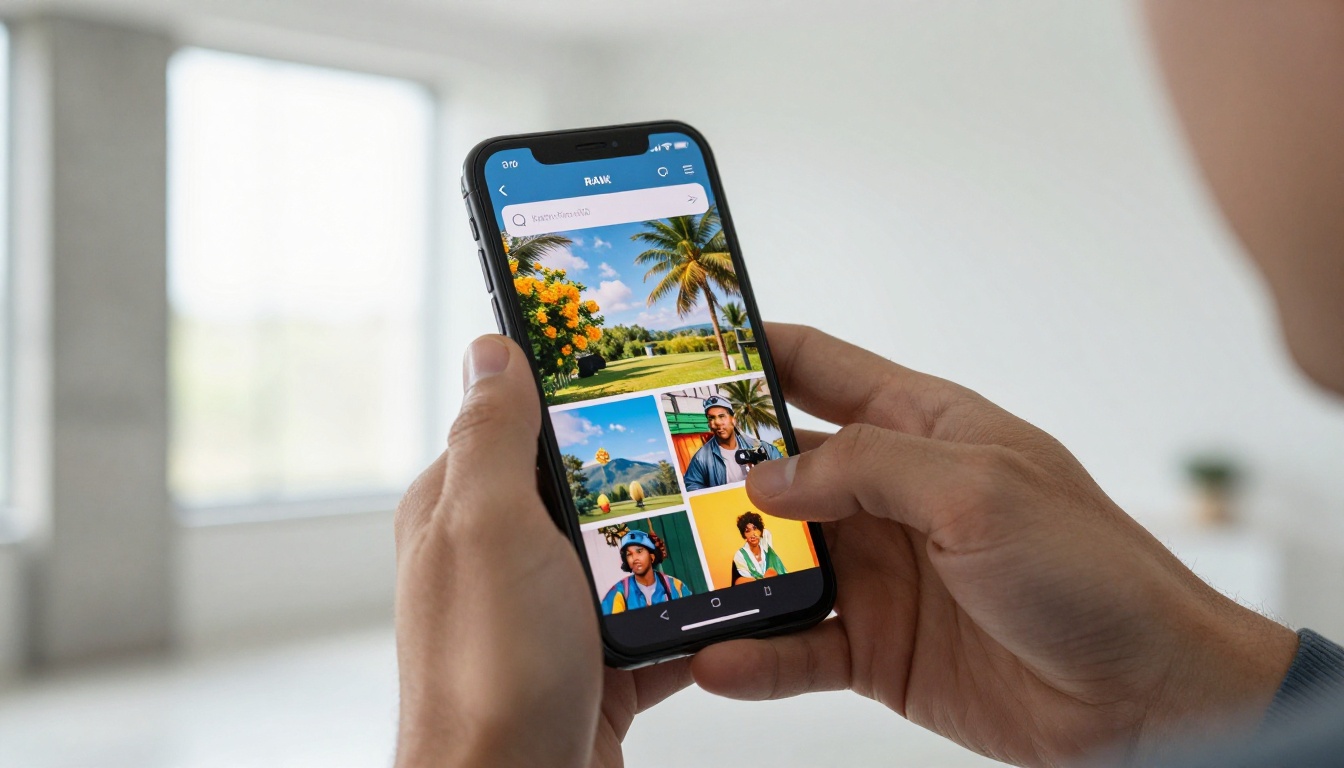
These errors show up repeatedly in poorly performing flipbooks. Knowing them in advance saves time and avoids embarrassment with clients or readers.
Using the wrong file as page 1: If your PDF starts with a table of contents or an intro page, that becomes your cover. Always verify your PDF page order before uploading.
Low-resolution cover image: A blurry cover on a retina display signals amateur work immediately. Use minimum 300 DPI for print, 150 DPI at full display size for web-only publications.
Too much text on the cover: Your cover is not a summary. It's an invitation. One title, one optional subtitle, one logo. That's it.
Ignoring brand consistency: Your flipbook cover should match your website, social media, and other brand materials. Inconsistency makes brands look fragmented and untrustworthy.
Forgetting to update covers on recurring publications: If you publish a quarterly catalog, update the cover for each edition. Readers notice when the cover doesn't change. It signals stale content without anyone having to say it.
Not designing for social sharing: When you share a flipbook link online, the cover image becomes the preview thumbnail on LinkedIn, email clients, and messaging apps. Design it with that social context in mind.
Sharing Options After Your Cover Is Set
Once your cover page is polished and published, getting it in front of readers requires the right distribution approach. Flipbooks AI provides several publishing options for different contexts.

Distribution Methods at a Glance
| Method | Best For | Notes |
|---|
| Direct link | Email campaigns, social media | Share anywhere as a URL |
| Embed code | Website integration | Paste HTML snippet into your site |
| Password protection | Private content, internal docs | Available on Standard plan and above |
| QR code | Print materials, events | Links directly to your live flipbook |
| Social share | Quick distribution | One-click sharing to major platforms |
✅ Design your cover with social sharing in mind. The cover appears as a preview card roughly 1200x628px on most platforms. Make sure your title is readable even at smaller preview sizes.
Analytics to Measure Cover Performance
With the Flipbooks AI Professional plan, you get analytics showing exactly how readers interact with your flipbook:
- How many people opened your flipbook after seeing the cover
- Where readers drop off, which tells you if your cover promise matched the content
- Time spent per page across all viewers
- Lead capture data from embedded forms
If your analytics show low open rates despite high distribution, your cover page is the bottleneck. Return to the design principles and refine the visual or the title.
Plan Comparison for Different Publishing Needs
Choosing the right plan affects what you can do with your cover and the full flipbook experience.
| Feature | Free | Standard | Professional |
|---|
| PDF to flipbook conversion | ✅ | ✅ | ✅ |
| Custom branding | Limited | ✅ | ✅ |
| No watermarks | ❌ | ✅ | ✅ |
| Unlimited flipbooks | ❌ | ✅ | ✅ |
| Password protection | ❌ | ✅ | ✅ |
| Analytics and lead gen | ❌ | ❌ | ✅ |
| Offline downloads | ❌ | ❌ | ✅ |
| Priority support | ❌ | ❌ | ✅ |
💡 If you're creating flipbooks for client delivery or as part of a marketing funnel, the Professional plan's analytics let you prove ROI with real numbers. That data is essential for agency work and internal stakeholder reporting.
Building a Repeatable Cover System
If you publish multiple flipbooks regularly, an ad-hoc approach to covers quickly creates visual inconsistency. Building a system upfront saves hours across the year.
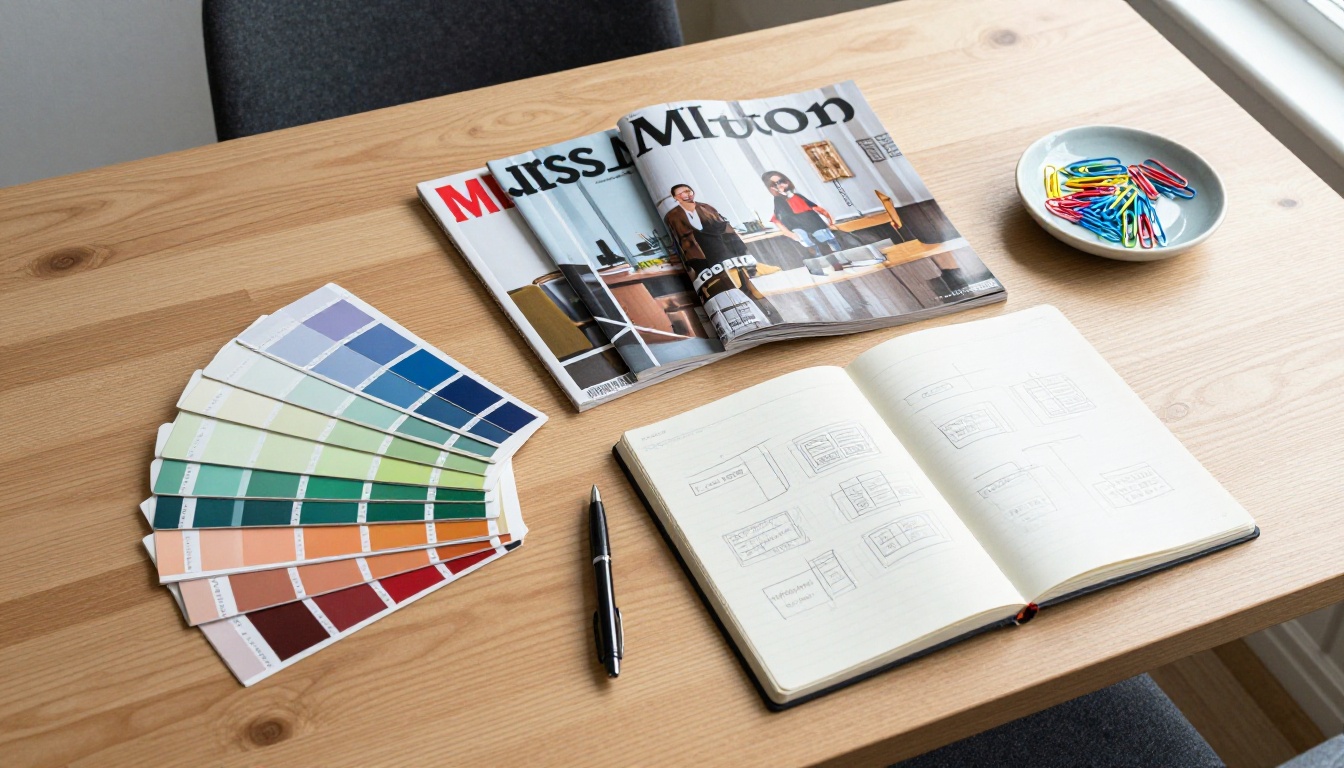
Creating a Cover Template
- Build a master cover template in your design tool of choice: Canva, InDesign, or Figma all work well.
- Establish fixed zones: logo area (top-left, fixed size), title area (center, fixed font), tagline zone (below title, optional).
- Define your hero image zone, the area that changes per edition while everything else stays constant.
- Export as a reusable template file your entire team can access from a shared folder.
- Document the rules in a one-page brief: approved fonts, exact hex color codes, logo minimum sizes, image guidelines.
Naming and Version Control
- Name your cover files systematically:
brand-catalog-spring2025-cover-v1.pdf
- Keep a folder of all past covers for reference, archiving, and year-over-year comparison
- Date your flipbook titles clearly so returning readers immediately know it's new content
Batch Creation for Multiple Publication Types
Flipbooks AI supports multiple publication types under one account. If your brand creates both a product catalog and a quarterly newsletter, both can share the same branding system while having distinct cover personalities suited to each format.
For catalogs: Catalog Flipbook Creator
For newsletters: Newsletter Flipbook Publisher
For presentations: Presentation Flipbook Designer
For e-books and magazines: E-Book Flipbook Generator and Magazine Flipbook Creator
What Separates Forgettable from Unforgettable
The difference between a flipbook that gets opened once and one that gets shared repeatedly almost always comes back to the cover. It's the handshake before the conversation. The window display before the door. Every minute you invest in getting it right pays back in higher open rates, longer read times, and stronger brand recall.
Your cover page is not a formality. It's the difference between a flipbook that gets read and one that gets skipped. Invest the time to design it with intention, test it across devices, and keep it consistent with your brand identity across every publication you produce.
Ready to put these ideas to work? Create your first flipbook for free on Flipbooks AI and see how fast you can go from PDF to polished, professional digital publication. Or compare pricing plans to find the right fit for your publishing volume and team size.
Browse all flipbook tools and templates to find the perfect starting point for your next publication.



