Static PDFs are the digital equivalent of a waiting room brochure. People scroll through them once, close the tab, and forget they existed. But when you add page-turning effects to a PDF, something changes. The document stops feeling like a chore and starts feeling like an experience. With Flipbooks AI, converting any PDF into a realistic, interactive flipbook takes minutes, not hours, and the results look like something a design agency charged thousands to produce.
What a Page-Turning Effect Actually Does
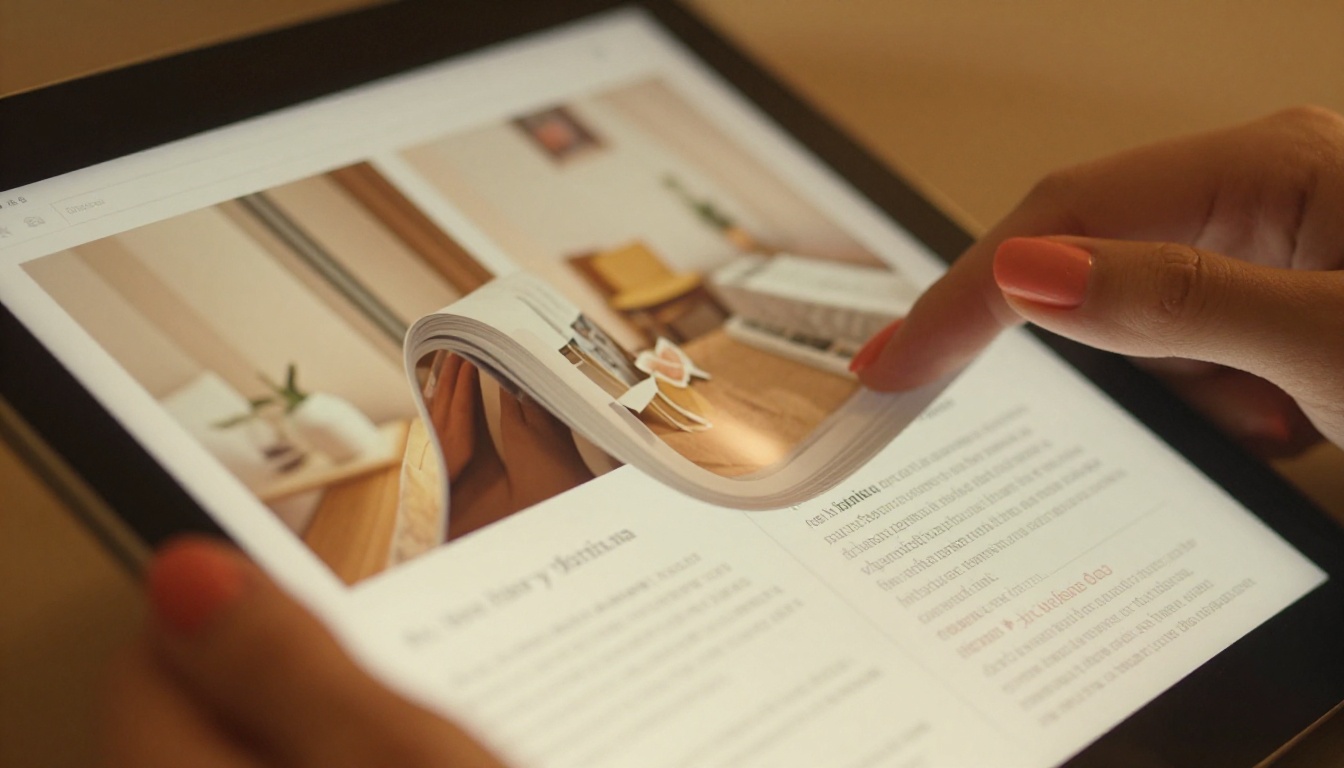
A page-turning effect, sometimes called a page flip or page curl animation, simulates the physical act of turning a printed page in a digital environment. The page appears to physically peel away from the binding, revealing the content beneath with a realistic shadow and depth effect.
This is more than a visual gimmick. It fundamentally changes how readers interact with your document.
Beyond the Scroll
Standard PDFs are linear. You scroll down, you scroll up. The interface feels the same whether you are reading a user manual or a luxury fashion catalog. A page-turning effect introduces spatial awareness to a document. Readers intuitively understand they are moving through a book, not scrolling through a webpage. They slow down. They engage.
The Psychology Behind the Flip
Decades of reading print media have trained people to process information differently when it is presented as pages rather than continuous content. Studies on digital reading behavior consistently show that people spend more time on page-based layouts. The physical metaphor of turning a page creates a natural reading rhythm and signals that each spread is a distinct, curated unit of content.
For businesses, this translates directly into more time on page, lower bounce rates, and higher content retention.

Who Actually Needs This
The short answer is: anyone who sends or publishes PDFs. But there are some sectors where the impact is particularly dramatic.
Real Estate and Property Marketing
A static PDF brochure with property listings is immediately forgettable. The same content presented as an interactive flipbook with a page-turn effect feels like a premium property magazine. Agents using Flipbooks AI for their real estate brochures report that clients spend significantly longer reviewing listings and return to share them with partners.
Retailers and Product Catalogs
Digital catalogs with page-turning effects mimic the tactile experience of flipping through a physical catalog. For furniture retailers, fashion brands, and specialty stores, this matters. A well-designed product catalog that actually flips pages keeps shoppers engaged far longer than a flat PDF download. The Fashion Catalog Creator is purpose-built for brands in this space.
Publishers and Digital Magazines
For anyone producing magazines, newsletters, or e-books, page-turning effects are essentially mandatory. The format is so tied to the physical reading experience that a flat PDF version of a magazine simply feels wrong. An e-magazine publishing tool that delivers realistic page flips makes the content feel legitimate and professional.
Restaurants and Hospitality
A restaurant menu that flips like a real menu is a small detail that adds up to a significantly better brand impression. The Restaurant Menu Creator on Flipbooks AI is built specifically for hospitality brands that want a memorable digital menu experience.

Static PDF vs. Interactive Flipbook
Before getting into the how-to, it helps to see the difference laid out clearly.
| Feature | Static PDF | Interactive Flipbook |
|---|
| Page navigation | Scroll or jump by page number | Click or drag page corners to flip |
| Visual effect | Flat, 2D layout | 3D page-curl animation with shadow |
| Engagement | Passive reading | Active, tactile interaction |
| Mobile experience | Pinch-to-zoom required | Responsive, swipe-to-flip |
| Embedding | Download link only | Full embed via iframe or direct link |
| Branding | Generic PDF chrome | Custom logo, colors, background |
| Analytics | None | Page views, time on page, click tracking |
| Password protection | Not available without extra software | Built-in, per-document control |
| Video and audio | Not supported | Fully supported |
| Download option | Always visible | Optional, controlled by publisher |
The difference is not subtle. A flipbook is a fundamentally better reading product for any document meant to impress.
How to Add Page-Turning Effects to Any PDF with Flipbooks AI
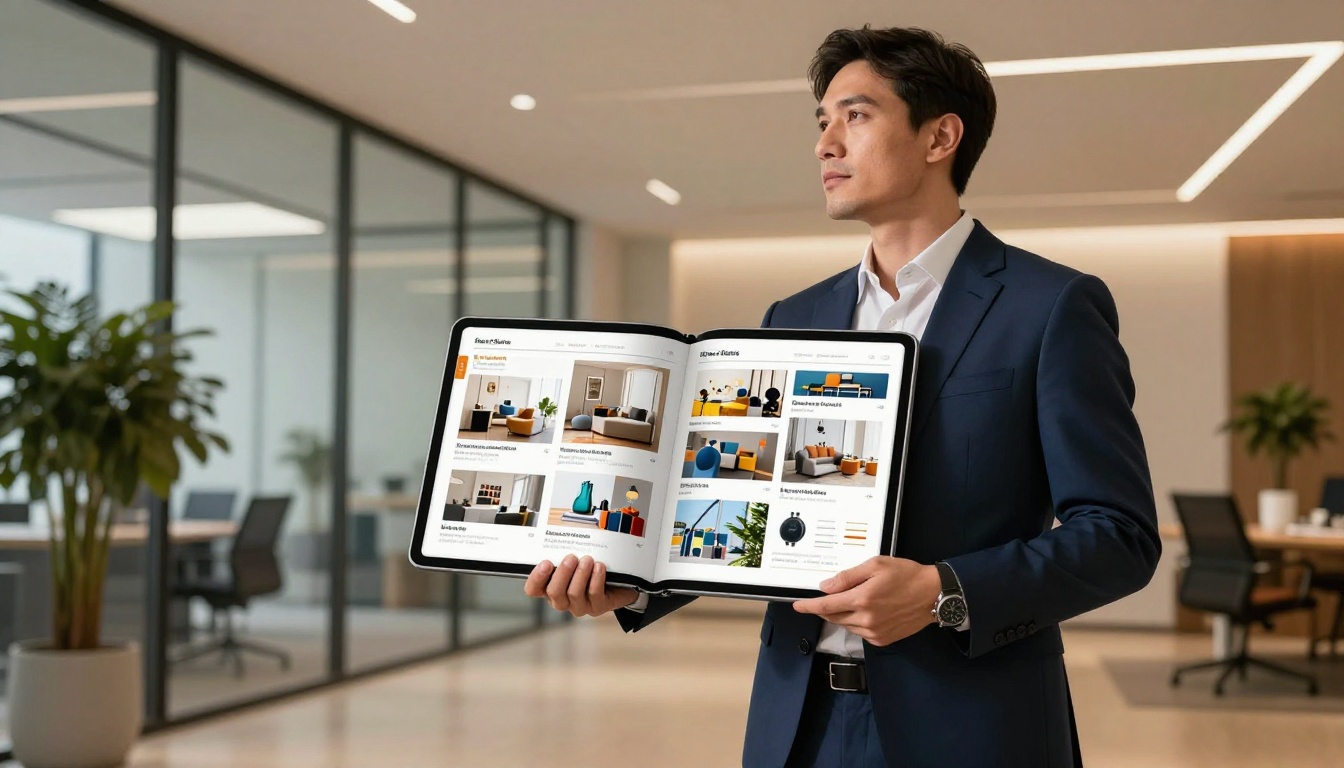
Flipbooks AI is built around one core workflow: take any PDF, convert it into an interactive flipbook with a realistic page-turning effect, and publish it in minutes. Here is exactly how it works.
Step 1: Create Your Account
Go to flipbooksai.com/account and sign up. The free plan lets you get started immediately with no credit card required. Once you are in your dashboard, you will see the option to create a new flipbook right from the home screen.
Step 2: Upload Your PDF
Click New Flipbook and drag your PDF file into the upload area, or browse your files to select it. Flipbooks AI accepts any standard PDF, regardless of file complexity. Multi-page documents, high-resolution images, complex layouts with multiple fonts and graphics, all convert cleanly.
💡 Pro tip: Higher-resolution PDFs produce sharper flipbook pages. Export your source document at 300 DPI or higher before uploading for the best visual results.
The conversion process is fast. Most documents are ready in under 30 seconds. Once processed, you can preview your flipbook immediately, clicking through pages to see the page-turn animation in action before publishing.
Step 3: Customize the Flip Effect
This is where Flipbooks AI separates itself from basic PDF converters. After uploading, you get access to a full customization panel with detailed control over the flip experience.
Page effect settings include:
- Page curl animation style (hard or soft page turn)
- Animation speed control
- Page-turning sound effect (on/off)
- Background color or texture behind the open book
- Book shadow intensity and depth
Branding options:
- Upload your logo and set its position
- Set your brand color for the toolbar and interface
- Add a custom favicon for the browser tab
- Configure the browser tab title and share metadata
Multimedia additions:
- Embed YouTube or Vimeo videos directly into specific pages
- Add audio tracks that play on specific page views
- Insert clickable hyperlinks throughout page content
⚠️ Important: Custom branding including logo removal and watermark-free publishing is available on the Standard plan and above. If you are presenting to clients or sharing with customers, upgrade before sending the link.
Step 4: Publish and Share
Once your customization is set, click Publish. Your flipbook is now live at a unique URL. Flipbooks AI gives you several sharing options immediately after publishing:
- Direct link: Share the flipbook URL anywhere, email, social media, WhatsApp, or a bio link.
- Embed code: Copy the iframe snippet and paste it directly into your website. The Embed Flipbook on Website tool generates the exact code you need.
- Password protection: Lock the flipbook with a custom password for internal documents, client-only access, or premium content.
- Offline download: Allow viewers to save an offline version for access without internet.
✅ Best practice: For sales materials and marketing content, always use the direct link or embed option rather than sending PDF attachments. Links load faster, look better on mobile, and give you analytics data that attachments never can.

Flipbooks AI Plans at a Glance
Flipbooks AI offers plans to fit different volumes and use cases. Here is how they compare on the features most relevant to page-turning effects and professional publishing.
| Feature | Free | Standard | Professional |
|---|
| Flipbooks | 3 | Unlimited | Unlimited |
| Watermark | Yes | No | No |
| Custom branding | No | Yes | Yes |
| Password protection | No | Yes | Yes |
| Embed on websites | Yes | Yes | Yes |
| Video and audio embed | No | Yes | Yes |
| Analytics and tracking | No | No | Yes |
| Lead generation forms | No | No | Yes |
| Offline downloads | No | Yes | Yes |
| Priority support | No | No | Yes |
For individuals and small businesses publishing occasional documents, the Standard plan is the sweet spot, offering unlimited flipbooks, no watermarks, and full branding control. For marketing teams, publishers, and anyone who needs viewer analytics or lead capture, the Professional plan pays for itself quickly. See full details on the pricing page.
What to Do with Your Flipbook Once It's Live
Publishing the flipbook is the beginning, not the end. Here is how to put your page-turning PDF to work across different channels.
Embedding on Your Website
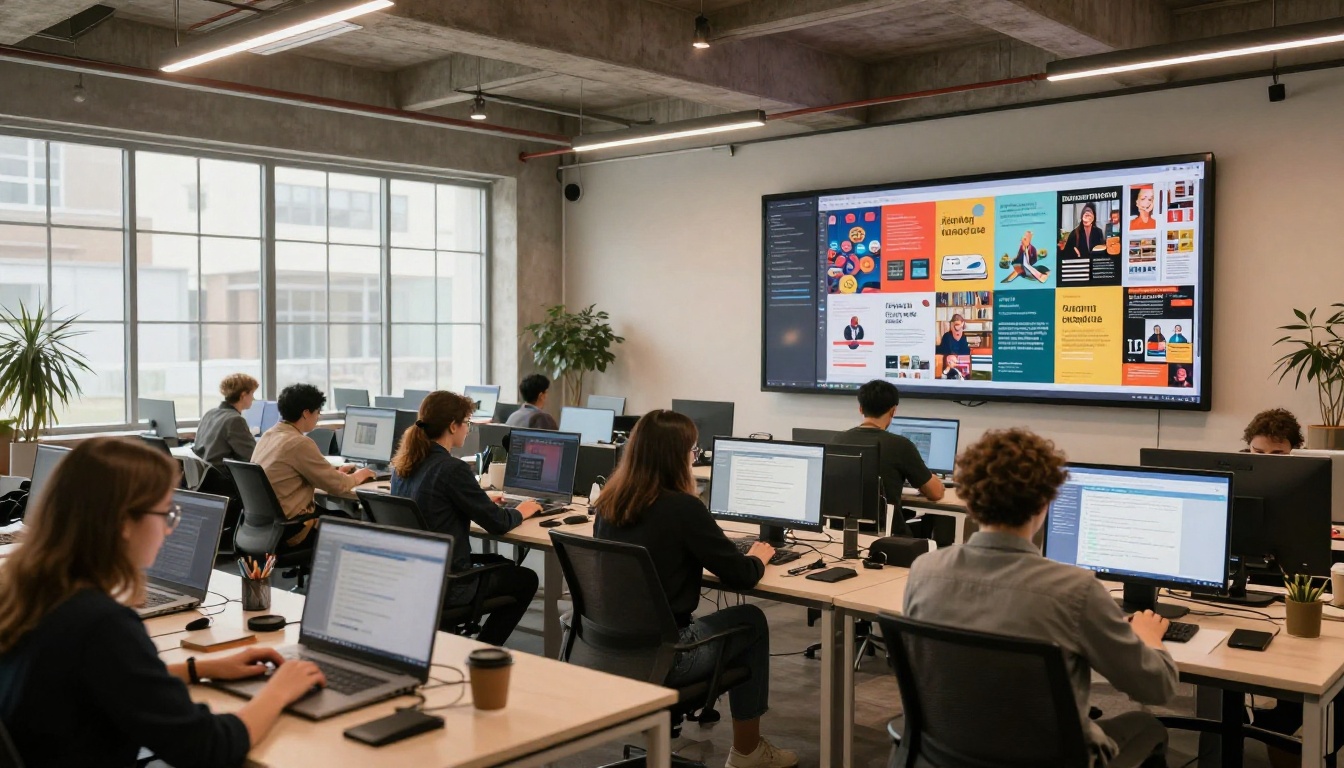
The embed code from Flipbooks AI drops a fully interactive flipbook directly onto any webpage. Visitors do not need to download anything or open a new tab. They can flip through your catalog, brochure, or magazine right on the page without friction.
For e-commerce sites, embedding a digital catalog maker flipbook on a category page consistently increases time on site and reduces bounce rates. For service businesses, embedding a capabilities brochure on the services page gives prospects a more immersive way to review your offering before reaching out.
Sharing via Direct Link
The direct link URL works everywhere a link can be placed. Practical uses include:
- Email campaigns (flipbooks outperform PDF attachments in click-through rate)
- Social media profiles (add to Instagram bio or LinkedIn featured section)
- WhatsApp and Slack for client sharing
- QR codes printed on physical materials for print-to-digital campaigns
Password-Protected Access
For confidential documents, board presentations, client proposals, or premium publications, password protection keeps content private without complex infrastructure. You set the password, share it with authorized viewers, and the flipbook remains locked for everyone else.
💡 Pro tip: Password-protected flipbooks work particularly well for pricing documents and proposals. Instead of emailing a PDF that can be forwarded freely, you control access at the link level and can update or revoke it at any time.

Use Cases by Industry
Flipbooks with page-turning effects are not a niche tool. The format works across virtually every sector that produces documents people are meant to read, not just reference.
| Industry | Document Type | Recommended Tool |
|---|
| Real estate | Property brochures, listing catalogs | Real Estate Brochure Creator |
| Retail and fashion | Product catalogs, lookbooks | Fashion Catalog Creator |
| Hospitality | Restaurant menus, hotel brochures | Restaurant Menu Creator |
| Publishing | Magazines, newsletters, e-books | E-Magazine Publishing Tool |
| Corporate | Annual reports, press kits, sales decks | Annual Report Creator |
| Education | Course materials, school newsletters | Course Material Publisher |
| Creative | Portfolios, wedding albums, lookbooks | Digital Portfolio Creator |
| Events | Event programs, invitations | Event Program Maker |
5 Things That Make a Page-Turn Effect Look Professional
Not all flipbooks are created equal. The page-turn effect itself is only one element. These five things separate polished digital publications from ones that undermine the brand they were meant to represent.
1. High-resolution source PDF
The flipbook is only as sharp as the PDF you upload. Always export at 300 DPI minimum. Blurry pages undermine the premium feel that a page-turn effect creates. If your source file is a scanned document, run it through an upscaling tool first.
2. Consistent layout design
Page-turning effects draw attention to your content. If the layout is inconsistent or the typography is weak, the flip animation makes it more obvious, not less. Invest in a clean, consistent design before converting and the result will look genuinely impressive.
3. Proper aspect ratio
Portrait orientation (A4 or US Letter) works best for most document types and creates the most convincing open-book spread effect. Landscape formats work well for presentations and wide-format publications like travel guides or automotive brochures.
4. Minimal toolbar branding
A flipbook with a heavy watermark or default toolbar branding looks like a free tool demonstration. On Standard and Professional plans, customize or remove the toolbar to let your content take center stage and signal professionalism to every reader.
5. Relevant multimedia on key pages
The ability to embed video and audio into specific pages is one of the most underused features in digital publishing. A real estate brochure with a property video walkthrough on the listing page. A fashion catalog with a runway clip on the seasonal collection spread. These additions are simple to implement and dramatically increase the time readers spend in your publication.
Common Mistakes to Avoid
Converting a PDF to a flipbook is simple. But a few recurring mistakes consistently produce results that fall short of the format's potential.
- Uploading low-quality compressed PDFs: Compression artifacts are magnified in the flipbook format. Always use the highest quality export from your source application before uploading.
- Skipping the mobile preview: Always preview your flipbook on a mobile device before publishing. Most readers will view it on their phone. Swipe behavior on mobile is different from click behavior on desktop, and layouts that look great on a large screen can feel cramped on a small one.
- Ignoring the background setting: The background behind the open book defaults to white or light grey. Choosing a subtle texture or a color that matches your brand palette makes a significant difference in the overall sense of polish.
- Forgetting title and metadata: The browser tab title, share card preview image, and flipbook name are all configurable. Leaving them as defaults is a missed opportunity to reinforce professionalism every time someone shares your link.
- Not testing the embed code: If you are embedding the flipbook on a website, test it across browsers and screen sizes. Chrome, Safari, Firefox, and Edge can render iframes slightly differently, and catching issues before going live saves embarrassment.
The Document Types That Gain the Most
Not every PDF benefits equally from page-turning effects. The formats that gain the most from the conversion are those where the reading experience itself matters, not just the information being conveyed.
High-gain document types:
- Fashion and lifestyle magazines
- Product and retail catalogs
- Real estate property brochures
- Hotel and travel guide publications
- Wedding and event albums
- Artist and photography portfolios
- Corporate annual reports
- Restaurant and spa menus
- Interactive e-books and course materials
Lower-gain document types:
- Technical reference manuals (people search and reference, they do not read cover to cover)
- Legal contracts (navigation clarity matters more than experience)
- Internal operational process documents
For anything in the high-gain category, the question is not whether to add page-turning effects. It is simply when.
Start Turning Pages Today
Flat PDFs had their time. Interactive flipbooks with realistic page-turning effects are what readers expect from brands that take presentation seriously. The technology is no longer complex or expensive. A few clicks on Flipbooks AI and your next document could be flipping in minutes.
Browse all available tools and templates to find the right fit for your document type. Whether you are publishing a product catalog, a property brochure, a corporate annual report, or a lifestyle magazine, there is a specific tool built for exactly that use case.
Compare pricing plans to see which tier fits your publishing volume and feature requirements. The Standard plan covers most businesses with unlimited flipbooks, no watermarks, and full branding control. The Professional plan is built for teams that need analytics, lead capture, and priority support.
Your PDFs deserve better than a scroll bar. Give them a page to turn.



