QR codes have gone from novelty to necessity. If your flipbook doesn't have one yet, you're leaving real traffic on the table. Whether you're printing brochures, handing out event programs, or posting flyers, a well-placed QR code is the fastest bridge between your physical materials and your digital flipbook.
This article walks you through exactly how to add a QR code to your flipbook, where to place it for maximum scans, and how to customize it so it actually matches your brand. Flipbooks AI makes this process straightforward, and the payoff is immediate: anyone who holds a phone near your printed piece can access your full interactive flipbook in seconds.
Why QR Codes and Flipbooks Work So Well Together
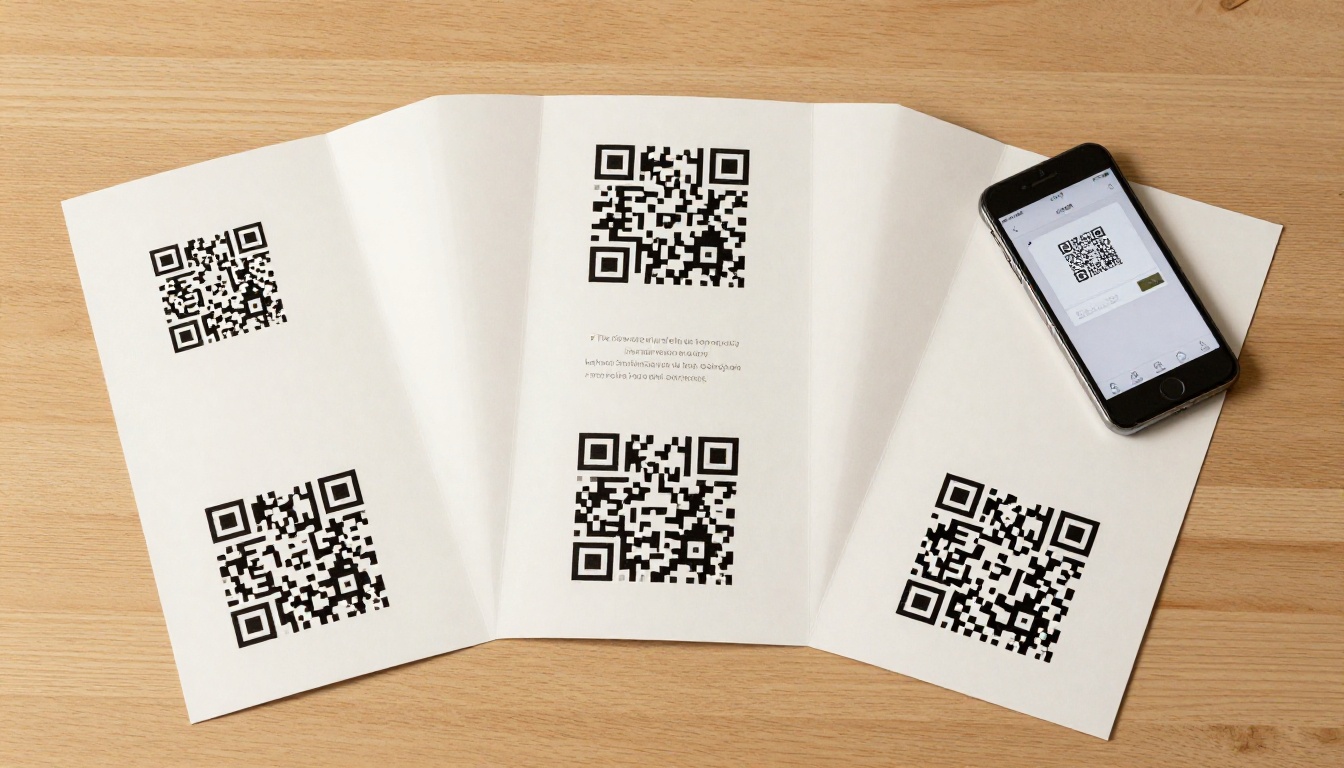
Print is still everywhere. Business cards, menus, catalogs, brochures, event programs, trade show banners, all of them end up in someone's hands every day. The problem is that print is static. You can't update a printed brochure after it's already been distributed.
A QR code solves this. It links the physical piece to a living digital document that you can update anytime. Your flipbook can include video, audio, embedded links, interactive forms, and content that evolves even after the print run is done.
💡 A QR code pointing to your flipbook lets your print materials stay relevant long after they leave your hands.
Here's what makes this combination particularly powerful:
- Instant access: Viewers scan and read without typing a URL
- Trackable: You can see exactly how many times the code was scanned
- Updatable: Change your flipbook content without reprinting anything
- Shareable: One scan leads to a shareable link your reader can forward to others
Flipbooks AI Sharing Options at a Glance
| Sharing Method | Best For | Setup Time |
|---|
| Direct link | Email, social media, messaging apps | Instant |
| QR code | Print materials, physical spaces | Under 5 minutes |
| Embed code | Websites, landing pages | Under 10 minutes |
| Password protected | Internal documents, VIP content | Under 2 minutes |
What You Need Before You Start
Before generating your QR code, you need a published flipbook with a shareable link. If you haven't created one yet, head over to Flipbooks AI and upload your PDF. The platform converts it into a fully interactive flipbook in minutes, with no watermarks and mobile-responsive design included on every plan.
Once your flipbook is live, you'll have a direct link. That's the URL you'll encode into your QR code.
⚠️ Make sure your flipbook is set to public (or password-protected with credentials provided separately) before generating the QR code. A QR code pointing to a locked flipbook will frustrate users and kill your scan rate.
How to Get Your Flipbook's Shareable URL

- Log in to your Flipbooks AI account
- Open the flipbook you want to share
- Click the Share button in the flipbook editor or dashboard
- Copy the direct link
- Test the link in a browser to confirm it loads correctly on both desktop and mobile
That link is what goes into your QR code generator.
✅ Always test the link on a mobile device before encoding it. Mobile is how the vast majority of QR code scans happen.
How to Generate a QR Code for Your Flipbook
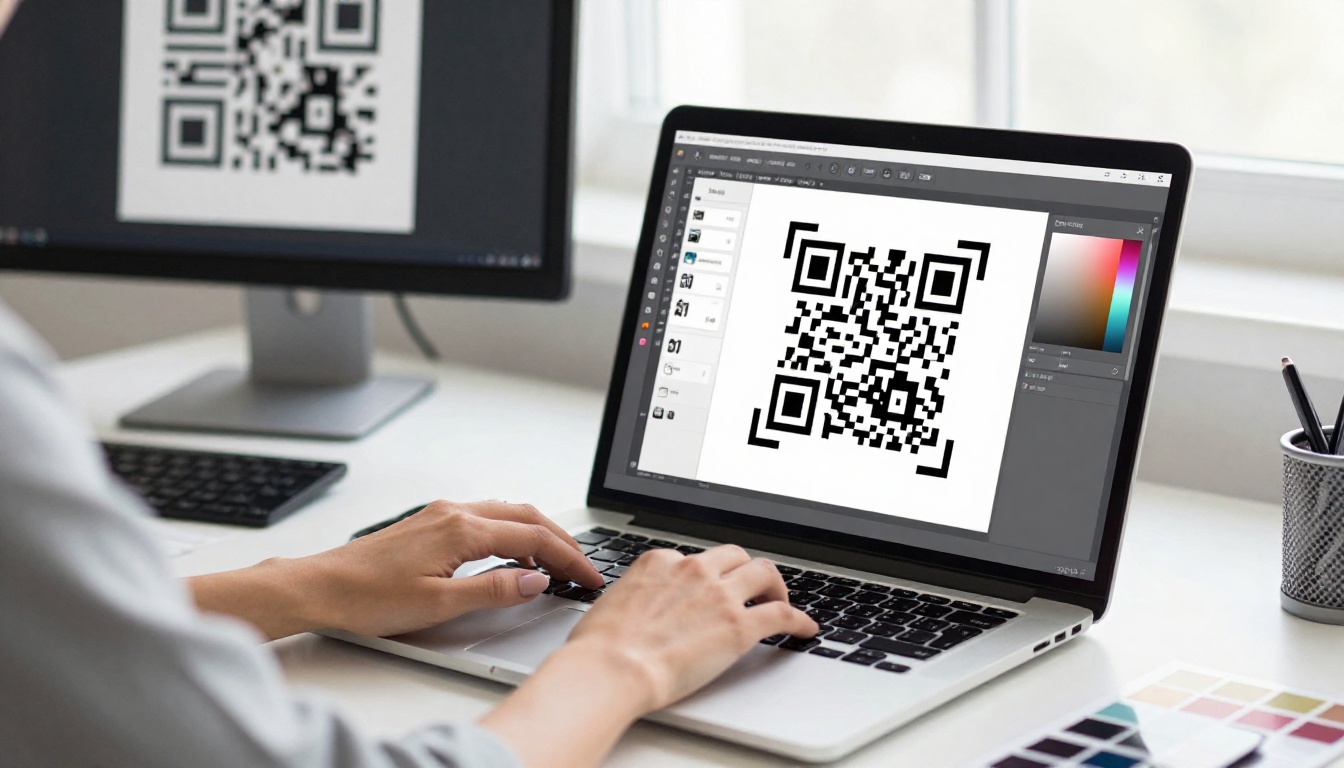
Once you have your flipbook link, generating the QR code takes under two minutes. Here are the most reliable options available today:
Free QR Code Generator Options
- QR Code Monkey: Free, customizable colors and logo insertion, high-resolution PNG and SVG downloads
- Canva QR Generator: Integrated into Canva's design workflow, ideal if you're already designing there
- QRCode.io: Simple interface, batch generation available on paid plans
- Adobe Express: Solid for users already in the Adobe ecosystem with a basic free tier
- Bitly: Best when you also need scan analytics built in from the start
QR Code Generator Comparison
| Tool | Free Tier | Custom Colors | Logo Insert | SVG Download | Scan Analytics |
|---|
| QR Code Monkey | Yes | Yes | Yes | Yes | No |
| Canva | Yes | Limited | No (free) | No (free) | No |
| QRCode.io | Yes | Yes | Yes | Yes | Paid |
| Adobe Express | Yes | Yes | No (free) | Paid | No |
| Bitly | Yes (limited) | Paid | Paid | Paid | Yes |
💡 For print materials, always download SVG or a high-resolution PNG at minimum 1000x1000px. Low-resolution QR codes become blurry when scaled up and may not scan reliably in the field.
Steps to Generate Your QR Code
- Open your chosen QR code generator
- Select URL as the content type
- Paste your flipbook's direct link into the URL field
- Customize the colors to match your brand (always maintain sufficient contrast: dark modules on a light background is the most reliable)
- Add your logo to the center if the tool supports it
- Set error correction to High (H) for print use, this allows up to 30% of the code to be obscured and still scan correctly
- Download in SVG format for print, PNG for digital use
- Test by scanning on at least two different phones (iOS and Android) before finalizing
How to Place QR Codes in Print Materials
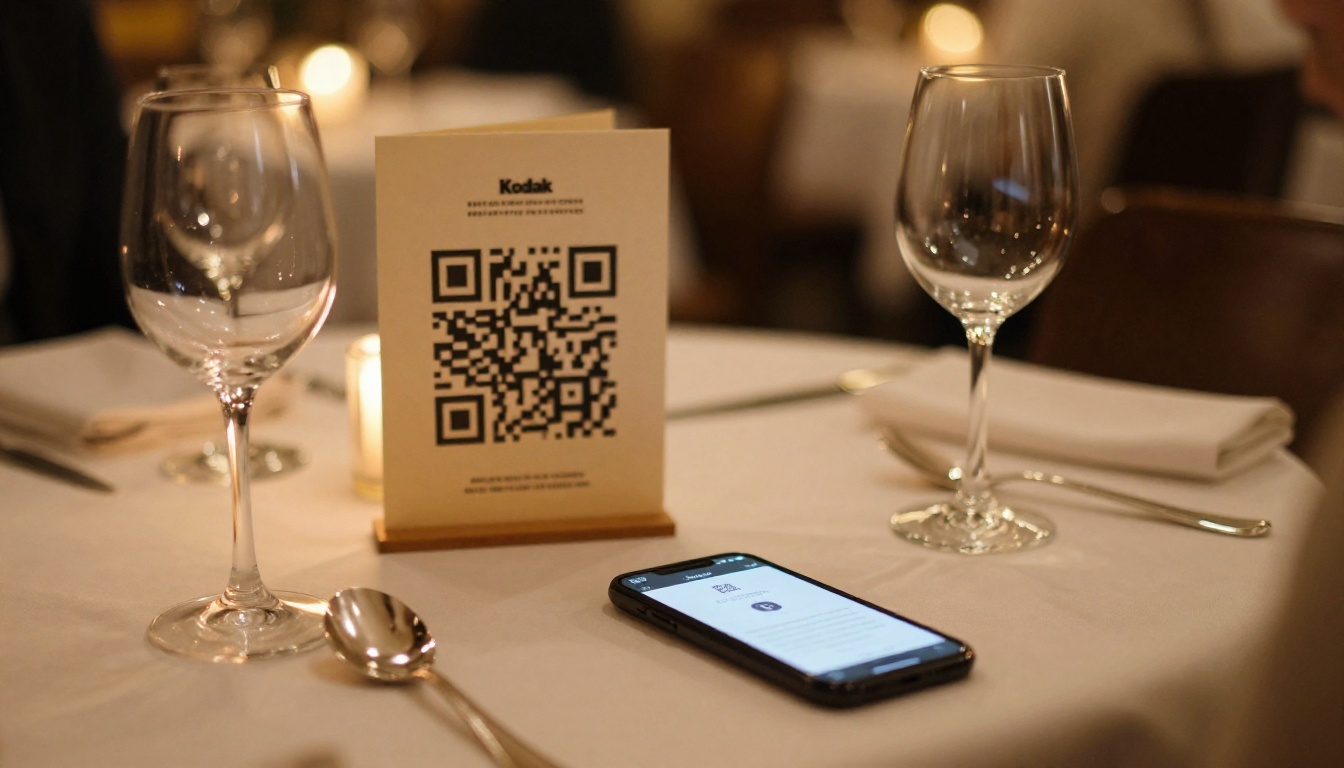
Generating the QR code is only half the job. Where and how you place it in your print design determines whether anyone actually scans it.
The Three Golden Placement Principles
1. Visible: Never bury the QR code in a fold or corner. It needs clear sight lines and enough white space around it to read comfortably.
2. Accessible: Place it where someone can comfortably hold a phone up to scan without awkward positioning. Avoid very low placements (floor level) or very high ones (above eye level on a banner).
3. Contextualized: Always include a short instruction or call-to-action directly beside the code.
A QR code alone is ambiguous. People aren't always sure what they'll get when they scan it. A simple line of text removes that friction entirely.
Strong call-to-action text examples:
- "Scan to view the full interactive catalog"
- "Scan to open the digital menu"
- "Scan to flip through our full portfolio"
- "Scan for the complete property brochure"
Minimum Size Guidelines for Print
| Print Format | Minimum QR Code Size |
|---|
| Business card | 1.5 cm x 1.5 cm |
| Flyer (A5 or A4) | 3 cm x 3 cm |
| Brochure panel | 4 cm x 4 cm |
| Poster | 6 cm x 6 cm |
| Trade show banner | 10 cm x 10 cm or larger |
⚠️ Never scale a QR code below 1.5 cm in any dimension for print. Below this threshold, most phone cameras struggle, especially in lower light conditions.
How to Embed QR Codes Inside Your Flipbook Pages
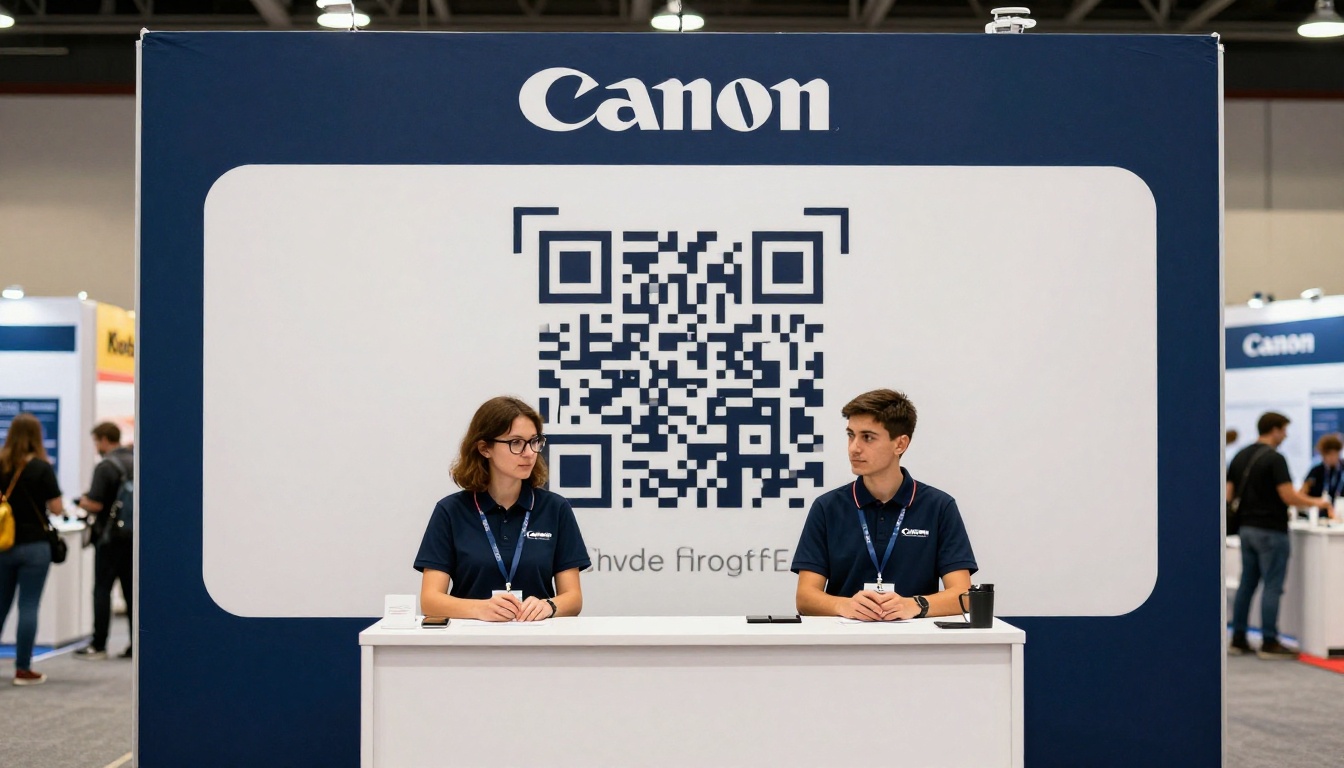
Beyond using QR codes to point people to your flipbook, you can also embed QR codes inside the flipbook itself. This turns individual pages into interactive gateways, each pointing to a specific URL.
Real-world examples:
- Page 3 of a product catalog includes a QR code linking to the purchase page for that specific item
- Page 7 of a real estate brochure includes a QR code for a virtual property tour
- The back cover of a restaurant menu flipbook includes a QR code for the online reservation system
- An event program flipbook has a QR code on each speaker bio page linking to their website or talk recording
To do this, you add the QR code image directly into your PDF before uploading it to Flipbooks AI. Place it in your design tool, then export the PDF with the QR code embedded as part of the page artwork.
How to Add QR Codes to Your PDF Before Converting
- Open your PDF source file in Canva, Adobe InDesign, or Illustrator
- Generate individual QR codes for each URL you want to link on each page
- Place each QR code image on the relevant page with appropriate sizing and a call-to-action label underneath
- Export the updated file as a PDF
- Upload the PDF to Flipbooks AI using the PDF to Flipbook Converter
- Your flipbook will display the QR codes on each page, fully scannable when readers view it on a device with a camera
💡 This technique is particularly effective for product catalogs and menus, where each page covers different items and you want to drive individual conversion actions.
Creating a Flipbook with QR Codes on Flipbooks AI

If you're starting from scratch, here's the complete workflow using Flipbooks AI:
Step 1: Create your account
Visit flipbooksai.com/account and sign up. The Standard plan and above give you unlimited flipbooks with no watermarks on any of them.
Step 2: Design your PDF
Build your document in Canva, Adobe InDesign, or any PDF-capable tool. On any page where you want a QR code embedded, insert the QR code image with a clear call-to-action label directly beneath it.
Step 3: Upload and convert
From your Flipbooks AI dashboard, click New Flipbook and upload your PDF. The platform converts it into an interactive flipbook with page-turn effects automatically. No technical skills required.
Step 4: Customize your flipbook
Apply your branding: custom colors, your logo, and background music if relevant. Flipbooks AI supports embedded video and audio, so you can add rich media to complement your QR-linked content across any plan.
Step 5: Get your shareable link
Once published, copy the direct link from your dashboard. This is the URL you'll encode into the external QR code that points people to your flipbook from print materials.
Step 6: Generate the external QR code
Use any of the tools listed above to create a QR code for your flipbook URL. Download in SVG or high-resolution PNG.
Step 7: Add to print materials
Insert the QR code into your physical marketing assets with a clear call-to-action beside it. Print, distribute, and watch the scans roll in.
✅ Flipbooks AI flipbooks are mobile-responsive by default, so every scan delivers a smooth reading experience regardless of device or screen size.
Tracking Your QR Code Scans
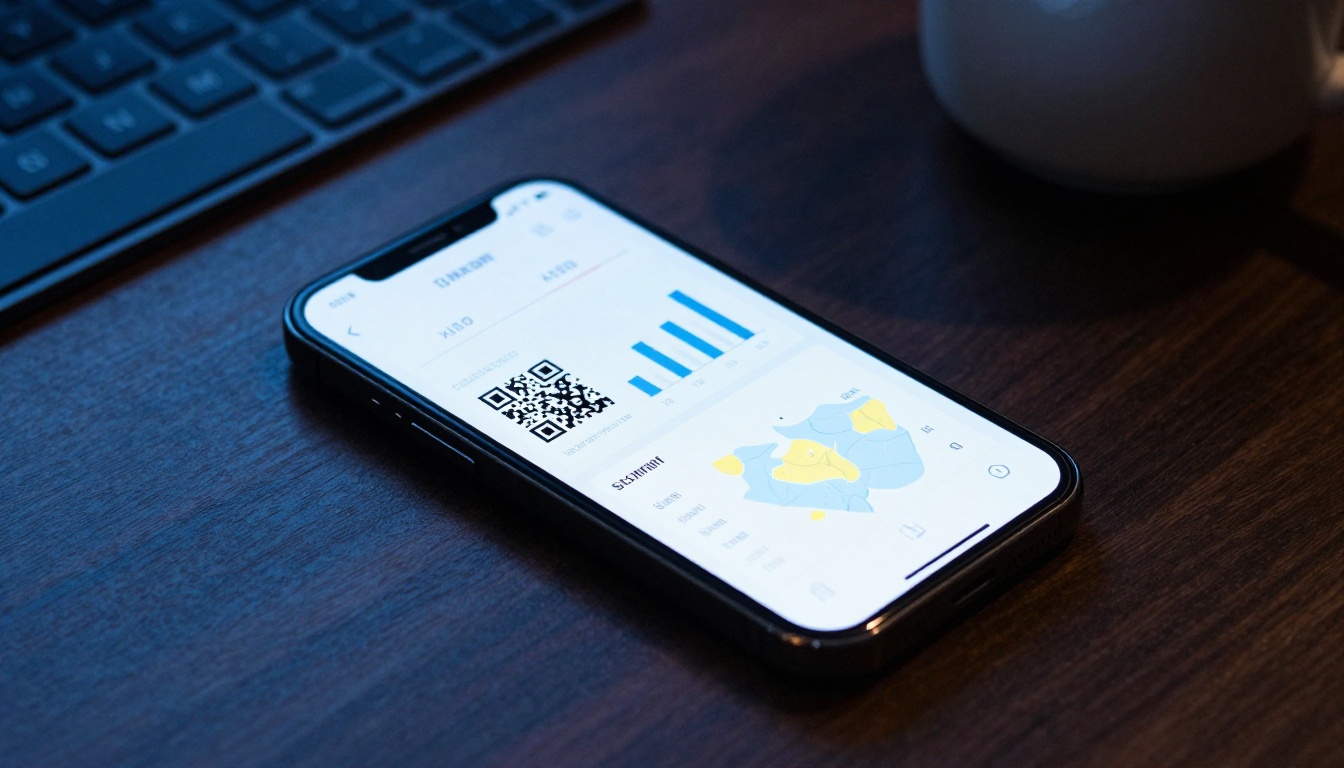
Generating a QR code is just the start. Knowing how many times it was scanned, from where, and on which devices is what turns QR codes from a nice touch into a real marketing asset.
Two Tracking Approaches That Work
1. Trackable short links
Use a link shortener like Bitly or Rebrandly to create a trackable redirect. Instead of encoding your flipbook URL directly, encode the shortened URL. Every scan passes through the shortener, which logs the analytics for you.
What you get:
- Total scan count over any date range
- Geographic data showing where scans occurred
- Device type breakdown (iOS vs Android, mobile vs tablet)
- Date and time stamps for each scan
2. Flipbooks AI built-in analytics
On the Professional plan, Flipbooks AI includes page-level analytics for your flipbook. You can see how long readers spend on each page, which sections draw the most attention, and how visitors arrived. Combine this with QR scan data from a link shortener and you get a complete view of performance from scan to read.
| Metric | Where to Track |
|---|
| Total scan count | Bitly or QR generator with analytics |
| Geographic location | Bitly or QRCode.io |
| Device type | Bitly or QRCode.io |
| Time spent in flipbook | Flipbooks AI Professional plan |
| Pages viewed per session | Flipbooks AI Professional plan |
| Lead capture | Flipbooks AI Professional (lead gen forms) |
💡 If you're running a print campaign across multiple physical locations, create a unique QR code per location so you can track which spot drives the most scans. Same flipbook URL, different tracking codes.
Common Mistakes That Kill Scan Rates
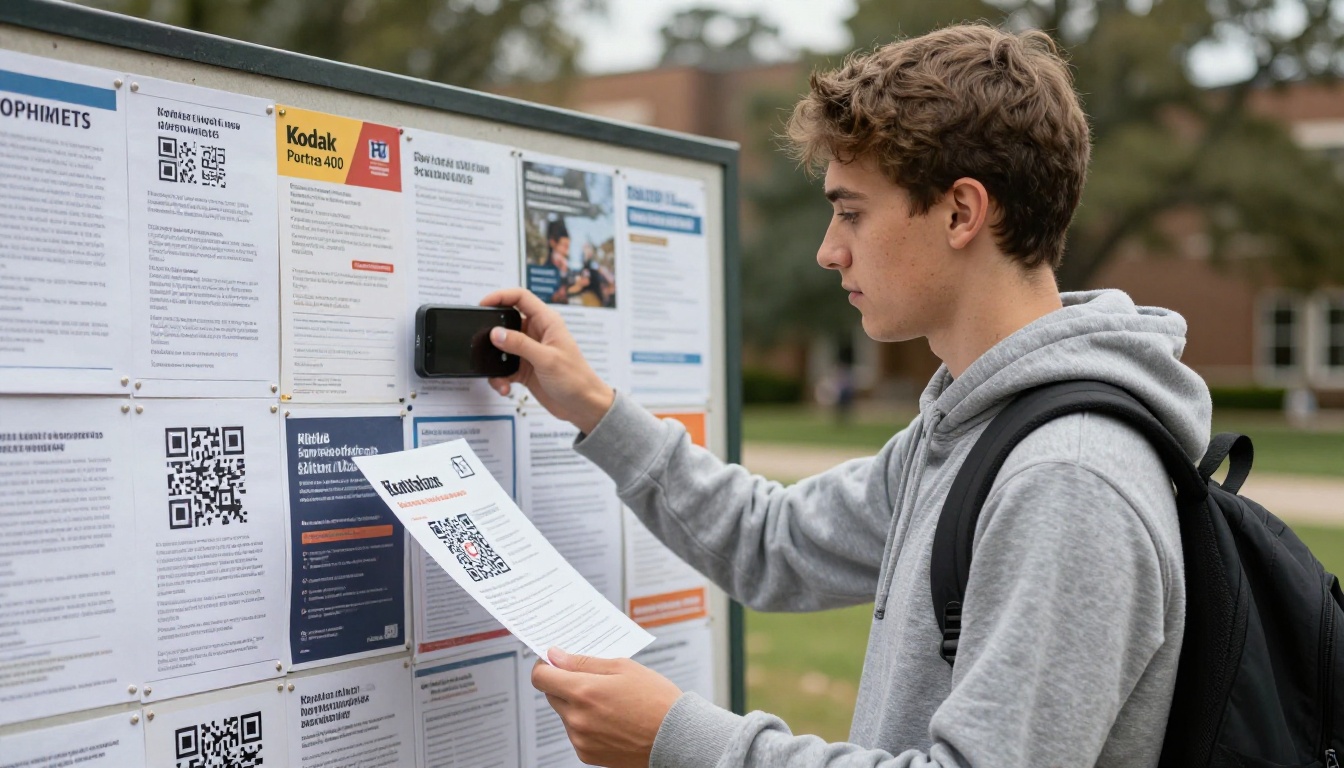
Even well-designed QR codes can underperform. These are the mistakes most often responsible for poor scan rates:
No call-to-action text: A bare QR code sitting on a page invites confusion. Always include "Scan to [do X]" directly beside it.
QR code too small: On a business card, anything under 1.5 cm x 1.5 cm is unreliable. When in doubt, go bigger.
Low contrast: A light gray code on a white background may not scan. High contrast between modules and background is non-negotiable.
Linking to a desktop-only experience: Test your flipbook link on multiple phones before you print. Flipbooks AI flipbooks are mobile-responsive out of the box, but always verify before distributing.
Placing codes in poor lighting: If the QR code will live in a dimly lit environment, a restaurant corner, a bar, or an exhibition hall, increase the size and ensure maximum contrast in your design.
Skipping a pre-print test: Always scan the final QR code from the actual proof before the full print run. Test on iPhone, Android, and an older device if available.
QR Codes Across Different Flipbook Types

QR codes work across every flipbook format. Here's how different industries are putting them to use:
Restaurants and Hospitality
A QR code on the physical table card or printed menu links directly to the full digital menu flipbook. Customers get an interactive, full-color menu on their phone. No reprints needed when prices or items change.
Real Estate
Property brochures carry a QR code linking to the real estate brochure flipbook, which includes property photos, floor plans, neighborhood info, and agent contact details in a single shareable document.
Retail and E-commerce
Product packaging or shelf cards include QR codes linking to an interactive product catalog flipbook with full specifications, size guides, and related product recommendations in one scrollable experience.
Events and Conferences
Printed programs given to attendees include a QR code linking to the digital event program flipbook, which can be updated in real time if schedules or speaker details change during the event.
Education
Printed syllabi, workbooks, and handouts include QR codes linking to course material flipbooks that contain embedded video lessons and supplementary resources alongside the core content.
Hotels and Travel
Printed in-room guides and travel brochures include QR codes that open interactive hotel brochures and travel guide flipbooks with local recommendations, maps, and direct booking links.
Fashion and Retail Lookbooks
Hang tags and packaging cards in fashion retail can carry QR codes linking to seasonal lookbook flipbooks showing the full collection with styling tips and purchase links on every spread.
Make the Connection Between Print and Digital
If your print materials aren't pointing to a live, interactive flipbook yet, you're missing the easiest conversion opportunity available in your current workflow. QR codes cost nothing to generate, take minutes to add to any design, and give your audience instant access to content that static print simply cannot provide.
Create your flipbook on Flipbooks AI today, get your shareable link, and start connecting your physical materials to a digital experience that people can actually interact with, bookmark, and share with others.
Browse all available tools and templates to find the right format for your content, whether that's a product catalog, a restaurant menu, a portfolio, or a travel guide.
When you're ready to access scan tracking, lead generation forms, and page-level analytics, compare the pricing plans to choose the tier that fits your goals.



