Adding videos to a flipbook sounds like it should be complicated, but the right platform makes it a five-minute job. Whether you're building a product catalog, a training manual, or a digital magazine, embedding video directly on the page changes how readers interact with your content. Static PDFs ask readers to read; flipbooks with video ask them to watch, click, and stay.
Flipbooks AI makes this process straightforward, giving you a dedicated multimedia editor where video widgets drop onto any page without any coding. This article walks through everything: the best video types to use, exact steps to embed them, placement strategies, and the plan features that matter.
Why Videos Inside Flipbooks Actually Work
Most digital publications are still glorified PDFs. They flip pages beautifully but offer nothing beyond text and images. Video changes that equation completely.
When a reader lands on a page and sees a video player, the average time spent on that page increases dramatically. Video communicates movement, emotion, and process in ways that still images cannot. A furniture catalog that shows a sofa's texture under different lighting is far more persuasive than a flat product photo. A training manual that plays a safety procedure video reduces misinterpretation compared to written instructions alone.
Static vs. Interactive: The Real Difference
A static flipbook presents information passively. An interactive flipbook invites participation. The moment you add a video embed to a page, that publication shifts from something readers scroll past into something they interact with.
This matters especially for:
- Sales materials: Showing a product in action rather than describing it
- Educational content: Demonstrating processes that are hard to explain in text
- Event programs: Teaser videos that create excitement before the event
- Wedding albums: Ceremony highlights embedded alongside still photos
- Real estate brochures: Walkthrough tours inside the brochure itself
💡 Pro tip: Place video on page 2 or 3, not page 1. Let the visual design of your opening spread draw readers in, then hit them with the video on the next page.
What Types of Video Work Best
Not every video suits a flipbook format. The best-performing embedded videos share a few characteristics: they are short (under 3 minutes), they work without sound (viewers often browse silently), and they deliver their core message visually.
| Video Type | Ideal Length | Best Use Case |
|---|
| Product demo | 30 to 90 seconds | Catalogs, lookbooks |
| How-to walkthrough | 1 to 3 minutes | Training manuals, tutorials |
| Testimonial | 45 to 60 seconds | Sales presentations, annual reports |
| Event highlight reel | 60 to 90 seconds | Event programs, wedding albums |
| Brand story | 60 to 120 seconds | Press kits, corporate reports |
| Music/ambient loop | Any length | Photography portfolios, menus |
What You Need Before You Start
Before embedding a video, you need the video hosted somewhere accessible. Flipbooks AI supports embeds from major video platforms, meaning you paste a URL rather than uploading a raw video file.

Video Hosting Options Compared
The hosting platform you choose affects privacy controls, autoplay behavior, and whether ads appear before your content plays.
| Platform | Free Tier | Privacy Options | Ad-Free | Best For |
|---|
| YouTube | Yes | Unlisted links | No (ads possible) | Public-facing content |
| Vimeo | Limited | Password protected | Yes (paid) | Professional/branded content |
| Wistia | Limited | Domain restrictions | Yes | Marketing and analytics |
| Loom | Yes | Viewer tracking | Yes | Internal training |
| Direct MP4 URL | Depends on host | Public only | Yes | Self-hosted control |
⚠️ Warning: Avoid using YouTube videos with ads for client-facing materials. A competitor's ad playing before your product video is a real risk. Use unlisted Vimeo or Wistia for professional publications.
Supported Video Formats
Flipbooks AI accepts:
- YouTube URLs (standard, short, and unlisted)
- Vimeo URLs (public and password-protected)
- Wistia embed URLs
- Direct MP4 file URLs hosted on any accessible server or CDN
- Loom share links
✅ Best practice: Always test your video link in an incognito browser before embedding. If it plays there, it will play inside your flipbook.
How to Add a Video to Your Flipbook on Flipbooks AI
Flipbooks AI includes a built-in page editor that handles video embedding without requiring any technical knowledge. Here is the full process from PDF upload to published flipbook with video.
Step 1: Upload Your PDF
Start by creating an account on Flipbooks AI. Once logged in, click New Flipbook from your dashboard and upload your PDF. The platform converts it to a page-flipping publication automatically, preserving all your original layouts, fonts, and images.
If you do not have a PDF yet, you can use tools like the Interactive E-Book Publisher or the Presentation Flipbook Designer to build one from scratch.
Step 2: Open the Page Editor
After conversion, click Edit Pages in your flipbook dashboard. This opens the multimedia editor, where each page is a canvas you can add interactive elements onto. The original PDF content sits as a background layer, untouched.
Step 3: Add the Video Widget
In the left sidebar of the editor, locate the Media section. Click the Video widget and drag it onto the page where you want the video to appear. A placeholder rectangle will appear on the canvas. Resize and reposition it by dragging the corners and edges to fit your layout.
Step 4: Paste Your Video URL
Click on the placed video widget to open its settings panel. Paste your video URL (YouTube, Vimeo, or direct MP4 link) into the Video URL field. The editor generates a live preview within seconds. You can see exactly how the video player will look on the page before publishing.
💡 Pro tip: For YouTube, use the Share button on the video page to copy the short share URL. This ensures the correct format is used and avoids any embedding restrictions.
Step 5: Customize Playback Settings
The video widget settings panel includes several options worth configuring before you publish:
- Autoplay: Toggle whether the video starts playing when the reader reaches that page
- Mute on load: Recommended if autoplay is on, since browsers block autoplaying audio
- Loop: Useful for ambient or background videos in portfolios and menus
- Show controls: Toggle the play/pause bar visibility
- Border radius: Round the corners of the video player to match your design language
Step 6: Publish and Share
Once satisfied, click Save and then Publish. Your flipbook is now live with the embedded video. Flipbooks AI provides multiple distribution options:
- A direct shareable link for sharing via email or social media
- An embed code for adding the flipbook to your website via the Embed Flipbook on Website tool
- Password protection for private internal use
- QR code for print materials that link to the digital version
Video Placement Strategies That Work
Knowing how to add a video is only part of the work. Knowing where to put it separates forgettable publications from ones that people actually watch through to the end.
Above the Fold vs. Mid-Page
"Above the fold" in a flipbook means the first thing visible when a page opens, before any scrolling. Placing your video in this zone maximizes visibility but can feel abrupt if the reader has no context yet.
Mid-page placement works better for most use cases. Let one or two paragraphs or images introduce the topic, then drop the video in as supporting content. This way the reader already has a reason to press play before the video even loads.
Best Pages to Add Videos
Different publications have different sweet spots for video placement:
| Publication Type | Best Page for Video | Why |
|---|
| Product catalog | Pages 3 to 5 | After the intro, during peak attention |
| Training manual | Every major section opener | Breaks long text, resets focus |
| Event program | First spread | Creates immediate atmosphere |
| Real estate brochure | Property showcase pages | Shows space and scale dynamically |
| Annual report | Executive summary page | Humanizes the data with a leader's message |
| Wedding album | First and last pages | Opens and closes the story emotionally |
Plans and Features Comparison
Not all Flipbooks AI plans include multimedia embedding. Here is how the features break down across tiers so you can pick the right one before you start.
| Feature | Free | Standard | Professional |
|---|
| Video embedding | No | Yes | Yes |
| Number of flipbooks | 3 | Unlimited | Unlimited |
| Watermark-free | No | Yes | Yes |
| Password protection | No | Yes | Yes |
| Custom branding | No | Yes | Yes |
| Analytics and lead gen | No | No | Yes |
| Offline downloads | No | No | Yes |
| Priority support | No | No | Yes |
💡 Pro tip: If you need video embedding, the Standard plan is the minimum. The Professional plan adds analytics so you can see exactly how many readers played your embedded videos, on which pages they spent the most time, and where they dropped off.
Real-World Use Cases for Flipbook Videos
The feature only gets useful when applied to real publishing needs. Here are the most impactful scenarios where video embedding inside a flipbook pays off immediately.
Product Catalogs
A clothing brand includes 360-degree video clips of each garment next to the product photos in their Fashion Catalog. Instead of relying on a flat image, buyers see how the fabric moves. Wholesale buyers who open the catalog on their tablets spend significantly more time per page than they do on static versions.
A furniture retailer adds room walkthrough videos to their Furniture Catalog, showing each piece in a styled room setting. The video answers the "how will this look in my space?" question before the customer even thinks to ask it.
Training Materials
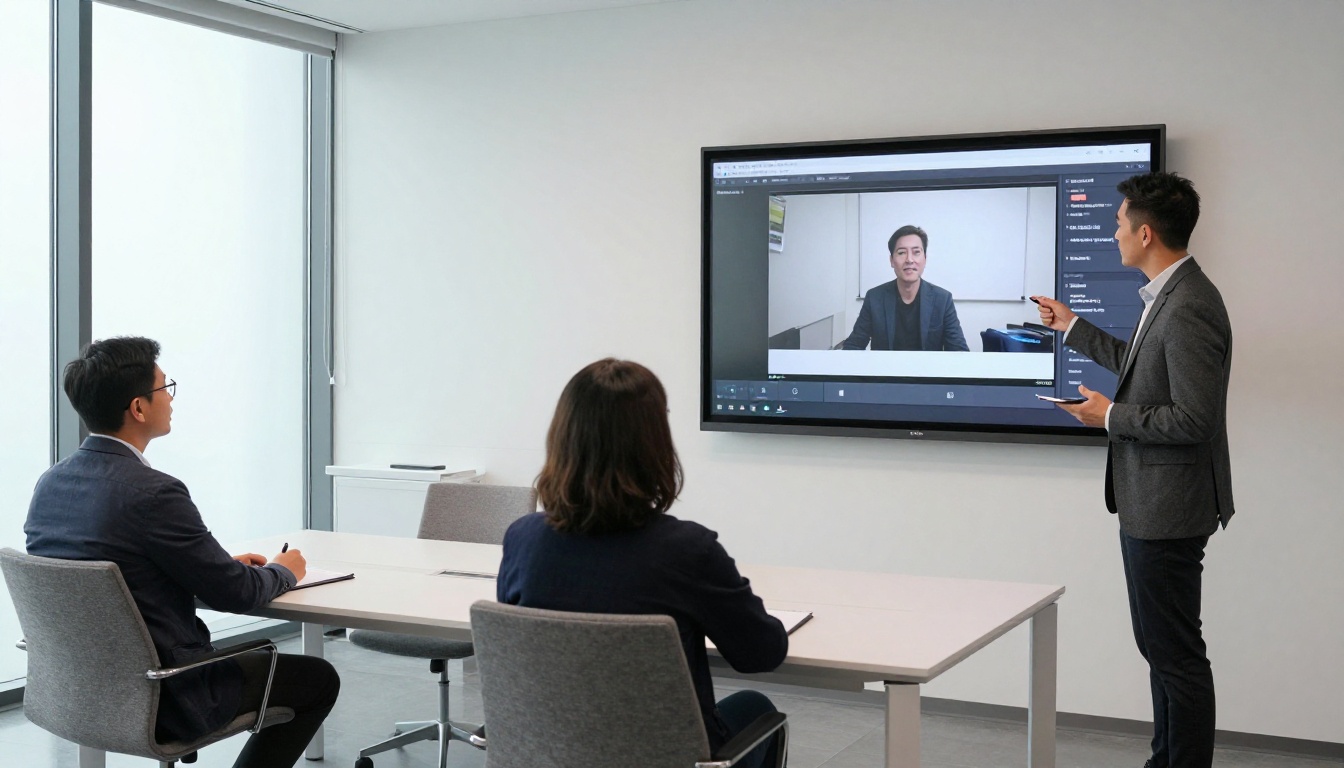
HR departments use the Training Manual Flipbook tool to build onboarding documents where each section opens with a short video from a team leader. New employees read the written procedure, then watch the demonstration, then complete a quiz. The video bridges the gap between reading and doing.
Compliance-heavy industries, like food service and healthcare, embed video demonstrations of required procedures. Employees can replay the video as many times as needed, and managers can confirm content consumption through the Professional plan's built-in analytics.

Event Programs and Wedding Albums
Event planners build digital programs with Event Program Maker that include a teaser video on the opening page. Guests scan a QR code at the venue, open the flipbook on their phone, and the video plays automatically as a mood-setter before the event begins.
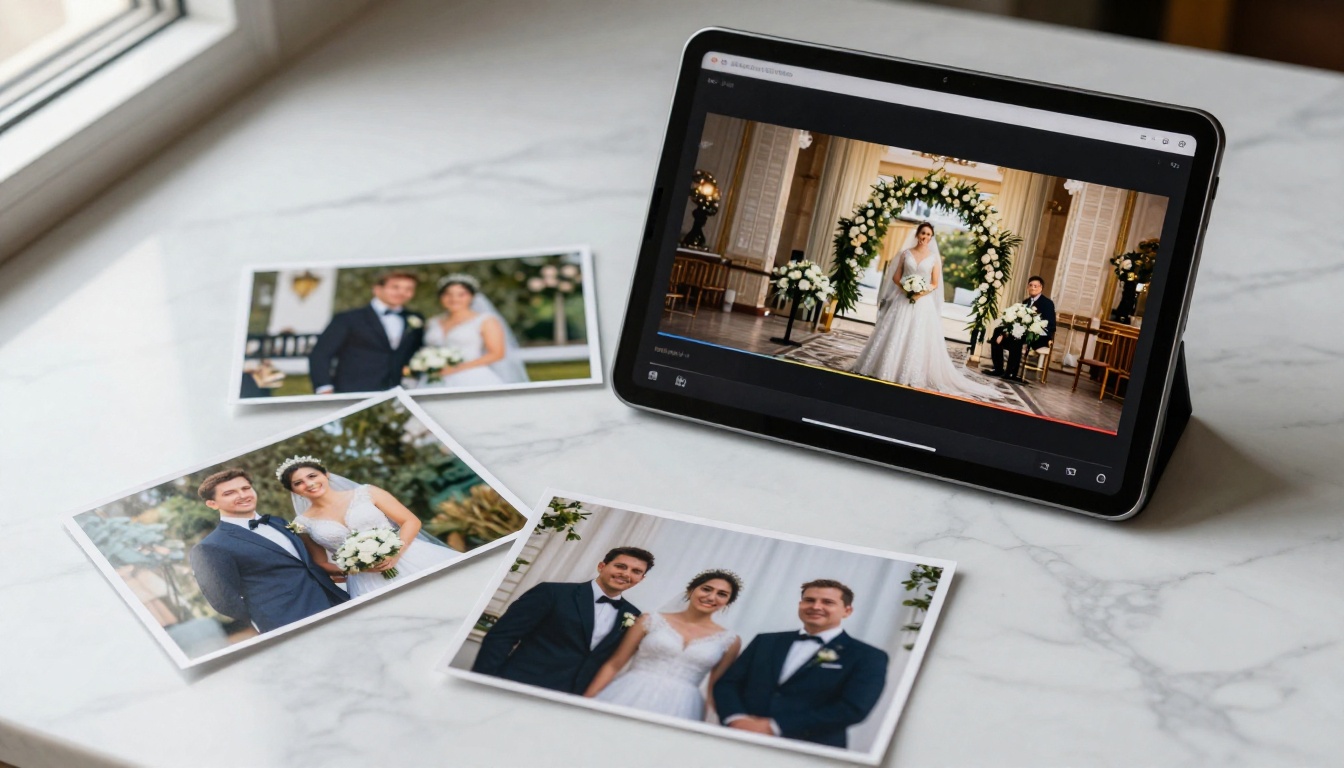
Wedding photographers create Wedding Album Flipbooks that include the ceremony highlight reel on the first spread. The couple shares a single link with family instead of sending both a digital album and a separate video file. Everything lives in one interactive publication.
Common Mistakes When Embedding Videos
Most problems with video in flipbooks come from a handful of repeated errors. Avoiding them saves time and prevents embarrassing moments in front of clients.
Using Direct File Links Without CDN
Pasting a direct link to a video file on a regular web server often breaks. If the server goes down, moves the file, or enforces referrer restrictions, the video player shows an error inside the flipbook. Always host video on a platform built for streaming: YouTube, Vimeo, Wistia, or a CDN-backed storage bucket.
Forgetting Mobile Responsiveness
Flipbooks AI renders flipbooks in mobile view as a single-page scroll rather than a page-flip. A video widget that looks well-placed on the desktop two-page spread might appear too small or misaligned on mobile. Always click the Mobile Preview button in the editor after placing your video, and resize or reposition if necessary.
⚠️ Warning: Autoplay video with sound is blocked on mobile browsers by default. Always enable Mute on load when using autoplay, or drop autoplay entirely and let readers choose to play.
Making the Video Too Large
Filling an entire page with a video player feels overwhelming and pushes the publication's designed content out of view. A video should occupy 30 to 60 percent of the visible page area. Let it sit alongside text, images, and captions so readers have context before pressing play.
Skipping the Alt Layout for Print
If your flipbook is also downloaded as a PDF for print, embedded videos do not carry over into that format. Flipbooks AI lets you configure a separate print-friendly version of each page. Use this to replace the video widget with a QR code that points to the hosted video URL, so print readers still have a way to watch.
Take Your Flipbook Further
Video is one layer of interactivity. Once you have that working, the next moves are audio tracks, clickable hotspots that link to product pages, and lead capture forms that appear after readers watch the embedded video. All of these are available on Flipbooks AI without writing a single line of code.
If you have not yet converted your PDF, start with the PDF to Flipbook Converter. It handles the conversion in under a minute and drops you straight into the editor where video embedding is waiting.
For specific use cases, browse the full tools directory to find purpose-built templates for catalogs, menus, brochures, reports, portfolios, and more. Each tool is pre-configured for its format, so you spend time on content rather than setup.
Ready to add videos to your publication? Create your account and start building. Or, if you are deciding between plans, review the pricing options to see exactly which features sit behind each tier before committing.
The publications that people share are the ones that do something. Adding video to your flipbook is the simplest way to make yours one of them.



