Your brand is your first impression, and every page of a flipbook is a chance to reinforce it. Whether you are publishing a product catalog, a company report, or a promotional brochure, a flipbook without your logo and brand colors is a missed opportunity. The good news? Adding your visual identity to a flipbook is straightforward when you use the right platform. Flipbooks AI gives you full control over your brand presentation, from logo placement in headers and footers to setting exact hex color codes for backgrounds, buttons, and accents.
Why Brand Consistency in Flipbooks Matters
Most people think of branding as something that lives on a website or business card. But when a prospect opens your digital flipbook, it is often the first interactive experience they have with your brand. That first flip of the page either builds trust or breaks it.
Studies show that consistent brand presentation across all platforms can increase revenue by up to 23%. When your flipbook matches your brand guidelines, including your logo, color palette, typography, and tone, it signals professionalism and builds recognition.
Here is what brand consistency in a flipbook actually delivers:
- Builds trust instantly: Readers recognize your brand without reading a word
- Reduces cognitive load: Familiar colors and logo placement make navigation intuitive
- Increases shareability: Branded flipbooks get shared more because they look polished
- Supports sales conversations: A branded catalog or brochure is a sales tool, not just a document
- Reinforces credibility: Visual consistency communicates that your organization is organized and professional
💡 Even if your flipbook is purely internal, such as a training manual or HR handbook, branding it maintains the perception of quality across your organization.
What You Need Before You Start
Before you open any platform, gather your brand assets. Trying to apply branding without these in hand leads to inconsistency and rework.
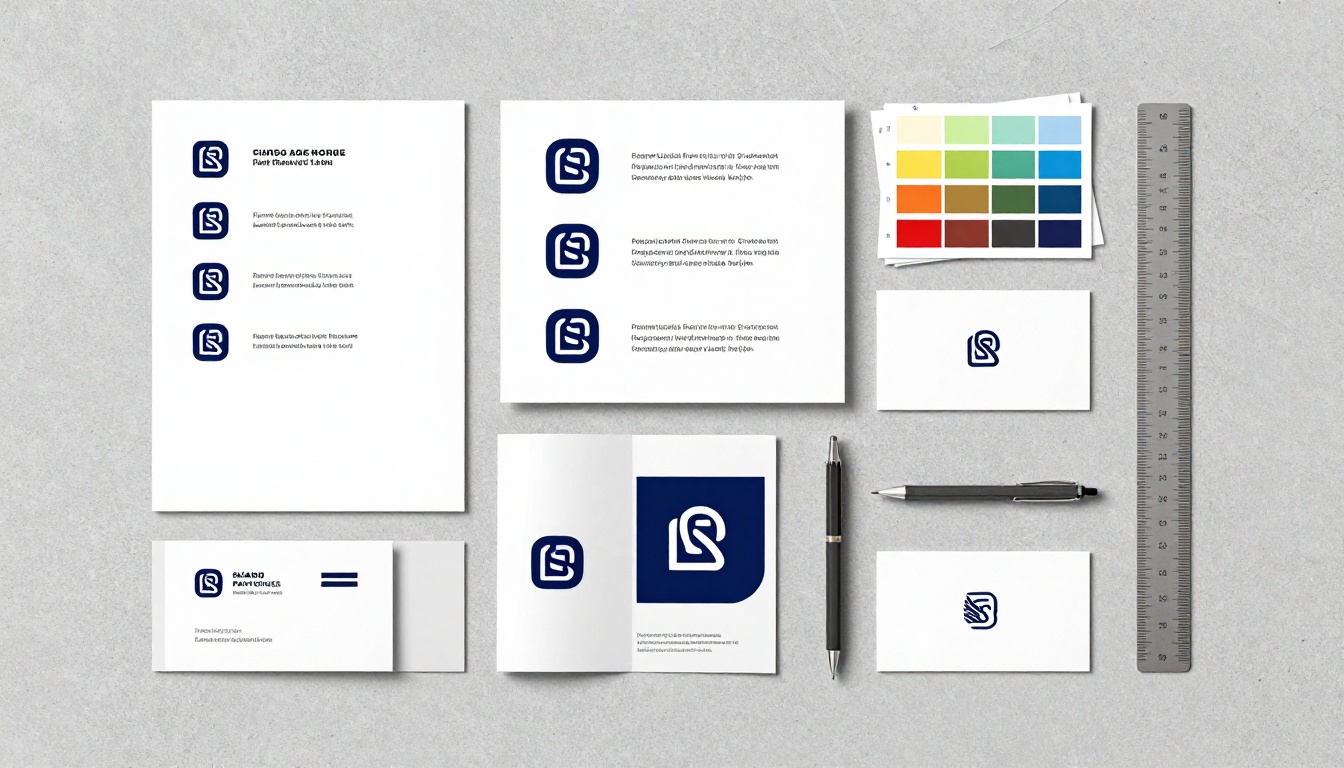
The essential brand checklist:
- Logo file (PNG with transparent background, minimum 500x500px)
- Primary and secondary hex color codes (e.g., #1A2B5F for navy, #D4A020 for gold)
- Brand style guide (if you have one, this is your reference document)
- Font names (for any text you plan to add to flipbook pages)
- Your PDF document (this is the source file for the flipbook)
⚠️ Always use a PNG logo with a transparent background. JPEG logos will have a white or colored box around them that clashes with any non-white toolbar or background.
Logo File Formats Compared
| Format | Transparency | Best For | Quality Level |
|---|
| PNG | Yes | Logos, icons | High (lossless) |
| SVG | Yes | Scalable logos | Perfect at any size |
| JPEG | No | Photos only | Lossy compression |
| GIF | Limited (1-bit) | Simple graphics | Limited color range |
For flipbook branding, PNG and SVG are your best options. Most platforms accept PNG readily, while SVG support varies by tool.
How to Add Your Logo and Brand Colors to a Flipbook

Here is the step-by-step process using Flipbooks AI. The workflow is straightforward, and you can have a fully branded flipbook live in under 10 minutes.
Step 1: Upload Your PDF
Head to Flipbooks AI and create your account. Once you are in, click New Flipbook and upload your PDF. The platform converts your PDF pages into a smooth page-turning flipbook automatically.
💡 If you do not have a PDF ready, design your document in Canva, Adobe InDesign, or Google Slides, then export as PDF before uploading.
The conversion takes a few seconds. You will see a preview of your flipbook as soon as it processes.
Step 2: Open the Branding Panel
After conversion, click the Customize or Settings tab in your flipbook editor. This is where all your branding controls live.
Look for:
- Logo Upload section
- Color Settings panel
- Background Color options
- Button and Accent Colors
Step 3: Upload Your Logo
In the logo upload area, click Upload Logo and select your PNG file. The platform places your logo in the designated position, typically the top-left corner of the flipbook viewer.
You can usually adjust:
- Position: Top-left, top-right, or top-center
- Size: Resize using a slider or manual pixel dimensions
- Link: Add a URL so clicking the logo takes readers to your website
✅ Best practice: Link your logo to your homepage. It makes the flipbook feel like a natural extension of your website rather than a standalone document.
Step 4: Set Your Brand Colors with Hex Codes
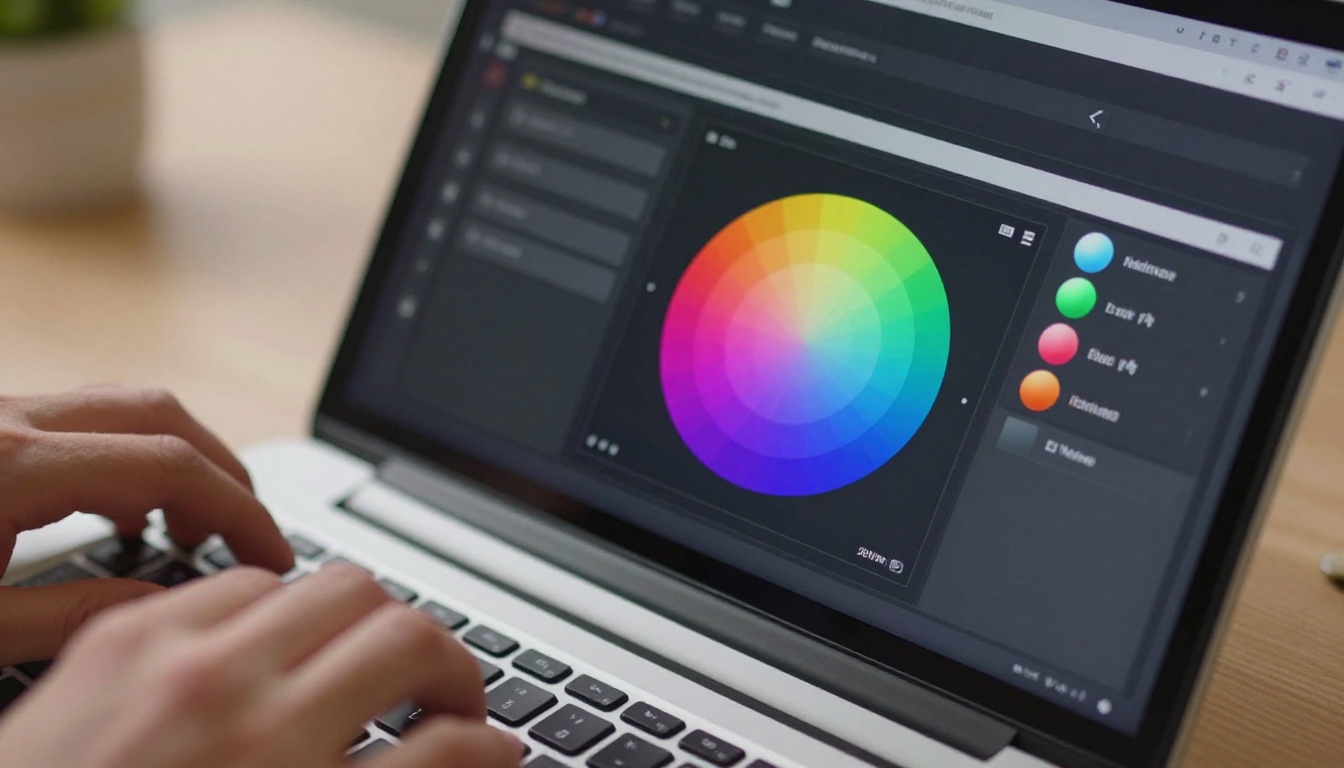
This is where precision matters. In the color settings panel, you will see input fields for different interface elements. Use your exact hex codes for each one.
Color areas to set in your flipbook viewer:
| Color Area | What It Affects | Example Hex |
|---|
| Background Color | Flipbook viewer background | #F5F5F5 |
| Toolbar Color | Top and bottom navigation bar | #1A2B5F |
| Button Color | Play, share, download buttons | #D4A020 |
| Page Shadow | Shadow beneath flipping pages | #00000050 |
| Link Color | Clickable links within pages | #1A2B5F |
| Progress Bar | Reading progress indicator | #D4A020 |
Type your hex code directly into the color field. Do not estimate colors visually. Your brand colors are specific, and "close enough" is not good enough when it comes to brand identity.
Step 5: Preview on Multiple Devices
Before publishing, use the Preview button and check how your branding looks on:
- Desktop (most flipbooks are first opened on desktop)
- Mobile (over 60% of digital content is now accessed on phones)
- Tablet (important for catalog and menu flipbooks specifically)
Check that your logo is not cropped, colors render correctly, and the toolbar does not clash with your PDF page design.
Step 6: Publish and Share
Once your branding looks right, click Publish. You get:
- A direct link to share via email or social media
- An embed code to place the flipbook on your website
- Password protection for private or confidential documents
- Analytics to track who opens and reads your flipbook (available on Professional plan)
Logo Placement Strategy
Not all logo positions work for every flipbook type. Here is how to decide where to place yours based on your content and audience.

Top-Left: The Default Choice
Top-left is where the eye naturally starts in Western reading culture. It is the most common position for logos in web and digital applications. Use this for:
- Corporate reports and annual reports
- Product catalogs
- Company brochures
Top-Right: The Premium Feel
Top-right placement is less common, which makes it feel more distinctive. Brands in luxury, hospitality, and fashion often favor right-aligned logos. Use this for:
- Fashion lookbooks
- Hotel brochures
- High-end product showcases
Full Header Band: Maximum Visibility
A full-width colored header band with a centered logo is the most prominent branding option. Your brand color fills the entire top strip, and the logo sits centered within it. This works well for:
- Restaurant menus
- Event programs
- Training manuals
⚠️ Avoid placing your logo inside the PDF pages if you are also placing it in the flipbook viewer header. Duplicate logos create visual clutter and reduce the polished appearance you are working toward.
Choosing the Right Brand Colors for Digital Viewing
Brand colors designed for print do not always translate perfectly to screens. Here are the adjustments that make your digital flipbook look intentional rather than accidental.
Print vs. Screen Color Differences
| Consideration | Print (CMYK) | Screen (RGB / HEX) |
|---|
| Color mode | CMYK | RGB / HEX |
| Black rendering | 100% K ink | #000000 pixels |
| White rendering | Paper surface | #FFFFFF backlit |
| Saturation behavior | Often appears muted | Can appear more vivid |
| Output medium | Ink on paper | Backlit display pixels |
If your brand colors were designed only for print, ask your designer for the HEX equivalents. Print-to-digital color matching is a specific skill, and the differences can be significant enough to affect brand perception.
The 60-30-10 Color Rule
For flipbook viewer backgrounds and toolbars, the 60-30-10 rule creates visual harmony without overwhelming the page content:
- 60%: Dominant neutral (white, light grey, or a very light tint of your primary color)
- 30%: Primary brand color (toolbar, section headers, borders)
- 10%: Accent brand color (buttons, highlights, active links)
This keeps your flipbook from feeling visually overwhelming while maintaining strong brand presence throughout.
💡 If your primary brand color is very dark (navy, black, forest green), use it for the toolbar and choose a light neutral for the background. Dark backgrounds throughout the viewer make text-heavy pages difficult to read.
Common Branding Mistakes to Avoid
Most branding problems in flipbooks come down to a few repeated mistakes. Avoiding these saves you a re-publish.
Using a Low-Resolution Logo
A logo that looks sharp at 200px wide will appear pixelated at 400px. Always start with a high-resolution source file. For digital use, 1000px wide at 72dpi is the minimum for logos that display cleanly across screen sizes.
Mismatched Colors Between Pages and Viewer
If your PDF pages use one shade of blue and your toolbar uses a slightly different shade, readers notice even if they cannot articulate why. It creates a subconscious sense of inconsistency. Use the same exact hex codes across your PDF and your viewer settings.
Too Many Brand Colors in the Viewer
Some brands have large color families with six to eight colors. For a flipbook viewer, pick two to three maximum: your primary color, one secondary, and a neutral. More than that creates visual noise that competes with your content.
Skipping Mobile Review
A logo that looks perfect on desktop may be too large on mobile, obscuring part of the flipbook. Always check logo sizing on mobile view before publishing. Reduce logo size if it interferes with the page-turning controls.
Not Linking the Logo
A logo in a flipbook viewer is a branding element and a navigation tool. Not linking it to your website is a missed conversion opportunity. Every person who opens your flipbook should be able to reach your homepage in one click.
Branded Flipbooks for Specific Industries
Different industries use flipbooks for different purposes, and branding priorities shift by use case.

Real estate agencies use branded property brochures to reinforce agency identity. A Real Estate Brochure flipbook with consistent logo placement on every page makes every listing feel part of a professional system.
Restaurants rely on menus to communicate brand atmosphere before a guest tastes a single dish. A Restaurant Menu Creator flipbook with the restaurant's signature colors and logo immediately sets the dining expectation.
Fashion brands use lookbooks to sell a lifestyle, not just individual pieces. An Interactive Lookbook Designer flipbook with precise brand colors and minimal, elegant logo placement conveys the brand aesthetic on every spread.
Corporate teams use annual reports as a credibility signal to investors and stakeholders. A Corporate Report Maker flipbook with a logo in the header and brand colors on section dividers shows that your organization is polished and serious.
Event organizers use programs to set the tone for the experience. An Event Program Maker flipbook with event-specific branding creates a professional impression from the very first page.
Educators and trainers benefit from branded course materials that signal structure and authority. A Training Manual Flipbook with institutional colors and logo helps learners associate the content with the organization delivering it.
Flipbooks AI Branding Features by Plan
Understanding what branding options are available on each plan helps you choose the right tier for your needs.
| Feature | Free | Standard | Professional |
|---|
| Custom logo upload | Yes | Yes | Yes |
| Hex color customization | Limited | Full | Full |
| No watermark | No | Yes | Yes |
| Custom domain | No | No | Yes |
| Password protection | No | Yes | Yes |
| Analytics dashboard | No | No | Yes |
| Lead generation forms | No | No | Yes |
| Offline downloads | No | Yes | Yes |
| Unlimited flipbooks | No | Yes | Yes |
| Embed on website | Yes | Yes | Yes |
💡 The Standard plan removes all watermarks and provides full color customization. That is the minimum tier for professional brand use. See all options on the pricing page.
Create a Branded Flipbook on Flipbooks AI
Here is the full workflow from PDF to published branded flipbook on Flipbooks AI:
- Create your account at flipbooksai.com/account. No credit card required to start.
- Upload your PDF by clicking New Flipbook and dragging your file into the upload area.
- Name your flipbook clearly for your internal organization and future reference.
- Open Customize by clicking the Customize tab to access the full branding panel.
- Upload your logo by clicking Upload Logo, selecting your PNG file, then adjusting position and size.
- Enter your hex codes in the color settings for background, toolbar, buttons, and accent colors.
- Enable features such as password protection for private documents and a homepage URL linked to your logo.
- Preview your flipbook on desktop and mobile to confirm branding renders correctly on both.
- Publish by clicking the Publish button to go live and copy your share link or embed code.
- Track performance on the Professional plan using the analytics dashboard to see open rates, page views, and reading time per page.
The entire process takes under 10 minutes for a document you already have. For specialized formats, use purpose-built tools like the PDF to Flipbook Converter or browse all available flipbook tools to find the right starting point for your specific use case.
Your Brand Deserves Better Than an Unbranded PDF
Every piece of content you send into the world is a brand touchpoint. An unbranded flipbook is a missed signal. A branded one builds recognition, drives trust, and makes every piece of content feel intentional and professional.
Adding your logo and brand colors to a flipbook is not a complicated process. It takes a PNG file, a few hex codes, and a few minutes. What you get in return is a document that looks like it belongs to a real, credible brand rather than a generic file converted online.
Ready to put your brand on every page? Start for free on Flipbooks AI, or compare plans to find the right tier for your workflow and volume needs.



