Your logo is more than a symbol. It's the first thing people notice, the last thing they remember, and the clearest signal that the content they're reading belongs to your brand. When you share a digital flipbook, whether it's a product catalog, a company report, or a restaurant menu, that logo needs to be there. Not as an afterthought, but as a deliberate, well-placed brand statement. Flipbooks AI makes this straightforward, but there's more to it than just dropping a PNG onto a page. This article covers every angle: file formats, placement logic, step-by-step setup, and the branding mistakes that quietly hurt your credibility.
Why Your Logo Belongs on Every Flipbook
Most people think about adding a logo once, to the cover, and call it done. That's a missed opportunity. Every page of a flipbook is a potential touchpoint. Someone might screenshot a page, share a specific section, or print a page from your catalog. If your logo isn't there, neither is your brand.
Digital flipbooks get shared in ways static PDFs don't. They get embedded on websites, shared via direct links, passed around in emails, and viewed on mobile. Each of those interactions is a moment where your brand either shows up or doesn't.

Consider the difference between two flipbooks side by side: one with a company logo consistently in the header of every page, and one without. The branded version looks intentional. The unbranded one looks like a draft.
💡 Pro tip: Treat every page of your flipbook like it might be the only page someone sees. Your logo should be present and readable on all of them.
The Trust Factor
Branded flipbooks don't just look better. They perform better. When your audience sees your logo repeated throughout a document, it builds familiarity. Familiarity builds trust. Trust drives action, whether that's a purchase, a booking, or a callback.
When Clients Share Your Content
If a client shares a page from your product catalog or real estate brochure with a colleague, your logo travels with it. No logo means no credit. That's a referral you'll never see.
Not every logo file is created equal. Some will look crisp at any size. Others will blur or pixelate when scaled. Knowing which format to use before you upload saves time and prevents embarrassing results.
| Format | Best For | Transparency | Scalability | Recommended? |
|---|
| PNG | Web, flipbooks, digital | ✅ Yes | ❌ Raster only | ✅ Yes |
| SVG | Scalable vector logos | ✅ Yes | ✅ Perfect | ✅ Yes |
| JPEG | Photos, no transparency | ❌ No | ❌ Raster only | ⚠️ Avoid for logos |
| PDF | Print documents | Varies | ✅ Vector | ⚠️ Not for logo overlay |
| WebP | Optimized web images | ✅ Yes | ❌ Raster | ✅ Acceptable |
PNG is the standard choice for logo uploads in flipbook tools. It supports transparency, which means your logo background won't cover the page behind it. A logo trapped inside a white box over your content looks clumsy. A transparent PNG logo looks deliberate and professional.
⚠️ Warning: Never use a JPEG for a logo overlay. JPEG doesn't support transparency, so you'll get a white or colored box behind your mark. Always request a PNG or SVG from your designer.
Preparing Your File Before Upload
Before you upload, check these three things:
- Background: Confirm the PNG has a transparent background (checker pattern in design tools confirms this)
- Resolution: At minimum 200x200px, ideally 500px wide or more for sharp rendering
- Color mode: Make sure the logo colors are correct for digital (RGB, not CMYK)
Where to Place Your Logo for Maximum Impact
Placement is a strategic decision. Where you put your logo affects how it's perceived and how much attention it draws away from the content.

| Position | Best For | Visibility | Distraction Level |
|---|
| Top-left header | Corporate documents, catalogs | High | Low |
| Top-center header | Menus, publications, lookbooks | High | Medium |
| Bottom footer | Legal docs, reports, portfolios | Medium | Very Low |
| Cover page only | Informal content, portfolios | Cover only | None |
| Watermark (center) | Legal protection, certificates | High | High |
Top-left is the default winner for most flipbooks. It aligns with natural reading direction (F-pattern scanning), keeps branding subtle but constant, and doesn't interfere with the main content area.
When to Use a Watermark Instead
For sensitive documents like price lists, proprietary reports, or internal training manuals, a semi-transparent center watermark adds a layer of ownership. Use this sparingly, though. Watermarks on public-facing marketing content feel heavy-handed and can frustrate readers.
Logo Size: Finding the Right Balance
Your logo should be visible without dominating. As a rule:
- Header logo: No taller than 40px in the rendered flipbook view
- Cover logo: Can be larger, 80-120px height, especially if the cover is designed around it
- Footer logo: 24-30px height, a subtle acknowledgment of ownership
💡 Pro tip: If your logo includes a wordmark (text plus icon), consider using just the icon mark for header and footer placement, then the full wordmark on the cover only. It keeps pages clean while the cover carries full brand presence.
How to Add Your Logo in Flipbooks AI
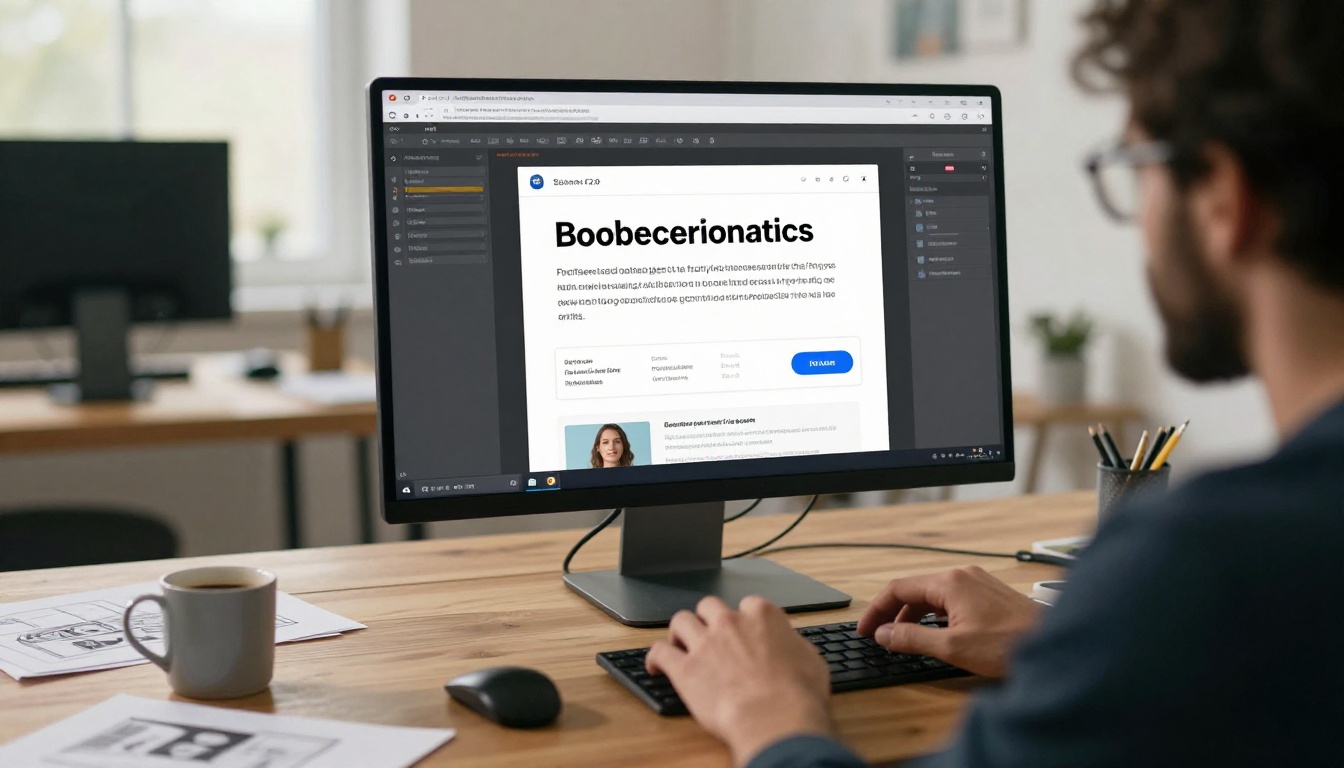
Flipbooks AI has a built-in branding system that places your logo across your entire flipbook, not just on one page. Here's exactly how it works.
Step 1: Create an Account
Head to flipbooksai.com/account and sign up. The Standard plan and above include custom branding with no watermarks, which is what you need for professional logo placement on every page.
Step 2: Upload Your PDF
From your dashboard, click New Flipbook and upload your PDF file. The platform converts it to an interactive flipbook automatically, preserving your layout, fonts, and images without any manual reformatting.
Step 3: Open the Branding Panel
Once your flipbook is created, go to Settings and then Branding. You'll see options for:
- Logo upload (PNG and SVG supported)
- Logo position (top-left, top-center, top-right, bottom-left, bottom-right)
- Logo size adjustment via a slider
- Header and footer background color
Step 4: Upload Your Logo File
Click Upload Logo and select your transparent PNG or SVG file. The preview updates in real time so you can see exactly how it looks across your pages before you publish.
Step 5: Set Position and Size
Use the position selector to choose where your logo appears. Adjust the size slider until the logo is visible but not overpowering. For most business documents, top-left at medium size is the right starting point.
Step 6: Apply to All Pages
Confirm the setting applies globally across all pages, not just the cover. This is the most important step. A logo on one page is a design choice. A logo on every page is branding.

Step 7: Customize Further
While you're in the branding panel, spend a few extra minutes to:
- Set your brand colors for the flipbook toolbar and navigation elements
- Add a favicon (the small icon that appears in browser tabs)
- Configure a custom domain for sharing (Professional plan)
Step 8: Publish and Share
Hit Publish. Your flipbook is now live with your logo on every page. Share via direct link, embed it on your website using the Embed Flipbook on Website tool, or distribute it as a private link with password protection.
✅ Best practice: Always preview your flipbook on a mobile device after publishing. Mobile screens are narrower, so a logo that looks balanced on desktop can feel oversized on a 375px-wide phone screen. Adjust the size if needed before sending it out.
Branding Beyond Just a Logo
A logo is the start, not the finish line. A truly branded flipbook uses every available element to reinforce identity.

Color Consistency
The flipbook toolbar, navigation buttons, and background can all be set to match your brand colors. A teal-and-white brand should have a teal toolbar, not a generic grey one. Flipbooks AI lets you input hex values directly in the branding panel so your digital publications match your other brand assets precisely.
Typography
If your PDF uses specific brand fonts, they carry over automatically since the flipbook renders your PDF as-is. The key is making sure your source PDF already uses the correct brand typeface before you upload.
Custom Domain
Instead of sharing a generic link, a custom domain lets you share something like catalog.yourbrand.com. This single change adds significant credibility. It's available on the Professional plan. Explore pricing plans to see what each tier includes.
Branded Cover Page
Your PDF's first page becomes the flipbook cover. Design it with intention. Use your logo prominently, include a brand tagline, set the visual tone for everything that follows. First impressions in digital publications are just as powerful as in print.
Common Logo Mistakes to Avoid
Most logo problems aren't creative failures. They're technical ones. Here's what to watch for before you publish:
- Using a low-resolution logo: A blurry logo looks worse than no logo. Always use a file that's at least 500px wide at the source.
- JPEG with a white background: This creates a white rectangle over your content. Always use PNG with transparency.
- Logo too large: When a logo takes up 20% of the page, it competes with the content. Scale it down until it's present but not dominant.
- Wrong color version: Most brands have a dark version and a light version. On a white background, use the dark version. On a dark background, use the light version.
- Inconsistent placement: Putting the logo top-left on some pages and bottom-right on others looks like an error, not a design decision.
- Forgetting mobile: A logo that works on a 1440px desktop screen can feel enormous on a 375px phone. Always check both.
⚠️ Warning: If your logo includes fine text in a wordmark, test it at the smallest display size it will appear at. Thin letterforms can become unreadable below 24px height. Simplify or use just the icon mark for small placements.
Plans That Include Custom Branding
Not all flipbook plans offer the same branding capabilities. Here's what each tier includes on Flipbooks AI:
| Feature | Free | Standard | Professional |
|---|
| Custom logo upload | ❌ | ✅ | ✅ |
| No watermarks | ❌ | ✅ | ✅ |
| Brand colors for toolbar | ❌ | ✅ | ✅ |
| Unlimited flipbooks | ❌ | ✅ | ✅ |
| Custom domain | ❌ | ❌ | ✅ |
| Analytics dashboard | ❌ | ❌ | ✅ |
| Lead generation forms | ❌ | ❌ | ✅ |
| Password protection | ❌ | ✅ | ✅ |
| Offline downloads | ❌ | ✅ | ✅ |
For most businesses, the Standard plan is where real branding begins. The Professional plan adds the features that matter most when your flipbooks are actively driving revenue: analytics to see who's reading and where they drop off, lead capture forms, and custom domains that make your publications feel owned.
Real-World Use Cases
The reason logo placement matters differs depending on the purpose of your flipbook. Here are the most common scenarios and what to prioritize in each.

Product Catalogs
A product catalog gets forwarded. Buyers share it with purchasing managers, colleagues, and procurement teams. Your logo on every page means your brand travels every time the file is shared. Use the Digital Catalog Maker to build catalogs with branding built in from the start.
Restaurant Menus
A restaurant menu shared online or embedded on a website is a direct reflection of your brand. The logo in the header, paired with brand colors in the toolbar, creates a seamless, professional experience for every viewer. The Restaurant Menu Creator gives you a purpose-built starting point.
Real Estate Brochures
Real estate agents share brochures constantly, on social media, via email, at open houses. A logo on every page of a flipbook brochure means every view is a brand impression. The Real Estate Brochure Creator handles the layout while you focus on the branding.
Corporate Reports
Annual reports and corporate presentations get distributed to stakeholders, investors, and partners. A clean, consistent logo placement on every page signals organizational credibility and attention to detail. Use the Annual Report Creator to build reports that reinforce your brand at every scroll.

Digital Portfolios
For agencies and creatives, a portfolio flipbook with a logo in the corner signals professionalism. It says: this is a real business, not a folder of images. The Digital Portfolio Creator is built for exactly this use case, and branding it with your logo takes under a minute.
Your Brand Deserves Better Than a Generic PDF
Sharing an unbranded PDF is the digital equivalent of handing someone a business card with no name on it. Your flipbook is a living, shareable, embeddable piece of your brand. Every page is real estate. Your logo should be on it, every time.
Getting started takes less than five minutes. Create your first branded flipbook on Flipbooks AI, upload your logo, and see what consistent, page-by-page branding does for how your publications are perceived. When you're ready to add analytics, lead capture, and a custom domain, check the available plans to find the right fit for your business. Browse all available flipbook tools to find the perfect format for your content type.



