Building a professional-looking brochure used to mean hiring a designer, waiting days for drafts, and spending real money on print runs. Today, your phone handles the entire job in under an hour. Whether you are promoting a property, showcasing a product line, or putting together a service offering, knowing how to build a digital brochure on a phone gives you a concrete edge in speed, reach, and cost. The printing bill disappears. So does the turnaround time. And what you get in return is something print never offered: interactivity, analytics, and instant distribution.
The best part is that a digital brochure does not just replace its printed counterpart, it outperforms it. Page-flipping animations, clickable links, embedded video, password protection, real-time analytics. None of that exists on paper. Flipbooks AI is one of the platforms making this possible directly from a smartphone, with no design experience required and no software to install.
This article breaks down the exact process, the tools worth using, and the mistakes that slow people down.
Why Phone-Based Brochures Actually Work
The Assumption That Needs to Go
Most people assume you need a desktop setup to produce anything polished. That assumption is outdated. Modern smartphones have enough processing power, screen real estate, and app ecosystems to handle the entire brochure workflow from concept to publish. The gap between a phone and a desktop for this kind of work has essentially closed.
The practical advantage is speed. You can capture product photos, upload them, arrange a layout, add your brand colors, and send a shareable link within a single afternoon. Compare that to the traditional route: design brief, agency or freelancer, review rounds, print production, physical distribution. The difference is not incremental. It is categorical.
What Digital Brochures Do That Print Cannot
| Feature | Printed Brochure | Digital Brochure |
|---|
| Page flipping animation | No | Yes |
| Clickable links | No | Yes |
| Embedded video | No | Yes |
| Analytics (views, time per page) | No | Yes |
| Instant distribution | No | Yes |
| Update without reprinting | No | Yes |
| Password protection | No | Yes |
| Cost per additional share | $0.50–$5+ | $0 |
| QR code access | No | Yes |
| Mobile-responsive viewing | No | Yes |
A digital brochure is not a PDF attachment sitting in someone's downloads folder. It is an interactive experience that people scroll, flip, zoom, and act on immediately. When you share it as a flipbook link, readers open it in any browser on any device, no app download, no file permissions, no friction.
What You Need Before Starting
Content First, Tool Second
Before opening any app, know what your brochure needs to communicate. A focused brochure has one clear purpose: one service, one product line, one property, one event. Trying to cover everything in a single document creates noise that dilutes every message.
Gather these assets before you start:
- Brand assets: logo file (PNG with transparent background), hex color codes, any specific fonts
- Photos: ideally shot at a consistent ratio (16:9 or 4:3 works well for brochure layouts)
- Copy: headlines, body paragraphs, pricing, contact information, social handles
- Call to action: where do you want the reader to go after seeing this? A booking link, a product page, a phone number?
Getting these ready before you open a design tool saves significant time and produces a sharper result.
PDF or Design From Scratch: Which Route Is Right
You have two main approaches:
Route A: Design in a mobile app, export to PDF, then convert. This gives you maximum layout control. Canva's mobile app is the most practical choice here. It has hundreds of brochure templates sized correctly and exports clean PDFs. Adobe Express also works well.
Route B: Upload a PDF you already have. If your company has an existing brochure in PDF format, you can upload it directly and convert it into a flipbook instantly. No redesign required.
Both routes end at the same point: a flipbook platform that converts your content into an interactive, shareable brochure. Flipbooks AI handles both approaches smoothly, converting uploaded PDFs into page-flipping digital publications within seconds.
💡 Pro tip: If starting from scratch, use Canva's brochure templates sized at A4 or Letter (not custom dimensions). Export as PDF with high quality settings. The whole design-to-upload process takes under 30 minutes for a 6-page brochure.
How to Build a Digital Brochure on a Phone: Step by Step
This is the practical sequence that works, from blank page to shareable link.
Step 1: Plan Your Page Structure
Before touching any tool, sketch out (even on a notepad) the basic page breakdown. A standard brochure works well at 4 to 8 pages:
- Cover: headline, hero image, brand logo
- Intro: what you offer and the specific problem it solves
- Products or Services: photos, short descriptions, pricing
- Social proof: client testimonials, before/after results, statistics
- Contact or CTA: how to reach you or take the next step
Keep each page focused on a single idea. When a page tries to say three things, it says nothing effectively.
Step 2: Create or Prepare Your PDF
Open Canva on your phone (free tier works fine). Search "brochure" in templates and pick one that fits your category. Replace placeholder images with your own photos, swap the text for your copy, and adjust the colors to match your brand. When finished, tap Export and choose PDF (Print quality if available).
If you already have a PDF from a previous campaign, skip this step entirely.
Step 3: Upload to a Flipbook Platform
Open your phone's browser and go to Flipbooks AI. Create a free account at flipbooksai.com/account. Once inside your dashboard:
- Tap "Create New Flipbook"
- Select "Upload PDF"
- Choose your file from phone storage, Google Drive, or Dropbox
- The platform converts it automatically, usually in under 60 seconds
- Your brochure is now a page-flipping digital publication with a live URL
The Brochure Flipbook Maker handles the conversion and formatting automatically, preserving your original layout, fonts, and images with high fidelity.
Step 4: Customize Branding and Design
After the upload processes, tap into the customization panel. From your phone you can:
- Upload your logo and place it on the flipbook cover
- Set custom brand colors for the surrounding interface
- Add a background texture or gradient
- Enable or disable the page flip sound effect
- Add a clickable table of contents that appears as an overlay
- Set a custom publication title and description
✅ Best practice: Always set a custom short link (for example: flipbooksai.com/view/your-brand-brochure) so the URL looks professional when you paste it into a message or email. Generic links with random strings undercut credibility.
Step 5: Configure Sharing Options
Before publishing, set your sharing preferences:
- Password protection: add a password if the brochure contains private pricing or sensitive information
- Lead capture: on Professional plans, embed a form that collects visitor emails before they can view the content
- Offline download: allow or restrict readers from downloading the flipbook for offline viewing
- Domain: on Professional plans, serve the flipbook from your own domain
Step 6: Publish and Distribute
Tap Publish. You immediately receive:
- A direct shareable link you can paste anywhere
- An embed code for placing the flipbook inline on your website
- A QR code image ready to print or use digitally
For the Online Brochure Designer, all three of these appear on the publish confirmation screen.
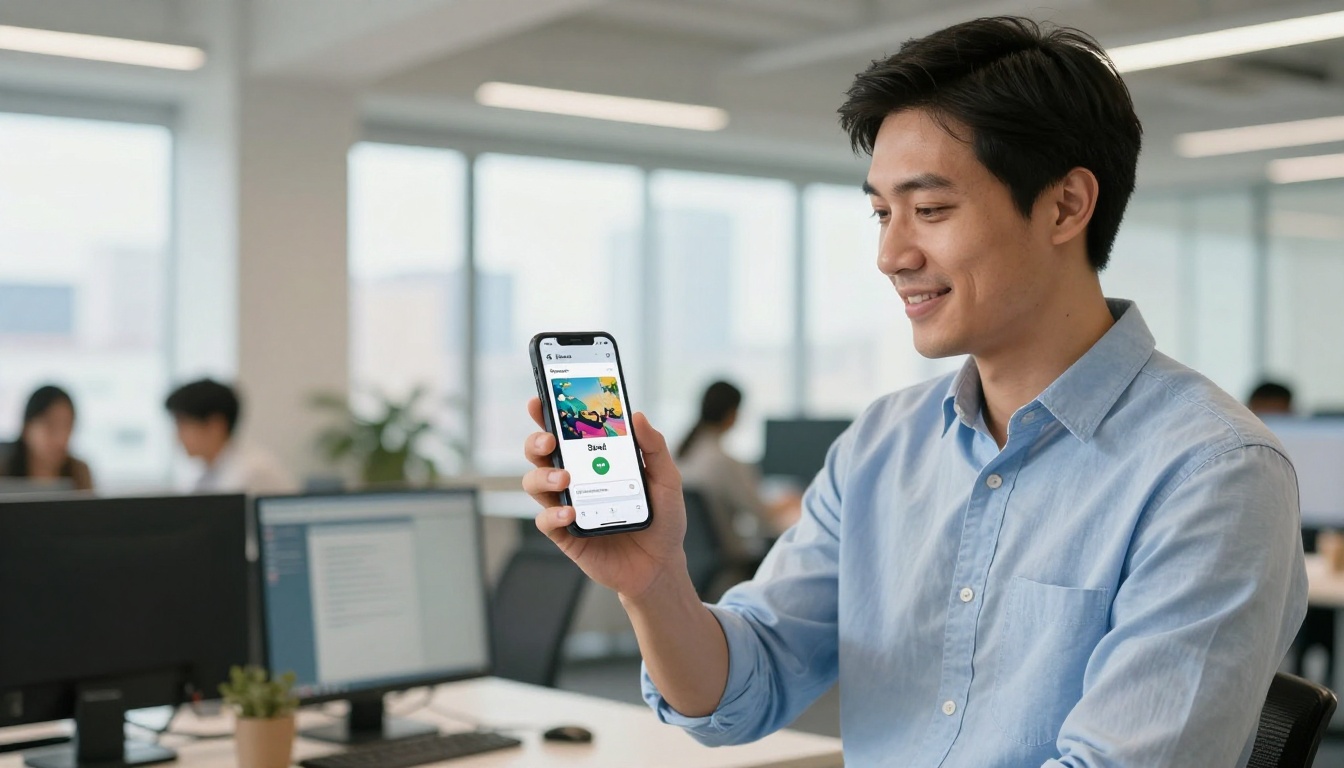
Not every mobile brochure tool delivers the same result. Here is a practical side-by-side look at what matters most:
| Feature | Flipbooks AI | Canva (standalone PDF) | Basic PDF apps |
|---|
| Page flip animation | Yes | No | No |
| Mobile-responsive viewing | Yes | Limited | No |
| Direct shareable link | Yes | Yes | No |
| Embed on website | Yes | No | No |
| Analytics (views, time on page) | Yes (Pro) | No | No |
| Password protection | Yes | No | No |
| No watermarks | Yes (paid) | Paid | N/A |
| Custom branding | Yes | Yes | No |
| Offline download | Yes | Limited | Yes |
| QR code generation | Yes | No | No |
| Lead capture forms | Yes (Pro) | No | No |
⚠️ Warning: Sending a raw PDF file via WhatsApp or email is not the same as sharing a digital brochure. PDFs open in a static viewer with zero interactivity, no tracking, no page-flip effect, and no way to know if anyone actually read it. Always convert to a flipbook before sharing professionally.
How to Create a Digital Brochure with Flipbooks AI
Flipbooks AI has a dedicated Brochure Flipbook Maker along with industry-specific tools for hotel, real estate, and automotive brochures. Here is the full creation process from phone to published flipbook.
1. Set Up Your Account
Visit flipbooksai.com/account and sign up. The free tier lets you publish up to 3 flipbooks immediately. No credit card required to start. Paid plans begin with the Standard tier, which removes watermarks and offers unlimited flipbooks.
2. Upload Your PDF
From your phone's browser:
- Tap "Create New"
- Select "Upload PDF"
- Choose from phone storage or cloud (Google Drive, Dropbox, iCloud)
- The platform converts it automatically into a flipbook within seconds
3. Customize the Presentation
Once converted, the editor lets you:
- Branding: upload logo, select cover display style
- Colors: match your brand using the hex color picker
- Pages: reorder or delete individual pages without going back to the design tool
- Multimedia: embed a YouTube or Vimeo video on any page
- Effects: choose between realistic page-turn animations or smooth slide transitions
4. Set Visibility and Privacy
Before publishing, configure access:
- Public: anyone with the link can view
- Password-protected: only people with the password can access
- Unlisted: not indexed, only accessible via direct link
5. Publish and Get Your Links
Hit Publish and immediately access your direct link, QR code, and embed code. Share the link via SMS, email, WhatsApp, LinkedIn, or paste the embed code into your website.
6. Track Results (Professional Plan)
The Professional plan adds a full analytics dashboard showing:
- Total views and unique visitors
- Average time spent on each page
- Geographic location of readers
- Conversion data from embedded lead forms
💡 Pro tip: Use lead capture forms within the brochure itself. A reader who is genuinely interested enough to fill out a form inside your brochure is a warm lead worth following up with immediately.
Flipbooks AI features worth knowing:
- No watermarks on Standard plan and above
- Unlimited flipbooks on Standard plan and above
- Password protection across all paid plans
- Offline downloads available
- Video and audio embeds on any page
- Mobile-responsive flipbook viewing on all devices
- Custom branding without code
Real-World Use Cases by Industry
Real Estate Agents
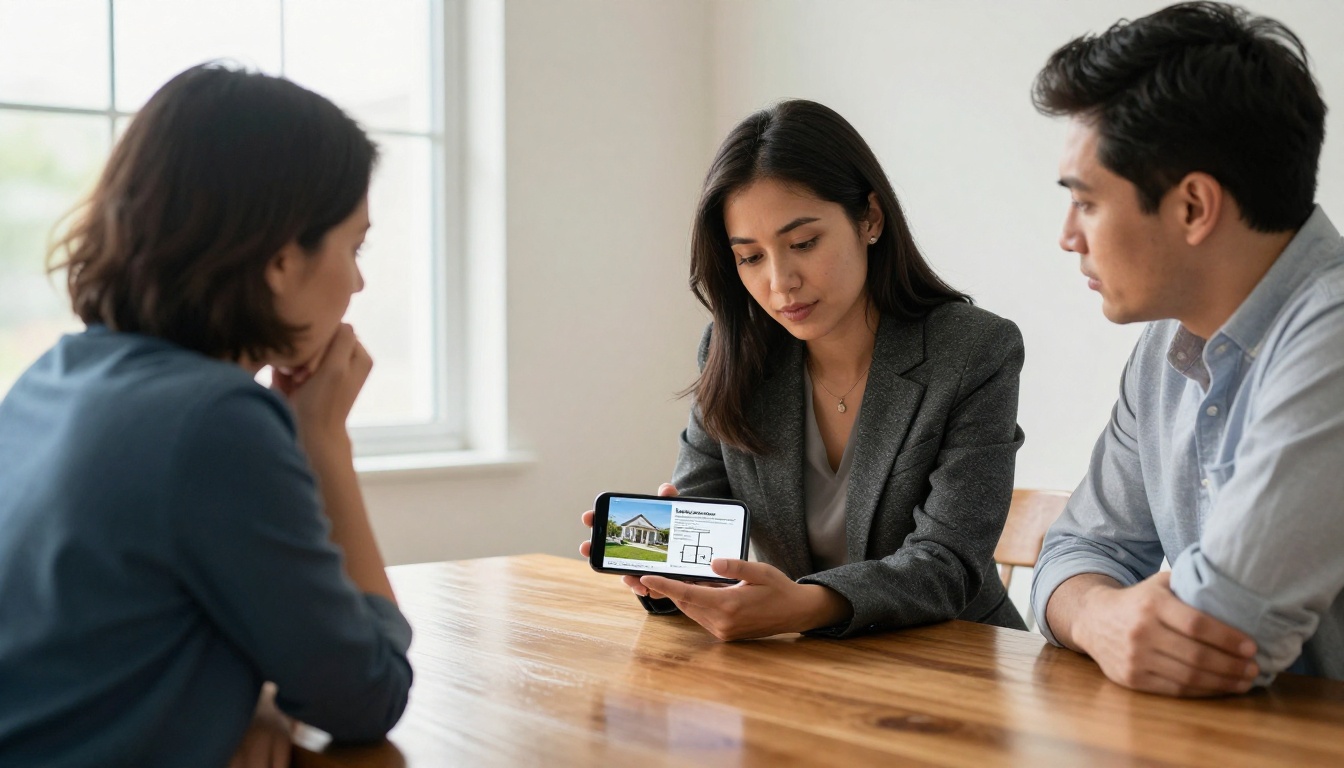
A real estate agent photographs a property on their phone, drops images into a Canva layout, uploads the PDF to Flipbooks AI using the Real Estate Brochure tool, and has a shareable property brochure ready before leaving the showing. The flipbook includes floor plans, pricing, contact details, and a clickable link to the property map, viewable on any device. Sending one link in a follow-up message replaces a printed packet entirely.
Restaurant Owners
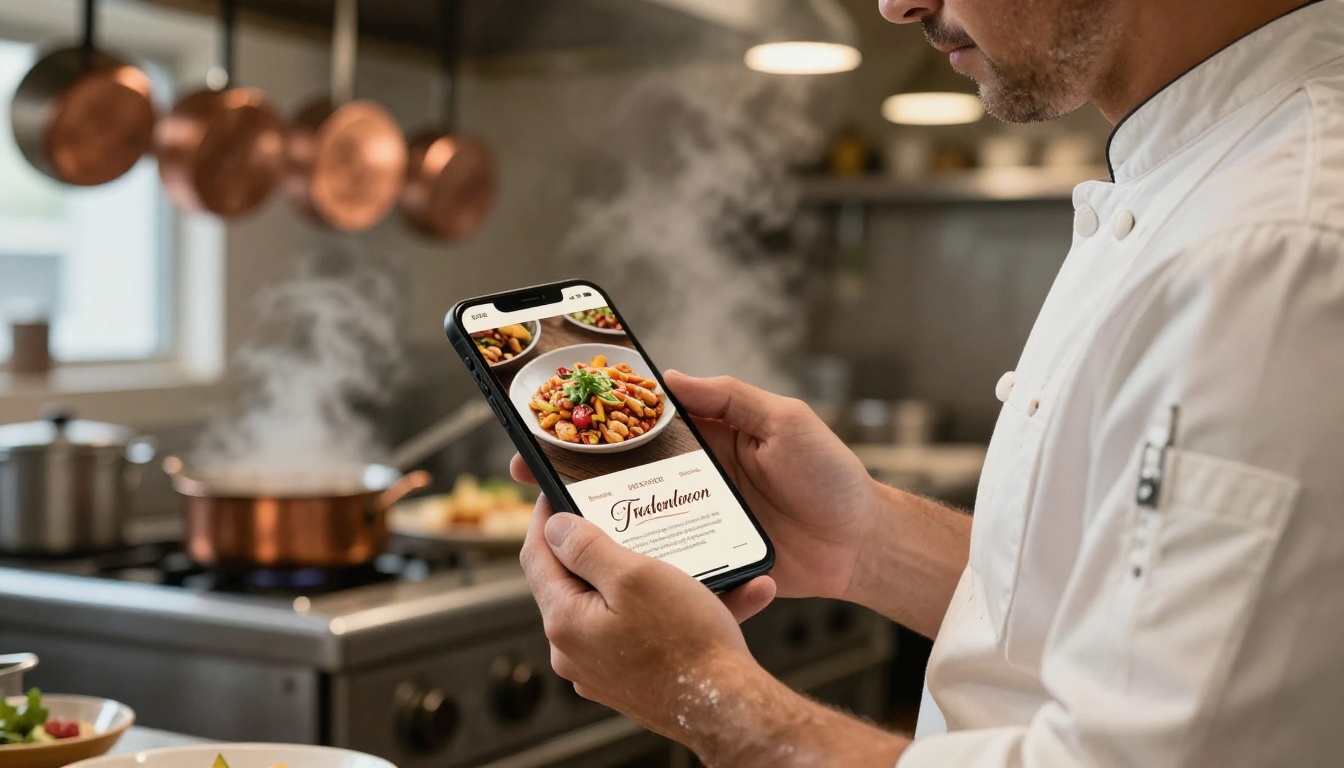
A restaurant can update a seasonal menu brochure in real time. No reprinting costs, no outdated paper copies circulating in the wild. The Restaurant Menu Creator converts a PDF menu into an interactive flipbook shared via QR code on tables, in Instagram bio, or through a WhatsApp group. When an item sells out or a price changes, the brochure updates across every share instantly.
Freelancers and Creatives
A freelance photographer builds a portfolio brochure in an afternoon using the Digital Portfolio Creator and sends it to prospective clients via a single link. No email attachment size limits. No "can you resend as a PDF" replies. No static image grid that does not tell a story. The flipbook format lets the portfolio breathe across pages with a visual rhythm that a static document cannot match.
Event Organizers
An event organizer creates a sponsor brochure or event program using the Event Program Maker and updates it as speakers are confirmed, without reprinting or redistributing anything. Attendees access the live link and always see the current version.
Corporate Teams
Sales teams use flipbook brochures for proposals and product presentations. The Sales Presentation tool formats content for professional sharing, and with analytics, the sales rep knows exactly which sections a prospect spent time on before the follow-up call.
Sharing Methods That Actually Move the Needle
Building the brochure is step one. Getting it seen is step two. Here are the sharing approaches that work.
Direct Links in Messaging
The most frictionless option. Copy the flipbook link and paste it into any message: WhatsApp, email, LinkedIn DM, iMessage, or Instagram DM. The recipient taps it and sees your brochure opening in their browser with no app download. Response rates on direct link shares significantly outperform PDF attachments because the viewer does not need to do anything except tap.
Embedded on Your Website
Flipbooks AI provides a one-line embed code. Paste it into your website's HTML or drop it into a Squarespace, Wix, or WordPress block. The brochure appears inline, fully interactive, without the visitor ever leaving your site. This keeps bounce rates low and session time high.
QR Codes for Physical Contexts
Every published flipbook generates a QR code automatically. Print it on:
- Business cards
- Store windows
- Trade show banners and table cards
- Product packaging
- Restaurant tables
- Event programs
Anyone who scans it lands directly on your digital brochure. This bridges physical marketing materials with your digital content without extra steps.
Password-Protected Links for Private Content
For pricing sheets, exclusive proposals, or internal presentations, set a password. Share the link with the password separately. Only intended recipients can view the content. This is a standard feature on paid Flipbooks AI plans.
Mistakes That Cost You Time and Credibility
Most first-time mobile brochure creators make the same avoidable errors.
- Designing at the wrong size: Use A4 or Letter dimensions. Custom or square sizes often convert poorly and produce layout shifts.
- Too much text per page: Brochures are visual documents. If a single page has more than 80 words, split it into two pages or cut aggressively.
- Not previewing on a real phone: What looks clean on a desktop can be unreadable on a 6-inch phone screen. Always preview on your actual device before publishing.
- A weak cover: Your cover is the entire first impression. A low-quality cover photo or a generic headline tanks credibility before the reader reaches page two.
- Sending PDFs instead of flipbook links: A static PDF attachment feels outdated and tells the reader nothing about whether you have a professional operation.
- Skipping analytics: Without page-level data, you have no idea which sections resonate and which lose people. The Professional plan adds analytics that directly inform what to change in future versions.
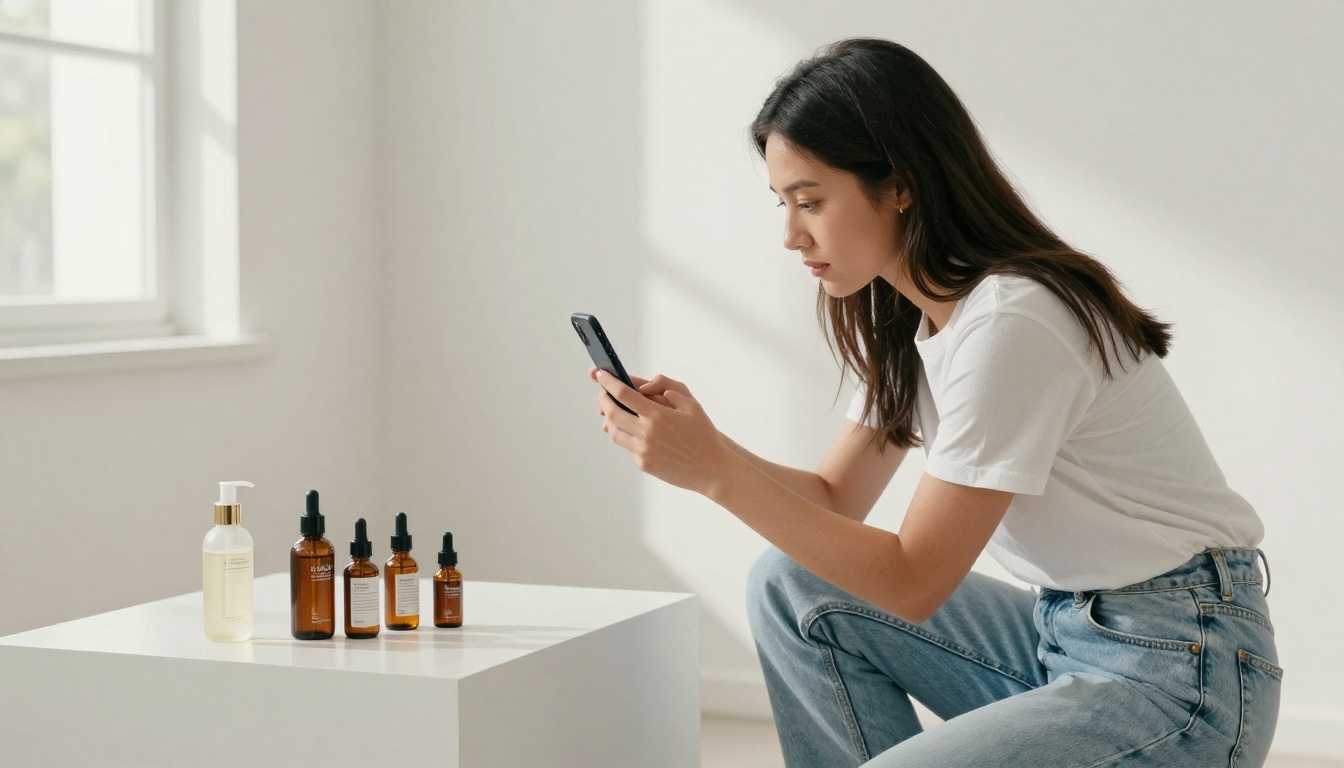
- Low-resolution photos: Blurry or poorly lit images destroy the visual quality of a brochure regardless of how good the layout is. Shoot in natural light using your phone's full resolution.
⚠️ Warning: Never use screenshots of existing documents as your brochure pages. Screenshot compression destroys text clarity. Always work from original PDF files or freshly exported designs.
Flipbooks AI Plan Overview
| Plan | Flipbooks | Watermarks | Analytics | Password | Custom Domain | Offline |
|---|
| Free | 3 | Yes | No | No | No | No |
| Standard | Unlimited | No | No | Yes | No | Yes |
| Professional | Unlimited | No | Yes | Yes | Yes | Yes |
See full pricing details to compare what each plan includes and pick the one that fits your publishing volume.
Start Creating Today
The friction between "I have content" and "I have a professional brochure people can open on any device" has never been lower. Your phone, a clear content structure, and the right platform are genuinely all you need. No design degree, no expensive software, no print budget.
Create your first digital brochure on Flipbooks AI and have something shareable within the hour. Browse the full tools directory to find templates built for real estate, restaurants, portfolios, corporate reports, event programs, and more. When you are ready to scale, explore pricing plans to choose the tier that matches your workflow and volume.



