Email inboxes are brutal. You have about three seconds to grab someone's attention before your message gets archived, deleted, or forgotten. Sending a PDF attachment is one of the slowest ways to lose that window. Most email clients block attachments outright, or treat them as suspicious. Even when they go through, readers see a grey paper clip icon and move on.
A flipbook changes the equation entirely. Instead of attaching a file, you share a polished, interactive digital publication that opens with a single click, works on any device, and looks like a real magazine. Click rates climb. Time-on-content goes up. And your brand looks sharper than everyone else in the inbox.
This article shows you exactly how to create a flipbook and add it to an email, step by step, from converting your PDF to getting the link in front of your subscribers, with every detail you need to do it right the first time.
How to Create a Flipbook and Add It to an Email (Step by Step)
Why Static PDFs Fail in Email
Before building anything, it helps to understand why the traditional approach breaks down. Email clients like Gmail and Outlook have strict attachment handling. Files above 25MB often bounce. Many corporate servers block PDF attachments entirely for security reasons. And even when the file arrives, the recipient has to download it, open a separate application, and then come back to the email to respond.
That friction adds up. According to multiple email marketing studies, click-through rates on plain text links to documents are consistently lower than those on links to web-based content that opens directly in a browser.
Why Flipbook Links Work Better
A flipbook lives online. You share a URL, and the reader clicks it. The publication opens instantly in their browser with smooth page-turn animations, embedded images, and full mobile responsiveness. No app needed. No download required. No compatibility issues between operating systems.
For email, this is the ideal format. Your content is one tap away, accessible from any device, and visually striking from the first page.
What Email Clients Actually Do with Attachments
| Scenario | PDF Attachment | Flipbook Link |
|---|
| Gmail (free) | Blocks files above 25MB, shows preview icon | Opens instantly in browser |
| Outlook (corporate) | Often flagged by security filters | Passes through without issue |
| Apple Mail | Downloads to device, requires a PDF app | Opens in Safari or Chrome |
| Mobile inbox | Requires a separate PDF reader app | Works in any mobile browser |
| Load time | Depends on file size | Fast, hosted on CDN |
The numbers make a clear case. Flipbooks remove every barrier between your reader and your content.

What You Need Before You Start
Creating and sending a flipbook through email takes three things: a finished document in PDF format, a platform to convert and host it, and an email tool to send the campaign.
Your PDF Document
Your flipbook starts as a PDF. This could be a product catalog, a newsletter, a brochure, a lookbook, an e-book, or any other publication you want to share. The PDF should be clean, high-resolution (at least 150 DPI for images), and properly formatted at the correct page size, usually A4 or US Letter.
If you do not have a PDF yet, you can export from Canva, Adobe InDesign, Google Slides, or Microsoft Word. Any software with a "Save as PDF" option works.
A Flipbook Platform
You need a platform that converts your PDF into an interactive flipbook and gives you a hosted link to share. Flipbooks AI does this automatically. Upload your PDF, and within minutes you have a live publication with page-turn effects, mobile optimization, and a shareable URL ready for your email.
💡 Pro tip: Choose a platform that gives you a clean, brandable URL. A link like flipbooksai.com/your-publication looks far more professional in an email than a random string of characters.
An Email Marketing Tool
Any major email marketing platform works: Mailchimp, Klaviyo, ActiveCampaign, HubSpot, ConvertKit, or Brevo. You will be adding a hyperlink or a button that points to your flipbook URL, which is supported by every email tool on the market.
How to Create Your Flipbook with Flipbooks AI
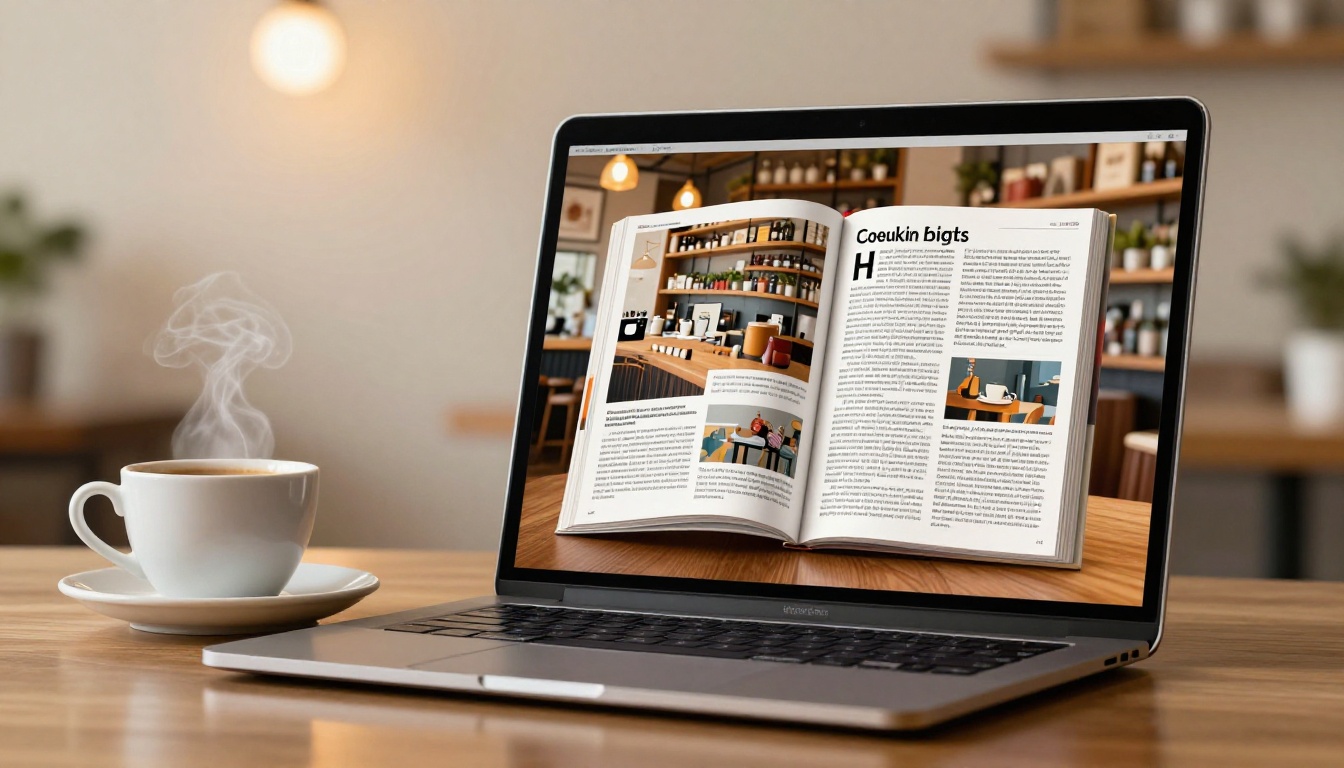
Flipbooks AI is built specifically for this kind of workflow. You upload a PDF, and the platform converts it into a fully interactive flipbook with realistic page-turning, custom branding, and a shareable link you can drop directly into any email. Here is how to do it from scratch.
Step 1: Sign Up and Upload
Go to flipbooksai.com/account and create your account for free. No credit card required to start. Once inside the dashboard, click New Flipbook and upload your PDF file. Flipbooks AI reads the file, converts each page to a high-resolution web image, and builds the interactive publication automatically. For most documents, this takes under two minutes.
✅ Best practice: Keep your PDF under 200 pages for the fastest conversion. Larger files convert fine but take a bit longer to process.
Step 2: Customize the Look
After conversion, you can adjust the flipbook's appearance in a fully visual editor:
- Opening page: Set which page displays as the front of the publication
- Background color: Match your brand palette exactly
- Logo: Upload your company logo to brand the reader view
- Page effects: Choose realistic flip, slide, or instant transitions
- Sound: Optional page-turn sound that can be toggled off for silent reading
The PDF to Flipbook Converter handles all the technical rendering, so you are working with a visual editor rather than any code.
Step 3: Set Privacy and Access
Decide who can see the flipbook:
- Public: Anyone with the link can view it immediately
- Password protected: Add a password for private newsletters or VIP content
- Unlisted: Not indexed anywhere, but accessible via direct link
For most email campaigns, public or unlisted works best. Password protection is ideal for members-only content or confidential reports sent to specific segments.
Step 4: Copy Your Link and Share
In the Share panel, copy the direct link to your flipbook. This is the URL you will paste into your email. It loads fast on any device, and the Professional plan tracks views automatically so you can see exactly how many people opened the link and how far they read.
💡 Pro tip: Test the link on both desktop and mobile before sending your campaign. Open it on your phone to confirm the reading experience is smooth before anything goes live.
How to Add a Flipbook to an Email
There are three reliable ways to include a flipbook in an email. Each has a different use case depending on your audience and email design style.
Option 1: Plain Text Hyperlink
The simplest approach. Write a line of text in your email and hyperlink the flipbook URL directly to it. Works in every email client, including plain-text emails, and never triggers spam filters.
Example: Read this month's product catalog with the hyperlink pointing to your flipbook URL.
Use this for transactional emails, simple newsletters, or any audience that prefers a minimal, no-frills design.
Option 2: CTA Button
A button draws significantly more attention than a text link and consistently drives higher click rates. In your email builder, add a button element and paste your flipbook URL as the destination link.
Button copy that actually works:
- "View the Full Catalog"
- "Read the Newsletter"
- "See Our New Lookbook"
- "Open the Brochure"
Keep button text under six words and make sure the button color contrasts clearly with your email background for maximum visibility.
Option 3: Clickable Banner Image
Take a screenshot of your flipbook's front page and insert it as a clickable image in your email. Link that image to your flipbook URL. Readers see a visual preview of the publication and click directly into the interactive experience.
This is the highest-converting approach for visual content like catalogs, lookbooks, and magazines because it gives readers a real sense of what they are about to open before they click.
⚠️ Warning: Some email clients block images by default. Always include a visible text link or button alongside your clickable image so readers can still reach the flipbook if images do not load.

Flipbooks AI Plans: What You Get
Not all features are available on every plan. Here is a direct breakdown so you know exactly what your team needs before committing to a tier.
| Feature | Free | Standard | Professional |
|---|
| Flipbooks | 3 total | Unlimited | Unlimited |
| Watermark | Yes | No | No |
| Custom branding | No | Yes | Yes |
| Password protection | No | Yes | Yes |
| Analytics | No | No | Yes |
| Lead generation forms | No | No | Yes |
| Offline downloads | No | No | Yes |
| Website embed | No | Yes | Yes |
| Custom domain | No | No | Yes |
For email campaigns, the Standard plan is usually the right fit. You get unlimited flipbooks, no watermarks, custom branding, and password protection. The Professional plan adds view analytics so you can see exactly how many people clicked your email link and how deep into the publication they read.
Check the full pricing page for current plan rates and what is included at each tier.
Comparing Flipbook Use Cases for Email

Different teams send flipbooks by email for very different reasons. Here is a breakdown of the most common use cases and what makes each one work.
| Use Case | Content Type | Recommended Plan | Standout Feature |
|---|
| Product launch | Product catalog | Standard | Custom branding |
| Monthly newsletter | Editorial publication | Standard | Unlimited flipbooks |
| VIP member content | E-book or report | Standard | Password protection |
| Sales outreach | Company brochure | Standard | Shareable embed link |
| Lead generation | Whitepaper or landing doc | Professional | Lead capture form |
| Post-event recap | Event program | Free | Direct shareable link |
| Internal training | Training manual | Professional | View analytics |
For product catalogs, the Catalog Flipbook Creator and Product Catalog Generator tools give you ready-to-fill templates that produce a polished PDF before you even upload anything. For newsletters, the Newsletter Flipbook Publisher is built specifically for editorial content with multiple sections and clean readability across devices.
What Makes Readers Actually Click

Getting the link into the email is only half the job. The other half is writing the email itself so readers actually want to click. A few things that consistently move the needle:
Subject Lines That Signal Value
The strongest subject lines are specific. They tell the reader exactly what is waiting for them on the other side of the click:
- "Your November catalog is ready to view"
- "This month's lookbook: 24 new styles inside"
- "The report is live. See the numbers."
Vague subject lines like "Check out our latest content" get ignored. Specific ones get clicks.
Preview Text That Reinforces the Click
The preview text, which appears under the subject line in most mobile inboxes, should extend the subject line with one more compelling detail. If your subject is "Your November catalog is ready," your preview might read: "32 pages of new arrivals, now available on any device."
Button Placement That Captures Every Reader
The CTA button should appear in the top half of the email, ideally after one or two sentences that set context. Burying it below a long block of text means a large portion of readers scroll past it before deciding to close.
💡 Pro tip: Including two buttons, one near the top and one near the bottom for longer emails, captures both the readers who click immediately and those who read everything first.
Embedding vs. Linking: What Actually Works
A common question: can you embed the actual flipbook inside the email so it plays inline? The short answer is no, and not because of any platform limitation. Email clients do not support JavaScript or interactive iframes for security reasons. This is true across every major provider including Gmail, Outlook, and Apple Mail.
What you can do is embed a flipbook on a website or landing page using the Embed Flipbook on Website tool, then link to that page from your email. This approach keeps readers on your own domain and lets you add surrounding content, calls-to-action, or product navigation alongside the flipbook itself.

Mistakes That Hurt Your Results
Most flipbook email campaigns that underperform make the same few errors. Here is what to avoid before you hit send.
No visual preview in the email: If your email is all text and a single link, readers have no visual cue about what they are clicking. Adding a front-page image or small thumbnail dramatically increases click rates.
Vague CTA copy: "Click here" tells readers nothing. "View the catalog" or "Open the brochure" sets the right expectation before they click and removes hesitation.
Sending to cold lists: A flipbook works best when sent to people who already know your brand. Cold outreach with a flipbook link can trigger spam filters or land in promotions folders. Warm your list first.
Not testing on mobile: More than 60% of emails are opened on mobile devices. Test your email on both iOS and Android before sending. Make sure the button is large enough to tap comfortably and confirm the flipbook opens correctly in a mobile browser.
No tracking on results: Without analytics, you cannot tell which emails drove flipbook views or which campaigns performed best. The Professional plan includes view tracking so you can see how many people clicked and how far through the publication they read.
Send Your First Flipbook Email Today
You now have every piece you need. A flipbook starts as a PDF, converts in minutes on Flipbooks AI, and lands in your subscribers' inboxes as a polished, clickable link. Your readers get an experience that feels genuinely different from the usual newsletter, and you get results you can actually measure.
Here is the fast version of the full process:
- Export your document as a PDF
- Upload it at flipbooksai.com/account
- Customize branding, colors, and access settings
- Copy your shareable link from the Share panel
- Paste it into your email as a button or clickable image
- Send the campaign and track the results
Whether you are sharing a product catalog, a monthly newsletter, a company brochure, or a digital lookbook, the workflow is identical and the results speak for themselves.
Browse all flipbook tools to find the right format for your next campaign, or check the pricing plans to pick the tier that fits your team. Your next email campaign deserves something better than a PDF attachment.



