Sharing documents used to mean attachments, downloads, and hoping the recipient had the right software to open them. That era is over. Today, a flipbook created in minutes can be sent as a clean URL that opens on any phone, laptop, or tablet without any app required. Whether you are distributing a product catalog, a school newsletter, or a polished portfolio, the process is the same: upload your PDF, convert it, customize it, and send the link. Here is exactly how it works.
What a Shareable Flipbook Actually Is
Most people picture a flipbook as a novelty, those little paper animations you flip with your thumb. Online, the term means something far more powerful: a PDF transformed into an interactive digital publication with realistic page-turn effects, embedded media, and a live URL that anyone can open instantly.
The Difference Between a PDF Link and a Flipbook Link
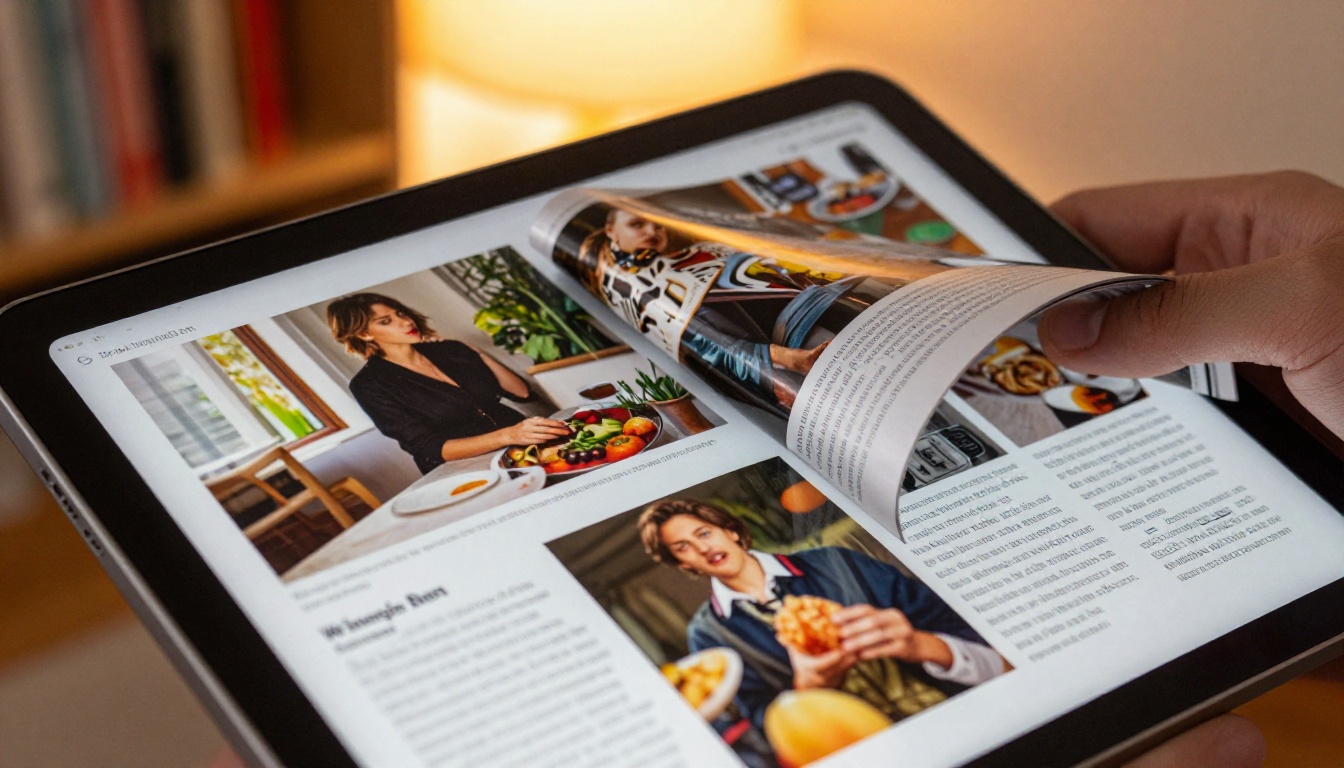
Sending a PDF link works, but the experience is flat. The reader downloads the file, opens it in a viewer, and scrolls through it. A flipbook link opens directly in the browser, shows a magazine-style layout, and lets users flip pages with a swipe or a click. The presentation difference is dramatic.
| Feature | PDF Link | Flipbook Link |
|---|
| Opens in browser | Sometimes | Always |
| Page-turn animation | No | Yes |
| Mobile-friendly | Partial | Fully optimized |
| Password protection | No | Yes |
| View tracking | No | Yes (Professional) |
| Embed in websites | No | Yes |
| Custom branding | No | Yes |
💡 A flipbook link works the same way a YouTube link does: paste it anywhere, and it plays. No downloads, no plugins, no friction.
Why Sharing by Link Beats Email Attachments
Email attachments have size limits, get flagged by spam filters, and create version control problems. A flipbook link solves all three: the file lives in the cloud, the link never expires unless you choose to deactivate it, and you can update the underlying content without changing the URL.
Real-world scenarios:
- A real estate agent sends a property brochure link via text message. The client opens it on their phone during their commute.
- A restaurant owner shares a new seasonal menu link on Instagram Stories. Followers tap to read the full menu without leaving the app.
- A training manager distributes an employee manual link via company email. The team reads it on any device, with no formatting issues.

How to Create a Flipbook from a PDF
The core workflow is consistent across platforms: prepare your PDF, upload it, let the tool convert it, then copy your link.
Preparing Your PDF Before Upload
The quality of your flipbook depends heavily on the quality of your source file. Before uploading, check:
- Resolution: Use at least 150 DPI for readable text. For image-heavy publications, 300 DPI is better.
- Page size: Standard sizes (A4, US Letter) convert cleanly. Non-standard sizes sometimes require cropping adjustments.
- File size: Most tools accept files up to 500MB. Compress images inside the PDF if needed.
- Fonts: Embed all fonts in the PDF to prevent substitution issues during conversion.
- Hyperlinks: Links inside the PDF are usually preserved in the final flipbook.
⚠️ If your PDF was exported from PowerPoint or Google Slides, check that each slide is a full-page canvas, not a small thumbnail placed on a white page.
Uploading and Converting Your File
Once your PDF is ready, the upload process on Flipbooks AI is straightforward:
- Go to Flipbooks AI and sign in or create a free account.
- Click New Flipbook from your dashboard.
- Drag and drop your PDF file or browse to upload it.
- Wait for the automatic conversion, typically between 15 and 90 seconds depending on file size.
- Your flipbook appears in the editor, fully interactive and ready to customize.
The PDF to Flipbook Converter handles each page automatically. No manual setup is required.
Customizing Your Flipbook Before Sharing
Sending a basic conversion is fine. Sending a branded, polished flipbook is significantly more effective. Before copying your link, spend a few minutes on customization.
Branding and Visual Options
Flipbooks AI gives you direct control over how your flipbook looks and feels:
- Preview thumbnail: Choose which page appears in social link previews and direct messages.
- Brand colors: Match the player interface to your company palette.
- Logo placement: Add your logo to the viewer header.
- Background: Choose from solid colors, gradients, or transparent backgrounds.
- Page effects: Toggle between flat scroll and realistic 3D page-turn animation.
✅ Custom branding is available from the Standard plan. It removes all third-party branding from the viewer for a fully professional experience.
Adding Multimedia to Pages
Beyond the base PDF content, you can enrich individual pages:
- Embedded videos: Link YouTube or Vimeo videos to specific pages so they play inline.
- Audio narration: Add voiceovers to pages for presentations or training materials.
- Clickable links: Add hotspot buttons that point to external URLs or product pages.
- Pop-up images: Display additional visual detail that appears on click.
How to Share a Flipbook by Link
After customization, sharing is a single step: copy the URL from your dashboard. But there are several link options worth knowing.
Types of Shareable Flipbook Links
| Link Type | Best For | Privacy Level |
|---|
| Public link | Social media, website embeds | Open to anyone |
| Password-protected link | Clients, internal docs | Password required |
| Private link | Unlisted content | No indexing, link-only access |
| Expiring link | Time-limited campaigns | Auto-deactivates on set date |
Public Links for Social and Email
A public flipbook link works anywhere a URL can go:
- Email: Paste it in the body text or hyperlink a call-to-action button. No attachment weight limits.
- WhatsApp / SMS: The link unfurls with a thumbnail preview and title on most messaging platforms.
- LinkedIn / Facebook: Posts with flipbook links generate rich preview cards that boost click rates.
- QR codes: Generate a QR code from the link for print materials, business cards, or event signage.
💡 Using a branded short URL such as yourbrand.com/menu makes links far more memorable and professional.
Password-Protected Links for Private Content
If your flipbook contains sensitive information such as pricing sheets, client proposals, or internal reports, password protection prevents unauthorized access.
On Flipbooks AI, setting a password takes three clicks: open settings, enable password protection, set the password. The link still functions the same way, but recipients must enter the correct password before viewing.
✅ Password protection is available on all paid plans. Check the pricing page for plan details.
Embedding vs. Sharing Direct Links
A flipbook link opens in a full browser page. An embed code displays the flipbook inline on any website or blog.
Both are valid, but they serve different purposes:
- Use a direct link for one-to-one sharing via email, messaging, or social media.
- Use an embed code when the flipbook is part of a webpage experience, such as a catalog on a product page.
The Embed Flipbook on Website tool generates an iframe snippet you can paste directly into your website HTML.
Step-by-Step Tutorial: Creating and Sharing with Flipbooks AI
This is the full workflow from zero to a live shareable link.
Step 1: Sign Up and Access the Dashboard
Go to Flipbooks AI and create your account. The free tier is available immediately, no credit card required. Once inside, your dashboard shows a clear New Flipbook button.

Step 2: Upload Your PDF
Click New Flipbook, then drag your PDF into the upload zone or click to browse. The platform accepts PDFs up to 500MB. The conversion engine processes each page and generates the interactive flipbook in seconds to a couple of minutes for larger files.
Step 3: Customize the Viewer
Once converted, enter the editor:
- Set your flipbook title and description (these appear in link previews and social share cards).
- Choose a preview thumbnail from your pages or upload a custom image.
- Apply brand colors and add your logo if you are on a Standard plan or above.
- Toggle page effects to enable the 3D page-turn animation.
- Add any hotspots, videos, or audio to individual pages as needed.
Step 4: Configure Sharing Settings
Before copying the link, decide on your sharing setup:
- Public: Leave settings as default. The link works for everyone.
- Password-protected: Enable in settings and set a password.
- Private: Toggle off public indexing to make it accessible by link only.
Step 5: Copy and Share Your Link
Click Publish or Share from the top bar. Your flipbook URL is displayed immediately. Copy it and paste it wherever you need: email, SMS, social media, or a website button.
💡 The link is live immediately after publishing. No waiting for approval or additional processing.
Step 6: Track Who Opens It
With the Professional plan, every share becomes trackable. You get access to:
- Total views and unique visitors
- Time spent per page
- Geographic data
- Lead capture forms embedded directly in the flipbook

Practical Use Cases by Industry
The ability to create a flipbook and share it by link applies across dozens of industries.
Marketing and Sales
Sales teams distribute interactive product catalogs via email campaigns. A link in a cold email outperforms an attachment because it loads instantly and tracks opens. The Product Catalog and Sales Presentation Flipbook tools are built for exactly this workflow.
Hospitality and Food Service
Restaurants share seasonal menus via QR codes on tables, or as links in their Google Business profiles. Hotels send digital brochures to booking prospects before arrival. The Restaurant Menu Creator and Hotel Brochure tools handle the specific formatting each industry requires.
Education and Training
Training managers send employee manuals as flipbook links that can be updated without resending. Teachers share course materials with students via a single class link. The Training Manual Flipbook and Course Material Publisher tools eliminate version control issues that come with static PDFs.
Creative Professionals
Photographers and designers share portfolios as flipbook links in their email signatures or on social media bios. The link opens beautifully on any device, showing work in a high-quality interactive format. The Photography Portfolio and Digital Portfolio Creator tools are purpose-built for this use case.
Comparing Flipbook Plans for Sharing Features
Not all sharing features are available on every plan. Here is what matters for distribution.
| Feature | Free | Standard | Professional |
|---|
| Shareable link | Yes | Yes | Yes |
| Password protection | No | Yes | Yes |
| Custom branding | No | Yes | Yes |
| Unlimited flipbooks | No | Yes | Yes |
| View analytics | No | No | Yes |
| Lead generation forms | No | No | Yes |
| Offline downloads | No | Yes | Yes |
| Custom domain | No | No | Yes |
✅ The Standard plan covers 90% of sharing needs for most teams: unlimited flipbooks, password protection, custom branding, and offline downloads.
See the full breakdown at Flipbooks AI pricing to find what works for your use case.
Common Mistakes When Sharing Flipbooks
Even a well-made flipbook can underperform if distributed incorrectly. These are the issues that come up most often.
Using the Wrong Link Format
Some platforms shorten or reformat long URLs in ways that break the destination. Always test your link before mass distribution: open it in an incognito browser window to confirm it loads exactly as a non-logged-in viewer would see it.
Forgetting Mobile Optimization
More than 60% of link clicks come from mobile devices. Flipbooks AI generates mobile-responsive flipbooks automatically, but verify that your original PDF text is large enough to read on a phone screen before converting.
Not Setting a Descriptive Title
The flipbook title populates the browser tab, the social link preview card, and the page metadata. A vague title like "Document 1" reduces click-through rates significantly. Write a clear, descriptive title before publishing.

Skipping View Tracking on Important Sends
If you are sending a proposal to a high-value prospect or launching a marketing campaign, going in blind wastes the opportunity. Enable analytics on the Professional plan to see exactly how people interact with your content, which pages hold attention, and where they stop reading.
Who the Direct Link Workflow Works Best For
Some users benefit more from direct links than others. Here is a quick breakdown:
- Solopreneurs and freelancers: Send proposals, portfolios, and invoices as clean links instead of PDF attachments.
- Small marketing teams: Distribute campaigns faster without building full landing pages.
- Sales reps: Share catalogs and one-pagers that load instantly on any device.
- Educators: Publish course materials students can access from any device without an app.
- Event organizers: Share programs and schedules as QR-code-accessible flipbook links.

Ready to Share Your First Flipbook
Creating a flipbook and sharing it by link is one of the fastest wins in digital publishing. You start with a PDF you already have, convert it in under two minutes, and end up with a professional, mobile-friendly link you can send to anyone.
Flipbooks AI makes every step of this workflow available without any technical skills required. Upload, customize, publish, share. If you need more from your flipbooks, such as analytics, lead capture, or a custom domain, the pricing plans scale with your needs.
Ready to build yours? Get started for free and have your first shareable flipbook link ready in minutes. Browse all available tools and templates to find the format that fits your content best, or check pricing to see which plan includes the features you need.



