If you've spent time building a well-structured Google Doc, you already have 90% of what you need to publish a professional interactive flipbook. The problem is that most people stop at sharing a PDF link, and PDF links are boring. A plain PDF doesn't flip, it doesn't captivate, and it certainly doesn't make your content feel polished or worth reading. That's exactly why converting your Google Doc into a digital flipbook changes how people receive your work, and Flipbooks AI makes that process faster than you'd expect.

Why Your Google Doc Deserves More Than a PDF Link
You put real effort into your document. Whether it's a business proposal, a training manual, a class handout, or a product catalog, the content inside Google Docs is valuable. But when you share it as a static PDF, that value gets buried inside a file that people either download reluctantly or ignore entirely.
A flipbook turns that same content into an interactive digital publication. Pages animate when clicked. The reader feels like they're turning physical pages. On mobile, it's touch-responsive. On desktop, it's visual and dynamic. The difference in how readers interact with a flipbook versus a plain PDF is substantial, and once you've seen a well-made digital publication, sending a plain PDF feels like sending a fax.
The Problem With Static Document Sharing
When you share a Google Doc link or export to PDF, your reader hits several friction points:
- PDF downloads interrupt reading flow and clutter someone's Downloads folder
- Google Doc links require the reader to have a Google account or deal with permission prompts
- No branding control means your document looks identical to every other shared Google file
- Zero analytics means you never know if anyone actually read past page one
- No embedding means you can't place it inside a website, newsletter, or landing page
What a Flipbook Actually Does Differently
A digital flipbook created from your Google Doc solves every one of those problems. It lives at a shareable URL, requires no download, works on any device, and gives you full control over how it looks and who can access it.
The page-flipping effect isn't a gimmick. It signals to your reader that this is a finished, professional piece of content, not a rough draft shared via a link. That perception shift affects how people interact with the material inside.
What You Need Before You Start
The process of creating a flipbook from a Google Doc is short, but getting your document ready first saves time and produces a better final result.
Format Your Google Doc Properly
Before exporting, make sure your document is structured the way you want it to appear. A few things that matter most:
- Page size: Standard Letter (8.5 x 11") or A4 works best for flipbooks
- Fonts: Use web-safe fonts or Google Fonts that embed cleanly in PDF export
- Images: Make sure all images are embedded, not linked from external sources
- Margins: Keep margins consistent, at least 0.5" on all sides, to avoid content clipping
- Headers and footers: These appear on every page, so make sure they're intentional
💡 Pro tip: Use Google Docs "Print Layout" view while editing so you can see exactly how each page will look when exported. What you see in Print Layout is what you get in your flipbook.
The Tools Required
You need only two things:
- A Google account with your document ready to export
- A Flipbooks AI account (free to start, no credit card required)
No design software, no Photoshop, no complicated conversion tools. The entire process happens inside your browser.
Step 1: Export Your Google Doc as a PDF
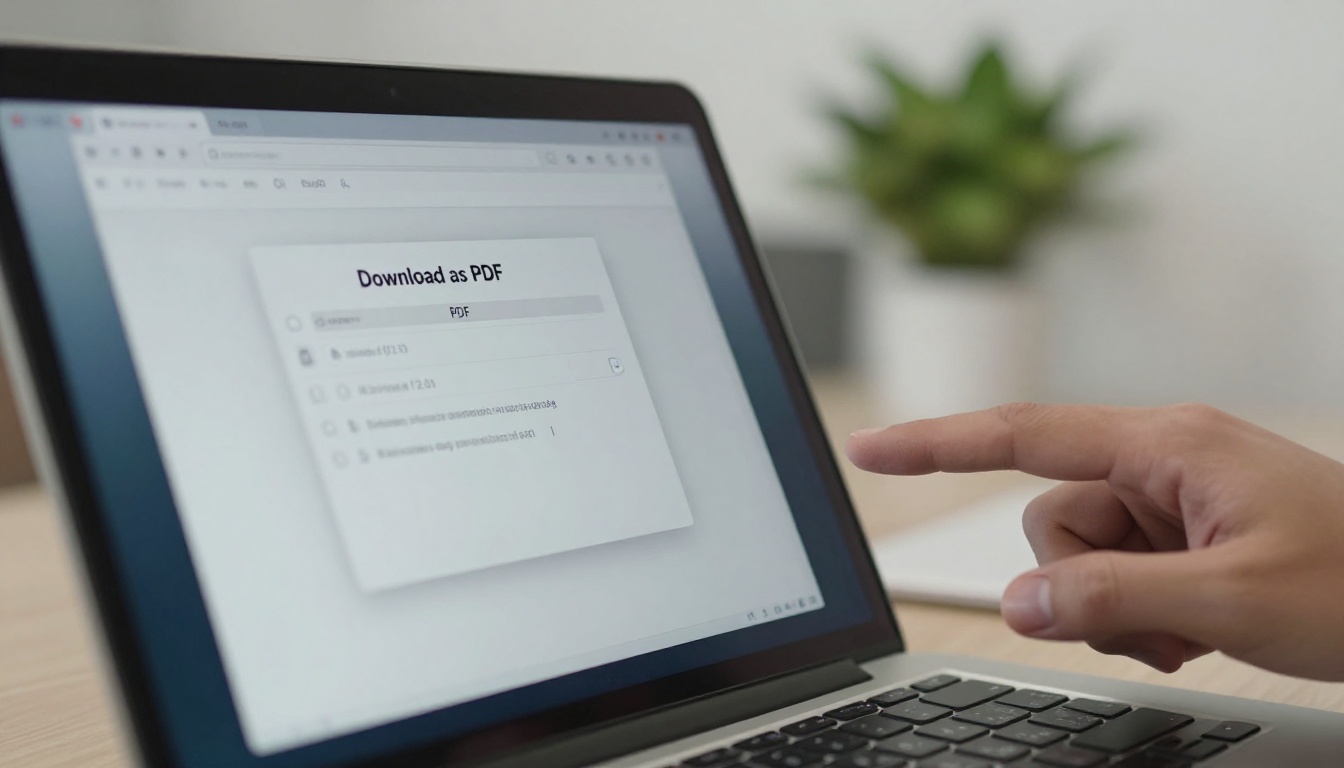
The first step is converting your Google Doc into a PDF file. This is a built-in Google Docs feature and takes about 10 seconds.
How to export your Google Doc as PDF:
- Open your Google Doc in the browser
- Click File in the top navigation menu
- Hover over Download
- Select PDF Document (.pdf)
- The file saves automatically to your computer
Your PDF is now ready for upload.
The Right Export Settings
Google Docs exports PDFs at a standard resolution that works well for flipbooks. You don't need to change any settings before exporting. The only thing worth checking is whether your document uses fonts that might not embed properly. If you see missing characters after upload, switch to a standard Google Font like Roboto, Open Sans, or Lato before re-exporting.
Common Formatting Issues to Fix First
| Issue | What Causes It | How to Fix It |
|---|
| Text overflowing page edges | Narrow margins | Set margins to at least 0.5" on all sides |
| Images appearing blurry | Low-resolution source files | Replace with images at least 300 DPI |
| Font not rendering correctly | Non-embedded custom fonts | Switch to standard Google Fonts |
| Pages appearing cut off | Non-standard page sizes | Use standard Letter or A4 format |
| Headers overlapping content | Insufficient margin spacing | Increase top/bottom margins to 1" |
⚠️ Warning: If your Google Doc contains complex tables that span multiple pages, check the PDF output carefully before uploading. Tables that split across page breaks sometimes render with missing borders or misaligned columns in the PDF version.
Step 2: Convert Your PDF to a Flipbook

This is where the transformation happens. Flipbooks AI converts your PDF into a fully interactive page-flipping publication in seconds. No waiting, no complex settings, no design decisions required at this stage.
The upload process, step by step:
- Go to flipbooksai.com and sign in to your account
- Click Create New Flipbook from your dashboard
- Drag and drop your PDF into the upload zone, or click to browse your files
- The conversion processes automatically, typically under 30 seconds
- Your flipbook preview opens the moment conversion is complete
Upload Your File
The upload interface accepts PDF files and handles multi-page documents, complex layouts, and embedded graphics without any manual adjustment on your part. The PDF to Flipbook Converter processes everything automatically, preserving your original formatting and layout fidelity across every page.

Configure Your Flipbook Settings
Once uploaded, a settings panel lets you configure how your flipbook behaves:
- Title and description: Set the metadata displayed on your flipbook's public page
- Background color: Choose the viewer background to match your brand palette
- Auto-flip: Enable automatic page turning for presentations or kiosk displays
- Page-turn sound: Toggle the realistic page-turn sound effect on or off
- Starting page: Choose which page opens first if you want to skip the title page
Preview Before Publishing
Before going live, flip through every page in preview mode. Check for:
- Text clarity and readability on each page
- Image quality and correct positioning
- Correct page order throughout the document
- Any pages that appear blank or misformatted
If anything looks off, go back to your Google Doc, fix the formatting issue, re-export to PDF, and re-upload. The process is fast enough that a full iteration takes only a few minutes.
Customize Your Flipbook (Don't Skip This)
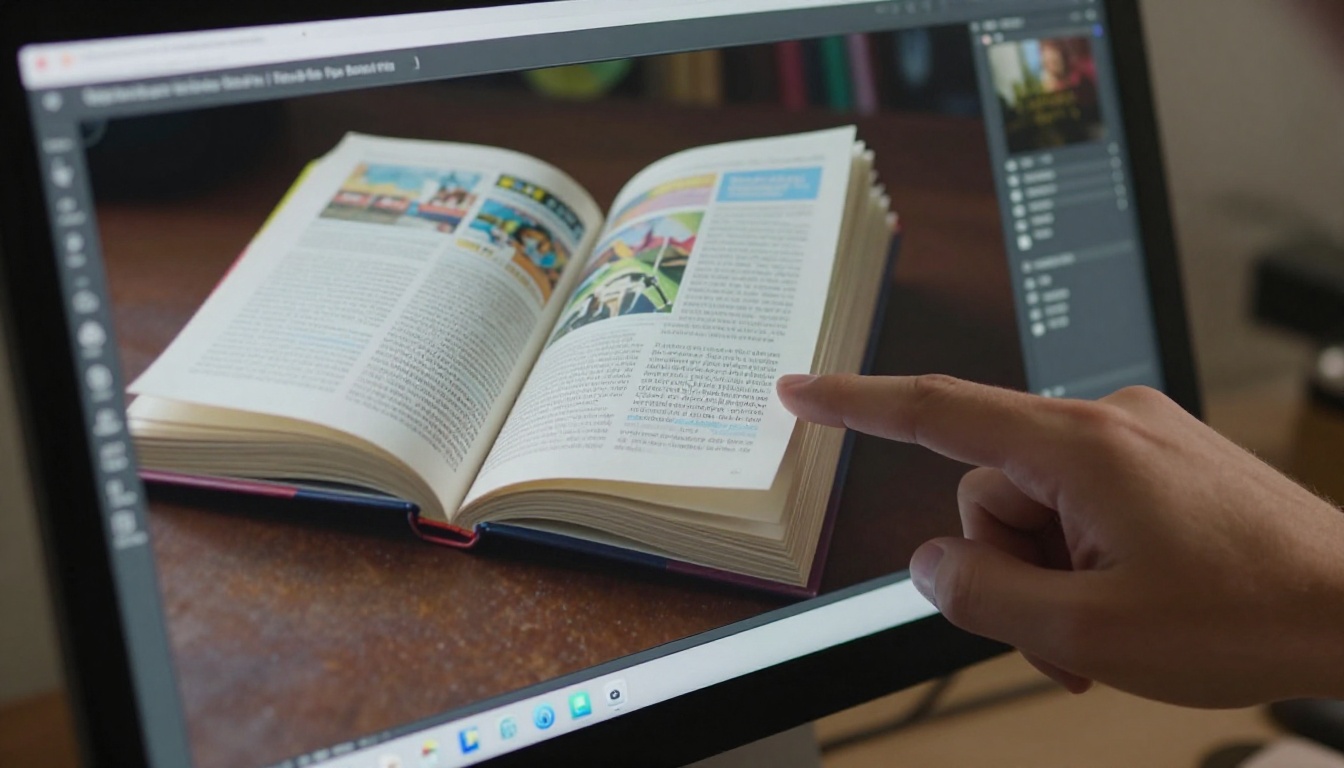
A default flipbook looks clean, but customization is what separates a generic document share from a polished branded publication. Flipbooks AI gives you control over every visual element the reader sees.
Branding and Colors
Inside the customization panel:
- Upload your logo to appear in the flipbook viewer header
- Set brand colors for backgrounds and UI elements
- Add a custom domain so the flipbook URL reflects your own website
- Remove viewer chrome for a clean, immersive reading experience
✅ Best practice: Always add your logo. Even for internal documents, branded flipbooks communicate that this content is intentional and finished, not a rough draft passed around in email threads.
Adding Multimedia Elements
This is where interactive flipbooks genuinely outperform static PDFs. You can embed:
- Videos: YouTube or Vimeo content that plays inside the flipbook without leaving the page
- Audio: Background music or narration attached to specific pages
- Hyperlinks: Clickable text and images pointing to external pages or resources
- Pop-up layers: Additional detail or callout boxes appearing over specific page areas
These features turn a static Google Doc into something closer to an interactive microsite, without any coding required.
Password Protection and Privacy Settings
Not every document is meant for public access. For internal reports, confidential proposals, or gated content, the platform provides:
- Password protection: Require a password before the flipbook opens
- Private links: Share with specific people via a non-indexed URL
- Domain restriction: Limit where your embedded flipbook can be displayed
💡 Pro tip: Password protection and domain restriction are available on the Standard plan and above. Compare pricing plans to find the right fit for your use case.
How to Share Your Flipbook

Once your flipbook is published, sharing it is immediate. You get several distribution options depending on where and how you want your readers to find it.
Direct Link Sharing
Every flipbook gets its own unique URL. Copy this link and share it anywhere: email, Slack, WhatsApp, LinkedIn, or paste it into a Notion doc. The reader clicks the link and the flipbook opens instantly in their browser. No download required. No account needed on their end.
This makes it ideal for sending proposals to clients who shouldn't have to deal with file attachments, or distributing reports to stakeholders who just need to read, not download.
Embedding on Websites and Blogs
The Embed Flipbook on Website tool generates an iframe snippet you paste directly into any website's HTML. The flipbook renders inline on your page, letting visitors flip through content without leaving your site.
This works particularly well for:
- Landing pages: Embed a product catalog or brochure directly on a sales page
- Blog posts: Embed a related report or reading material inside an article
- Portfolio sites: Show off work samples without linking away to a file
- E-commerce pages: Display an interactive lookbook next to product listings
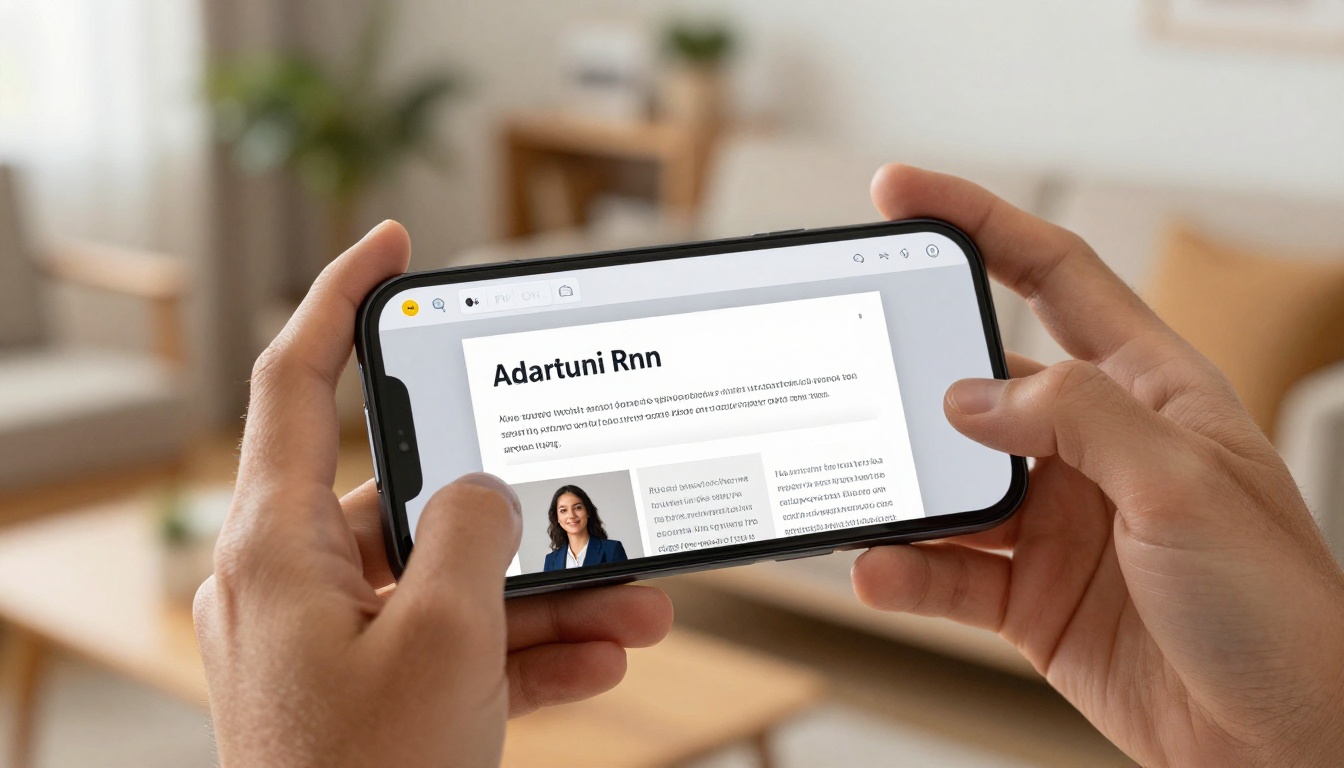
Mobile-Responsive Distribution
Every flipbook created on Flipbooks AI is mobile-optimized by default. On a smartphone, readers swipe to turn pages. On a tablet, pinch-to-zoom and tap navigation work naturally. No extra configuration needed. It works the way people expect digital content to work in 2027.
Real-World Use Cases
The combination of Google Docs for writing and Flipbooks AI for publishing covers a broad range of practical applications across industries.
Business Reports and Proposals
A quarterly report or business proposal shared as a flipbook link lands differently than a PDF attachment in an email. Decision-makers can flip through it during a call, on a phone between meetings, or on a second monitor while reviewing numbers. The formatted layout makes charts and data feel intentional.
The Annual Report Creator and Corporate Report Maker tools are built specifically for this use case, producing polished publications from existing document content quickly.
Educational Materials
Teachers and instructors who build course content in Google Docs can publish interactive materials without additional design work. A syllabus, reading packet, or study handout becomes an interactive digital publication students access from any device, anywhere.
The Course Material Publisher and Training Manual Flipbook tools make this workflow simple for educators and corporate trainers who need to distribute content at scale.
Marketing Materials and Catalogs
Google Docs is a common starting point for product descriptions, service lists, and marketing copy. Rather than waiting on a designer to reformat everything, a flipbook converts the working document directly into a distributable digital catalog or brochure.
Browse the Digital Catalog Maker and Online Brochure Designer for templates built specifically around these use cases.
Plans and Pricing at a Glance
Flipbooks AI offers plans for every level of use, from individuals sharing occasional documents to teams publishing consistently at volume.
| Feature | Free | Standard | Professional |
|---|
| Flipbooks | 3 | Unlimited | Unlimited |
| Watermarks | Yes | No | No |
| Password protection | No | Yes | Yes |
| Custom branding | No | Yes | Yes |
| Analytics | No | No | Yes |
| Lead generation | No | No | Yes |
| Offline downloads | No | No | Yes |
| Embed on website | Limited | Yes | Yes |
| Custom domain | No | No | Yes |
The Standard plan is where most individuals and small teams operate. No watermarks, unlimited flipbooks, and full embedding at a price point that works for ongoing use. The Professional plan adds analytics so you can see exactly how many people viewed each flipbook and how far they read through it.
Flipbook vs PDF vs Google Doc Link
| Distribution Method | Interactive | Mobile-Friendly | Analytics | Embeddable | Branded |
|---|
| Google Doc Link | No | Partial | No | No | No |
| PDF Download | No | Partial | No | No | Partial |
| Digital Flipbook | Yes | Yes | Yes | Yes | Yes |
The difference is visible at a glance. A digital flipbook isn't just a prettier version of your Google Doc. It's a fundamentally more capable format for publishing and distributing documents online.
Your First Flipbook Is Three Steps Away

The workflow is straightforward:
- Export your Google Doc as PDF via File > Download (30 seconds)
- Upload to Flipbooks AI and let the converter run (under a minute)
- Customize and share your link or embed code (as quick or as detailed as you choose)
There's no design software, no technical requirement, and no steep learning curve. If you can write a Google Doc, you can publish a professional interactive flipbook that your audience will actually want to read.
Ready to publish your first flipbook? Create your free account on Flipbooks AI and upload your document today. Want to see everything the platform offers first? Browse all tools and templates or compare pricing plans to find what fits your workflow best.



