How to Create a Flipbook from a JPG Folder (Step by Step)
Got a folder full of JPG images and want to turn them into something people actually want to look at? This article walks you through every step of converting a JPG folder into a beautiful, interactive flipbook you can share anywhere online. No design skills needed, no complicated software, just your photos and a few clicks.
You've got a folder full of JPG images on your computer, whether vacation shots, product photos, event pictures, or a personal collection, and you want to turn it into something genuinely impressive to share. Good news: converting a JPG folder into a page-turning digital flipbook is far simpler than most people expect, and the result looks considerably more professional than a boring slideshow or a PDF dump.
Flipbooks AI makes this process straightforward, whether you're working with a handful of images or hundreds. This article breaks down the full workflow, from organizing your JPG files to publishing a polished, shareable digital flipbook that works beautifully on any device.
Why JPGs Work So Well for Flipbooks
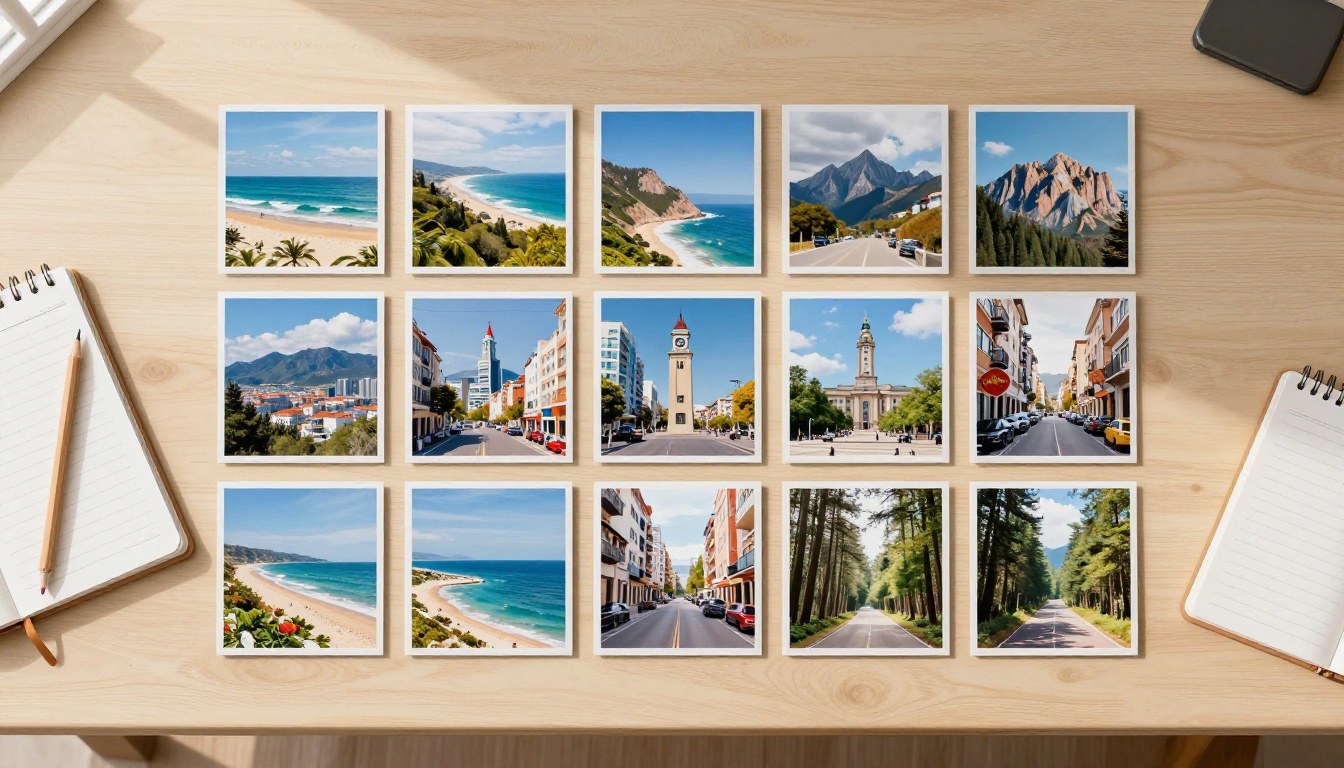
Most people assume flipbooks are built from PDFs, and while that's accurate for document-heavy content, JPG folders are the ideal starting point for photo-based flipbooks. Each image becomes a page, giving you full visual control over what your audience sees on every single spread.
JPG files are:
Universally compatible with all browsers, devices, and platforms
Optimized for web delivery at smaller file sizes without major quality loss
Easy to batch-process, so you can prepare an entire folder in one step
Flexible in resolution, from social media crops to high-DPI print-quality exports
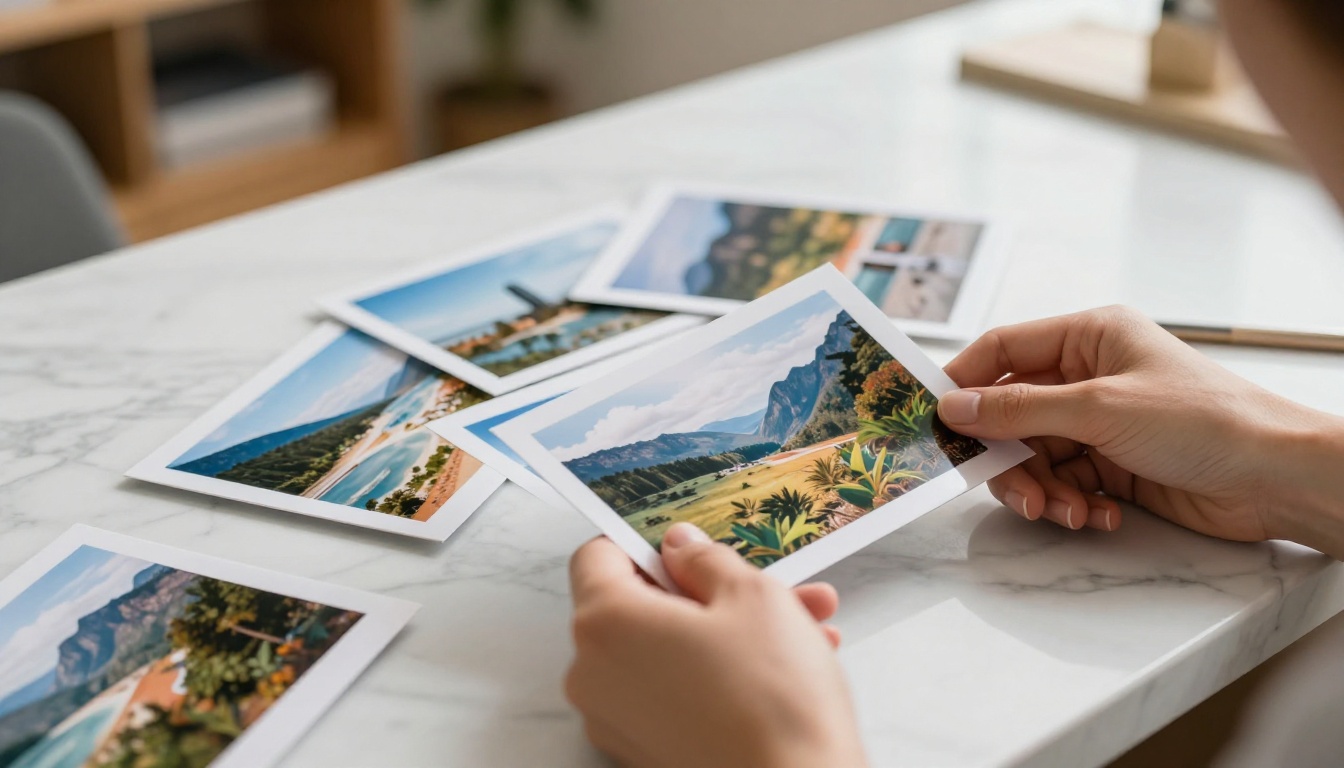
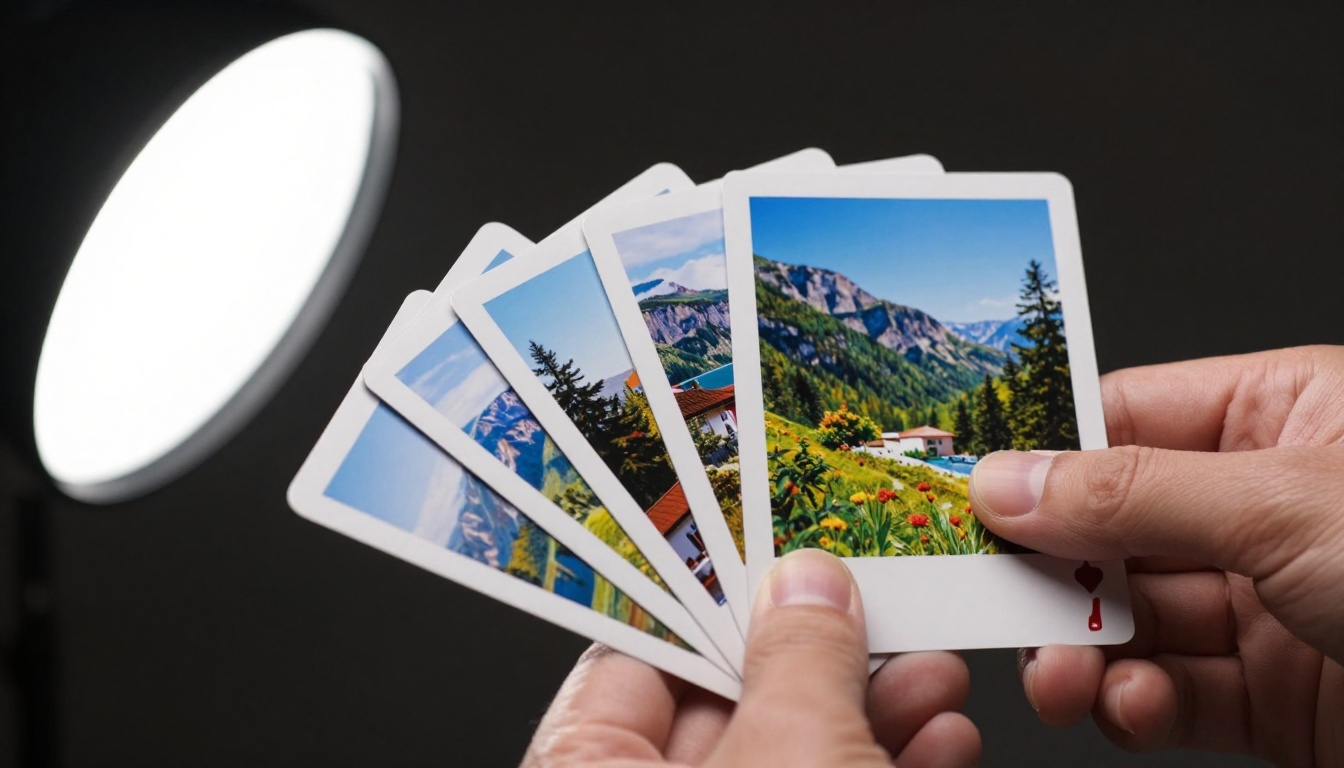
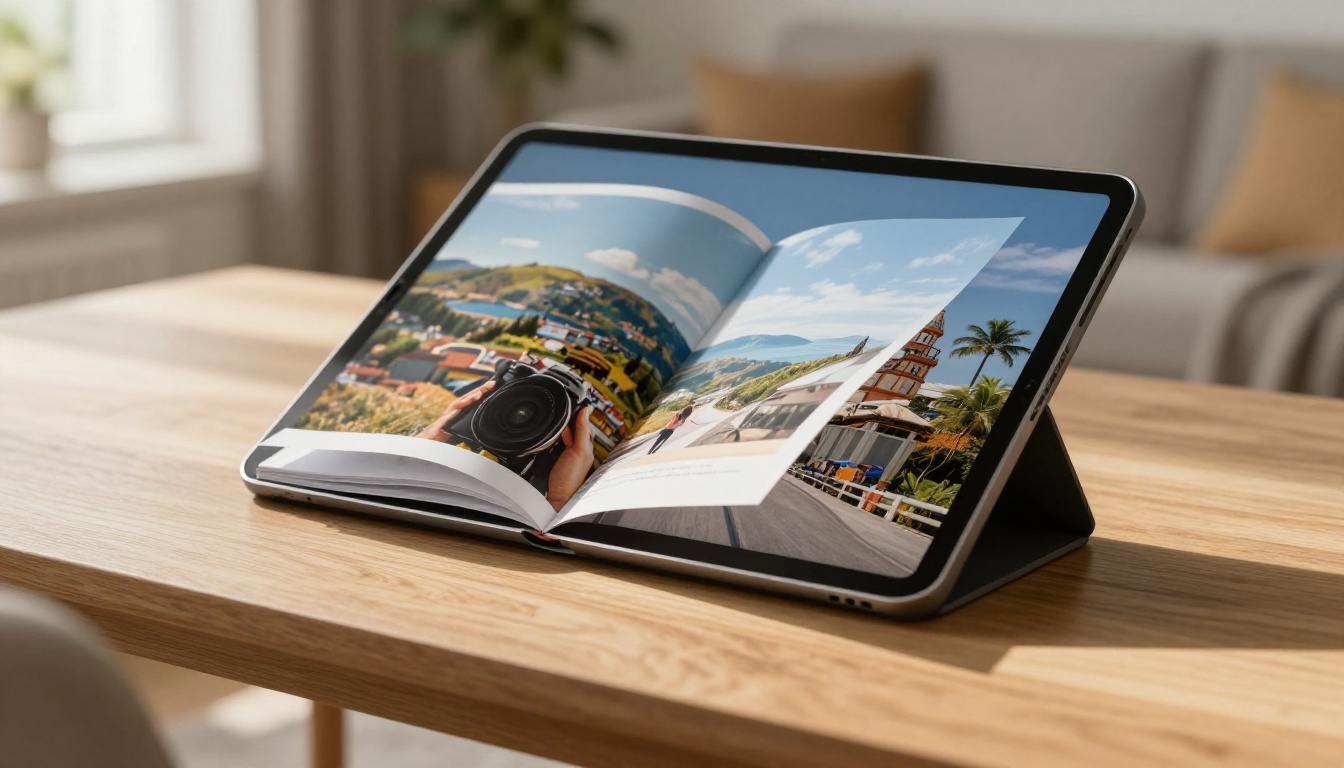
The page-flip format works especially well for photo collections because it mimics the experience of flipping through a physical photo album. It's tactile, satisfying, and dramatically more effective at holding attention than scrolling through a gallery grid.
💡 Pro Tip: Before you start, rename your JPG files with a numbered prefix (e.g., 001_photo.jpg, 002_photo.jpg) so they import in the exact sequence you want. Most tools sort alphabetically by default.
Preparing Your JPG Folder
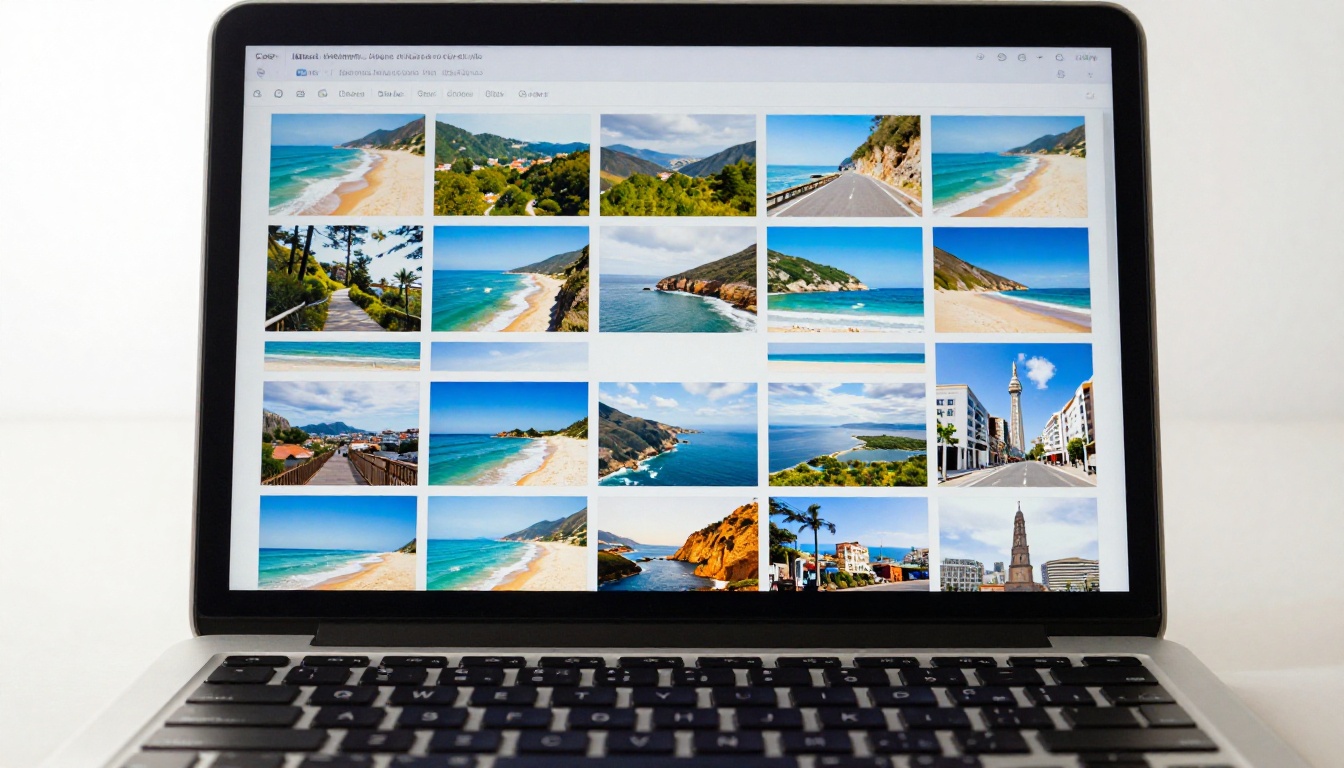
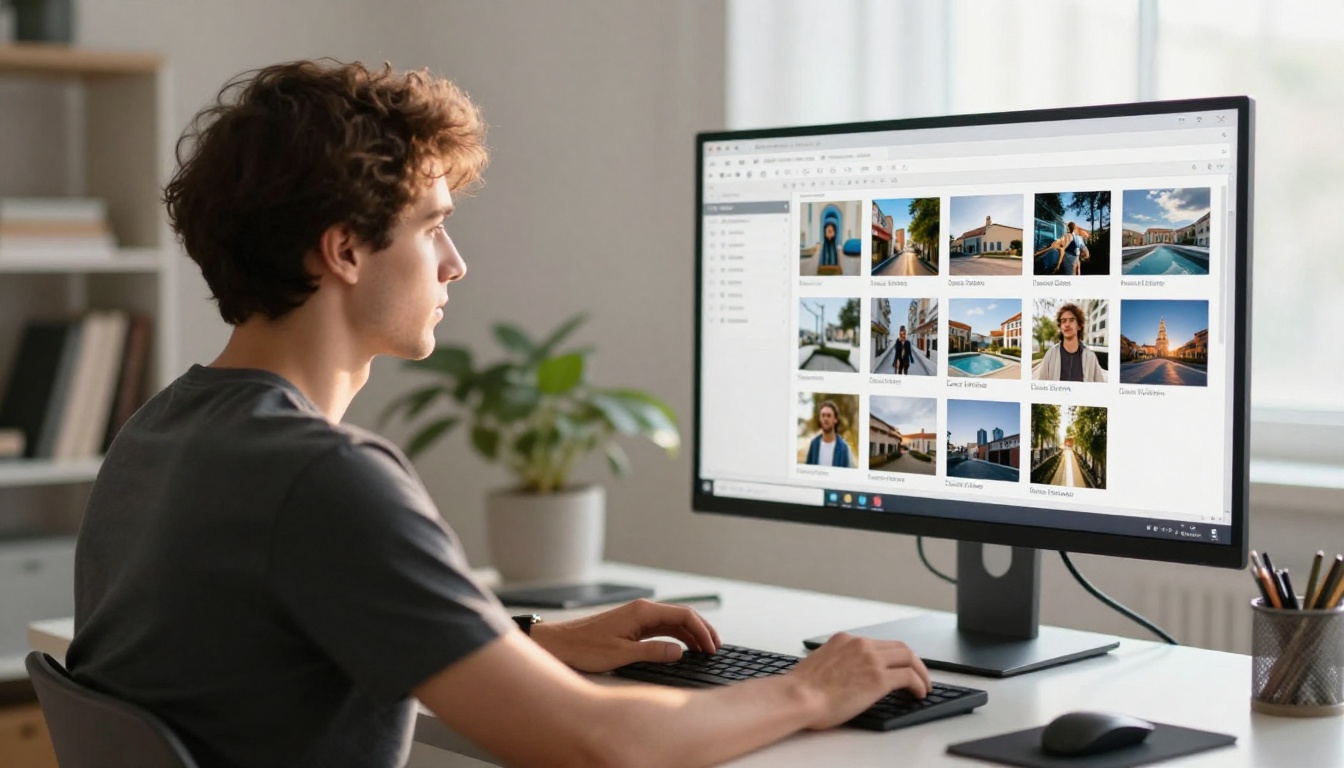
The quality of your flipbook depends heavily on how well-prepared your image folder is before you upload. Rushing this step means going back later to fix things, so spend five minutes getting it right.
File Naming and Ordering
Your flipbook tool will import images in the order they appear in the folder. Confirm this before uploading:
Open your JPG folder
Sort by name (alphabetically or numerically)
Confirm the sequence matches your intended page order
Rename any files that are out of sequence
Image Dimensions and Aspect Ratio
Consistency matters. If your images are mixed sizes or aspect ratios, the flipbook may have awkward padding or cropping on certain pages. Aim for consistency across the whole folder:
Aspect Ratio
Best Use Case
Recommended Resolution
4:3
Standard photography, product shots
1920 x 1440px
16:9
Landscape, travel, event photography
1920 x 1080px
1:1
Social media repurposing, square prints
1500 x 1500px
3:2
DSLR native format, portrait and landscape
1800 x 1200px
⚠️ Warning: Mixing portrait and landscape orientations in the same flipbook creates jarring visual inconsistency. Stick to one dominant orientation throughout, or create separate flipbooks for portrait and landscape sets.
File Size Optimization
Large JPG files slow down your flipbook's load time. Target 200KB to 800KB per image for web use. Export from your editing software at around 80-85% quality, which preserves visual fidelity without ballooning file sizes. A batch compression tool handles an entire folder in seconds.
Recommended Folder Structure
Organize your files clearly before uploading. A simple numerical prefix keeps everything in order:
How to Create a Flipbook from a JPG Folder on Flipbooks AI
Flipbooks AI is built specifically for creating polished, shareable digital flipbooks. The platform handles everything from image upload through to publishing and sharing, without requiring any design experience.
Here's the full process:
Step 1: Set Up Your Account
Go to flipbooksai.com/account and sign up. The Standard plan and above offer unlimited flipbooks with no watermarks, which is what you want for anything you'll share publicly or professionally.
Step 2: Convert Your JPGs to PDF
Flipbooks AI works from PDF uploads, which gives you precise control over page ordering and dimensions. Converting your JPG folder to a PDF is a one-time step:
On Mac: Select all JPGs in Finder, right-click, choose "Quick Actions" then "Create PDF"
On Windows: Select all JPGs, right-click, choose "Print", select "Microsoft Print to PDF"
Using software: Adobe Acrobat, Canva, or any free online JPG-to-PDF converter handles this in under two minutes
This produces a single PDF where each page is one of your JPG images, in the correct order.
💡 Pro Tip: When converting to PDF, choose "landscape" orientation if your photos are wider than they are tall. This prevents rotation or clipping during the process.
Step 3: Upload Your PDF
In Flipbooks AI, click "Create New Flipbook" and upload the PDF you just created. The platform extracts each page (your original JPG images) and renders them as flipbook pages automatically.
Step 4: Configure Your Flipbook Details
After upload, set the basics:
Title: Give your flipbook a clear, descriptive name
Opening page: Choose which image appears first, usually your strongest opening shot or a specially designed title page
Background color: Pick a neutral color that complements your images, typically white, black, or a dark neutral tone
Step 5: Customize the Look
This is where your flipbook goes from plain to polished:
Custom branding: Add your logo or brand colors to the viewer interface
Page effects: Enable the page-flip animation, which makes it feel like a real physical book
Navigation controls: Allow readers to use arrow keys, click to flip, or swipe on mobile
Table of contents: Optional, but useful for longer collections of 20 or more images
Step 6: Set Sharing and Privacy Options
Choose how you want to share your finished flipbook:
Public link: Anyone with the URL can view it instantly
Password protection: Ideal for private collections like family albums, client proofs, or internal presentations
Embed code: Drop the flipbook directly into your website or blog using the Embed Flipbook on Website tool
Offline download: Available on the Professional plan, useful for trade shows and locations without reliable internet access
Step 7: Publish and Share
Hit publish and your flipbook goes live instantly. You receive a shareable URL you can send via email, text, or social media. The flipbook is fully mobile-responsive, so it looks great on phones and tablets without any additional configuration.
What Types of JPG Folders Work Best
Not every photo collection suits the flipbook format equally. Here's a breakdown of which use cases get the most out of page-flip presentation:
✅ Best Practice: For product photography flipbooks, include at least one image per SKU or product variant. This gives buyers a thorough view without needing multiple links or documents.
Choosing the Right Plan for Your Flipbook
Picking the correct plan before you start saves you from hitting feature limitations at the worst possible moment.
Feature
Free
Standard
Professional
Flipbooks
3
Unlimited
Unlimited
Watermark
Yes
No
No
Password protection
No
Yes
Yes
Custom branding
No
Yes
Yes
Analytics
No
No
Yes
Lead generation
No
No
Yes
Offline downloads
No
No
Yes
Embed on website
No
Yes
Yes
Video and audio embeds
No
Yes
Yes
For most personal and professional use, the Standard plan covers everything you need. If you want analytics (tracking who views your flipbook and for how long) or lead capture forms embedded in the viewer, the Professional plan at flipbooksai.com/pricing adds those capabilities without complexity.
Common Mistakes When Building Photo Flipbooks
These come up constantly, even from people who've done this before:
1. Inconsistent image quality across the folder
If some shots are high-resolution and others are low-quality phone snapshots from three years ago, the quality gap becomes painfully obvious when images are displayed at full page size. Edit your folder beforehand and remove any image that doesn't hold up at large dimensions.
2. No visual flow between pages
A flipbook isn't just a photo dump. The sequence should feel intentional. Think about color temperature, subject matter, and visual weight as you arrange images. A jarring jump from a dark moody shot to a bright sunny landscape breaks the viewing experience.
3. Forgetting about mobile viewing
Most people will view your flipbook on a phone. Test it on mobile before sharing. Text overlays that look fine on desktop may become unreadable at smaller sizes. Keep any text in your images large and legible.
4. Using over-compressed JPGs
If your source files have visible compression artifacts, such as blocky areas or color banding, those flaws get magnified in the flipbook viewer. Always work from the highest quality JPG version available.
5. Ignoring the opening image
The first page is what people see before they click into your flipbook. It should be your strongest image, the one that makes someone want to flip to page two.
Real-World Uses for JPG Folder Flipbooks
The most compelling flipbooks aren't just pretty. They serve a specific purpose. Here's how different people use JPG-to-flipbook conversion in practice:
Photographers sharing client galleries use password-protected flipbooks to deliver proofs without clunky file transfer services. The client gets a beautiful, branded experience and can flip through every shot naturally.
Real estate agents compile property listing photos into a single flipbook that functions like a property brochure. It's more professional than a photo gallery link and more shareable than a PDF. The Real Estate Brochure tool simplifies this exact workflow for agents who need to turn around listings fast.
Event organizers send post-event recap flipbooks to sponsors and attendees. A corporate conference or product launch looks far more impressive as a curated flipbook than as a Google Photos album.
E-commerce brands use image flipbooks as lightweight product catalogs. Instead of maintaining a heavy website with multiple product pages, they publish a flipbook with the Digital Catalog Maker and embed it directly on their site for a polished shopping experience.
School teachers and coordinators use the Yearbook Flipbook Maker to compile class photos, event shots, and student work into a digital yearbook that parents can access from any device, at any time.
Interior designers and architects photograph completed projects room by room and package them into portfolio flipbooks using the Digital Portfolio Creator. Instead of emailing dozens of attachments, they send one link.
Sharing and Distributing Your Photo Flipbook
Once published, your flipbook lives at its own URL and can be distributed in multiple ways:
Direct link: Share in emails, text messages, social media posts, or add it to your email signature
Embedded viewer: Place the interactive flipbook directly into a webpage, blog post, or client portal using the Embed Flipbook on Website tool
QR code: Generate a QR code linking to your flipbook and add it to printed materials, business cards, or physical displays at events
Offline version: With the Professional plan, export an offline version for trade shows, events, or locations without reliable internet access
💡 Pro Tip: If you're embedding the flipbook in a blog post or portfolio page, choose a white or transparent background in the viewer settings so it blends naturally with your site's design.
Tracking Performance with Flipbook Analytics
If you share your flipbook publicly or use it in a sales process, knowing how people interact with it is genuinely valuable. The Professional plan includes analytics that reveal:
Total views and unique visitors
Average time spent per page
Which pages get the most attention (and which get skipped)
Geographic data on where viewers are coming from
Lead capture data if you've enabled an opt-in form
This level of insight is far beyond what you get from a shared Google Drive folder. A real estate agent can see exactly which rooms of a listing held a buyer's attention longest. A photographer can see which images resonate most with clients. A product marketer can identify exactly where interest drops off in a catalog and fix the sequence accordingly.
Taking It Further with Multimedia
Static JPG collections are just the starting point. Once you have the hang of creating flipbooks, Flipbooks AI lets you layer additional media types directly onto your images:
Audio narration: Add a voiceover or background music that plays while someone flips through your photos
Embedded video clips: Insert short video segments on specific pages for added depth
Clickable hotspots: Add interactive areas that link to product pages, booking forms, or external resources
Lead capture forms: Collect names and emails from viewers directly inside the flipbook (Professional plan)
These features turn a simple photo collection into an interactive experience that no static format can replicate. Browse the full range of flipbook tools to see what's possible beyond basic image galleries.
Your Photos Deserve More Than a Slideshow
If you've got a JPG folder worth sharing, it deserves a presentation format that does it justice. A page-turning flipbook is more personal than a PDF, more professional than a slideshow, and more interactive than a grid gallery. The whole process from folder to published flipbook takes under 15 minutes once you've done it once.
Ready to turn your photo collection into something people actually want to flip through? Create your free account on Flipbooks AI and start building today. No watermarks on paid plans, unlimited flipbooks from Standard up, and sharing options that work for any audience.
Browse all available tools and templates to find the right fit for your specific use case, or check pricing plans to pick the tier that matches what you need.