Most people have no idea their Word document can become a fully interactive, page-turning publication in under five minutes. You don't need design skills, a subscription to Adobe, or any technical knowledge. What you do need is a clear process and the right tool.
Flipbooks AI turns your Word content into polished digital flipbooks with realistic page-turning effects, custom branding, and one-click sharing. Whether you're preparing a business report, a training manual, a product brochure, or a school newsletter, this process works for all of them.
This article walks you through every step: from formatting your Word file correctly all the way to embedding your finished flipbook on a website or sending it as a direct link. The workflow takes less than ten minutes once you know it.

The Limits of a Static .docx File
Word documents are built for editing, not for presenting or sharing. When you send a .docx file, readers need Word installed. Fonts can shift on different systems. Layouts break on various operating systems. Images sometimes disappear or resize unexpectedly. There is no way to add interactivity, embed video, or track who actually read it.
For anything that needs to look polished and professional when it reaches the audience, a static Word file falls short. It was never designed for distribution. It was designed for drafting.
The problem gets worse when you consider mobile readers. A Word document on a smartphone is a frustrating experience. Text overflows, tables collapse, and images lose their positioning. A large portion of your audience simply won't finish reading it.
What a Flipbook Does Differently
A digital flipbook turns your document into a web-based publication with a genuine reading experience. Here's what changes:
- Realistic page-turn animations that mimic a physical book
- Clickable links embedded directly in the pages
- Video and audio support on any page
- Analytics showing who viewed it and for how long
- Password protection for private or internal documents
- Embed codes for websites, intranets, or email campaigns
- Mobile-responsive layout that works on every device without extra setup
The result reads more like a magazine than a file attachment, and it opens instantly in any browser. No downloads. No software requirements. No formatting chaos.
💡 A flipbook increases the time readers spend on your content because interactive, visual formats hold attention longer than plain text documents.
Before You Convert: Set Up Your Word Document
Format Your Document for the Best Results
The quality of your flipbook depends heavily on how well your Word document is set up before conversion. A few minutes of preparation prevents most issues that people run into. Follow these formatting guidelines:
| Element | Best Practice | Why It Matters |
|---|
| Page size | Stick to A4 or Letter | Avoids unexpected cropping in the flipbook viewer |
| Margins | At least 1.5cm on all sides | Prevents text from sitting too close to the page edge |
| Fonts | Use standard fonts (Arial, Calibri, Georgia) | Custom fonts may not embed correctly in the PDF |
| Images | Insert as "In Line with Text" | Prevents layout shifts during PDF export |
| Columns | Use table-based layouts instead of columns | Columns can reflow unpredictably |
| Hyperlinks | Keep all clickable links | They remain functional in the flipbook |
Images, Fonts, and Layout Tips
Before exporting, do a quick visual check through your document:
- Zoom to 100% and scroll through every page
- Confirm no images are cut off at page borders
- Check that all headings and subheadings have consistent styles applied
- Remove any tracked changes or comments (they can appear in exports)
- Confirm page numbers are visible and correctly formatted
- Verify that tables don't extend beyond the page margins
⚠️ Avoid using Word's built-in column feature for multi-column layouts. Instead, use a two-column table with no borders. This preserves layout integrity when converting to PDF.
If your document includes charts or graphs pasted from Excel, paste them as images rather than as embedded objects. Embedded Excel charts can cause rendering inconsistencies during PDF conversion.
Step 1: Export Your Word File as PDF
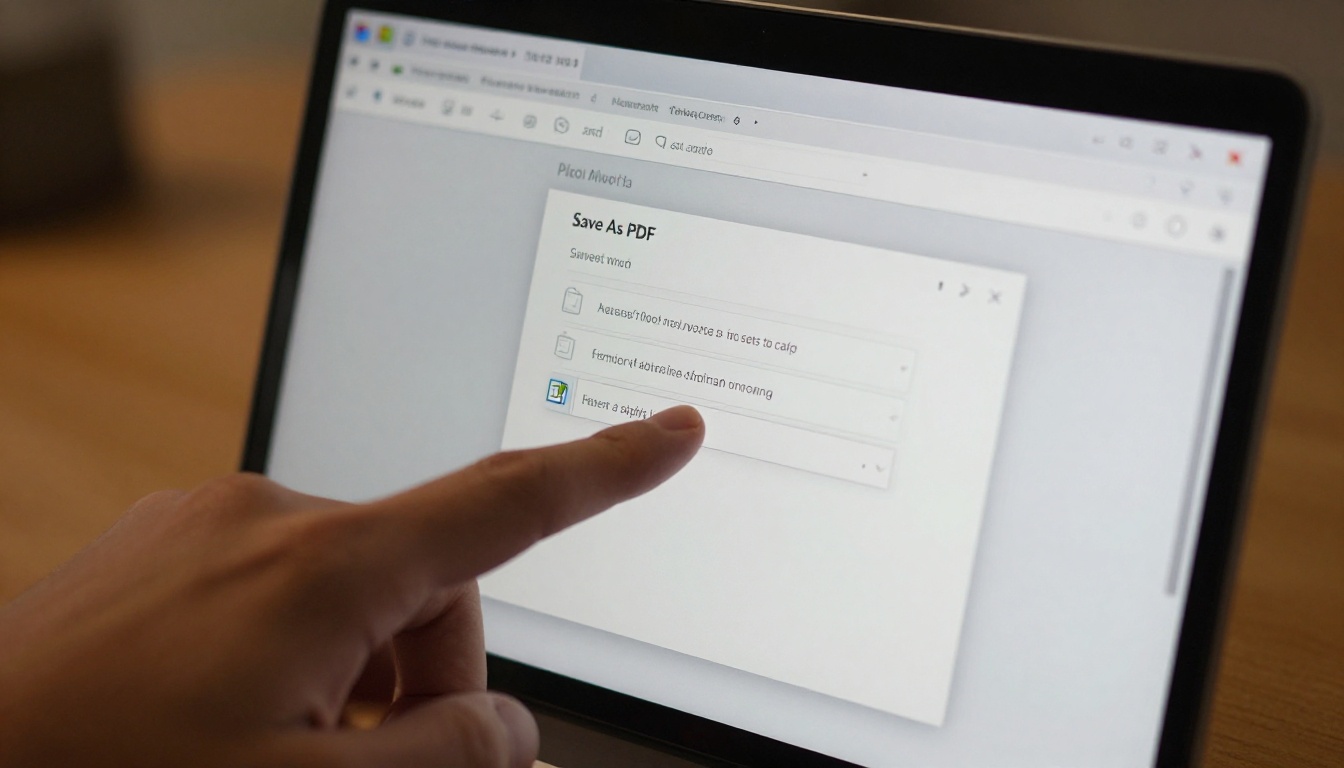
PDF is the bridge between your Word document and your flipbook. Every online flipbook tool, including Flipbooks AI, requires a PDF upload. The good news is that Word exports to PDF natively, with no extra software needed.
How to Save as PDF on Windows
- Open your Word document
- Click File in the top menu
- Select Save As (or Export in newer versions of Word)
- Choose a save location
- In the Save as type dropdown, select PDF (*.pdf)
- Click Options and confirm "ISO 19005-1 compliant (PDF/A)" is unchecked for smaller file sizes
- Click Save
How to Save as PDF on Mac
- Open your Word document
- Click File in the menu bar
- Select Save As
- In the Format dropdown, choose PDF
- Click Save
Alternatively on Mac, use File > Print > PDF > Save as PDF for more export control, including page range selection.
Common Export Mistakes to Avoid
- Saving as .doc instead of .docx before exporting: Always work from a .docx file for the cleanest export
- Using "Print to PDF" instead of "Export to PDF": Print-to-PDF compresses quality. Use the native export option
- Exporting with tracked changes visible: Accept or reject all changes before exporting
- Large file sizes: Keep your PDF under 100MB for the fastest upload times. Compress images in Word using File > Compress Pictures before exporting
💡 Word's native PDF export preserves embedded hyperlinks. These links remain clickable inside your flipbook, which is a major advantage for interactive documents like proposals, catalogs, and training materials.
Step 2: Upload the PDF to Flipbooks AI
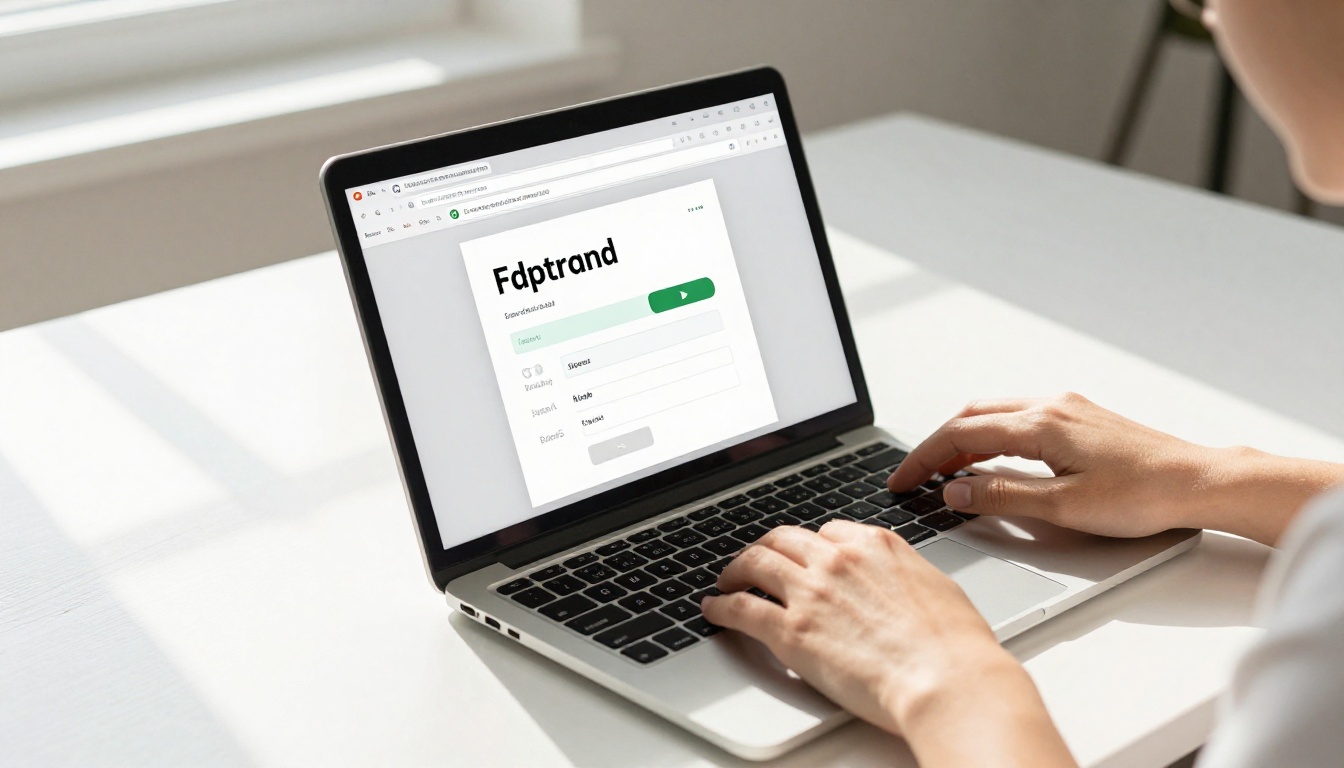
With your PDF ready, the conversion to a flipbook takes less than two minutes. Head over to Flipbooks AI and create your account if you haven't already. The platform is entirely browser-based, so there's nothing to install.
Creating Your Account
- Go to flipbooksai.com/account
- Sign up with your email or a Google account
- Confirm your email address
- You're in. No credit card required to start
The Upload Process
- From your dashboard, click Create New Flipbook
- Click the upload area or drag and drop your PDF file directly
- Wait for the conversion to process (usually 10 to 30 seconds depending on file size)
- Your flipbook is now live in your account with a full page-turning preview
The conversion happens entirely on the server side. Your PDF pages are rendered at high resolution, and the flipbook interface is built around them automatically. No manual page setup required.
✅ Flipbooks AI supports PDFs of virtually any length. For large-format documents like annual reports or company handbooks, the Training Manual Flipbook tool is purpose-built for that content type.
Step 3: Customize Your Flipbook
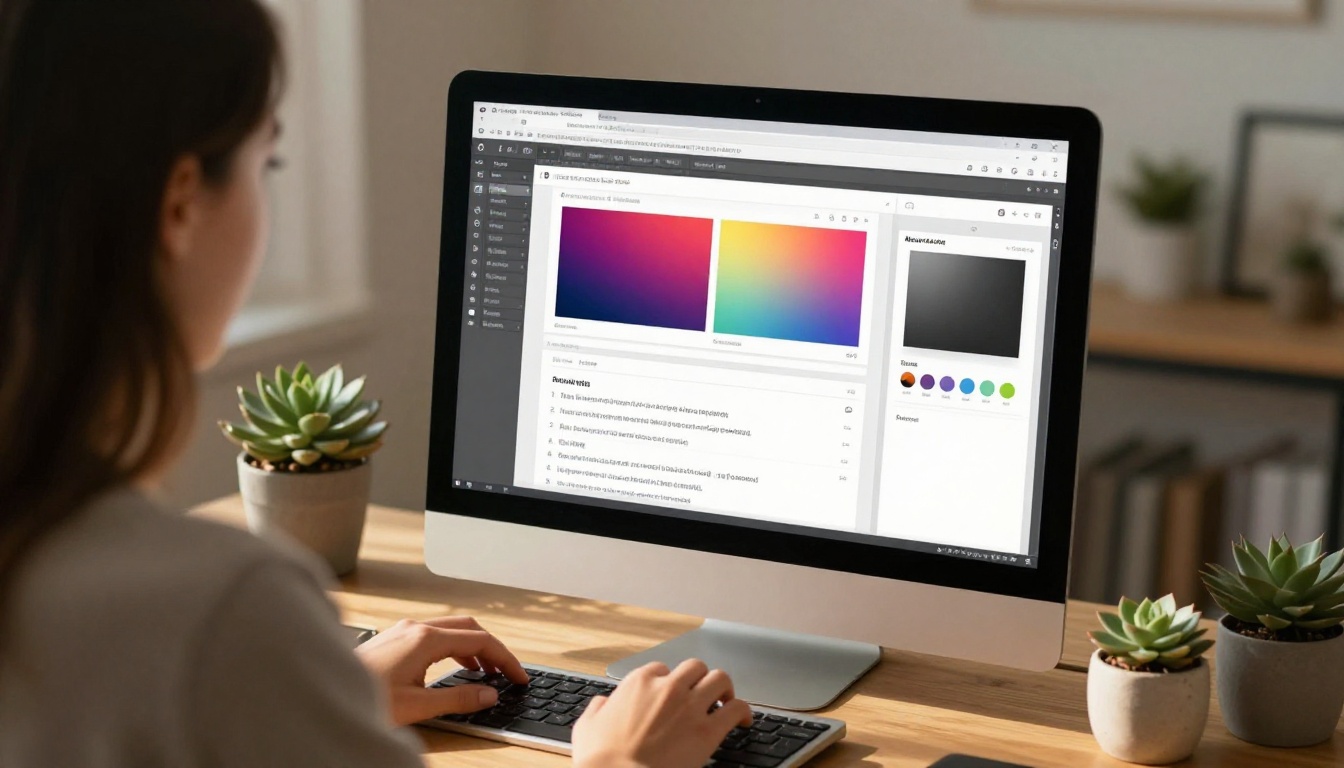
This is where a plain PDF becomes a branded, professional publication. The customization panel in Flipbooks AI gives you full control over the look and feel of the flipbook reader.
Branding and Visual Options
| Customization | What You Can Change |
|---|
| Background color | Set a solid color or gradient behind the flipbook |
| Page shadow | Adjust depth and softness of page shadows |
| Logo | Upload your brand logo to display on the viewer |
| Custom domain | Point the flipbook to your own domain (Standard plan) |
| Thumbnail | Set a custom preview image for the flipbook listing |
| Auto-flip | Enable timed automatic page turns for presentations |
Adding Multimedia to Your Pages
Even though your source was a Word document, your flipbook is fully interactive once published. You can add:
- Videos from YouTube or Vimeo embedded directly on any page
- Audio tracks for background music or narration
- Clickable hotspots that link to external URLs
- GIF animations on specific pages for visual variety
This is particularly useful for product catalogs, where you can link individual products to their purchase pages, or interactive e-books with supplementary video content embedded alongside the text.
💡 Auto-flip mode is excellent for lobby displays, trade show screens, or any scenario where readers won't be interacting with the flipbook manually. Set the interval to match your average reading pace per page.
Step 4: Share and Embed Your Flipbook

Sharing is where the flipbook format pulls ahead of sending a PDF attachment. You have multiple distribution options the moment your flipbook is published.
Sharing Options at a Glance
| Method | How It Works | Best For |
|---|
| Direct link | Copy a URL and share anywhere | Email, messaging, social media |
| Embed code | Paste an iframe into your website or CMS | Blogs, intranets, landing pages |
| QR code | Auto-generated for every flipbook | Print materials, event signage |
| Password protection | Set a password readers must enter | Internal documents, private content |
| Download link | Let readers save a PDF copy (optional) | Offline reading |
Setting Up Privacy Controls
Not all flipbooks are meant for public viewing. Flipbooks AI gives you direct control:
- Open the flipbook settings panel
- Toggle Visibility between Public, Unlisted, or Password Protected
- For password-protected flipbooks, set a custom password
- Copy the link and distribute only to your intended audience
For teams distributing internal training materials or HR documents, password protection means the content stays where it belongs. You can change or revoke the password at any time without having to re-share the URL.
To display a flipbook on your website, use the Embed Flipbook on Website tool. Copy the generated iframe code from the Share panel and paste it into your website's HTML or any page builder block.
Word Document Flipbooks: Real-World Use Cases

The same five-step workflow applies across dozens of content types. Here are the most common Word-to-flipbook scenarios and the tools built for each one:
Business and Corporate
Education and Training
Marketing and Sales
Creative and Portfolio
✅ Every one of these use cases follows the same core workflow: format in Word, export to PDF, upload to Flipbooks AI, customize, share. The specific tool you choose just sets the starting point for the design.
Page Quality and What Readers See
A common concern is whether the original Word document quality carries through to the flipbook. In short, yes, as long as the PDF export is done correctly.
The flipbook viewer renders your PDF pages at high resolution. Text stays sharp and crisp at every zoom level. Images display at their original quality. Fonts are embedded in the PDF so they display consistently for every reader, regardless of what fonts they have installed on their device.
The page-turn animation adds a soft shadow and a curl effect that makes the reading experience feel physical and tactile, without distorting any of the content underneath.
Readers can zoom into any page, use the table of contents panel if your document includes bookmarks, and navigate by clicking page corners or using arrow keys. On mobile, swiping between pages works exactly as expected without any extra configuration.
Analytics: Know Who's Reading

On the Professional plan, Flipbooks AI provides detailed analytics for every flipbook you publish:
- Total views and unique visitors over any time period
- Pages read per session, so you know exactly where readers stop
- Time spent on each individual page
- Lead generation forms to capture reader information before they view
- Geographic data on where your readers are located
This turns your flipbook from a passive document into an active business asset. Sales teams use it to see which pages of a proposal received the most attention. Trainers use it to confirm that employees finished a required reading module.
💡 Lead generation forms can be placed at the beginning of a flipbook, requiring readers to enter their name and email before viewing. This is powerful for gated content like industry reports or premium catalogs.
Flipbooks AI Plans: What You Get
| Feature | Free | Standard | Professional |
|---|
| Flipbooks | 3 | Unlimited | Unlimited |
| Watermark | Yes | No | No |
| Custom branding | No | Yes | Yes |
| Password protection | No | Yes | Yes |
| Analytics | No | Basic | In-depth |
| Lead generation | No | No | Yes |
| Offline download | No | Yes | Yes |
| Custom domain | No | Yes | Yes |
| Embed on website | Yes | Yes | Yes |
For most individuals and small teams, the Standard plan covers everything needed to create, brand, and share professional flipbooks without restrictions. The Professional plan adds the analytics and lead capture that marketing and sales teams depend on.
See the full breakdown at flipbooksai.com/pricing.
A Tablet-Ready Experience by Default

Every flipbook created on Flipbooks AI is automatically mobile-responsive. The page-turning effect adapts to touchscreens, so readers on tablets and smartphones get the same reading experience as desktop users. No separate mobile version is needed, and no extra configuration is required.
Pinch-to-zoom works on touch devices. Navigation arrows appear on hover for desktop users. The table of contents is accessible from a side panel at any time. For documents shared widely, such as a company policy update or a published digital magazine, this cross-device consistency matters because you have no control over what device your reader opens the link on.
Take Your Documents Online Today
The process is direct: format your Word document carefully, export it as PDF, upload it to Flipbooks AI, customize the look and privacy settings, then share the link or embed it wherever your audience is.
Whether you're converting a training manual, a client proposal, a product catalog, or a school newsletter, the result is a professional interactive publication that's shareable anywhere and readable on any device without downloading a thing.
Ready to start? Create your free account and upload your first document today. When you're ready to remove watermarks and add your own branding, compare pricing plans to find what fits your workflow. Browse all available flipbook tools to see what's possible beyond basic document conversion.



