Most people assume creating a flipbook requires graphic design skills, expensive software, or hours of trial and error. That assumption is wrong. With the right tools and a simple process, anyone can produce a polished, professional flipbook from scratch, regardless of their design background.
Flipbooks AI was built specifically for this: converting PDFs and basic documents into interactive digital publications with page-flip effects, without touching a single design tool. Whether you're a small business owner putting together a product catalog, a teacher publishing course materials, or an entrepreneur sharing a company report, this walkthrough has exactly what you need.
Why Flipbooks Work Better Than PDFs
Static PDFs get the job done, but they don't hold attention. A flipbook brings pages to life with realistic page-turn animations, embedded media, and an experience that feels like flipping through a real magazine. The difference in reader behavior is significant.
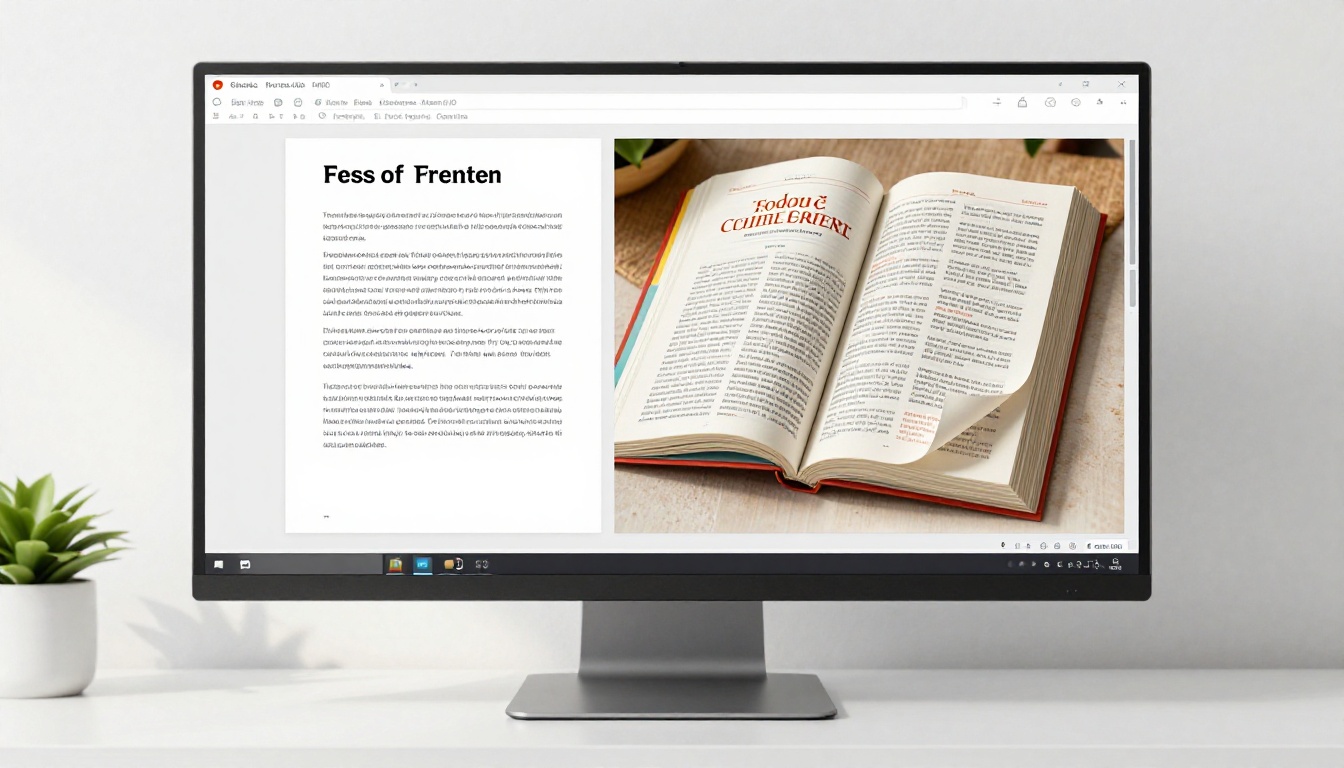
Here's what separates a static PDF from an interactive flipbook:
| Feature | Static PDF | Interactive Flipbook |
|---|
| Page animations | None | Realistic page-curl effect |
| Mobile experience | Pinch-to-zoom, awkward | Responsive, touch-friendly |
| Embedded media | No | Video, audio, clickable links |
| Sharing | File attachment | Direct URL or embed code |
| Analytics | None | Page views, time-on-page, clicks |
| Branding | Fixed in PDF | Custom colors, logo, fonts |
💡 Pro tip: Flipbooks are significantly more shareable than PDFs. A clean link is all your readers need, no downloads, no file size limits, no email attachment headaches.
The Psychology of Page-Turn Design
When readers interact with a flipbook, they intuitively stay longer. The physical metaphor of "turning a page" signals continuity, while the visual richness of a well-designed spread holds attention in a way a scrollable PDF simply cannot. This matters in almost every context, from sales to education to internal communications.
Real-World Impact
A real estate agent who switched from emailing PDF brochures to sharing flipbook links reported more replies and callback activity within two weeks. The content was identical. The format was the only variable.
What You Actually Need Before Starting
You don't need design experience. But you do need a few things ready before you open any tool.

Your Source Document
Your flipbook starts with a PDF. This can be:
- A Word document exported to PDF
- A Canva design saved as PDF
- A PowerPoint presentation exported to PDF
- A Google Slides PDF export
- Any existing brochure, report, or catalog in PDF format
⚠️ Note: The better your source PDF looks, the better your flipbook will look. Clear headings, decent spacing, and at least a few images go a long way toward a professional result.
Your Brand Assets
Even without design skills, having these ready makes your flipbook look intentional:
- Your logo (PNG with transparent background is ideal)
- Your primary brand color (hex code if you have it, or just describe it as "navy", "forest green", "warm red")
- Your preferred font style (modern, classic, playful) so you can match from available options
Your Goal
Ask yourself: who will read this, and what do you want them to do? A restaurant sharing a menu flipbook has a different goal than a photographer sharing a portfolio. Knowing your goal shapes every decision that follows, from layout to CTA placement.
Not all flipbooks serve the same purpose. Flipbooks AI provides specialized tools for different use cases, each pre-configured with layouts and formatting that match the content type.

Format by Use Case
💡 Pro tip: If you're unsure which format fits your content, start with the PDF to Flipbook Converter and customize from there.
How to Build a Flipbook With No Design Experience
This is the step-by-step process that works even if you've never opened a design tool.
Step 1: Create Your Account
Go to flipbooksai.com/account and sign up. The Standard plan gives you unlimited flipbooks with no watermarks, which is the right starting point for most users. A watermark-free experience is non-negotiable if you're sharing with clients or customers.
Step 2: Upload Your PDF
Once inside the dashboard, click the upload button and select your PDF. The conversion happens automatically. Within seconds, your document becomes a flipbook with realistic page-turn animations. No configuration required.
✅ Best practice: Keep your PDF under 100MB and make sure it has embedded fonts rather than outlined text, so the conversion preserves your typography correctly.
Step 3: Choose a Template or Theme
Before diving into customization, browse the available templates. Each one is professionally designed and formatted for a specific content type. Pick the one closest to your goal and adjust from there.
Even a minimal change, like swapping the background color or adjusting the font pairing, makes a generic template feel entirely yours.
Step 4: Add Your Branding
This is where your flipbook stops looking like a template and starts looking like yours:
- Upload your logo: It appears in the flipbook viewer header
- Set your brand color: Applied to buttons, borders, and accents automatically
- Choose your font pairing: Select from available serif, sans-serif, and display options
- Customize background and page styles: Choose from solid, gradient, or textured backgrounds
Step 5: Add Interactive Elements
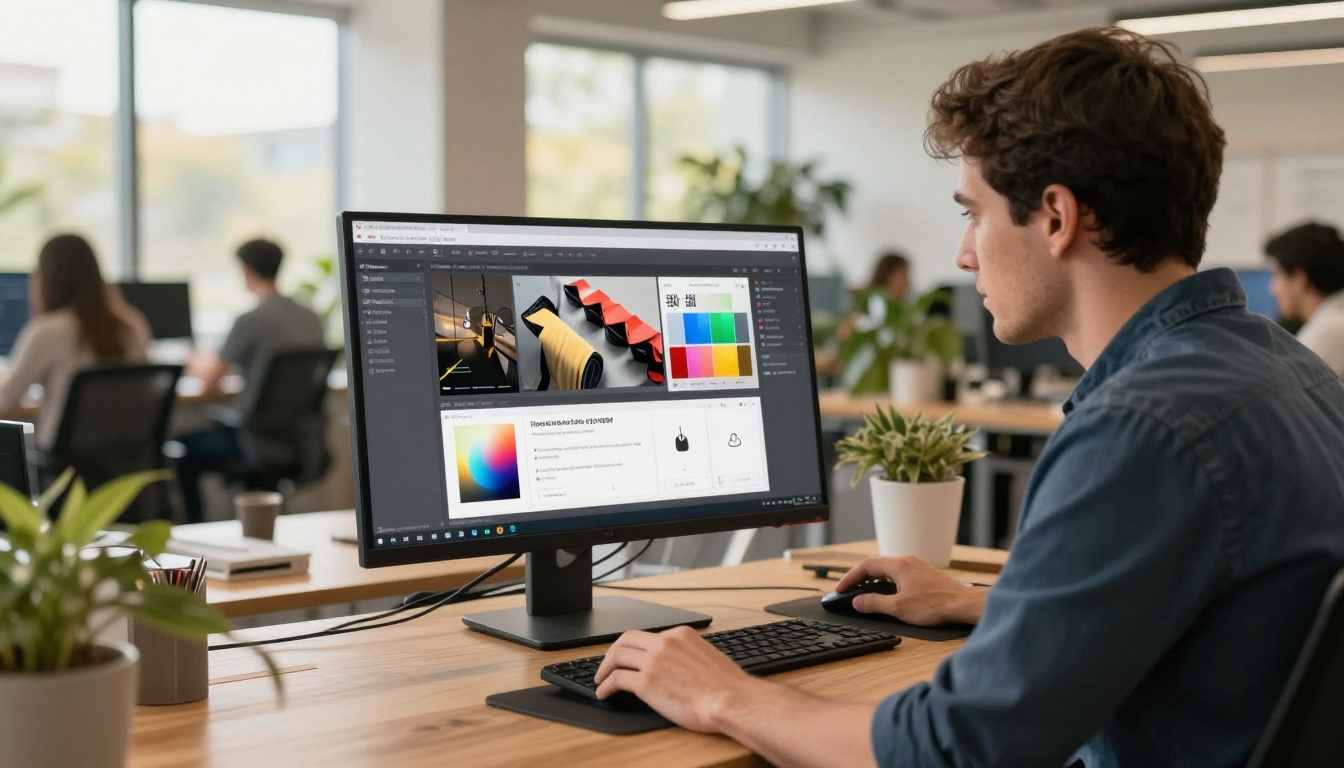
This is what separates a digital flipbook from a scrollable PDF:
- Embedded videos: Drop YouTube or Vimeo links directly onto pages
- Clickable links: Add CTAs, external links, and navigation buttons throughout
- Audio narration: Add background music or voiceover to specific pages
- Pop-up content: Trigger text or image boxes when readers click a hotspot
💡 Pro tip: Adding one embedded video to a product or portfolio flipbook dramatically increases time-on-page. It doesn't need to be professionally produced. A clear walkthrough or product demo clip works perfectly.
Step 6: Set Privacy and Publish
Before publishing, decide who can access your flipbook:
- Public: Anyone with the link can view it
- Password protected: Readers enter a password first (available on Standard plan and above, see Flipbooks AI pricing)
- Embed on website: Copy the embed code and paste it into any webpage using the Embed Flipbook on Website tool
For sharing, you get a clean direct URL you can drop in any email, social post, or client message. No attachments, no downloads, no version confusion.
Designing Without Experience: The Shortcuts
The biggest misconception about design is that it requires talent. It doesn't. It requires good decisions. Here are the shortcuts that make those decisions easy.
The 60-30-10 Color Rule
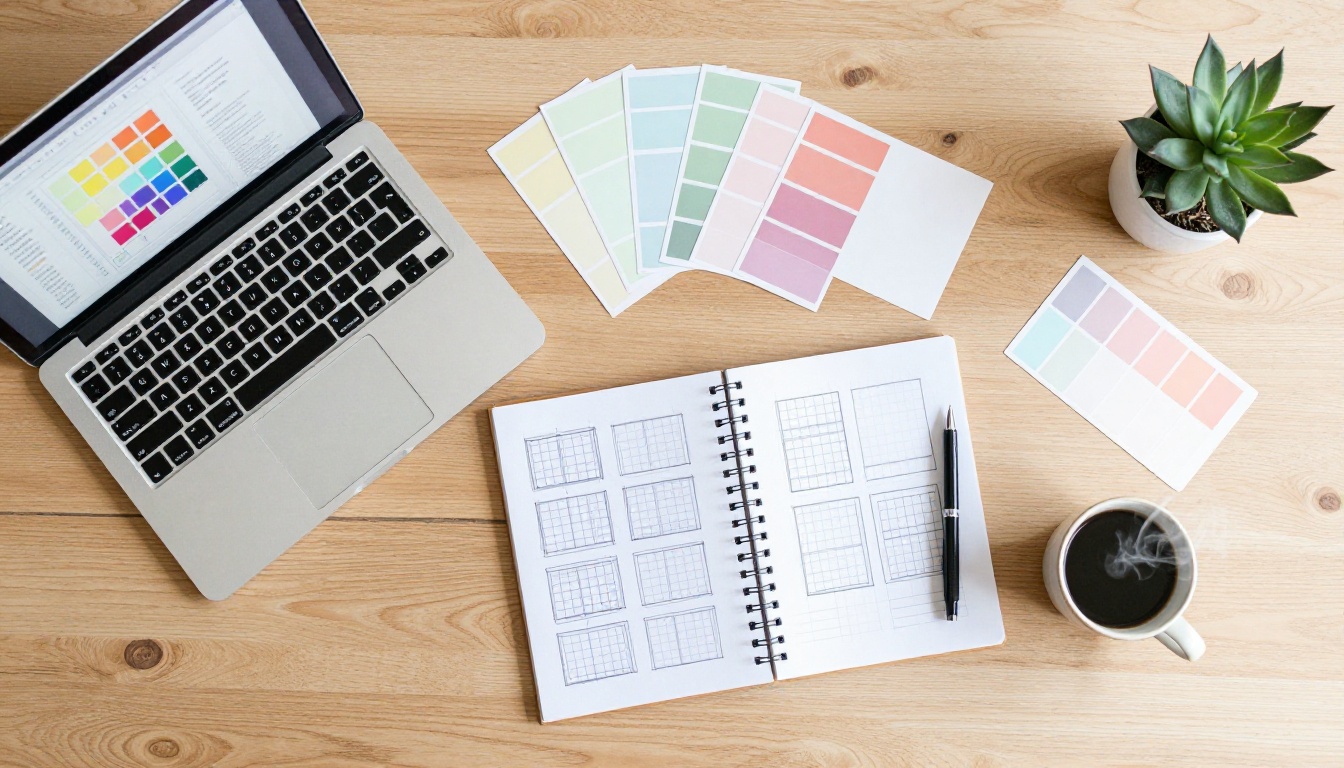
Even without formal training, this rule produces professional-looking results consistently:
- 60% of your layout uses your primary neutral (white, cream, or light grey)
- 30% uses your secondary brand color (navy, forest green, blush, burgundy)
- 10% uses your accent (gold, coral, deep teal) for buttons and visual emphasis
Two Fonts, Maximum
Stick to two fonts. One for headings with personality, one for body text that's clean and readable. Most flipbook platforms offer pre-tested pairings, so you don't even have to choose from scratch.
Images Over Text
If you can replace a paragraph of description with one strong image, do it. Readers scan before they read. A well-placed photograph of your product, workspace, team, or process communicates more than three bullet points about the same thing.
White Space Is Intentional
The most common mistake beginners make is filling every available inch with content. White space, the empty area around elements, is what makes layouts feel premium. Leave generous margins and padding between sections. Restraint is a design skill.
3 Mistakes That Give Away a Beginner Layout
- Too many colors: Stick to three maximum. More than that and the layout looks chaotic.
- Low-resolution images: Blurry photos undermine everything else. Use images at least 1200px wide.
- Inconsistent alignment: Elements that don't align to a grid look amateur. Use the platform's snap-to-grid or alignment guides when available.
Sharing Your Flipbook and Reading the Data
Publishing is only half the process. Knowing how your flipbook performs tells you whether it's working.

How to Share Effectively
- Email campaigns: Paste the direct link with a thumbnail image for visual context
- Social media: Share the link directly (flipbooks open in-browser and are fully mobile-responsive)
- Website embed: Use the Embed Flipbook on Website tool to place it inside any page
- QR code: Generated from the share panel, perfect for print materials, event signage, or packaging
What the Analytics Tell You
On the Professional plan, you see exactly how readers interact with your content:
- Total views and unique visitors
- Time spent on each individual page (revealing which sections hold attention)
- Geographic breakdown of where your readers are located
- Lead capture form submissions and contact details collected directly from the flipbook
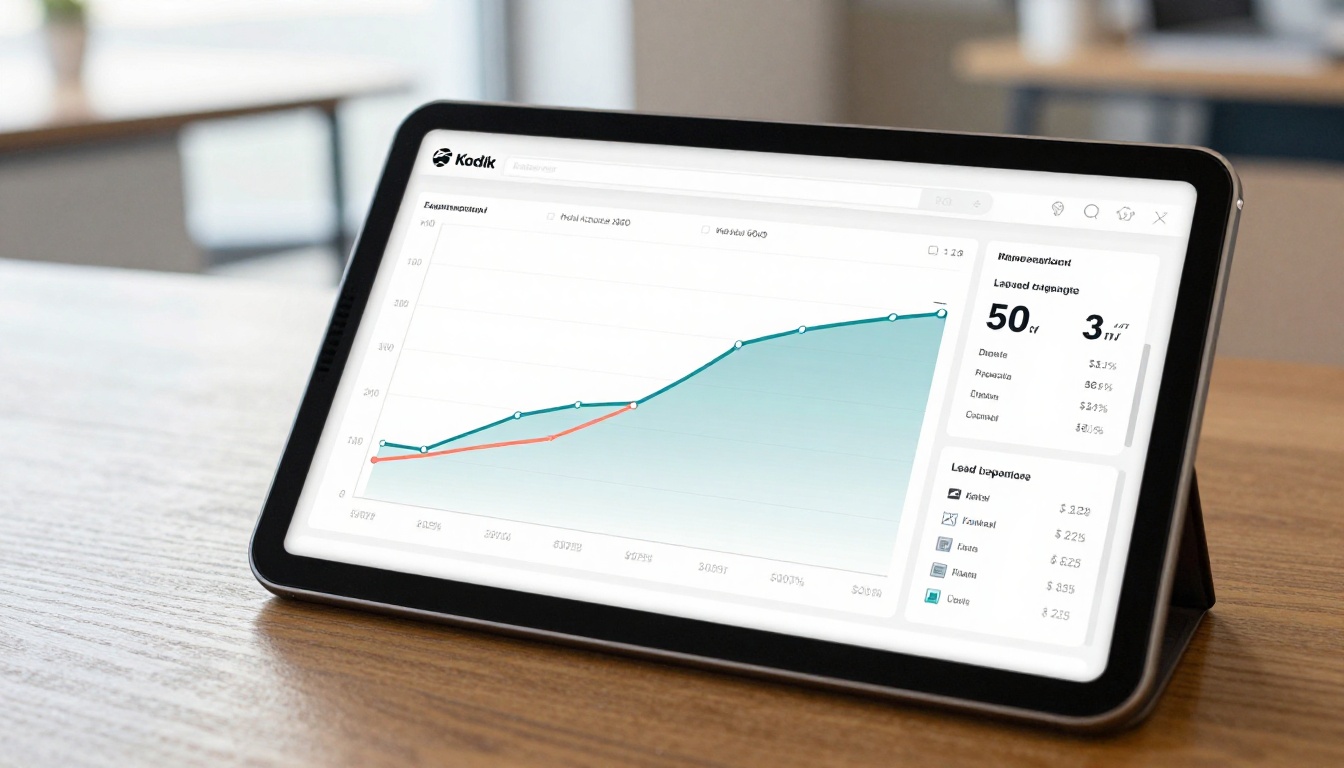
💡 Pro tip: Use page-level data to iterate. If readers consistently drop off at page 4, that section needs a stronger visual or a clearer message. Data removes the guesswork from design decisions.
Flipbooks AI Plan Comparison
Choosing the right plan comes down to what you need immediately and what you plan to scale into.
| Feature | Free | Standard | Professional |
|---|
| Number of flipbooks | 3 | Unlimited | Unlimited |
| Watermarks | Yes | No | No |
| Password protection | No | Yes | Yes |
| Custom branding | No | Yes | Yes |
| Analytics | No | No | Yes |
| Lead capture forms | No | No | Yes |
| Offline downloads | No | No | Yes |
| Embedded video and audio | No | Yes | Yes |
| Custom domain | No | No | Yes |
⚠️ Note: If you're sharing flipbooks in a client or customer context, the Standard plan is the minimum. A watermark on a professional document signals the tool is more important than the content.
Real Scenarios Where This Works
Knowing how a tool works is different from knowing when to use it. Here are concrete situations where flipbooks deliver clear value.

Restaurant owner: Creates a seasonal menu in Canva, exports as PDF, uploads it using the Restaurant Menu Creator, and embeds it on the restaurant website. Customers browse on mobile before visiting. The menu updates each season with a fresh upload, no redesign needed.
Freelance photographer: Converts a PDF portfolio into a Photography Portfolio Flipbook with full-bleed images and page-turn transitions. Sends a single link to prospective clients instead of attaching multiple files or sharing a Google Drive folder.
Real estate agent: Creates property brochures using the Real Estate Brochure Creator. Each listing gets its own password-protected flipbook shared with qualified buyers. Analytics reveal who opened it and how long they spent on each page.
Non-profit organization: Publishes an annual report using the Non-Profit Annual Report tool, embedded on the organization's website. Donors view everything without downloading a file. Total views are tracked for grant reporting purposes.
Online educator: Packages course materials as an Interactive E-Book with embedded video modules and clickable navigation. Students access everything from one link without needing a separate learning management system.
Start Publishing Today
Designing a flipbook without design experience is not a workaround. It's the intended experience. Platforms like Flipbooks AI were built so that the quality of your content, not your design background, determines the quality of your output.
Your first flipbook can be live in under 15 minutes. Start with a PDF you already have, upload it to Flipbooks AI, apply your branding in a few clicks, and share the link.
Browse all available tools and templates to find the format that fits your content, then check pricing plans to choose the right level for your goals.



