How to Embed a Flipbook on Your Website in Minutes
A step-by-step walkthrough showing exactly how to embed an interactive flipbook on any website in minutes. Covers iframe embed codes, WordPress integration, Wix and Squarespace setups, responsive sizing tips, troubleshooting common issues, and real-world use cases from restaurants to real estate.
If you've spent time designing the perfect catalog, brochure, or magazine, the last thing you want is for it to sit in a folder nobody opens. Embedding a flipbook directly on your website solves that instantly. Visitors flip through your content right on the page, without downloading anything or leaving your site. And with Flipbooks AI, the whole process from PDF to embedded flipbook takes less than five minutes.
Why Embedded Flipbooks Work Better
Static PDFs are fine for downloads. But when you embed an interactive flipbook on your website, you change the experience entirely. Visitors engage with your content the way they would a physical magazine or catalog, with smooth page turns, clickable links, and full mobile responsiveness.
The numbers back this up. Interactive content consistently outperforms static documents:
Format
Avg. Time on Page
Mobile-Friendly
Clickable Links
No Download Needed
Static PDF link
45 seconds
Partial
No
No
Embedded PDF viewer
1.2 minutes
Poor
No
Yes
Embedded flipbook
3.8 minutes
Yes
Yes
Yes
When visitors stay longer, they read more and trust your brand more. An embedded flipbook is one of the simplest ways to dramatically improve that experience.
What You Need Before You Start
Before you embed anything, you need three things:
Your PDF file ready to upload (your catalog, brochure, menu, portfolio, or magazine)
Access to your website's backend (WordPress, Wix, Squarespace, Webflow, or raw HTML)
That's it. No plugins to install. No coding skills required. The embed code Flipbooks AI generates works on virtually every major website platform.
💡 Pro tip: Optimize your PDF before uploading. Compress large files to under 50MB for fastest conversion. Use high-quality exports from Canva, InDesign, or Illustrator for the best visual results.
How to Get Your Embed Code
This is the core workflow. Once you have this code, embedding on any platform takes under two minutes.
Step 1 - Upload Your PDF
Go to Flipbooks AI and sign in or create your free account
Click Create New Flipbook
Drag and drop your PDF into the upload area
Wait for the conversion (typically 15 to 60 seconds depending on file size)
Your flipbook is now live and ready to share or embed
The platform supports PDFs of any length. Whether you're uploading a two-page flyer or a 200-page annual report, the conversion process handles it cleanly.
Step 2 - Customize Your Flipbook
Before grabbing the embed code, take a few minutes to customize the look:
Branding: Set your logo, brand colors, and custom background
Page effects: Choose between realistic page-flip animation or a slide transition
Controls: Show or hide the toolbar, thumbnails, and navigation buttons
Start page: Choose which page the flipbook opens on by default
Password protection: Lock private content with a password (Standard plan and above)
Customization affects what visitors see the moment the flipbook loads on your page. Get it right here before embedding.
Step 3 - Copy the Embed Code
Open your flipbook in the Flipbooks AI dashboard
Click the Share or Embed button
Choose your preferred embed size (responsive, fixed width, or fullscreen)
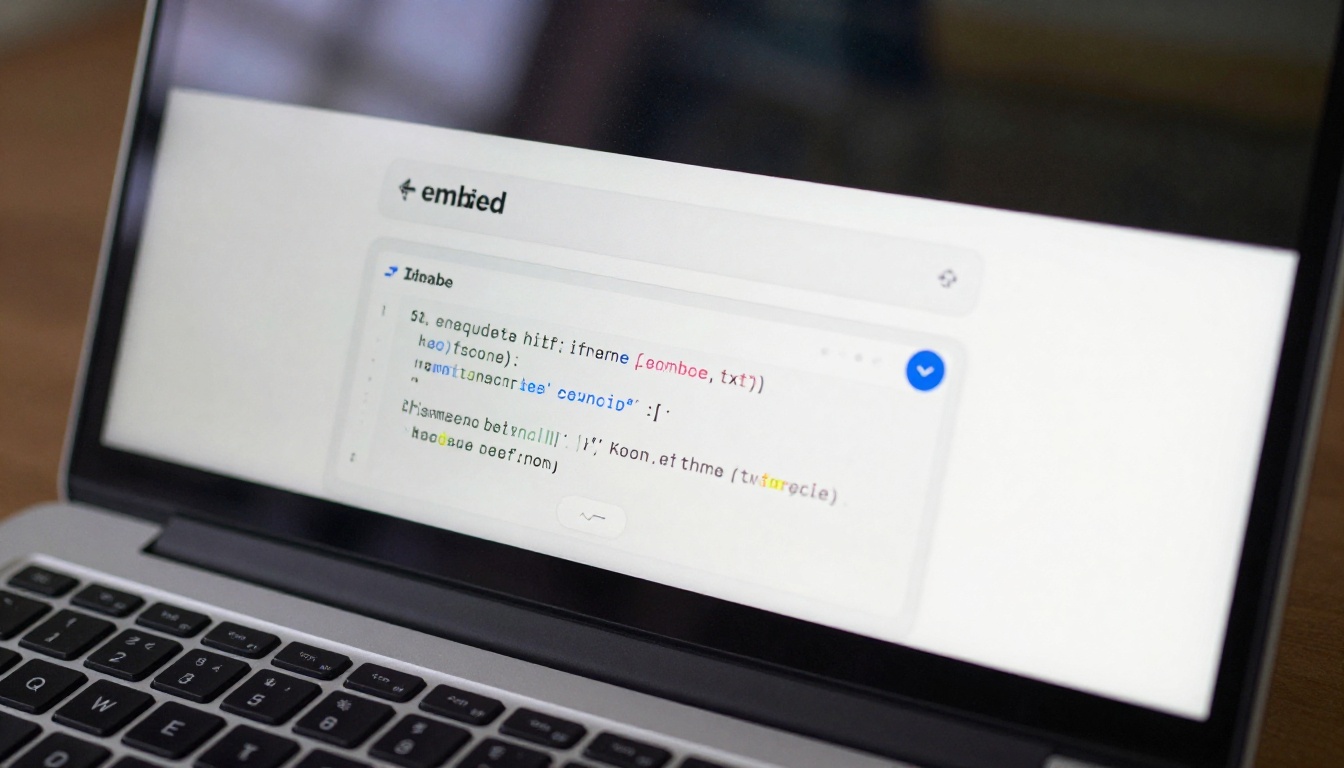
That single block of code is all you need. The rest of this article shows exactly where to paste it on each major platform.
How to Embed on WordPress
WordPress powers over 40% of the internet, so let's cover this one first.
Using the HTML Block
This works in the standard WordPress block editor (Gutenberg):
Open the page or post where you want the flipbook
Click the + button to add a new block
Search for and select the Custom HTML block
Paste your <iframe> embed code into the block
Click Preview to verify it looks right
Hit Update or Publish
✅ Best practice: Set the iframe width to 100% and height to 550px or 600px for a clean, responsive result that works on both desktop and mobile.
Using a Page Builder
If you're using Elementor, Divi, Beaver Builder, or another page builder:
Add an HTML widget or Code widget to your layout
Paste the embed code into the HTML or code area
Save and preview your page
The flipbook will render inline, matching the width of whatever column or section you placed it in.
⚠️ Warning: Some WordPress security plugins block iframes by default. If your flipbook does not appear, check your plugin settings (Wordfence, iThemes Security) and whitelist the Flipbooks AI domain.
How to Embed on Wix, Squarespace, and Others
Wix HTML App
In the Wix editor, click Add (+) in the left panel
Go to Embed and select HTML iFrame
Paste your embed code into the HTML or CSS box
Resize and reposition the element on your page
Publish your site
Wix sandboxes iframes slightly differently, so always preview on both desktop and mobile before going live.
Squarespace Code Block
Edit the page where you want to add the flipbook
Click to add a new block, then select Code
Paste your iframe code into the code block
Disable the Display Source option
Save and publish
💡 Pro tip: On Squarespace, use a full-width section for the code block to give your flipbook maximum screen real estate.
Webflow and Custom HTML Sites
For Webflow, add an HTML Embed component to your canvas and paste the code. For static HTML sites, paste the iframe directly into your page HTML where you want it to appear:
Wrapping the iframe in a <section> or <div> gives you CSS control over margins, padding, and background color.
Embed Options Compared
Not all embedding scenarios are equal. Here's how the main options stack up:
Embed Type
Best For
Responsive
Code Needed
Difficulty
Standard iframe
Most websites
Yes (set width 100%)
Yes (paste)
Easy
Responsive wrapper
Maintaining aspect ratio
Yes (automatic)
Yes (2 lines CSS)
Easy
Fullscreen embed
Landing pages, hero sections
Yes
Yes (minor tweaks)
Medium
Popup or lightbox
Product pages, CTAs
Yes
Yes (JS snippet)
Medium
Direct link only
Email, social, simple sharing
N/A
No
None
For most websites, the standard responsive iframe is the right choice. Set width to 100% and height to a fixed pixel value like 600px. This gives consistent behavior across screen sizes without additional CSS.
Sizing and Responsiveness
Getting the size right makes the difference between a flipbook that feels native to your site and one that looks out of place.
Recommended settings for different contexts:
Placement
Width
Height
Notes
Full-width section
100%
600 to 700px
Works on all screen sizes
Two-column layout
100%
500px
Scales with column width
Blog post inline
100%
450px
Balanced within article
Hero or landing page
100%
750px
Maximum visual impact
Sidebar widget
100%
400px
Compact but readable
✅ Best practice: Always test your embedded flipbook on mobile after publishing. The Embed Flipbook on Website tool generates mobile-optimized code by default, but verify the actual result on your phone before going live.
Common Embedding Problems and Fixes
Even a simple embed can run into issues. Here are the most common ones and how to fix them.
Flipbook not showing at all
Check that your website platform allows iframe embeds
Some CMS platforms strip iframe tags from content editors; use an HTML or code block instead
Verify the flipbook is set to "public" in your Flipbooks AI dashboard
Flipbook appears but shows an error
The flipbook might still be processing if you just uploaded it; wait 60 seconds and refresh
Make sure the flipbook URL in the iframe src attribute is correct and has not been altered
Flipbook is too small or cut off
Increase the height value in your iframe code
Set width to 100% if it is currently a fixed pixel value smaller than the container
Flipbook does not scroll on mobile
Add scrolling="no" to the iframe tag to prevent scroll capture conflicts on mobile browsers
⚠️ Warning: Never paste your embed code into a regular text block or paragraph field. It will display as raw HTML text instead of rendering the flipbook. Always use a dedicated HTML, code, or embed block.
Create and Embed a Flipbook with Flipbooks AI
Since embedding requires a flipbook first, here is the fastest path from zero to embedded on your site using Flipbooks AI.
1. Create Your Free Account
Go to flipbooksai.com/account and sign up. No credit card needed to start. The free plan lets you create and embed flipbooks immediately.
2. Upload Your PDF
Click Create New Flipbook, upload your PDF, and wait for the conversion. The platform handles everything automatically, including page rendering, image optimization, and mobile responsiveness.
3. Customize the Appearance
Use the customization panel to:
Add your logo to the flipbook viewer
Set brand colors for the UI and controls
Choose page-flip animation style
Set the opening page
Enable password protection if needed (Standard plan)
4. Get the Embed Code
Click Share, then Embed. Choose your size settings and copy the generated iframe code. The Embed Flipbook on Website tool makes this straightforward with no technical knowledge required.
5. Paste It on Your Website
Follow the platform-specific steps above. Your flipbook is live in under two minutes.
The technical setup is the easy part. Here is where embedded flipbooks actually make an impact.
Restaurants and hospitality
A restaurant can embed a digital menu flipbook directly on their menu page. Customers browse the full menu with photos, prices, and descriptions without downloading anything. Updating the menu means re-uploading a PDF, and the embedded flipbook updates automatically.
Real estate agencies
Real estate agents benefit from embedding property brochures directly on listing pages. Buyers flip through detailed floor plans, neighborhood photos, and property specs right in the browser. It is far more engaging than a static PDF download link.
E-commerce and retail
Retailers embed product catalogs on category pages or campaign landing pages. Shoppers browse the full catalog with the feel of a physical magazine. For fashion brands, an interactive lookbook embedded on the homepage creates an immediate visual impression.
Corporate and professional services
Companies share annual reports and sales presentations by embedding them on investor or client pages. It reads as more professional than a PDF link and far more engaging than a wall of text.
Education and training
Training teams embed course materials and training manuals on internal portals or LMS platforms. Participants access formatted, bookmarked content without needing separate software.
Flipbook Sharing Options Beyond Embedding
Embedding is the most powerful option, but Flipbooks AI gives you several ways to share:
Option
Best Use Case
Requires Website Access
Embed code (iframe)
Website pages, landing pages
Yes
Direct link
Email, social media, QR codes
No
Password-protected link
Private client materials
No
Full-screen link
Presentations, ads
No
Offline downloaded version
Events, no-internet access
No
Each option points to the same live flipbook. Update your PDF once, and every share method reflects the change instantly.
Make It Live Today
Embedding a flipbook on your website no longer requires a developer, a plugin, or an afternoon of troubleshooting. With a single iframe code and two minutes of work, your content goes from a static PDF to an interactive, mobile-ready experience that visitors actually want to engage with.
The only step left is doing it. Get started for free on Flipbooks AI, upload your first PDF, and have it embedded on your site before your next meeting.
If you want to see what is possible beyond simple brochures and menus, browse all flipbook tools to find templates built for your specific use case. When you are ready to remove watermarks, add analytics, or enable lead generation, check the pricing plans to choose the right option.