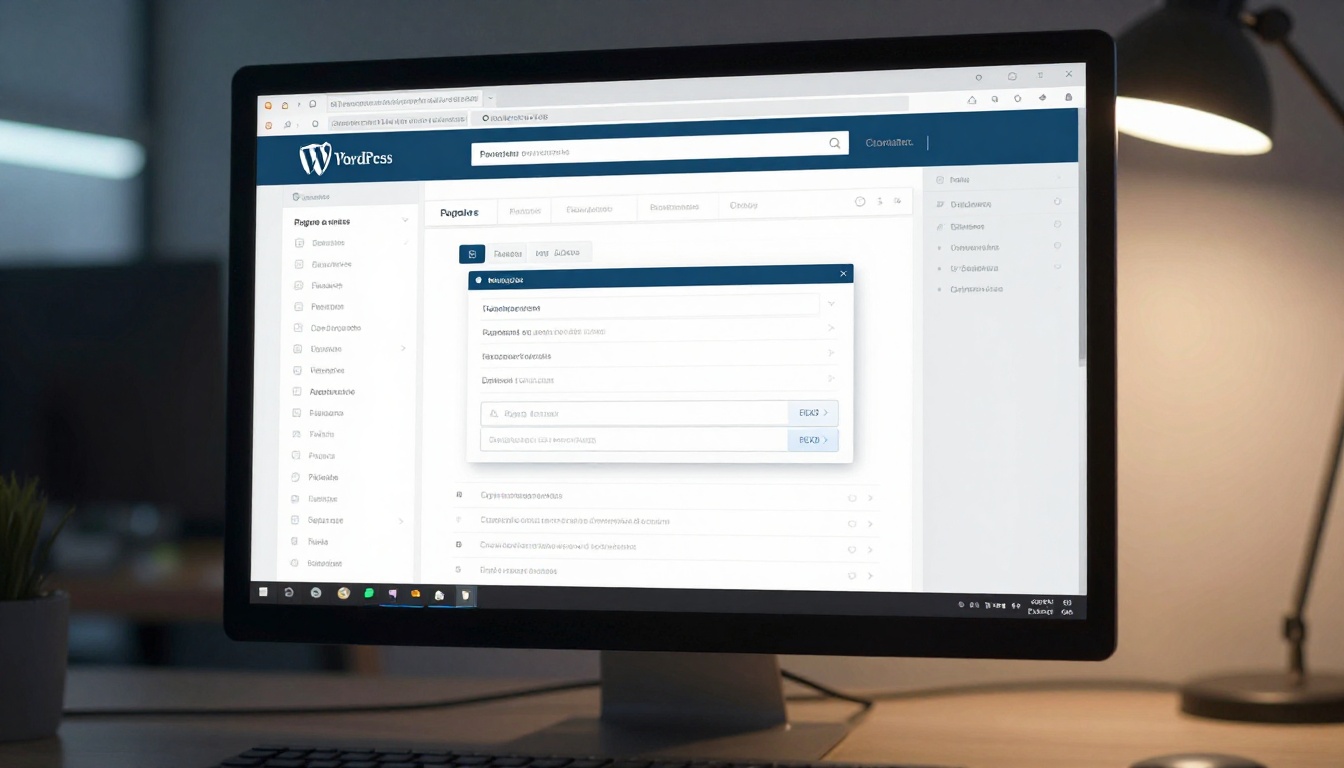
How to Embed a PDF Flipbook in WordPress (Step by Step)
Embedding a PDF flipbook in WordPress turns static documents into interactive reading experiences your visitors will actually stay to browse. This article walks through every method - from iFrame embed codes and custom HTML blocks to Elementor widgets and classic editor shortcuts - plus tips on responsive sizing, branding customization, and password protection for private content.
Embedding a PDF flipbook directly into your WordPress site sounds complicated until you actually try it. With the right platform and a simple embed code, the whole process takes under five minutes, and the result is a live, page-turning interactive document that keeps visitors on your site longer than any download link ever would. Flipbooks AI makes this straightforward with a dedicated Embed Flipbook on Website tool built for exactly this purpose.
Why Static PDFs Fail on WordPress Sites
Most WordPress site owners drop a PDF link into a page and call it done. Visitors click the link, wait for the file to open in a separate tab or download to their device, and then close it within seconds. There is no visual pull, no interactive feel, and no way for the visitor to casually browse the way they would with a real publication.
What a Flipbook Actually Does
A flipbook converts your PDF into a page-turning digital publication hosted on the web. Instead of opening a flat viewer, visitors see animated page turns, browse through sections like a real magazine, and interact with embedded links or media. All of that happens directly inside your WordPress page, with no extra app or plugin for the visitor.
Real Benefits for WordPress Sites
The numbers matter here. Interactive flipbooks consistently outperform static PDFs on every metric:
Metric
Static PDF Link
Embedded Flipbook
Average time on page
25 seconds
3-7 minutes
Interaction rate
~12%
~68%
Return visitor rate
Low
Significantly higher
Mobile compatibility
Poor (requires download)
Full responsive support
SEO signal (dwell time)
Negative
Positive
Beyond the numbers, an embedded flipbook makes your site look polished. Product catalogs, menus, brochures, annual reports, portfolios - all of them benefit from the page-flip format. Visitors browse instead of clicking away.
What You Need Before Starting
The process has two parts: creating the flipbook online, and pasting the embed code into WordPress. You do not need to install any WordPress plugin, and you do not need to touch a single line of PHP. What you do need:
Not all flipbook platforms are built the same. The embed code quality, mobile responsiveness, and loading speed vary significantly. Here is how the main options compare:
Feature
Flipbooks AI
Basic PDF Plugins
Generic iFrame Tools
Animated page turns
Yes
No
No
Mobile responsive
Yes
Partial
Limited
Custom branding
Yes
No
No
Password protection
Yes
No
No
No watermarks
Yes
Varies
Often watermarked
Analytics
Yes (Pro)
No
No
Large PDF support
Yes
Limited
Very limited
Embed code quality
Clean, responsive
Basic
Fragile
Flipbooks AI stands out because the embed code it generates is responsive by default, meaning the flipbook scales correctly on phones and tablets without any extra configuration on the WordPress side.
How to Get Your Flipbook Embed Code
This is the part most tutorials skip. Before you can embed anything in WordPress, you need a live flipbook URL and its embed code. Here is how to create one with Flipbooks AI.
Converting Your PDF to a Flipbook
Go to Flipbooks AI and sign in or create your account
Click New Flipbook from your dashboard
Upload your PDF file (drag and drop works)
Wait for the conversion to finish - this usually takes 30 to 90 seconds depending on page count
Preview the flipbook to confirm every page rendered correctly
💡 For best results, upload your PDF at the highest resolution available. Flipbooks AI preserves image quality during conversion, so a crisp source PDF produces a crisp flipbook.
✅ Always use width="100%" rather than a fixed pixel width. This ensures the flipbook scales correctly on all screen sizes inside WordPress.
Embedding in the WordPress Block Editor (Gutenberg)
The Gutenberg block editor is the default in WordPress 5.0 and above. Embedding a flipbook here is straightforward once you know which block to use.
Using the Custom HTML Block
Open the page or post where you want the flipbook to appear
Click the + button to add a new block
Search for Custom HTML and select it
Paste your iFrame embed code directly into the block
Click Preview to see the flipbook rendered in the editor
When satisfied, click Publish or Update
That is all there is to it. The Custom HTML block accepts raw HTML including iFrame tags, and Gutenberg renders it correctly in both preview and published view.
Common Errors and How to Fix Them
Problem
Likely Cause
Fix
Blank white box appears
Mixed content (HTTP vs HTTPS)
Ensure your flipbook URL starts with https://
Flipbook appears too small
Fixed pixel height too low
Change height attribute to at least 500
Flipbook cut off on mobile
Fixed pixel width used
Replace with width="100%"
"Refused to display in frame"
Host security headers
Contact Flipbooks AI support or use direct link
Block shows code as text
Wrong block type selected
Switch from Paragraph to Custom HTML block
⚠️ Never paste iFrame code into a Paragraph or Heading block. Gutenberg will render it as plain text instead of HTML. Always use the Custom HTML block for embed codes.
Embedding with Elementor and Other Page Builders
Many WordPress sites run Elementor, Divi, or WPBakery instead of or alongside the block editor. The embedding process is slightly different for each.
Elementor Method
Elementor has a dedicated HTML widget that works perfectly with flipbook embed codes:
Open Elementor editor on your target page
Drag the HTML widget from the left panel onto your layout
Click the widget to open its settings
Paste your iFrame embed code into the HTML Code field
Click Update to save
💡 In Elementor, you can also set the widget section's minimum height to control how much vertical space the flipbook occupies without touching the iFrame height attribute directly.
Divi and WPBakery
Both builders follow the same logic. Look for a Code module (Divi) or Raw HTML element (WPBakery), drop it into your layout, and paste the iFrame code. The naming differs but the function is identical. If your builder has a dedicated HTML or Raw Code element, use that one specifically.
Embedding in the WordPress Classic Editor
If your site still uses the classic TinyMCE editor, switching to the HTML/Text view is the essential step:
Open your page or post in the classic editor
Click the Text tab (not Visual) in the editor toolbar
Position your cursor where the flipbook should appear
Paste the iFrame embed code
Switch back to Visual tab to preview, then save
⚠️ Never paste the iFrame code while in Visual mode. The editor will strip or corrupt the HTML. Always switch to the Text tab first.
Flipbook Embed Options Compared
Flipbooks AI gives you more than just a basic iFrame. When you open the embed settings, you will find several options worth knowing:
Embed Option
What It Does
Best Used When
iFrame embed code
Full flipbook embedded inline
Any WordPress page or post
Direct link
Opens flipbook in its own page
Sharing via email or social
Popup embed
Flipbook opens in a lightbox overlay
Product pages, landing pages
Password-protected embed
Requires password to view
Private reports, member content
Full-screen mode
Flipbook expands to fill the browser
Presentations, portfolios
For most WordPress sites, the standard iFrame embed is the right choice. Popup and full-screen options are available on higher plans and work well for specific scenarios like landing pages or gated content.
How to Customize Your Embedded Flipbook
The embed code from Flipbooks AI is already well-optimized, but a few adjustments make a real difference in how the flipbook appears on your site.
Adjusting Width and Height
The most important customization is the height attribute. The default height in the embed code works for most screens, but you can tune it for your layout:
<!-- Standard embed - responsive width, fixed height -->
<iframe src="https://flipbooksai.com/view/your-id" width="100%" height="600" frameborder="0" allowfullscreen></iframe>

<!-- Taller embed for catalogs or reports -->
<iframe src="https://flipbooksai.com/view/your-id" width="100%" height="800" frameborder="0" allowfullscreen></iframe>
For a 16:9 flipbook layout, a height of 550 to 650px at full width looks right on most desktop screens. For portrait-orientation PDFs like a magazine or brochure, 700 to 850px works better.
Responsive Sizing
To make the height fully responsive relative to the viewport, wrap the iFrame in a CSS container:
This creates a perfectly responsive flipbook embed that scales to any screen width while maintaining a 16:9 aspect ratio. Paste this entire block into the Custom HTML block in Gutenberg.
How to Create a Flipbook for WordPress with Flipbooks AI
Since embedding and creating go hand in hand, here is a focused walkthrough for getting your first flipbook ready to embed.
Create your account
Head to Flipbooks AI and sign up. No credit card required to start.
Upload your PDF
From the dashboard, click New Flipbook and upload your PDF. The PDF to Flipbook Converter handles everything automatically, including multi-page documents and embedded images.
Customize the look
Before publishing, open the Customize panel:
Set your brand colors for the viewer interface
Toggle page shadow and flip animation style
Add your logo to the viewer header
Choose background color or pattern
Enable or disable the table of contents sidebar
Set sharing and privacy options
Public: Accessible to anyone with the link
Password-protected: Requires a password before viewing (available on Standard plan and above)
Analytics tracking: See views, page-by-page data, and time spent per page (Professional plan)
Copy your embed code
Go to Share, select Embed, and copy the generated iFrame code. Paste it directly into WordPress using the Custom HTML block as described above.
✅ Flipbooks AI flipbooks have no watermarks on Standard plan and above, include mobile-responsive rendering by default, and support unlimited flipbooks on the Standard plan. You can also embed videos and audio directly into pages for a rich reading experience.
Getting the embed onto the page is step one. These adjustments take the result from functional to genuinely impressive.
Place the flipbook above the fold when possible. If your visitors have to scroll to find it, many will not. Position the embed near the top of the page content.
Add a short introduction paragraph above the flipbook. A two-sentence description of what's inside gives context and makes the flipbook worth opening. This also helps with SEO by giving Google text content to index on the page.
Use a descriptive heading before the embed. Something like "Browse Our 2025 Product Catalog" tells the visitor what they are looking at before it fully loads.
Test on mobile before publishing. Open the page on your phone. If the flipbook is too narrow or the navigation controls are hard to tap, adjust the height or use the responsive CSS wrapper shown above.
For private content, use password protection. If the flipbook contains pricing sheets, internal documents, or member-only content, Flipbooks AI's password protection keeps it from being shared freely. Check pricing plans to see which tier includes this feature.
Use analytics to see what works. The Professional plan includes page-by-page data showing exactly where readers stop. If visitors consistently drop off at page 3, you will know immediately - and that tells you something important about your content structure.
Real-World Use Cases
The embed process is identical regardless of what you are publishing, but the impact varies significantly by context:
E-commerce product catalogs: Shoppers browsing a flipbook spend more time per session and click through to individual products more often than visitors reading a flat product list. The Product Catalog tool is built for this.
Restaurant menus: A flipbook menu embedded on a restaurant's WordPress site gives the same tactile feel as a physical menu, but stays current at all times. The Restaurant Menu Creator handles this specifically.
Real estate brochures: Agents embed property brochures directly on listing pages. Buyers scroll through floor plans and photography without leaving the site. The Real Estate Brochure tool handles multi-page listing documents cleanly.
Digital magazines and newsletters: Publications that used to send PDF attachments now embed them directly. Subscribers read on the site, keeping traffic where it belongs. The E-Magazine Publishing Tool is purpose-built for this workflow.
Corporate reports: Annual reports embedded as flipbooks on investor relations pages look significantly more professional than a raw PDF download link. The Annual Report Creator produces boardroom-ready output.
Take Action Now
You have everything you need: a PDF, a WordPress site, and a clear process from upload to embed. Create your first flipbook for free on Flipbooks AI, get your embed code, and paste it into your WordPress page using the Custom HTML block. The whole process takes under five minutes.
Want to see all available tools for different document types? Browse the full flipbook tools directory to find the right format for your content. Ready to add analytics, password protection, and lead generation features? See all pricing plans and choose the right tier for your site.
Your PDF is ready. The flipbook takes five minutes. The results last as long as your site is live.