If you've ever finished a beautiful Canva design and wondered how to give it more life than a static download, you're in the right place. Exporting from Canva and converting it into an interactive flipbook is one of the fastest ways to take your content from flat to engaging. The whole process takes under 5 minutes, and you don't need any technical skill to pull it off. Whether you're a marketer, educator, small business owner, or freelance designer, this workflow is one worth adding to your toolkit permanently.
Why Canva Designs Make Perfect Flipbooks
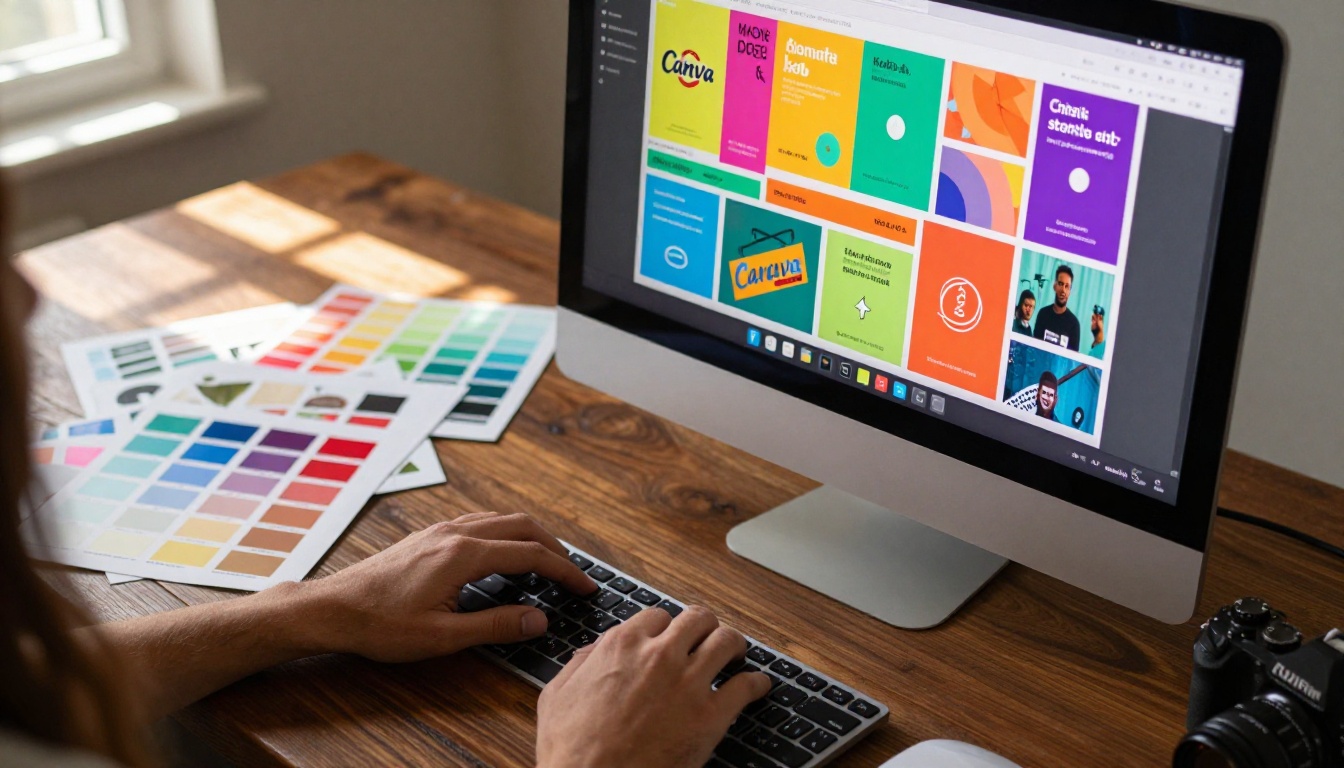
Canva has become the go-to creation tool for millions of professionals worldwide. Its drag-and-drop interface, professional template library, and clean export options make it ideal for building everything from product catalogs to course materials to event programs. But there's a ceiling to what a static PDF can do for your audience.
The Problem with Staying as a PDF
When someone downloads a PDF, the experience stops right there. They scroll, maybe print it, and that's the end of the interaction. There's no animation, no page-turn effect, no sense of a publication worth reading. For anything meant to impress, a flat PDF consistently falls short.
A flipbook changes that completely. Pages turn with a natural flip animation. The content feels intentional and polished. It's embeddable on any website, works beautifully on mobile, and when you share a link, people actually open it rather than letting it sit in a downloads folder indefinitely.
Canva as the Perfect Starting Point
Canva already handles everything on the design side: typography, color palettes, brand assets, images, and page layouts. You're not starting from scratch when you convert to a flipbook. You're taking existing, finished work and giving it a significantly better delivery format through Flipbooks AI.
The high-level workflow is straightforward:
- Design in Canva (or open an existing design)
- Export as PDF Print
- Upload to Flipbooks AI
- Publish and share your interactive flipbook
That's it. No Photoshop required. No developer help. No formatting headaches. Just four clean steps between your Canva design and a live, shareable flipbook.
How to Export from Canva the Right Way
Before converting anything, you need the right file format from Canva. Most people export incorrectly and end up with a blurry or compressed flipbook. Here's the exact process to avoid that.
Step 1: Open Your Canva Design
Log into Canva and open whichever design you want to convert. Multi-page formats work best for flipbooks: presentations, brochures, documents, product catalogs, lookbooks, and reports. Single-page designs can be converted but won't show the page-flip effect at its best.
Step 2: Click "Share" in the Top Right
From your design editing screen, click the Share button in the upper-right corner. A dropdown will appear with distribution options including Download.
Step 3: Select "Download" and Choose PDF Print
Under the file type dropdown, select PDF Print, not PDF Standard. This distinction matters a lot. PDF Print preserves maximum image quality, color accuracy, and font sharpness. These details are critical when the flipbook engine renders each page at full resolution.
⚠️ Warning: PDF Standard compresses images to reduce file size. On a high-resolution screen, this creates visible blurriness in the flipbook. Always choose PDF Print.
Step 4: Adjust Page Range If Needed
If you only want specific pages converted rather than the entire document, set your page range here. For most use cases, download all pages and trim later inside the flipbook editor if needed.
Step 5: Download and Save
Click Download. Large multi-page designs can take 30 to 60 seconds on Canva's end. Once processed, you'll have a clean, high-resolution PDF ready to upload.
| Canva Export Option | Best For | Image Quality | Flipbook Compatible |
|---|
| PDF Print | Flipbooks, print materials | Highest | Yes (recommended) |
| PDF Standard | Email attachments | Medium | Yes (not ideal) |
| PNG | Single pages, image assets | High | Not directly |
| PPTX | Editable presentations | Variable | No |
💡 Pro Tip: Before exporting, disable bleed marks and crop marks in Canva's print settings. If enabled, they appear as thin lines around your flipbook pages and look unprofessional.
Upload and Convert Your PDF to a Flipbook
With your PDF ready, the conversion step is where things move fast. Flipbooks AI handles the entire conversion automatically, no configuration needed.
Create Your Free Account
Head to flipbooksai.com/account and sign up. The free tier lets you test the conversion immediately and see exactly how your Canva design renders as a flipbook before choosing any paid plan. No credit card required.
Upload Your Canva PDF
From the Flipbooks AI dashboard:
- Click New Flipbook
- Select Upload PDF
- Drag and drop your downloaded Canva file, or browse to select it
- Wait 10 to 30 seconds for the processing to complete
The system automatically converts each page of your PDF into a fully rendered flipbook page with the page-turn animation engine applied.
What the Conversion Does Automatically
Flipbooks AI reads your PDF page by page and builds each one into a high-fidelity digital page. During conversion it applies:
- Realistic page-flip animations with depth shadow and curl
- Mobile-responsive scaling for phones, tablets, and desktops
- Pinch-to-zoom on mobile so readers can inspect fine details
- Auto-detected orientation (portrait or landscape)
- Smooth page navigation with keyboard and swipe support
You don't manually configure any of this. It's all built into the conversion engine.
Customize the Flipbook Before Publishing
Once your PDF is uploaded and converted, you can refine the flipbook's presentation before sharing it with anyone. This is where Flipbooks AI separates itself from basic PDF-to-flipbook converters.

Branding and Visual Controls
The customization panel lets you:
- Set a cover thumbnail: Choose any page as the preview image shown before the flipbook opens
- Adjust background color: Match the frame to your brand palette so the flipbook looks cohesive
- Add a logo: Place your brand mark on the flipbook interface for professional consistency
- Flip style options: Choose between different transition styles depending on your content type
If your Canva design already uses specific brand colors and typography, carry those settings into the flipbook interface. The end result is a fully branded experience from the viewer's very first impression.
Embed Videos and Audio
One of the most powerful upgrades over a static PDF is the ability to embed video and audio directly into flipbook pages. Add product demo clips, voiceover narrations, or background music to specific pages through the editor. Your Canva design evolves from a document into an interactive multimedia publication.
💡 Pro Tip: Keep embedded videos under 90 seconds per page. Longer videos interrupt the natural reading rhythm of a flipbook. Use them as supporting content that complements the page, not as the sole focus.
Password Protection for Private Content
For internal documents, client proposals, confidential reports, or gated content, password protection is built in. Only people with the password can access and view the flipbook. This is available on Standard plans and above.
Share and Distribute Your Flipbook
Publishing is the final step. Flipbooks AI gives you multiple distribution options so you can reach your audience wherever they are.
Direct Link Sharing
Every published flipbook gets a unique shareable URL. Copy it and distribute it via email, Slack, WhatsApp, social media, or a simple text message. The recipient opens it in their browser with no account, no app download, and no friction.
Embed on Your Website
For hosting the flipbook directly on your own site, grab the embed code from the flipbook settings panel. Paste it into any HTML editor, WordPress block, Webflow section, or website builder. It renders as a fully interactive flipbook widget on your page, keeping visitors engaged without sending them to an external link.
Use the Embed Flipbook on Website tool for guided setup if you're embedding for the first time.
| Sharing Method | Best Use Case | Does the Viewer Need an Account? |
|---|
| Direct link | Email, messaging, social media | No |
| Embed code | Website, landing pages, portfolio | No |
| Password-protected link | Private proposals, internal docs | No |
| Lead capture form | Gated content, list building | No |
| Offline download | Printed presentations, saved copies | No |
Analytics for Professional Plans
On the Professional plan, every flipbook includes built-in analytics. Track total views, page-by-page engagement time, geographic data on your readers, and lead capture submissions from built-in forms. For marketing teams and sales professionals, this data directly informs content decisions. Knowing that readers consistently stop on page 6 and rarely reach page 10 tells you exactly where to revise your content strategy.
Real Use Cases Where This Shines
The Canva-to-flipbook workflow fits dozens of industries and content types. Here are the ones where it consistently delivers the clearest results.

Marketing Teams and Brand Materials
Marketing teams build a constant stream of campaign materials, pitch decks, and quarterly reports in Canva. Converting those assets into flipbooks means they get shared more often and look more polished in every context. A brand manager can build a seasonal lookbook in Canva, convert it to a flipbook in minutes, and send clients a single link instead of attaching a heavy PDF to an email thread. Clients click links. Large attachments often get ignored.
The Interactive Lookbook Designer and Brochure Flipbook Maker tools are purpose-built for exactly this type of recurring marketing content.
Teachers and Course Creators
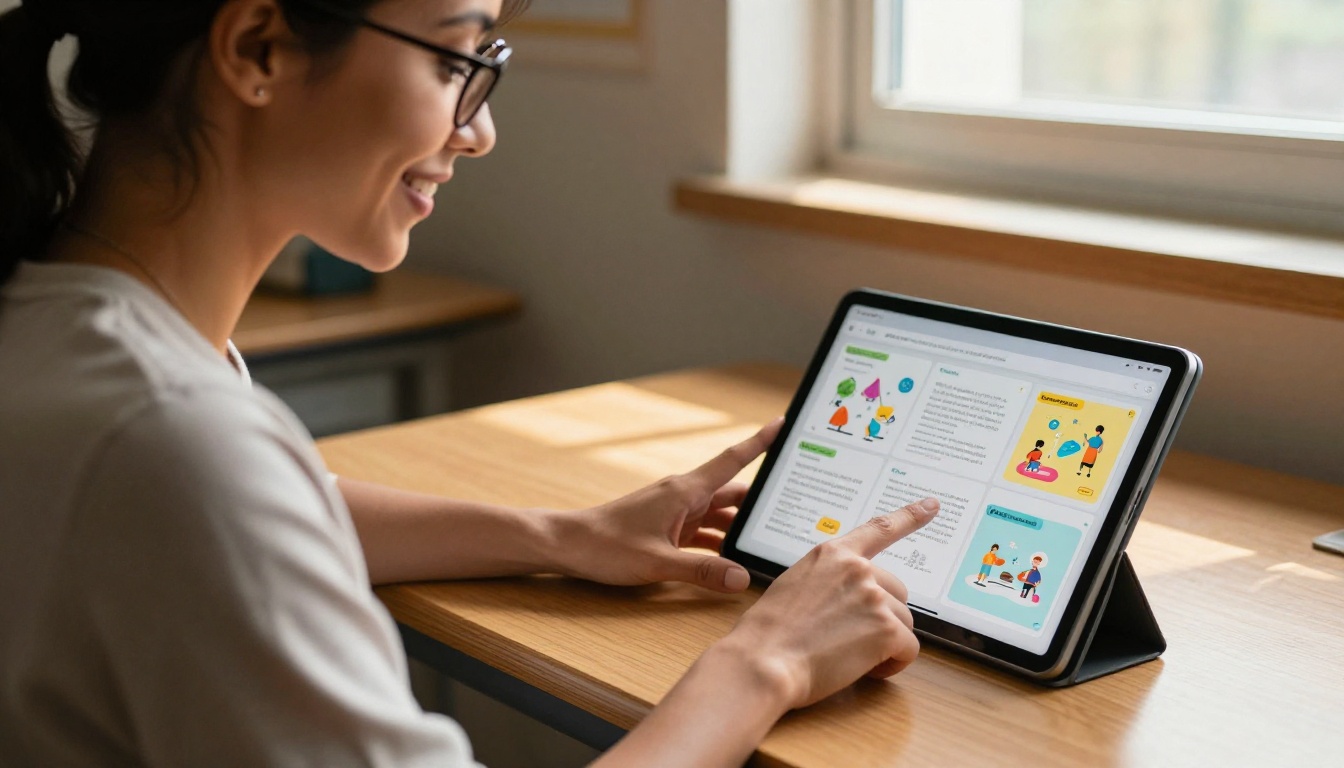
Educators building course materials, study guides, or visual worksheets in Canva can convert those resources into flipbooks and share them via a single link. No printing costs. No learning management system required.
For schools distributing newsletters or event programs to parents, the School Newsletter Creator and Course Material Publisher provide structured templates specifically for educational content. Students consistently engage more with a flipbook interface than a static PDF download. The interaction makes the content feel intentional and worth returning to.

Real Estate and Product Catalogs
Real estate professionals who design property brochures in Canva can convert them into digital flipbooks and embed them directly on listing pages. Buyers get an immersive property presentation, not a flat gallery. Every detail, floor plan, and neighborhood feature is laid out in a publication-quality format they can flip through at their own pace.
The same logic applies to retail and e-commerce. Seasonal product catalogs built in Canva convert directly into interactive digital catalogs with the Product Catalog Generator or Digital Catalog Maker for additional template options.
Restaurants using Canva for menu design can convert those directly and use the Restaurant Menu Creator to embed a live interactive menu on their website, updated and republished whenever the menu changes.
Flipbooks AI Plans Compared
Before starting, here's a clear look at what each plan includes:
| Plan | Flipbooks | Watermark | Password Protection | Analytics | Lead Generation | Best For |
|---|
| Free | 3 total | Yes | No | No | No | Testing and personal projects |
| Standard | Unlimited | No | Yes | No | No | Creators, small businesses |
| Professional | Unlimited | No | Yes | Yes | Yes | Marketing teams, agencies |
💡 The Standard plan covers most individuals and small businesses completely. Unlimited flipbooks with no watermarks and password protection handles the vast majority of real-world use cases without requiring the Professional tier.
For teams using flipbooks as sales tools or lead generation assets, Professional pays for itself quickly through the analytics and form capture features. Compare all plans to see the full feature breakdown.
The Full Workflow from Start to Published
Here's the complete Canva-to-flipbook timeline broken down by step:
| Step | Action | Estimated Time |
|---|
| 1 | Open Canva design and review page count | 30 seconds |
| 2 | Export as PDF Print | 60 seconds |
| 3 | Log into Flipbooks AI and click New Flipbook | 20 seconds |
| 4 | Upload PDF file | 30 seconds |
| 5 | Wait for conversion processing | 20 seconds |
| 6 | Customize branding, cover, and settings | 60 seconds |
| 7 | Publish and copy the share link | 10 seconds |
Total: Under 5 minutes. With customization included.
For teams doing this regularly, the steps become automatic. Design in Canva, export as PDF Print, upload to Flipbooks AI, publish. The friction between a finished design and a live interactive publication is essentially zero.
For recurring content types, purpose-built tools within Flipbooks AI accelerate the process further. The Annual Report Creator handles report-specific layouts. The Digital Portfolio Creator and Photography Portfolio tools are built for creatives sharing their work. The E-Book Flipbook Generator covers authors and course creators publishing long-form content.
Browse the full tools directory to find the template set that fits your specific use case.

Your Canva Designs Deserve Better Distribution
Static PDFs have done their job long enough. Every Canva design you've already built is sitting there waiting to become something people actually want to open, read, and share. The conversion takes five minutes. The result is a professionally presented, mobile-friendly, embeddable flipbook that works in every context your audience lives in.
Ready to publish your first one? Create your free account on Flipbooks AI and have a live interactive flipbook up in the time it takes to drink a coffee. No watermarks on your first flipbooks, no credit card to get started, and the full conversion experience available immediately.
Want to see what's possible before committing? Explore all available tools across every content category, from menus and magazines to portfolios and annual reports. Or review the pricing plans to find exactly what fits your workflow and publishing volume.



