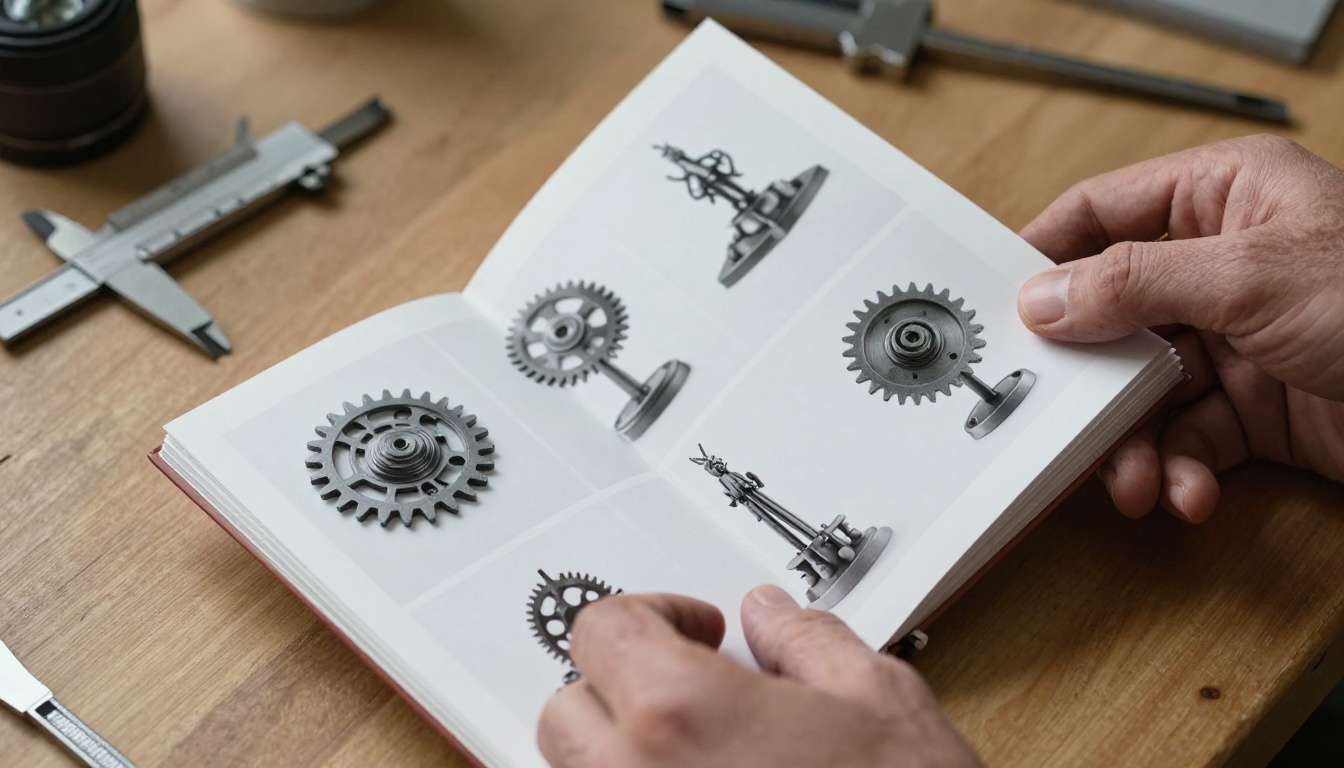
Running a 3D printing shop is as much about showing your work as doing it. Potential customers walk in skeptical, browse your physical samples, and leave thinking "nice, but is that all you do?" A flipbook changes that conversation instantly. When someone can flip through page after page of your sharpest prints, neatly organized by category with real photos and prices, the sale practically closes itself. This article walks you through exactly how to make a flipbook for your 3D printing shop, from collecting your best work to publishing a polished digital version on Flipbooks AI that customers can browse from their phones at any hour.
Why Your 3D Printing Shop Needs a Flipbook
The Problem with Sample Tables
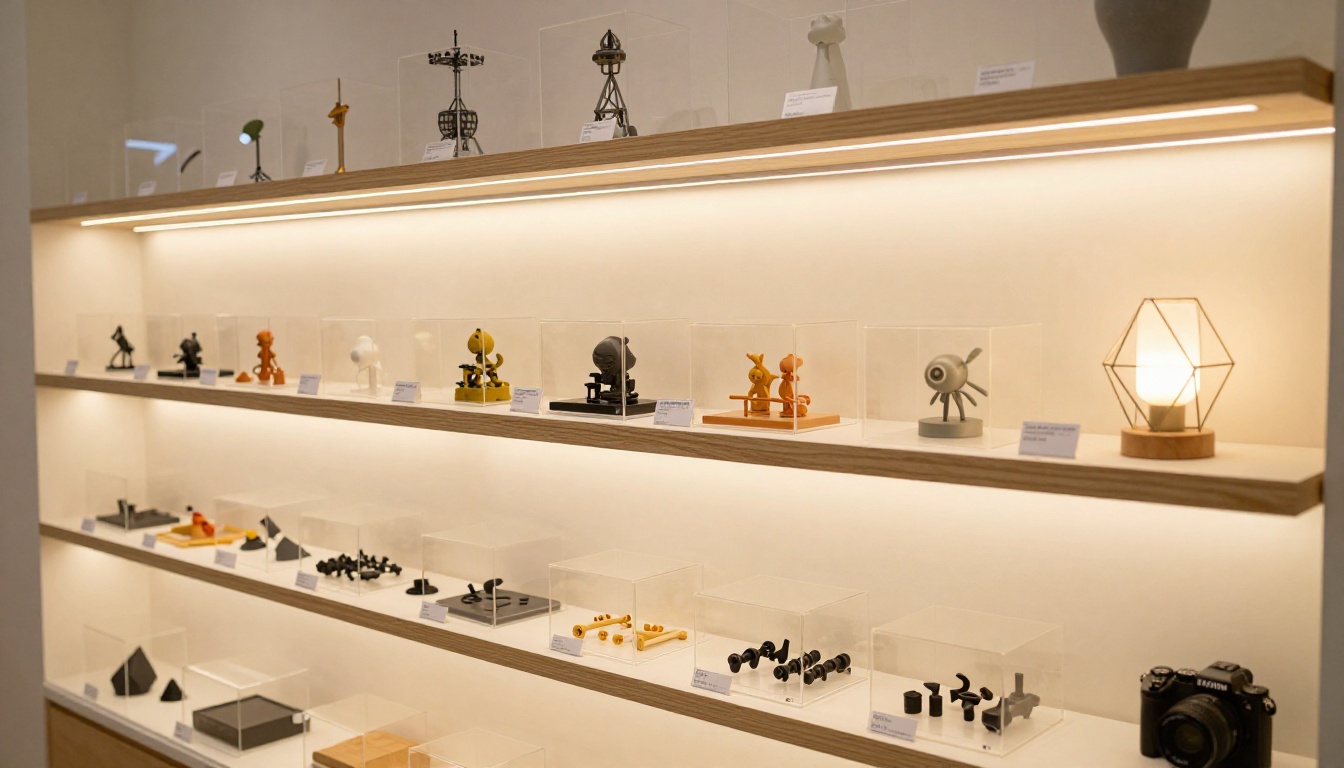
Most 3D printing shops rely on a table of physical samples near the front counter. It works, but it has real limits:
- Samples get damaged, lost, or dirty over time
- You can only display a fraction of what you can actually print
- Customers have no way to browse when they are not physically in the shop
- There is no easy way to show different material finishes or color options
A flipbook, whether printed or digital, solves every one of these problems. It is organized, scalable, and can be updated without reprinting anything.
Who Actually Uses Flipbooks for 3D Shops
Flipbooks are not just for photographers or restaurants. 3D printing shops use them in three main ways:
- Physical leave-behinds at trade shows, maker faires, and partner businesses
- Digital portfolios shared via link in DMs, emails, and social bios
- In-shop displays on a tablet or screen at the front counter
Each format serves a different customer touchpoint, and the best shops use all three.
What to Put in Your 3D Printing Flipbook
Choosing Your Best Work
Not every print belongs in your flipbook. The goal is to show range while maintaining quality. A good rule: if you would not hang it on a wall, do not put it in the book.
Aim for 30 to 50 items across your main categories:
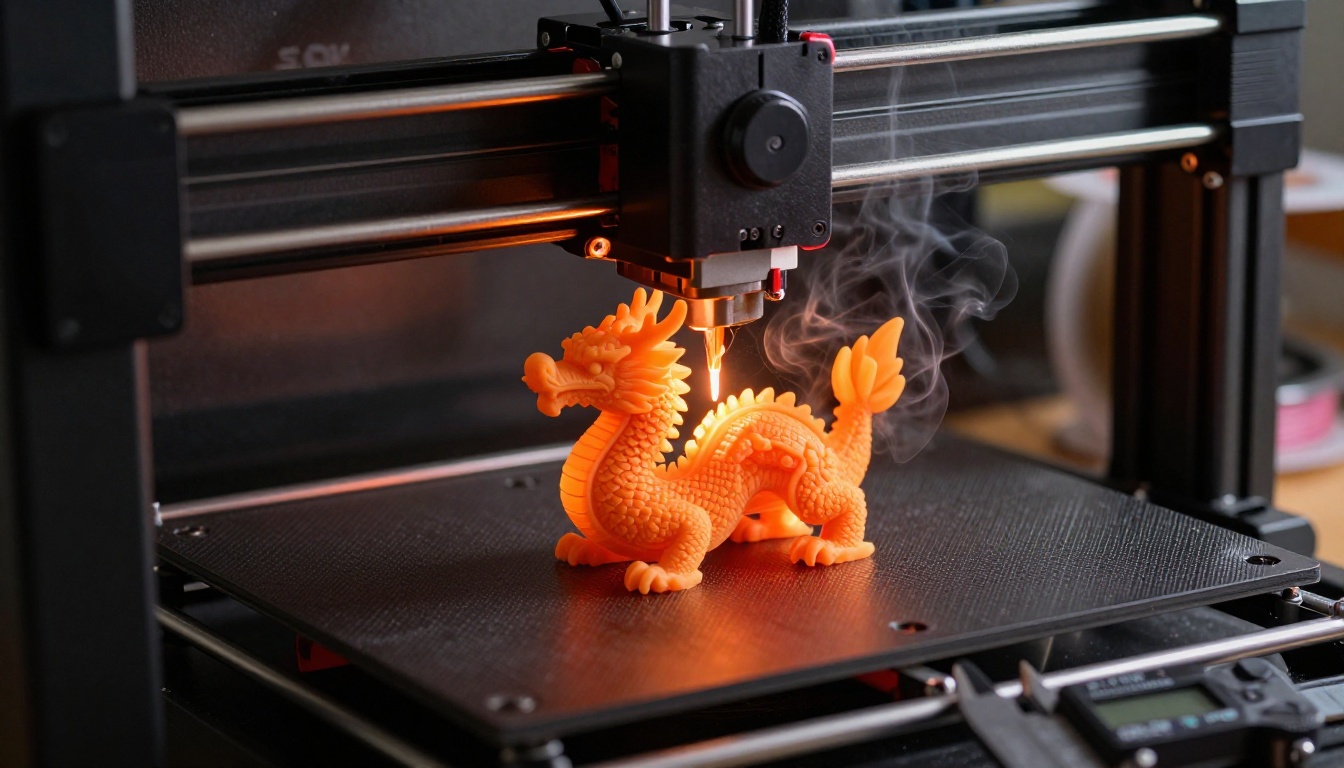
- Custom figurines and characters (popular for gifts and gaming)
- Mechanical parts and prototypes (attracts engineering and industrial clients)
- Home decor and art pieces (great for online store cross-promotion)
- Architectural models (appeals to real estate and design professionals)
- Cosplay props and accessories
- Business tools: organizers, displays, branded objects
Organizing by Category, Not by Date
The biggest mistake shops make is organizing their flipbook chronologically. Customers do not care about when you made something. They care about what you can make for them.
Organize by use case instead. This also makes it far easier to tailor which version of your flipbook you share with different clients.
💡 Create a separate version of your flipbook for each major client segment. A custom figurine specialist gets a very different version than an engineering prototype shop.
Photographing Your Prints Properly
The Gear You Actually Need
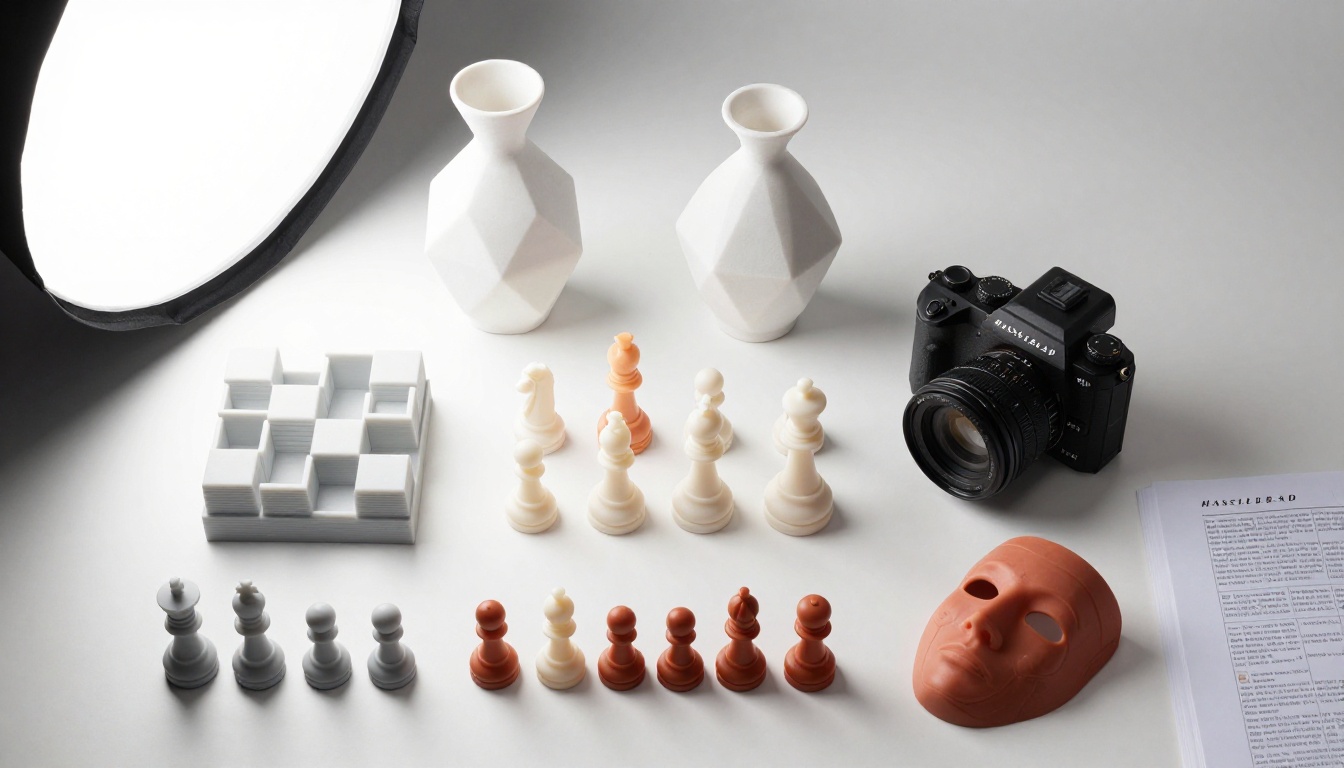
You do not need a professional studio to get portfolio-quality photos of your prints. Here is what works:
| Equipment | Budget Option | Pro Option |
|---|
| Camera | Smartphone (iPhone 15+) | Sony A7R V or Canon R5 |
| Lighting | Window and white foam board reflector | LED softbox set |
| Background | White poster board | Seamless paper roll |
| Lens | Stock phone camera | 85mm or 100mm macro |
| Stabilization | Stack of books | Tripod with ball head |
Lighting Rules for 3D Prints
3D prints have micro-texture from layer lines, and that texture reads beautifully under the right light but looks muddy under the wrong light. Follow these rules:
- Diffused side lighting is the gold standard. It shows layer texture without harsh shadows.
- Avoid direct overhead light. It flattens the object and hides detail.
- Use a white foam board opposite your light source to fill in shadow areas.
- For resin prints, try backlighting to show translucency.
⚠️ Never use your phone flash for product photography. The flat, direct light from a flash destroys the three-dimensional quality of your prints and makes them look cheap.
Photo Editing Before Your Flipbook
You do not need heavy editing. A few adjustments go a long way:
- Straighten and crop to consistent proportions (16:9 or square)
- Bump contrast by 10 to 15 percent
- Slightly increase clarity or texture to sharpen layer detail
- Normalize white balance across all images
- Export at 300 DPI for print, 150 DPI for digital

Building Your Flipbook Layout in PDF
Page Structure That Works
Before you upload anything to a flipbook platform, you need a well-organized PDF. Here is a page structure that converts well:
| Page | Content |
|---|
| Front page | Shop name, hero image, tagline |
| Page 2 | About your shop, specialties |
| Pages 3-5 | Figurines and characters category |
| Pages 6-8 | Mechanical and prototype category |
| Pages 9-11 | Home decor and art category |
| Pages 12-14 | Business and commercial category |
| Pages 15-16 | Pricing overview and materials |
| Back page | Contact info, social handles, QR code |
Design Tools for Non-Designers
You do not need to hire a designer to make a professional PDF. These tools work well:
- Canva: Drag-and-drop templates, free tier works fine for this
- Adobe Express: More control, especially for typography
- Google Slides: Export as PDF, surprisingly capable for simple layouts
- PowerPoint: If you already use it, the output is solid
Keep fonts simple. Two fonts maximum: one for headings, one for body. Stick to your brand colors and lean heavily on white space.
✅ Use a consistent card template for each product: one large image, a short name, material options listed, and starting price. Repeat this for every item.
How to Create Your Shop Flipbook with Flipbooks AI
This is where your static PDF becomes a living, shareable experience. Flipbooks AI converts your PDF into an interactive digital flipbook with page-turning animation, so clients can browse your portfolio the same way they would a printed magazine, anywhere, on any device.
Step 1: Set Up Your Account
Go to flipbooksai.com/account and create your free account. No credit card required to start. You will land on your dashboard where all your flipbooks live.
Step 2: Upload Your PDF
Click the "New Flipbook" button and drag your PDF into the upload area. Flipbooks AI processes your file automatically, converting each page into crisp, high-resolution flipbook pages. For a 20-page portfolio PDF, this typically takes under 60 seconds.
💡 If your PDF is over 100MB, optimize it first using Smallpdf or Adobe Acrobat's file size reduction tool. This speeds up upload and improves load times for your clients.
Step 3: Customize Your Branding
Once uploaded, you can customize:
- Preview thumbnail: Choose which page shows as your flipbook preview image
- Brand colors: Match your shop's color palette for the flipbook UI
- Custom link: Share as a clean, memorable URL
- Background: Set a dark or light background for the reading experience
- Page transitions: Choose from flip, slide, or scroll animations
Step 4: Add Your Shop Information
Use the text overlay feature to add your shop's contact info to the back page if it is not already in your PDF. You can also embed links in specific pages, so a client clicking on a product category can jump directly to your order form or Instagram page.
Step 5: Share Everywhere
Once published, you get several sharing options:
- Direct link: Copy and paste into any message, email, or bio
- Embed code: Drop the flipbook directly onto your website or store page
- QR code: Print it on business cards, packaging, or in-shop signage
- Password protection: Create a private version for B2B clients with custom pricing
✅ The embed feature is especially powerful for 3D printing shops with a website. A customer landing on your site can flip through your full portfolio without leaving the page.
Step 6: Analytics and Lead Generation Data
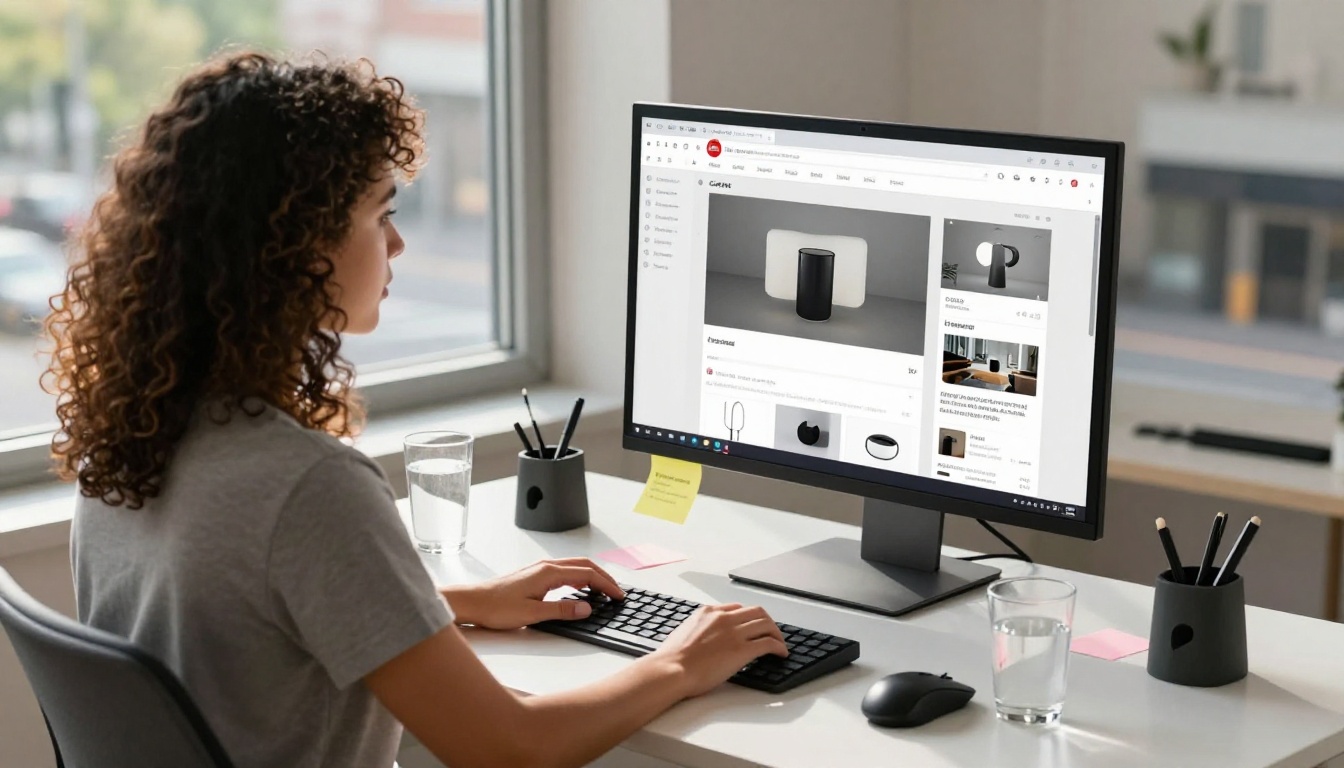
On the Professional plan, you can see exactly who is viewing your flipbook, how long they spend on each page, and which products get the most attention. You can also add a lead capture form that pops up before or after the flipbook loads, turning browsers into contacts automatically.
This data is genuinely useful. If page 7 (your architectural models) gets 3x more time than page 4 (generic parts), that tells you where to grow your business.
Flipbooks AI Plan Comparison for 3D Shops
| Feature | Free | Standard | Professional |
|---|
| Number of flipbooks | 1 | Unlimited | Unlimited |
| Watermark | Yes | No | No |
| Custom branding | No | Yes | Yes |
| Password protection | No | Yes | Yes |
| Embed on website | No | Yes | Yes |
| Analytics | No | No | Yes |
| Lead generation forms | No | No | Yes |
| Offline downloads | No | No | Yes |
| Priority support | No | No | Yes |
For most 3D printing shops just starting out, Standard is the right tier. You get unlimited flipbooks, no watermarks, and full sharing capabilities. Upgrade to Professional when you are ready to track performance and capture leads. Compare all plans here.
Distributing Your Flipbook to Get More Clients
Where to Share It
A flipbook is only valuable if people see it. Here is where 3D printing shops see the best results:
- Instagram bio link: Replace your Linktree with a direct flipbook link
- Local Facebook groups: Share in maker communities and local business groups
- Email signature: Add a "See our portfolio" link below your name
- Google Business profile: Post updates with your flipbook link
- Etsy or order page: Link to your flipbook as part of your product listings
- Business cards: QR code on the back linking to the digital version
The Offline-to-Online Conversion Play
Print 20 to 30 physical copies of your flipbook as a small saddle-stitched booklet. Most local print shops can do this for under $5 each. Leave them at complementary businesses: board game shops, cosplay stores, architect offices, toy shops.
Each physical copy can have a QR code linking to your digital flipbook, which means someone who picks it up a week later can still browse your full portfolio and place an order.
💡 Use the Digital Portfolio Creator or Portfolio Flipbook Builder on Flipbooks AI for pre-built templates designed specifically for portfolio-style content.
Updating Your Flipbook Without Reprinting
When to Refresh Your Content
One of the strongest arguments for going digital is how easy updates are. Plan to refresh your flipbook:
- Every time you complete a particularly impressive project
- When you add a new material (TPU, carbon fiber, resin types, etc.)
- When prices change
- Seasonally, to highlight relevant products (cosplay season, holiday gifts, etc.)
With Flipbooks AI, you just upload a new PDF and replace the existing flipbook. Your link stays the same, so anyone who has already bookmarked or shared it sees the updated version automatically.
Version Control for B2B Clients
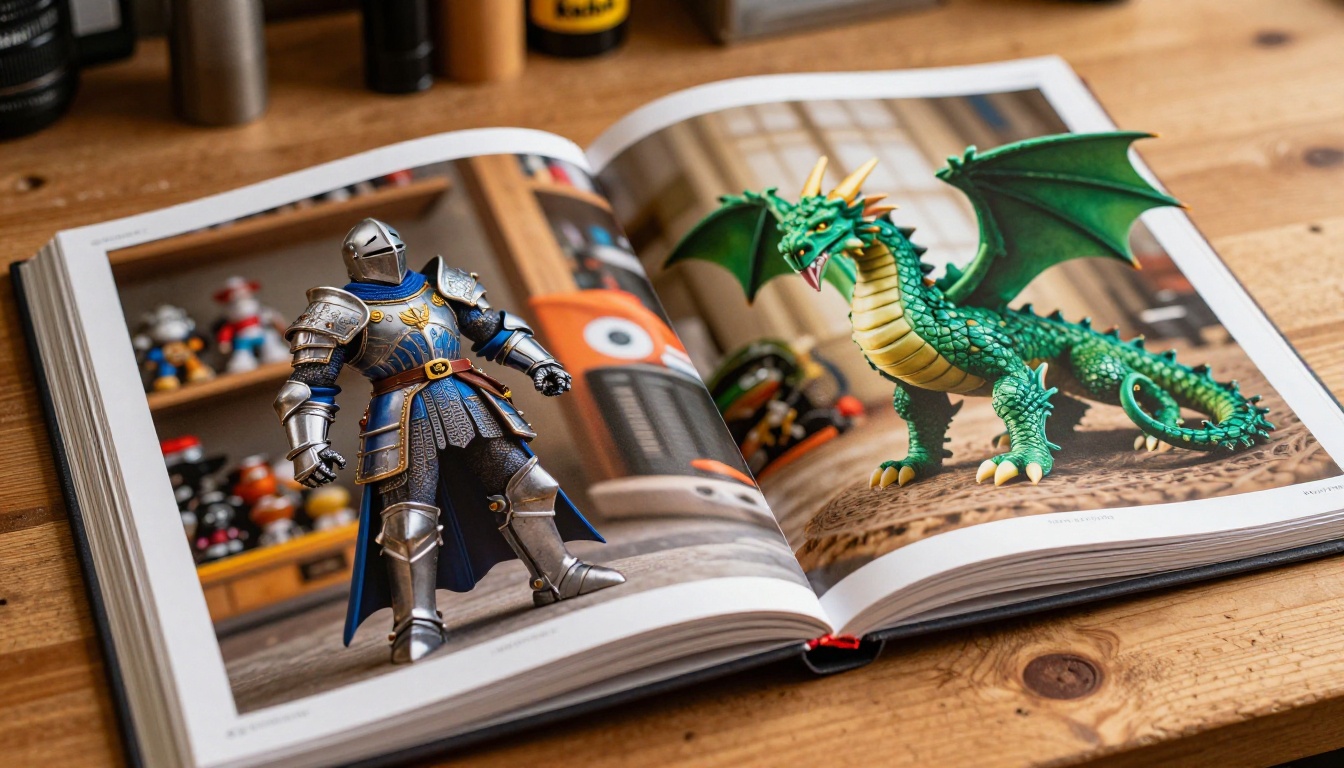
If you have recurring commercial clients (architects, product companies, toy makers), consider creating separate flipbooks for each one. A client who orders mechanical prototypes does not need to scroll past 10 pages of dragon figurines.
Password-protect these with a client-specific link so they feel like they are getting a personalized service. This small touch builds loyalty over time.
Common Mistakes to Avoid
Cramming Too Much on One Page
Each page should breathe. One large image plus minimal text per product wins over a collage of eight small photos. Clients need to see detail to trust quality.
Inconsistent Photography Style
Mixing dark moody shots with bright white-background product shots on the same page kills the professional feel. Pick one style and stick to it throughout the entire flipbook.
Hiding Your Prices
Many shops leave pricing out of their flipbook out of fear of price competition. This backfires. Customers who do not see pricing often assume it is expensive and move on. A clear "starting from" price filters the right buyers in and saves you time on dead-end inquiries.
Never Updating It
A flipbook dated three years ago signals to clients that your shop might be dormant. Treat your flipbook like your shopfront. If the sign is old, customers wonder if the lights are still on.
Start Your Shop Flipbook Today
A well-made flipbook is one of the highest-leverage things you can build for your 3D printing shop. It works for you around the clock, handles the "what do you actually make?" question before it is ever asked, and gives clients a reason to share your work with others.
The process is straightforward: photograph your best work, organize it into a clean PDF, upload it to Flipbooks AI, and share the link everywhere your potential customers already spend time.
Ready to build yours? Create your free account and have your first flipbook published today. For templates built specifically for portfolio and product showcases, browse the Digital Portfolio Creator and Portfolio Flipbook Builder tools. When you are ready for analytics and lead capture, see what the Professional plan includes.
Your next customer is already looking for what you make. A flipbook makes sure they find it.



