Word documents are the default output for almost every business, school project, and creative endeavor. But sharing a .docx file in 2027 feels like handing someone a fax. The good news is that you can take any Word document and turn it into a professional, page-flipping interactive flipbook in under ten minutes, with zero design experience required. Platforms like Flipbooks AI make the conversion effortless, turning your static text into something people will actually want to open and read.
This article walks you through every step of the process, from preparing your Word file correctly to publishing and sharing your finished flipbook online.
Why Word Documents Fall Flat
The Static Doc Problem
Microsoft Word is a writing tool, not a publishing tool. It produces .docx files that require the recipient to have Word installed, or a compatible viewer, just to open them. PDFs solve part of that problem but still deliver a scrolling wall of text with no interactivity.
When you send a Word document as your proposal, training manual, or newsletter, the reader sees a file attachment. When you share a flipbook, they see an experience. Pages turn, content flows naturally, and the whole thing works in a browser with no downloads.
What Changes with a Flipbook
Flipbooks replicate the physical sensation of turning a page, which creates a psychological effect that holds attention longer than scrolling. Research in reading behavior consistently shows that page-based formats feel more intentional and curated than endless scroll. For business content especially, that perceived quality matters.
Beyond aesthetics, flipbooks offer:
- Shareable links that anyone can open on any device
- Embedded media like videos and audio clips
- Analytics to see who read your content and how far they got
- Password protection for confidential documents
- Custom branding with your logo and colors
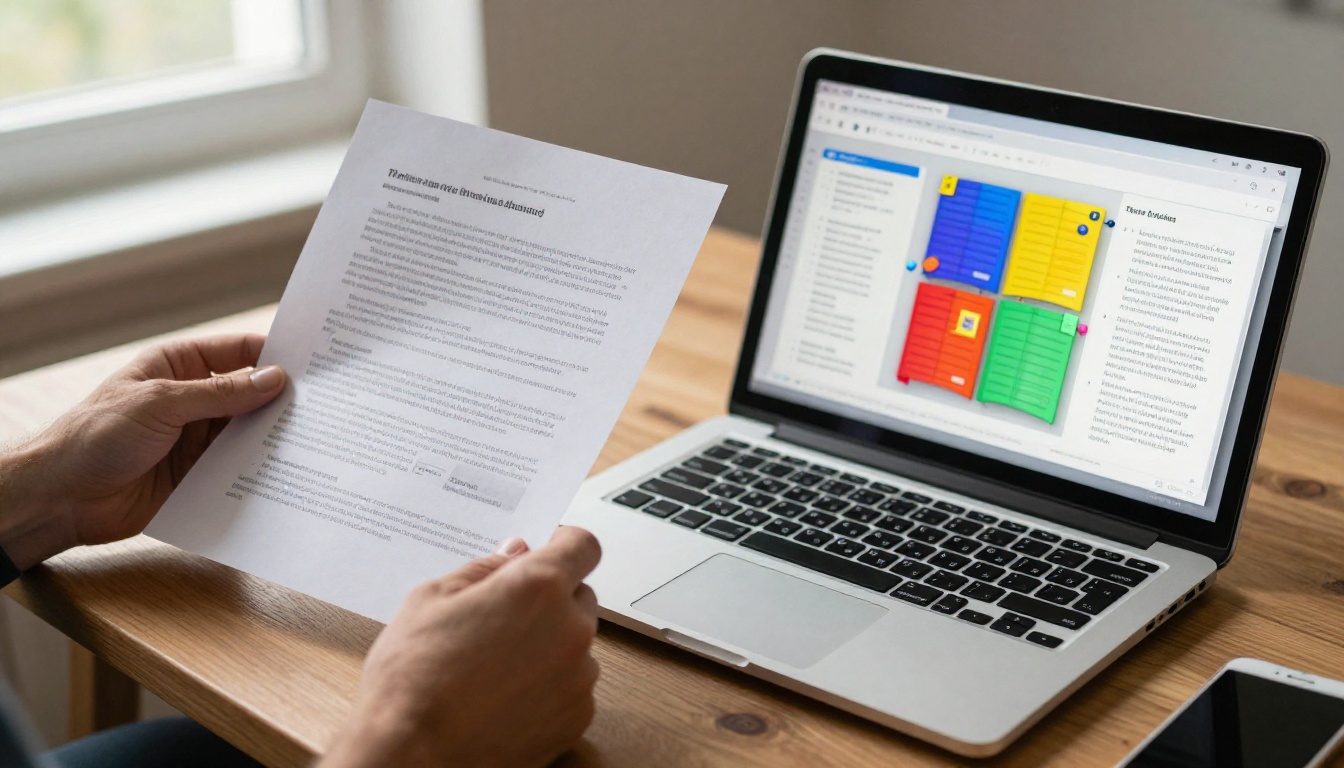
Word vs. Flipbook: Side by Side
| Feature | Word Document (.docx) | Digital Flipbook |
|---|
| Requires software to open | Yes (Word or compatible) | No (browser only) |
| Mobile-friendly | Limited | Yes, fully responsive |
| Page-turn animation | No | Yes |
| Shareable via link | No | Yes |
| Embed videos or audio | No | Yes |
| Custom branding | No | Yes |
| Analytics (view tracking) | No | Yes (Pro plans) |
| Password protection | No | Yes |
| Offline download | N/A | Yes |
The difference is not just cosmetic. A flipbook is a publishing format; a Word document is a drafting format. Once your content is ready, it deserves a better delivery vehicle.
Step 1: Prepare Your Word Document
Format Before You Export
Before you convert anything, spend five minutes cleaning up your Word file. The final flipbook quality depends heavily on how well-formatted the source document is.
Checklist before saving:
- Use consistent heading styles (Heading 1, Heading 2) so the document has visual hierarchy
- Set page size to A4 or Letter to avoid awkward flipbook layouts
- Use high-resolution images (minimum 150 DPI) embedded in the document
- Check that margins are even on all sides (1 inch or 2.54 cm recommended)
- Remove blank pages by pressing Ctrl+End and deleting trailing empty paragraphs
- Use standard fonts (Arial, Georgia, Calibri) since custom fonts may not embed correctly
⚠️ Font warning: If you use a non-standard font, it may not convert correctly in the PDF step. Stick to widely available system fonts, or embed your fonts explicitly via File > Options > Save > Embed fonts in the file.
Page Count Considerations
Flipbooks work best with a minimum of 4 pages. Single-page documents will technically convert but lose much of the flipbook effect. Aim for at least 8 pages for a proper reading experience.
Step 2: Save Your Word Document as PDF
On Windows
The bridge between Word and a flipbook platform is always PDF. No flipbook tool accepts .docx files directly because the format is too variable across Word versions. PDF locks your layout in place, exactly as it looked in Word.
- Open your Word document
- Click File in the top menu
- Select Save As (or press F12)
- In the file type dropdown, choose PDF (*.pdf)
- Click Options and check "ISO 19005-1 compliant (PDF/A)" for best compatibility
- Click Save
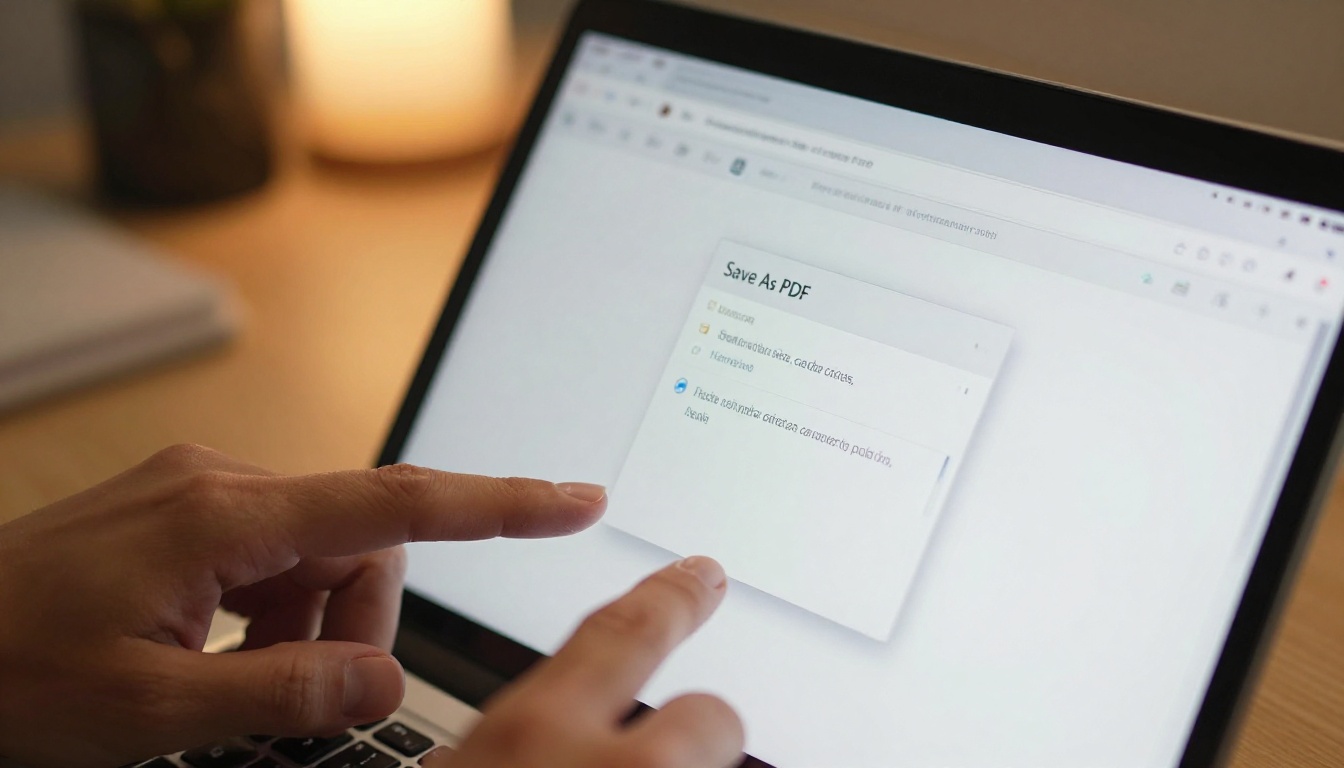
On Mac
- Open your document in Word for Mac
- Click File in the menu bar
- Select Save As
- In the Format dropdown at the bottom, choose PDF
- Click Save
Alternatively, on Mac you can use File > Print > PDF > Save as PDF for full print-quality output.
💡 Pro tip: After saving, open the PDF in your browser or a PDF viewer and check every page. Confirm images loaded correctly, fonts look right, and no pages are blank. A 30-second review here prevents surprises after conversion.
PDF Quality Settings Matter
When exporting from Word, choose "Best for printing" rather than "Best for electronic distribution" if that option appears. Higher-resolution PDFs produce sharper flipbook pages, especially on retina displays.
Picking the Right Tool
Not all flipbook converters are equal. Free tools often add watermarks, limit file sizes, or produce low-quality output. A platform like Flipbooks AI offers professional output without watermarks, even on entry-level plans.
| Platform Type | Watermarks | File Size Limit | Custom Branding | Price |
|---|
| Free basic tools | Yes (most) | Usually under 10MB | No | Free |
| Flipbooks AI Standard | No | Large files supported | Yes | Affordable |
| Flipbooks AI Professional | No | Large files supported | Yes + Analytics | Mid-tier |
| Enterprise platforms | No | Unlimited | Full white-label | High cost |
For most individuals and small businesses, the Flipbooks AI Standard or Professional plan covers everything needed at a reasonable monthly cost.
The Upload Process
- Go to flipbooksai.com and create your account
- From your dashboard, click New Flipbook or Upload PDF
- Drag and drop your PDF file into the upload zone, or click to browse
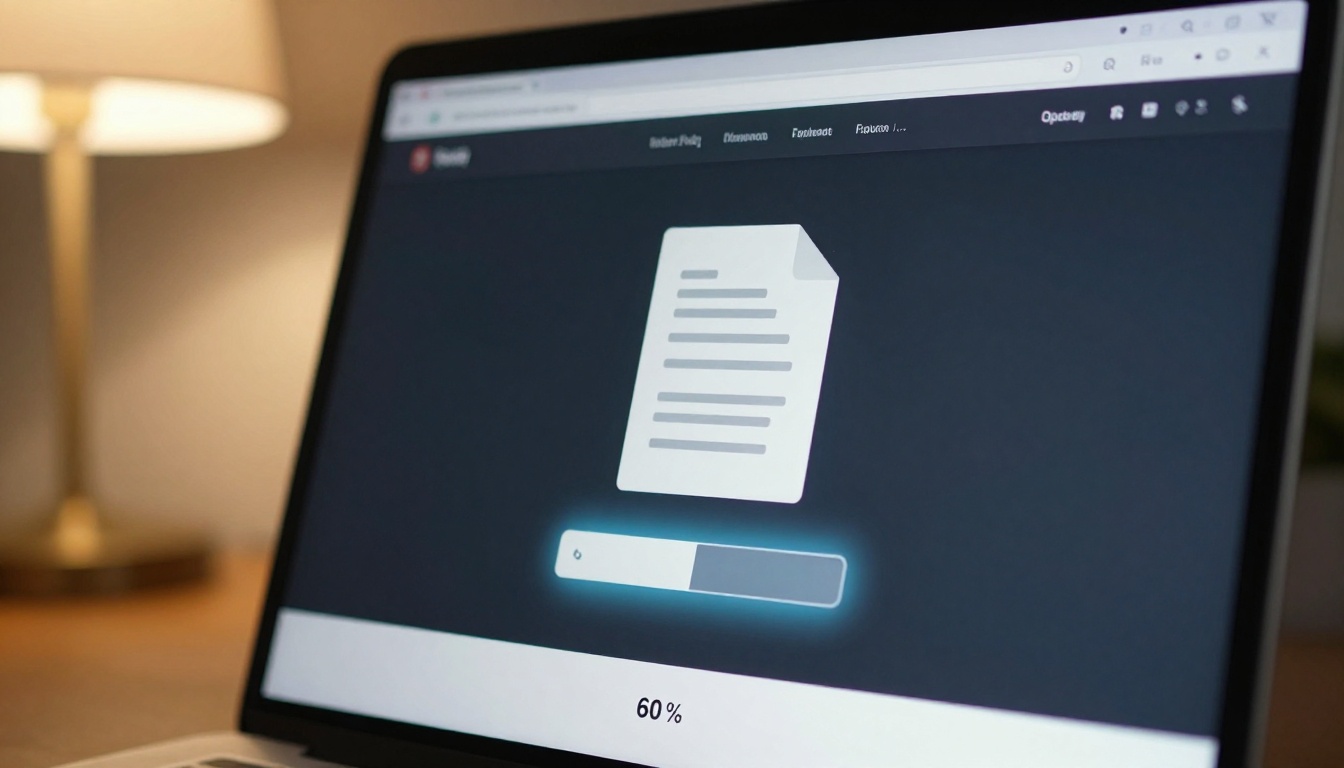
- Wait for the conversion process (typically 30 to 90 seconds depending on file size)
- Your flipbook preview appears automatically once processing finishes
✅ Best practice: Keep your PDF file under 100MB for fastest processing. If your Word document has many high-resolution images, compress the PDF using a tool like Smallpdf before uploading.
Step 4: Customize Your Flipbook
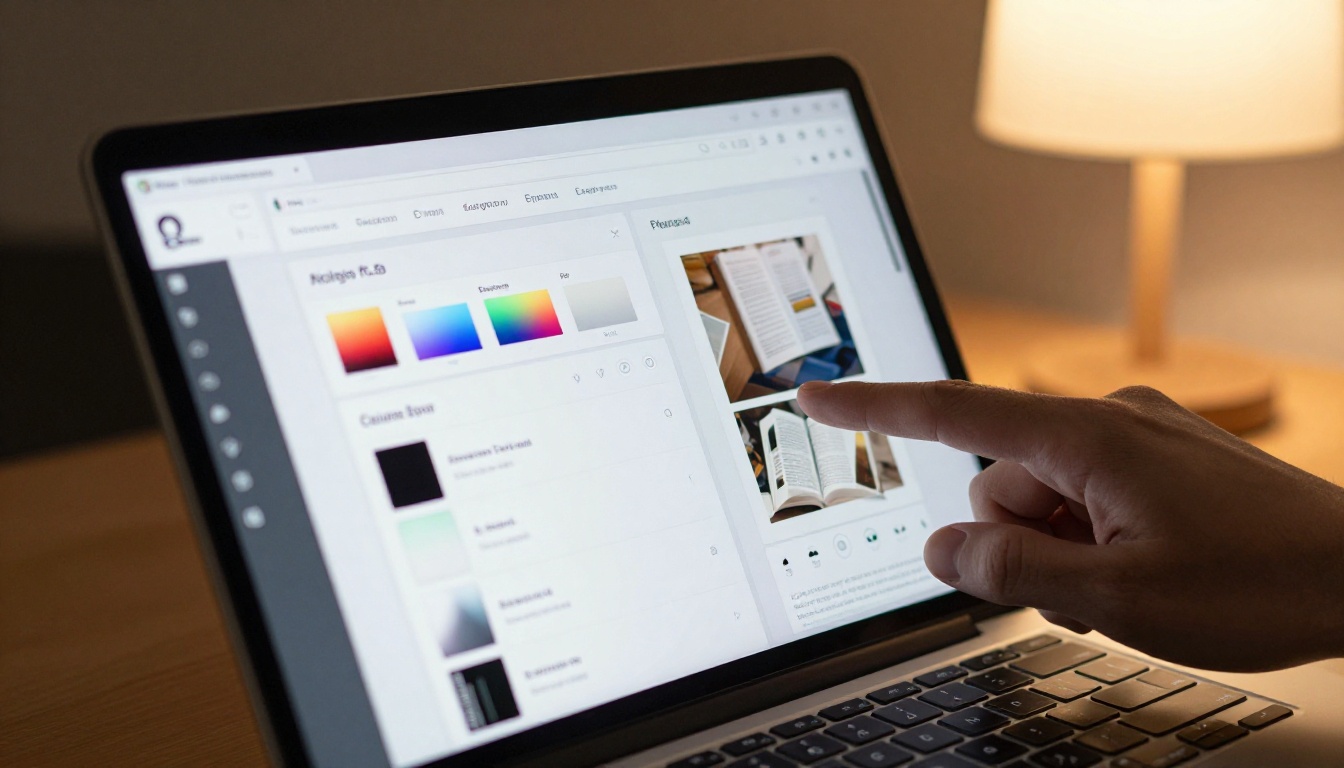
Branding and Visual Settings
Once uploaded, do not just publish the raw conversion. Spend five to ten minutes customizing the flipbook to match your brand identity. This step separates a basic document conversion from a professional publication.
Customization options in Flipbooks AI:
- Logo upload: Add your company logo to the flipbook viewer
- Color scheme: Set background color, toolbar color, and accent colors
- Font settings: Choose fonts for any overlay text
- Background: Solid color, gradient, or custom background image
- Page shadow and effects: Adjust the realism of page-turn shadows
- Reading direction: Left-to-right or right-to-left for appropriate language support
Page Effects and Interaction
Flipbooks AI supports several interactive features that go beyond basic page turning:
- Clickable links: Any hyperlinks in your original Word document remain active
- Zoom functionality: Readers can zoom in on specific sections
- Table of contents: Auto-generated from document headings
- Thumbnail navigation: Readers can jump to any page via a thumbnail strip
- Fullscreen mode: Immersive reading without browser chrome
Step 5: Set Privacy and Sharing Options
Who Can See Your Flipbook
Before publishing, decide who should have access:
- Public: Anyone with the link can view it
- Password protected: Readers must enter a password before viewing. Great for internal reports, client proposals, or confidential manuals.
- Private: Only accessible when logged in to your account
Password protection is available on all paid plans and takes about 10 seconds to configure.
How to Share Your Flipbook
Once you hit publish, Flipbooks AI gives you several sharing options:
Direct link: A clean, shareable URL. Copy this and send via email, Slack, LinkedIn, or anywhere else.
Embed code: A snippet of HTML you paste into any website or CMS. Works with WordPress, Squarespace, Webflow, and most other platforms. Use the Embed Flipbook on Website tool for step-by-step instructions.
Social sharing: One-click sharing buttons for major platforms.
QR code: An auto-generated QR code linking directly to your flipbook, perfect for print materials that point readers to the digital version.
💡 Pro tip: If you are sharing a sales proposal or marketing brochure, use the direct link in your email instead of attaching a PDF. It looks more professional, you can update it after sending, and you can track whether the recipient actually read it.
Real-World Use Cases
Business Documents That Work Better as Flipbooks
Almost any business document benefits from the flipbook format, but some categories see the biggest improvement:
Annual reports: A Word-to-PDF-to-flipbook pipeline turns your yearly performance data into a professional publication. The Annual Report Creator and Corporate Report Maker offer dedicated templates.
Sales proposals: Send an interactive flipbook instead of a PDF attachment. Clients can browse pages at their own pace, and you get visibility into whether they read it.
Product catalogs: Word-based catalog documents convert cleanly into browsable digital catalogs via the Digital Catalog Maker.
Training manuals: HR teams routinely keep training content in Word. Converting to flipbook format makes it shareable via link, works on any device, and the Training Manual Flipbook tool offers purpose-built templates.
Education and Training
Teachers and trainers who write course content in Word can convert it into a professional course publication using the Course Material Publisher. Students access it via a link on any device, without needing Word installed.
Schools creating newsletters or year-end programs can use the School Newsletter Creator or Yearbook Flipbook Maker for polished, shareable output.

Freelancers and Creative Professionals
Portfolios written in Word are nearly unusable for sharing. Converting your project descriptions, case studies, and work samples into a flipbook creates a professional digital portfolio accessible via a single link. The Digital Portfolio Creator and Portfolio Flipbook Builder are ideal starting points.
Event planners and venue coordinators who build programs and brochures in Word can convert them with the Event Program Maker for a finished, client-ready result.
3 Common Mistakes to Avoid
Using Low-Resolution Source Images
If images in your Word document are low resolution (under 100 DPI), they will look blurry in the flipbook. Fix this before converting by replacing compressed images with their original high-resolution versions. Right-click any image in Word, choose "Change Picture," and swap in the original file.
Skipping the PDF Preview Step
Many people convert directly to flipbook without checking the PDF output first. This is how you end up with a published flipbook that has a blank page because of a stray paragraph break, or garbled text because a font did not embed. Always open the PDF and scroll through every single page before uploading.
Not Testing on Mobile
Your flipbook will be viewed on phones and tablets as well as desktops. After publishing, open your flipbook link on your phone and check that text is readable, images load, and page turning works with touch gestures. Flipbooks AI produces mobile-responsive output by default, but verify it yourself before sharing widely.
Flipbooks AI Plans at a Glance
Choosing the right plan depends on your volume and feature needs:
| Plan Feature | Free | Standard | Professional |
|---|
| Flipbooks per month | Limited | Unlimited | Unlimited |
| Watermarks | Yes | No | No |
| Custom branding | No | Yes | Yes |
| Password protection | No | Yes | Yes |
| Analytics | No | No | Yes |
| Lead generation forms | No | No | Yes |
| Offline downloads | No | Yes | Yes |
| Embed on websites | No | Yes | Yes |
| Priority support | No | No | Yes |
For anyone publishing more than one or two flipbooks, the Standard plan pays for itself immediately by removing watermarks and enabling custom branding. The Professional plan makes sense for marketing teams and businesses that need to track reader behavior or capture leads directly through their publications.
Compare all pricing options on the Flipbooks AI website to pick the plan that fits your workflow.

Your Next Flipbook Starts Here
You have a Word document sitting in a folder somewhere that deserves a better audience. Converting it to a flipbook takes ten minutes and produces a result you can share with confidence. No design skills, no complicated software, no file attachments that recipients may not be able to open.
The workflow is simple: format your Word doc, export to PDF, upload to Flipbooks AI, customize your branding, and share a link. That is it.
Ready to see what your document looks like as a flipbook? Create your free account and upload your first PDF today. Browse the full range of flipbook tools to find templates built for your specific document type. And when you are ready to publish without limits, check the pricing plans to pick the option that fits your needs.



