Apple Pages has quietly become one of the best document design tools on Mac, and if you've built something polished in it, the natural next step is getting it in front of people in the most engaging format possible. That's exactly where turning your Pages file into a digital flipbook changes everything. Flipbooks AI makes the process straightforward: design in Pages, export as PDF, upload, and you have a page-turning interactive publication ready to share in minutes. No extra software, no design skills beyond what you already have, and no complicated file conversions.
What Apple Pages Actually Gives You
Pages sits in an interesting middle ground. It's not as powerful as Adobe InDesign for complex multi-column print layouts, but it's far more capable than most people give it credit for, particularly for documents that will eventually become digital flipbooks.
The Real Strengths of Pages for Layout
Pages has several features that translate directly into high-quality flipbook output:
- Professional typography controls: Full font management, kerning adjustments, line height, paragraph spacing, and paragraph styles let you set consistent, polished text across every page
- Template consistency: Pages master elements, including headers, footers, and background shapes, stay consistent across all pages without manual repetition
- Image handling: Images can be precisely placed, cropped, rotated, and layered with text using the drag-and-drop canvas
- Shape and line tools: Built-in drawing tools let you create dividers, callout boxes, icons, and graphic accents without leaving the app
- Export quality: Pages exports clean, high-resolution PDFs that preserve all vector elements, text sharpness, and color accuracy, which matters for crisp flipbook rendering
These strengths make Pages a solid starting point for newsletters, portfolios, brochures, menus, catalogs, and any multi-page document you want to distribute as an interactive flipbook.
Where Pages Falls Short on Its Own
Here's the hard truth: Apple Pages has no built-in flipbook or interactive publication output. It can produce polished PDFs and basic HTML exports, but neither delivers the page-turning animation, mobile-responsive viewing, analytics, or sharing controls that a proper flipbook platform offers.
That gap is exactly what Flipbooks AI fills. You handle design in Pages, Flipbooks AI handles the publishing.

Setting Up Your Pages Document Right
Before exporting anything, how you configure your document in Pages directly affects the quality of your final flipbook. A few deliberate decisions early on prevent significant rework later.
Page Size and Orientation
Most flipbooks read best in either standard portrait or landscape orientation. The right choice depends on your content:
| Content Type | Recommended Orientation | Recommended Size |
|---|
| Magazine or Catalog | Landscape | A4 Landscape (297 x 210 mm) |
| Newsletter or Report | Portrait | A4 Portrait (210 x 297 mm) |
| Portfolio or Lookbook | Landscape | Letter Landscape (11 x 8.5 in) |
| Menu or Brochure | Portrait | A4 Portrait or custom narrow |
| E-book or Course Material | Portrait | A4 or US Letter Portrait |
In Pages, set your document dimensions via File > Page Setup before you start designing. Changing page size after you've built out a layout causes text reflow and image repositioning that can take hours to fix.
⚠️ Avoid highly unusual page sizes unless you have a specific reason. Non-standard dimensions can cause unexpected whitespace or clipping in flipbook viewers.
Fonts, Images, and Compatibility
Pages uses macOS system fonts and any fonts installed in Font Book. All of these embed cleanly into the PDF on export. But there are several things worth checking before you get too far into your design:
- Font installation first: If you're using third-party fonts from Google Fonts or Adobe Fonts, install them in macOS Font Book before opening Pages. Missing fonts fall back to system defaults and can break your layout entirely
- Image resolution: Use images at 150 DPI minimum; 300 DPI is ideal for documents that will render at large sizes on high-resolution screens
- Avoid heavy transparency stacking: Multiple overlapping transparent layers can cause subtle rendering artifacts in certain PDF viewers
- Color mode: Pages works in RGB color, which is correct for screen-based flipbooks. You don't need to convert anything
- Linked vs. embedded media: Pages embeds images directly into the file, so you don't need to worry about missing assets when exporting
💡 Do a full page review before export. Scroll through every page at 100% zoom to catch orphaned text, overflowing text boxes, or images that shifted during editing.
Using Pages Templates as a Starting Point
If you're starting from scratch, Pages includes dozens of templates that work well as flipbook foundations. The Newsletter and Report templates in particular give you pre-built page structures with consistent headers, pull-quote styles, and image placement guides. Customize the colors and fonts to match your brand, swap in your content, and you have a professional-looking document ready for flipbook conversion in a fraction of the time.
For more complex catalogs, menus, or lookbooks, it's worth spending 30 minutes building a custom page template with your brand's colors and font pairings set up as paragraph styles. This investment pays off every time you create a new document in the same format.
Exporting from Apple Pages to PDF
This is the critical bridge step. Getting the export settings right means your flipbook will look exactly as designed.
The Step-by-Step Export Process
- Open your finished document in Apple Pages
- Go to File in the top menu bar
- Select Export To, then choose PDF from the submenu
- In the export dialog, set Image Quality to Best (not Good or Better)
- Under layout options, confirm Every Page is selected
- Leave password protection unchecked here; the flipbook platform handles access control separately
- Click Next, choose a save location you'll remember, and click Export

Export Settings That Actually Matter
Image Quality: Best is the single most important setting. This ensures photos, illustrations, and design elements retain their resolution when the flipbook platform renders each page. The resulting file will be larger than a compressed version, but that's intentional. Flipbooks AI applies its own intelligent compression during rendering, so starting with the highest quality source file produces the sharpest possible flipbook output.
Every Page matters if you've been working in a multi-section document or have hidden pages. Confirm the exported PDF opens cleanly in macOS Preview and shows the correct page count before moving on.
✅ After exporting, open the PDF in macOS Preview and page through every spread at 100% zoom. Catch any text reflow, missing images, or clipped content before it becomes a live flipbook in front of your audience.
Turning Your Pages PDF into a Real Flipbook
With your PDF exported correctly, you're ready to publish it as an interactive digital flipbook.

Step 1: Sign Up on Flipbooks AI
Head to flipbooksai.com/account and create your free account. No credit card is required to start. The free tier lets you test the full conversion pipeline with a real document before committing to a paid plan.
Step 2: Upload Your PDF
Once inside your dashboard:
- Click Create New Flipbook
- Select Upload PDF
- Drag and drop your Pages-exported PDF, or use the file browser to locate it
- Wait for conversion to complete. Standard documents typically finish in 30 to 60 seconds
You can also access the PDF to Flipbook Converter tool directly for a focused upload experience.
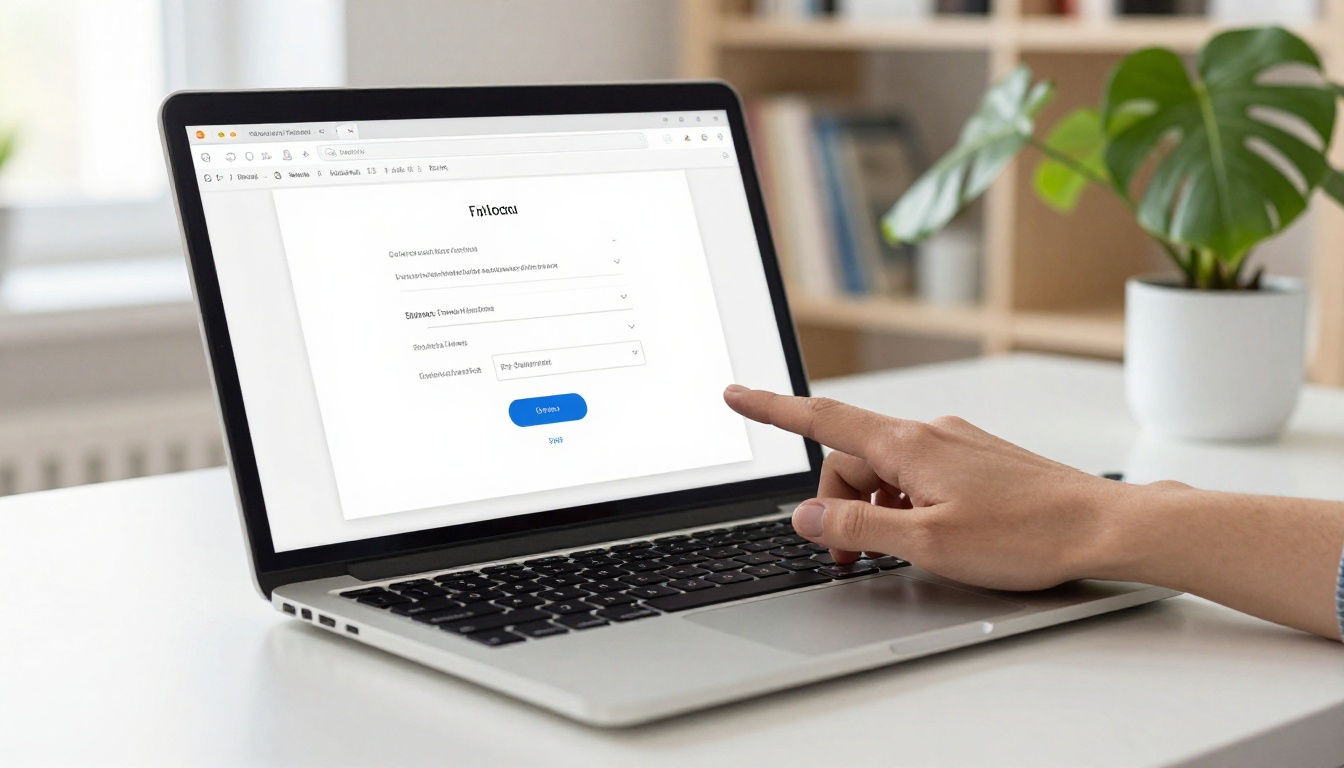
The platform renders each PDF page into a crisp, high-resolution flipbook spread with realistic page-turn animation. Because you exported at maximum quality from Pages, the rendered pages will look sharp at any screen size.
Step 3: Customize Your Flipbook
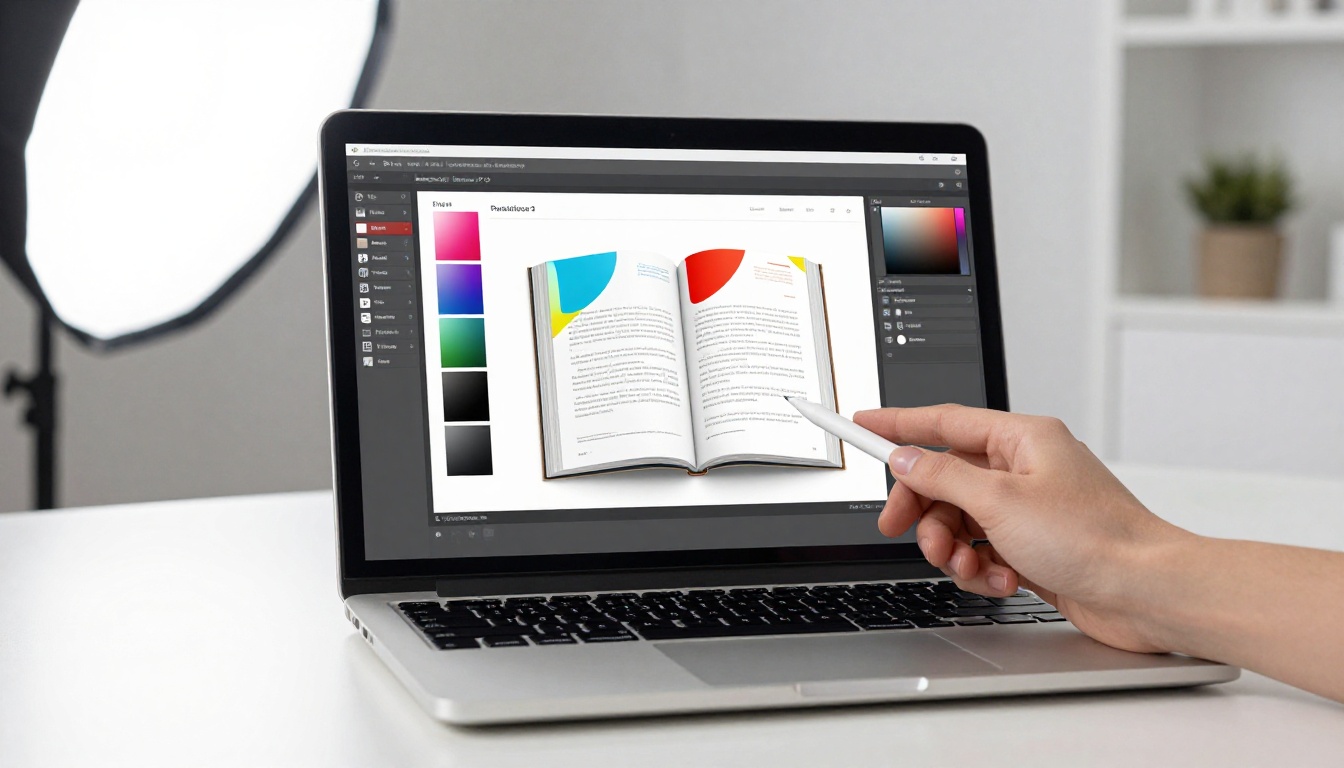
After upload, you land in the customization editor. This is where the flipbook becomes distinctly yours:
- Branding: Upload your logo, set custom colors for the viewer interface, and match your brand palette exactly
- Page effects: Choose from different page-turn styles including soft curl, flat flip, and shadow flip
- Background: Set a solid color or background image behind the flipbook spread area
- Multimedia embeds: Drop video or audio clips onto specific pages for product demos, interviews, or narration
- Table of contents: Add a navigable TOC for longer documents so readers can jump directly to sections
- Auto-flip: Set automatic page advancement for kiosk displays or unattended presentations
Step 4: Share and Publish
When you're satisfied with the result:
- Click Publish to make the flipbook live
- Copy the direct link for email, social media, or messaging
- Grab the embed code to place the flipbook inside a website
- Enable password protection for private or client-confidential content
- Activate lead generation on the Professional plan to capture viewer contact information
Customization Options Worth Using
Not every customization option adds equal value. Here are the features that make the most measurable difference:
| Feature | What It Does | Best Used For |
|---|
| Custom domain | Serve flipbook from your own URL | Client-facing brand presentations |
| Password protection | Gate access to authorized viewers only | Internal reports, premium content |
| Custom branding | Remove platform branding from viewer | Professional publications |
| Lead generation | Capture emails before or mid-view | Marketing materials, lead magnets |
| Analytics | Track views, time-on-page, drop-off rate | Measuring content performance |
| Offline download | Allow PDF download for offline use | Manuals, reference documents |
| Embedded multimedia | Add video or audio to specific pages | Product catalogs, training content |
| Auto-flip timer | Automatic page advancement | Kiosk displays, live presentations |
💡 Lead generation is available on the Professional plan and is particularly valuable for marketers. You can gate content behind an email form, or trigger a form mid-document to capture qualified leads from people actively reading your material.
Viewing Your Flipbook on Any Device
One of the biggest advantages of publishing through Flipbooks AI over sharing a raw PDF is automatic mobile responsiveness. The flipbook adapts its layout for phone screens, displaying single pages with touch-swipe navigation rather than forcing users to zoom and pan a two-page spread.
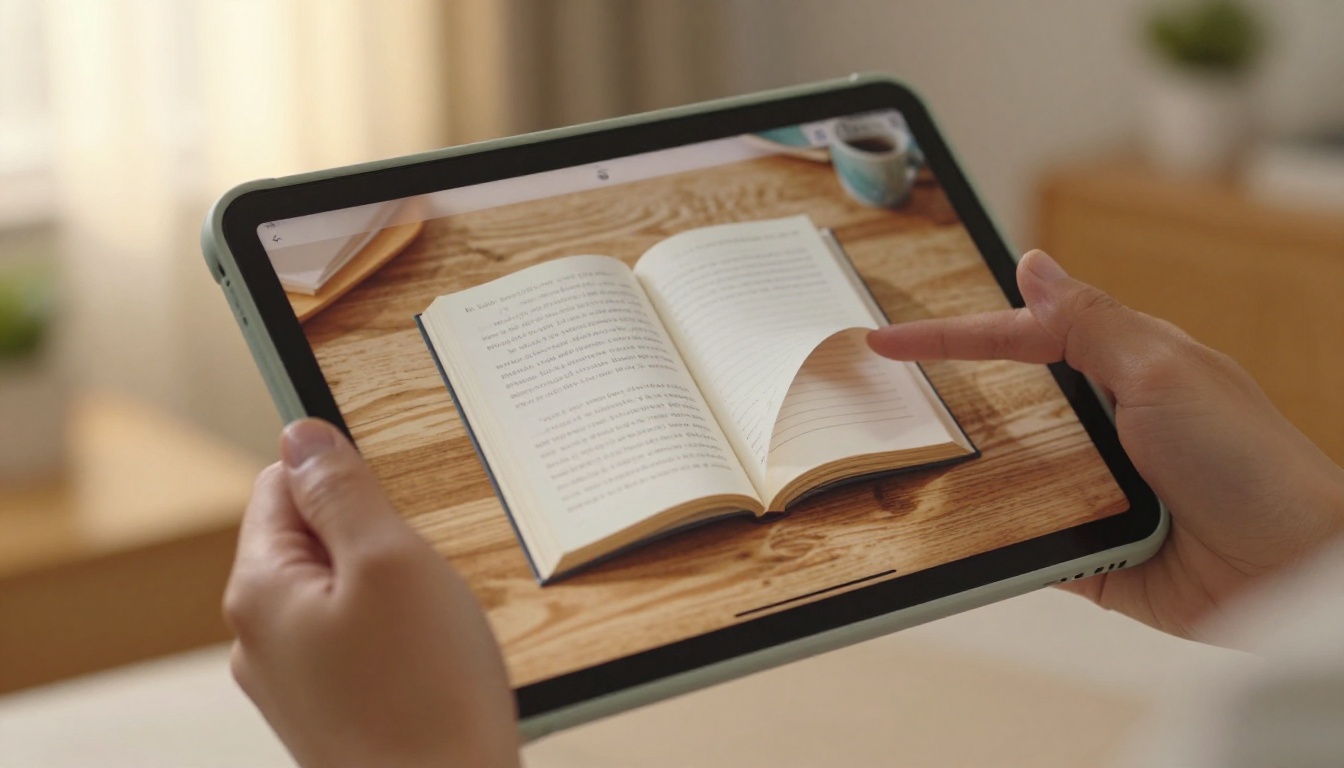
A PDF link in an email gives the reader a static file they have to download or open in a separate viewer. A flipbook link opens directly in the browser, works on every device without installing anything, and delivers an interactive reading experience that a PDF simply cannot replicate.
Sharing Your Flipbook the Right Way
How you share is as important as what you share. Different use cases call for different methods.
Embed vs. Direct Link
Direct link works best for:
- Email newsletters and campaigns
- Social media posts and bios
- Slack, Teams, or messaging apps
- QR codes printed on physical materials
Embed code works best for:
- Website landing pages and product pages
- Blog posts and editorial content
- Portfolio pages and case study sections
- Online course platforms and learning management systems
The embed code from Flipbooks AI is a standard iframe snippet that drops into any website builder including WordPress, Squarespace, Webflow, and raw HTML. The Embed Flipbook on Website tool provides step-by-step integration instructions for the most popular platforms.
Password Protection for Private Content
For client proposals, confidential reports, or premium gated content, password protection ensures only authorized viewers can access the flipbook. Set the password in the flipbook settings before publishing, and viewers will encounter a password gate before the first page loads.
⚠️ If you update the password after sharing, notify all recipients. People who saved the old password will be locked out until you send them the updated one.
Pages vs. Other Design Tools for Flipbooks
Apple Pages is one of several tools commonly used to create flipbook source documents. Here's how it compares:
| Tool | Best For | Flipbook Compatibility | Cost |
|---|
| Apple Pages | Mac users, clean multi-page layouts | Excellent via PDF export | Free with Mac |
| Microsoft Word | Text-heavy documents, formal reports | Good via PDF export | Subscription required |
| Google Docs | Real-time collaborative documents | Good via PDF export | Free |
| Adobe InDesign | Complex professional print layouts | Excellent via PDF export | Subscription required |
| Canva | Visual-first designs, social content | Excellent via PDF export | Free or Pro |
| Keynote | Presentations, visual storytelling | Good via PDF export | Free with Mac |
Pages wins on cost (free with every Mac), ease of use within the Apple ecosystem, and clean PDF export quality. If you're already on a Mac and comfortable in Pages, there's no reason to switch tools just to produce flipbook source documents.
Once your flipbook is live, analytics tell you whether it's actually working. The Professional plan on Flipbooks AI provides:
- Total views and unique viewer counts
- Average time spent per page
- Page-level drop-off data showing exactly where readers stop
- Geographic distribution of your audience
- Device breakdown showing desktop versus mobile split

This data changes how you approach revision. If viewers consistently drop off at page 6 of a 12-page catalog, that page needs work, whether that's the design, the content density, or the call to action placed there. If 70% of your audience reads on mobile, verify that your Pages layout translates well to single-page portrait view.
💡 Use page-level drop-off data to prioritize revisions. The pages with the lowest read-through are where your content or design is losing people.
Real-World Use Cases for This Workflow
The Pages-to-flipbook workflow isn't limited to one type of content. Here are scenarios where it performs particularly well:
- Small business owners using Pages for menus, price lists, and promotional materials can publish them as flipbooks and share the link on Instagram, in email signatures, or directly on their website
- Freelance designers can build client portfolios in Pages and present them as polished interactive flipbooks via the Digital Portfolio Creator
- Teachers and trainers producing course materials or handbooks in Pages can distribute them through the Course Material Publisher
- Event planners creating programs or schedules in Pages can share them via the Event Program Maker
- Real estate agents designing property brochures in Pages can publish through the Real Estate Brochure Creator
- Nonprofit organizations can turn their annual reports into engaging flipbooks using the Non-Profit Annual Report tool

The pattern is always the same: design in Pages, export as PDF, upload to Flipbooks AI, share the link. Once you've done it once, the workflow takes under five minutes on any subsequent document.
What Plan Do You Actually Need?
Flipbooks AI offers tiered plans to match different publishing needs:
| Plan | Flipbooks | Watermarks | Custom Branding | Analytics | Lead Gen | Password Protection |
|---|
| Free | Limited | Yes | No | No | No | No |
| Standard | Unlimited | No | Basic | No | No | Yes |
| Professional | Unlimited | No | Full custom | Yes | Yes | Yes |
For individuals creating flipbooks from Pages documents for personal or small business use, the Standard plan covers most needs: unlimited flipbooks, no watermarks, and basic branding. Upgrading to Professional makes sense when you need analytics to measure performance or lead capture for marketing and sales content.
See current plan details at flipbooksai.com/pricing.
Ready to Publish Your First Flipbook?
The full workflow is simpler than it looks: design your document in Apple Pages with the right page size and export settings, save it as a high-resolution PDF, and upload it to Flipbooks AI for instant conversion. In under ten minutes from finishing your Pages design, you can have an interactive, mobile-ready flipbook that's shareable anywhere.
If you're just starting out, create a free account and upload a PDF to see how your design looks as a live flipbook. No credit card, no commitment. For teams or marketers who need full branding control, analytics, and lead capture, compare all pricing plans to find the right fit. Browse all available flipbook tools to find specialized options for every publication type, from catalogs and menus to portfolios and annual reports.



