Making a flipbook from your iPad takes less time than most people expect, and the results look far more polished than anything you could produce with a desktop editor twenty years ago. Your iPad already has everything it needs: a powerful browser, a camera roll full of content, and the processing muscle to handle serious file conversions on the go. The only missing piece is the right platform, and Flipbooks AI fills that gap completely.
Why Your iPad Is Already a Publishing Studio
What Makes the iPad Different
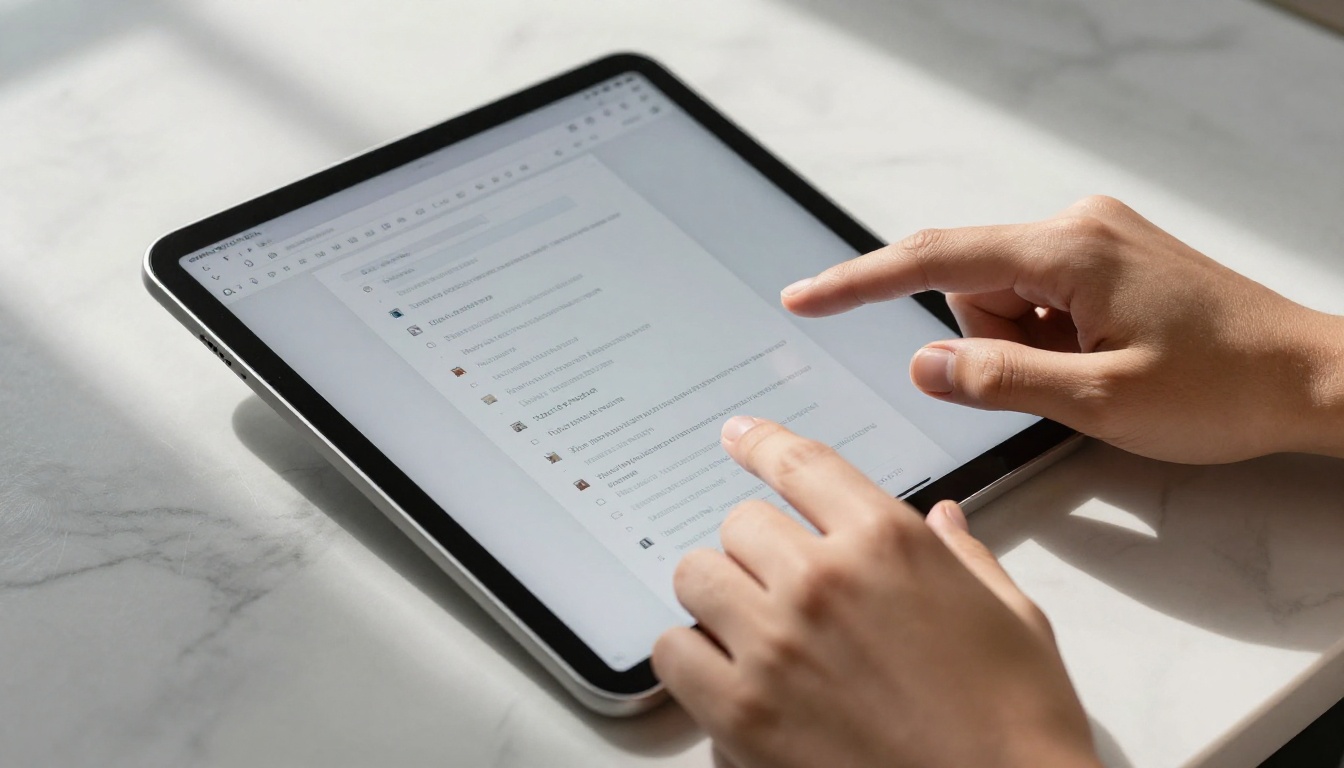
The iPad sits in a unique position for content creation. Unlike a smartphone, the screen is large enough to see page layouts clearly while you design. Unlike a laptop, you can carry it anywhere and work in natural light, at a coffee table, or on a commute without opening a lid or hunting for a power outlet.
The Apple Pencil integration, the ProMotion display on newer models, and Safari's full browser capabilities mean the iPad handles web-based creative tools with the same fidelity as a desktop machine. For flipbook creation specifically, this matters because you get a true preview of how your finished flipbook looks, page spreads and all, right on the device you used to build it.
iPad vs Other Tablets for Flipbook Work
| Feature | iPad (iOS) | Android Tablet | Windows Tablet |
|---|
| Browser compatibility | Excellent (Safari/Chrome) | Good (Chrome) | Excellent (Edge/Chrome) |
| PDF handling | Native Files app | Varies by model | Native |
| File sharing (AirDrop) | Yes | No | No |
| Touch precision | High (Apple Pencil support) | Medium | Medium |
| App ecosystem | Extensive | Moderate | Extensive |
| Performance (M-series) | Flagship-tier | Mid-range | Mid-range |
💡 If you are using an iPad Pro or iPad Air with an M-series chip, even large PDFs with 100+ pages upload and convert in seconds.
What You Need Before You Start
Your Content, Ready to Go
Before anything else, get your source material in order. Flipbooks AI works from PDFs, which gives you a lot of flexibility. You can:
- Export a Keynote or Pages document as a PDF directly from your iPad
- Use the Files app to locate an existing PDF in iCloud, Dropbox, or Google Drive
- Scan physical documents using the Notes app camera feature
- Export photos as a PDF using the Share menu in Photos
The simplest workflow is Keynote to PDF. Design your pages in Keynote with the layout you want, tap Share, then Export, then PDF. The file lands in your Files app, ready to upload.
File Format and Size Requirements
| Requirement | Recommended | Maximum |
|---|
| File format | PDF (any version) | PDF only |
| File size | Under 50 MB | 200 MB |
| Page count | 5-100 pages | Unlimited (Standard plan) |
| Resolution | 150 DPI minimum | 300 DPI for best results |
| Color mode | RGB preferred | CMYK supported |
⚠️ If your PDF contains embedded fonts that are not outlined, some characters might not display correctly. In Keynote, always export with "Best Quality" selected to embed all assets properly.
How to Make a Flipbook from Your iPad Step by Step
This is the core workflow. It takes about five minutes from a finished PDF to a live, shareable flipbook.

Step 1: Open Flipbooks AI in Your Browser
On your iPad, open Safari or Chrome and go to flipbooksai.com. The platform is fully browser-based so there is nothing to install. Tap Log in or create a free account if you do not have one yet. The interface scales perfectly on iPad screens, including split-view if you want a Keynote window open on one side.
Step 2: Prepare Your PDF
With your PDF saved in the Files app, you are ready to upload. Make sure the file is named something descriptive because Flipbooks AI uses the filename as a starting point for your flipbook title. A name like spring-catalog-2025.pdf works better than document-1.pdf.
Step 3: Upload and Convert
- In Flipbooks AI, tap the Create Flipbook or New Flipbook button
- Select Upload PDF from the options
- Tap to browse Files, locate your PDF, and confirm
- Wait for the conversion bar to finish (usually 10-30 seconds for most files)
- Your flipbook appears in the editor with all pages rendered as interactive spreads
✅ After conversion, scroll through all pages in the preview panel to check that every page rendered correctly before continuing to customize.
Step 4: Customize Your Flipbook
This is where the real fun starts. The Flipbooks AI editor lets you:
- Pick a page-turn style: Choose from dozens of animations and background colors
- Add your branding: Upload a logo and set your color palette for the toolbar
- Embed multimedia: Add video links, audio clips, or interactive hotspots to any page
- Set a custom domain (Professional plan): Use your own branded URL instead of a flipbooksai.com link
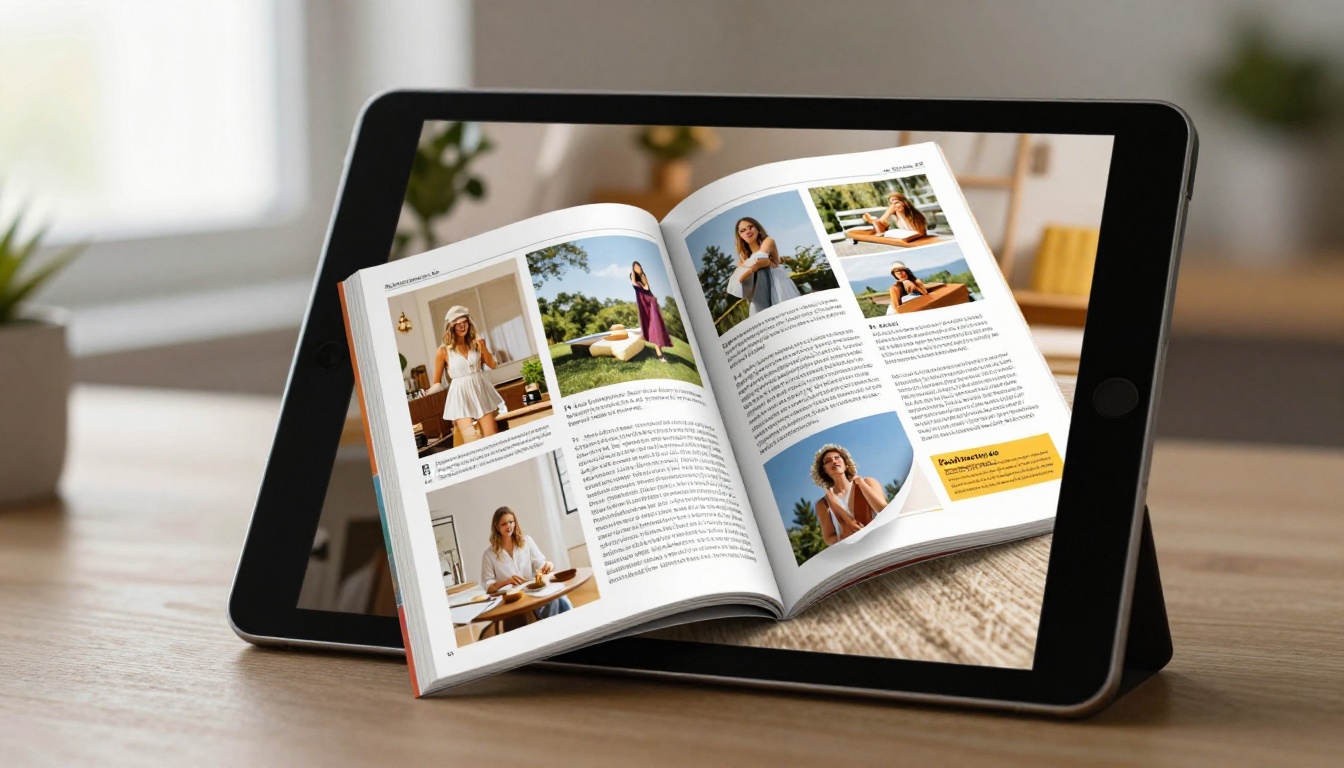
Tap any element on a page to open its settings panel on the right. The interface is designed to work with touch, so you can pinch-zoom pages, drag elements, and swipe between pages naturally.
Step 5: Set Sharing and Privacy Options
Before publishing, decide who can see your flipbook:
- Public: Anyone with the link can view it
- Password protected: Viewers must enter a code to access
- Private: Only you can see it, great for work in progress
Password protection is available on all paid plans. It is particularly useful for internal business documents, client presentations, or preview copies you share before an official launch.
Step 6: Publish and Share
Tap Publish, and your flipbook goes live in seconds. From the share panel you can:
- Copy the direct link to send via iMessage, email, or WhatsApp
- Copy an embed code to paste into a website (you can do this from iPad using a CMS like Webflow or Squarespace's mobile app)
- Download the flipbook for offline access
- Share directly to social platforms

Best iPad Models for Flipbook Creation
Every iPad from the past five years handles Flipbooks AI without any issues. That said, some models offer a noticeably better experience for content-heavy work.
| iPad Model | Chip | Best For | Performance |
|---|
| iPad Pro 13" (M4) | M4 | Large PDFs, professional publishing | Exceptional |
| iPad Pro 11" (M4) | M4 | Portable professional workflow | Exceptional |
| iPad Air 13" (M2) | M2 | Most users, great balance | Excellent |
| iPad Air 11" (M2) | M2 | On-the-go creation | Excellent |
| iPad (10th gen) | A14 | Casual flipbook creation | Very Good |
| iPad Mini (6th gen) | A15 | Quick edits, lightweight use | Good |
💡 The 12.9" or 13" iPad Pro is the best choice if you regularly work with double-page spreads. The larger canvas shows facing pages at near-actual size, which makes layout decisions much more accurate.
What You Can Create from Your iPad
The flipbook format works for far more than photo albums. Here are real-world workflows that run entirely from an iPad.
Personal Photo Albums and Travel Books
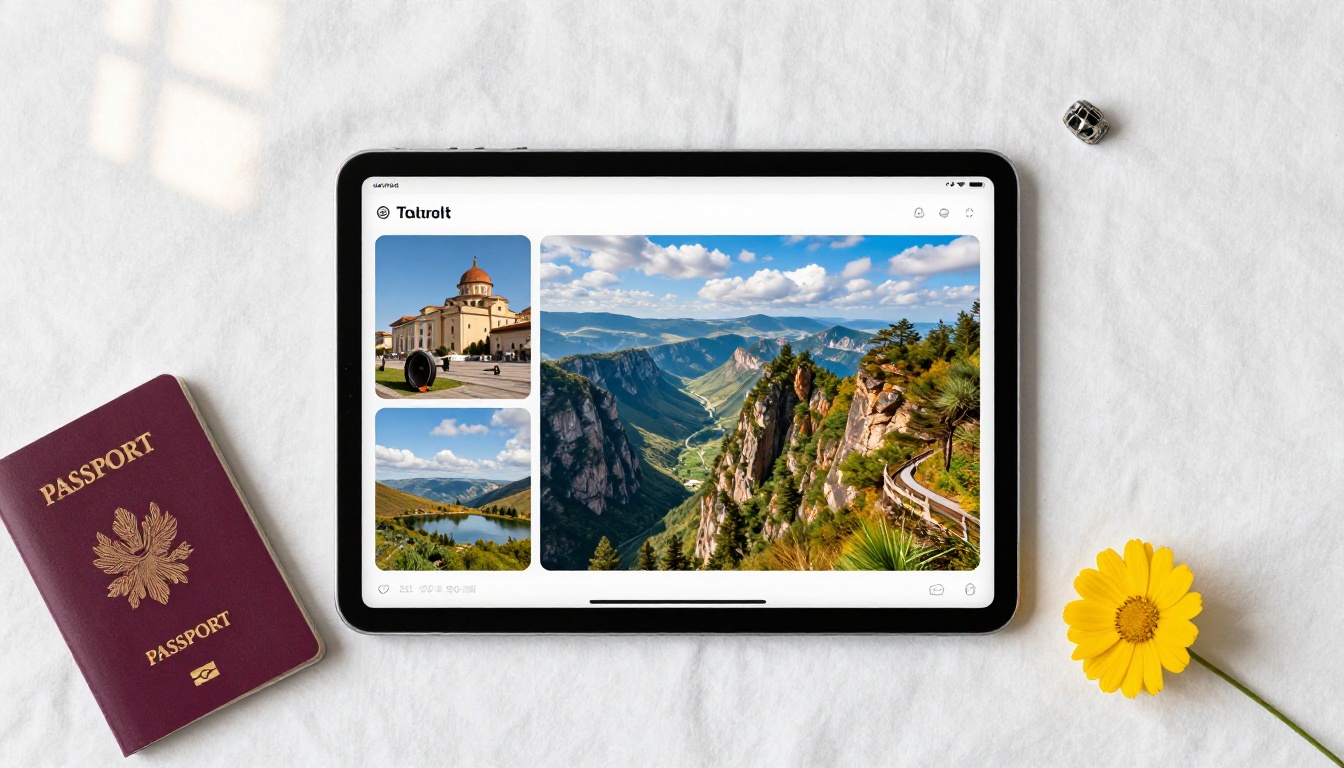
Export your Photos library as a PDF using a third-party layout app like Canva (which has a full-featured iPad app), then upload to Flipbooks AI. In minutes you have a living, page-turning travel album you can share with family. The Wedding Album Flipbook tool is particularly well-suited to this workflow.
Business Catalogs and Presentations
Sales teams on the road use iPads constantly. Being able to create a polished product catalog mid-flight and share it with a client by landing time is a genuine competitive advantage. The Product Catalog and Digital Catalog Maker tools are designed for exactly this scenario.
Real-world example: A furniture retailer's sales rep designs a seasonal catalog in Canva on an iPad, exports to PDF, uploads to Flipbooks AI during a taxi ride, and arrives at the client meeting with a live, shareable, mobile-responsive flipbook already on the screen.
Restaurant Menus
The Restaurant Menu Creator lets restaurant owners create a fully interactive digital menu. Update it from your iPad between service, push the change live, and every QR code in your dining room instantly points to the new version, no reprinting needed.

Education and Training
Teachers and trainers can build Course Material Publishers and interactive workbooks from an iPad. Students access the flipbook on any device, zoom into diagrams, and flip pages naturally. The format is far more engaging than a static PDF attached to an email.
Flipbooks AI Plans: What You Get
Choosing the right plan determines what features you have access to. Here is a clear breakdown.
| Feature | Free | Standard | Professional |
|---|
| Flipbooks per month | 3 | Unlimited | Unlimited |
| Watermark | Yes | No | No |
| Password protection | No | Yes | Yes |
| Custom branding | No | Yes | Yes |
| Analytics | No | No | Yes |
| Lead generation forms | No | No | Yes |
| Offline downloads | No | Yes | Yes |
| Embed on website | Yes | Yes | Yes |
| Custom domain | No | No | Yes |
| Video and audio embeds | No | Yes | Yes |
For most iPad users creating flipbooks for personal or small business use, the Standard plan covers everything. Professional is worth it if you need to know exactly who is reading your content and want to capture leads directly from the flipbook.
💡 Start with a free account to test the conversion quality with your own PDFs before committing to a plan. Check pricing plans once you have confirmed the output matches your expectations.
Common iPad Flipbook Mistakes
Uploading Low-Resolution PDFs
The most common issue people hit is uploading a compressed PDF that was shared via email or downloaded from a web preview. These files are often optimized for screen viewing at a fixed size, not for the zoomable, high-resolution flipbook format. Always work from the original export, not a forwarded or downloaded copy.
Skipping the Preview Step
Publishing without checking every page is a gamble. A single page with a missing font, a blank spread, or an image that did not embed will undermine an otherwise professional presentation. The 30 seconds it takes to swipe through your full preview is always worth it.
⚠️ If your PDF was created in Adobe InDesign and you see missing text boxes, it is likely because linked images were not embedded at export. Always choose "Package" in InDesign or "Embed All Images" in Illustrator before generating your PDF.
Not Testing on Another Device
Your flipbook will be viewed on a wide range of screens. After publishing, send the link to yourself and open it on a different device, or use your iPhone to check the mobile experience. Flipbooks AI generates mobile-responsive outputs automatically, but verifying the layout on a smaller screen takes two minutes and catches issues before a client or customer does.
The Full iPad Flipbook Workflow at a Glance
For quick reference, here is the entire iPad flipbook creation process in one table.
| Stage | Tool / App | Time Required |
|---|
| Design pages | Keynote, Canva, or any PDF-export app | 15-60 min |
| Export to PDF | Keynote Share menu or app export | Under 1 min |
| Upload to Flipbooks AI | Safari or Chrome browser | Under 1 min |
| Convert and review | Flipbooks AI web editor | 1-5 min |
| Customize branding | Flipbooks AI editor | 5-15 min |
| Publish and share | Flipbooks AI share panel | Under 1 min |
Start Publishing from Your iPad Today
Your iPad is not just a device for consuming content. It is a fully capable publishing studio that fits in a bag, runs on battery power for hours, and connects to the web wherever you are. The combination of Apple's hardware and Flipbooks AI's browser-based platform removes every barrier between your idea and a live, shareable, page-turning publication.
Whether you are building a travel photo album, a seasonal product catalog, a restaurant menu, or a training document for your team, the process starts and ends on your iPad without touching a desktop machine.
Ready to create your first flipbook? Get started for free on Flipbooks AI and have something shareable in under ten minutes. Want to see all available templates and tools? Browse the full flipbook tools directory. When you are ready to access analytics, lead generation, and branding features, check our pricing plans to find the right fit for your workflow.



