Canva has become the design tool of choice for millions of creators, marketers, teachers, and business owners. It is free, intuitive, and loaded with templates for every industry and occasion. But when most people search for how to make a flipbook in Canva for free, they run into the same frustrating wall: Canva does not produce real page-turning flipbooks on its own. What it does produce is something genuinely valuable: polished, professional PDF designs that, when paired with a purpose-built flipbook platform, become fully animated, interactive, shareable publications in minutes.
This article walks you through exactly what Canva can and cannot do for flipbook creation, the step-by-step process from blank canvas to live digital flipbook, and how Flipbooks AI picks up right where Canva leaves off to deliver the page-turning animation, embed codes, and distribution tools that Canva simply does not offer.
What Canva Actually Offers for Flipbooks
Canva is a design tool, not a publishing platform. That distinction matters a lot when you are trying to build an interactive digital flipbook.
The Page-Turning Problem
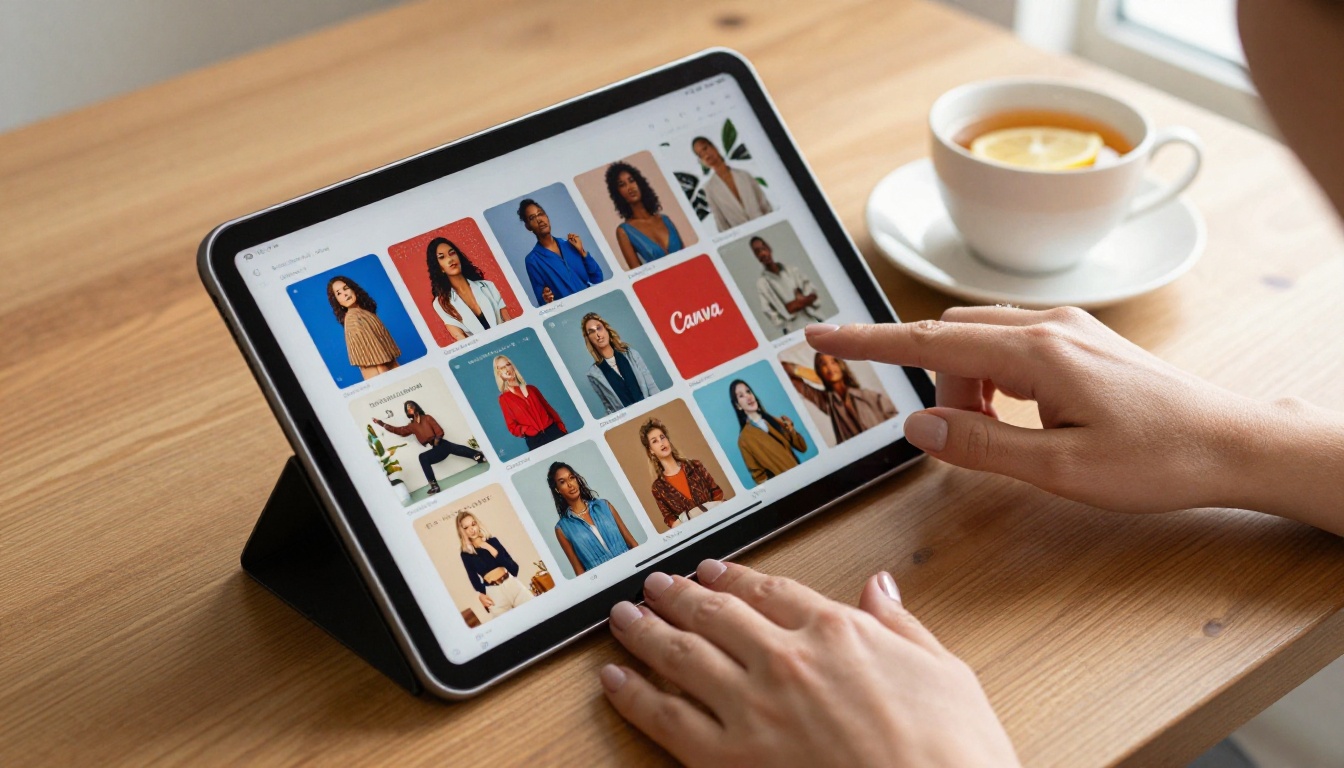
Out of the box, Canva lets you create multi-page presentations, brochures, catalogs, and booklets. You can export them as PDFs or share them as Canva presentations. But here is the main limitation: Canva's built-in sharing does not produce a flip-page effect. When you share a Canva presentation, viewers see a slideshow, not a publication that opens and turns pages like paper. There is no page curl, no spine shadow, no tactile magazine feel. For anyone wanting that classic catalog or magazine reading experience, Canva alone falls short.
⚠️ Canva's "Flipbook" templates are design layouts, not interactive page-turners. The animated page-flip effect requires a dedicated conversion step outside of Canva.
Where Canva Shines
That said, Canva is genuinely excellent for the design phase of flipbook creation. Its drag-and-drop editor, thousands of free templates, extensive font library, and brand kit features make it one of the fastest ways to produce publication-quality page layouts. A real estate agent can build a stunning 20-page property brochure in Canva in under an hour. A teacher can design a beautifully formatted course workbook. A restaurant owner can put together a menu that looks like it cost thousands to produce, without spending a cent.
The smart workflow: design in Canva, export the PDF, and convert it into a real interactive flipbook using a purpose-built tool. That two-step process gives you the best of both worlds.
Steps to Build Your Flipbook in Canva
Here is the full process, from opening Canva to having a shareable flipbook link, completely free.
Step 1: Pick the Right Template
Open Canva and search for templates that match your flipbook's purpose. For catalogs and brochures, search "catalog" or "brochure." For booklets, try "booklet" or "magazine." The best templates for flipbooks have:
- Multiple pages (8 to 20 is typical for a flipbook)
- Consistent page margins so content does not get clipped during conversion
- Landscape or portrait orientation depending on your content type (landscape for magazines, portrait for brochures and books)
💡 Canva's free plan includes hundreds of usable templates. You do not need Canva Pro to build a solid flipbook layout.
Step 2: Design Your Pages
Replace placeholder text with your content, swap in your brand colors, upload your photos, and arrange your layouts page by page. A few design practices that make flipbooks read better:
- Keep text blocks consistent in size and position across pages for a cohesive reading flow
- Use full-bleed images on at least a few pages for visual impact
- Add page numbers so readers can orient themselves as they flip
- Leave a small inner margin (at least 10mm) near the spine area, since the page-turn animation briefly obscures that edge

Step 3: Export as PDF
Once your design is ready, click Share > Download and choose PDF Print for the highest quality output. PDF Print produces sharper images in the final flipbook. If file size is a concern, PDF Standard works fine for most online uses.
| Export Option | Quality | File Size | Best For |
|---|
| PDF Print | Highest | Larger | Flipbooks, professional publishing |
| PDF Standard | Good | Smaller | Casual sharing, quick previews |
Uncheck "Include bleed marks" unless you are also printing physical copies.
Step 4: Convert to a Real Flipbook
This is the step that delivers the actual page-turning experience. Upload your Canva PDF to a dedicated PDF to Flipbook Converter. The platform reads every page of your PDF and renders it with an animated page-flip effect, transforming your static document into a fully interactive digital publication with a realistic paper-turning animation.
Seeing where each tool fits helps you build a smarter content workflow.
| Feature | Canva (Free) | Canva (Pro) | Flipbooks AI (Free) |
|---|
| Drag-and-drop design editor | ✅ | ✅ | ❌ |
| Page-turning animation | ❌ | ❌ | ✅ |
| PDF to flipbook conversion | ❌ | ❌ | ✅ |
| Shareable flipbook link | ❌ (slideshow only) | ❌ | ✅ |
| Embed on your website | ❌ | ❌ | ✅ |
| Custom branding on player | Limited | Limited | ✅ |
| Watermark-free publishing | ✅ (design only) | ✅ | ✅ |
| Password protection | ❌ | ❌ | ✅ |
| Analytics dashboard | ❌ | ❌ | ✅ (Professional plan) |
| Offline downloads for viewers | ❌ | ❌ | ✅ (Standard and above) |
These two tools are not competitors. They are designed for completely different jobs. Canva handles the visual design. Flipbooks AI handles the publication format, distribution, and interactive reading experience. Used together, they form a powerful zero-cost content production pipeline.
💡 Total cost for a professional-quality interactive flipbook using this workflow: $0. Canva free tier for design. Flipbooks AI free tier for conversion and sharing.
Create a Flipbook with Flipbooks AI
Once your Canva PDF is exported, the Flipbooks AI process is quick and straightforward.
From PDF to Live Flipbook
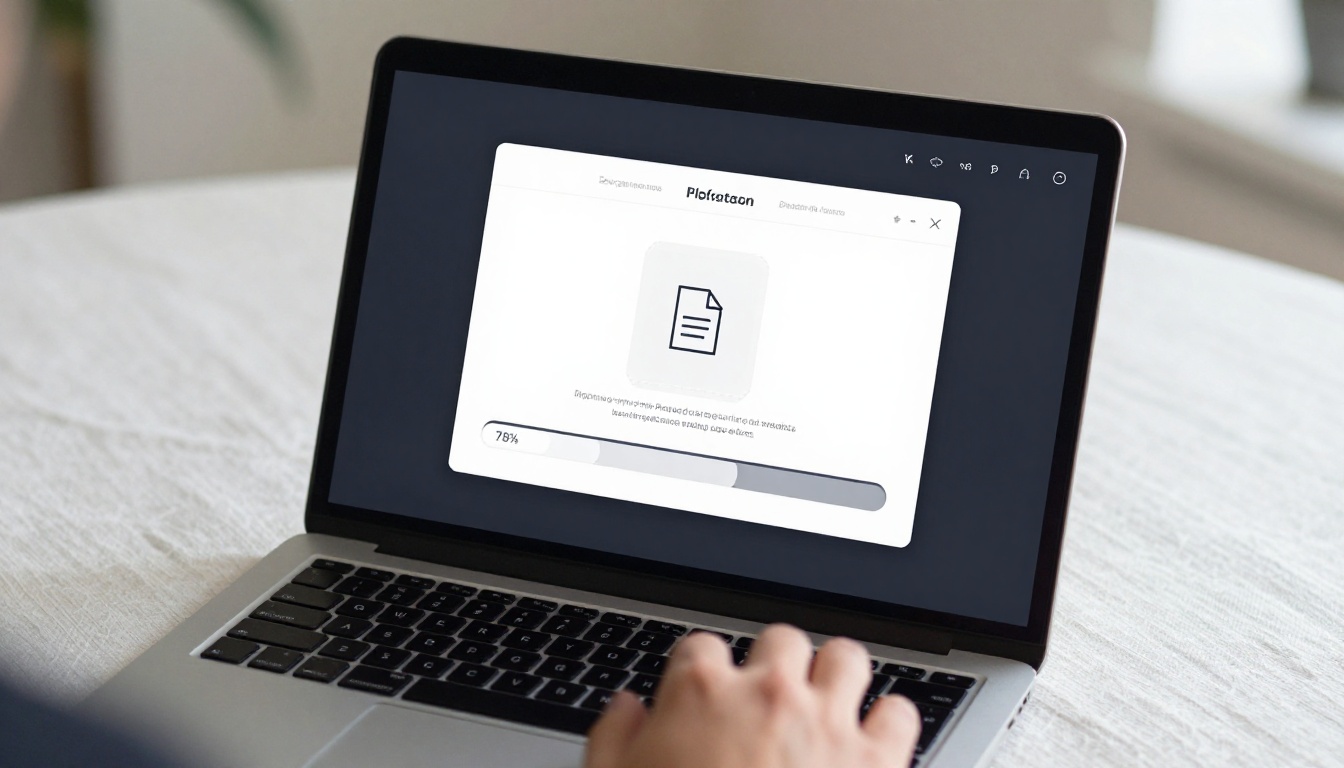
Head to Flipbooks AI and create a free account. From your dashboard, click the upload area and drag your exported Canva PDF into the converter. The platform accepts files of various sizes and page counts, processing them automatically into a flipbook format. Most documents convert in under 60 seconds.
Customize the Reading Experience
After conversion, you can configure how your flipbook looks and behaves before sharing it:
- Preview image: Choose which page displays as the thumbnail when your link is shared
- Flipbook name and description: Add metadata for search and social sharing
- Background color: Set the reading environment around your pages
- Page turn style: Choose between soft pages, hard covers, or rapid turn modes
- Brand colors: Align the flipbook player interface with your company's palette
These options go well beyond what Canva's native share function provides, giving your flipbook a polished, branded look rather than a generic document viewer appearance.
✅ No watermarks, ever. Flipbooks AI does not stamp its branding on your published flipbooks, on any plan.
Share, Embed, and Protect
Once your flipbook is published, you get:
- A direct link to share on email, social media, or messaging apps
- An embed code to drop the flipbook directly into any website or landing page using the Embed Flipbook on Website tool
- Password protection for private or client-facing content
- Mobile-responsive rendering so your flipbook reads perfectly on phones and tablets without any separate optimization

Who Uses This Workflow
The Canva-to-flipbook method works across a wide range of industries and content types.
A boutique clothing shop creates a seasonal lookbook in Canva, converts it to a flipbook, and shares the link on Instagram Stories. Instead of a flat PDF download, followers get a page-turning shopping experience right in their browser. A corporate trainer builds a 30-page onboarding manual and converts it into a password-protected flipbook that employees can read on any device. A freelance photographer sends clients a live flipbook link instead of a heavy file download, giving them a cinematic gallery experience.

Free Plan Breakdown
Both Canva and Flipbooks AI offer genuinely useful free tiers. Here is what you actually get without spending anything.
| Feature | Canva Free | Flipbooks AI Free | Flipbooks AI Standard | Flipbooks AI Professional |
|---|
| Design templates | ✅ Hundreds | N/A | N/A | N/A |
| PDF export | ✅ | N/A | N/A | N/A |
| Page-turn animation | ❌ | ✅ | ✅ | ✅ |
| Shareable link | Slideshow only | ✅ | ✅ | ✅ |
| Website embed | ❌ | ✅ | ✅ | ✅ |
| Watermark | None | None | None | None |
| Password protection | ❌ | ✅ | ✅ | ✅ |
| Analytics | ❌ | ❌ | ❌ | ✅ |
| Lead generation | ❌ | ❌ | ❌ | ✅ |
| Offline downloads | ❌ | ❌ | ✅ | ✅ |
For solo creators and small businesses, the free tiers of both tools together cover most real publishing needs. When you are ready to add analytics, lead capture, or offline access, the pricing plans at Flipbooks AI are worth reviewing.
3 Mistakes That Ruin Canva Flipbooks
Most frustration around Canva flipbooks comes from three avoidable errors.
Mistake 1: Expecting Canva to produce the page-turn animation
Canva's "Presentation" share mode is a slideshow viewer, not a flipbook. If you share a Canva link and expect your audience to experience pages turning like a printed magazine, they will not. That animation only appears after converting your exported PDF in a dedicated flipbook platform. Always export first, then convert.
Mistake 2: Choosing low-resolution exports
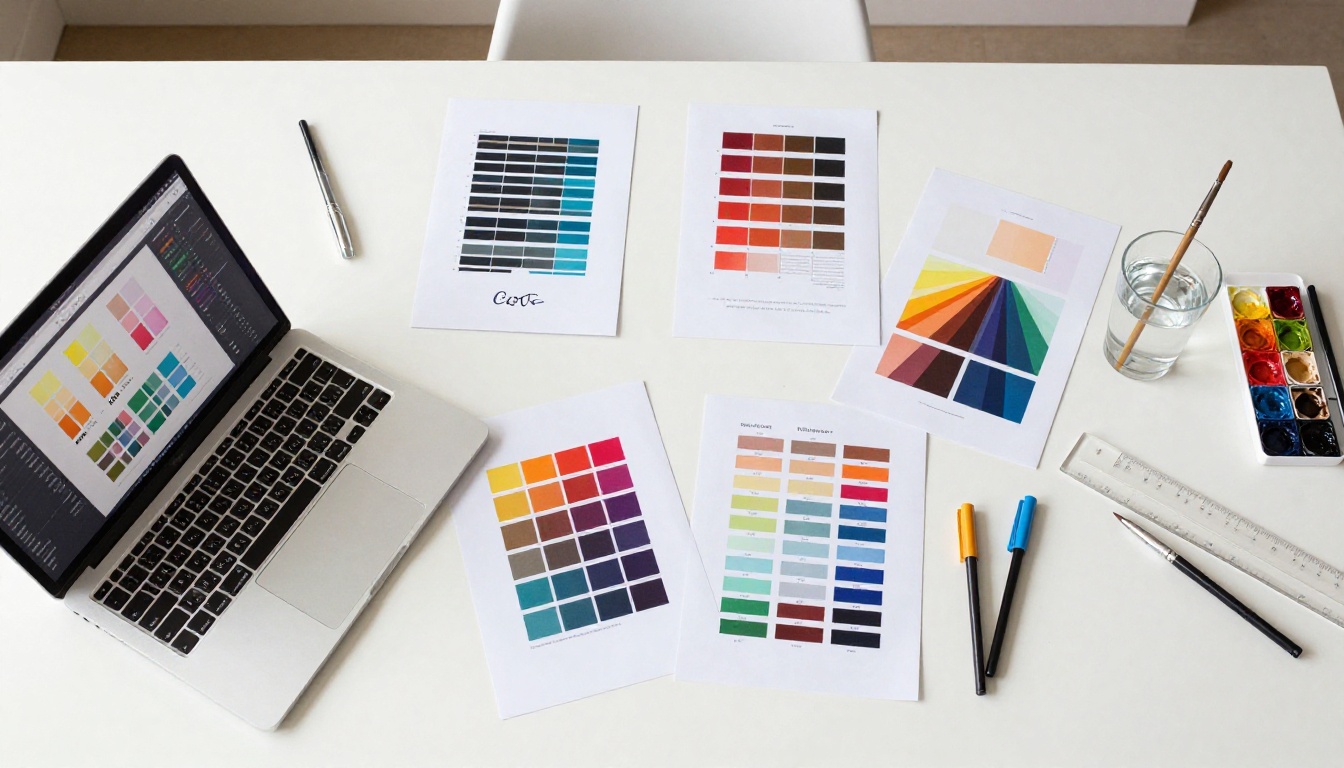
Canva's default export is "PDF Standard," which compresses images to reduce file size. For a flipbook that looks sharp on large monitors and high-DPI displays, choose PDF Print instead. The file is larger, but the quality difference in the rendered flipbook is immediately visible, especially in photos and illustrations.
Mistake 3: Ignoring the inner margin
When a flipbook page turns, the inner edge area near the spine briefly folds into the animation. Content placed too close to that edge gets obscured during the turn. Always leave at least 10 to 15mm of inner margin on every Canva page before exporting.
⚠️ Clipped text or hidden images near the spine are the most common complaint from first-time flipbook creators. Fix your margins in Canva before you export.
What Makes a Flipbook Actually Work
Creating a flipbook is not just about the page-turn effect. The quality of the design, the clarity of the content, and the ease of the reading experience determine whether people actually read your publication from page to page or close the tab after two seconds.
A great flipbook has:
- A strong opening spread that instantly communicates what the publication is about
- Consistent visual language across all pages: fonts, color palette, image style
- Breathing room in layouts so text is readable without zooming in
- Clear calls to action on relevant pages ("Book a call," "View pricing," "Shop now")
- Logical page flow that mirrors how a printed document reads
Beyond design, the publishing platform matters too. A flipbook that loads slowly, breaks on mobile, or forces viewers through a registration gate before they can read it will lose most of its audience. Flipbooks AI publishes flipbooks that load fast, work on any device, and require no login to read, which means more of your audience actually sees your content.
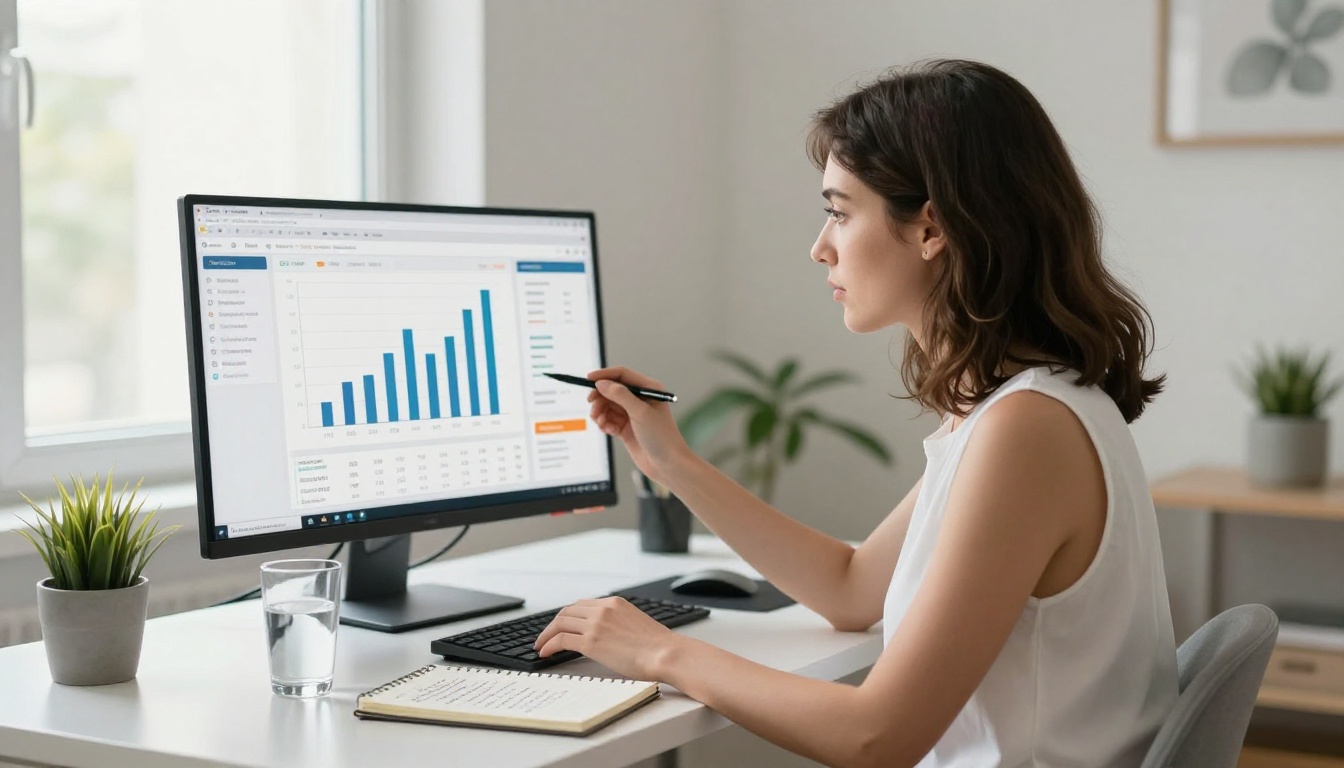
For teams that want to go beyond basic publishing and track who is reading, how far they get through each flipbook, and which pages drive the most action, the Professional plan adds a full analytics dashboard and lead capture tools. Browse all available flipbook tools to find the right fit for your content type.
Ready to Publish Your First Flipbook?
The free Canva-to-flipbook workflow is one of the most practical zero-cost content strategies available today. Design your publication in Canva using any free template, export the PDF, and convert it in seconds using the PDF to Flipbook Converter at Flipbooks AI.
Your audience gets a professional, interactive reading experience. You spend nothing.



