Sharing documents online used to mean attaching a flat, lifeless PDF and hoping someone would bother to open it. Online flip books change that entirely. With a realistic page-turn animation, a clean interactive interface, and instant shareability via link or embed code, a flip book transforms any document into something people actually want to read. Flipbooks AI has simplified this process to the point where anyone, regardless of technical background, can publish a professional-quality digital publication in minutes.
Whether you're a small business owner with a product catalog, an educator distributing course materials, a restaurateur with a seasonal menu, or a marketer creating a branded lookbook, the five steps below apply to every use case. No coding. No design experience. Just your existing document and a clear process.
What an Online Flip Book Actually Does
A digital flip book replicates the physical experience of turning pages, rendered in HTML5 so it works on every modern browser without plugins. Unlike static PDFs that sit flat in a viewer, flip books respond to clicks and swipes, animate page turns, and support embedded media.
Here's what sets them apart from traditional document sharing:
| Feature | Static PDF | Online Flip Book |
|---|
| Page-turn animation | No | Yes |
| Mobile-responsive | Partial | Full |
| Embed on website | No | Yes |
| Video and audio support | No | Yes |
| Analytics | No | Yes (Professional) |
| Password protection | No | Yes |
| Custom branding | No | Yes |
That difference in experience is why flip books have become the preferred format for digital publishing across industries. Let's walk through how to make one.
Step 1: Prepare Your Document Right

Before you upload anything, your source document needs to meet a few basic standards. A well-prepared PDF converts cleanly and produces a sharper, faster-loading flip book.
Document Size and Orientation
- Use standard page sizes: A4 or Letter (8.5 x 11 inches) work best for most templates
- Stick to one orientation: Mixing portrait and landscape pages within a single PDF can cause layout irregularities
- Keep file size reasonable: Aim for under 50MB for fastest upload; compress images within the PDF if needed
Resolution and Typography
- Image resolution: 150-300 DPI is the sweet spot. Higher resolution looks great but increases file size significantly
- Embedded fonts: Always embed fonts in your PDF export settings. Missing fonts appear as placeholder characters in the viewer
- Color mode: Use RGB for digital-first documents; CMYK is only necessary if the same file goes to print
Content Checklist Before Uploading
- All text is correctly spelled and formatted
- All images are high quality and properly licensed
- Page numbers are consistent throughout
- Hyperlinks within the PDF are functional and pointing to the right destinations
💡 Pro Tip: Most design tools like Canva, Adobe InDesign, Google Slides, and PowerPoint export directly to PDF. Choose "PDF for Web" or "Optimized PDF" to keep file sizes manageable without sacrificing visual quality.
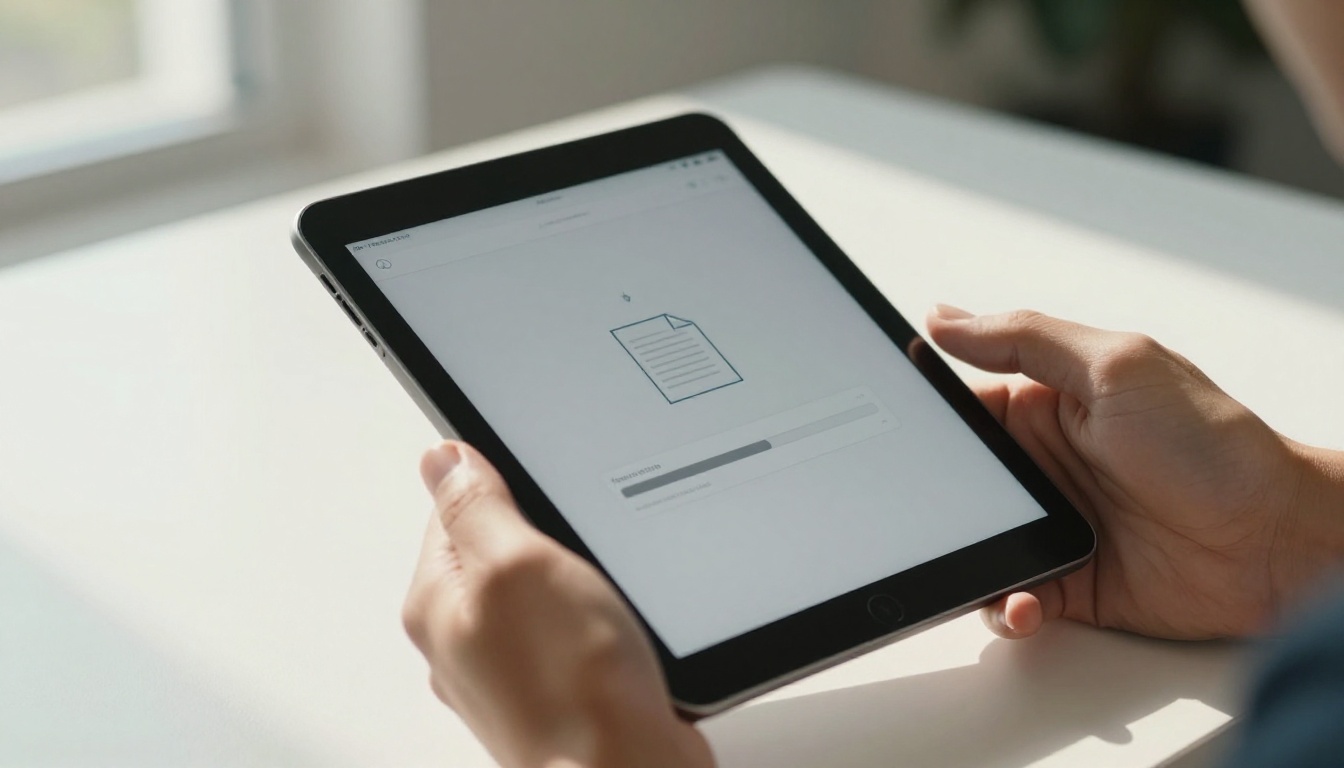
With your PDF ready, head to Flipbooks AI and create a free account. The upload process takes less than two minutes from start to live preview.
How the Upload Works
- Click "Create New Flipbook" from your dashboard
- Drag and drop your PDF file into the upload zone, or click to browse your local files
- Wait for conversion: The platform converts your PDF into an HTML5 flip book automatically. For a 20-page document, this typically takes 15-30 seconds
- Preview the result: A live, interactive preview appears immediately after conversion so you can verify the output before customizing
⚠️ Important: If your PDF has transparent backgrounds on certain pages, they may render as white in the viewer. Adjust your PDF background colors before uploading if this matters for your layout.
What Happens Behind the Scenes
During upload, the platform renders each page as an optimized image layer, builds the page-turn animation engine, and generates a unique URL for your publication. The result is a fully hosted flip book that requires no server setup, no domain configuration, and no technical maintenance on your end.
Step 3: Customize Your Flip Book
Customization is where your flip book goes from generic to genuinely professional. Flipbooks AI gives you a full range of branding and visual controls through an intuitive editor.
Branding Options Available
- Upload your logo: Appears in the viewer header or as a subtle watermark (you control placement and opacity)
- Custom colors: Match your brand's primary and secondary colors for buttons, loading screens, and backgrounds
- Thumbnail and cover: Set any specific page as the cover thumbnail that appears in link previews and sharing cards
- Custom domain: On higher plans, publish under your own domain for a seamless branded experience
Page Effects and Navigation Styles
| Effect | Description | Best For |
|---|
| Realistic flip | Classic paper page-turn with drop shadow | Magazines, catalogs, books |
| Slide | Clean horizontal slide transition | Corporate reports, presentations |
| Fade | Subtle cross-fade between pages | Photography portfolios, lookbooks |
| Auto-play | Timed automatic page advance | Trade shows, waiting room displays |
Viewer Settings Worth Adjusting
- Fullscreen mode: Readers can expand to fill their entire browser window
- Zoom controls: Pinch-to-zoom on mobile, scroll-wheel zoom on desktop
- Table of contents: Auto-generated from your PDF bookmarks for easy navigation in longer documents
- Page-turn sound: Optional sound effect for a more immersive reading experience
✅ Best Practice: Keep your branding consistent with your main website. Use the same hex color codes and font choices to reinforce recognition when readers click through to your other pages.
Step 4: Add Interactive Elements

This step is what separates a genuinely effective flip book from one that merely looks nice. Static pages inform. Interactive pages drive action.
Types of Interactive Elements You Can Add
Clickable Links
Any hyperlink you included in your original PDF automatically becomes clickable in the flip book viewer. You can also add new links directly in the editor, pointing to product pages, booking forms, or external resources from any page.
Embedded Videos
Paste a YouTube or Vimeo URL directly onto any page. A video thumbnail appears on the page, and readers click to play without leaving the flip book. This works particularly well for:
- Product demonstration videos in retail catalogs
- Tutorial clips in training manuals and onboarding documents
- Property walkthrough videos in real estate brochures
- Chef's table or preparation videos in restaurant menus
Lead Generation Forms
On the Professional plan, you can add a lead capture gate that prompts readers to enter their email address before accessing your content. This turns every publication into a list-building asset running on autopilot.
Audio Narration
Add an audio track to play as readers browse through pages, ideal for brand storytelling, guided portfolios, language learning materials, or narrated training content.
💡 Pro Tip: For product catalogs, link each product image directly to its purchase or detail page. Readers can act without ever leaving your flip book, dramatically shortening the path from interest to conversion.
Step 5: Publish and Share Your Flip Book

Publishing on Flipbooks AI is a single click. What comes after that click gives you real flexibility in how and where you reach your audience.
Sharing Methods at Your Disposal
Direct Link
Every flip book gets a unique URL the moment you publish. Share it in emails, text messages, social media posts, or anywhere you'd share a regular link. No downloads required for the reader.
Embed Code
Use the Embed Flipbook on Website tool to generate an HTML snippet. Paste it into any website, CMS, or landing page to display your flip book inline without redirecting readers away.
QR Code
Download an auto-generated QR code and add it to printed materials, business cards, product packaging, or event signage. Readers scan and arrive at your flip book immediately.
Password Protection
Set a password before publishing to restrict access. Useful scenarios include:
- Internal company documents and HR materials
- Client-specific proposals and project presentations
- Members-only publications and subscriber content
- Preview content before a scheduled public launch
Offline Downloads
On eligible plans, readers can download an offline version to access without an internet connection, particularly valuable for trade show presentations or locations with poor connectivity.
Analytics After Publishing
Knowing how people interact with your flip book is as important as getting it live. The Professional plan on Flipbooks AI provides:
- Total views and unique visitor counts
- Average time spent per page
- Most-visited and most-exited pages
- Device breakdown across desktop, mobile, and tablet
- Geographic data by country
This data tells you which pages hold attention and which pages readers skip, so you can produce stronger editions going forward.
How to Create Your First Flip Book with Flipbooks AI
Here's a step-by-step walkthrough using Flipbooks AI from account creation to published link:
- Visit flipbooksai.com and click "Get Started Free" to create your account
- From your dashboard, select "New Flipbook" and choose your upload method
- Upload your PDF: Drag and drop your file into the upload zone. Conversion begins automatically
- Open the editor: Once converted, click "Customize" to access the full branding panel
- Add your logo: Upload a PNG with a transparent background for the cleanest result in the viewer header
- Set your color scheme: Enter your brand hex codes for buttons, backgrounds, and accent elements
- Add interactive elements: Click any page in the editor to add video embeds, clickable links, or audio tracks
- Configure sharing settings: Set a password if needed, then choose your visibility level (public or private)
- Click Publish: Your flip book goes live instantly with its unique shareable URL
- Copy the embed code or direct link and distribute it wherever your audience already is
✅ Best Practice: Test your flip book on both a desktop browser and a mobile phone before sharing widely. Layouts that look perfect on large screens occasionally need minor PDF adjustments to render correctly on smaller viewports.
Real-World Use Cases That Work

Online flip books serve a wide range of industries effectively. Here are the most common and results-driven applications:
Restaurants and Hospitality
A restaurant can create a digital menu that updates in real time, completely eliminating printing costs for seasonal changes. Use the Restaurant Menu Creator to build a menu flip book and embed it directly on your website or share the link in your Google Business profile. When a dish sells out or prices change, you update one file and republish in under a minute.
Hotels use the Hotel Brochure Designer to create room guides, local attraction maps, and dining recommendations that guests browse on their phones before and during their stay.
Real Estate

Real estate agents benefit immediately from flip books. A property brochure with an embedded walkthrough video, floor plan images, and a clickable link to the full listing page is far more compelling than a static attachment. The Real Estate Brochure Creator produces a presentation that clients can browse on any device and share with co-buyers or family members effortlessly.
Education and Training
Schools and training departments use flip books to distribute course materials, student handbooks, and department newsletters without printing overhead. The Course Material Publisher and Training Manual Flipbook tools are purpose-built for these workflows and include features relevant to educational content distribution.
Retail and E-Commerce
A product catalog as a flip book with linked product pages gives customers a browsing experience closer to a physical store visit. The Product Catalog Generator is particularly effective for seasonal collections that need frequent updates without reprinting costs.
Creative Professionals
Photographers, designers, and stylists use the Digital Portfolio Creator to share their work with potential clients in a format that presents high-resolution images without compression artifacts, and with page turns that feel deliberate and premium rather than frantic scrolling.
Reading Flip Books on Any Device

One of the most practical advantages of HTML5 flip books is universal device compatibility. Unlike native apps or platform-specific formats, a flip book link opens in any browser on any operating system. Readers on iPhones, Android tablets, Windows laptops, and Chromebooks all see the same clean animated experience without installing anything.
Mobile readers get touch-optimized controls: swipe left or right to turn pages, pinch to zoom into small text or images, and tap on interactive elements. Desktop readers get equivalent functionality with mouse clicks and scroll-wheel zoom.
There's no app to install, no account to create, and no subscription required to read. Your audience clicks the link and starts reading immediately, with zero friction between sharing and consuming.
Choosing the Right Plan for Your Situation

Flipbooks AI offers tiered plans that match different publishing volumes and feature requirements. Here's a practical breakdown:
| Plan | Best For | Key Features |
|---|
| Free | Testing the platform before committing | Limited flipbooks, basic viewer, platform branding |
| Standard | Small businesses and individual creators | Unlimited flipbooks, no watermarks, custom branding, all sharing options |
| Professional | Marketing teams, agencies, lead generation | Analytics, lead capture gates, offline downloads, custom domain, priority support |
💡 Pro Tip: Start with the Standard plan if you need to publish regularly without limits. Move to Professional when you want engagement data on how readers interact with your content, or when lead capture is a priority for your marketing strategy.
For a detailed feature comparison at each tier, visit the pricing page to see exactly what's included before committing.
Beyond the core flip book creator, Flipbooks AI offers purpose-built tools configured for specific content formats:
Each tool comes pre-configured for its specific format, giving you sensible defaults for page layout, viewer settings, and sharing options without requiring manual configuration from scratch.
Ready to Publish Your First Flip Book?
Making an online flip book takes less time than most people expect. With a clean PDF, five minutes in the editor, and one click to publish, you have a professional interactive document ready to share with anyone, anywhere in the world.
Create your first flipbook on Flipbooks AI today and see the difference between sending a file and sharing a real reading experience.
Browse all available flipbook tools and templates to find the right format for your specific content type. When you're ready to access analytics, lead generation, and custom domain publishing, compare plans to choose the tier that fits your workflow and publishing volume.



