Sharing a digital document used to mean attaching a file, worrying about format compatibility, and hoping the recipient could open it. With Canva flipbooks, all of that disappears into a single, clean URL that anyone can click from any device. Whether you are sending a product catalog to a client, distributing a school newsletter, or presenting a portfolio to a potential employer, knowing exactly how to share a Canva flipbook with one link is the difference between friction and flow.
This article walks through every step of the sharing process, covers the three link types Canva offers, and explains where each one is most effective. It also addresses the real-world limitations Canva has when it comes to sharing control, and shows how Flipbooks AI solves those gaps with a more powerful one-link publishing system.
What a Canva Flipbook Actually Is
Canva does not have a dedicated "flipbook" feature labeled as such. What most people call a Canva flipbook is a Canva presentation or document published to the web, which viewers experience as a paginated digital publication. The page-turning animation, if applied through a presentation theme or transitions, gives it the flipbook feel.
How the Page-Flip Format Works
A flipbook is essentially any multi-page document formatted for sequential digital reading. When someone shares a "Canva flipbook," they are typically sharing a Canva Presentation, a Canva Doc, or a multi-page design exported or published online. The reader navigates from page to page, simulating the experience of flipping through a physical magazine or brochure.
The format works well for:
- Product catalogs where buyers browse item by item
- Digital magazines with editorial layouts
- Portfolios that walk viewers through a body of work
- Training materials with sequential steps
- Event programs shared before or during a live event
Who Uses Canva Flipbooks
Canva's user base for flipbook-style content spans a wide range. Freelancers send portfolio links to clients. Teachers share interactive course packets with students. Small business owners distribute menus and catalogs. Marketing teams circulate branded presentations to stakeholders. In each case, the appeal is the same: one link, no download required, works on any device.
How to Share a Canva Flipbook with One Link
The process is straightforward, but each step has a detail worth knowing.
Step 1: Finish Your Design
Before generating a shareable link, make sure your Canva design is complete. Open the project in Canva, verify all pages are in the correct order, and check that any images or fonts are properly loaded. Missing fonts or placeholder elements will appear exactly as they are to whoever receives the link.
💡 If you plan to update the content later, Canva's shared link automatically reflects changes. You do not need to regenerate the URL after edits.
Step 2: Publish to the Web
In the top-right corner of any Canva design, click the Share button. A dropdown menu appears with several options. Select "Publish to web" or "Share a link" depending on your design type. For presentations, Canva offers the option to publish as a public website, which generates a permanent URL. For other document types, a direct view-only link is available immediately.
Steps to publish a Canva presentation as a flipbook link:
- Click Share in the top-right corner
- Select "...More" to expand all sharing options
- Choose "Publish to web" or "Present and record" if using presentation mode
- Toggle "Public" to allow anyone with the link to view
- Click "Publish" or "Copy link"
Step 3: Copy and Share the Link
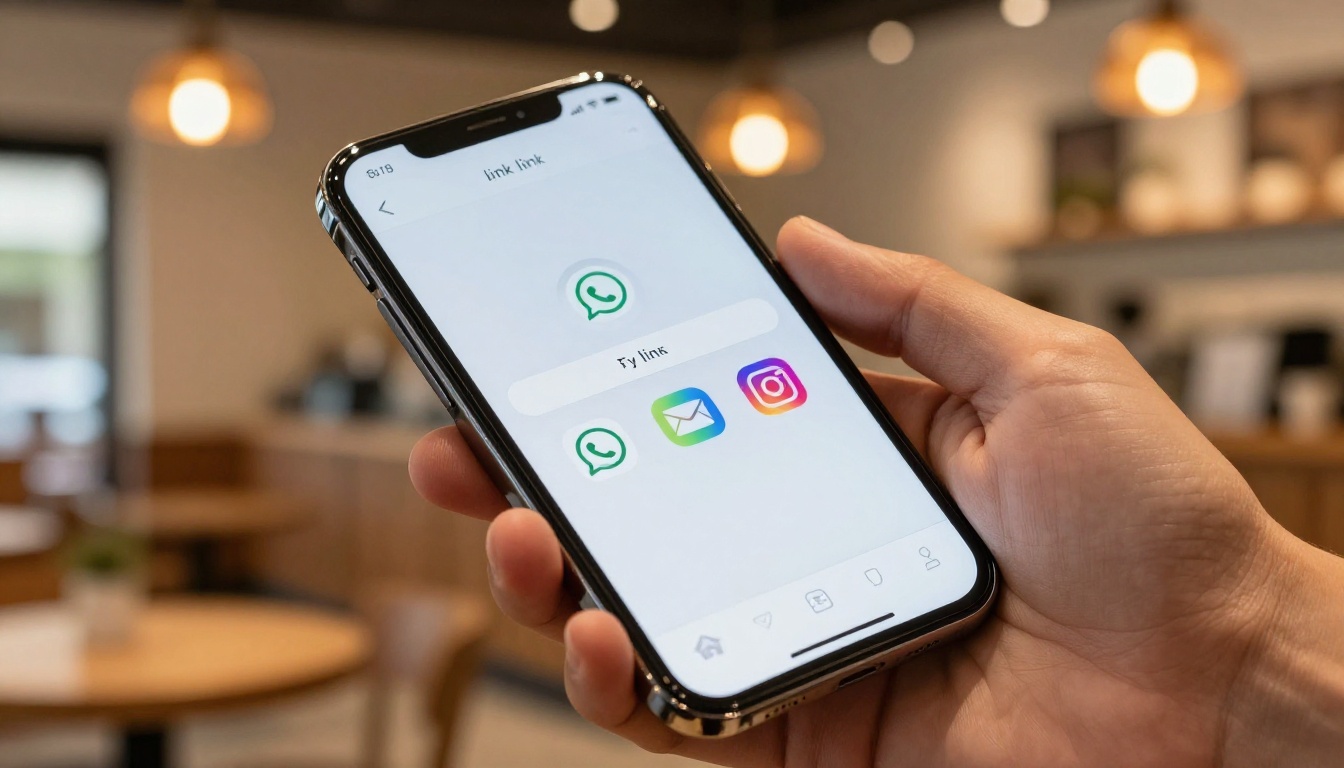
Once published, Canva displays a full URL. Click "Copy link" and the URL is in your clipboard, ready to paste into an email, a chat message, a social media post, or anywhere else. The link opens the flipbook directly in any browser, with no account, no download, and no plugin required.
✅ Test your link in an incognito browser window before sending it to others. This confirms that someone without a Canva account can access it without being prompted to log in.
Canva's Three Sharing Modes
Not all Canva links behave the same way. Understanding which type to use for which situation is important.
| Sharing Mode | Who Can View | Editable | Analytics | Password Protection |
|---|
| Public Link | Anyone on the internet | No | No | No |
| View-Only Link | Anyone with the link | No | No | No |
| Embed Code | Visitors to your website | No | No | No |
Public Link
A public link makes your flipbook discoverable. Search engines can index it, and anyone who finds the URL can view it. This is the right choice for content you actively want to spread, such as a promotional catalog or a public newsletter.
View-Only Link
A view-only link keeps the design accessible without making it publicly searchable. The recipient can open it, scroll through it, and share it further, but they cannot edit it or see your Canva source file. This works well for client deliverables and internal team documents.
Embed Code
For website owners, Canva provides an embed code that wraps the flipbook in an iframe. Instead of sending a separate URL, the flipbook lives directly on your webpage. Visitors see it as part of your site's content. This is useful for landing pages, portfolio sites, and digital catalogs embedded in online stores.

Where to Use Your Canva Flipbook Link
A single URL opens up more distribution channels than most people realize.
Email Campaigns
Paste the link into an email marketing tool like Mailchimp or ConvertKit as a hyperlink or a clear call-to-action button. Because the link opens directly in the browser, recipients on any device and any email client see the same polished flipbook without compatibility issues. A real estate agency might send a property brochure link to a list of prospects. A fashion brand might distribute a seasonal lookbook link to subscribers.
Social Media Posts
Drop the link into an Instagram bio, a LinkedIn post caption, or a Twitter/X thread. On LinkedIn especially, a flipbook link to a well-designed catalog or report performs significantly better than a plain text post because it gives viewers something visually rich to interact with.
💡 Shorten the Canva URL using a tool like Bitly before posting on social media. Shorter links look cleaner and are easier to remember if someone wants to type them manually.
Messaging Apps
WhatsApp, Telegram, Slack, and even SMS all render URL previews automatically. When you paste a Canva flipbook link into a message, most platforms pull a thumbnail preview, giving the recipient a visual cue of what they are about to open. This increases the click-through rate compared to sending a PDF attachment.

What Canva Sharing Cannot Do
Canva's link sharing is excellent for basic use cases. But it has real limits that matter for professional publishing and marketing.
| Feature | Canva | Flipbooks AI |
|---|
| One-link sharing | ✅ | ✅ |
| Password protection | ❌ | ✅ |
| Reader analytics | ❌ | ✅ Professional plan |
| Custom branding | Limited | ✅ Full control |
| Lead generation forms | ❌ | ✅ Professional plan |
| Offline downloads | ❌ | ✅ |
| Custom domain | ❌ | ✅ |
| Watermark-free | ❌ Free plan only | ✅ Always |
| Embed on website | ✅ | ✅ |
| Mobile-responsive | ✅ | ✅ |
No Reader Analytics
With a Canva link, you cannot see who opened it, how long they spent on each page, or whether they reached the final call-to-action. For marketers and sales teams, this is a significant blind spot. You send a proposal and have no idea if the client even looked at it.
No Password Protection
Canva does not offer password protection for shared links. If your flipbook contains confidential pricing, proprietary research, or internal company information, anyone who has the URL can access it. There is no way to restrict access beyond keeping the link private.
No Custom Domain
Canva flipbook links always carry the canva.com domain. You cannot publish them under your own website domain, which limits brand consistency and any SEO value the content might generate for your business.
Create and Share Flipbooks with Flipbooks AI
For anyone who needs more than a basic shareable link, Flipbooks AI is the purpose-built alternative. It takes any PDF, converts it to an interactive flipbook, and gives you a powerful sharing link that does far more than Canva's native option.
Here is how to create and share a flipbook with a single link using Flipbooks AI:
Step 1: Create an Account
Go to flipbooksai.com/account and sign up for free. No credit card is required to get started. The free trial gives you access to the core features immediately.
Step 2: Upload Your PDF
On the dashboard, click "New Flipbook" and drag your PDF file into the upload area. Flipbooks AI supports files up to several hundred pages and converts them automatically with a realistic page-turning animation. If you designed your content in Canva, simply export it as a PDF first, then upload it using the PDF to Flipbook Converter.

Step 3: Customize Your Flipbook
Once uploaded, the editor lets you:
- Set your brand colors for the flipbook viewer background and toolbar
- Add your logo so viewers see your branding instead of a generic interface
- Embed videos or audio directly into specific pages
- Enable or disable page download for the reader
- Set a custom title and description that appear when the link is shared
✅ Flipbooks AI never adds watermarks, even on the standard plan. Your flipbook looks professional from day one.
Step 4: Get Your One-Link Share URL
After saving your settings, click "Share" in the dashboard. Flipbooks AI generates a direct URL that opens your flipbook in a beautifully designed viewer. This link works on mobile, tablet, and desktop without any app installation.
For private content, toggle on password protection and set a password. Only people who know the password can open the flipbook, even if the URL is forwarded.
Step 5: Track Readers with Analytics
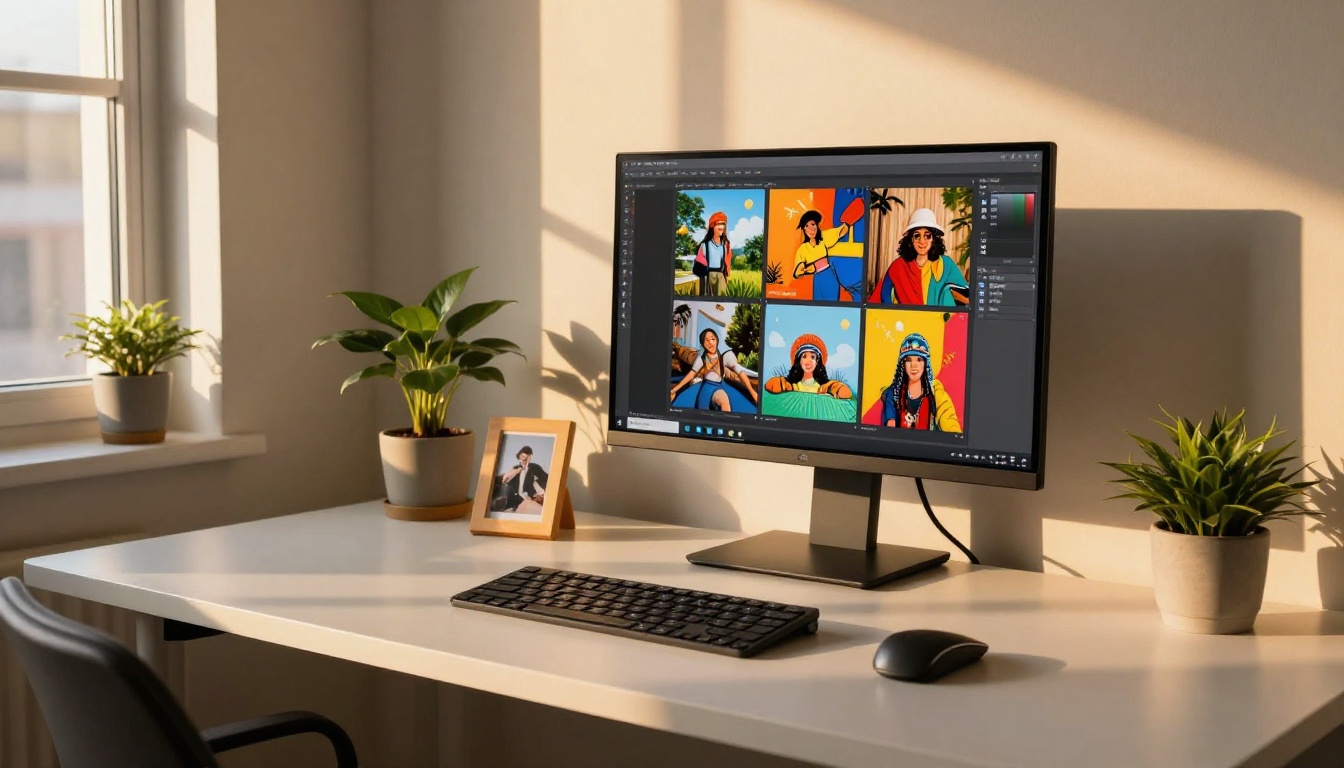
On the Professional plan, the analytics dashboard shows you exactly how your flipbook is performing:
- Total views and unique visitors
- Time spent per page
- Geographic distribution of readers
- Lead capture from embedded forms
A sales team sharing a digital proposal can see which pages prospects lingered on and follow up with precision. A marketer distributing a digital magazine can identify which editorial sections hold attention longest.

Canva vs. Flipbooks AI: Which Link to Share
| Use Case | Best Tool | Why |
|---|
| Quick portfolio share | Canva | Fast to create, free, no extra step |
| Client proposal with tracking | Flipbooks AI | Analytics show who read what |
| Internal confidential document | Flipbooks AI | Password protection available |
| Public marketing campaign | Either | Canva for speed, Flipbooks AI for branding |
| Embedded catalog on your site | Flipbooks AI | No Canva branding, custom domain |
| Interactive e-book with media | Flipbooks AI | Supports video and audio embeds per page |
| Quick classroom handout | Canva | Students already use the platform |
| Professional digital magazine | Flipbooks AI | Full branding, no watermarks, analytics |
When Canva Is the Right Call
If you are sharing casually, the content is not confidential, and you do not need to track engagement, Canva's one-link sharing is fast and functional. Design in Canva, hit share, copy the link, done.
When Flipbooks AI Gives You More
When the flipbook represents your brand, carries sensitive information, or is part of a marketing funnel where engagement matters, Flipbooks AI gives you the control that Canva simply does not offer. The PDF to Flipbook Converter handles any Canva export seamlessly, and the resulting flipbook link carries your brand identity instead of Canva's.
⚠️ If you are using Canva's free plan, your flipbook link may prompt viewers to create a Canva account in some contexts. This creates unnecessary friction for your audience. Publishing through a dedicated flipbook platform eliminates that issue entirely.
Real-World Sharing Scenarios
Restaurant owner: A restaurant designs a seasonal menu in Canva, exports it as a PDF, and uploads it using the Restaurant Menu Creator workflow on Flipbooks AI. One link goes into the Instagram bio, Google Business profile, and WhatsApp to regulars. No PDFs, no attachments, no printing costs.
Real estate agent: An agent creates a property brochure in Canva and needs to send it to thirty potential buyers. Uploading to Flipbooks AI's Real Estate Brochure tool yields a trackable link. Analytics show which buyers spent the most time on the floor plan page, guiding the follow-up conversation.
HR manager: A company's HR team creates an onboarding handbook in Canva. Because it contains internal policies, they upload it to Flipbooks AI, enable password protection, and share one link with new employees. The content stays private without requiring a VPN or external file-sharing system.
Fashion brand: A boutique uploads a seasonal lookbook using the Interactive Lookbook Designer. The single link goes out via email newsletter and social bio. Professional plan analytics show which items got the most page time, directly informing the next production run.
Take Your Flipbook Sharing Further
One link changes how people receive your content. Instead of buried email attachments or clunky file-sharing pages, your audience clicks a single URL and is immediately inside an immersive, beautifully formatted reading experience.
Canva makes that possible for quick, casual sharing. For everything beyond that, from password-protected proposals to analytics-driven marketing campaigns, Flipbooks AI gives you a purpose-built platform with real publishing power.
Ready to publish your first flipbook? Get started for free and have a shareable link in under five minutes. Browse pricing plans to see what analytics, offline access, and advanced branding features cost. Or explore all available tools and templates to find the right fit for your content type.



