Sharing a flipbook is one of the fastest ways to get your content in front of the right people, and if you are using Flipbooks AI, the process takes less than a minute. Whether you want to drop a product catalog into a WhatsApp group, post your latest lookbook on Instagram, or share a corporate report on LinkedIn, a shareable flipbook link works across every major platform without asking anyone to download a file. This article walks you through exactly how to share a flipbook on WhatsApp and social media, platform by platform, with real-world tactics that actually drive traffic.
Why Flipbook Links Beat File Attachments
The Problem With Sending Raw PDFs
When someone receives a PDF in a WhatsApp message, they have to download it, open it in a separate app, and hope the file does not time out on a slow connection. On social media, a PDF attachment is practically invisible: Facebook does not preview it, Instagram does not support it, and LinkedIn buries file posts in low-reach territory. The friction is real, and most recipients simply do not bother opening it.
A flipbook link is different. It opens directly in any browser, on any device, with zero downloads required. The reader sees a visually rich, page-turning publication that loads instantly, works on mobile and desktop equally well, and can be shared again with a single tap.
| Sharing Method | Mobile Friendly | Preview in Chat | Trackable | Page-Turning UI |
|---|
| PDF Attachment | Partial | No | No | No |
| Google Drive Link | Yes | Limited | Basic | No |
| Flipbook Link | Yes | Yes (rich preview) | Yes (Pro plan) | Yes |
| Embed on Website | Yes | N/A | Yes (Pro plan) | Yes |
What a Shareable Flipbook URL Does Differently
Every flipbook published on Flipbooks AI gets its own unique URL. That URL carries a rich link preview: a thumbnail image, a title, and a short description appear automatically when pasted into WhatsApp, Facebook, or LinkedIn. Recipients see exactly what they are clicking before they tap. Click-through rates on rich preview links are consistently higher than plain file downloads, and you maintain full control over who can access the content.
💡 If you are sharing confidential content, the password protection feature on Flipbooks AI lets you send the link publicly while keeping the content locked to authorized viewers only.
How to Get Your Shareable Flipbook Link
Publish Your Flipbook on Flipbooks AI
Before you can share anything, you need a published flipbook with a live URL. Here is how to get one:
- Go to Flipbooks AI and sign in or create a free account.
- Click New Flipbook and upload your PDF file.
- Wait for the automatic conversion, usually under 60 seconds for most documents.
- Set a title, choose a preview thumbnail, and apply your brand colors if desired.
- Click Publish to make the flipbook live.
- Open the Share panel in your dashboard.
Copy Your Shareable URL
Once published, the Share panel shows your flipbook's direct link. Copy it with one click. This is the URL you will paste into WhatsApp, Facebook, Instagram bio, LinkedIn posts, and anywhere else you want to share. If your plan includes custom branding, your link will reflect your own domain rather than the default platform URL.

How to Share a Flipbook on WhatsApp
WhatsApp is one of the highest-engagement channels for document sharing, especially in B2B and regional markets. A flipbook link sent on WhatsApp opens directly in the in-app browser, so recipients never have to leave the conversation.
Sharing With Individuals
- Open the chat with your contact.
- Tap the text input field.
- Paste your flipbook URL.
- Before sending, a link preview will auto-populate with the flipbook thumbnail and title.
- Add a short personal message above the link, such as "Take a look at our new catalog."
- Tap Send.
The recipient taps the preview card and the flipbook opens instantly in the WhatsApp browser on any device.
Sharing in WhatsApp Groups
Group sharing works the same as individual sharing. For business groups with multiple decision-makers, adding a one-line description above the link increases open rates significantly. For example: "Our updated price list for Q2, no download needed."
✅ Best practice: Pin the message in the group so the flipbook link stays visible at the top of the chat. On WhatsApp, long-press the message and select Pin.
WhatsApp Business and Broadcast Lists
If you use WhatsApp Business, you can include the flipbook link in broadcast messages to your entire client list. This works particularly well for:

How to Share a Flipbook on Facebook
Post to Your Feed
Paste your flipbook URL directly into a new Facebook post. Facebook will automatically generate a link preview with the flipbook's thumbnail and title. You can then delete the raw URL from the post text so only the preview card and your caption remain, which looks cleaner and more professional.
For business pages, boosting a flipbook link post as a paid ad works well for catalog promotions, event programs, and digital brochures. The preview card acts like a native image post in the feed.
⚠️ Facebook occasionally suppresses external link reach in organic posts. Pairing the link with a compelling image in the same post can partially offset this algorithm behavior.
Facebook Groups and Events
Groups are where flipbook links often perform best. In a niche community where members are already interested in your category, dropping a relevant flipbook (a recipe book, a travel guide, a training manual) frequently drives significant organic reach. Link posts in Facebook Events work especially well for event programs and venue brochures.
How to Share a Flipbook on Instagram
Instagram does not allow clickable links in regular post captions, so the approach here is slightly different from other platforms.
Bio Link Strategy
The most reliable method: paste your flipbook URL in your Instagram bio. Then reference it in your post caption with phrases like "Full catalog in bio" or "Read the full lookbook at the link in bio." This is the standard approach used by publishers, brands, and creators for driving traffic to any external page.
If you publish multiple flipbooks regularly, a link-in-bio tool that displays several URLs lets followers choose the specific publication they want without replacing your bio link each time.
Stories and the Link Sticker
Instagram Stories allow a Link sticker that any account can use, regardless of follower count. Here is how to add it:
- Create your Story and use a visually appealing screenshot from your flipbook as the background.
- Tap the Sticker icon in the top toolbar.
- Select Link.
- Paste your flipbook URL into the link field.
- Position the link sticker prominently so it is easy to tap.
- Post the Story.
For Reels, add the flipbook URL in the caption and direct viewers to your bio link for access.
💡 Screenshot a visually striking spread from your flipbook and use it as the Story background image. Showing viewers exactly what they will see when they click dramatically increases tap-through rates.

How to Share a Flipbook on LinkedIn
LinkedIn is the strongest platform for professional publications: corporate reports, whitepapers, product presentations, and training materials. Flipbook links perform well here because LinkedIn renders rich external link previews, and the professional audience expects longer-form content.
Personal Posts and Articles
Paste your flipbook URL into a LinkedIn post. LinkedIn generates a full preview card with the thumbnail image. Write a short post above it explaining the value: "We just published our Q1 industry report. No download needed, just click." Tag relevant colleagues or companies to expand reach.
✅ Best practice: Remove the URL from your post text after LinkedIn generates the preview card. This makes the post look cleaner and tends to improve organic reach based on observed engagement patterns.
Company Pages
Company page posts with document or link content consistently receive strong impressions on LinkedIn. Flipbooks are particularly well suited for:
Every social platform behaves differently with external links. Here is how they compare for flipbook sharing:
| Platform | Link Preview | Direct Link in Post | Best Use Case | Paid Boost Available |
|---|
| WhatsApp | Rich preview | Yes | Catalogs, menus, price lists | No |
| Facebook | Rich preview | Yes | Event programs, lookbooks, brochures | Yes |
| Instagram Feed | No | Bio only | Fashion, photography, lifestyle | Yes (via bio) |
| Instagram Stories | Yes (link sticker) | Yes | Flash sales, new arrivals, menus | Yes |
| LinkedIn | Rich preview | Yes | Reports, whitepapers, portfolios | Yes |
| Twitter/X | Card preview | Yes | Quick shares, news, thought leadership | Yes |
| Pinterest | Link pin | Yes | Recipe books, travel guides, lookbooks | Yes |
How to Create a Flipbook Built for Social Sharing
This section walks through creating a flipbook on Flipbooks AI that is specifically set up for maximum social sharing performance.
Step 1: Create your account
Visit flipbooksai.com/account and sign up. The free plan gives you access to the core conversion and sharing tools immediately, with no credit card required.
Step 2: Upload your PDF
Click New Flipbook, then drag and drop your PDF. This can be a product catalog, menu, brochure, portfolio, magazine, or any document. The PDF to Flipbook Converter handles the conversion automatically in under a minute.
Step 3: Set up your social preview
- Write a descriptive title (this appears in social preview cards across all platforms).
- Upload a high-quality preview thumbnail (the image people see in WhatsApp and Facebook previews before clicking).
- Add a description to the flipbook settings (displayed in link previews on LinkedIn and Facebook).
- Apply your brand colors and logo on Standard plan and above.
Step 4: Configure sharing settings
Inside the Share panel:
- Choose Public for open access or Password Protected for restricted viewing.
- Enable the embed code if you also want to place the flipbook on a website (see Embed Flipbook on Website).
- On the Professional plan, activate lead generation to capture viewer emails directly from the flipbook.
Step 5: Copy and share
Copy the direct link and paste it anywhere. The flipbook opens in any browser, works on every device, and requires no app or plugin from the viewer.
✅ Test your link on mobile before sharing broadly. Open it on your own phone to verify the flipbook loads correctly and the pages turn smoothly on a small screen.
Tactics That Multiply Your Reach After Sharing
QR Codes for Physical Materials
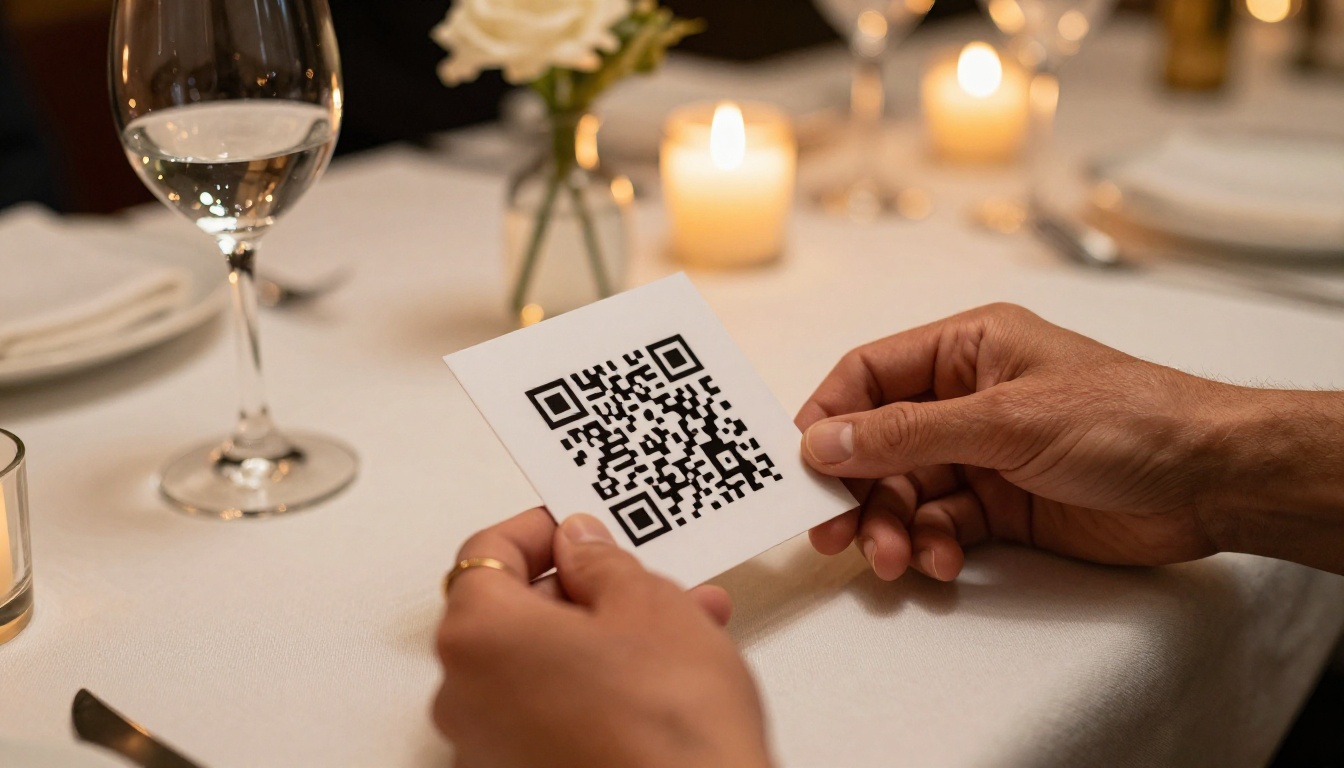
Every flipbook URL can become a QR code. Generate one using any free QR code tool and print it on physical materials: table cards, event flyers, business cards, and packaging inserts. When someone scans the QR code, they land directly in the flipbook with no typing required.
This approach works particularly well for:
- Restaurants: QR code on the table links to the menu flipbook for a contactless dining experience
- Event organizers: QR code on printed invitations links to the digital event program
- Retail and fashion: QR code on product tags links to the lookbook or seasonal catalog
Analytics to Measure Social Sharing Performance
If you are distributing flipbooks as part of a marketing campaign, you need data on what is actually working. The Professional plan on Flipbooks AI includes built-in analytics that reveal:
- Total views per flipbook and per individual page
- Time spent on each page, showing which sections hold attention
- Geographic location of your viewers
- Referrer source, telling you which platform drove the most traffic
This data tells you which platforms are genuinely converting viewers and which content is being read in full versus skipped.

Password Protection for Selective Sharing
Not every flipbook should be publicly indexed. The password protection feature lets you share a link freely on any platform while keeping the actual content locked behind a password. Only viewers who enter the correct password can access the pages. This is useful for:
- Client proposals sent via WhatsApp to specific contacts
- Internal training manuals shared in a company messaging group
- Exclusive content for paying subscribers or newsletter members
Plan Features at a Glance
| Flipbooks AI Plan | Flipbooks | Password Protection | Analytics | Lead Generation |
|---|
| Free | 1 | No | No | No |
| Starter | 10 | Yes | No | No |
| Standard | Unlimited | Yes | No | No |
| Professional | Unlimited | Yes | Yes | Yes |
💡 Check the pricing page for current rates and available promotions. Annual subscriptions typically offer a significant discount over monthly billing.
Start Sharing Your Flipbooks Today
If you have been attaching PDFs or sharing screenshots of documents on social media, there is a faster and more effective way to do it. A properly published flipbook on Flipbooks AI gives you a single shareable link that works on WhatsApp, Facebook, Instagram, LinkedIn, and every other platform without any downloads, plugins, or friction for your audience.
The platform supports every type of document you might want to share: product catalogs via the Digital Catalog Maker, portfolios via the Digital Portfolio Creator, lookbooks via the Interactive Lookbook Designer, annual reports via the Annual Report Creator, and much more through the full tools directory.
Ready to put your content in front of more people? Create your first flipbook for free and start sharing in minutes.



