Making flipbooks sounds technical until you actually try it. If you have a PDF, a few spare minutes, and access to Flipbooks AI, you can have a fully interactive, page-turning digital publication ready to share before your next coffee break. No design background required. No software to install. No previous experience with publishing tools of any kind.
This is the no-fluff walkthrough for people who want results on their first attempt.

What a Flipbook Actually Is (and Why It Works)
A digital flipbook is a browser-based publication that simulates the physical act of turning pages. When someone clicks or swipes, the page curls and turns just like a real book or magazine. That physical metaphor is surprisingly powerful: it slows readers down, keeps them engaged, and makes your content feel premium even if it started life as a basic PDF.
The difference between handing someone a static PDF and sending them a flipbook link is immediate. PDFs feel like files. Flipbooks feel like experiences.
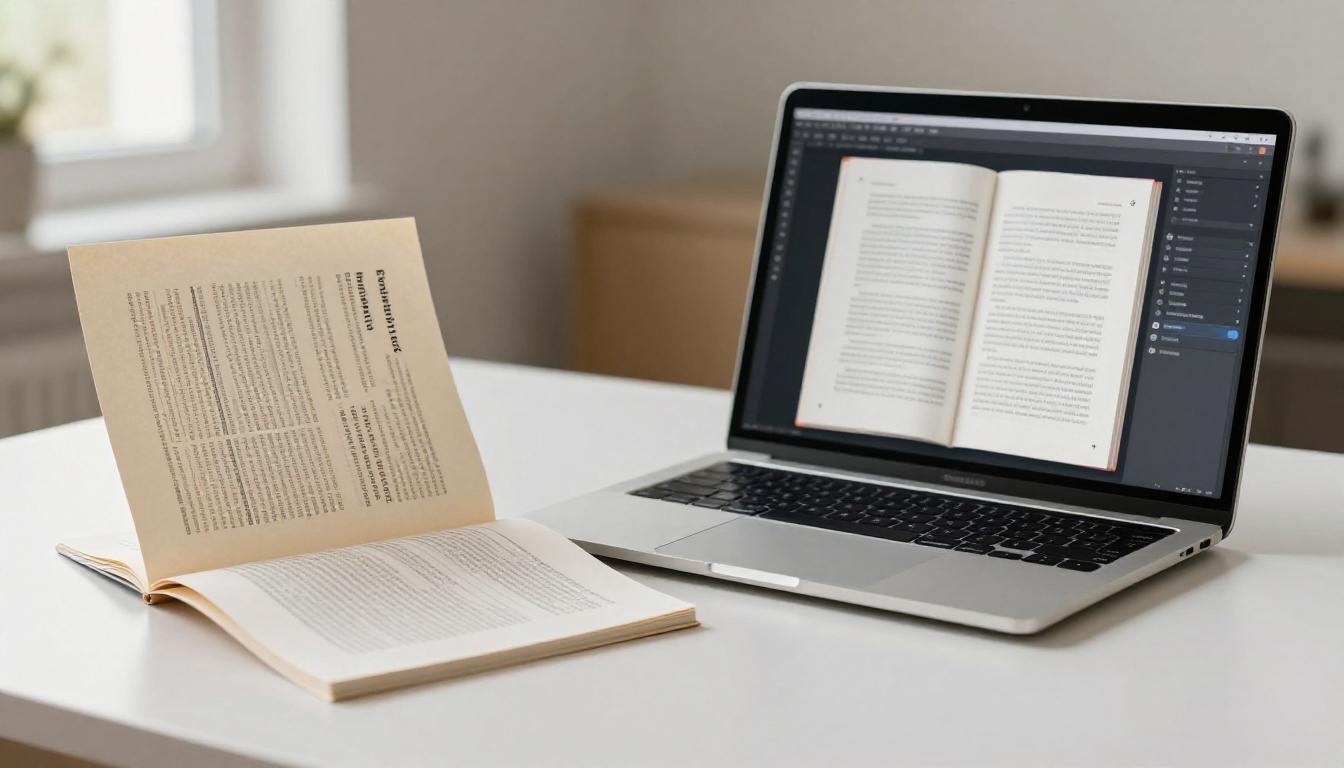
Beyond aesthetics, flipbooks solve real distribution problems. You can embed them on any website with a single line of code, share them via a direct link, password-protect them for private audiences, and track who is reading what through built-in analytics. That combination of visual appeal and practical functionality is why everyone from restaurant owners to real estate agents to classroom teachers uses them every day.
The 3 Things You Need Before You Start
The barrier to entry for making flipbooks is genuinely low. Here is what you actually need:
-
A PDF file. This is your content. It can be a menu, a brochure, a portfolio, a catalog, a school handout, or anything else you would normally share as a document. If you do not have one yet, a simple design from Canva or Google Slides exported as PDF works perfectly.
-
A browser and internet connection. No desktop app downloads. The entire creation process happens online through platforms like Flipbooks AI.
-
Five to fifteen minutes. That is genuinely how long your first flipbook will take from upload to published link.
💡 Pro tip: Before uploading, double-check your PDF page orientation. Landscape pages (wider than tall) display better for most flipbook styles. Portrait works too, but landscape gives you the most visual impact on desktop screens.
That is the full prerequisite list. No design skills. No coding knowledge. No previous experience with publishing tools of any kind.
There are dozens of flipbook tools available. Most fall into two categories: clunky desktop software from the early 2010s that requires installation and technical setup, and modern browser-based platforms that work immediately.
Free vs. Paid Options Compared
| Feature | Free Tools | Flipbooks AI Standard | Flipbooks AI Professional |
|---|
| No watermark | Rarely | ✅ Yes | ✅ Yes |
| Unlimited flipbooks | No | ✅ Yes | ✅ Yes |
| Custom branding | No | ✅ Yes | ✅ Yes |
| Password protection | No | ✅ Yes | ✅ Yes |
| Offline downloads | No | ✅ Yes | ✅ Yes |
| Analytics | No | No | ✅ Yes |
| Lead generation | No | No | ✅ Yes |
| Embed on website | Sometimes | ✅ Yes | ✅ Yes |
| Mobile responsive | Sometimes | ✅ Yes | ✅ Yes |
Free tools almost always add a watermark to your published flipbook, limit how many you can create, and strip out features like password protection and custom branding. For anything professional, those limitations matter immediately.
Why Browser-Based Beats Desktop Software
Desktop flipbook software requires installation, updates, and usually a one-time license purchase. If you switch computers or want to share editing access with a colleague, you are immediately in trouble. Browser-based tools like Flipbooks AI require nothing installed, work on any device, and let you access your entire library from anywhere.
The practical difference for a first-timer is significant. You skip the entire setup phase and go straight to making something.
Creating Your First Flipbook Step by Step
Here is the exact process from zero to published flipbook.
Step 1: Prepare Your PDF
Your PDF is the foundation of your flipbook. The better the PDF, the better the final result. A few things to check before uploading:
- Resolution: Use 150 DPI minimum. Higher is better for images. Text-heavy documents are fine at 150 DPI.
- Fonts: Embed fonts in the PDF export settings to avoid rendering issues.
- Page size: Consistent page sizes throughout the document prevent awkward layout shifts.
- File size: Under 50MB is ideal for fast uploads and smooth performance.
⚠️ Watch out: Scanned PDFs with low resolution will look blurry in the flipbook regardless of platform. Use the original digital file whenever possible.
If you are creating your content from scratch, tools like Canva, Adobe InDesign, or even Microsoft Word can export clean, high-quality PDFs in seconds. For most beginners, Canva is the fastest path: pick a template, customize it, export as PDF, done.
Step 2: Upload to Flipbooks AI
Go to Flipbooks AI and create your account. The free trial lets you test the upload and preview the result before committing to a plan.
Once you are in:
- Click "Create New Flipbook" from your dashboard.
- Drag and drop your PDF into the upload zone, or click to browse your files.
- The platform converts your PDF into a page-turning flipbook automatically. This usually takes 30 to 90 seconds depending on file size.
- A preview opens immediately. Flip through every page right there to check that everything looks correct.
The conversion process is fully automatic. There is nothing technical to configure at this stage. The system reads your PDF, renders each page, and assembles the page-turn animation without any input from you.
Step 3: Customize Your Branding
This is where your flipbook stops looking like a converted PDF and starts looking like a polished publication.
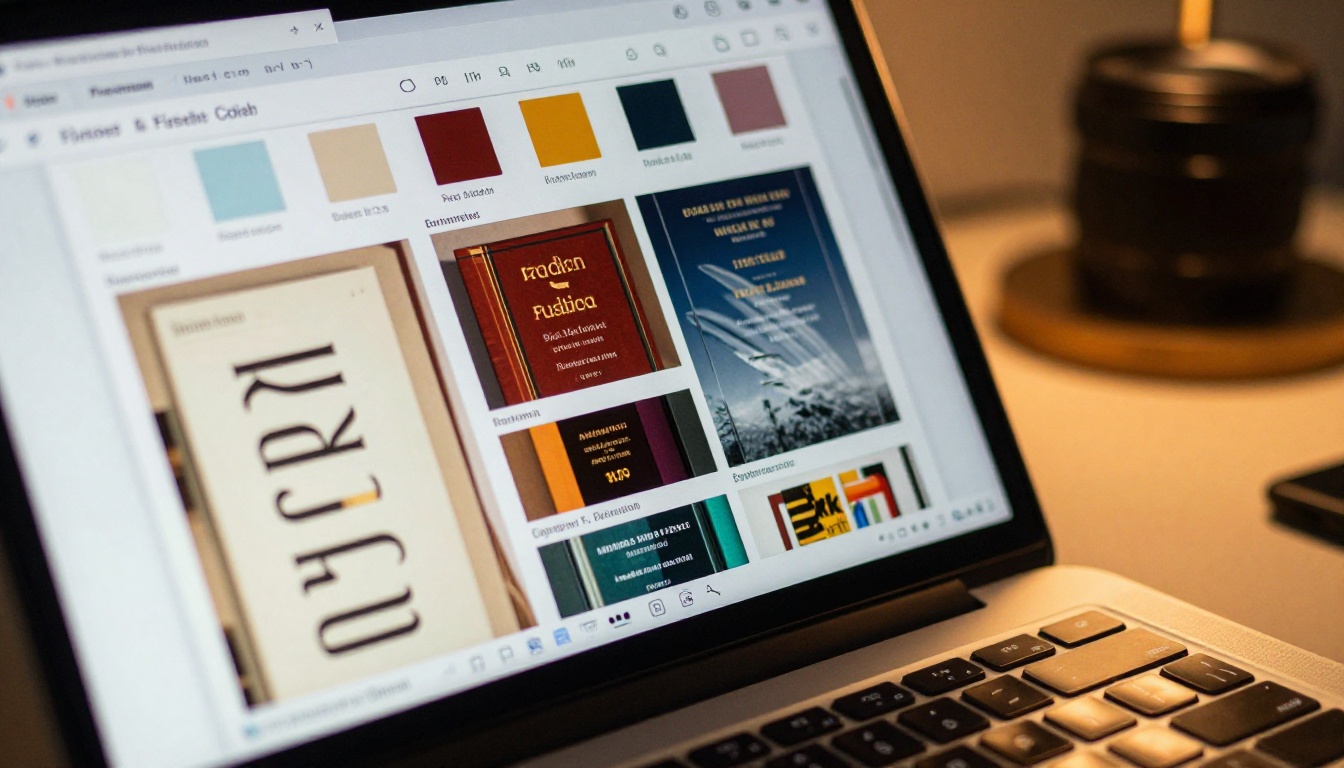
From the editor, you can:
- Set your brand colors for the flipbook background and UI elements
- Upload your logo to appear in the reading interface
- Choose a custom domain or subdomain for sharing (on higher plans)
- Add a background texture or color behind the flipbook pages
- Enable page shadow and depth effects for a more realistic book feel
- Embed videos or audio directly into specific pages
✅ Best practice: Match the flipbook background color to your brand palette. A white background works universally, but using your brand's signature color creates a much more cohesive look when you share the link or embed it on your website.
For a first flipbook, you do not need to configure every option. Set your logo, pick a background color, and publish. You can always come back and refine the presentation later.
Step 4: Share and Embed
Once your flipbook looks right, publishing takes one click. Flipbooks AI gives you several sharing options immediately:
- Direct link: A clean URL you can paste anywhere, including emails, social posts, and messaging apps.
- Embed code: A single HTML snippet that places your flipbook directly into any webpage or blog using the Embed Flipbook on Website tool.
- Password protection: Set a password so only people with the code can view the content.
- QR code: Auto-generated for printing on physical materials like flyers or business cards.
- Social sharing: Direct share buttons for the major platforms.

For most first-timers, the direct link is all you need to start. Send it. Watch it open. That reaction, when someone clicks a link expecting a dry PDF and gets a page-turning publication instead, is immediate.
What to Make with Your First Flipbook
The format is flexible enough to suit almost any use case. Here are the most practical starting points depending on your situation.
Business Uses
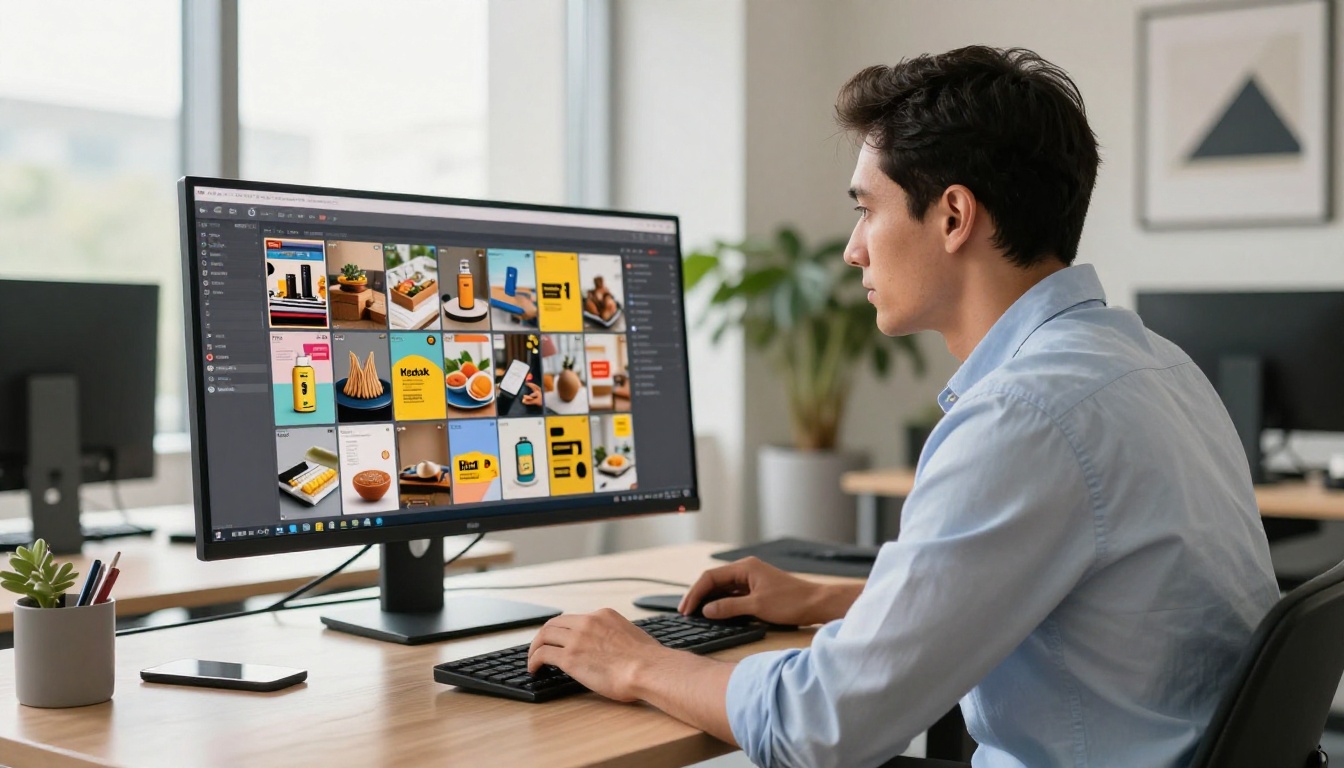
A restaurant can replace its printed menus with a password-free, always-up-to-date digital version that loads on any phone. A real estate agent can send property brochures that open like a glossy magazine instead of a flat PDF attachment. An e-commerce brand can build a seasonal lookbook that embeds directly on the homepage.

Personal and Creative Uses
Flipbooks are not just for businesses. Personal projects that work especially well in this format:
- Photography portfolios: Your photos deserve better than a PDF slideshow. A Photography Portfolio flipbook presents your work with the visual weight it deserves.
- Wedding albums: Share a Wedding Album Flipbook link with family instead of ordering expensive print copies.
- Recipe books: A Recipe Book Flipbook is a genuinely thoughtful gift or food blog addition.
- Travel journals: Document trips in a Travel Guide Flipbook format that others can browse and enjoy.
Education Uses
Teachers, trainers, and course creators have adopted the flipbook format because it solves a real problem: how do you distribute course materials that students will actually read?

A Training Manual Flipbook replaces dense PDFs with an interactive reading experience. A Course Material Publisher lets you embed video explanations directly into specific pages. A Yearbook Flipbook Maker gives schools a shareable digital alternative to expensive print productions.
Plans and Pricing Breakdown
Before you publish anything beyond a preview, it is worth understanding what the pricing plans actually include.
| Plan | Flipbooks | Watermark | Branding | Password | Analytics | Offline |
|---|
| Free Trial | Limited | Yes | No | No | No | No |
| Standard | Unlimited | No | ✅ | ✅ | No | ✅ |
| Professional | Unlimited | No | ✅ | ✅ | ✅ | ✅ |
The Standard plan removes the watermark and includes custom branding, which is the minimum viable setup for anything customer-facing. The Professional plan adds analytics so you can see exactly which pages readers spend time on, plus lead generation tools that are genuinely valuable for sales and marketing use cases.
💡 For first-timers: Start with the Standard plan if you need to share anything professionally. The absence of a watermark alone is worth it. You can always upgrade to Professional once you see how your audience interacts with your flipbooks.
4 Common Mistakes First-Timers Make
Most early flipbook problems come from the same handful of issues. Knowing them in advance saves you the frustration of discovering them after you have already shared the link.
-
Uploading a low-resolution PDF: Images will look pixelated. Always export from the original source file at full resolution.
-
Not checking mobile view: Most of your audience will open the link on a phone. Preview your flipbook on mobile before sharing. Flipbooks AI renders mobile-responsive by default, but complex page layouts can sometimes need a second look at smaller screen sizes.
-
Skipping the branding step: A flipbook with default colors and no logo looks unfinished. Adding your logo takes two minutes and makes a significant visual difference.
-
Sharing before previewing all pages: The conversion is automatic but always scroll through every page once before sending the link externally. A misaligned page or missing image is much better caught by you than reported by a client.
What Comes Next After Your First Flipbook
Once you have made one, the next step is making more. The tools directory at Flipbooks AI has purpose-built creators for dozens of specific use cases, each with templates designed for that format.
If you are running a business, the analytics in the Professional plan become valuable as you scale. Knowing which pages of your catalog hold readers' attention, or which sections of your training manual people skip, is information that directly improves your content over time.
If you are building content for a website, the embed functionality means every flipbook you create can live natively on your pages without sending visitors off to another platform.
The learning curve for flipbooks is genuinely flat. By the time you finish your first one, you already know everything you need to make the next ten.
Ready to publish your first one? Create your account on Flipbooks AI and have a live flipbook link in your hands before the hour is out. Browse the tools directory to find the exact template that fits your use case, or check the full pricing breakdown to pick the right plan from the start.



