If you've ever spent hours building the perfect Canva design, only to share it as a flat, static PDF, you already know the letdown. That multi-page lookbook, product catalog, or event program deserves more than a download link. Turning your Canva design into an interactive digital flipbook with realistic page-turn effects takes about five minutes, and the results are dramatically more engaging. Flipbooks AI makes this process seamless, even if you've never published digital content before.
The workflow is simple: export from Canva as a PDF, upload to a flipbook platform, customize, and share. But the details inside each step matter, and this article covers all of them.
Why Canva Designs Work So Well for Flipbooks
Canva's multi-page format is practically built for flipbook conversion. Each page in your Canva project becomes a single page in your interactive publication, preserving all your layouts, fonts, colors, and imagery exactly as you designed them.
The Canva Advantage
Canva gives you a visual head start that most design tools can't match for speed. With its drag-and-drop templates, you can build a polished 20-page product catalog or magazine in a fraction of the time it would take in more complex software. When you convert that same file to a flipbook, you're adding a layer of interactivity without touching the design itself.
The page-turn animation that flipbook platforms add feels premium and intentional. Readers respond differently to a publication that physically "flips" versus one that scrolls. Interactive content holds attention longer and generates higher click-through rates than static documents because it invites participation rather than passive reading.
What Types of Designs Convert Best
Not every Canva project translates equally well to a flipbook format. Some work brilliantly:
- Catalogs and lookbooks: Multi-page visual presentations benefit most from the page-flip interaction
- Magazines and newsletters: Two-page spreads look spectacular with the spread-view option
- Brochures and menus: Compact designs that users want to browse rather than read linearly
- Annual reports and presentations: Professional documents that benefit from the polished interactive format
- Portfolios and wedding albums: Visual collections where the turning motion adds emotional weight
Anything with consistent page dimensions, high-contrast imagery, and clean typography converts with near-perfect fidelity. If it looks good in Canva, it will look good as a flipbook.
Exporting Your Canva Design as a PDF
The first step happens entirely inside Canva. Getting this part right means your flipbook will render cleanly with no blurry text, misaligned elements, or color shifts.
Choosing the Right PDF Type
Canva offers two PDF download options, and picking the wrong one causes problems:
| Export Type | Best For | Image Quality | File Size | Recommended |
|---|
| PDF Print | Flipbooks, print | High (300 DPI) | Larger | Yes |
| PDF Standard | Web sharing, email | Medium (96 DPI) | Smaller | No |
Always choose PDF Print. Despite the name, this option produces a higher-resolution file that renders sharply when a flipbook platform displays it at various zoom levels. PDF Standard compresses images aggressively, and you'll notice pixelation on screens larger than a phone.
Settings That Actually Matter
Inside Canva's download dialog:
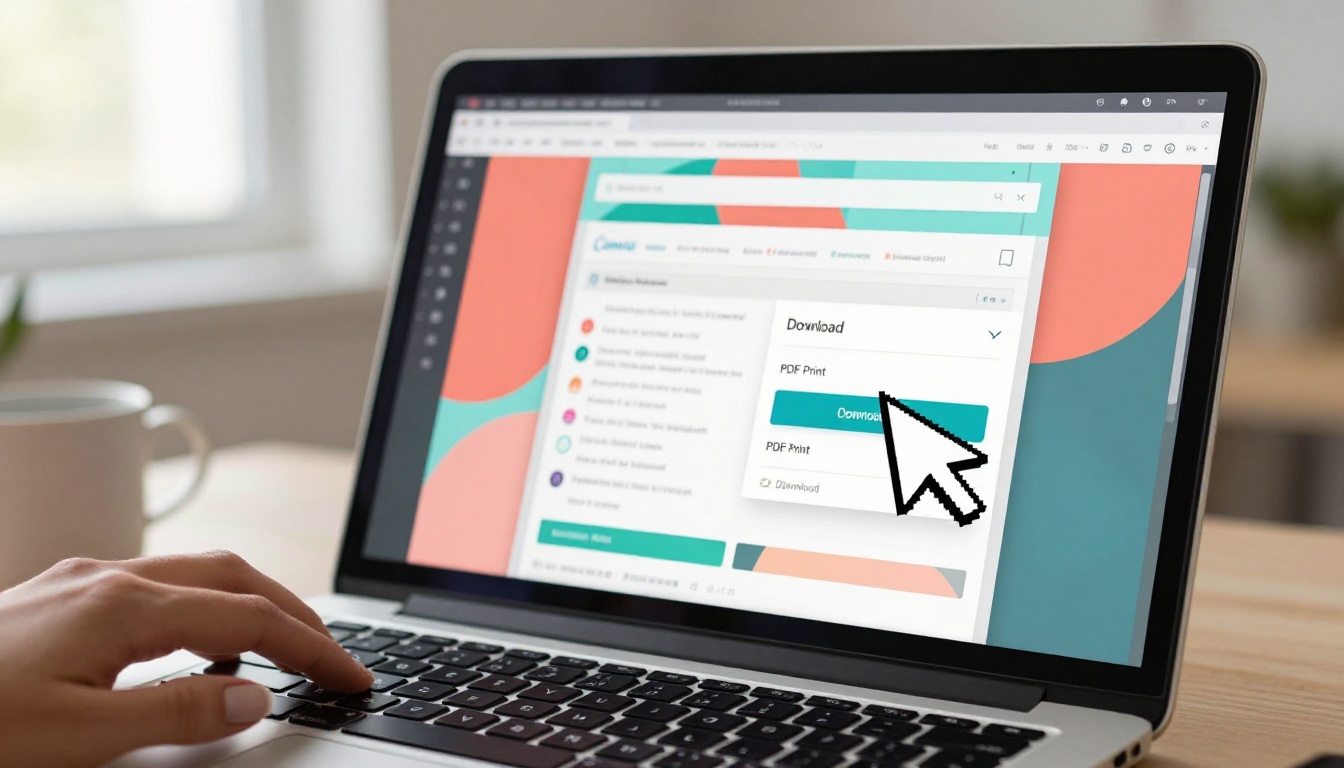
- Click Share in the top right corner of your design
- Select Download
- Choose PDF Print from the file type dropdown
- Check Flatten PDF if your design uses transparencies or overlapping elements (this prevents rendering issues)
- Leave Crop marks and bleed unchecked unless you're also sending this to a print shop
- Click Download
💡 If your Canva design uses custom fonts from Canva Pro, those fonts are embedded in the PDF automatically. You don't need to worry about font substitution on the flipbook platform.
Common Export Mistakes to Avoid
⚠️ Downloading individual pages as images (JPG/PNG) instead of a unified PDF forces you to manually reconstruct page order on the flipbook platform. Always download as a single multi-page PDF.
A second mistake is exporting only selected pages. If you've been iterating on your design, double-check that All Pages is selected before downloading. Canva sometimes defaults to exporting only the currently selected page, which leaves your flipbook incomplete.
With your PDF saved, you're ready to bring it to life. This is where the static design becomes an interactive digital publication.
What to Look for in a Flipbook Tool
With dozens of platforms available, the differences matter. Here's how the key features stack up:
| Feature | Basic Platforms | Flipbooks AI Standard | Flipbooks AI Professional |
|---|
| Watermark-free | Sometimes | Always | Always |
| Unlimited flipbooks | No | Yes | Yes |
| Custom branding | Limited | Full | Full |
| Password protection | No | Yes | Yes |
| Embed on website | Basic | Yes | Yes |
| Analytics and tracking | No | No | Yes |
| Lead generation | No | No | Yes |
| Offline downloads | No | No | Yes |
| Video embedding | No | No | Yes |
The absence of watermarks is non-negotiable for professional use. Many free tools plaster their branding across your content, which defeats the purpose of creating a polished publication. Flipbooks AI removes watermarks on every plan, including the entry-level tier.
How to Create Your Flipbook with Flipbooks AI
This is where your Canva design becomes something readers actually want to interact with. Head to Flipbooks AI and follow these steps.
Step 1: Create Your Account
Go to flipbooksai.com/account and sign up. The free trial lets you test the platform before committing to a plan. If you already know you need unlimited publications and no watermarks, check the pricing page before starting, as the Standard plan covers most professional use cases.
Step 2: Upload Your PDF
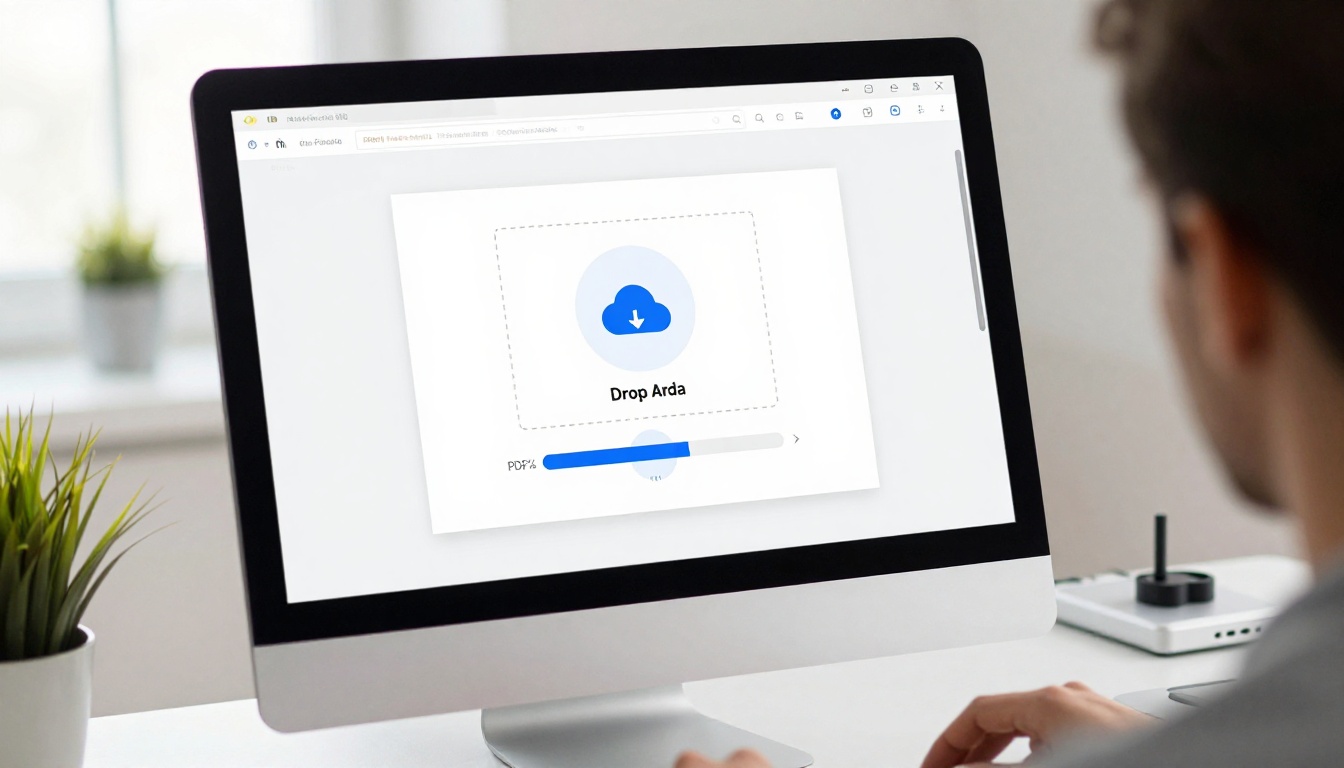
From your dashboard, click New Flipbook. You'll see a clean drag-and-drop upload zone. Drag your Canva PDF directly into it, or click to browse your files. The platform processes your PDF page by page, typically within 30 to 60 seconds for a standard 20-page document.
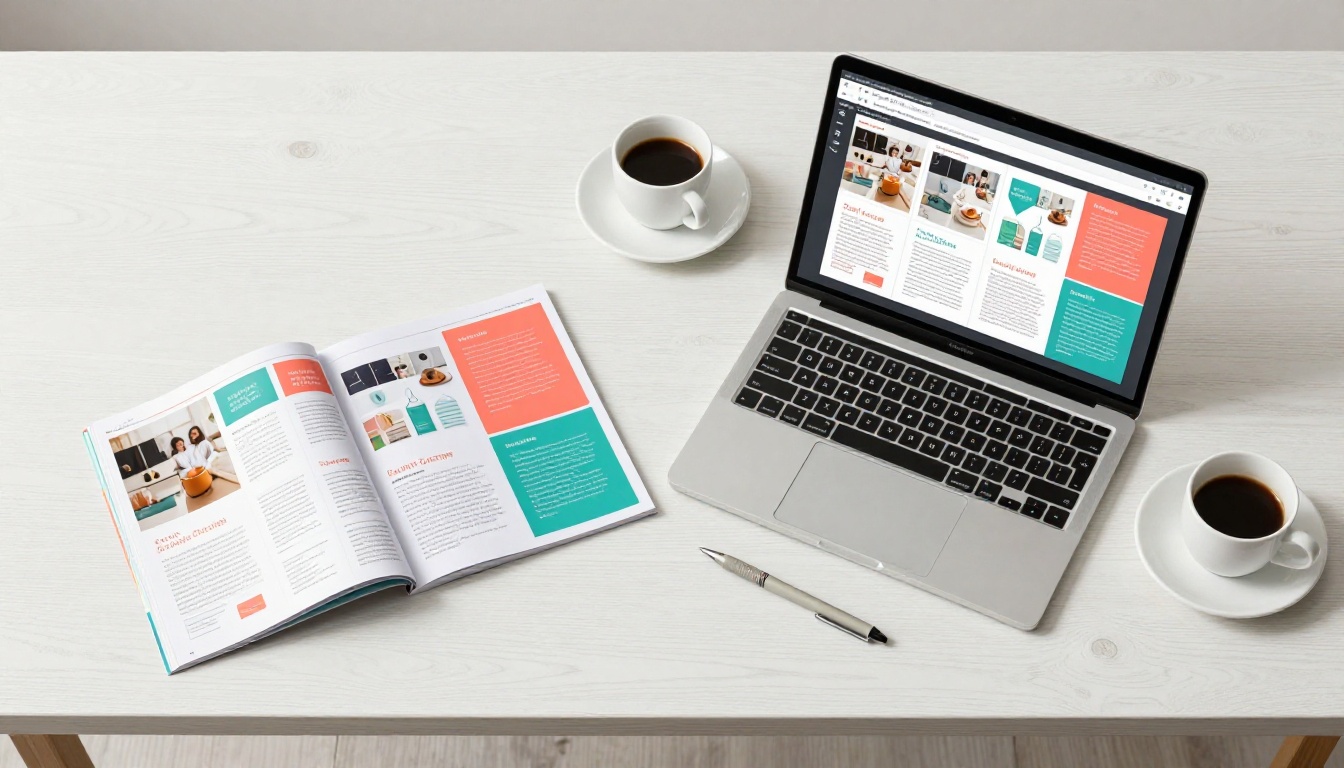
During processing, each page of your Canva design is converted and optimized for web display. The platform preserves your original resolution while compressing for fast loading, so readers get crisp visuals without long wait times. High-resolution images from your PDF Print export shine here.
Step 3: Customize Branding and Effects
Once your flipbook is created, the customization editor opens. Here you control:
Appearance settings:
- Cover style: Hard cover or soft cover page-turn effect
- Background color: Match your brand palette or use a neutral tone
- Page shadow depth: Controls how realistic the page-turn looks
- Auto-flip speed: Set pages to turn automatically at a defined interval
Branding options:
- Upload your logo to appear in the flipbook header or corner
- Set a custom domain for the flipbook share URL
- Choose brand colors for the toolbar and navigation elements
✅ Match your flipbook background color to the dominant color in your Canva design's margins. This creates a seamless, integrated look rather than an obvious "uploaded document" appearance.
Step 4: Set Privacy and Sharing Options
Before publishing, decide who can access your flipbook:
- Public: Anyone with the link can view it
- Password protected: Ideal for internal team documents, client presentations, or premium content
- Private with link: Unlisted but not password-gated
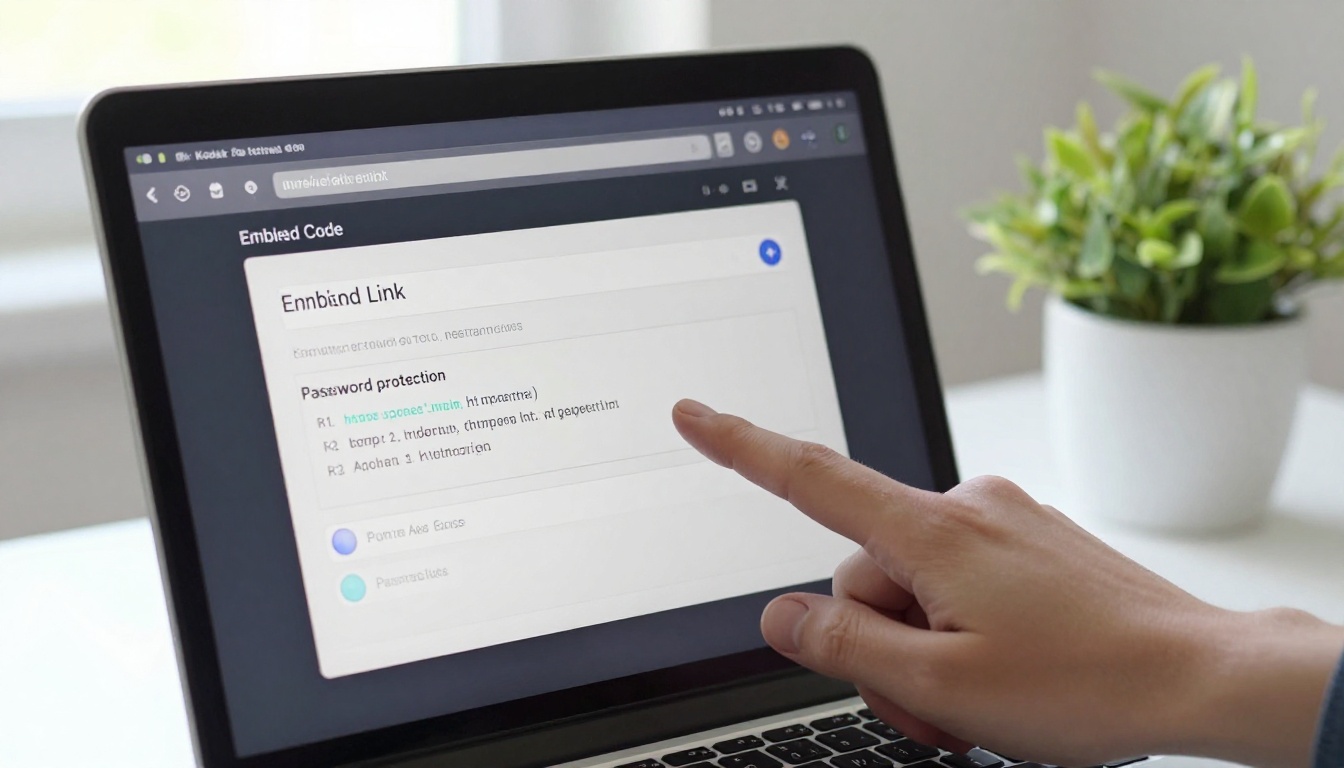
For client-facing work, password protection adds a professional layer that makes the delivery feel intentional. For public marketing materials, a direct shareable link or embedded player is the way to go.
Step 5: Publish and Embed
Click Publish. You instantly receive:
- A direct link to share via email, social media, or messaging apps
- An embed code (a short HTML snippet) to place your flipbook directly on your website or landing page
- A QR code you can print and use in physical materials
The Embed Flipbook on Website tool makes adding a live, interactive flipbook to any webpage a copy-paste operation. The flipbook loads in an iframe and responds perfectly to mobile screens without any additional configuration.
Customization Options Worth Using
Going beyond the basics separates a functional flipbook from one that actually reinforces your brand and keeps readers engaged.
Branding Your Flipbook
Your flipbook URL can reflect your brand rather than the platform's domain. With a custom domain or subdomain configured, links look like catalog.yourbrand.com instead of a generic platform URL. This matters for email campaigns and printed materials where the link is visible to the recipient.
The header logo placement is equally important. Readers who interact with your flipbook for the first time form a brand impression before they've read a single word. A logo in the corner, your brand colors on the toolbar, and a matching background color communicate that this publication was built with intention.
Adding Multimedia Elements
The Professional plan on Flipbooks AI opens up multimedia embedding: videos play inline within the flipbook, audio tracks can accompany specific pages, and clickable hotspots can link to external URLs. For Canva designs that originally included video links or QR codes pointing to media, this lets you fulfill the original intent of the design in a far more direct way.
💡 Canva's video backgrounds and animations don't carry over into a PDF export. If your design relies on motion elements, recreate those as embedded videos inside the flipbook editor after uploading.
Sharing Your Flipbook Everywhere
A flipbook nobody finds is wasted work. The sharing options available make it easy to distribute across every channel your audience uses.
Direct Links and Embed Codes
The direct link works anywhere text links work: email newsletters, LinkedIn posts, Slack messages, client proposals. Because the flipbook opens in the browser with no download required, recipients interact with it immediately without any friction or file management.
The embed code goes further. A product catalog embedded directly on your e-commerce site keeps visitors on your page rather than redirecting them. A restaurant menu embedded on a restaurant website eliminates the PDF download that most mobile users abandon halfway through.
Password Protection for Private Content
Not every flipbook is meant for public consumption. Use password protection for:
- Client presentations: Share a link with the password in the same email, keeping the file off publicly crawlable servers
- Internal HR documents: Employee handbooks or training materials visible only to staff
- Premium content: Paid downloadable guides or e-books distributed behind a paywall
- Event materials: Conference programs or backstage schedules shared only with registered attendees
The Training Manual Flipbook and Course Material Publisher tools are specifically designed for this type of gated distribution, with access controls built directly into the flipbook settings.
Real-World Use Cases by Industry
Different industries get dramatically different value from converting Canva designs to flipbooks. The core workflow stays the same: design in Canva, export as PDF, upload and publish.
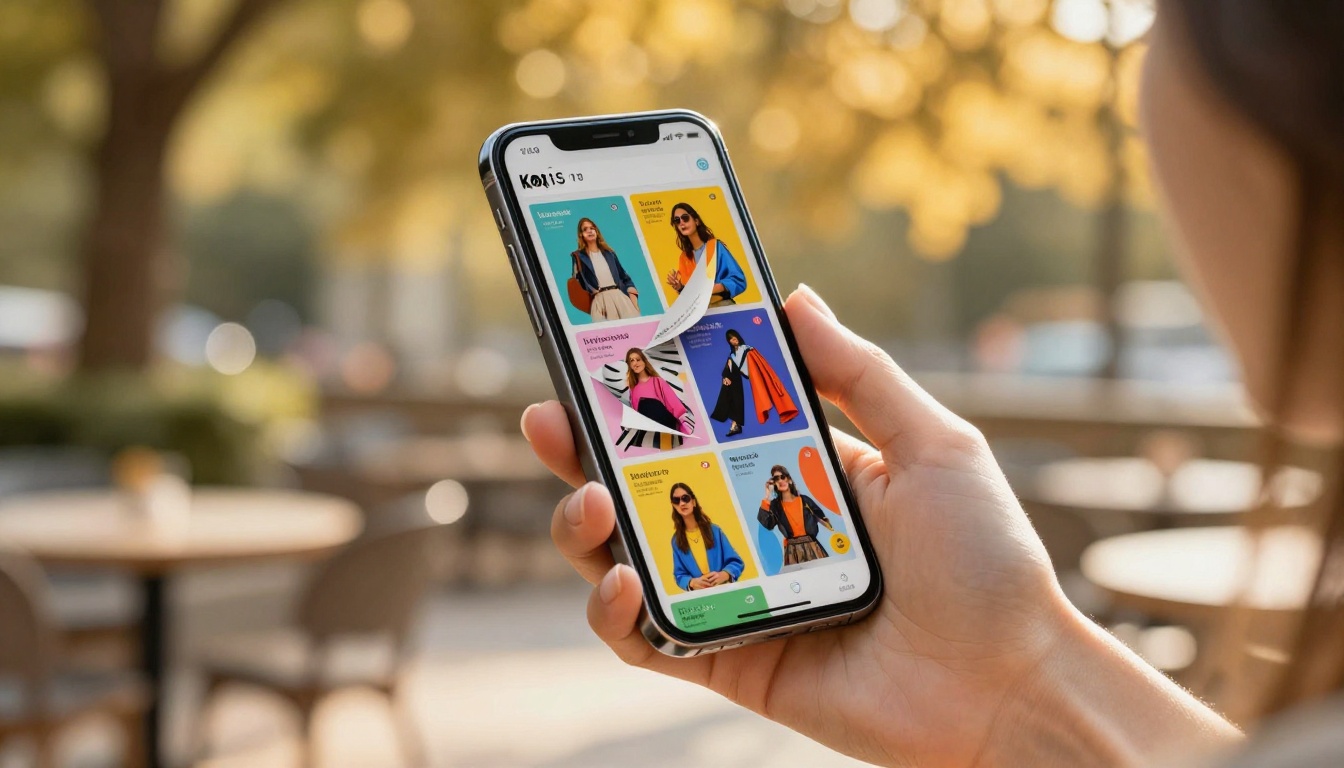
A real estate agent who designs property brochures in Canva can convert each listing into a flipbook and share the link during virtual tours. A fashion brand can turn its seasonal lookbook into an interactive experience that's both shareable on social platforms and embeddable on its website. The same Canva-to-flipbook workflow applies across all of these with only the template and content changing.
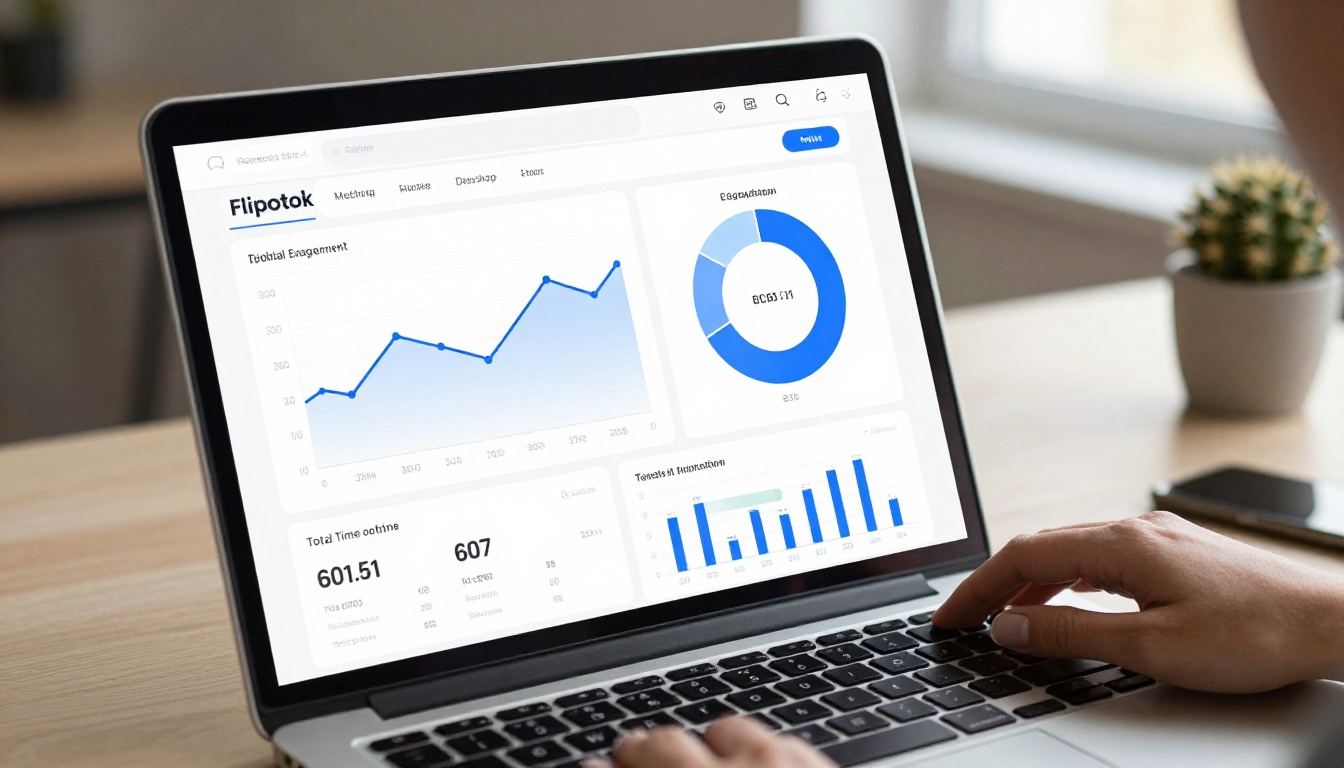
The Professional plan on Flipbooks AI includes analytics that reveal exactly how readers engage with your flipbook. This data is completely unavailable with static PDFs:
- Total views and unique readers over any time period
- Average reading time per session
- Page-by-page engagement: which pages readers spend the most time on
- Drop-off points: where readers stop flipping
- Device breakdown: mobile vs. desktop vs. tablet
This data directly improves your next Canva design. If readers consistently stop at page 8 of a 16-page catalog, you know pages 9 through 16 need either more compelling visual content or a structural rethink. A static PDF gives you zero feedback on how it performs after it leaves your inbox.
Lead generation goes a step further: you can gate your flipbook behind an email capture form, collecting contact details before granting access. For marketers building distribution lists or tracking qualified prospects, this feature alone justifies upgrading to the Professional plan.
Take Your Canva Designs Further
Converting a Canva design into a flipbook is one of the fastest ways to elevate how your content is perceived. The design work is already done in Canva. The conversion adds interactivity, brand presentation, and shareability without any additional design effort on your part.
Whether you're producing a catalog, a brochure, a magazine, or a portfolio, the PDF to Flipbook Converter at Flipbooks AI handles the technical side instantly. What you get back is a publication your audience will actually want to flip through, share, and return to.
Ready to start? Create your account and upload your first Canva design today. If you want to compare what each plan includes before committing, the pricing page breaks everything down clearly. Browse the full library of specialized tools to find the perfect format for your next publication.



