You spent hours crafting a perfect multi-page layout in Photoshop. Artboards organized, typography tight, colors dialed in. Now what? Exporting it as a static PDF feels like a step backward when you could turn those pages into an interactive, page-flipping digital publication that readers can browse on any device. This article walks you through every step, from preparing your PSD all the way to publishing a live flipbook with Flipbooks AI.
Why Photoshop Files Work Well for Flipbooks
Photoshop is primarily a raster editor, but designers use it for multi-page layouts constantly, especially for catalogs, lookbooks, portfolios, and brochures. When those files get exported correctly, they produce high-fidelity PDFs that convert into stunning flipbooks with zero quality loss.
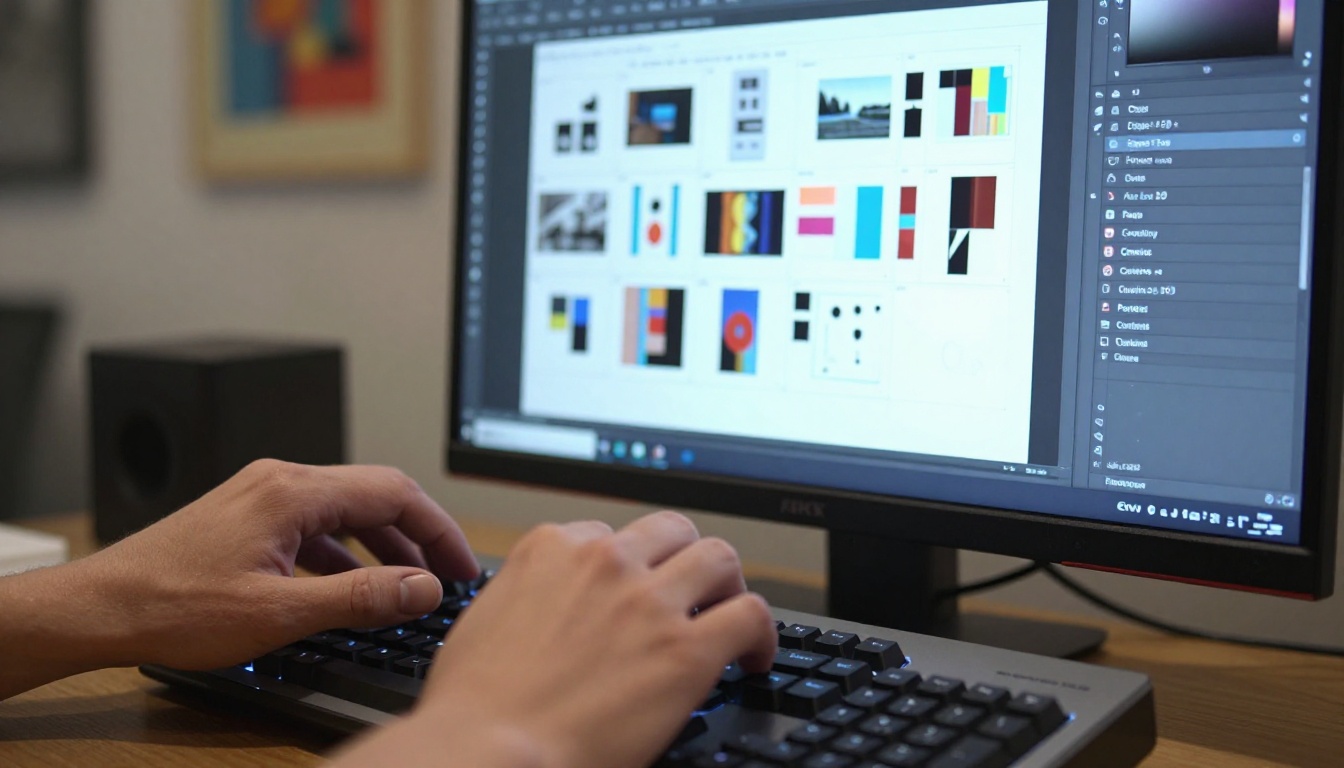
Here is why the Photoshop-to-flipbook pipeline is worth your time:
- Print-quality output: Photoshop supports 300 DPI exports, which means your flipbook images will be razor-sharp on screen.
- Full creative control: You design every pixel before it becomes a flipbook page.
- No additional design software required: If your layout is done in Photoshop, you do not need to rebuild it in another tool.
- Fast turnaround: The export-upload-publish sequence takes under 10 minutes once your file is ready.
| Format | Editable | Shareable Online | Page-Turn Effect | Interactive |
|---|
| PSD (Photoshop) | Yes | No | No | No |
| Static PDF | Limited | Yes | No | No |
| Digital Flipbook | No | Yes | Yes | Yes |
The flipbook sits at the end of the pipeline, giving your static design a dynamic, interactive life online.
Prepare Your Photoshop File the Right Way
Before you export anything, the quality of your final flipbook depends entirely on how well your PSD is set up. Skipping prep steps here is the number one reason designers end up with blurry images or broken layouts.
Set Up Document Size and Artboards
Use Artboards in Photoshop to represent individual flipbook pages. Each artboard becomes one page in your exported PDF.
Go to File > New and select the Artboard option. For digital flipbooks, the most common document sizes are:
| Page Size | Dimensions (px at 72 DPI) | Best For |
|---|
| A4 Portrait | 794 x 1123 | Brochures, Reports |
| US Letter | 816 x 1056 | Catalogs, Menus |
| Square | 1080 x 1080 | Lookbooks, Portfolios |
| Landscape 16:9 | 1920 x 1080 | Presentations |
💡 If you plan to also print the file, work at 300 DPI with the physical dimensions. For screen-only flipbooks, 72-150 DPI at large pixel dimensions is sufficient and keeps file sizes manageable.
To add more artboards, select the Artboard Tool (shortcut: V then click the Artboard option in the toolbar) and click the + icons on the sides of existing artboards.
Flatten Layers Before Exporting
Photoshop's layer structure is powerful for editing but unnecessary when exporting for a flipbook. Before export:
- Duplicate your working PSD file first: File > Save As with a new name like
my-project-EXPORT.psd
- Merge visible layers per artboard, or flatten the entire document: Layer > Flatten Image
- Rasterize any remaining smart objects or vector layers that might cause export inconsistencies
⚠️ Never flatten your original working file. Always work on a duplicate. Flattening is irreversible and will destroy your layer structure.
Choose the Right Color Mode
Flipbooks live on screens, so your document should be in RGB color mode, not CMYK.
Check via Image > Mode and confirm it says RGB Color. If your file was set up for print in CMYK, convert it before exporting: Image > Mode > RGB Color. This prevents color shifts where deep blues or vivid magentas look washed out in the final flipbook.
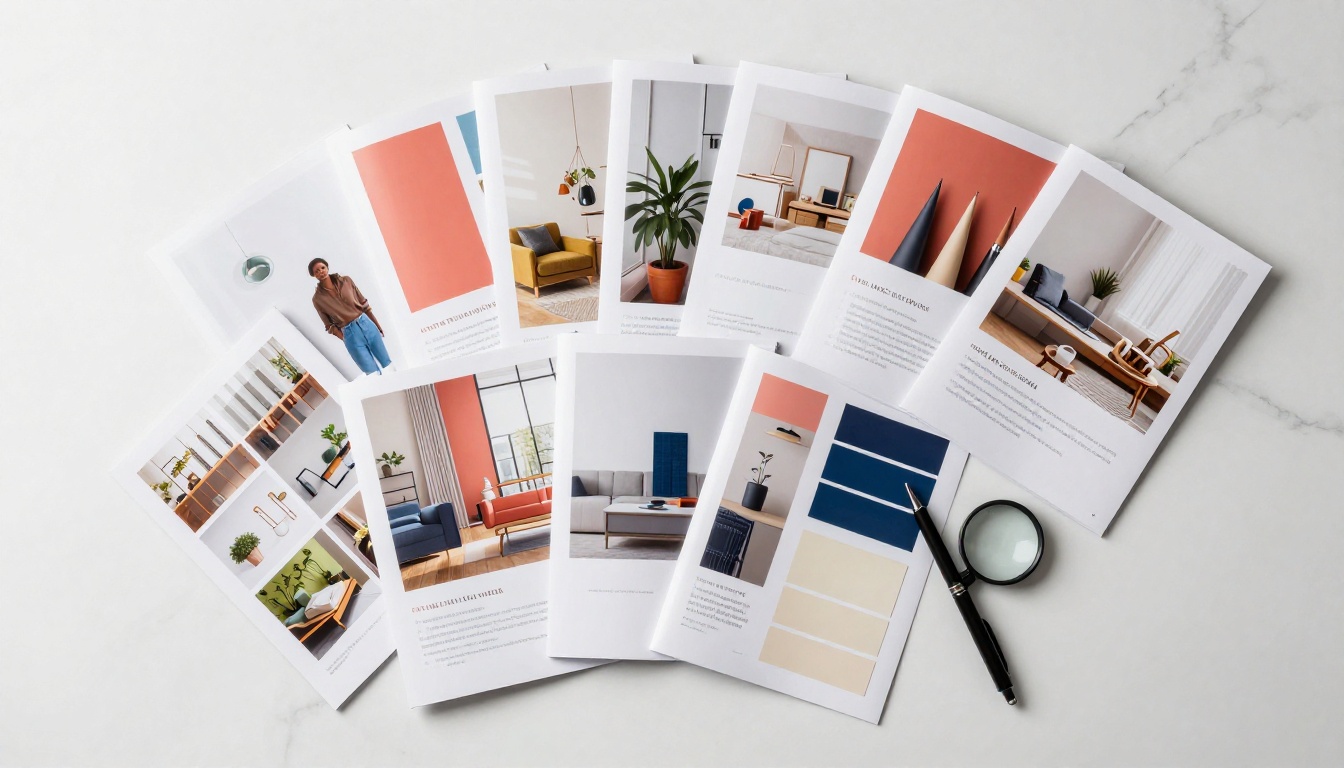
Export Your PSD as a PDF
The bridge between your Photoshop file and a flipbook is a well-configured PDF. Photoshop gives you two export paths, and they are not equal.
Use Save As vs. Export As
| Method | Location | Multi-Page Support | PDF Quality | Recommended |
|---|
| Save As (PDF) | File > Save As | Yes (artboards) | High, with compression control | Yes |
| Export As | File > Export > Export As | No (single page only) | Limited settings | No |
| Artboards to PDF | File > Export > Artboards to PDF | Yes | High | Yes |
For multi-page flipbooks, use either File > Save As with format set to Photoshop PDF, or File > Export > Artboards to PDF. The Artboards to PDF option is the cleanest route when your file uses artboards.
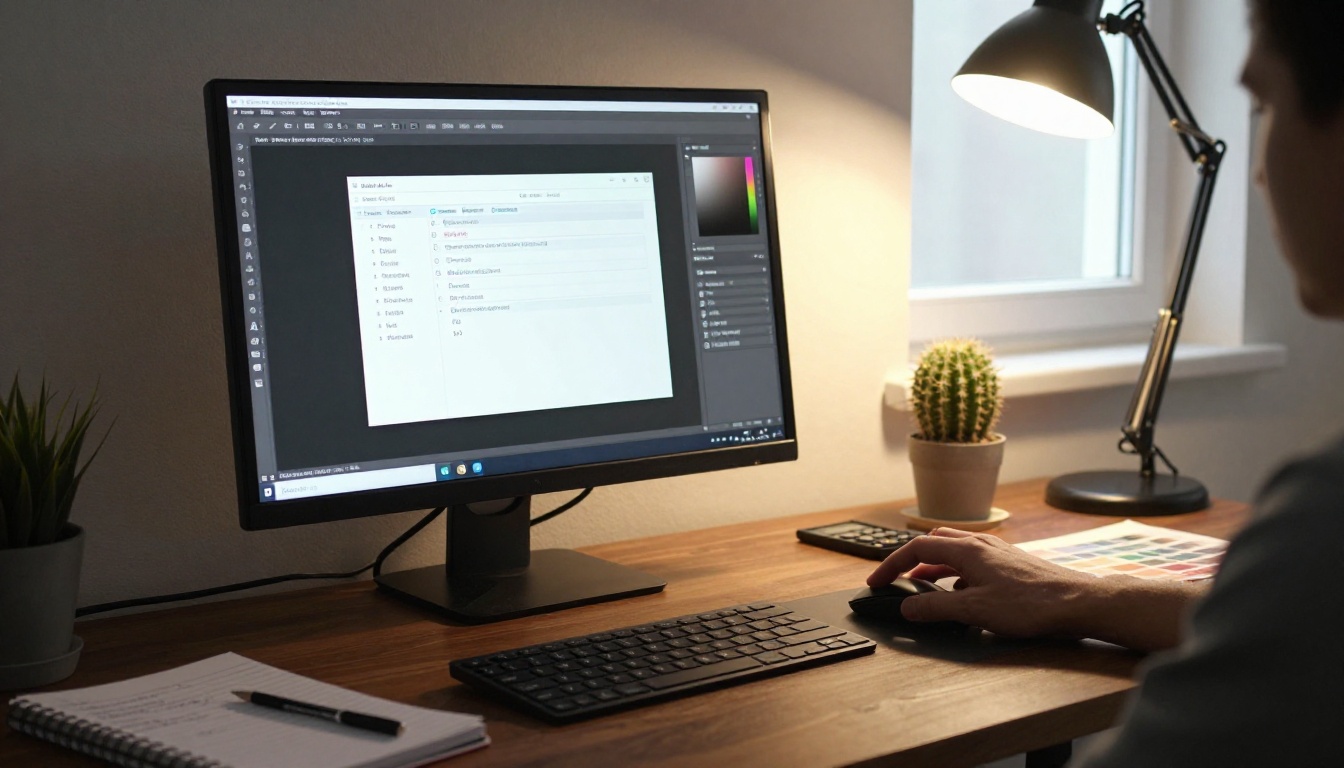
PDF Settings That Matter
When the Save Adobe PDF dialog opens, these settings directly affect your flipbook quality:
Adobe PDF Preset: Choose High Quality Print or Smallest File Size depending on your needs. For flipbooks, Press Quality is overkill; High Quality Print hits the right balance.
Compression:
- Bicubic Downsampling for images above 150 DPI to keep file size manageable
- Set resolution to 150 pixels per inch for web flipbooks
- ZIP compression for artwork with solid colors; JPEG for photographic content
Output:
- Color Conversion: Convert to Destination (Preserve Numbers)
- Destination: sRGB IEC61966-2.1 for web compatibility
✅ Keep your PDF under 50MB for the smoothest upload and conversion experience. If your file is larger, compress images further or split into smaller documents.
Multi-Page PDF from Artboards
After running File > Export > Artboards to PDF, Photoshop exports every artboard as a sequential PDF page in the exact order they appear in the Artboards panel. Rename your artboards with logical names like 01-Intro, 02-Contents, 03-Page1 to control the export order precisely.
💡 Photoshop does not natively support page numbers in exported PDFs. If you need page numbers on the flipbook pages themselves, add text layers to each artboard before exporting.
From PDF to Flipbook (The Fast Way)
Once you have a clean PDF, the heavy lifting is done. The remaining steps take minutes.
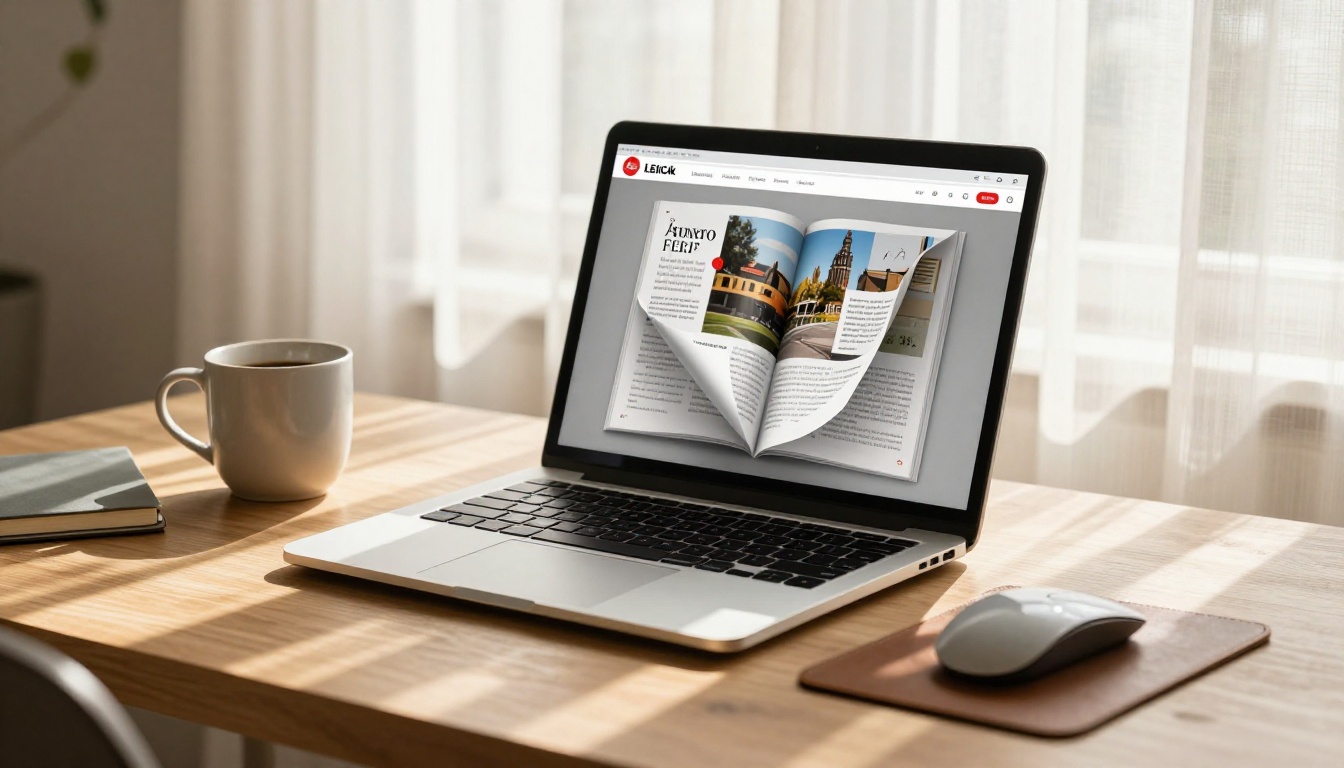
How to Publish Your Flipbook with Flipbooks AI
Flipbooks AI converts your PDF into a fully interactive digital flipbook with a realistic page-turn animation, custom branding, and sharing options that work on any device.
Step 1: Create your account
Go to flipbooksai.com/account and sign up. No credit card required to start.
Step 2: Upload your PDF
From the dashboard, click Create New Flipbook and upload the PDF you exported from Photoshop. The platform accepts files up to 200MB and converts them automatically.
Step 3: Watch the conversion
The PDF to Flipbook Converter processes each page of your PDF and renders them as high-quality flipbook pages with smooth page-turn physics.
Step 4: Customize your flipbook
After conversion, you can:
- Set a custom domain or use the default shareable link
- Add your brand colors and logo for a white-label experience
- Enable or disable the table of contents
- Set a password for private access
- Add background music or video embeds to specific pages
Step 5: Share and embed
Copy the direct link to share on social media or via email. Use the Embed option to drop your flipbook directly onto any website with a single line of code. The Embed Flipbook on Website tool handles all the responsive sizing automatically.

Flipbooks AI Plan Comparison
| Feature | Free Plan | Standard Plan | Professional Plan |
|---|
| Flipbooks | 3 | Unlimited | Unlimited |
| Watermark | Yes | No | No |
| Custom Branding | No | Yes | Yes |
| Password Protection | No | Yes | Yes |
| Analytics | No | No | Yes |
| Lead Generation Forms | No | No | Yes |
| Offline Downloads | No | Yes | Yes |
| Video and Audio Embeds | No | Yes | Yes |
| Mobile Responsive | Yes | Yes | Yes |
✅ Standard plan and above include no watermarks and unlimited flipbooks. If you publish frequently for clients or brands, the Standard plan pays for itself immediately.
Check pricing plans to see which tier fits your workflow.
Common Mistakes When Converting PSD Files
Designers who are new to the Photoshop-to-flipbook pipeline tend to repeat the same errors. Here is what to watch for:
1. Exporting in CMYK color mode
Screen content in CMYK looks flat and desaturated. Always convert to RGB before exporting.
2. Exporting at too high a resolution
A 300 DPI PDF of a 30-page catalog can easily hit 300MB. That is unnecessarily large for a web flipbook. 150 DPI at your artboard pixel dimensions is the sweet spot.
3. Missing fonts in the PDF
If you export without embedding fonts, text may render incorrectly or fall back to system fonts. In the Save Adobe PDF dialog, check Embed All Fonts under the Fonts tab.
4. Artboard order not matching intended page order
Photoshop exports artboards in the order they appear in the Artboards panel (top to bottom), not necessarily left-to-right on the canvas. Rename and reorder artboards in the panel to control sequence.
5. Uploading a flattened single-page image instead of a PDF
Some designers accidentally export via File > Export > Quick Export as PNG, which produces individual image files, not a PDF. Only a multi-page PDF will produce a multi-page flipbook.
Flipbook Use Cases for Photoshop Designers
The Photoshop-to-flipbook workflow fits a wide range of real-world design projects. Here are the most common ones where it makes an immediate difference.
Portfolio Flipbooks
Designers and photographers who present their work to clients get a significant credibility boost when the portfolio behaves like a high-end printed book online. The Digital Portfolio Creator and Photography Portfolio tools are purpose-built for this use case.
Instead of sending a PDF attachment that clients may not open, you send a link to an interactive flipbook they can browse in seconds on their phone.
Product Catalogs and Lookbooks
E-commerce brands and fashion houses regularly design catalogs in Photoshop. Converting these into flipbooks with the Product Catalog or Interactive Lookbook Designer gives customers a premium browsing experience that a static PDF simply cannot match.
The page-turn animation mirrors the feel of physically flipping through a printed catalog, which keeps readers engaged longer.
Brochures and Marketing Materials
Hotel brochures, real estate listings, automotive spec sheets, and event programs all benefit from being interactive. A brochure that visitors can flip through on a website converts at a higher rate than a download link. The Brochure Flipbook Maker handles all standard brochure formats exported from Photoshop without any layout adjustments required.
Restaurant Menus
Restaurants and cafes that design their menus in Photoshop can publish them as digital flipbooks accessible from a QR code on the table. The Restaurant Menu Creator takes a straightforward PDF upload and turns it into a scannable, mobile-friendly interactive menu.
PDF Export Settings by Project Type
| Use Case | Resolution | Color Mode | PDF Compression | Target File Size |
|---|
| Portfolio Flipbook | 150 DPI | RGB | JPEG High | Under 30MB |
| Product Catalog | 150 DPI | RGB | JPEG Medium | Under 50MB |
| Restaurant Menu | 100 DPI | RGB | JPEG Medium | Under 10MB |
| Presentation | 72 DPI | RGB | ZIP | Under 20MB |
| Annual Report | 150 DPI | RGB | JPEG High | Under 40MB |
The Full Workflow at a Glance
Here is the complete process from PSD to published flipbook, summarized:
- Set up artboards in Photoshop, one per flipbook page
- Use RGB color mode throughout your document
- Flatten a duplicate file before exporting
- Export via File > Export > Artboards to PDF
- Configure PDF settings: High Quality Print preset, 150 DPI, sRGB, embed fonts
- Upload to Flipbooks AI via flipbooksai.com/account
- Customize branding and settings in the dashboard
- Share the link or embed on your website
The entire post-export process takes under five minutes. Most of the time investment is in making sure the Photoshop file itself is clean and correctly set up.
💡 If you work with clients, consider setting a password on the flipbook for private review before final approval. This is available on the Standard plan and above on Flipbooks AI.
Take Your Photoshop Designs Further
Turning a Photoshop file into a flipbook is one of the fastest ways to add professional presentation value to work you have already completed. The designs stay exactly as you built them. The only difference is that instead of a static download, you get a living, interactive publication your audience can actually enjoy browsing.
Ready to publish your first flipbook? Create a free account on Flipbooks AI and upload your PDF in minutes. Browse all flipbook tools to find the right fit for your specific project type, or check pricing plans to see which plan matches your publishing volume.



