Sending a PowerPoint file as an attachment in 2025 feels like handing someone a printed flyer at a concert. It works, technically, but the moment is lost. A flipbook changes that completely: your slides become a living, page-turning experience that people actually want to click through. If you've been wondering how to turn a PowerPoint into a flipbook in minutes, the answer is simpler than you'd expect, and the results are dramatically better than any .pptx attachment.
Why Static Slides Are Holding You Back
PowerPoint is still the default for most presentations, reports, and proposals. But when those files land in someone's inbox, they often sit unopened. Attachments require software. Attachments feel like homework. A flipbook, on the other hand, opens in a browser, looks polished instantly, and gives viewers that satisfying page-turn experience that keeps them reading.
The difference isn't just cosmetic. Interactive flipbooks get significantly higher interaction rates than static PDF or PPT files because they mimic the physical act of reading a magazine or report. That tactile metaphor translates powerfully to digital.
What Makes a Flipbook Different from a PDF
| Feature | PDF | PowerPoint (.pptx) | Flipbook |
|---|
| Browser-native viewing | Partial | No | Yes |
| Page-turn animation | No | No | Yes |
| Mobile-responsive | Partial | No | Yes |
| Embed on website | Limited | No | Yes |
| Password protection | Yes | Yes | Yes |
| Performance analytics | No | No | Yes (Pro) |
| No software required | Yes | No | Yes |
| Custom branding | No | Yes | Yes |
The numbers speak clearly. Flipbooks win on almost every practical dimension for sharing presentations with clients, students, or teams.
Who Actually Uses This
The use cases for converting PowerPoint to flipbook span every industry:
- Sales teams turn pitch decks into interactive proposals clients can browse on mobile
- Educators share lesson plans and course materials students can read without software
- Real estate agents convert property presentation decks into beautiful digital brochures
- Event planners share event programs and schedules that feel premium
- HR departments distribute onboarding materials and policy handbooks interactively
- Marketing teams repurpose slide decks into digital magazines or lookbooks
💡 Pro Tip: A flipbook isn't just a prettier PDF. It's a shareable URL, an embeddable asset, and a trackable document. One file, three distribution channels.
The Conversion Path: PPT to Flipbook
The process has two stages. First, export your PowerPoint as a PDF. Then upload that PDF to a flipbook platform. No coding, no design tools, no waiting.
Step 1: Export Your PowerPoint as PDF
Before uploading, your PowerPoint needs to become a PDF. Here's how on each major platform:
Microsoft PowerPoint (Desktop)
- Open your presentation
- Click File > Export > Create PDF/XPS Document
- Choose your quality setting (Standard or Minimum Size)
- Click Publish
Google Slides
- Open your presentation in Google Slides
- Click File > Download > PDF Document (.pdf)
- The file saves instantly to your downloads folder
Keynote (Mac)
- Open your presentation
- Click File > Export To > PDF
- Choose image quality and click Next
⚠️ Important: Export at the highest quality setting. Low-resolution PDFs will make your flipbook look blurry. Choose "Best" or "High Quality" whenever the option appears.
Step 2: Upload to a Flipbook Platform
This is where Flipbooks AI does the heavy lifting. Upload your PDF and the platform converts each slide into a page with a smooth, realistic page-turn effect automatically.
The conversion happens in seconds. A 30-slide presentation typically processes in under 30 seconds.
How to Create Your Flipbook with Flipbooks AI
Flipbooks AI is built specifically for this workflow: upload a PDF, get a beautifully formatted flipbook with your branding, and share it anywhere. Here's the full process.
Setting Up Your First Flipbook
- Go to flipbooksai.com and create a free account
- From your dashboard, click New Flipbook
- Select Upload PDF and choose the file you exported from PowerPoint
- The platform processes your file and generates a preview automatically
The free plan lets you try the full workflow with no credit card required.
Customizing Your Flipbook
Once your slides are loaded, you have full control over how the flipbook looks and behaves:
Branding Options
- Upload your company logo to appear in the flipbook header
- Set your brand colors for the toolbar and background
- Choose custom fonts that match your existing visual identity
Page Effects
- Select from multiple page-turn animation styles (classic, soft, fast)
- Enable or disable double-page spread view for wider presentations
- Set a custom background color or texture behind the pages
Multimedia
- Embed links directly in the pages so viewers can click through to websites
- Add table of contents navigation for longer presentations
- Enable fullscreen mode for distraction-free reading
💡 Pro Tip: Use the Presentation Flipbook Designer tool for presentations that need extra polish. It's purpose-built for slide-heavy content.
Sharing Your Flipbook
After customization, sharing is a one-click operation:
Direct Link: Every flipbook gets a unique URL you can copy and paste into emails, Slack messages, or social media. No attachments needed.
Embed Code: Copy a snippet of HTML to embed the flipbook directly into any website or blog post. It adapts to the container size automatically.
Password Protection: Set a password before sharing with clients or external stakeholders. Viewers must enter the password before accessing the content.
Download Option: Readers can download your flipbook for offline viewing if you enable this in settings.
What the Professional Plan Adds
The Professional plan takes a simple flipbook and turns it into a lead generation and performance tracking tool:
| Feature | Free | Standard | Professional |
|---|
| Flipbooks | 3 | Unlimited | Unlimited |
| Watermark | Yes | No | No |
| Password protection | No | Yes | Yes |
| Custom branding | No | Yes | Yes |
| Analytics | No | No | Yes |
| Lead generation forms | No | No | Yes |
| Offline downloads | No | Yes | Yes |
| Embed on website | No | Yes | Yes |
Analytics let you see exactly how many people opened your flipbook, which pages they spent time on, and where they stopped reading. For sales presentations, this data is invaluable.
✅ Best Practice: If you're using flipbooks for client proposals, the Professional plan's analytics tell you whether the client actually read it before you follow up. No more guessing.
Real-World Use Cases That Work

Sales Presentations
A sales team exports their 20-slide pitch deck as a PDF, uploads it to Flipbooks AI, and shares a link with each prospect. No email attachment. No "please install PowerPoint Viewer." The prospect opens the link on their phone during their commute and flips through every slide. The sales rep gets an analytics notification that evening.
The Sales Presentation Flipbook tool is built for exactly this scenario.
Educational Materials
A university professor converts her 40-slide lecture into a flipbook and posts the link in the course management system. Students click the link on their laptops and tablets. No PDF download required, no scrolling through a static document. The visual flow of the slides stays intact.
The Course Material Publisher tool handles academic content formats cleanly.
Corporate Reports
Annual reports and quarterly reviews converted to flipbooks feel dramatically more premium than PDF downloads. The Annual Report Creator and Corporate Report Maker tools are designed for this type of executive-level content.

Event Programs
Event planners turn slide decks listing speakers, schedules, and venue maps into interactive programs attendees can pull up on their phones. The Event Program Maker handles multi-page event content with clean formatting.
The quality of your flipbook depends heavily on how you design the original PowerPoint. A few adjustments before exporting make a significant difference.
Design for the Page, Not the Screen
PowerPoint slides are designed to be projected. Flipbook pages are designed to be read. These are different contexts.
- Increase font size: Text that looks fine on a projector can be too small to read in a flipbook. Aim for body text at 18pt minimum.
- Add more white space: Cramped slides become cramped pages. Give content room to breathe.
- Use high-resolution images: Low-res images that hide on a dark conference room screen become obviously blurry in a well-lit flipbook.
- One idea per slide: Flipbooks reward scannable, single-topic pages over dense multi-point slides.
Color and Contrast
- Maintain strong contrast between text and background (dark text on light, or light on dark)
- Avoid pure-white slide backgrounds; a very slight off-white reads better in flipbook format
- Use your brand color palette consistently across slides for a cohesive feel
💡 Pro Tip: The standard PowerPoint slide ratio (16:9) works well in flipbooks. If you're designing from scratch, stick with widescreen format for the best result.
Sharing and Embedding Options
Once your flipbook is live, you have more distribution options than you'd get with any attachment.
Embedding on Your Website
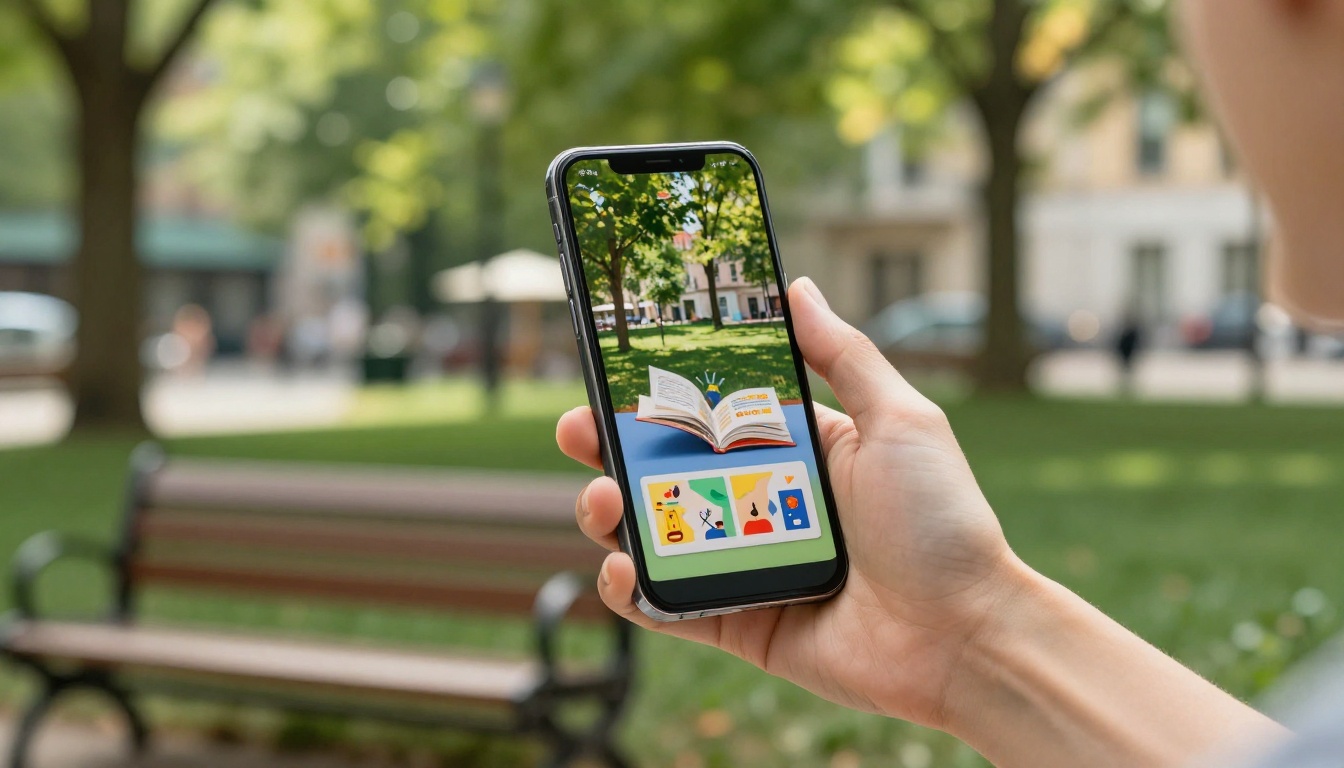
The Embed Flipbook on Website tool generates an iframe code that drops your flipbook directly into any webpage. A sales page embedding a product presentation flipbook converts better than a download link. A portfolio page with an embedded lookbook feels more professional than a PDF link.
Sharing on Social Media
The direct URL to your flipbook can be shared on LinkedIn, Twitter, or any platform that supports link previews. Because the flipbook opens in a browser, there's no friction for the viewer.
QR Codes for Physical Materials
If you're printing brochures or handouts that reference a digital presentation, generate a QR code for your flipbook URL and print it on the physical material. People scan it and get the interactive version instantly.
Flipbooks AI has purpose-built tools for the most common presentation formats. Instead of a generic converter, pick a tool designed for your specific content type.

Browse the full list of flipbook tools to find the one that matches your use case exactly.
Choosing the Right Plan
Not every use case needs the same set of features. Here's how to think about which plan fits your workflow.
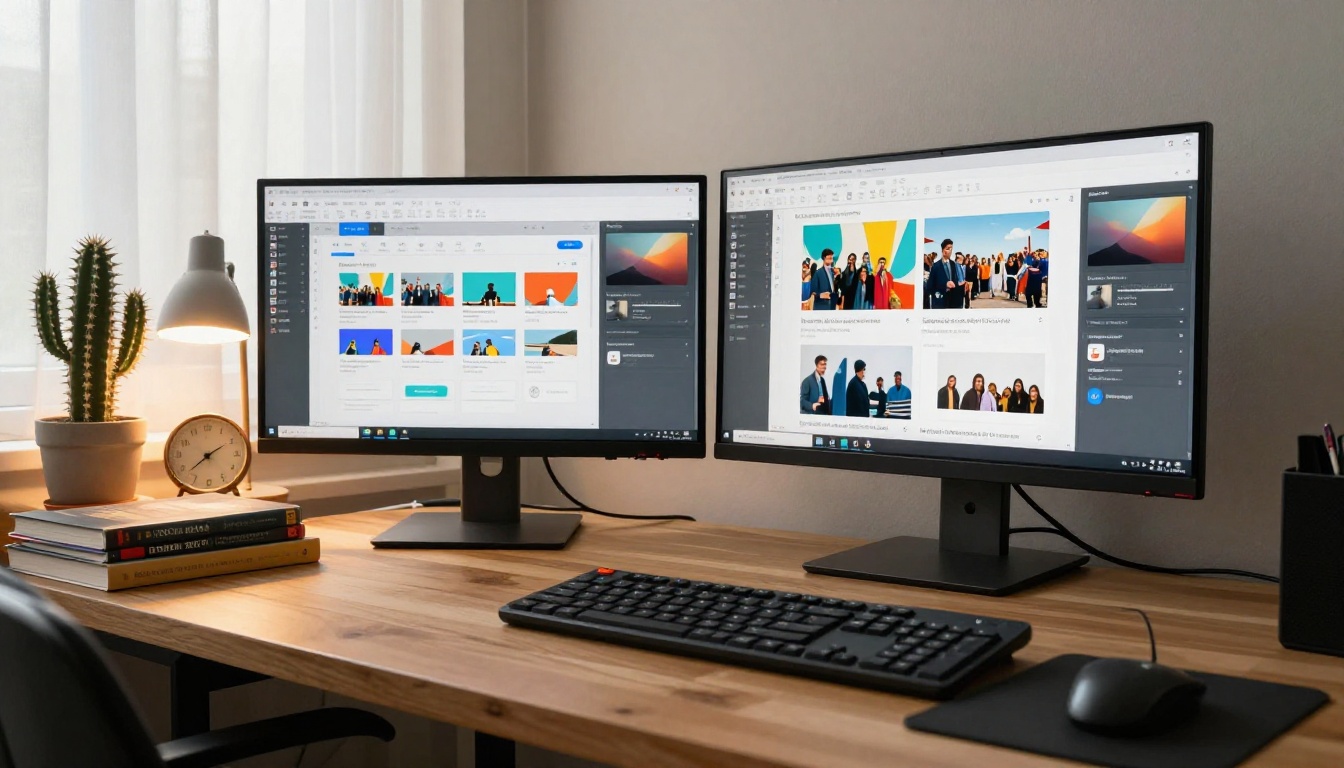
Free plan works for personal projects, one-off presentations, or testing the platform before committing. The watermark and three-flipbook limit are the main constraints.
Standard plan removes watermarks, allows unlimited flipbooks, and adds password protection and offline downloads. This is the right tier for professionals who share flipbooks regularly with clients or teams.
Professional plan adds analytics, lead generation forms, and detailed performance tracking. This tier makes sense for marketing teams, sales departments, and anyone who needs to see exactly how readers interact with their documents.
See the full breakdown on the pricing page to compare what's included at each level.
✅ Best Practice: Start with the free plan to convert your first PowerPoint presentation and see how it looks. Upgrade only after you've confirmed the workflow fits your process.
Stop Sending Attachments
You already have a PowerPoint presentation sitting somewhere in your files. Pick one, export it as a PDF, and upload it to Flipbooks AI in the next five minutes. The conversion takes seconds. You'll have a shareable flipbook URL before you'd normally finish writing an email with an attachment.
Stop sending files that require software to open. Start sharing experiences people actually want to click through.
Ready to convert your first presentation? Create a free account and upload your PDF now. Browse all available tools and templates to find the perfect fit for your content type. When you're ready to remove watermarks and access premium features, compare pricing plans to choose what works for you.



