You spent hours perfecting your design in Canva. The colors, the layout, the typography, all pixel-perfect. Then you exported a PDF and sent it as a flat file attachment. Nobody flipped through it. Nobody was impressed. That stops today. Converting your Canva PDF into an interactive flipbook takes less than two minutes, and the result is something people actually want to open. Flipbooks AI makes that process as fast as the original design.
Why a Flipbook Beats a Static PDF
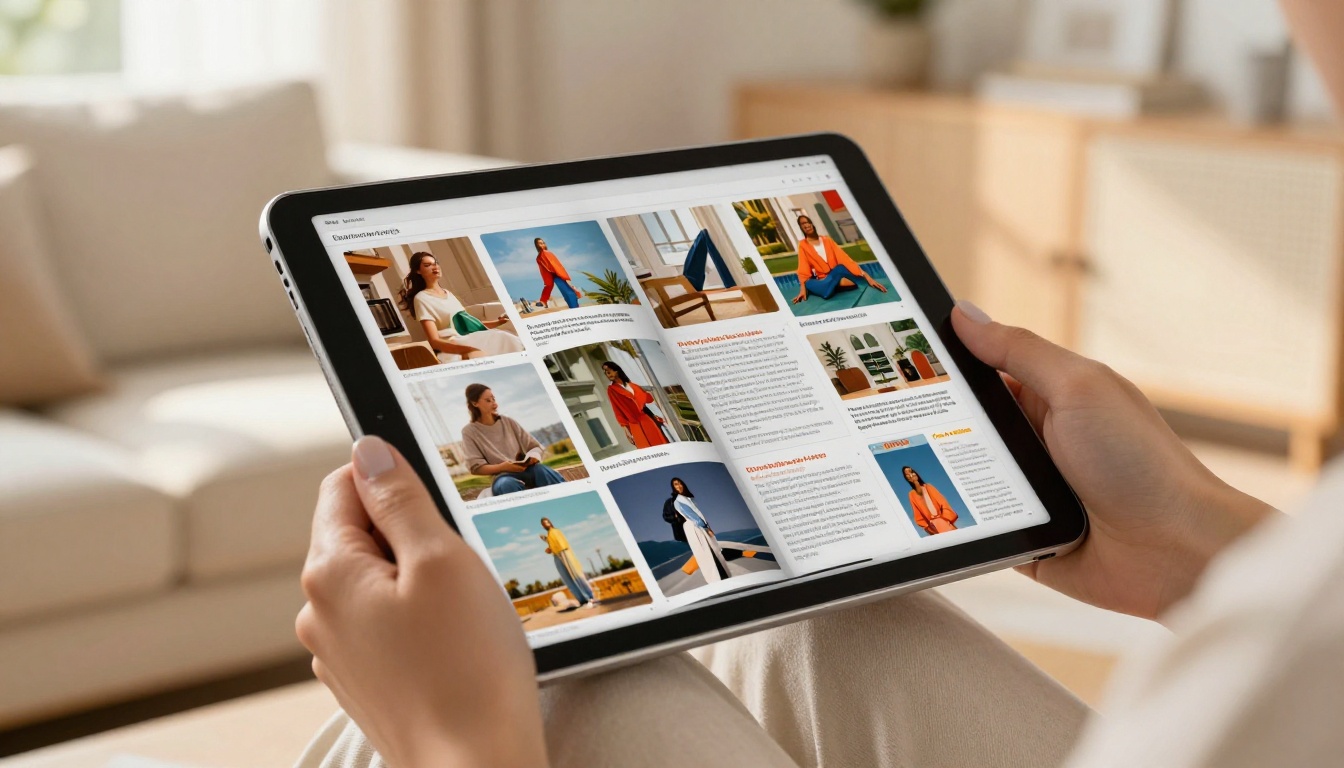
Static PDFs are a dead end for engagement. They open in a separate tab, require a PDF reader, and offer zero interactivity. A flipbook, by contrast, loads instantly in any browser, works on mobile, and delivers a tactile page-turning experience that feels premium.
💡 Research consistently shows interactive content receives 2x more engagement than static formats. A flipbook is one of the simplest upgrades you can make to any Canva export.
The Problem with Sharing PDFs
- PDFs require a reader app or browser plugin on many devices
- No page-turning effect; no sense of narrative flow
- Download prompts create friction before the reader even sees your content
- Hard to track who opened it or how far they read
- Look generic regardless of how polished the design is
What Makes a Flipbook Different
A digital flipbook preserves every pixel of your Canva design while adding:
- Real page-turn animation with shadow and curl physics
- Mobile-responsive layout that works on any screen size
- Instant browser loading, no downloads required
- Shareable link you can paste anywhere
- Embeddable iframe for websites and landing pages
- Analytics to see opens, page views, and read time (on Professional plans)
The visual difference is immediate. Your PDF becomes a publication.
How to Export a PDF from Canva
Before converting, you need the right file from Canva. The export process is straightforward, but a few settings matter.
The Right Export Settings
- Open your Canva design
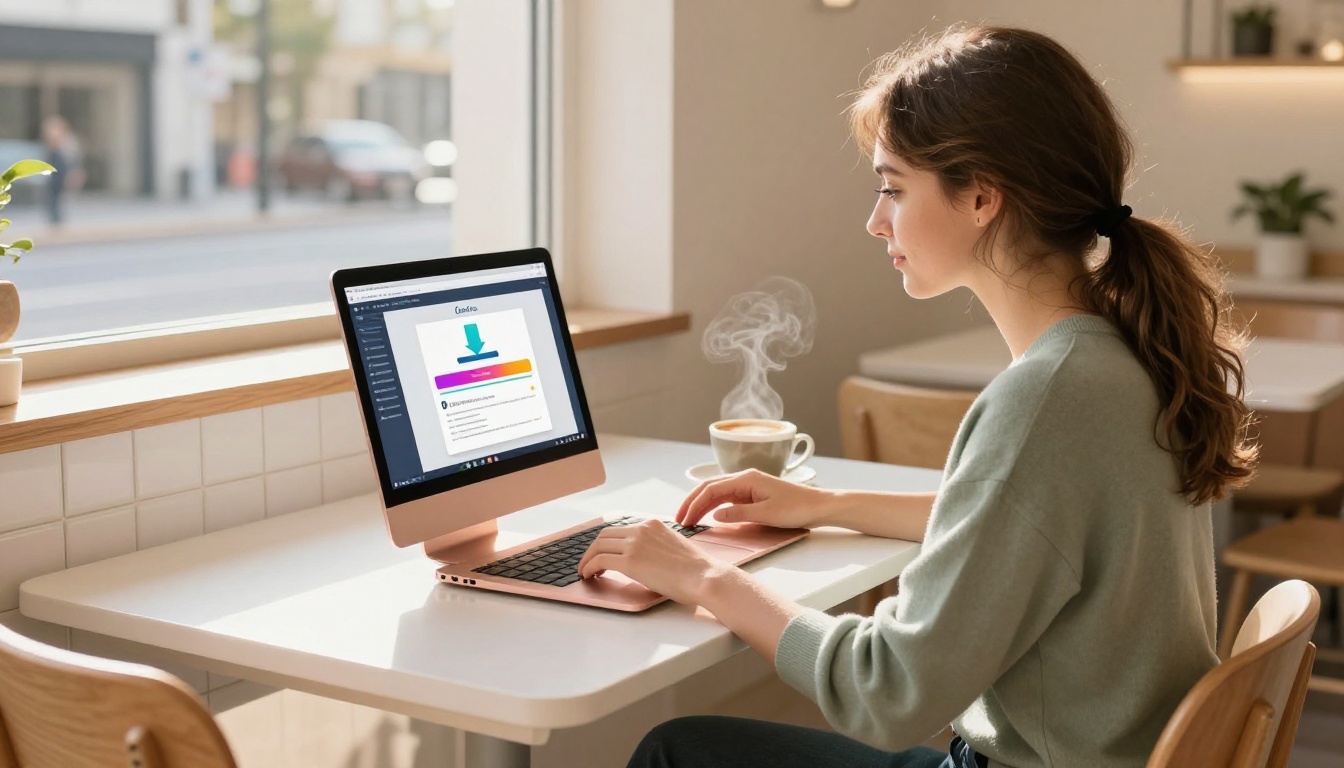
- Click Share in the top right corner
- Select Download
- Choose PDF Standard (for web use) or PDF Print (for higher resolution)
- Enable Crop marks and bleed only if your design uses full-bleed backgrounds
- Click Download
⚠️ Warning: Avoid exporting as "Compressed PDF" if your design has photography or gradient backgrounds. Quality loss at that stage will carry through to your flipbook.
For most Canva presentations, brochures, and catalogs, PDF Standard is ideal. It keeps file sizes manageable while preserving visual fidelity at screen resolution.
File Size Tips Before You Convert
| File Type | Typical Size | Best For |
|---|
| PDF Standard | 2 to 10 MB | Web flipbooks, email sharing |
| PDF Print | 10 to 50 MB | High-res print-quality output |
| Compressed PDF | Under 2 MB | Quick previews only |
Keep your PDF under 50 MB for the fastest upload. For multi-page documents with many photos, PDF Standard is the right choice every time.
✅ Best practice: Name your file clearly before downloading (e.g., spring-catalog-2026.pdf). The filename often becomes the default flipbook title and saves you editing time later.
How to Convert Your Canva PDF with Flipbooks AI
This is where the speed comes in. Flipbooks AI was built specifically for fast, high-quality PDF-to-flipbook conversion. No software to install. No learning curve.
Step 1: Create Your Account
Go to flipbooksai.com/account and sign up for free. The free plan lets you test the entire workflow before committing to a paid tier. No credit card required.
Step 2: Upload Your PDF
Once you are logged in:
- Click Create New Flipbook from your dashboard
- Drag and drop your Canva PDF into the upload zone, or click Browse Files
- Wait for the conversion to process, typically 10 to 30 seconds for most files
- Preview the result page by page before publishing
The PDF to Flipbook Converter handles all page rendering automatically. Every Canva font, image, and layout element is preserved exactly as you designed it.
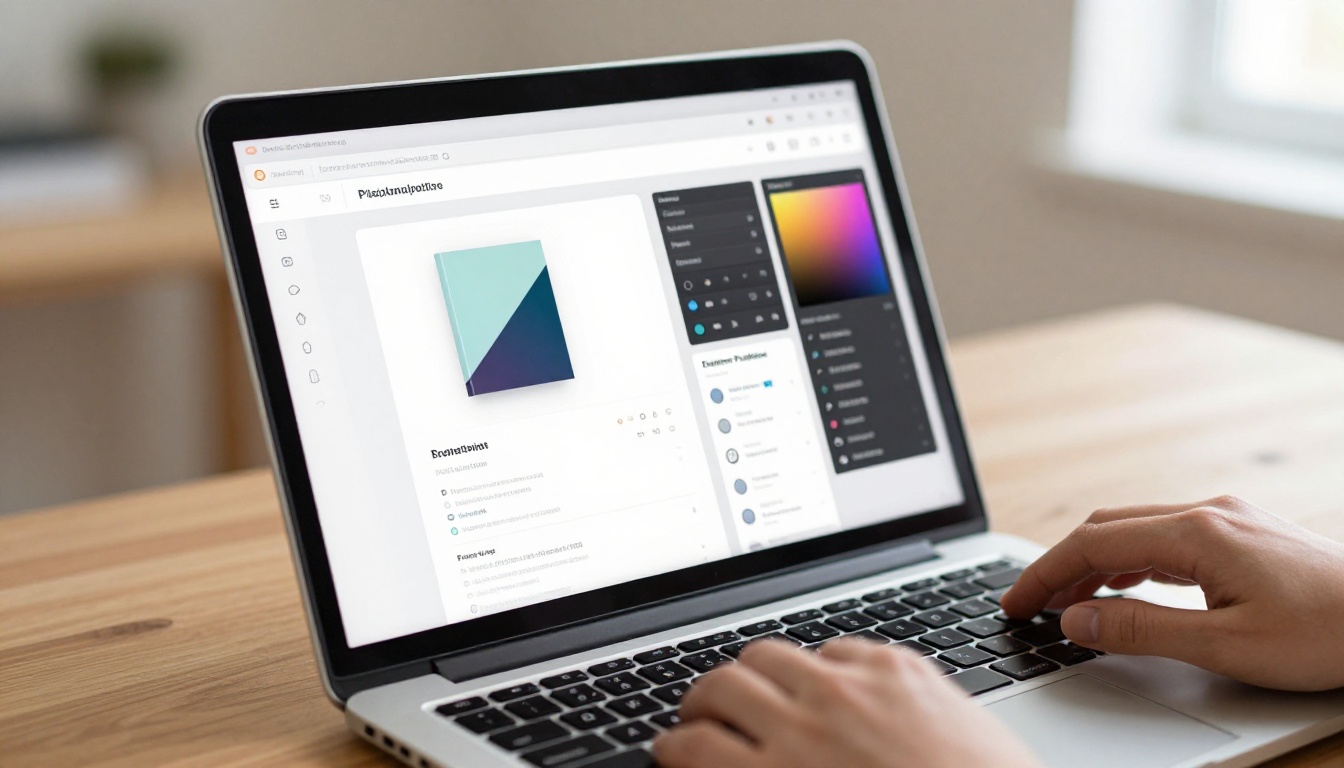
Step 3: Customize Your Flipbook
This is where your flipbook goes from functional to branded. After uploading, you can:
- Set a custom title and description for SEO and social sharing
- Choose a cover style: Auto from the first page, custom thumbnail, or uploaded cover image
- Apply brand colors to the viewer frame and controls
- Toggle page shadow, curl, and flip speed to match your content's tone
- Add a password to restrict access to private documents
- Enable multimedia: embed YouTube videos or audio clips within pages
💡 If you designed your Canva document in landscape format (like a presentation), set the flipbook orientation to horizontal spread for the most natural page-turn experience.
Step 4: Publish and Share
Click Publish. Your flipbook is now live at a unique URL. From there, you have multiple sharing options:
- Direct link: Copy and paste into emails, Slack messages, or social posts
- Embed code: Paste into any website using the Embed Flipbook on Website tool
- Offline download: Offer your audience a saved version (available on Professional plans)
- QR code: Generate and print for physical marketing materials
- Password protection: Set a password and share credentials only with your team or clients

Canva + Flipbooks AI: What You Can Build
The Canva-to-flipbook workflow works for virtually any document type. Here is how different professionals use it every day.
Real Use Cases by Industry
The Canva template library has thousands of starting points for each of these categories. Export any of them as a PDF and the conversion takes under a minute.
Features That Matter for Fast Conversion
Speed is the headline, but what keeps users coming back is quality. Here is what sets a purpose-built flipbook tool apart from generic converters.
Speed, Quality, and Simplicity
What to look for in a flipbook converter:
- No watermarks: Your brand should dominate, not the tool's. Flipbooks AI never adds watermarks, on any plan.
- No page limits: Whether your PDF is 5 pages or 500, the converter handles it cleanly.
- Faithful rendering: Fonts, gradients, and image quality match your Canva source exactly.
- Mobile optimization: Over 60% of content is consumed on mobile. Your flipbook must work flawlessly on small screens.
- Fast load time: Heavy PDF viewers that take 10+ seconds to load lose readers before the first page.
⚠️ Many free online converters add watermarks, cap you at 10 pages, or generate low-resolution output that makes your Canva design look amateurish. Always preview the output before sharing with clients or customers.

Flipbooks AI Plan Comparison
Choosing the right plan depends on how many flipbooks you need and which features matter most for your workflow.
| Feature | Free | Standard | Professional |
|---|
| Flipbooks | 3 | Unlimited | Unlimited |
| Watermarks | None | None | None |
| Password protection | No | Yes | Yes |
| Custom branding | No | Yes | Yes |
| Embed on website | Yes | Yes | Yes |
| Analytics | No | No | Yes |
| Lead generation | No | No | Yes |
| Offline downloads | No | No | Yes |
| Multimedia support | No | Yes | Yes |
| Priority support | No | No | Yes |
💡 The Standard plan is the sweet spot for freelancers and small businesses. Unlimited flipbooks, no watermarks, custom branding, and password protection cover 90% of real-world needs. See full pricing details.
For agencies, publishers, or anyone running lead generation campaigns through flipbooks, the Professional plan adds analytics, offline downloads, and lead capture forms that turn passive readers into trackable prospects.
Where to Use Your Flipbook After Converting
Publishing your flipbook is just step one. Where you share it determines how much impact it has.
High-performance placements for your flipbook link:
- Email newsletters: Replace PDF attachments with a flipbook link. Recipients click through without downloading anything.
- Social media bio links: One link in your Instagram or LinkedIn bio opens your latest catalog or portfolio.
- Website landing pages: Use the embed code to drop your flipbook directly into a product page or blog post.
- Client proposals: Send a password-protected flipbook instead of an email attachment for a more polished first impression.
- Print materials: Add a QR code to business cards, flyers, or packaging that opens the flipbook on mobile.
- Sales decks: Replace static PowerPoint exports with an interactive flipbook your prospects can browse at their own pace.
✅ Best practice: For email campaigns, include a static preview image of your flipbook cover with a button labeled "View Interactive Version." This approach consistently outperforms plain PDF links and raw flipbook URLs in click-through rates.
Quick Checklist Before You Publish
Before sharing your Canva-converted flipbook, run through this quick list:
This takes about two minutes and prevents 90% of the common issues first-time publishers encounter.
Do Even More with Your Canva Designs
Once you have the basic workflow down, the Canva-to-flipbook pipeline becomes a repeatable system. You can batch-produce flipbooks for different clients, seasons, or campaigns by keeping your Canva templates organized and your Flipbooks AI account on the right plan.
Specific tools worth bookmarking for repeat use:
Each of these tools is built around a specific use case, making it faster to configure and publish than starting from a blank flipbook every time.
Start Converting Right Now
Your Canva PDF is one upload away from becoming something people actually want to share. The entire process, from downloading your PDF in Canva to publishing a live interactive flipbook, takes under five minutes the first time and under two minutes every time after.

Create your free account on Flipbooks AI and upload your first Canva PDF today. No watermarks. No page limits on paid plans. No friction.
Not sure which plan fits your needs? The pricing page breaks down every tier with a full feature comparison. Start free and scale when you are ready.
Browse all available flipbook tools to find the right format for every type of Canva design you create.



